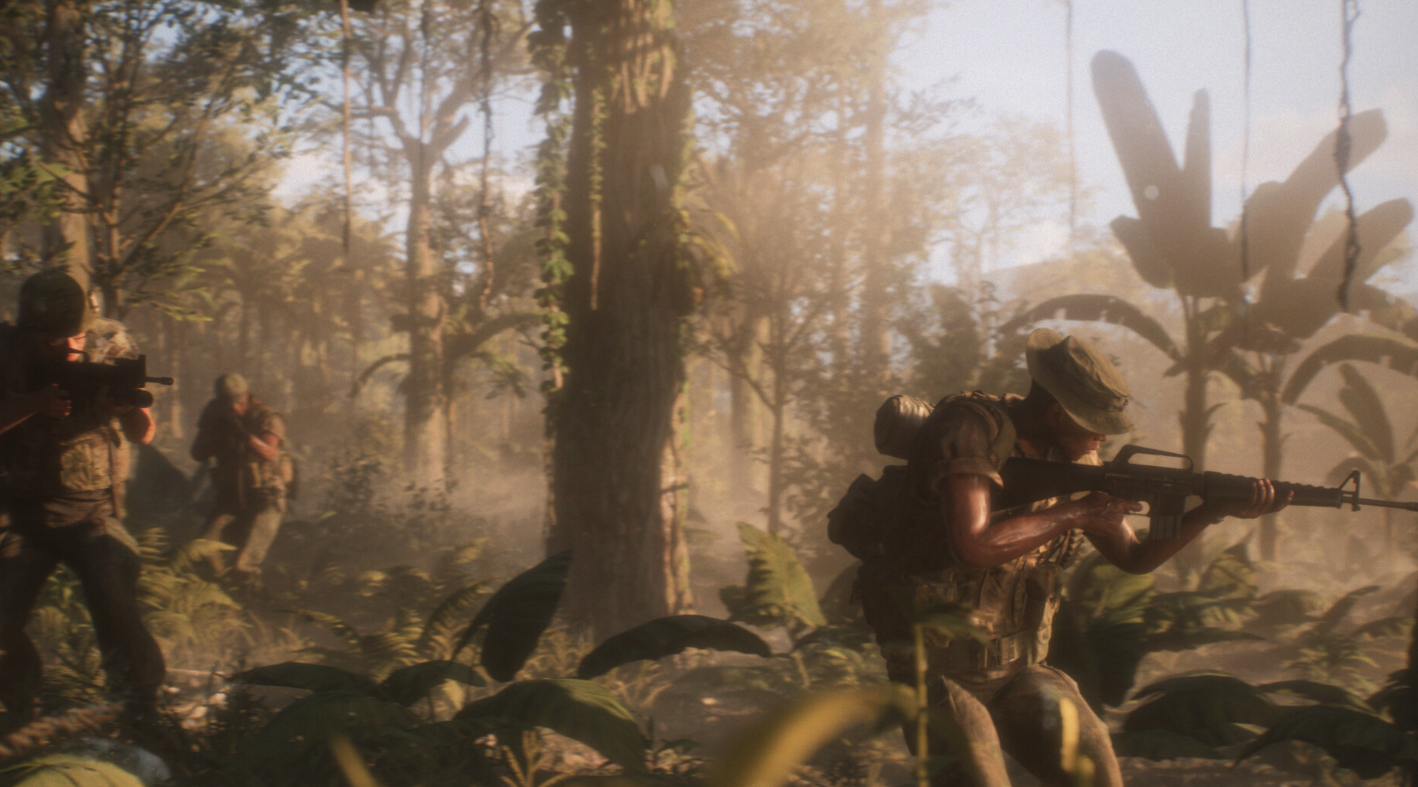
Audio problems have followed Hell Let Loose: Vietnam since testing, from silent voice chat to inconsistent in-game sound. The good news is that most of these issues trace back to a small set of causes you can check yourself, and the version that launched on August 13, 2026 already folded in a wide batch of audio work.
Quick answer: Install the latest build first, since the launch version carried VOIP fixes and a long list of audio changes. Then open the in-game Audio or Voice Chat settings, confirm Game Voice Chat is enabled, and set your headset as both the input and output device. If you are on console, check that your NAT type is Open and party chat output is routed to your headset.
Audio and VOIP status in Hell Let Loose: Vietnam
Sound was one of the areas Team17 and Expression Games worked on most heading into release. The open beta over May 29 to June 1 drew more than 350,000 players and surfaced enough problems, performance and otherwise, that the launch slipped from June 18 to August 13, 2026. A follow-up crossplay playtest ran July 24 to 27 across PC, PS5, and Xbox Series X|S.
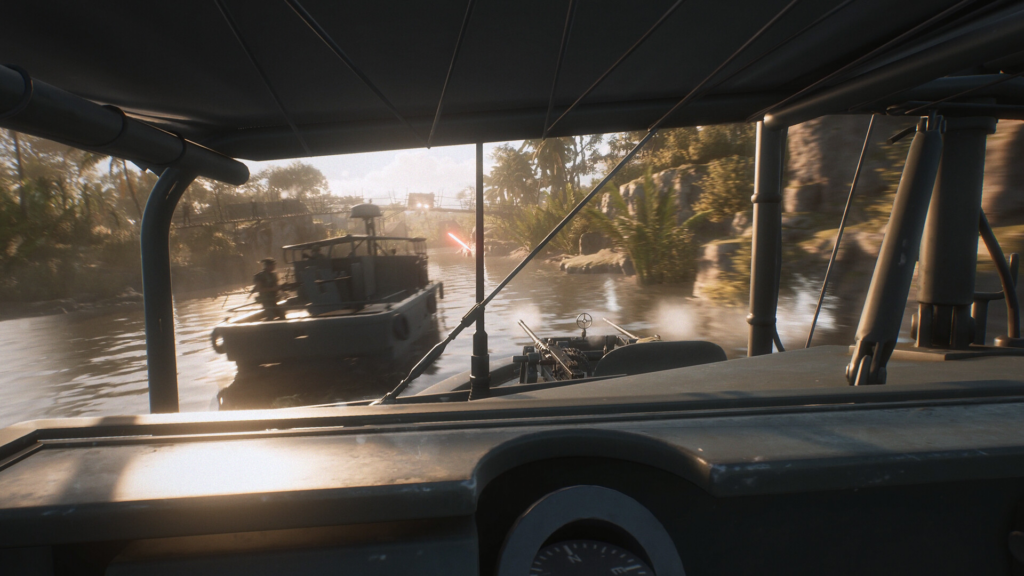
The build that shipped for the August launch included VOIP fixes and a broad set of audio changes worked out between the playtest and release. Because of that, the single most useful thing you can do is make sure you are running the current version before troubleshooting anything else. Progression and settings from the playtest did not carry into the full game, and the playtest ran as a separate app, so any audio behavior you saw there does not describe the launched title.
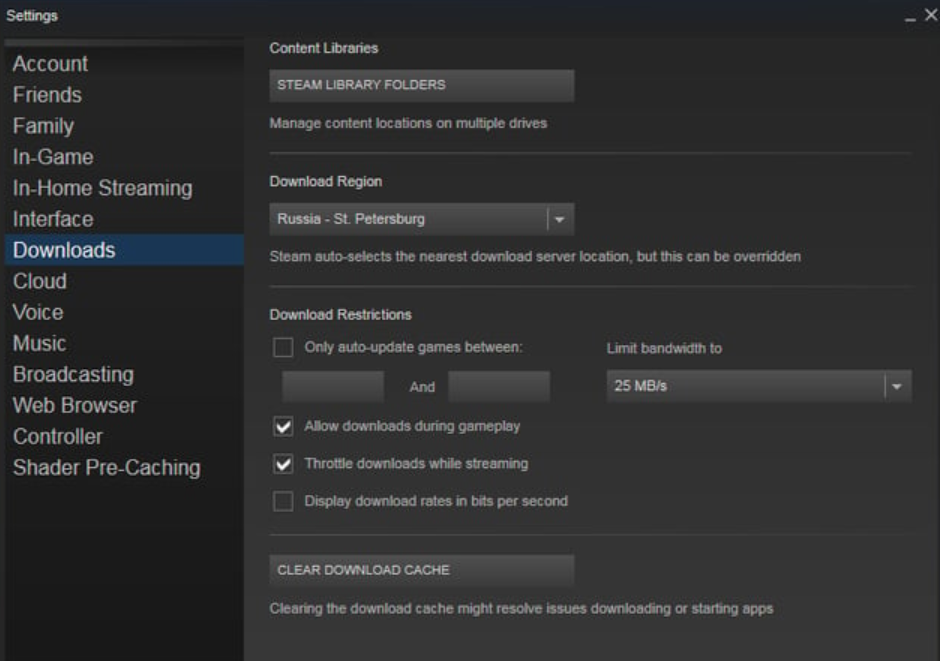
Update the game before you troubleshoot
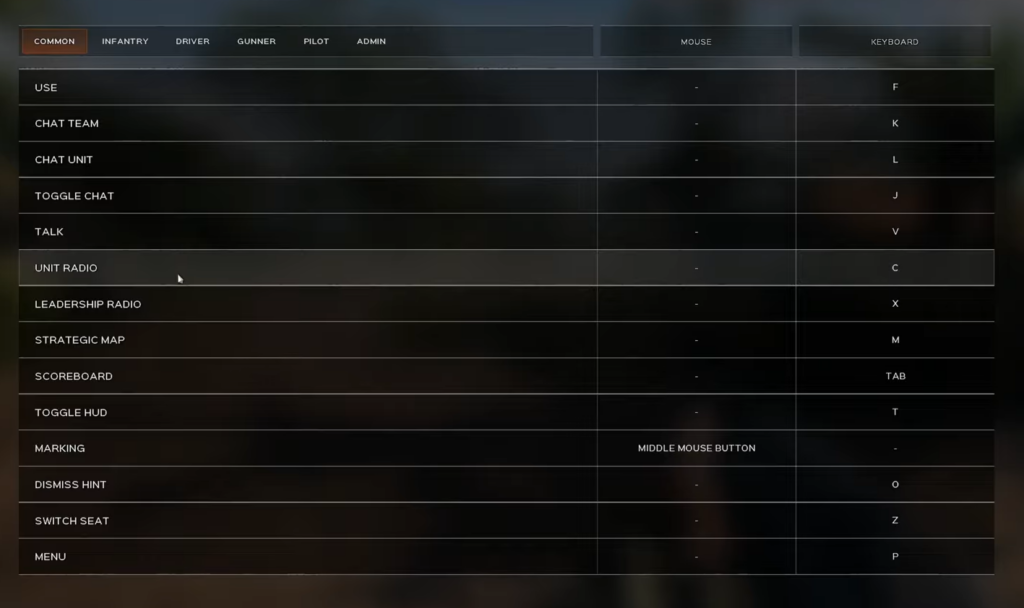
Fix in-game voice chat settings
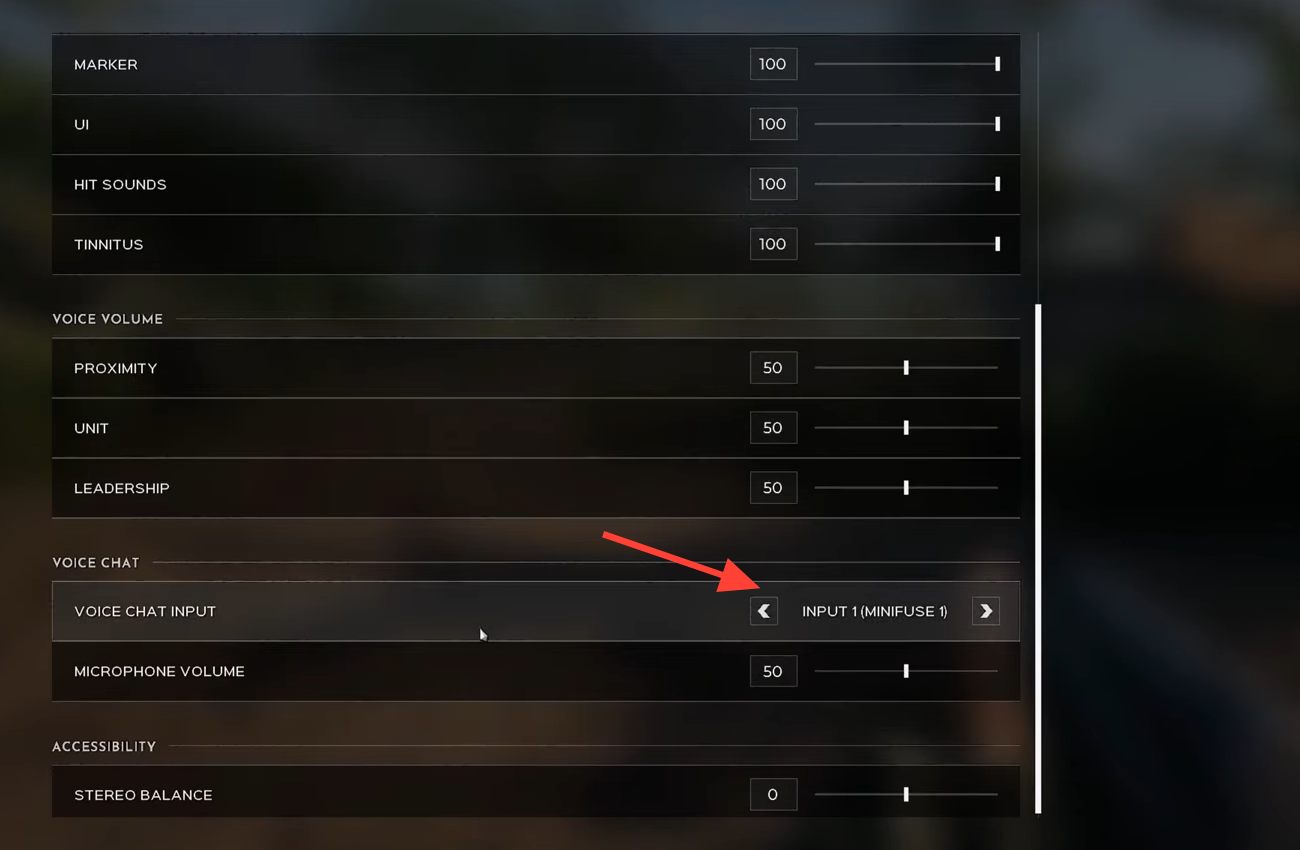
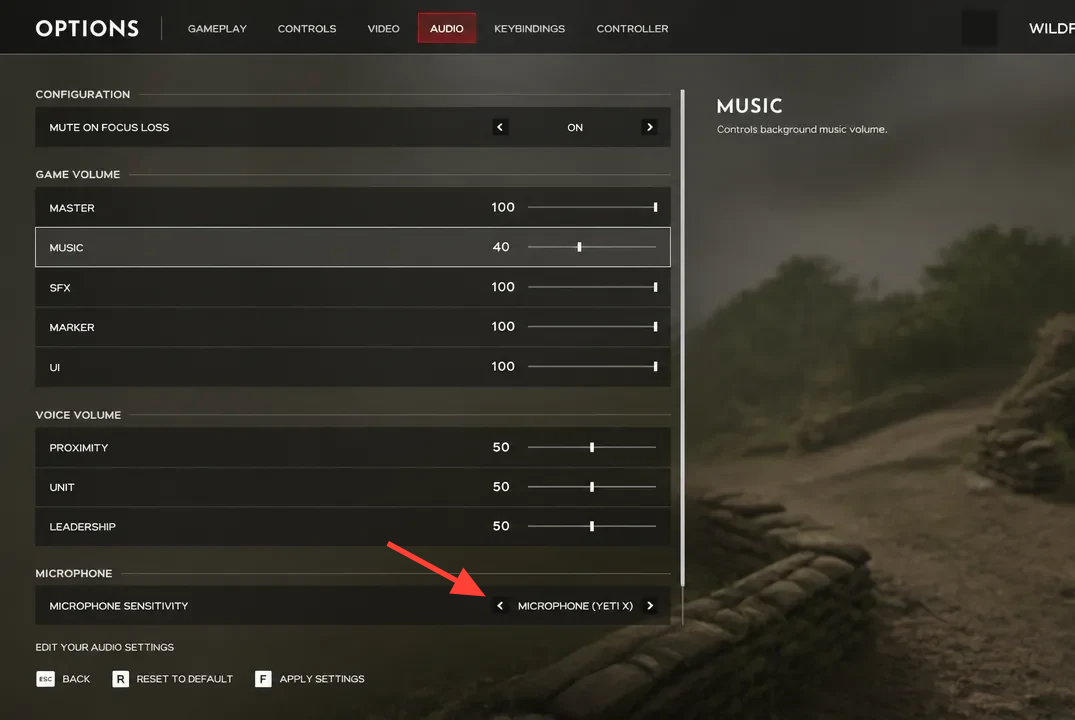
Silent comms most often come down to the game’s own audio menu rather than a real bug. A 50v50 match relies on voice, so it is worth getting these right.
Check your headset and microphone hardware
Before blaming the game, rule out the gear. A loose cable or a flipped mute switch is behind a surprising number of “no audio” reports.
- Reseat a wired headset firmly into the controller or console. A jack that feels connected can still sit slightly loose.
- For wireless headsets, confirm pairing and battery. Low charge can disable the microphone before the audio drops.
- Look for a physical mute button on the earcup, mic boom, or inline controller and make sure it is not engaged.
- Balance any chat/game mix wheel so chat volume is not turned all the way down.
- Test a second headset. If it works, the fault is your primary headset rather than the game or console.
Console network and party chat settings
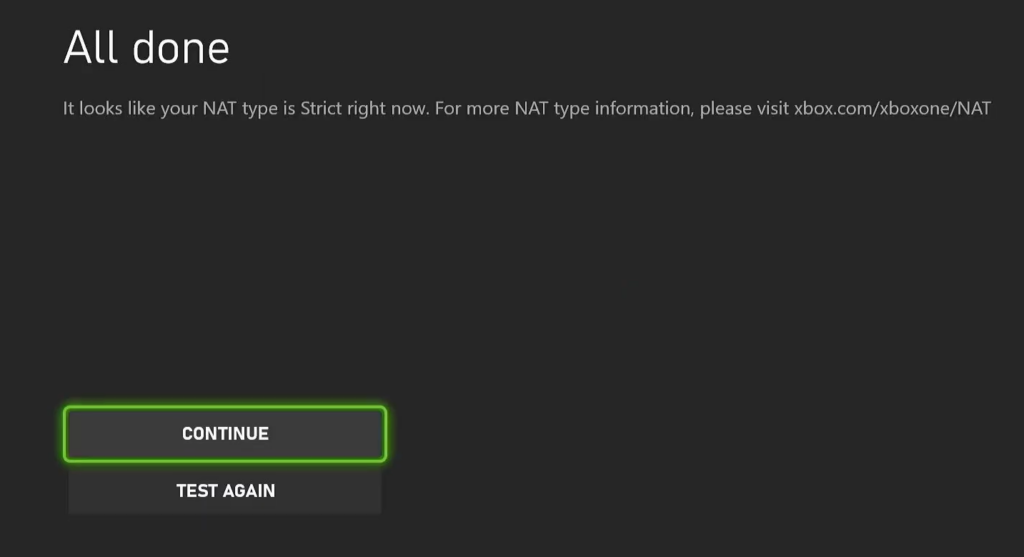
Voice communication needs the right kind of connection to route properly. On Xbox and PlayStation, network configuration is a common reason others cannot hear you even when your settings look correct.
Common audio symptoms and what to check
| Symptom | First thing to check |
|---|---|
| Nobody can hear you | Headset selected as input device; push-to-talk bound and pressed; mic not muted |
| You cannot hear teammates | Headset selected as output; chat mix balanced; party chat output set to headset |
| Voice works but comms cut in and out | NAT type set to Open; router power cycled; latest game and system update installed |
| Voice was broken during the playtest | Not relevant to the full game; the playtest ran as a separate app with different behavior |
How to confirm it is fixed
You know voice chat is working when the in-game speaking indicator lights up as you talk and squadmates confirm they can hear you. Many audio menus also show a visual meter that reacts to your microphone, so speak at a normal volume and watch it register.
If it still fails after the checks above, the usual reasons are a build that has not finished updating, a device that the game never re-detected after a driver change, or a mute switch that was missed on the headset itself. Work back through those three before assuming the problem lies with the game. On AMD graphics, note that some GPUs hit crashes tied largely to known driver issues, so keeping your driver current also helps stability overall.