
Managing attendance in virtual meetings can be a tedious task, especially with large groups. Microsoft Teams simplifies this process by providing a built-in feature that allows meeting organizers to download an attendance report with just one click. This eliminates the need for manual record-keeping or taking screenshots of participant lists.
However, this feature might not be enabled by default in your organization. If you don’t see the option to download the attendance report, you may need to contact your IT administrator to enable it. For users on Microsoft Teams Free, the attendance feature is enabled by default. Note that currently, the attendance option is available only for channel meetings, not for meetings created from the Meetings tab.
Taking Attendance in a Microsoft Teams Meeting
Once the attendance feature is enabled, only the meeting organizer can download the attendance report during an ongoing meeting. Unfortunately, the report cannot be downloaded after the meeting has ended.
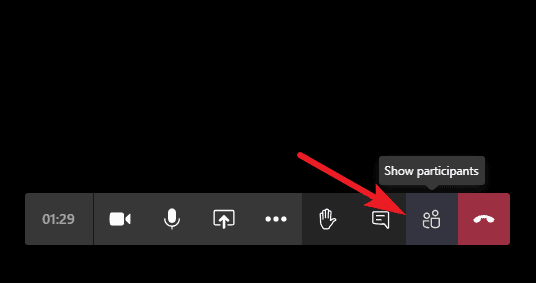
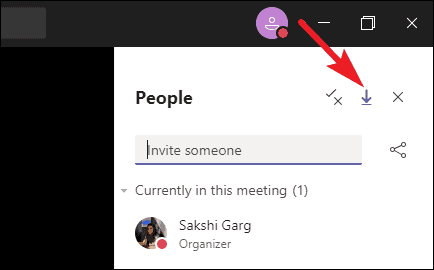
Accessing and Viewing the Attendance Report
The attendance report is saved as a .CSV file, which can be opened with Excel or any compatible software. It includes details such as participant names, join times, and leave times.
Method 1: Access via Microsoft Teams
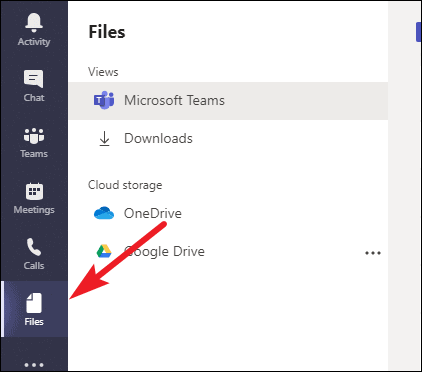
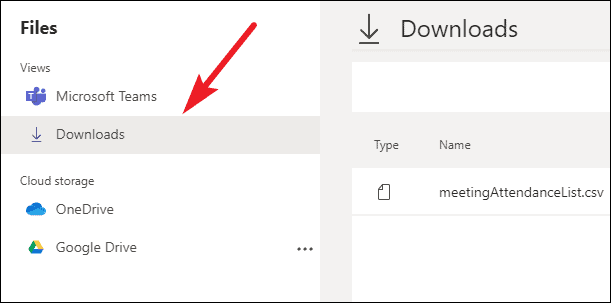
Method 2: Access via Computer’s Downloads Folder
The attendance report is also saved in your computer’s default Downloads folder. You can open the file directly from there without accessing the Teams app.
Downloading the attendance list during a Microsoft Teams meeting is an easy way to keep track of participants. While the feature has limitations—only the meeting organizer can download the report, and it must be done during the meeting—it still greatly simplifies attendance management for virtual gatherings.