Windows Terminal is a versatile application developed by Microsoft that consolidates multiple command-line tools into a single interface. It supports features like tabs, rich text, theming, and provides access to various shells such as PowerShell, Command Prompt (CMD), and Linux shells. By default, Windows Terminal launches with PowerShell, but if you prefer to use Command Prompt as your default shell, you can easily modify this setting.
+) button in the header. From the dropdown menu, select Settings. Alternatively, you can press the Ctrl+, keyboard shortcut to open the settings directly.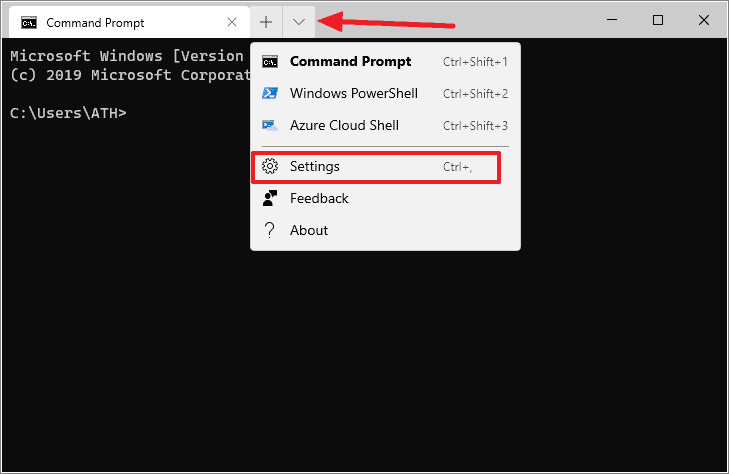
Settings option opens the Windows Terminal configuration file named settings.json. This file controls various settings for the terminal, including profiles and default behaviors.settings.json file, locate the line that specifies the "defaultProfile". This line is typically found near the beginning of the file. By default, it is set to the GUID associated with PowerShell, which looks something like "defaultProfile": "{61c54bbd-c2c6-5271-96e7-009a87ff44bf}".{0caa0dad-35be-5f56-a8ff-afceeeaa6101}"defaultProfile" line in the settings.json file by replacing the existing GUID with the Command Prompt GUID. The modified line should look like this:"defaultProfile": "{0caa0dad-35be-5f56-a8ff-afceeeaa6101}",settings.json file. After saving, close and relaunch Windows Terminal. This time, it should open with Command Prompt as the default shell in a new tab.If Windows Terminal still opens with PowerShell by default, it’s possible that the GUID for Command Prompt is different on your system. To ensure you’re using the correct GUID, follow the next steps.
settings.json file, scroll down to the "profiles" section. Under the "list" array, find the profile entry for Command Prompt. It will look something like this: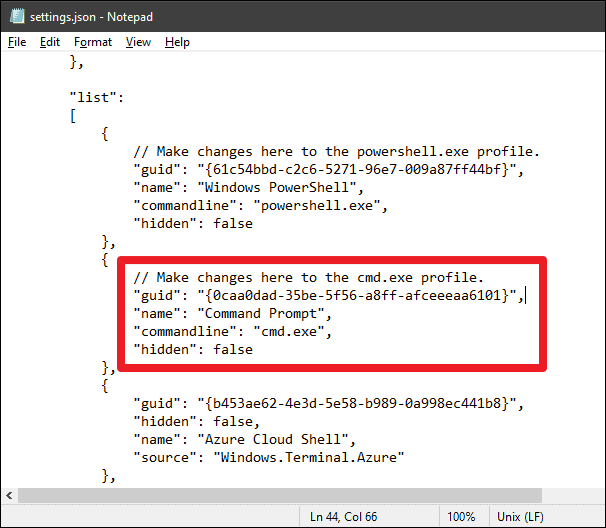
"guid" value associated with the Command Prompt profile. Make sure this GUID matches the one you’ve placed in the "defaultProfile" setting. If it doesn’t, copy the correct GUID from the Command Prompt profile and replace it in the "defaultProfile" line.settings.json file again. Close and reopen Windows Terminal to confirm that Command Prompt now launches by default.By customizing the defaultProfile setting, you can tailor Windows Terminal to open with your preferred command-line interface, enhancing your productivity and making your workflow more efficient.