
Microsoft Teams has become a cornerstone for collaboration in many organizations, offering a streamlined interface and a plethora of features designed to enhance productivity. One such feature that stands out is ‘Tabs’, which allows users to pin important apps and files directly within a team’s channel for quick and easy access.
Adding an app as a tab in Microsoft Teams
Integrating apps directly into your team’s channel can greatly enhance productivity by providing quick access to essential tools. Here’s how to add an app as a tab in a channel.
+‘ icon next to the existing tabs.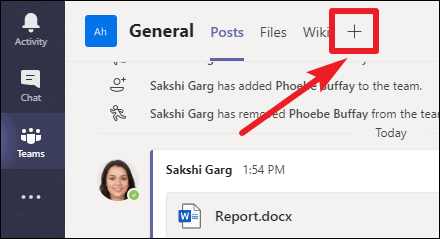
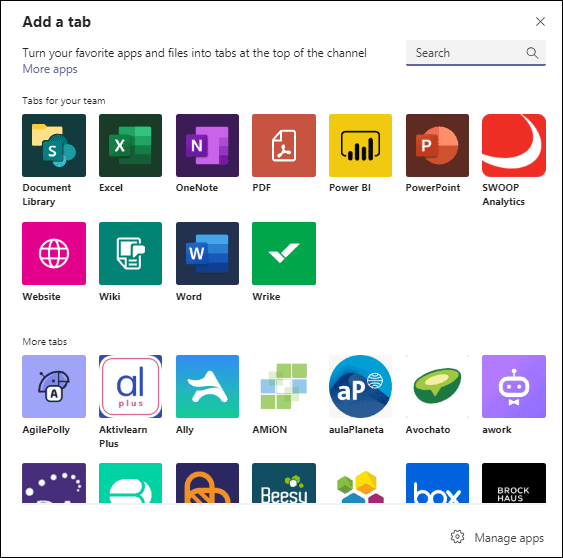
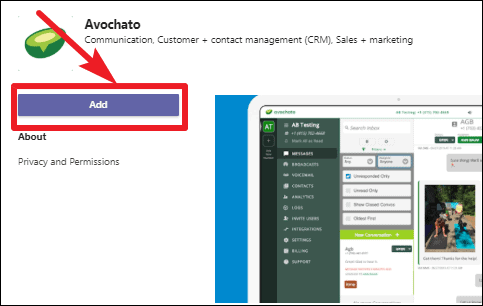
Once completed, the app will appear as a new tab in your channel, accessible to all team members.
Adding a file as a tab in Microsoft Teams
While the ‘Files’ tab in each channel automatically stores all shared documents, pinning a specific file as a tab can provide even quicker access for frequently used documents.
Method 1: From the conversation thread where the file was shared:
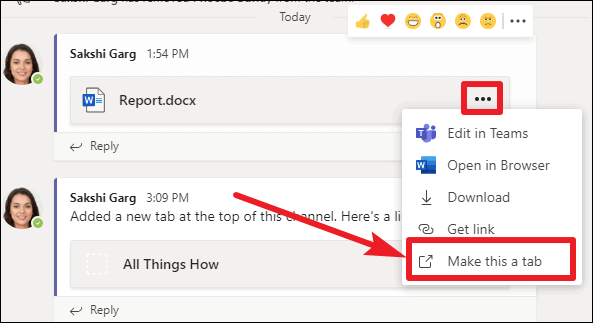
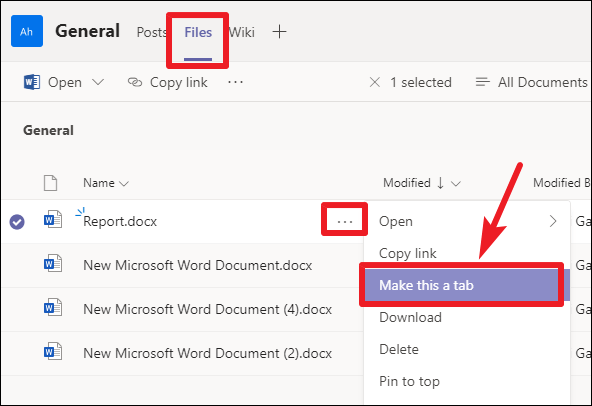
Method 2: From the ‘Files’ tab within the channel:
If the file isn’t readily visible in the conversation, you can add it as a tab from the ‘Files’ tab.
By customizing your tabs with essential apps and files, you streamline your workflow and enhance team collaboration. Microsoft Teams’ tab feature ensures that your most important tools are always just a click away, helping your team stay organized and efficient.