Movement in The Blood of Dawnwalker can feel broken on PC when you play with a gamepad. Instead of walking or sprinting smoothly, Coen stutters, snaps between speeds, and drops out of a sprint for no reason. The cause is not your frame rate. It is how the left stick’s circular deadzone is being read, and you can correct it in a couple of minutes without touching the game’s own settings.
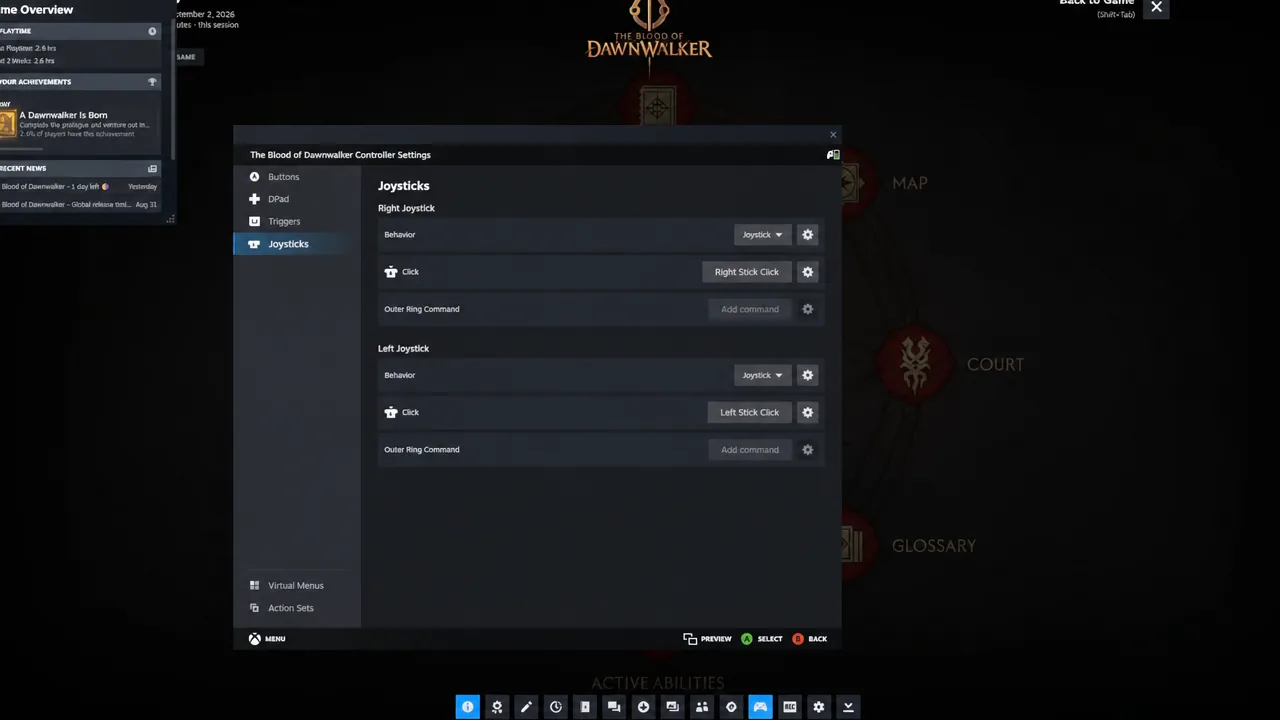
Quick answer: Open the Steam overlay with Shift + Tab, edit the game’s controller layout, and under the Left Joystick behavior set Deadzone Source to Custom and Deadzone Shape to Square, then lower the left deadzone limit to about 90.
Fix janky controller movement in Steam’s controller layout
This is the fix that works for most controllers, because it changes how Steam hands your stick input to the game rather than relying on the game’s limited controller menu. You need the game running so the overlay opens on the correct layout.
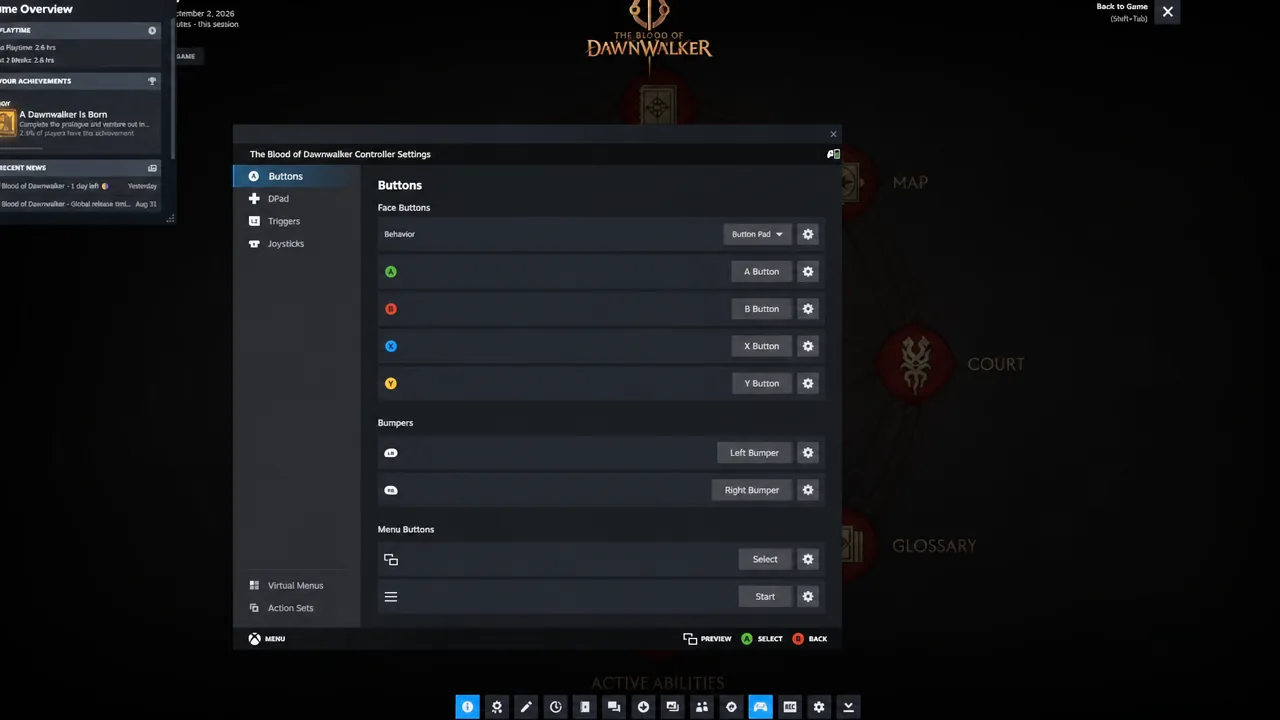
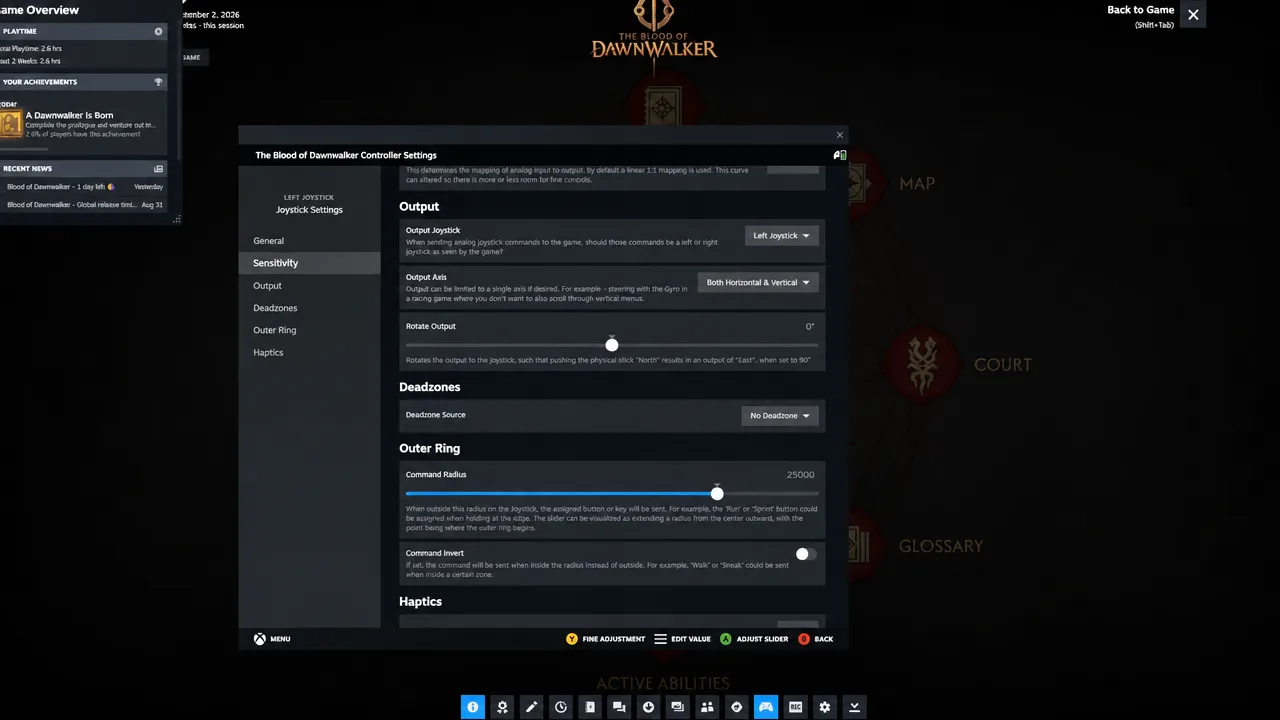
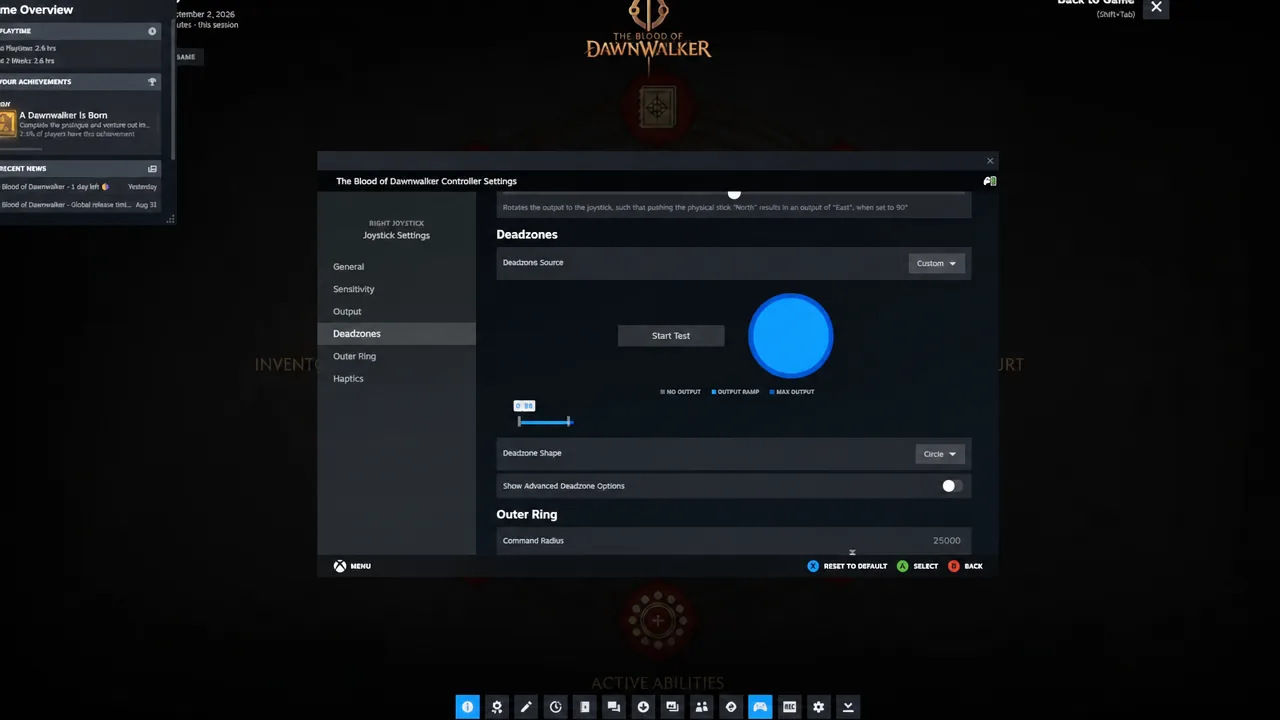
| Setting | Value |
|---|---|
| Deadzone Source | Custom |
| Deadzone Shape | Square |
| Left deadzone limit | About 90 |
Fix it in controller companion software instead (GameSir, 8BitDo, Flydigi)
If your pad ships with its own desktop app, you can apply the same idea at the hardware level and skip the Steam layout entirely. The wording differs between brands, but the goal is identical: stop the stick output from being mapped to a circle.
Note: pick one method or the other. Stacking a hardware profile on top of a custom Steam layout makes it harder to tell which layer is responsible if movement still feels wrong.
How to confirm the fix worked
Load into the world and hold the left stick fully in one direction, then rotate it in a slow circle. Coen should hold a steady walking or running pace without the speed snapping up and down. Press the left stick in to sprint and keep it held while turning; the sprint should stay engaged instead of dropping in and out.
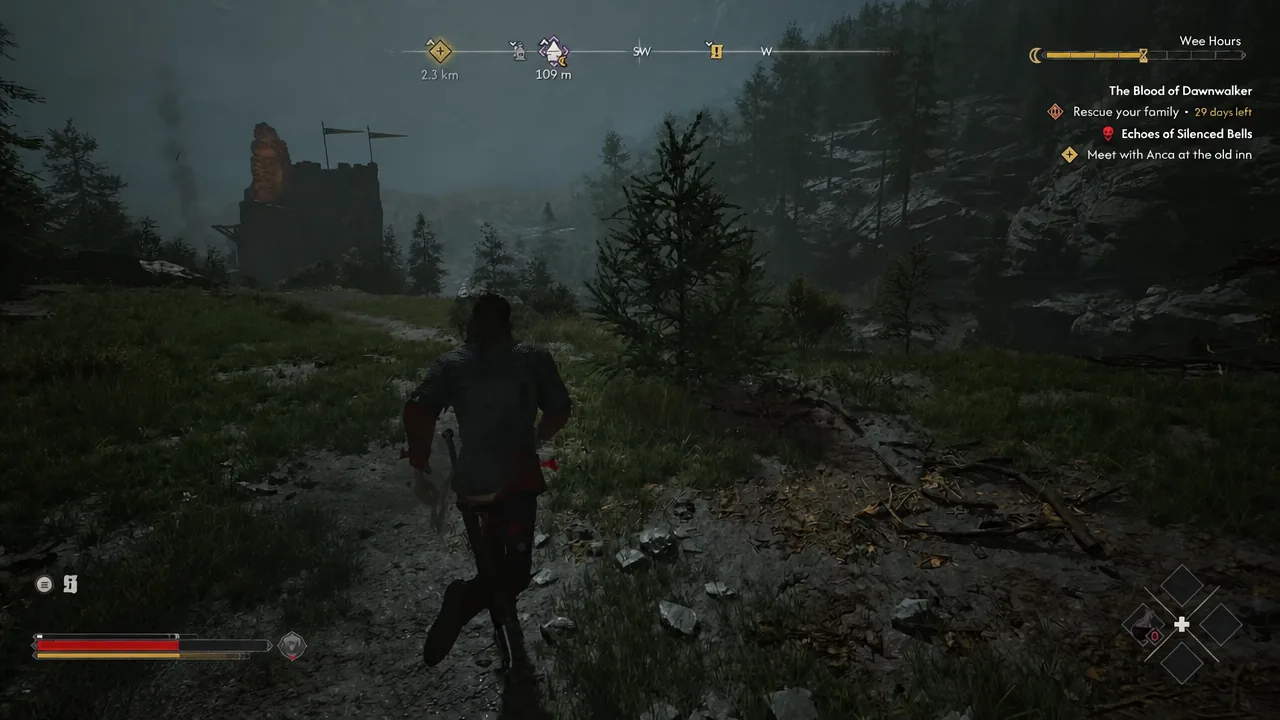
Camera control is handled by the right stick and is unaffected by this change, so if only movement was stuttering before, that is the only thing you should notice a difference in.
If movement still stutters after the deadzone change
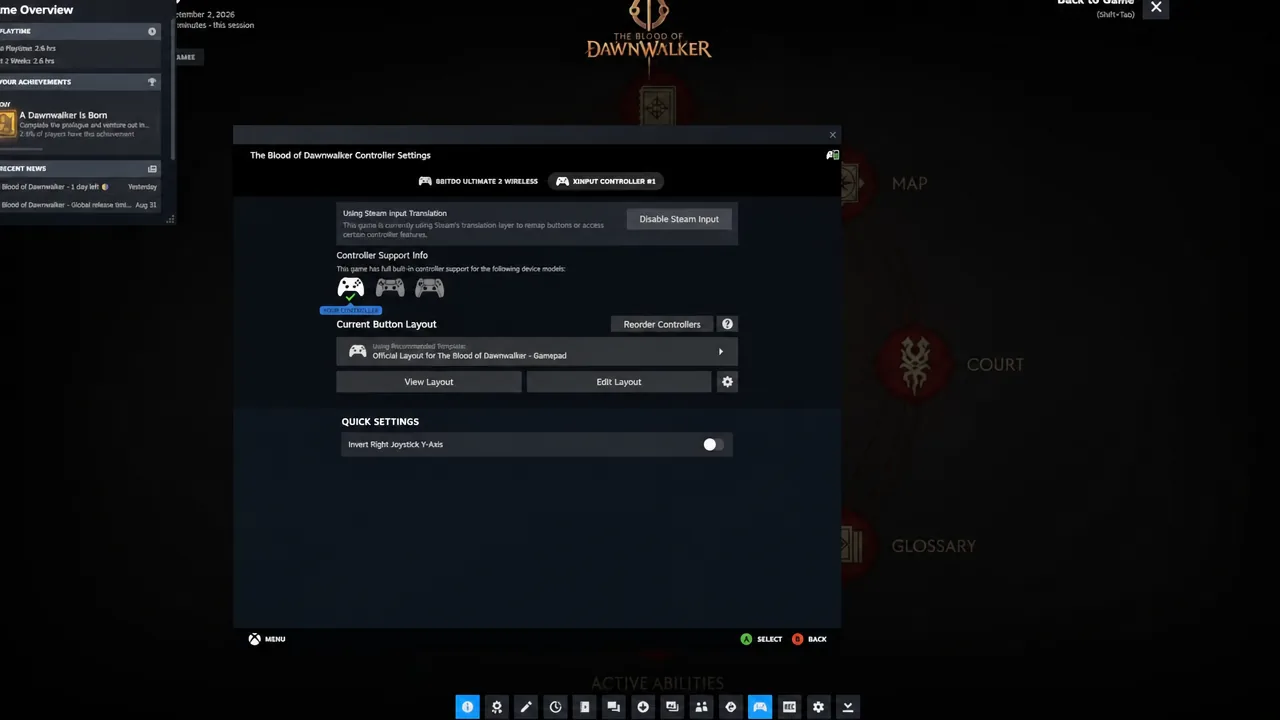
The most common reason the fix appears not to work is that a second input layer is still processing your stick. The controller settings menu also exposes options to disable Steam Input and reorder controllers, and either can change which layer the game listens to.
- Make sure only one remapping layer is active. Running a custom Steam layout and a third-party profile at the same time can produce duplicate or conflicting stick input.
- Disconnect and reconnect the controller, then restart the game with it already plugged in or paired.
- If the game shows keyboard prompts while the pad is connected, it is reading another input device. Resolve that before judging the deadzone change.
- If you have remapped bindings inside the game, restore the default layout and test movement again before rebuilding your custom setup.
Once the square deadzone is in place, the game’s own controller options stay untouched, so your sensitivity, vibration and button mapping choices carry over exactly as you left them. The layout is saved per game in Steam, which means the fix stays applied the next time you launch and does not affect how your controller behaves anywhere else.