Onimusha: Way of the Sword keeps its language controls out of the pause menu. Text and audio are handled as two independent settings, and both live in the same place — a Language tab that is only reachable before you load into the game world. On PC there is a second route through Steam, which sets the language the game boots with.
Quick answer: From the title screen, open Settings, move to the Language tab, then change Display Language (text) and Voice Language (audio) separately and press Confirm. If you are already in a session, quit back to the title screen first.
The title screen requirement
The Language tab is only exposed in the version of Settings you reach from the main title screen — the one listing Continue, New Game, Load Game, Settings, Online Store, Additional Content, Web Manual, Copyright Notice, and Quit Game. Open Settings from inside an active session and the Language tab is not available to you.
That means the change costs you a return trip. Save at a point you are happy with, quit out of the current playthrough to the title screen, make the switch, then use Continue or Load Game to drop back in. Nothing in the language options touches your save file.
Change display and voice language in the in-game settings
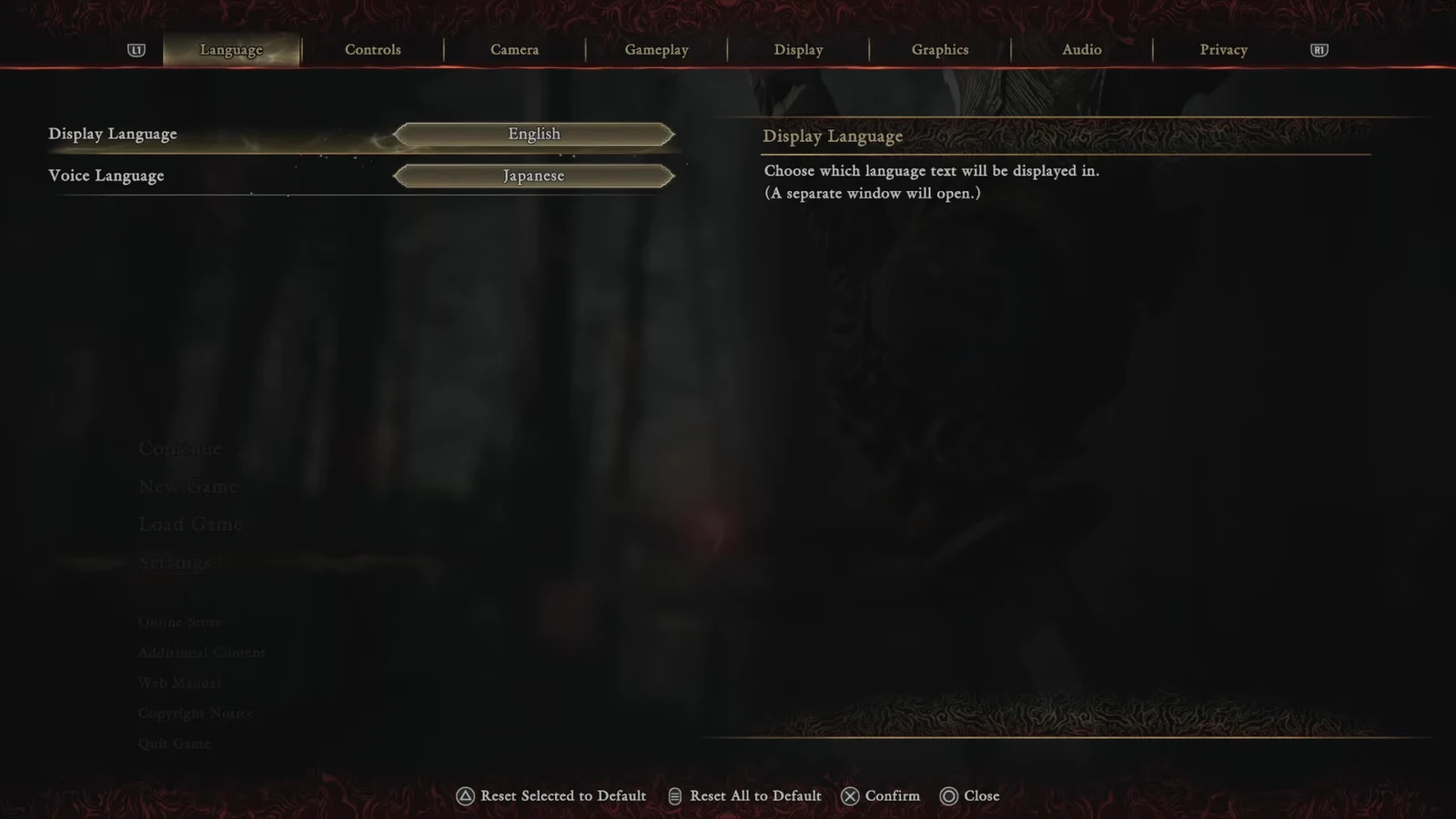
Note: the menu text switches the moment you confirm a Display Language, which is the fastest way to check the change stuck. Voice Language shows its new value under Current Setting immediately, but you will not hear the difference until the next spoken line.
Change the language on PC through Steam properties
Steam sets the language the game launches in, which is useful if the interface booted in a language you cannot read well enough to navigate the settings menu. It works on both the full release and the demo.
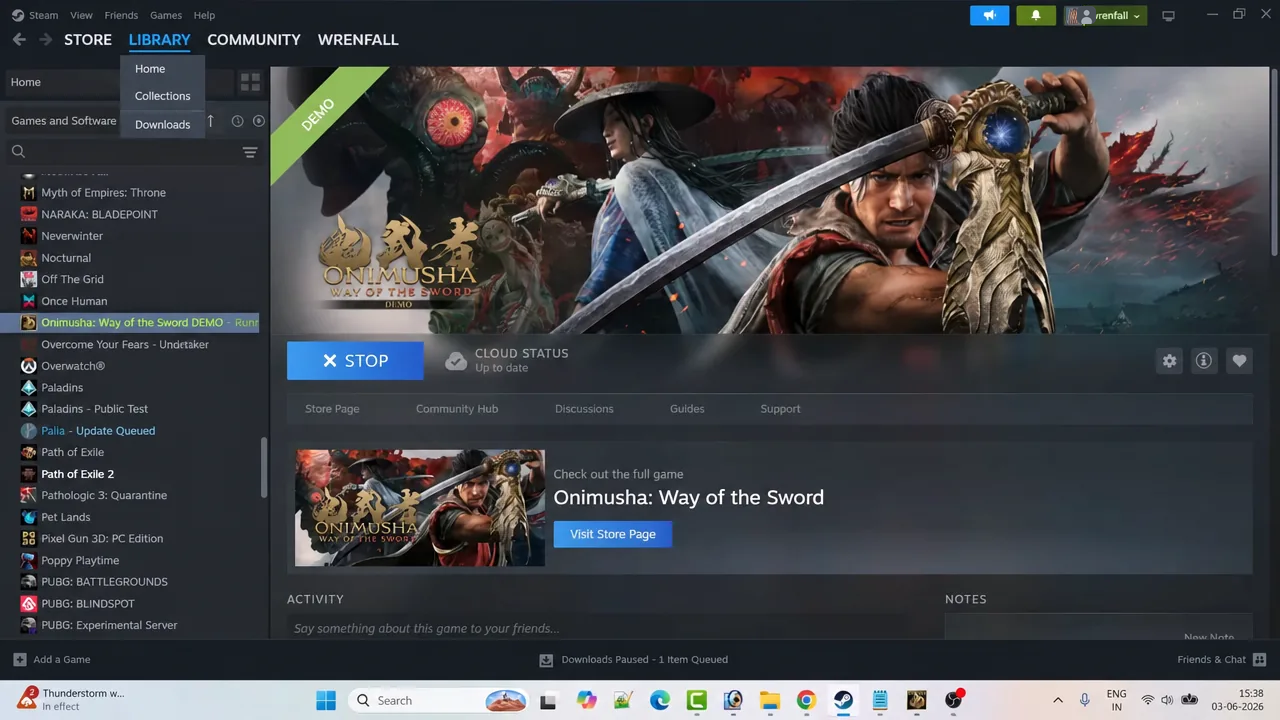
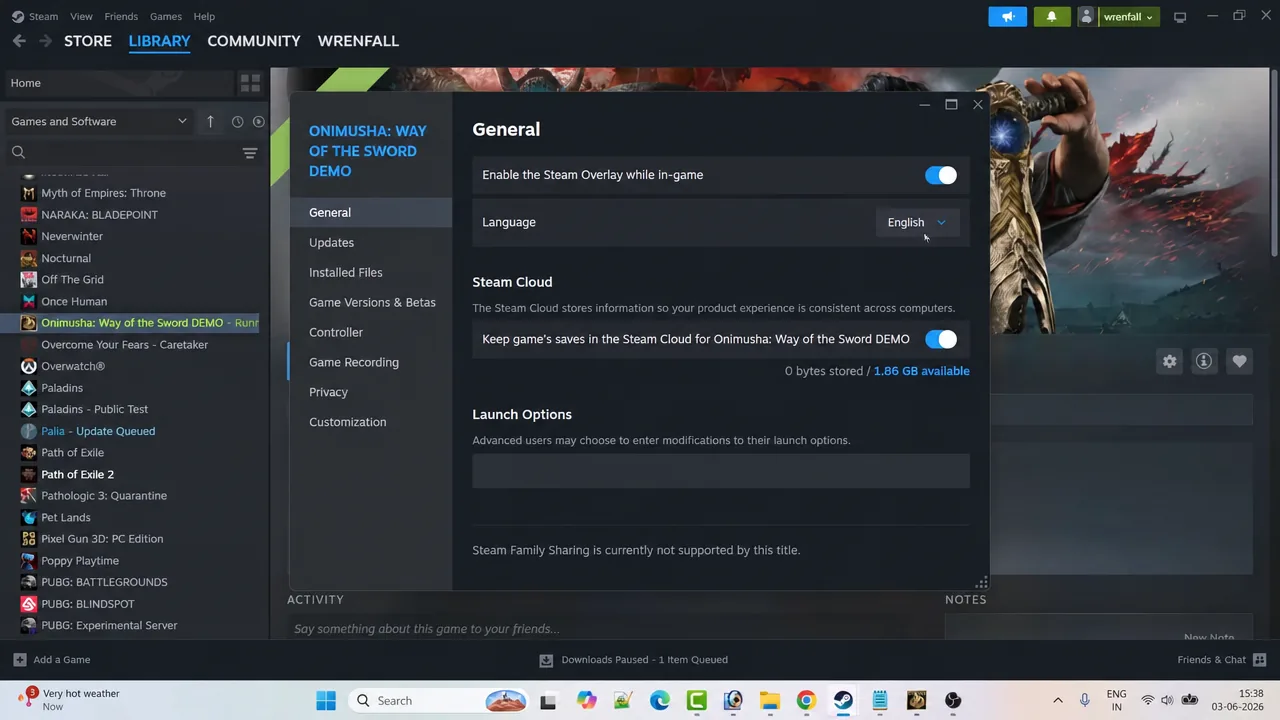
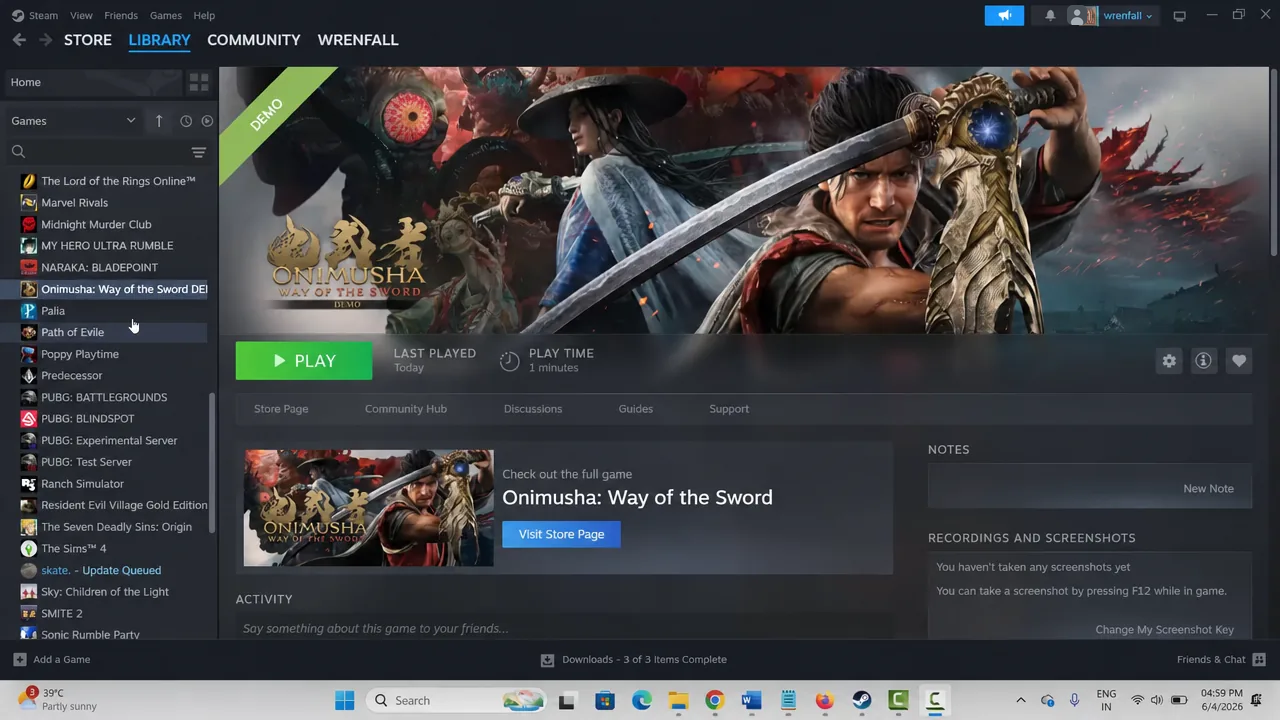
The Steam setting and the in-game Language tab are not in competition. Steam decides the starting state; the title screen menu is what you use afterwards, and it is the only way to split text and voice across two different languages.
Supported languages for interface, audio, and subtitles
Every supported language covers the interface and subtitles. Full voice acting is narrower, so several options will only ever appear as a Display Language choice in practice.
| Language | Interface & subtitles | Full audio |
|---|---|---|
| English | Yes | Yes |
| Japanese | Yes | Yes |
| Simplified Chinese | Yes | Yes |
| Traditional Chinese | Yes | No |
| Korean | Yes | No |
| French | Yes | Yes |
| German | Yes | Yes |
| Italian | Yes | Yes |
| Spanish (Spain) | Yes | Yes |
| Spanish (Latin America) | Yes | No |
| Portuguese (Brazil) | Yes | Yes |
| Russian | Yes | Yes |
| Polish | Yes | No |
| Arabic | Yes | No |
Turkish, Ukrainian, Thai, Vietnamese, and Indonesian are not part of the game’s language support. Fan sites published in those languages do not indicate an in-game interface option.
Why the language option is missing or does not apply
There are only a few reasons the switch fails, and none of them require reinstalling anything.
- You opened Settings from a paused session rather than the title screen, so the Language tab is not shown. Quit to the title screen and try again.
- You browsed the list but backed out with Previous instead of pressing Confirm, so the Current Setting never changed.
- You changed Display Language and expected the voices to follow. They will not — Voice Language has to be set on its own.
- You picked a subtitle-only language and are still hearing another dub. That language has no recorded audio track, so voices stay in whichever language is set under Voice Language.
Once the Language tab reflects the combination you want, it stays that way between sessions, so this is a one-time trip through the title screen rather than something you need to redo on every launch.