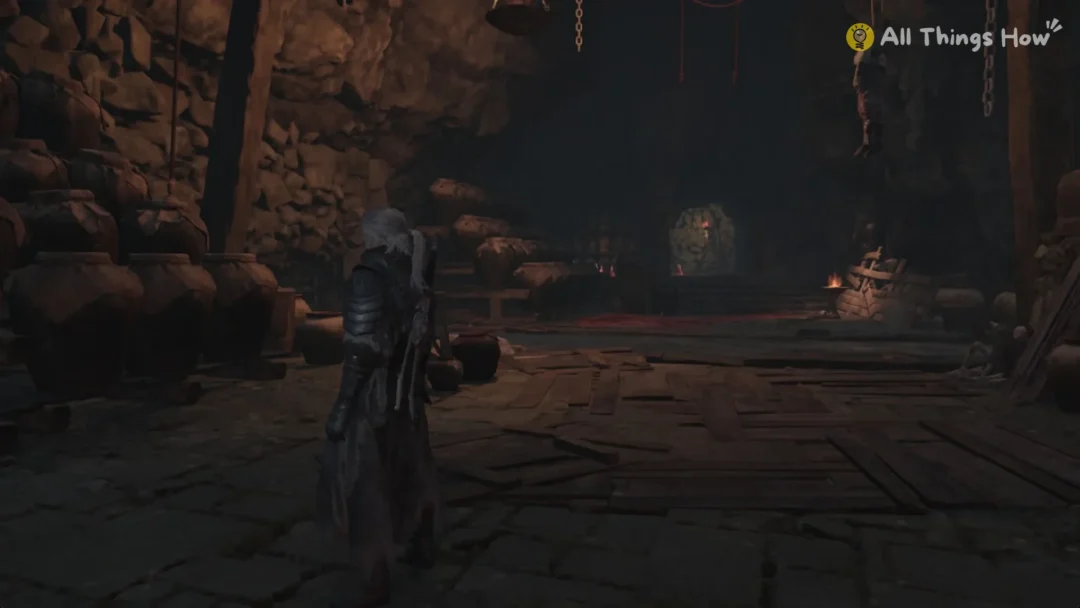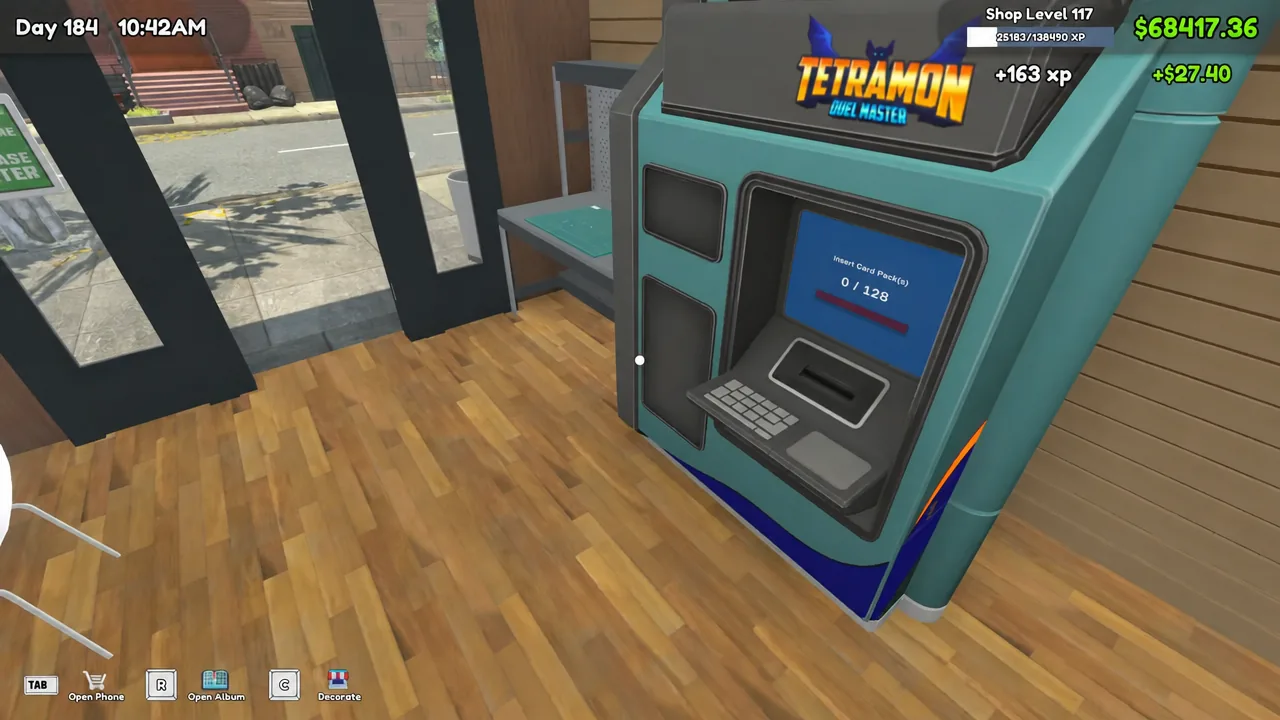
The v1.0 update turns the Tetramon cards sitting in your album into something you can actually play, and the whole deck builder lives inside one piece of furniture. No menu on the phone, no separate tab in your collection screen. If the Workbench is not on your shop floor, deck building simply is not available to you yet.
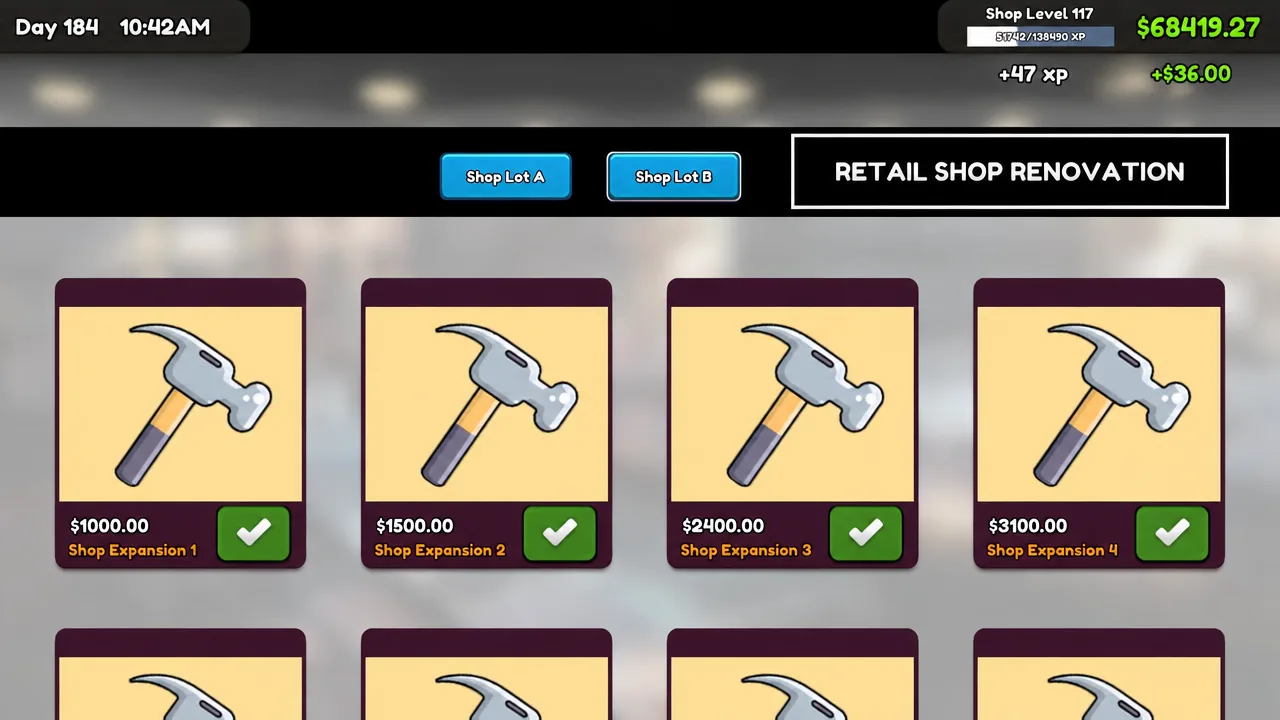
Quick answer: Buy the Workbench for $1,000.00 from the My DIY Racks app, place it in your shop, interact with it, choose Deck Edit, then right-click cards in your album until the deck holds exactly 50.
Buy the Workbench from the My DIY Racks app
- Rulebook — the full Tetramon Duel Master rules
- Deck Edit — create and edit your custom decks
- Bundle Cards — pack spare cards into bulk boxes
- Back — close the menu
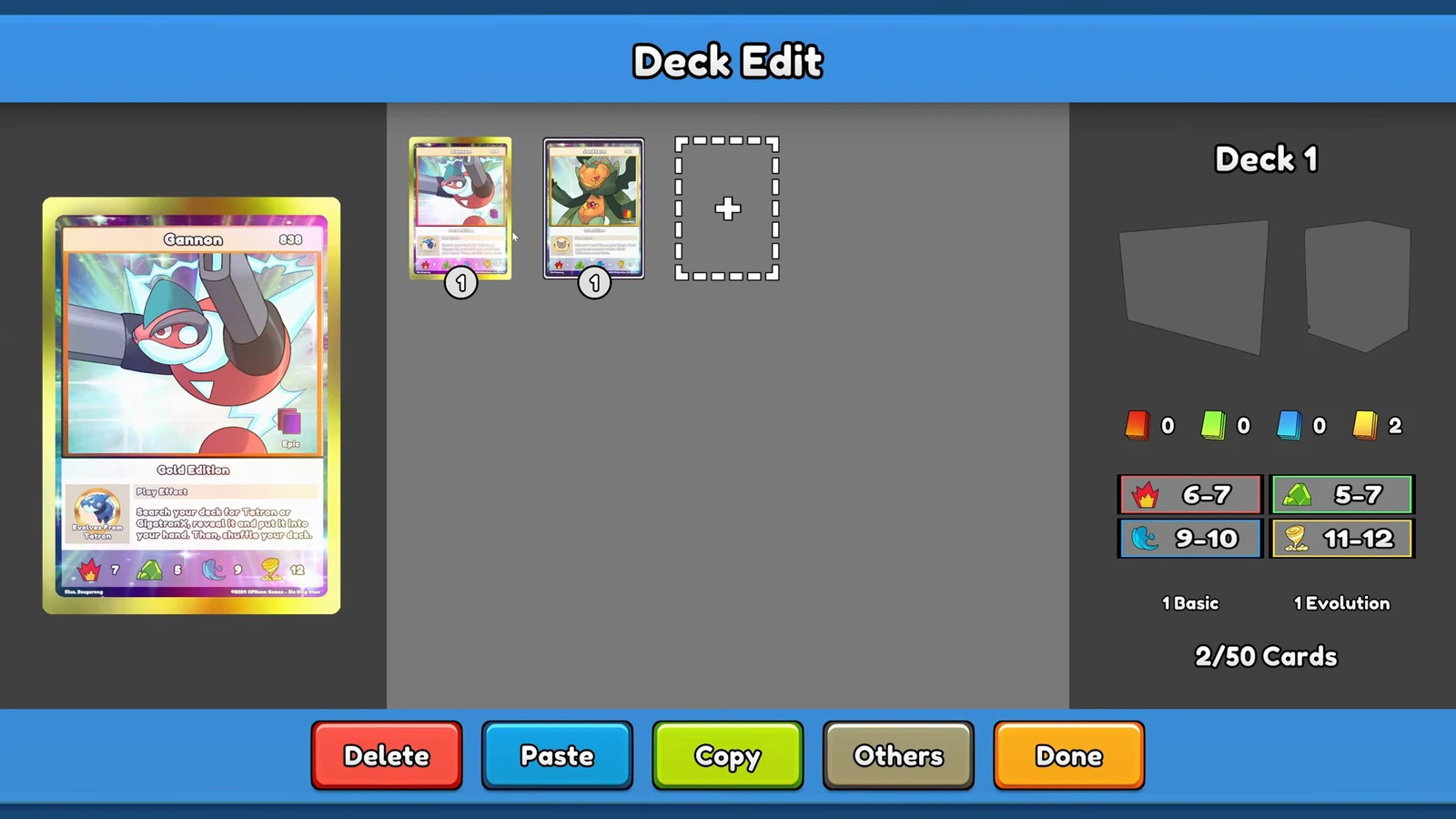
Add cards to a deck in the Deck Edit menu

Deck construction limits
| Rule | Limit |
|---|---|
| Deck size | Exactly 50 cards |
| Copies of the same card name | 4 maximum |
| Workbench cost | $1,000.00 |
| Decks you can keep | Multiple (Deck 1, Deck 2, and so on) |
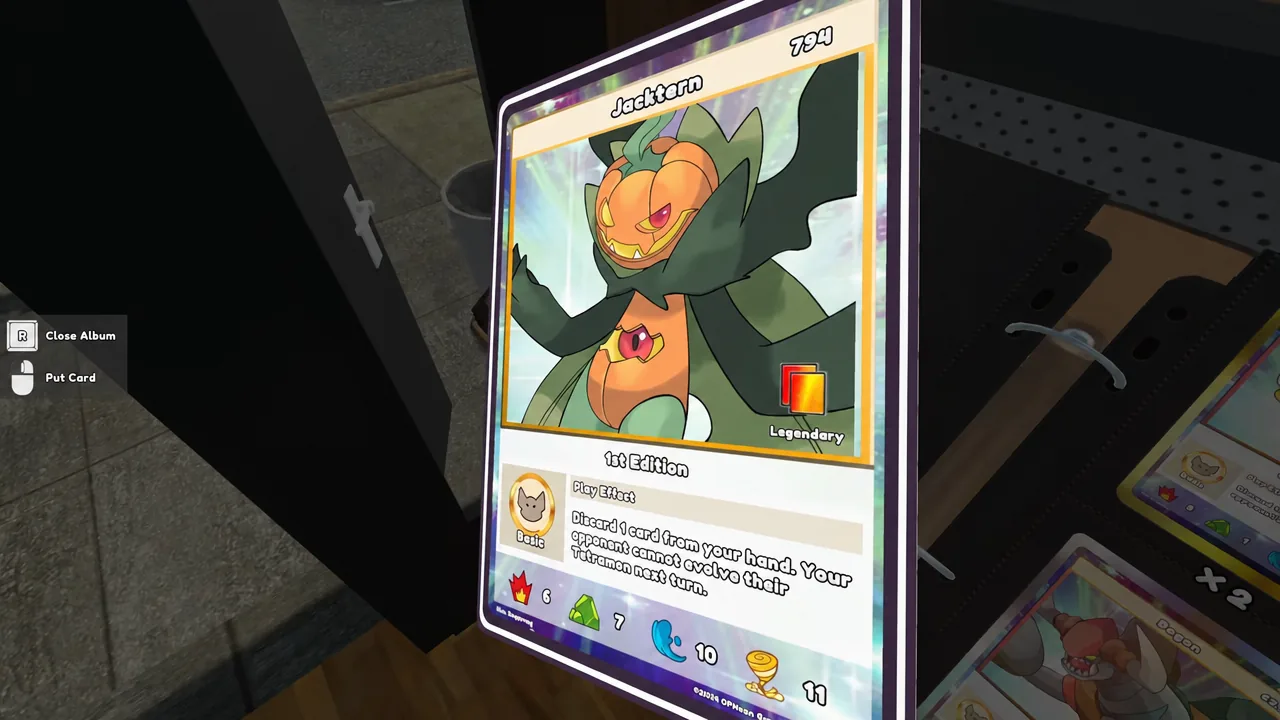
Try to push a fifth copy of a card into the list and the game blocks it with an “Only 4 card duplicates allowed” message. The cap counts card names, so owning 101 copies of a Jacktern in your album changes nothing.
Change the deck box and playmat
Cosmetics live behind the Others button in the Deck Edit menu. From there you can recolor the deck box and pick the game pad, which is the playmat your cards sit on during a duel. None of it touches deck legality, so you can change either one after the 50 cards are locked in.
Save the deck and confirm it is usable
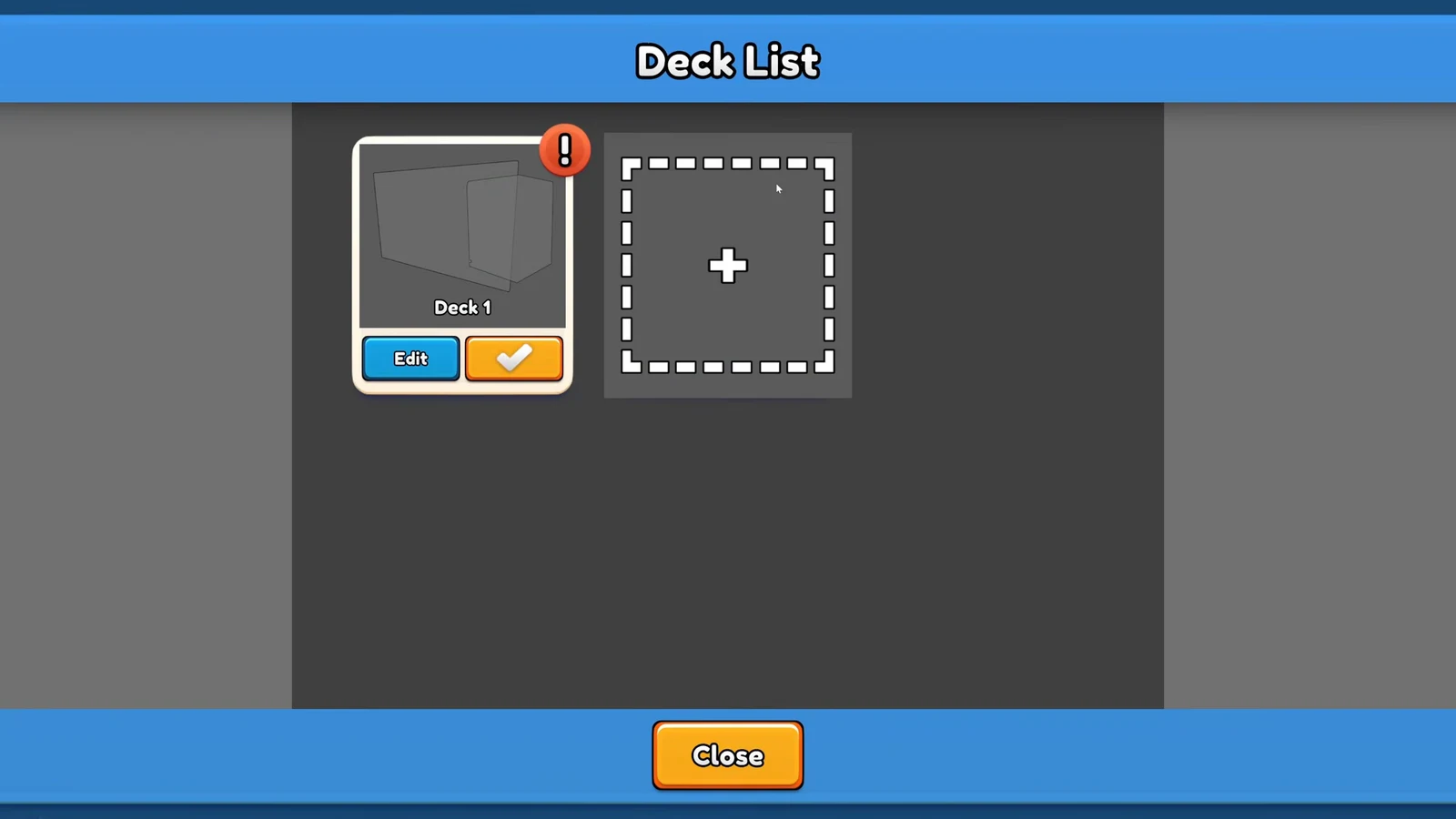
Press Done to save, which drops you back on the Deck List. The list gives every deck the same set of controls: Edit, Use, Copy, Paste, Delete, and Close. Use is the one that matters, because it marks a deck as your active one.
Here is your verification. Select Use on a finished deck and it is set as active with no complaint. Select Use on a deck that is short of 50 cards and the game throws a “Deck is in complete.” warning and refuses. If you see that message, go back into Deck Edit and keep adding cards.
Copy and Paste let you clone a finished 50-card list into a second slot, so you can test a variant without rebuilding the shared core card by card.
What the Tetramon Duel Master rulebook expects from your 50 cards
The Rulebook option on the Workbench spells out why the builder enforces those numbers. The setup for a duel runs like this:
- Shuffle the 50-card deck and place it in your Deck Area
- Draw an opening hand of 5 cards
- One mulligan allowed: hand goes to the bottom, draw 5 fresh, then reshuffle
- Place the top 4 cards face-down in your Guardian Area
- Both players start on 500 Tamer Points
Four of your 50 cards are gone before the first turn, sitting face-down as Guardians, and you only see 5 more at the start. That is the practical argument for the 4-copy cap doing real work in your list: the cards you most want to draw are the ones you should be running four of.
Once Deck 1 accepts the Use command without a warning, the build side of Tetramon Duel Master is finished, and everything after that happens at the table.