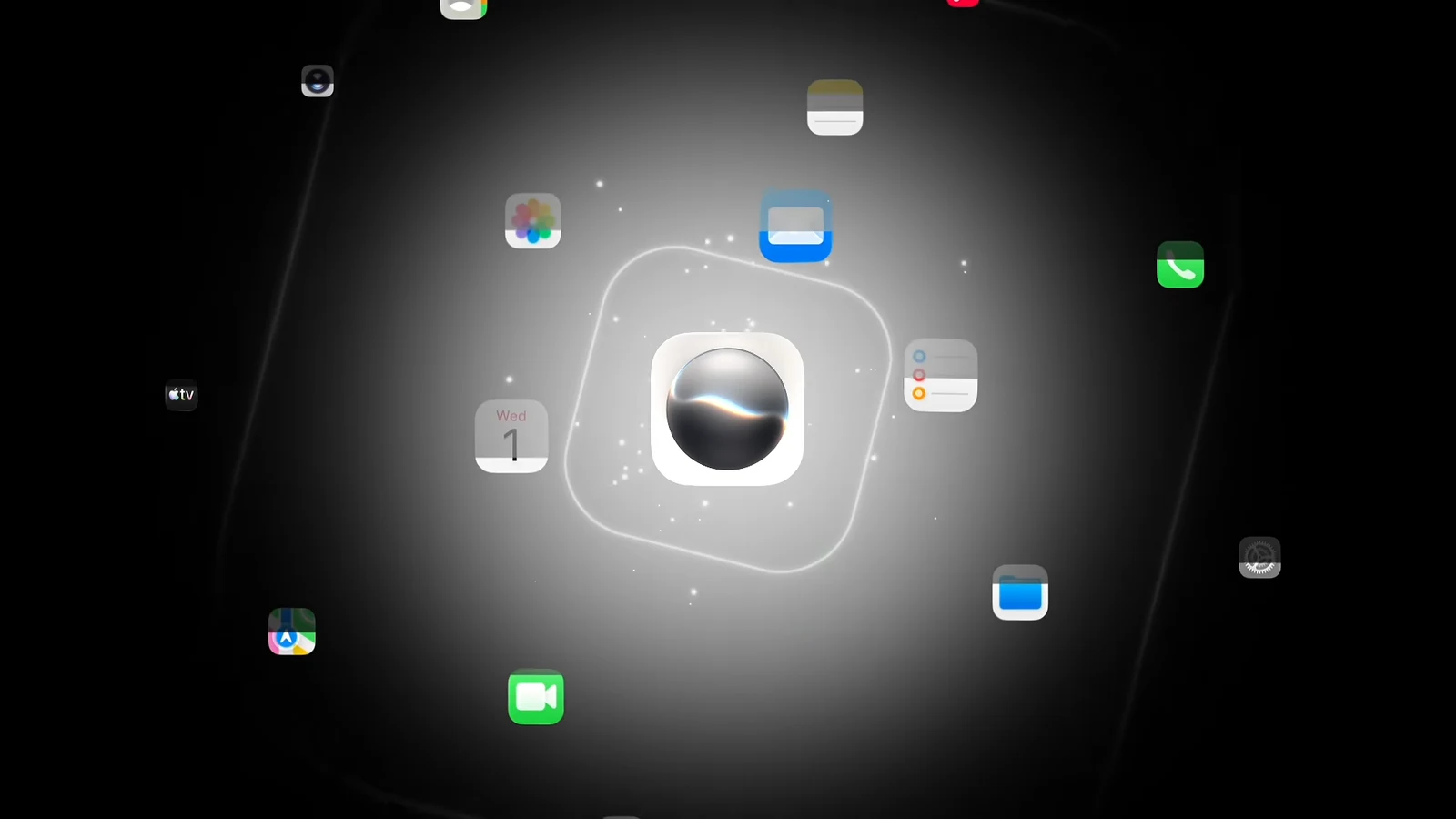
Siri AI, the rebuilt version of Apple’s assistant powered by the next generation of Apple Intelligence, shipped alongside Apple’s 2027 software releases on September 14, 2026. It is not switched on by default. You opt in, join a waitlist, and then wait while your device indexes your own data locally before the assistant becomes genuinely useful.
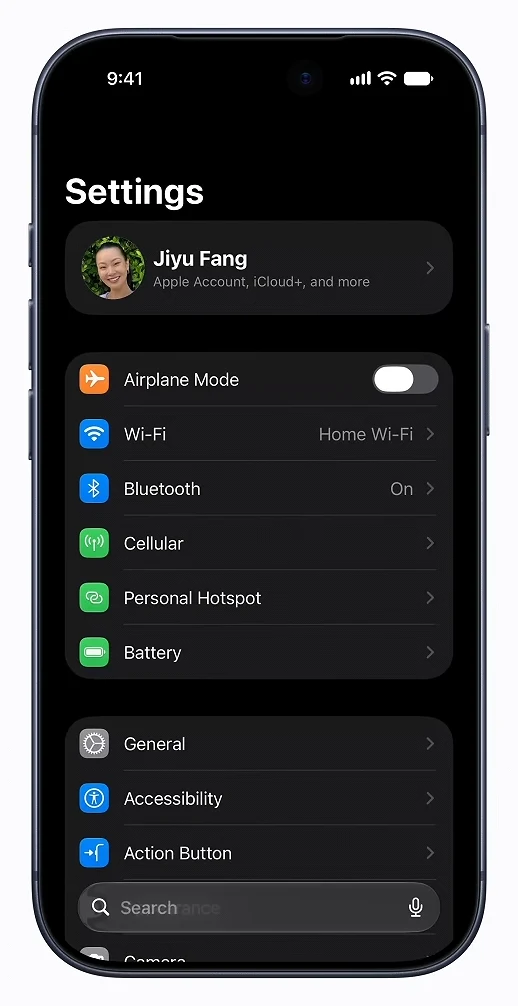
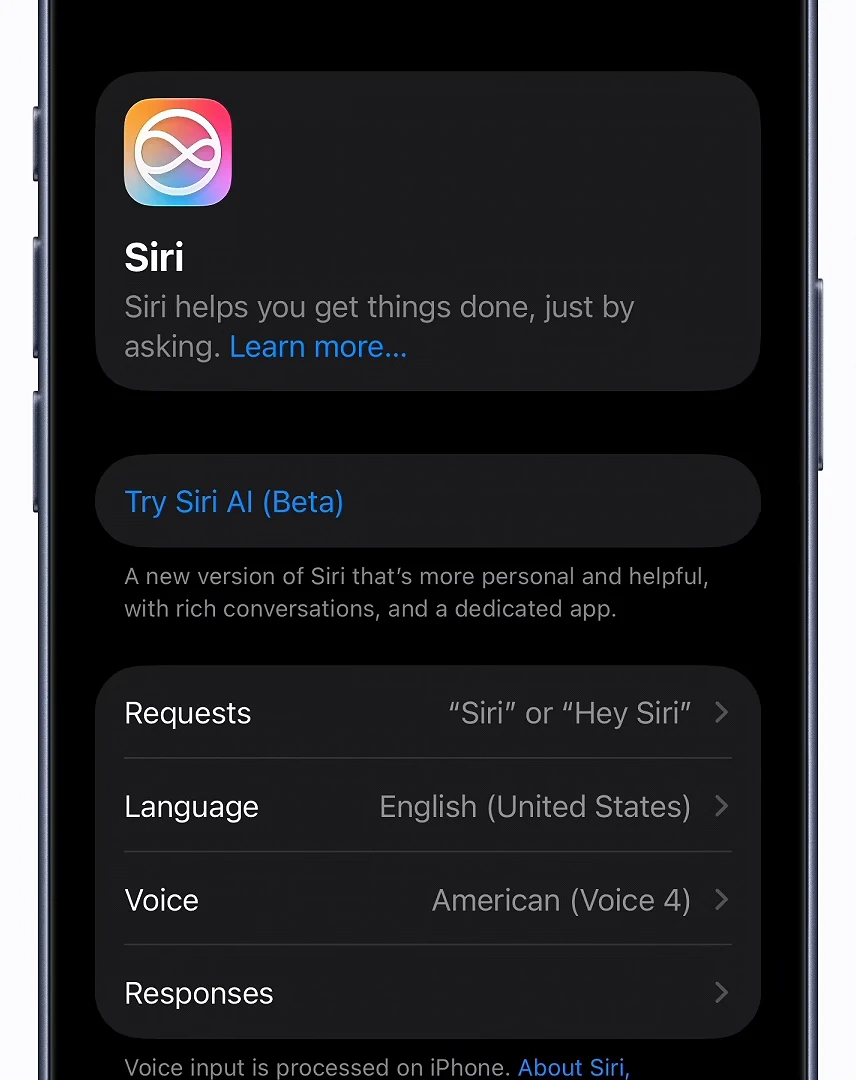
Quick answer: Update to iOS 27 (or the matching OS 27 release), open Settings > Siri, tap Try Siri AI (Beta), and work through the setup prompts to join the waitlist.
Siri AI requirements: hardware, software, and language
Siri AI only runs on hardware that supports Apple Intelligence, because the assistant leans on a large on-device model plus Private Cloud Compute for heavier requests. Installing the OS 27 update is not enough on its own.
| Device | Supported models |
|---|---|
| iPhone | iPhone 15 Pro, 15 Pro Max, iPhone 16 and later |
| iPad | iPad mini (A17 Pro), iPad with M1 or later |
| Mac | MacBook Neo (A18 Pro), Mac with M1 or later |
| Apple Watch | Series 9 or later, Ultra 2 or later, SE 3 |
| Vision Pro | All models |
You can cross-check your model against Apple’s Apple Intelligence compatibility list before you start. Beyond the hardware, three other conditions apply.
- The device must be running iOS 27, iPadOS 27, macOS 27 (Golden Gate), watchOS 27, or visionOS 27.
- The system language must be set to English. French, Japanese, Korean, Portuguese, and Spanish support arrives in October.
- Siri AI is not available in the European Union at launch, and it remains on hold in China.
- Usage limits may apply to Siri AI and the related Apple Intelligence features.
IOS 27 itself installs on the iPhone 11 series and newer, plus the second- and third-generation iPhone SE. Those older phones get the update but not Siri AI.
To pull the update, open Settings > General > Software Update and follow the prompts. Apple’s servers take a beating on release week, so a failed check is often just traffic. Free up storage first if the download stalls.
How to turn on Siri AI and join the waitlist
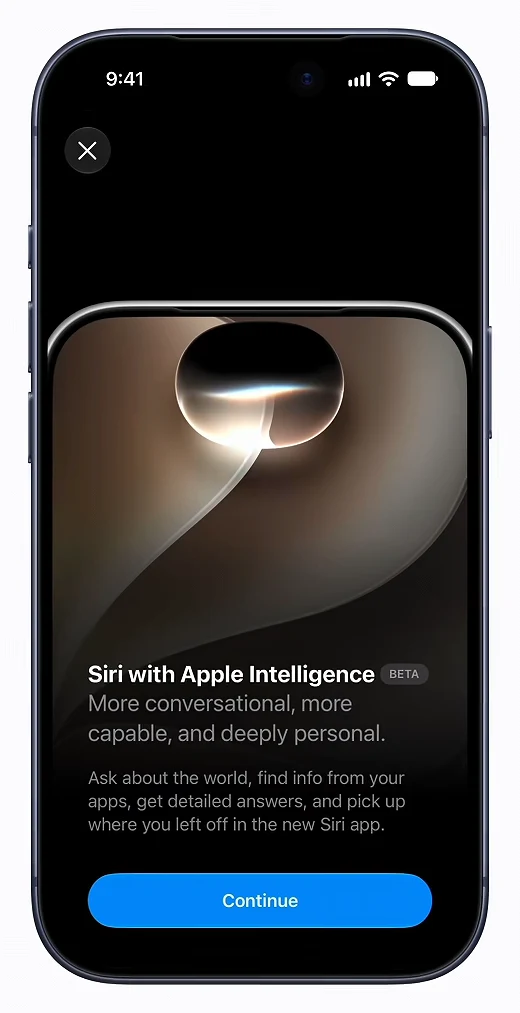
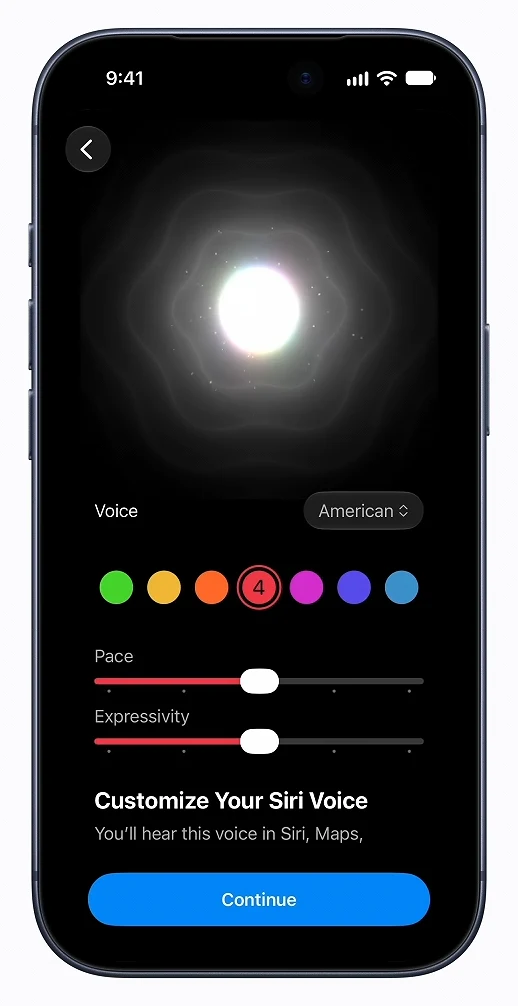
How to confirm Siri AI is active on your device
Approval is not silent. The waitlist animation ends with a green checkmark, and the dedicated Siri app then downloads and installs itself onto your home screen. That app icon is the clearest signal that the beta is live on your device.
Immediately after that, your device starts indexing your data locally and privately so Siri can answer questions about your messages, mail, photos, and notes. A progress screen with a lock icon and a progress bar tracks it, finishing with another green checkmark. Full optimization can take a few days, so early answers about your personal content may be thin.
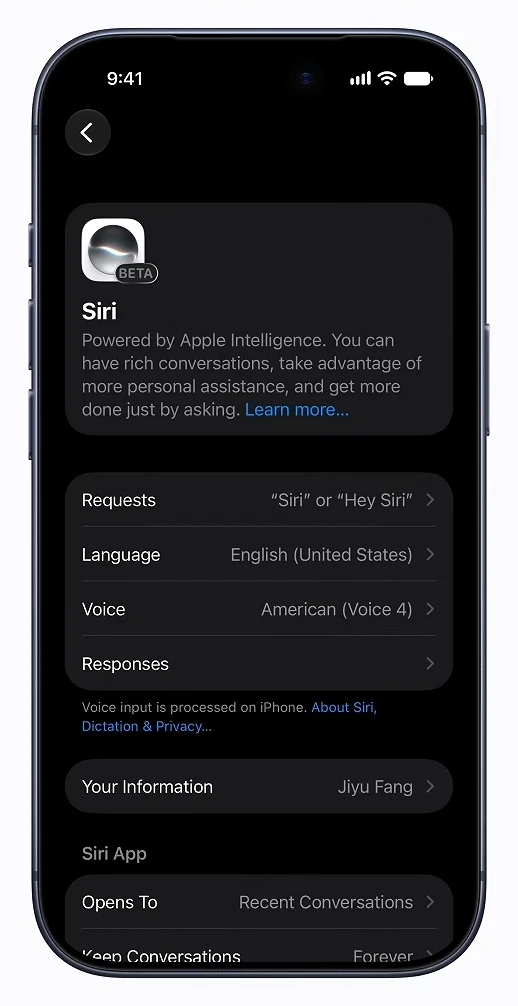
Back in Settings > Siri, the menu changes shape once Siri AI is enabled. You should see entries for Requests, Language, Voice, Responses, Your Information, App Icon, and Opens To.
How to start a conversation with Siri AI
There are three ways to summon the assistant on iPhone, and they all land in the same conversational interface.
- Say “Hey Siri” and start talking.
- Press and hold the side button.
- Swipe down from the Dynamic Island to open the Search or Ask bar.
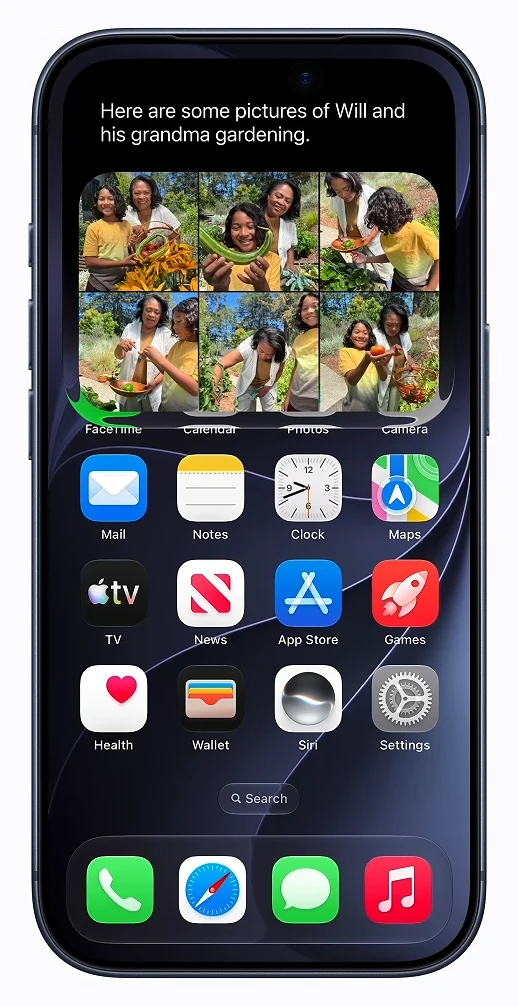
From there, tap the microphone icon to speak, or type your request and hit the blue Go key. Something like “Show me pictures of Will and his grandma gardening” pulls matching photos straight into the response card. Swipe down on that card to expand the conversation, and swipe up or press the side button to dismiss it.
On iPad and Mac, Siri AI is wired into Spotlight and into systemwide context menus, so you can Control-click an image, file, or block of text and ask about it. On Vision Pro, Siri appears as a 3D visualization you can place in your space and trigger by looking at it.
Using the dedicated Siri app for past conversations
Opening the Siri app drops you into a Conversations list, which syncs through iCloud so a thread you start on iPhone can be picked up on Mac, iPad, Apple Watch, or Vision Pro.
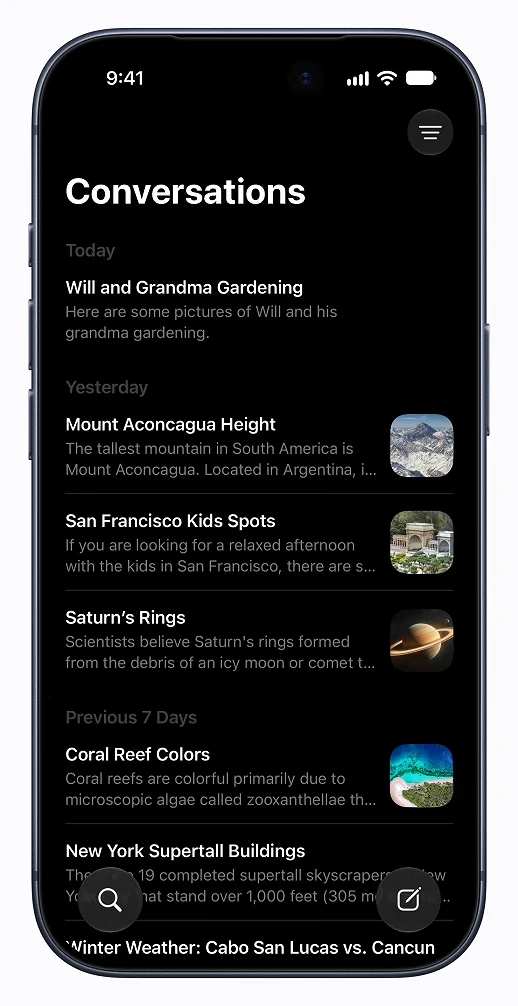
- Display mode button, top right: switch between Grid and List, or use Select to delete threads.
- Search icon, bottom left of the list: find an older conversation.
- New conversation icon, bottom right: start fresh.
- Plus icon inside a thread: attach from Camera, Photos, or Files.
Tapping an existing conversation reopens it with full history, so follow-up questions carry the earlier context rather than starting from zero.
If the Siri AI option does not appear
Two stated restrictions block the opt-in even on fully supported hardware. The first is language. Siri AI runs in English only at the moment, and any regional English variant works. To change it, go to Settings > General > Language & Region, tap Add Language…, add an English variant, then set it as your primary language.
The second is region. Because of Digital Markets Act obligations, Apple is not launching Siri AI in EU member countries, and the feature is separately paused in China. Users in the EU can set Settings > General > Language & Region > Region to United States, but that also strips out EU-only features such as alternative app marketplaces.
After a region switch away from the EU, you keep a thirty-day grace period for apps already installed from an alternative marketplace. After that, you are choosing between those apps and Siri AI.
Once the Siri app is on your home screen and the indexing checkmark has appeared, the assistant is fully switched on. Give it a couple of days of normal use before judging how well it handles questions about your own messages, mail, and photos, since that side of Siri only sharpens as the local index fills out.