Buying an emote in Wardogs does not add it to the wheel you already know. The first screen of the emote wheel keeps showing the same starter set, which makes it look like the purchase never applied. The extra emotes are there, just parked on a second page that needs one more key press to reach.
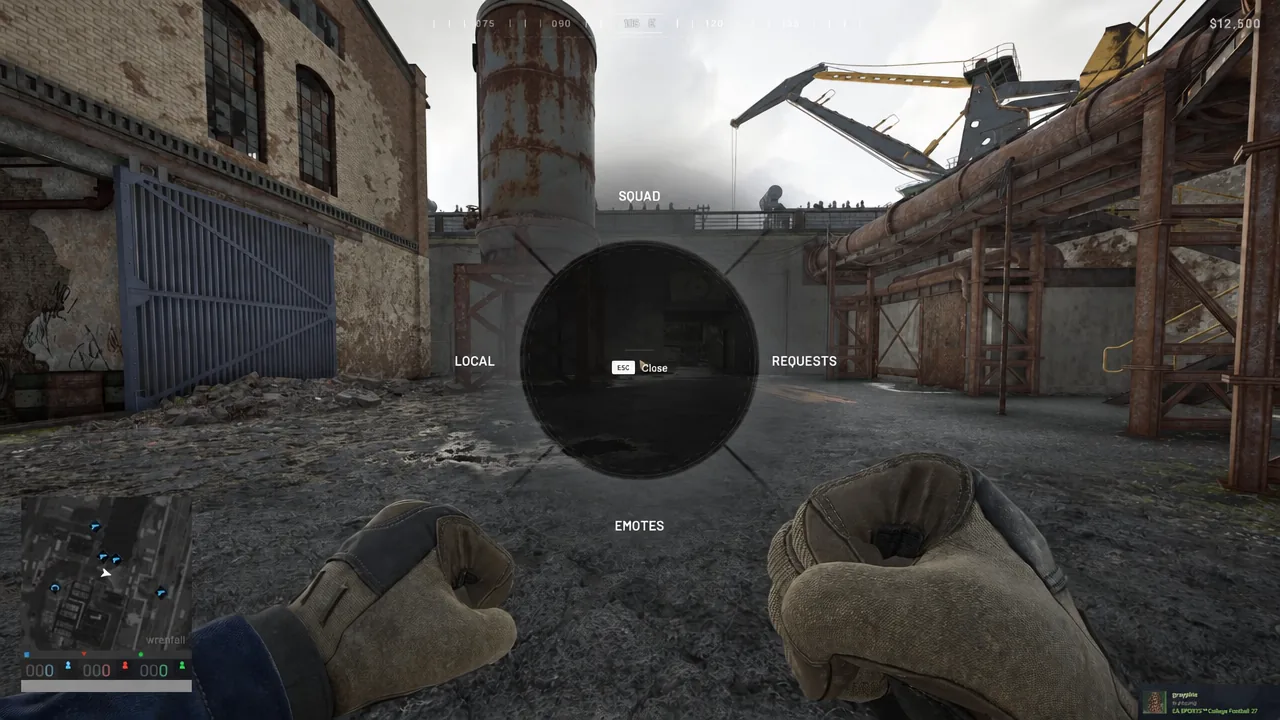
Quick answer: Hold the middle mouse button and scroll down to Emotes, then press F to flip to the next wheel page, where your purchased emotes are listed. Click the one you want.
Open the emote wheel in Wardogs
If the wheel will not open, check Settings > Controls > Keybindings for the input your build uses. Reassigning a key by hand can strip it from another infantry or vehicle action, so change one binding at a time and re-test.
Press F to reach the purchased emotes page
The Emotes branch opens on its first page, which holds the emotes every player starts with. Purchased emotes are never mixed into that first screen, so scrolling further will not surface them.
[F] Close or [F] Open depending on the screen you are on, and that key is what flips pages.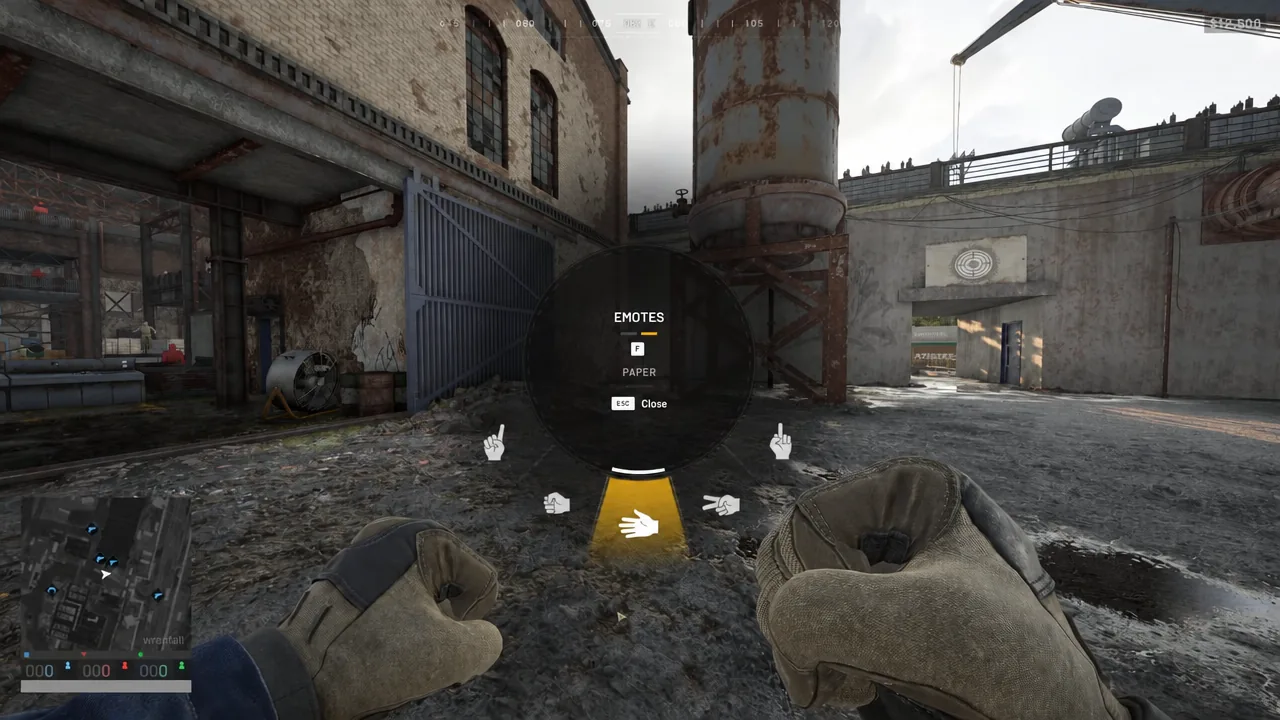
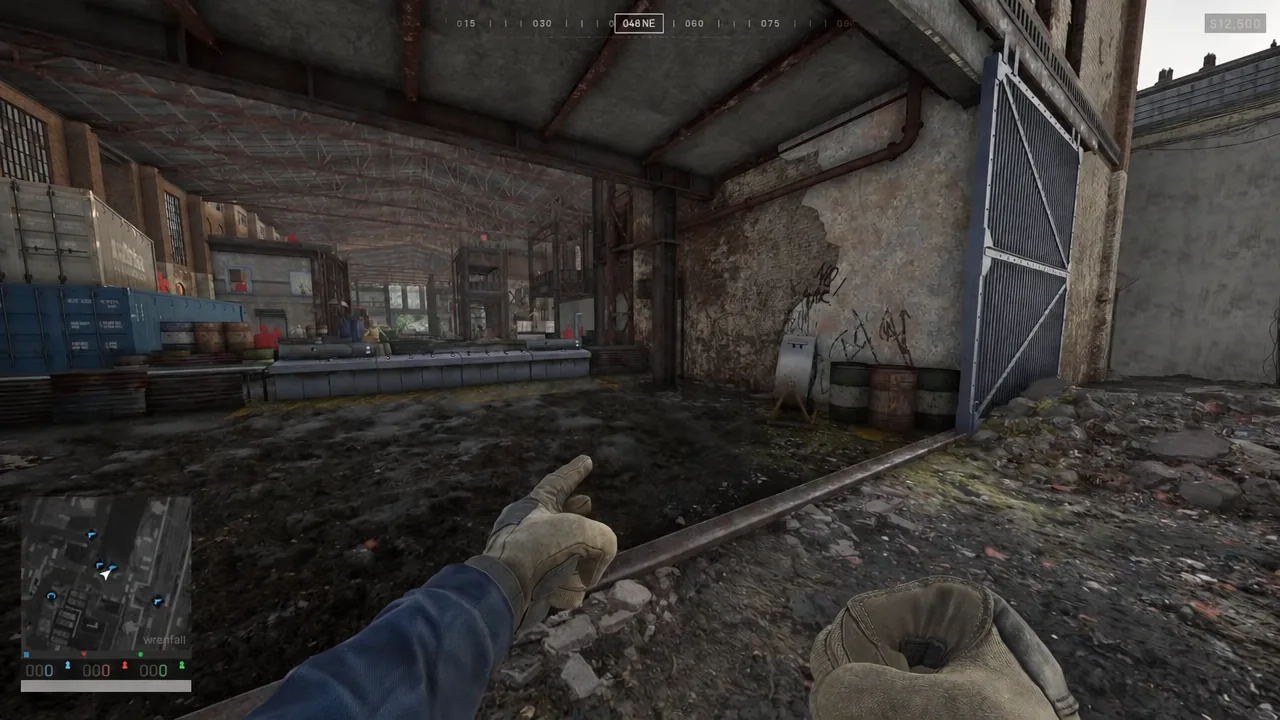
What sits on each emote wheel page
Knowing which page you are on is the fastest way to tell whether the F press registered. The starting page carries the basic gestures and hand signals:
- Paper
- Scissors
- Rock
- Move Up
- Point
- Halt
If those six names are still on screen, you are on page one and the key press has not gone through. Purchased emotes sold as cosmetics include Middle Finger, Rock Paper Scissors and Shh, and they only appear after the page swap.
Warning: The surrender emote drops your primary weapon
Not every emote is purely visual. The Surrender emote, shown in the wheel with an icon of raised hands and a rifle falling away, does exactly what the animation suggests. Playing it makes your character put the primary weapon on the ground.
Triggering Surrender in a moving vehicle leaves the rifle behind on the road. The primary weapon slot ends up empty and you are left with a sidearm or whatever else you are carrying, with no way to pick the rifle back up short of returning to where it landed.
Squad, Local and Requests on the same wheel
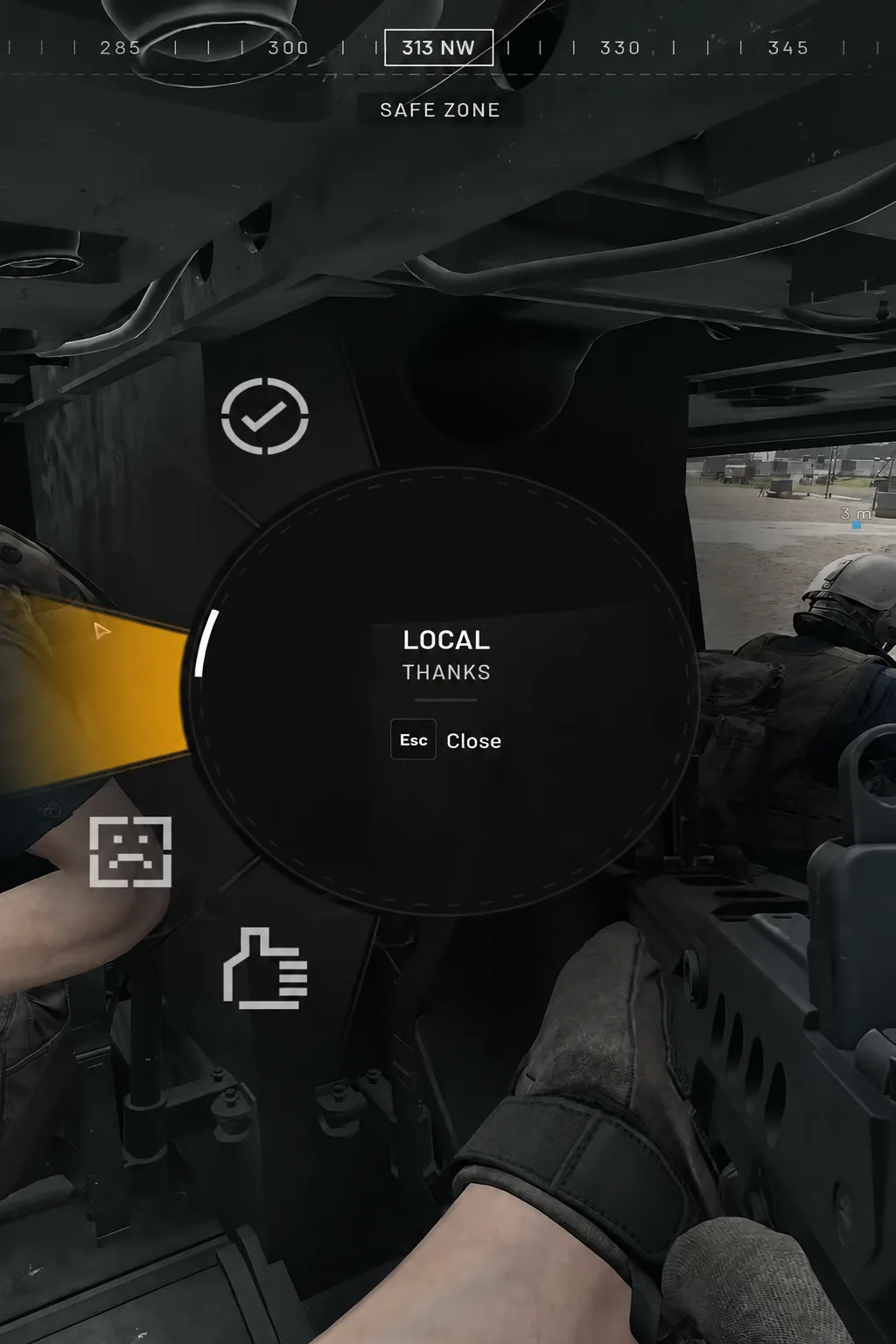
Emotes share the radial menu with three communication branches, so scrolling past the group you want is a common way to lose track of where you are. Squad and Local carry voice callouts such as Thanks, and Requests handles asks aimed at your teammates. Each of those screens uses its own close prompt, with Esc backing you out.
Emotes are cosmetics, not vendor stock
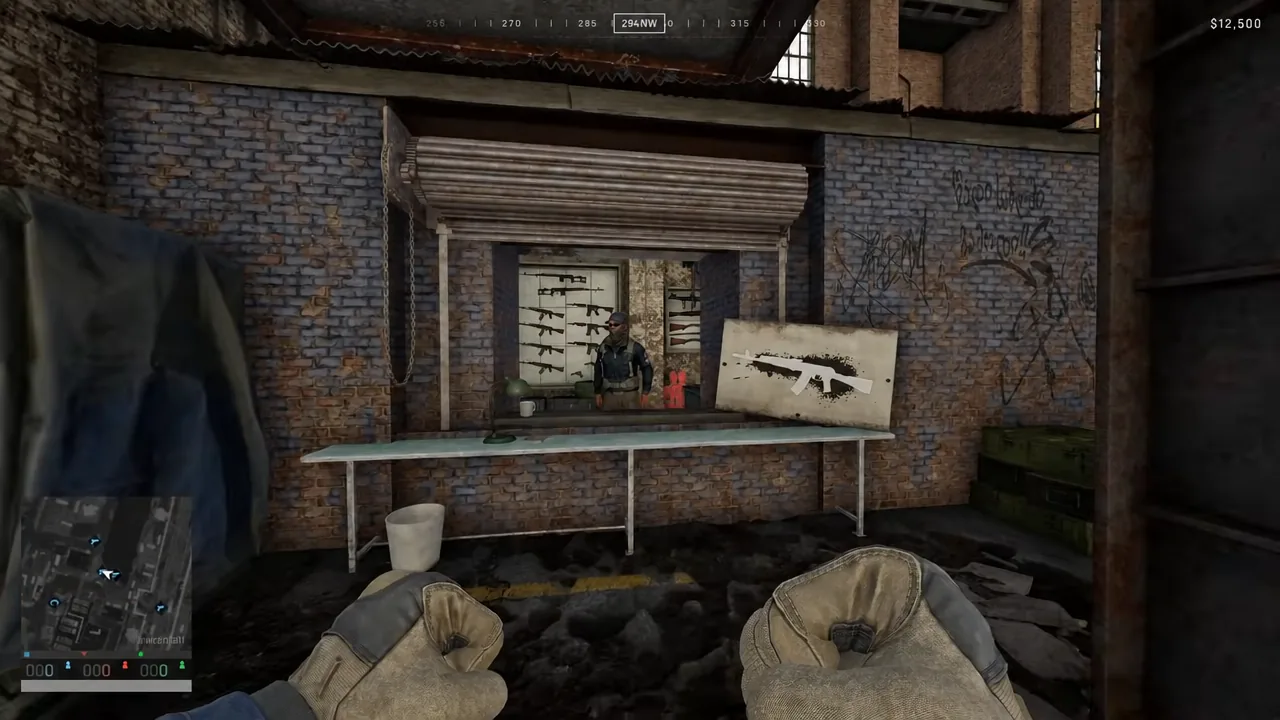
The Equipment Vendor you meet in the world handles gear, weapons, armor, backpacks and loose ammo through its Overview, Equipment, Gear and Items tabs. It is not where emotes come from, so browsing it for a missing animation is wasted time. Emotes belong to the game’s cosmetic set, which is organized like this:
| Cosmetic category | Example |
|---|---|
| Emotes | Shh |
| Bobbleheads | Grenade Bobblehead |
| Gear Skins |  Sport Parachute (Digital Wood) Sport Parachute (Digital Wood) |
| Music Tapes | Helikopter – Fazlija |
| Vehicle Skins | 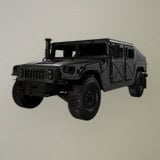 Humvee (Two Tone Desert) Humvee (Two Tone Desert) |
| Weapon Skins | 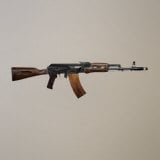 AK74 (Black And Gold) AK74 (Black And Gold) |
Confirm the emote played
Two things tell you it worked. First, the wheel’s icons change after the F press, replacing Paper, Scissors, Rock, Move Up, Point and Halt with the emotes you own. Second, your character performs the animation in third person the moment you release the wheel, and nearby players see it too.
If the animation plays but you cannot find a specific emote on either page, you are looking at an emote you do not own rather than a page problem. Run through both screens once in a quiet spot before you rely on a particular emote mid-fight, and keep Surrender off the list of things you test while riding in a vehicle.