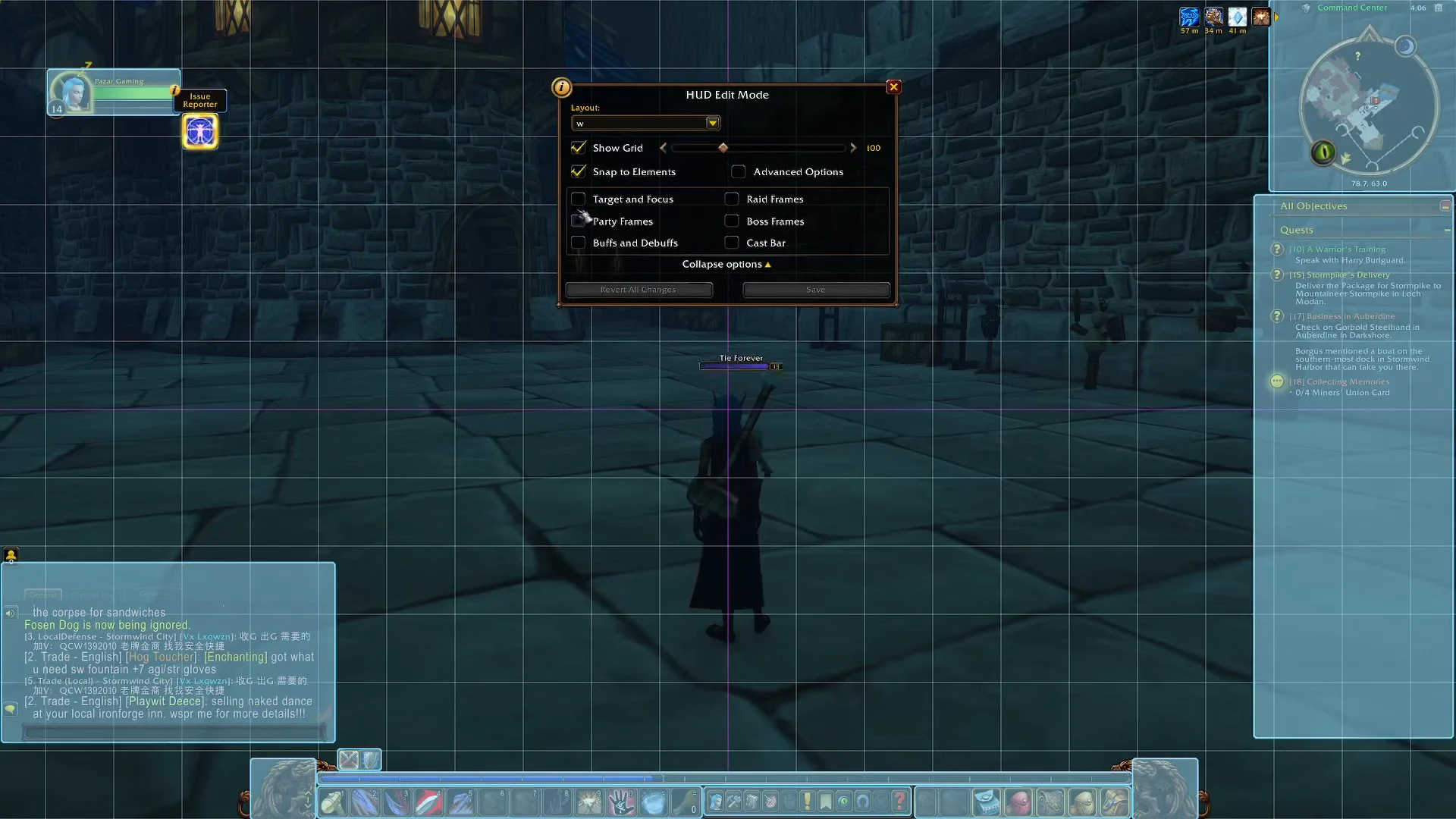
Almost every piece of the World of Warcraft interface can be picked up and dropped somewhere else without a single addon. The tool that does it is Edit Mode, the built-in HUD editor that turns your screen into a snapping grid and gives each element its own settings panel. Player frame too far from the center of your screen? Gryphons eating space next to your action bars? All of that is a few clicks away.
Quick answer: Press Escape, choose Edit Mode, then drag any HUD element to a new spot on the grid. Click an element to open its options, then hit Save.
Open Edit Mode and move HUD elements
Remove the gryphons and action bar art
The decorative gryphons (or wyverns, for Horde characters) sitting beside the main action bar are separate elements called End Cap (Left) and End Cap (Right). Inside Edit Mode, click one of them and tick the Hidden checkbox in its options panel. Repeat for the other side and save. The bar keeps working; only the art goes away.
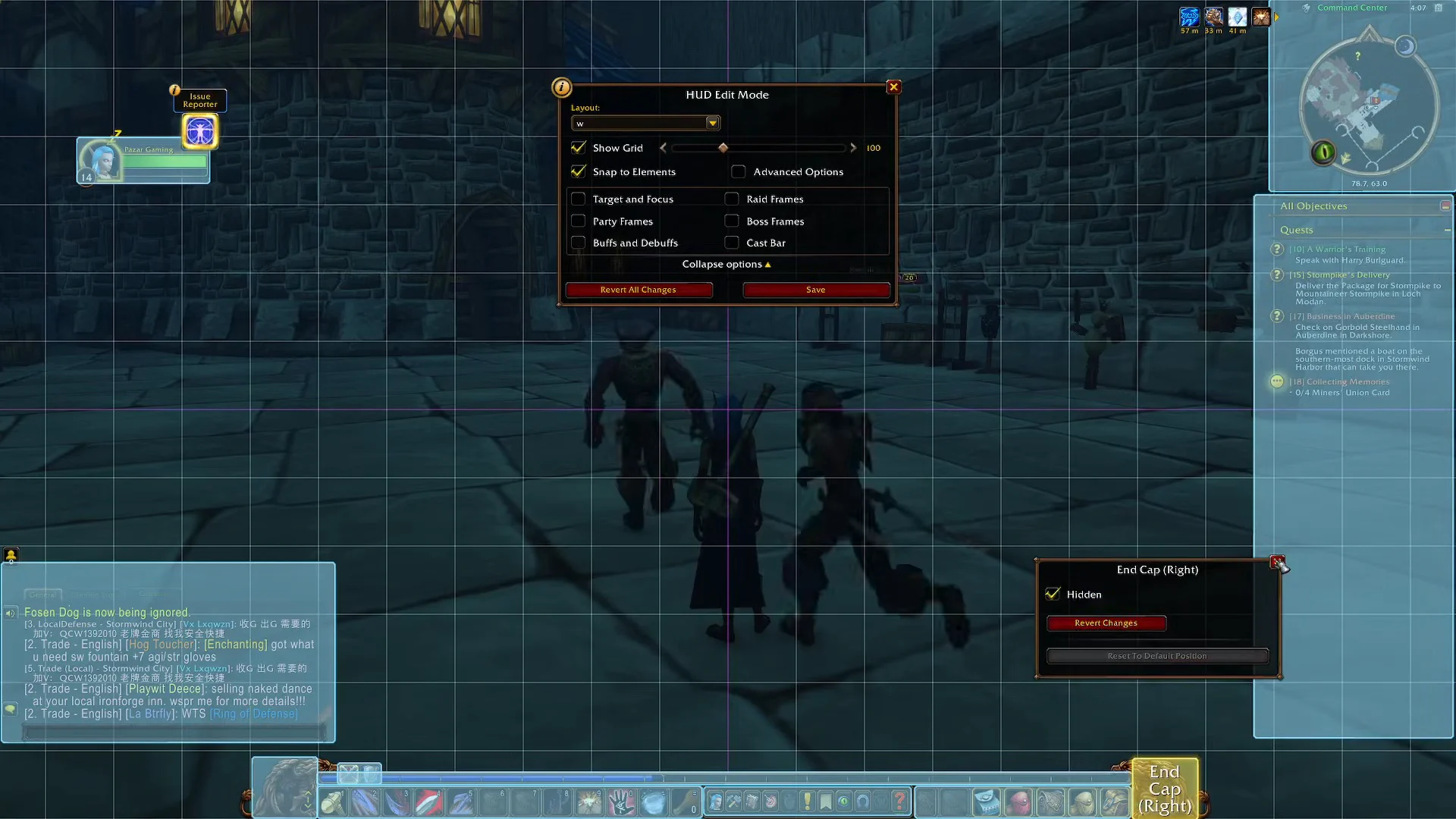
Action bars have their own art toggle as well. Select Action Bar 1 in Edit Mode and use the Hide Bar Art option to strip the frame around the buttons for a flatter, more minimal look closer to what custom interfaces like ElvUI produce.
Advanced Options: Frames, combat bars, and vehicle UI
Re-enter Edit Mode and open Advanced Options to reveal elements that normally only appear in specific situations. The toggles are grouped so you can pull a hidden frame onto the grid, position it, and know it will land in the right place the moment it becomes active in combat or in a vehicle.
- Frames — unit frames and related panels
- Combat — combat bars and related indicators
- Vehicle UI — the bar that replaces your abilities while in a vehicle
- Misc — the remaining odds and ends
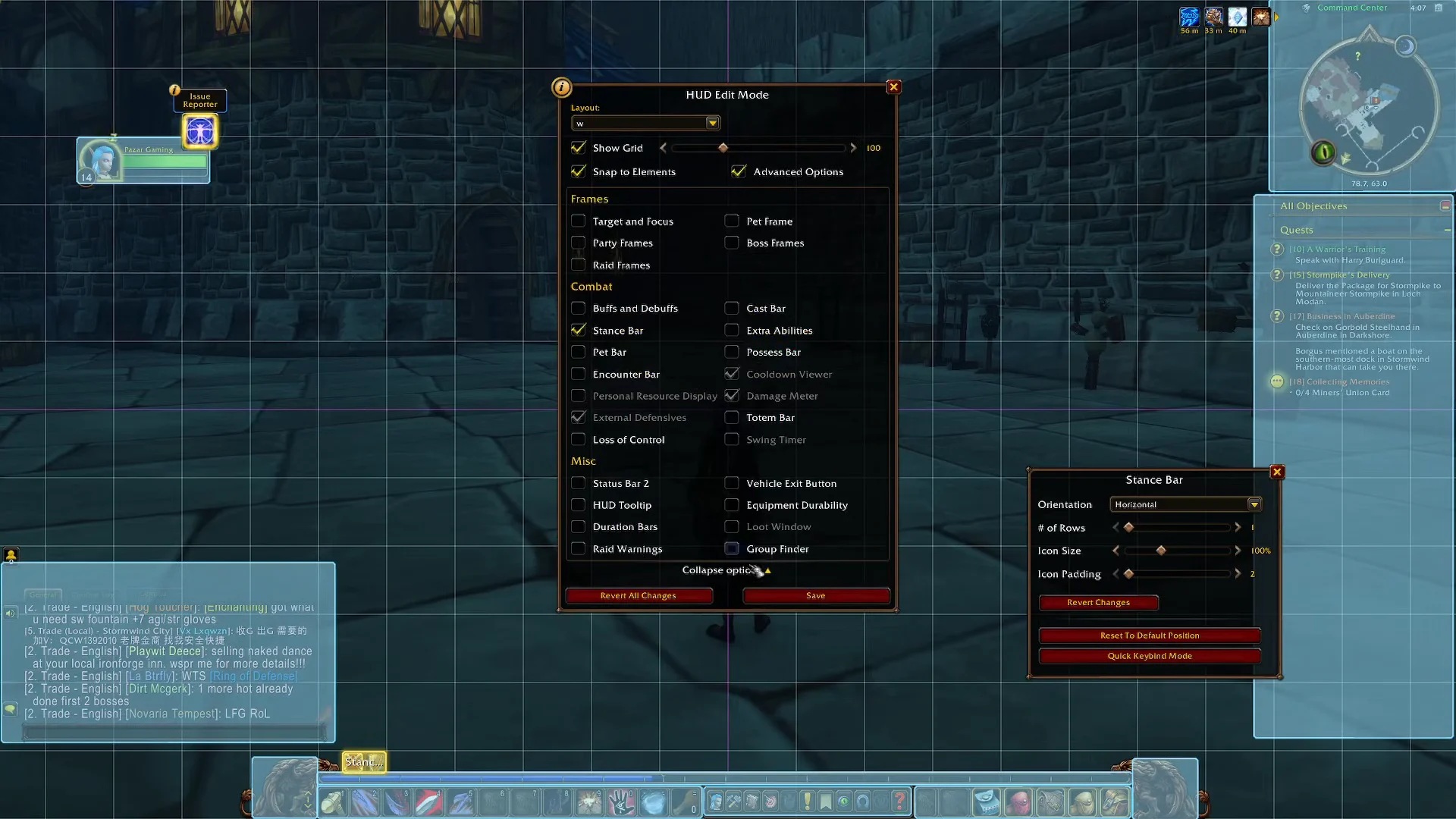
Several settings that used to live in the Raid Profile page now sit inside Edit Mode rather than the Options menu, so check here first if a toggle seems to have vanished.
Layout presets, saving, and sharing a HUD layout
The Layout dropdown at the top of Edit Mode holds your saved layouts alongside two built-in ones, Modern (Preset) and Classic (Preset). Switching between them instantly reshuffles the HUD, which makes them useful starting points before you start dragging things around. You can name, save, copy, and delete your own layouts from the same menu.
| Control | What it does |
|---|---|
| Layout dropdown | Switches between presets and saved layouts |
| Import Layout | Pastes in a layout string from elsewhere |
| Share | Copies your layout string to the clipboard |
| Save | Commits your current changes |
Click Share, and the game copies a text string representing the whole layout to your clipboard, ready to paste into Discord or a forum post. Going the other way, Import Layout takes a string someone else gives you and rebuilds their setup on your screen. Save afterwards to keep it.
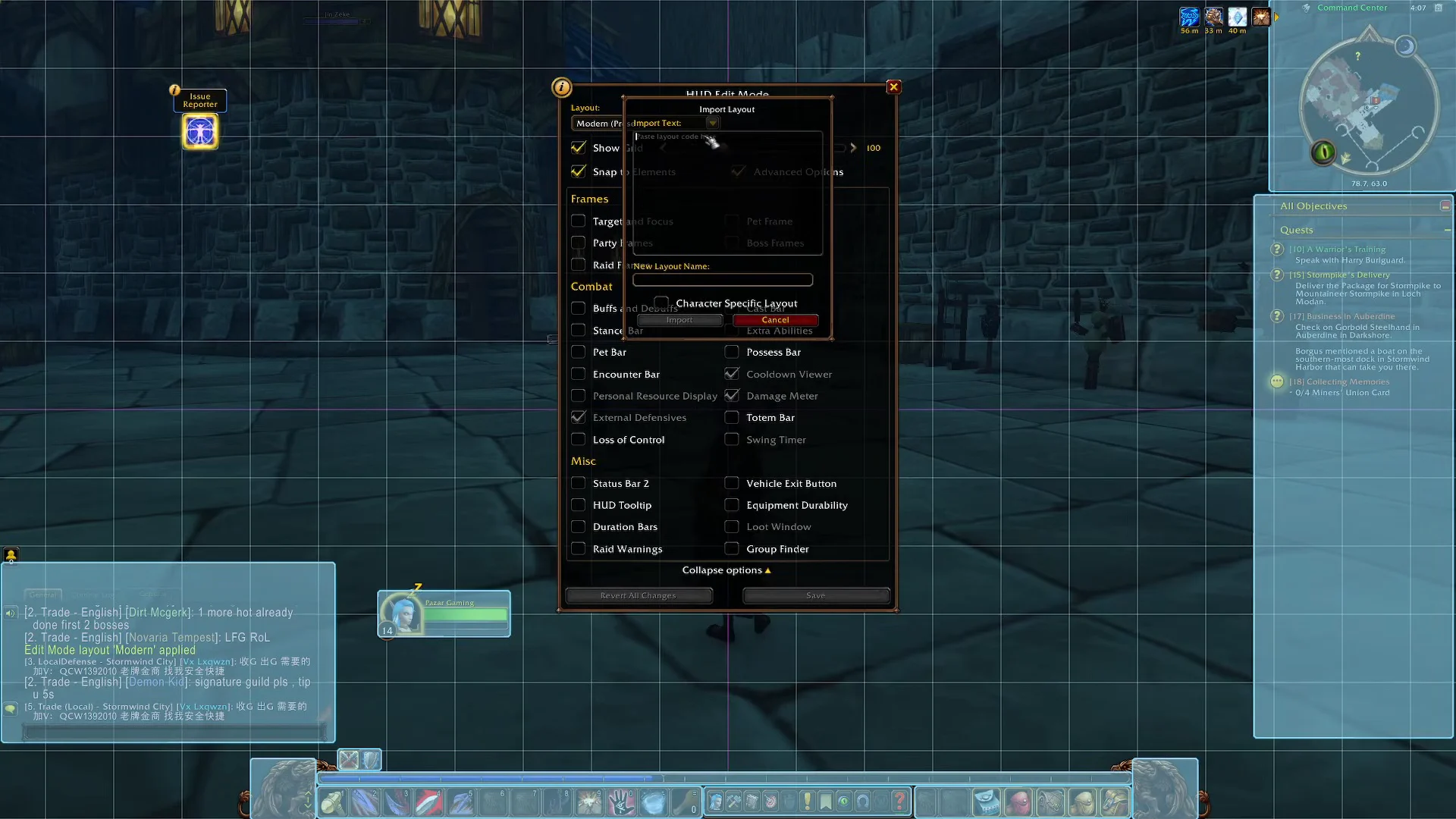
Layouts are also tied to specialization. If you swap between specs regularly, the interface remembers which layout belongs to which spec and switches for you.
Confirm the layout saved and reset it if needed
You know the change took when you exit Edit Mode and the grid disappears with your frames still in their new positions, and the layout name you saved stays selected in the dropdown the next time you open the editor. Hidden elements such as the end caps simply stop drawing on screen.
When the interface stops behaving — frames refusing to move, panels overlapping, elements that will not respond — the first thing to do is disable your addons, then reset your WoW User Interface from Blizzard’s support flow. Customer support does not help build custom interfaces or troubleshoot addons, so anything beyond a reset is a question for the UI and Macro forums.
One limitation worth knowing before you start: Edit Mode cannot bring back the original pre-revamp interface. The modern HUD is the baseline now, and your choices are the Modern and Classic presets plus whatever you build on top of them. Addons remain fully supported for anything the built-in editor does not cover, including Classic-styled skins that hook into Edit Mode and add their own checkboxes to the same panels you have been clicking through.