Graveyard Keeper 2 keeps its save data in a hidden Windows folder that sits apart from the game’s install directory. Knowing where it lives lets you make manual backups, move progress to another PC, or send your files with a bug report.
Quick answer: On Windows, paste %USERPROFILE%\AppData\LocalLow\Lazy Bear Games\Graveyard Keeper 2 into File Explorer’s address bar. Your .dat and .info save files are inside.
Graveyard Keeper 2 save folder path on Windows
The saves are stored under the LocalLow section of your user profile’s AppData, inside a Lazy Bear Games folder. The full location is %USERPROFILE%\AppData\LocalLow\Lazy Bear Games\Graveyard Keeper 2. This same folder also holds Player.log, which records what the game does during a session.
AppData is hidden by default. If you prefer to browse to it manually rather than paste the path, turn on hidden items first. In File Explorer, open the View menu and enable Hidden items (on Windows 11, use View > Show > Hidden items).
Open the save folder with the Run box
%appdata% and press Enter. This opens the Roaming folder.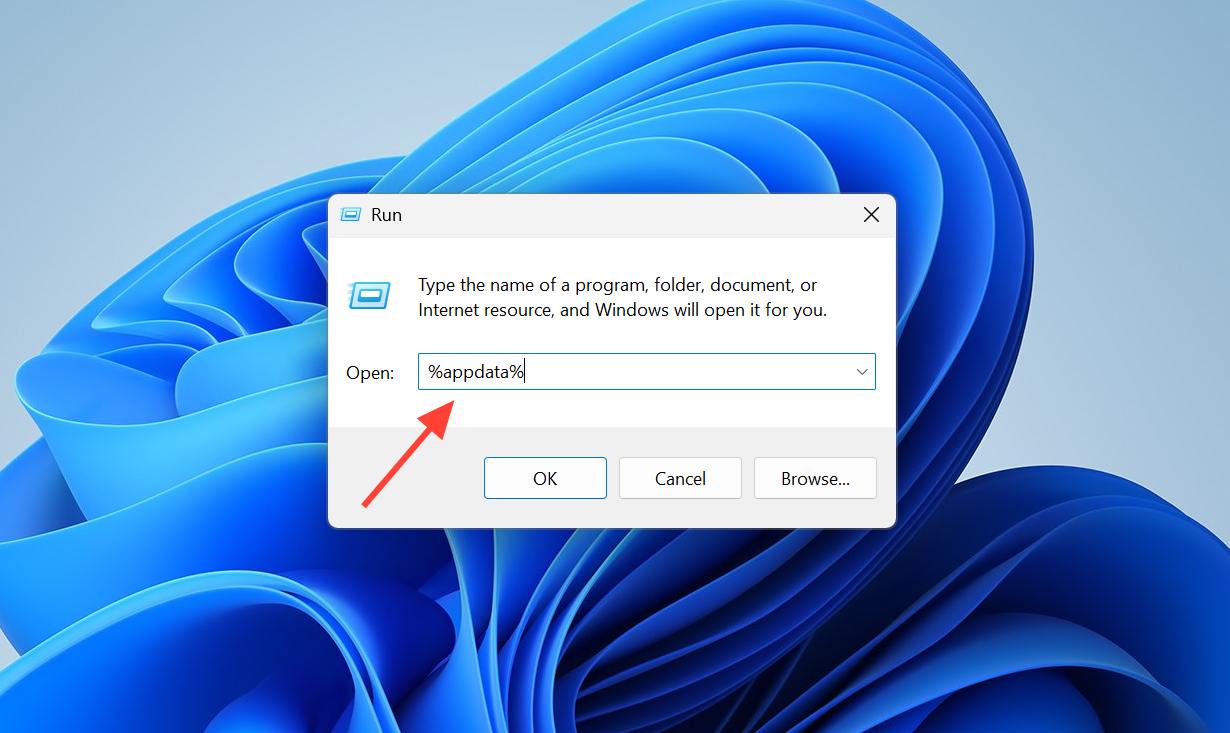
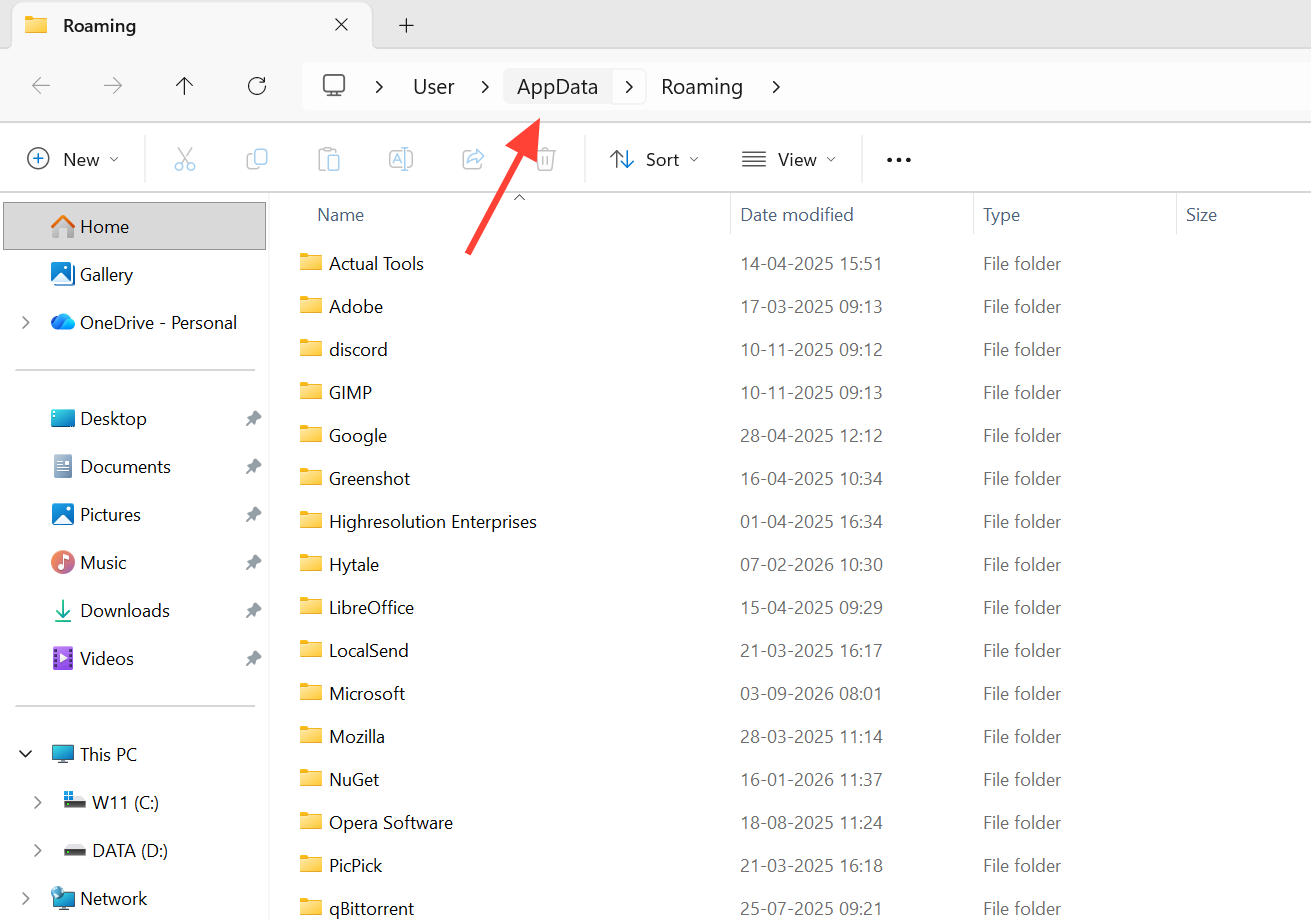
.dat and .info.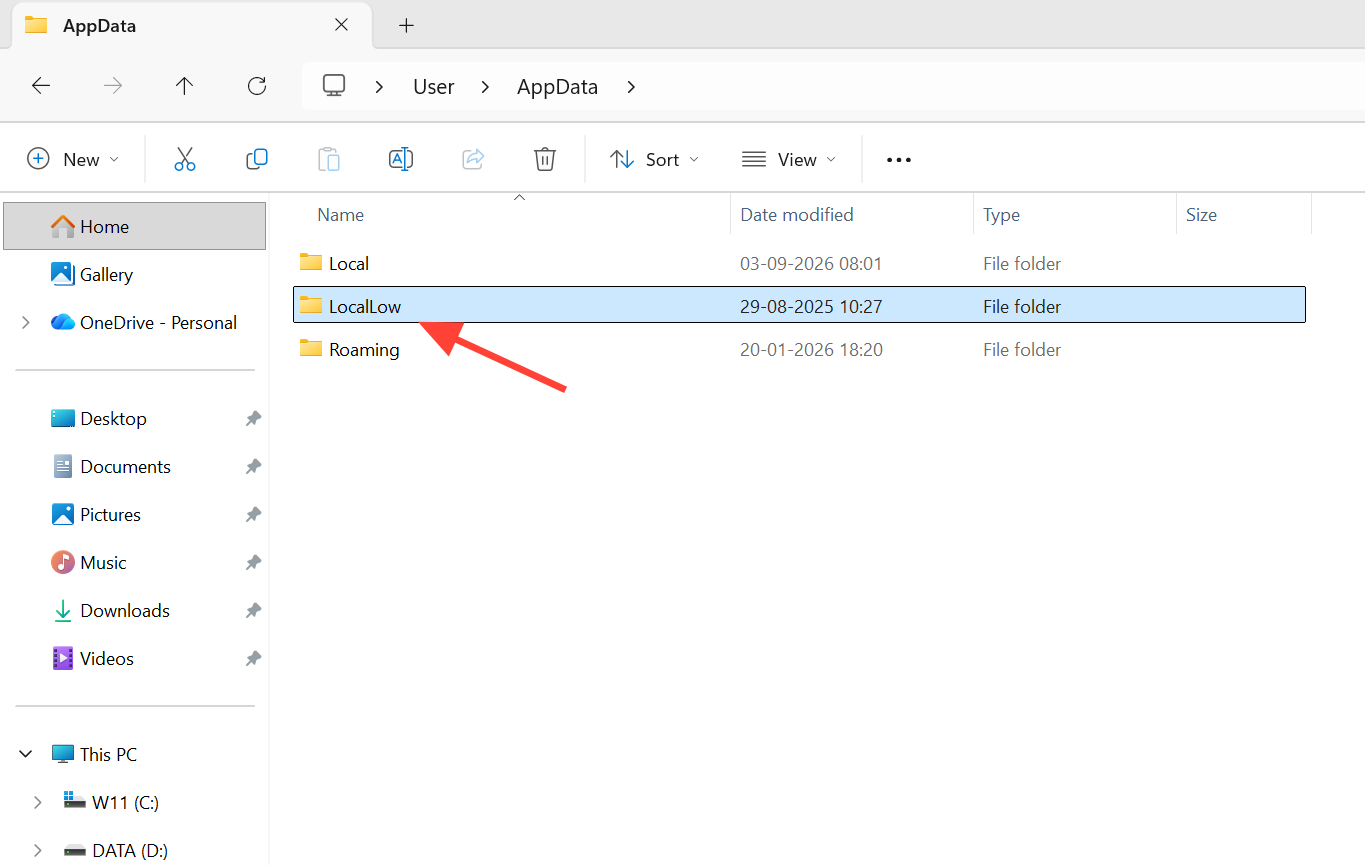
A faster shortcut is to type %localappdata%\low in the Run box, which drops you straight into LocalLow so you only need to open Lazy Bear Games and Graveyard Keeper 2.
What the files inside the folder do
Save slots are numbered, so a Steam playthrough typically shows files such as Steam_1.dat and Steam_1.info, along with an automatic backup copy. Keep the matching .dat and .info files together, since they belong to the same save.
| File | What it stores |
|---|---|
| Steam_1.dat | The primary save data for that slot |
| Steam_1.info | Metadata shown on the load screen |
| Steam_1_backup_1.dat | An automatic backup copy of the save |
| Player.log | The game’s session log, useful for bug reports |
The same folder also contains a Mods subfolder with a README.txt that explains where to place community content.
Back up your saves before changing anything
.dat and .info pair together.Backing up is a preservation step, not a repair for damaged progress. If you plan to contact support, leave your original backup untouched so you can hand over a clean copy.
Never edit save files with a word processor such as Microsoft Word. Hidden formatting it adds may leave a save permanently corrupted.
Moving demo progress into the full game
The Steam demo keeps its data in a separate folder named Graveyard Keeper 2 Demo, found at %USERPROFILE%\AppData\LocalLow\Lazy Bear Games\Graveyard Keeper 2 Demo. Demo progress should carry over to the full game automatically.
If the transfer fails, manually move the demo folder’s .info and .dat files into the full-game folder. Back up both folders beforehand, and don’t replace any full-game progress you want to retain.
Sending save files with a bug report
The PC version includes an in-game reporting tool reachable from the main menu or the pause menu. If a bug stops the game from opening, you can raise a ticket through tinyBuild support and attach the error message, the steps to reproduce it, your save files, and Player.log.
Once you can see the .dat and .info files in the Lazy Bear Games folder, you have found the right location and can copy, transfer, or attach them as needed.