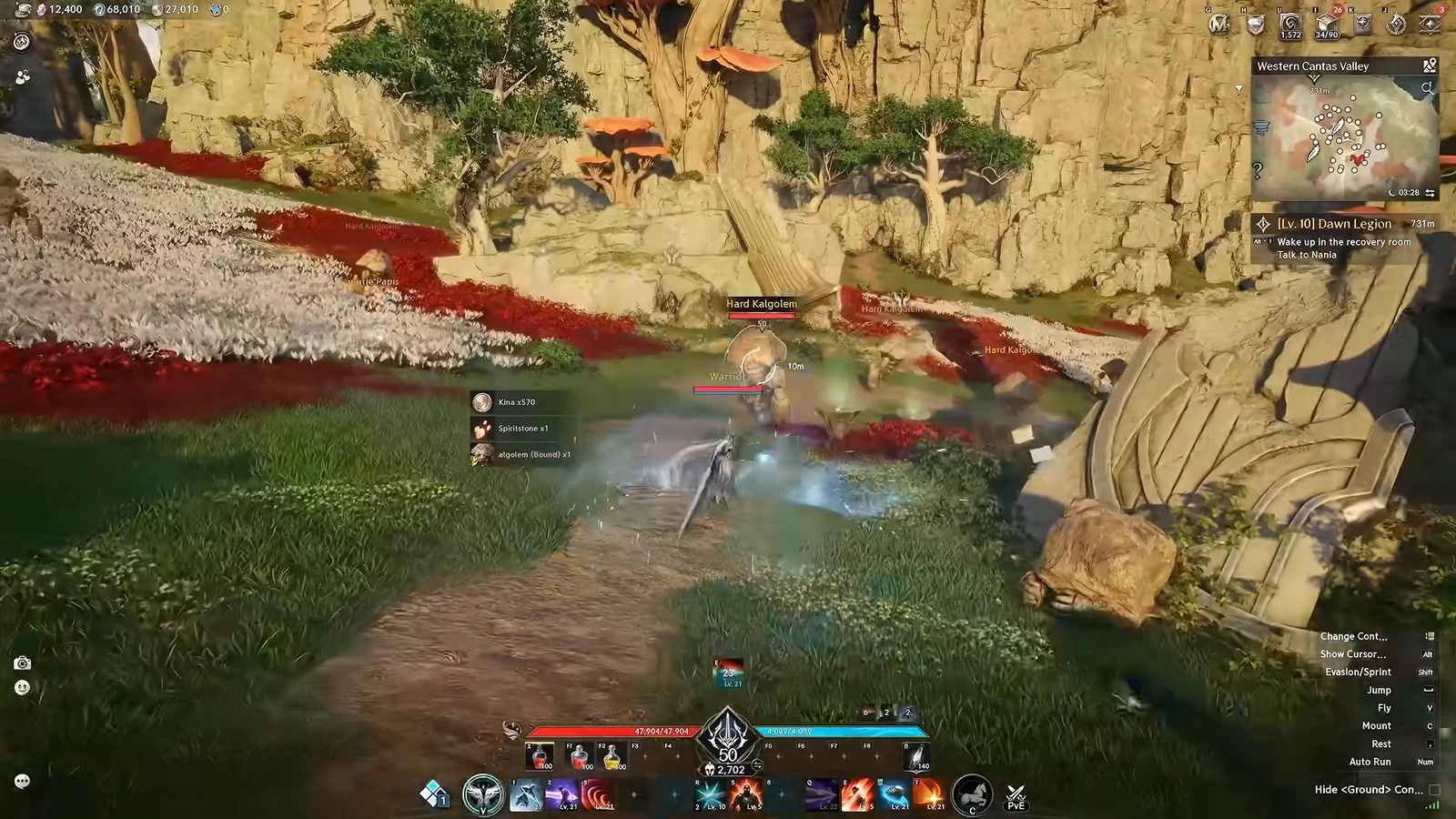
AION 2 damage meters inspect combat packets traveling over your network connection and display current DPS, total damage, and skill-by-skill results during a fight. They appear as overlays above the game and require two programs: Npcap, a packet-capture driver, and a meter client such as A2Tools or NotMeter. Neither changes the game client or accesses its memory; both read the unencrypted packets sent by the server.
Quick answer: Install Npcap with “WinPcap API-compatible Mode” checked, then run a packet-based meter (A2Tools or NotMeter) as administrator and trigger detection by teleporting or zoning.
What you need before installing
Packet-based meters all share the same prerequisites. Check these before downloading anything, because a missing driver or missing admin rights is the most common reason a meter never picks up your character.
- Windows 10 or 11 (64-bit). Linux is supported through Proton with a separate setup guide.
- Npcap installed with WinPcap API-compatible Mode enabled.
- Administrator privileges, which raw packet capture requires.
- AION 2 running on a supported server (Taiwan and Korea currently).
- It works alongside VPNs and ping reducers such as ExitLag; the meter detects the loopback adapter automatically.
Install Npcap (packet capture driver)
Npcap captures the network traffic the meter reads, so it has to be installed first. Install it once and every packet-based meter can use it.
Install the meter: A2Tools
A2Tools is a free, open-source (GPL-3.0) meter that ships as a Windows MSI installer and works on any region. It handles real-time DPS, per-skill crit, back-attack, parry and perfect rates, damage-over-time tracking, battle history that auto-saves boss fights, and ping monitoring.
Install the meter: NotMeter (alternative)
NotMeter is another widely used client. It ships as a zip archive rather than an installer, and its own site keeps an up-to-date setup guide.
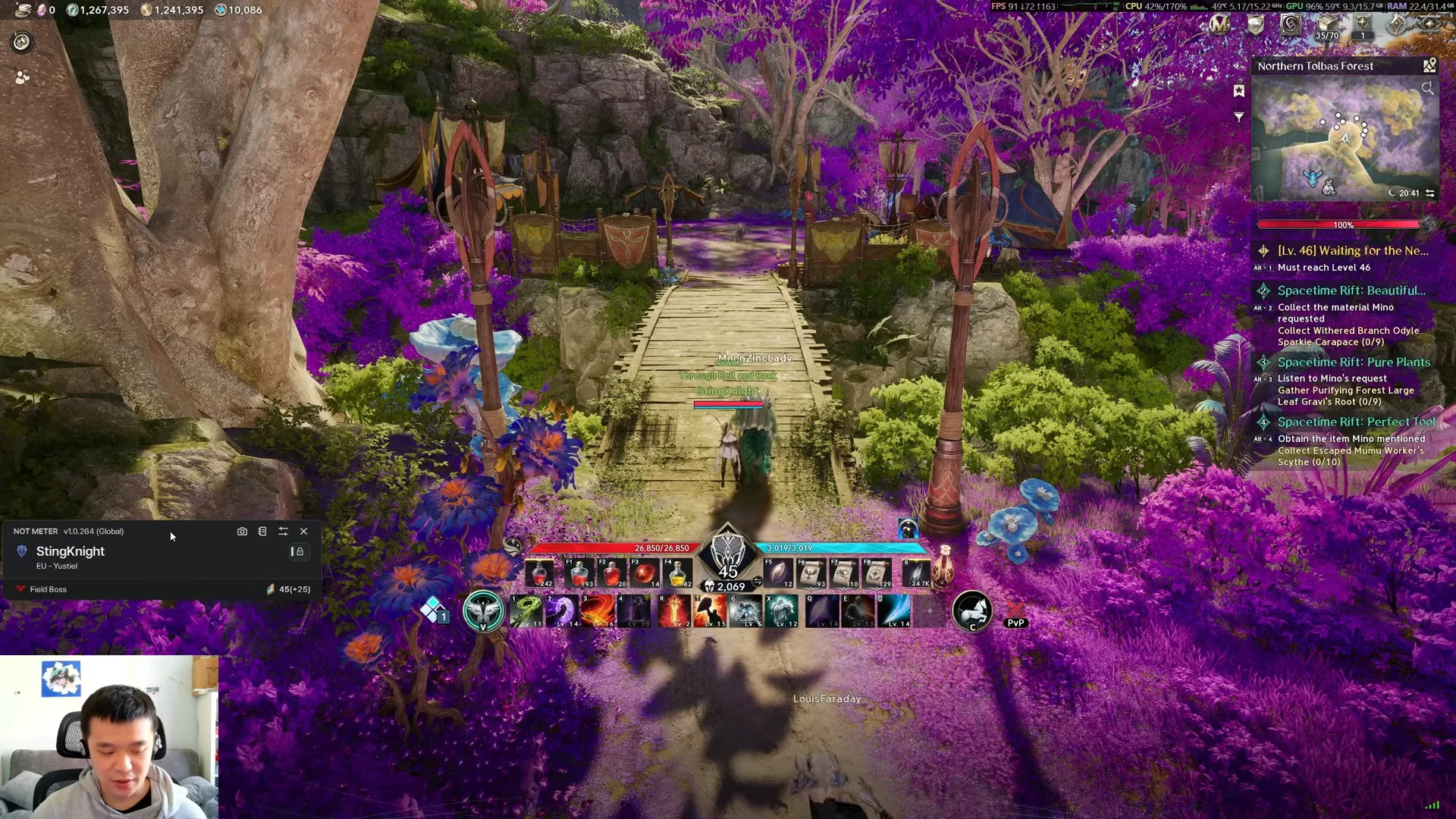
Trigger character detection
On launch the overlay sits idle and shows a prompt such as “Detecting character” or “Detecting AION2 connection…” until it identifies you. It needs to see your character data pass through the network, which happens when you teleport, revive, or change zones.
Open the world map and teleport anywhere to force detection. Once it connects, the overlay fills in your character name and server. If your name still does not appear, open the meter’s settings and enter your character name and actor ID manually.
Test the meter against a boss or dummy
The meter does not register damage on ordinary open-world trash mobs. It only logs combat against expedition and dungeon bosses, or against the target dummies in your Legion Hall. If you swing at a random field monster and nothing moves on the overlay, that is expected behavior, not a fault.
Target dummies in the Legion Hall
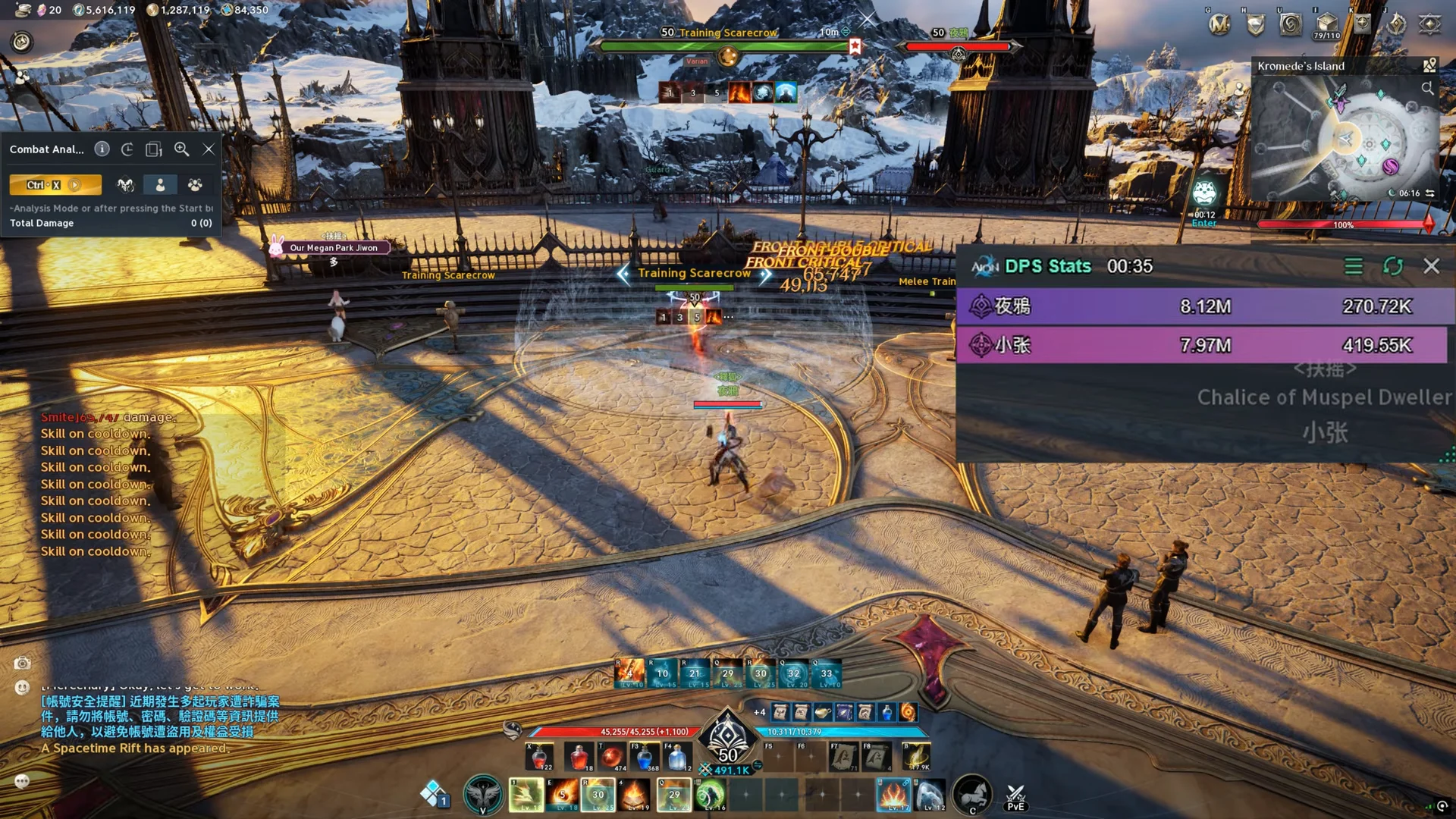
The fastest check is a target dummy. Use a hall return scroll to reach your Legion Hall and attack a Melee Training Scarecrow, a non-aggressive level 10 dummy placed at Legion bases and halls. The overlay should start counting hits and damage immediately, including output from nearby players if they join in.
An expedition boss
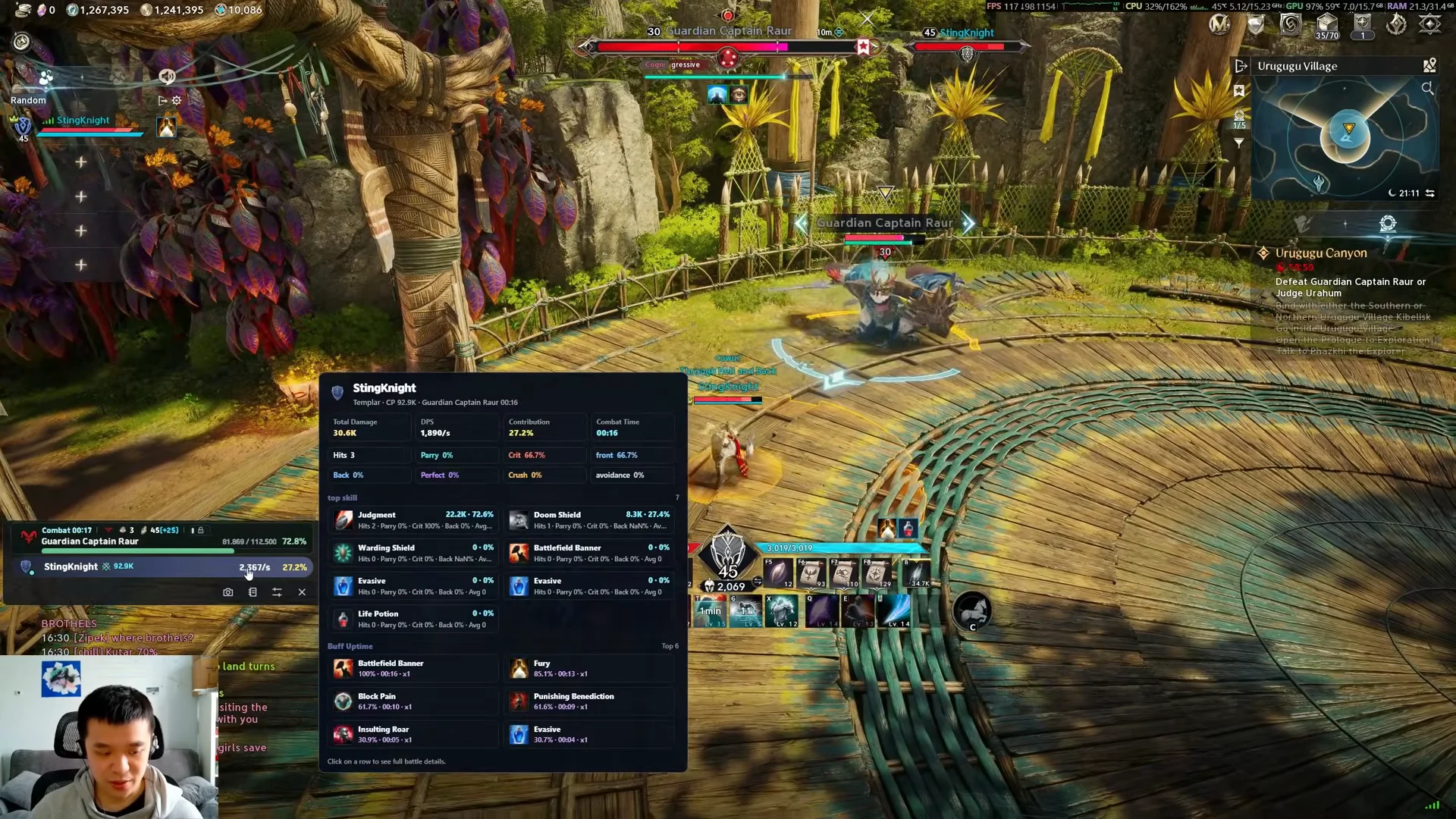
For an actual combat report, enter an expedition and engage a boss. Urugugu Canyon is a convenient low-level choice, and Guardian Captain Raur is the first boss there. During the fight, the overlay displays DPS, accumulated damage, and individual skill results, including Judgment, Shield Bash, Strike, and Shield Throw.
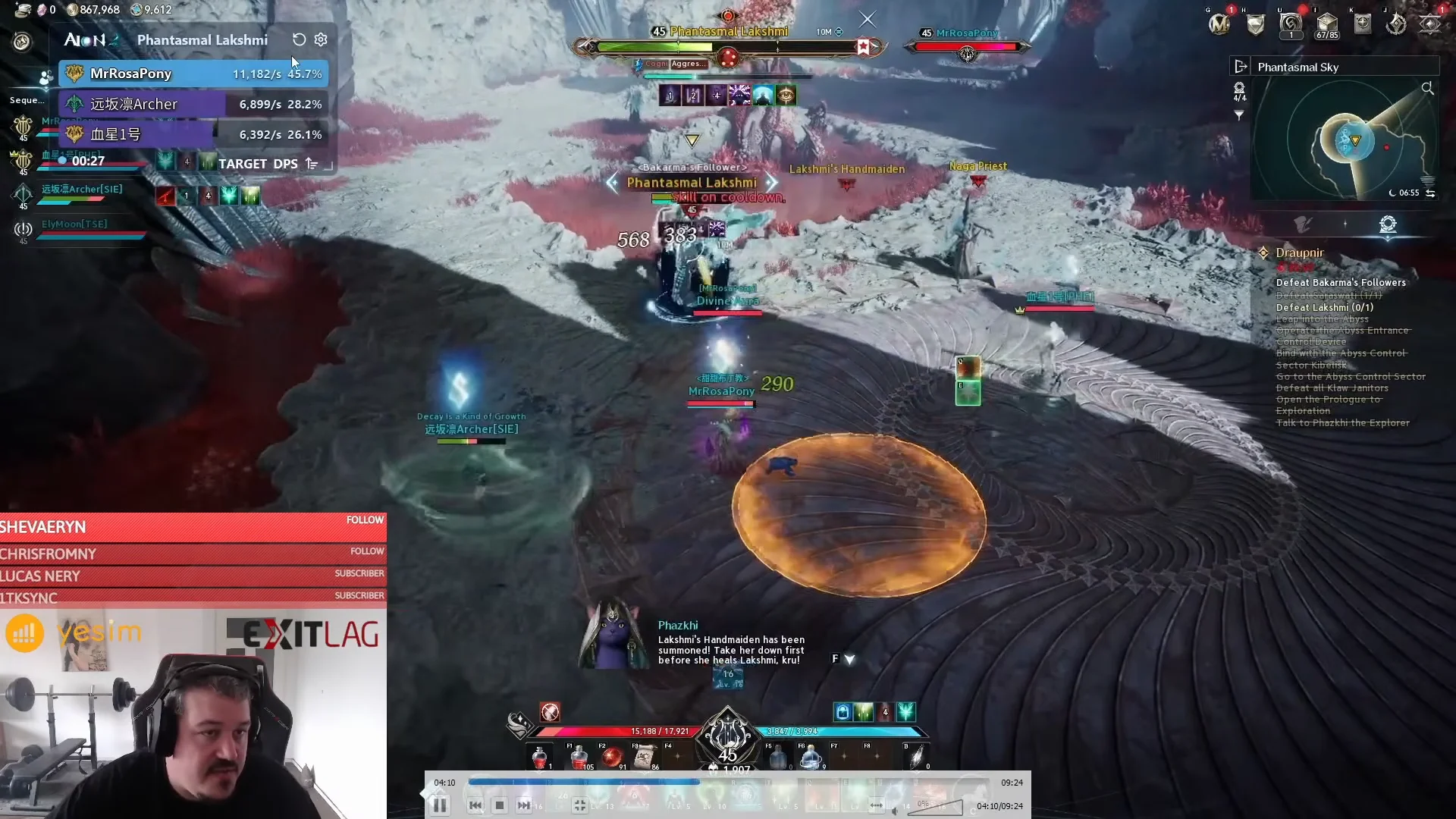
Higher-level bosses behave the same way. A fight against Phantasmal Lakshmi, a hero boss in Draupnir, fills the overlay with each party member’s contribution and auto-saves the encounter to battle history.
Urugugu Canyon reference for test runs
If you use Urugugu Canyon as a test dungeon, these are its fixed parameters. It is a party dungeon for two to five players with three level 30 bosses and two difficulty settings.
| Detail | Value |
|---|---|
| Party size | 2–5 players |
| Time limit | 60 minutes |
| Difficulties | Exploration, Conquest |
| Bosses | Guardian Captain Raur, Judge Urahum, Divine Auldor (all level 30) |
Confirm it is working
You know the install succeeded when the overlay stops showing the detection prompt, displays your character name, and the DPS and damage numbers climb as you attack a boss or dummy. Opening a skill breakdown and seeing named abilities with per-skill damage confirms the parser is reading combat correctly.
Fix a meter that shows no data
Most problems trace back to the driver or admin rights. Work through these in order.
- Stuck on “Detecting AION2 connection…”: make sure the game is running and the meter was launched with administrator privileges. On a VPN or ping reducer, the loopback adapter is detected automatically.
- Your name is missing: add your character name and actor ID through the meter’s settings.
- Npcap is installed, but packet capture remains inactive: reinstall Npcap and select “WinPcap API-compatible Mode” during setup.
- Still no combat data: open the meter’s settings and check its network section to auto-configure the network interface binding.
These are third-party utilities; you choose whether to use them and should comply with the game’s terms of service. Use the numbers to refine your own rotation and gear, not to harass other players about their damage.