Gaming Guide

Dragon’s Dogma 2: Where to Find the New Dark Arisen Hairstyles and Tattoos in the Character Creator

The expansion adds 21 marked hairstyles and 32 marked body tattoos, all flagged inside Detailed Customization.

The expansion adds 21 marked hairstyles and 32 marked body tattoos, all flagged inside Detailed Customization.

Image: CAPCOM Co., Ltd.

The hairstyles and tattoos that came with Dragon’s Dogma 2: Dark Arisen all live in the same Character Creator you already know, tucked near the end of their respective grids. You can spot the expansion’s items by the small download-arrow icon.

Quick answer: In Detailed Customization, look for Dark Arisen hairstyles at tiles 58–78 on Body Hair, and body tattoos at tiles 67–98 on Tattoos/Markings.


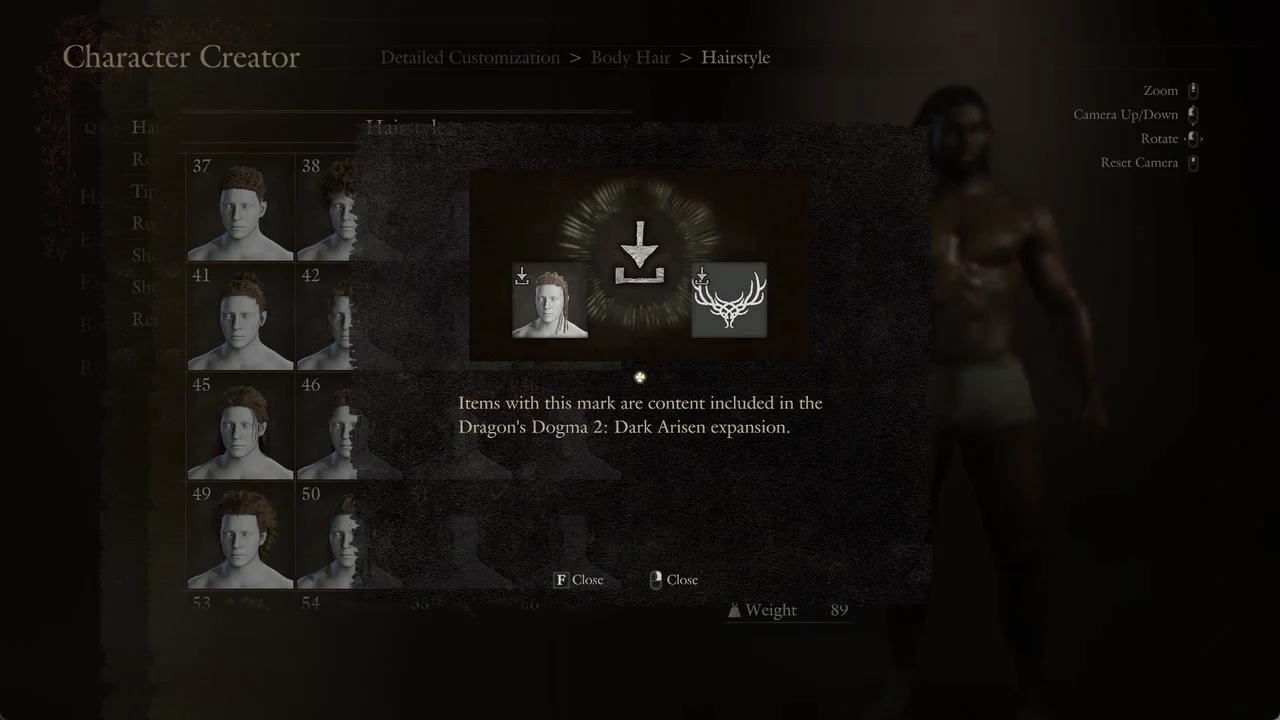
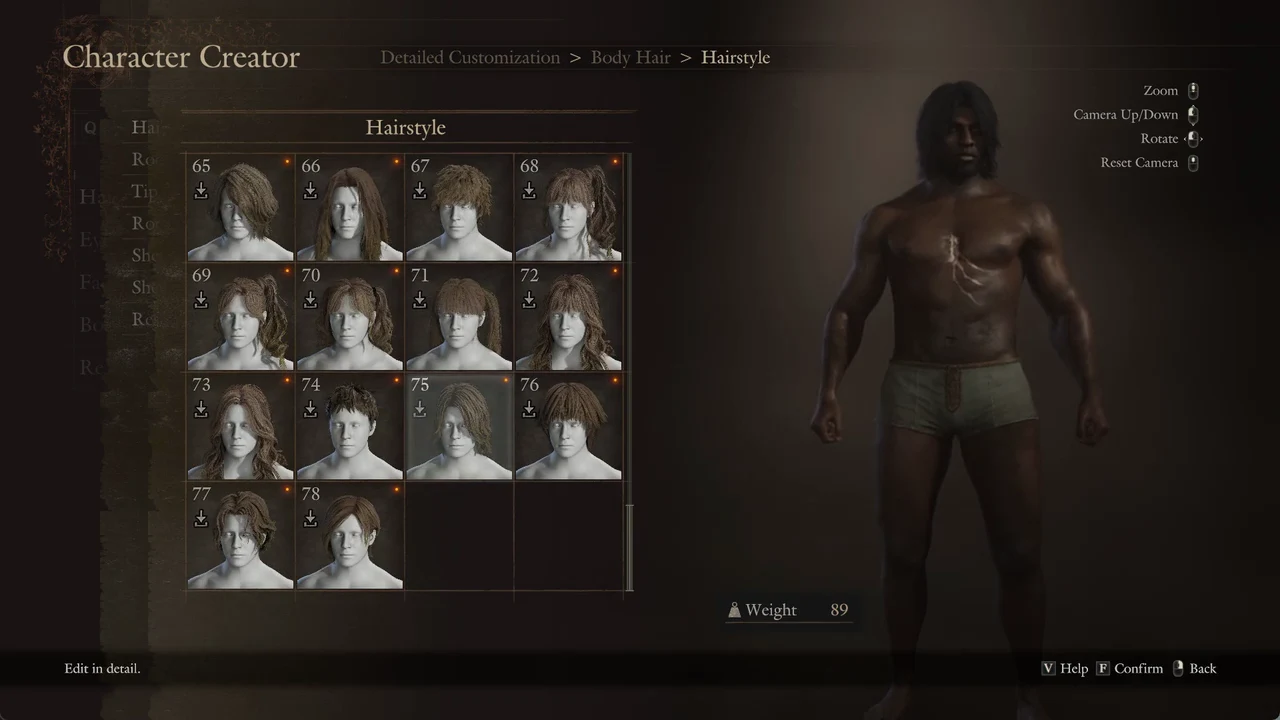
In the Character Creator’s Detailed Customization, the Hairstyle grid and the Body Tattoo 1 Style grid show the Dark Arisen items with a small download-arrow mark, the Help page explains the mark, and hairstyle #75 and body tattoo #73 are applied.

How to tell the expansion items apart

Look at the top-left corner of a tile, just under its number: a small white download-arrow icon sits there on anything that belongs to Dark Arisen. Tiles without that icon are base-game options.

The game spells this out for you. Inside any style grid, pressing V (Help) opens a page that shows the icon and explains that items carrying the mark are content included in the Dragon’s Dogma 2: Dark Arisen expansion.

There is a second marker worth knowing. An orange dot flags anything you have not looked at yet. It appears on the main-menu rows, on the Body Hair and Tattoos/Markings tabs, on the rows that lead to new items, and on each unseen tile. The dot on a tile disappears once your cursor rests on it, but the download-arrow mark stays.

CategoryGrid totalMarked tilesNew styles
Hairstyle1–7858–7821
Body Tattoo 1 Style1–9867–9832

These figures use the Masculine Human preset. Tile 1 in both grids is the blank option: no hair or no tattoo. The Right Arm, Left Arm, Right Leg, and Left Leg tattoo rows also have the orange dot, but their grids aren’t shown here, so counts for their new styles aren’t provided.


Find and apply the new hairstyles

On PC the controls you need are simple: F confirms, Esc or the right mouse button goes back, Q and E switch tabs, and V opens Help inside a grid.
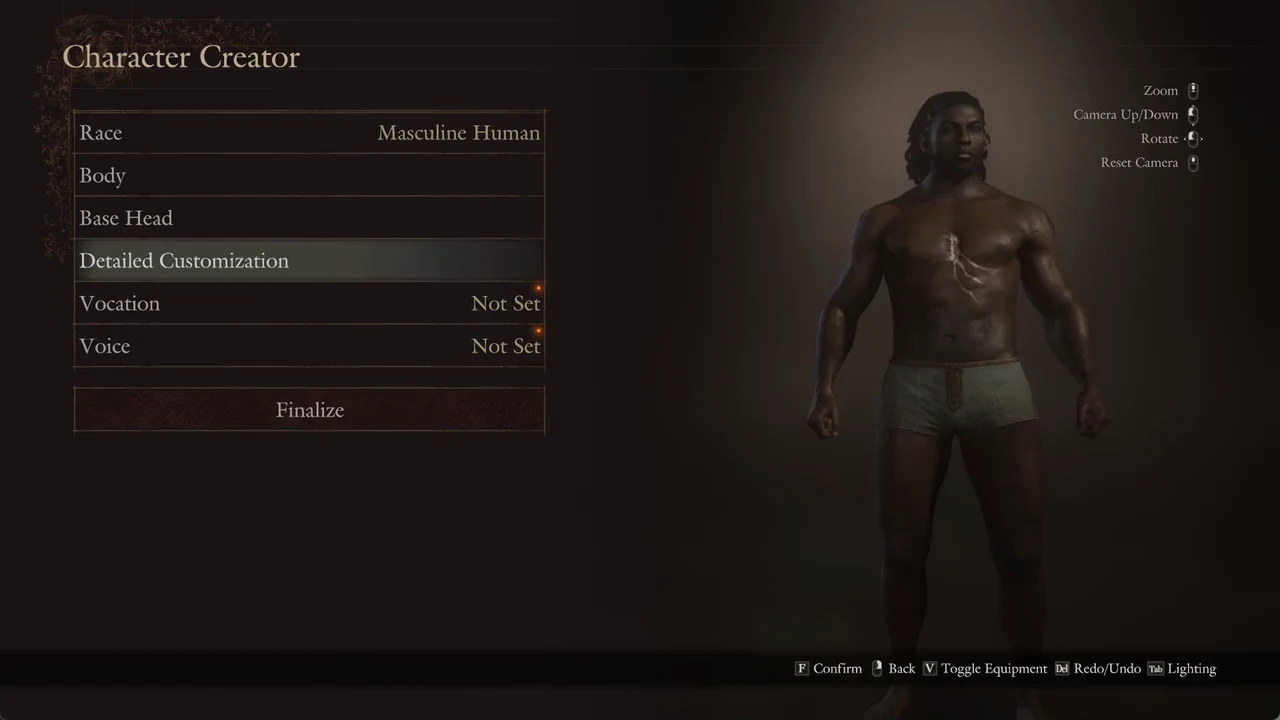
From the Character Creator main menu, select Detailed Customization.
Character Creator main menu with Detailed Customization highlighted on a masculine human
Detailed Customization highlighted on the Character Creator main menu.
Detailed Customization starts on the Body tab. Press E twice to pass Head and reach Body Hair, the third tab in the five-tab set.
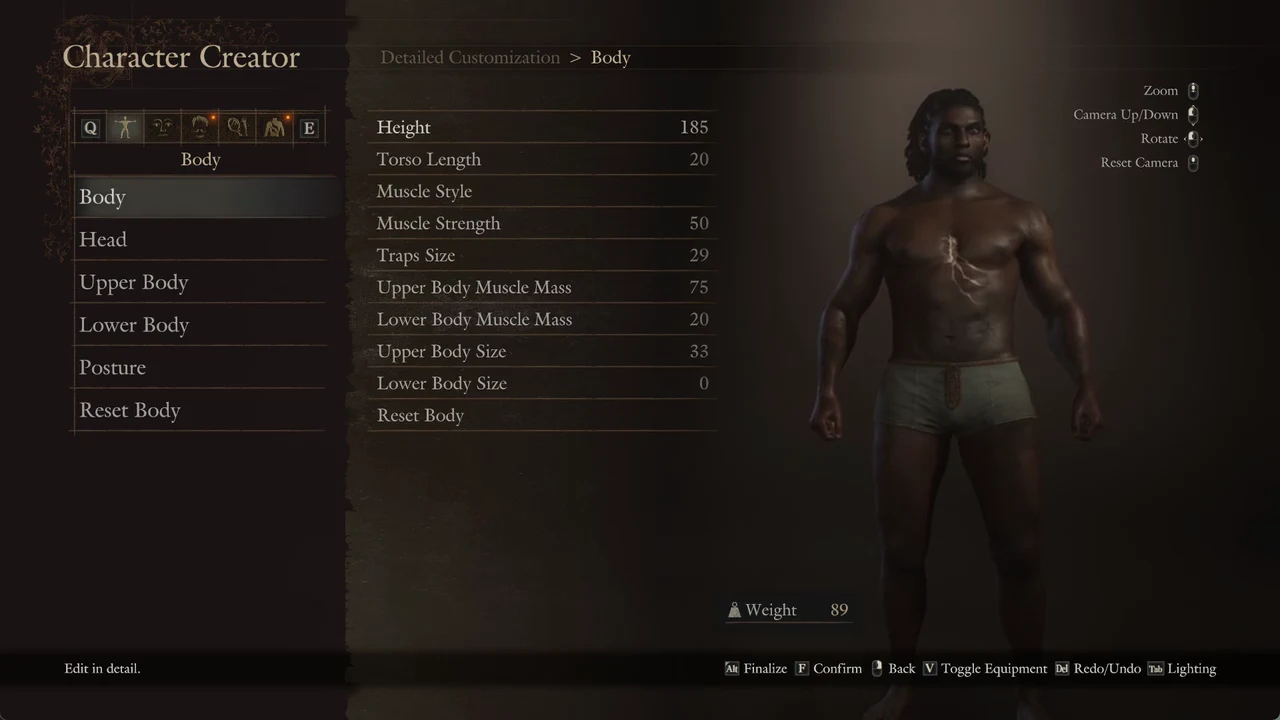
Detailed Customization Body tab with body proportion sliders before switching tabs
Detailed Customization opens on the Body tab, where body proportions are set before you switch to Body Hair.
Confirm Hairstyle, then confirm the row also labelled Hairstyle to open the grid. It opens on the style you are currently wearing, shown with a tick.
Move down to tile 58 and continue from there. Tiles 1 through 78 are arranged four per row, and every tile from 58 to 78 displays the download-arrow mark. The character preview on the right changes to match the tile beneath your cursor. To view the Help page explaining the mark, press V; press F to dismiss it.
Help notice explaining the download-arrow mark flags Dark Arisen expansion content
The Help page in the Hairstyle grid, explaining that the marked styles are Dark Arisen expansion content.
Confirm a marked tile to wear it. The Hairstyle row updates to show that number with the mark beside it, and the model on screen switches to the new cut.
Browsing marked hairstyle tiles in the upper 60s and 70s with a live character preview
Browsing the upper hairstyle tiles, where every option carries the expansion mark and previews on the character.

Find and apply the new body tattoos

Go back to the tab list and press E twice to reach the Tattoos/Markings tab, the fifth tab. Confirm Body Tattoos.
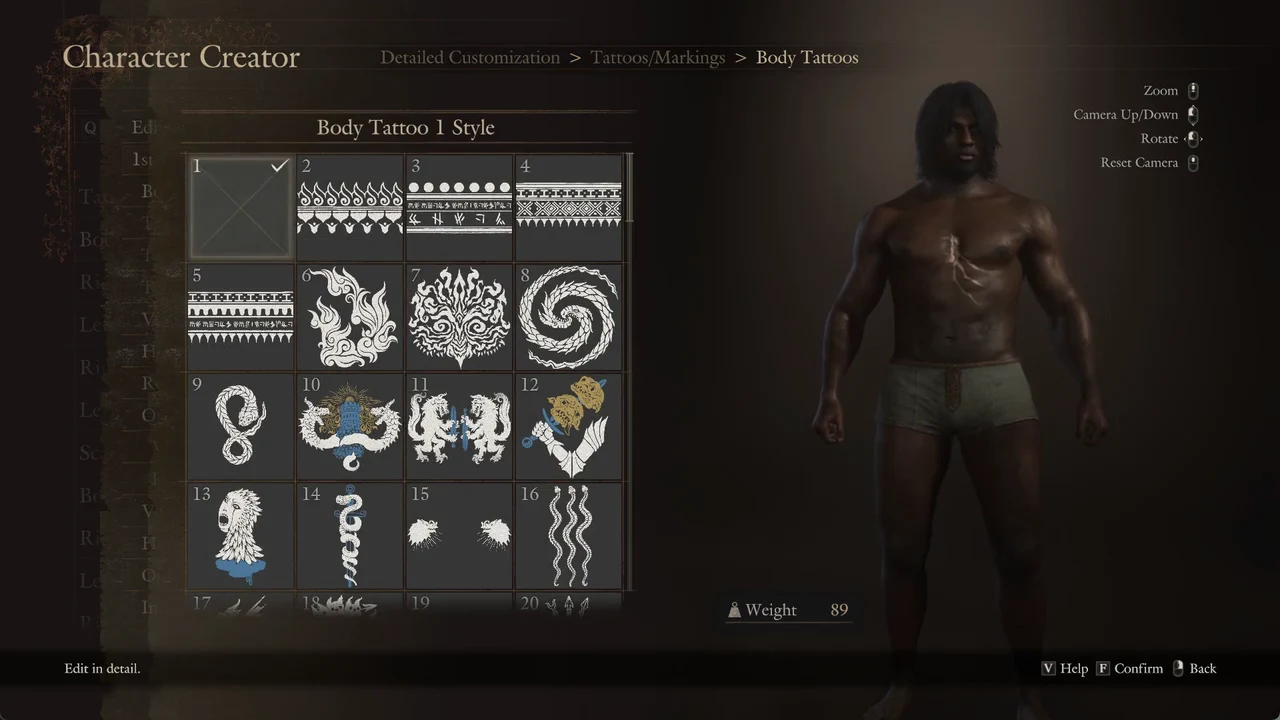
Move down one row, select Body Tattoo 1 Style, and confirm to open the grid. Tile 1, the blank option, is selected when the grid opens.
Body Tattoo 1 Style grid open on tile 1, the empty tile, ready to browse designs
The Body Tattoo 1 Style grid opens on tile 1, the empty slot, before you scroll to the marked designs.
Press Up once to reach the grid’s final section, around tiles 85 to 98. Marked options span 67 to 98, so every tile on the last screens is part of the expansion. Move upward through the designs to compare them; the character previews each one.
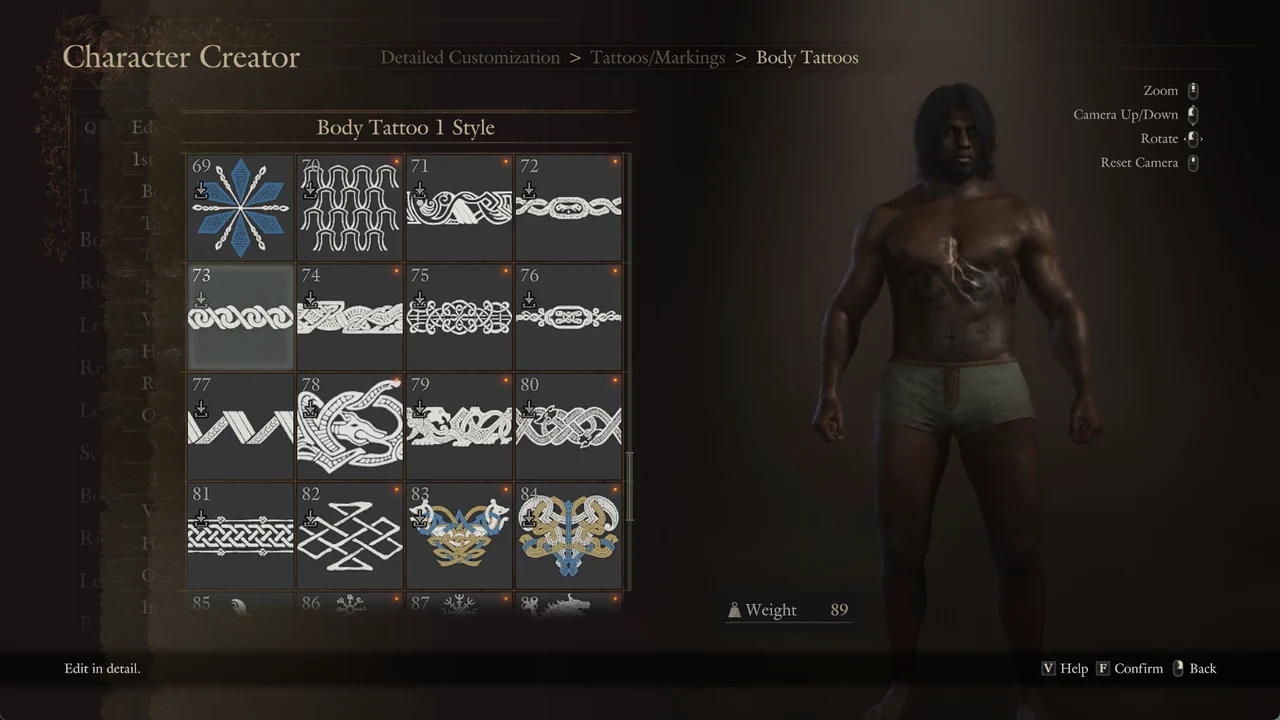
Browsing marked body tattoo designs in the upper tile range on the character creator grid
Browsing the marked body tattoo designs near the top of the grid, previewed on the character.
Confirm a tile to apply it. The row updates to that number with the mark, and the rows below — position, scale, tiling, opacity and the three color channels — let you place and tint it. A second layer opens when you tick Edit Tattoo 2.

Confirm the change sticks

On exiting Detailed Customization, the game presents “Proceed with this change?” and the choices Yes, Reset to Default, and Cancel. Select Yes to retain your edits and return to the creator’s main menu.

Once you confirm a tile, the style row shows its tile number with the download-arrow icon next to it. Back on the main menu, the finished character stands with the new hair and tattoo in place.
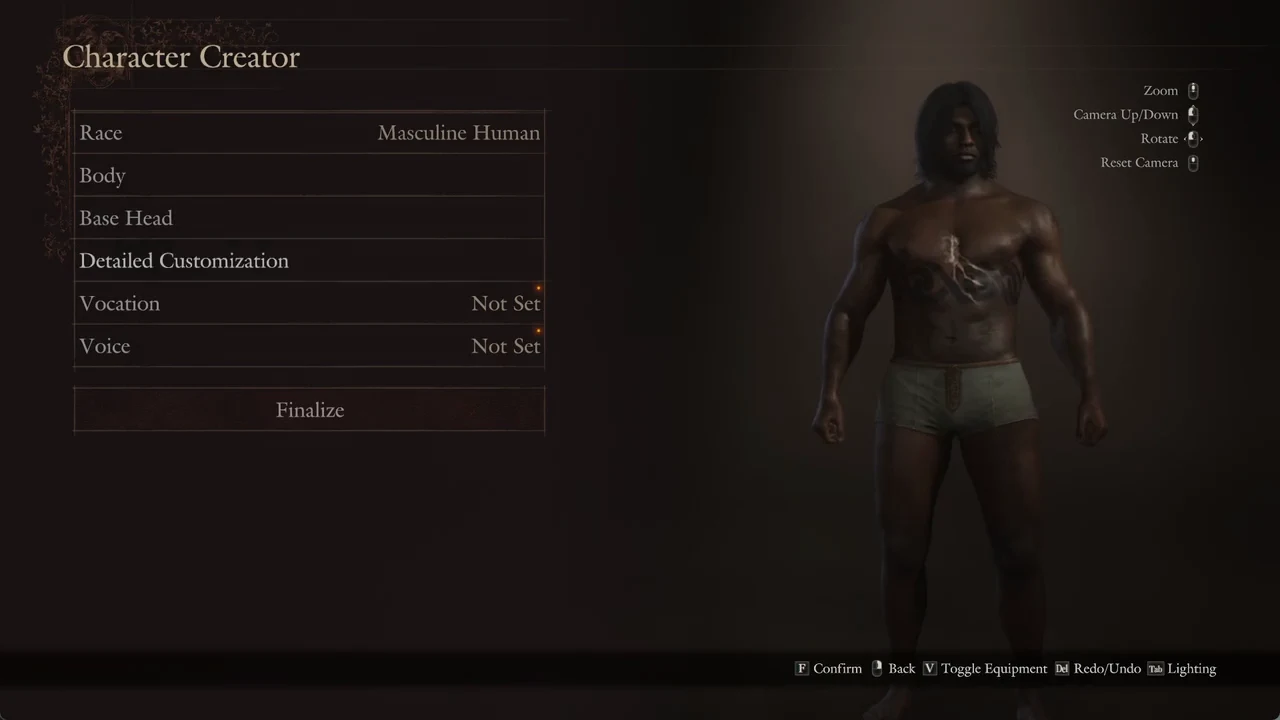
Character Creator main menu with the finished character showing the new hair and tattoo
Back on the main menu with Detailed Customization selected, the character carries the chosen hairstyle and body tattoo.