Trading lets you hand rods, skills, and other items to another player in Fishing Master, but the feature stays locked until you meet a few conditions. The Trade panel sits on the left HUD and shows a clear banner when you cannot use it yet.
Quick answer: Open the Trade icon on the left HUD. You can only trade once you have unlocked Volcanic Island, the other player has unlocked it too, and both Roblox accounts are at least three days old.
Requirements to trade in Fishing Master
Trading will not start unless every one of these conditions is met on both sides of the trade. If any single requirement is missing, the game blocks the request and shows a status label next to the affected player.
- You have unlocked Volcanic Island.
- The other player has also unlocked Volcanic Island.
- Both Roblox accounts are at least three days old.
- The other player has requests set to accept, not “Not accepting”.
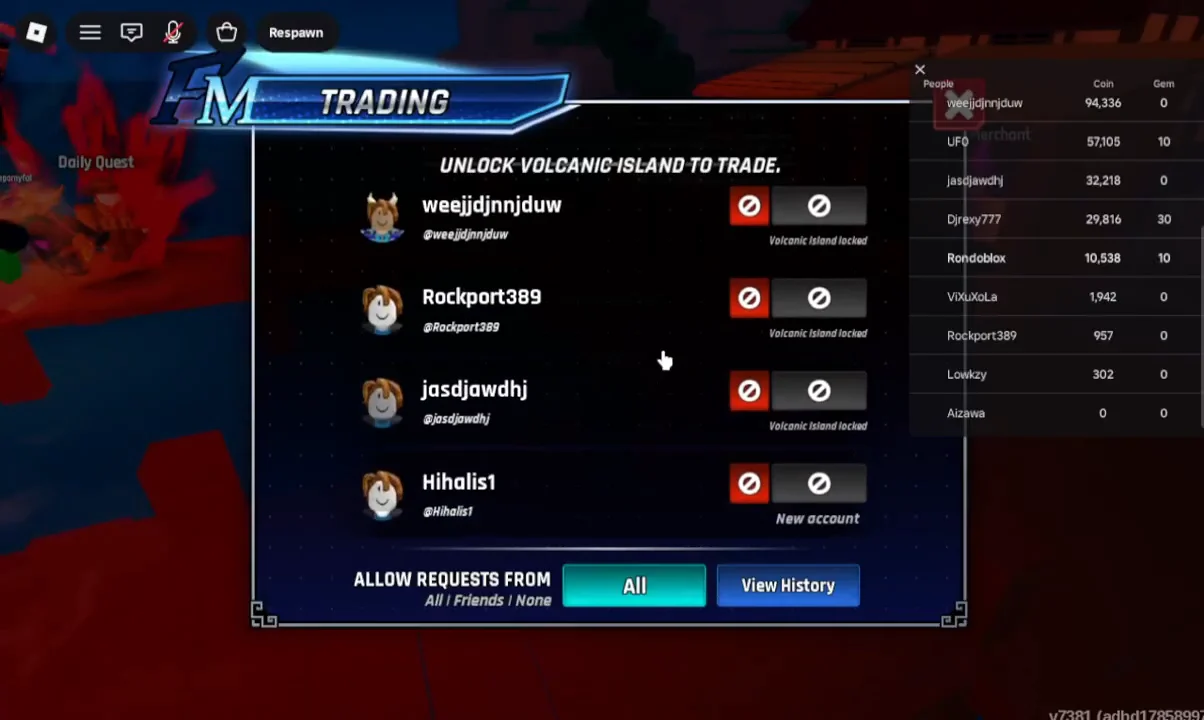
Until you unlock Volcanic Island, the Trade window displays the banner UNLOCK VOLCANIC ISLAND TO TRADE and nothing else can be done from it.
How to open the Trade menu
Reading the player status labels
Each player in the Trade list carries a status that tells you whether a trade is possible. Hovering over a label gives the exact reason a trade is blocked.
| Label | What it means |
|---|---|
| Volcanic Island locked | They have not unlocked Volcanic Island yet, so a trade cannot happen. |
| New account | Their Roblox account is under three days old and cannot trade. |
| Not accepting | They have turned off incoming trade requests. |
Control who can send you trade requests
The Trade panel has an ALLOW REQUESTS FROM setting at the top. It controls who is allowed to send you a trade request while you play.
- All — anyone in the server can request a trade with you.
- Friends — only your Roblox friends can send requests.
- None — no one can request a trade, which shows you as “Not accepting” to others.
If another player says they cannot reach you, check that this filter is not set to Friends or None.
Check your trade history to confirm a trade
Inside the Trade panel, the View History button opens the TRADE HISTORY screen. This is where you confirm that a trade actually went through. A completed exchange is recorded here; if you have never traded, it reads NO COMPLETED TRADES YET.
Use this record as your verification step. A new entry in the history means the trade completed successfully, while an empty list means nothing has been exchanged. Use the Back button to return to the player list and send another request.
Trading is best treated as a shortcut for a specific item you are stuck on rather than your main route forward. Unlocking Volcanic Island through normal play is the gate that opens the feature, so progressing toward that island is the first thing to do if the Trade panel is still locked.