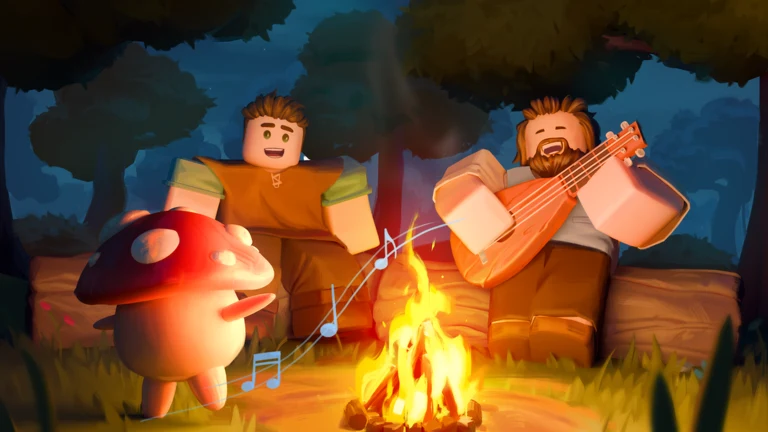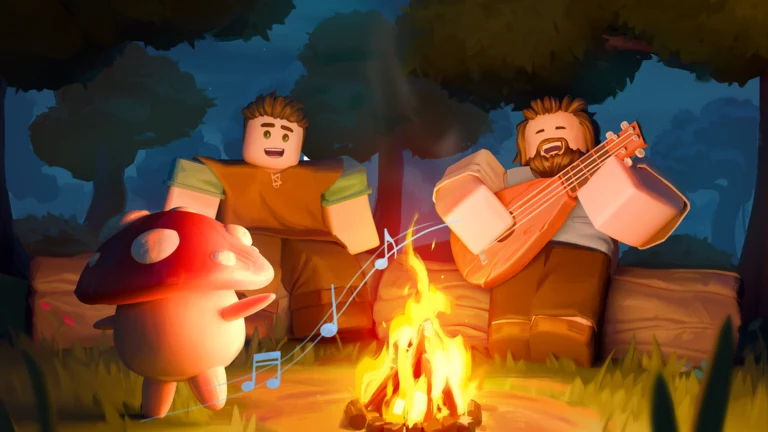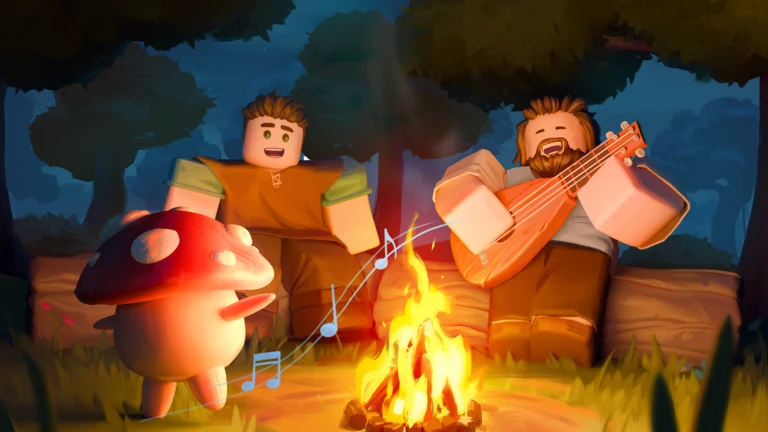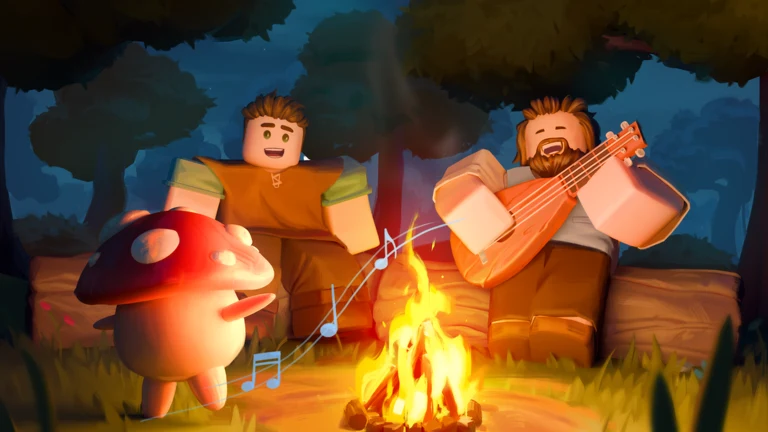
SCROOMS is a Roblox game where you tame mushroom creatures called scrooms by playing instruments to them, and it lives on its own Roblox experience page. Everything you do early on runs on a small set of inputs: talking to an NPC, equipping an instrument, tuning it through two quick minigames, and dragging a scroom into a moving catch zone. The controls differ a little between keyboard and touchscreen, and one of those differences matters a lot during the catch.
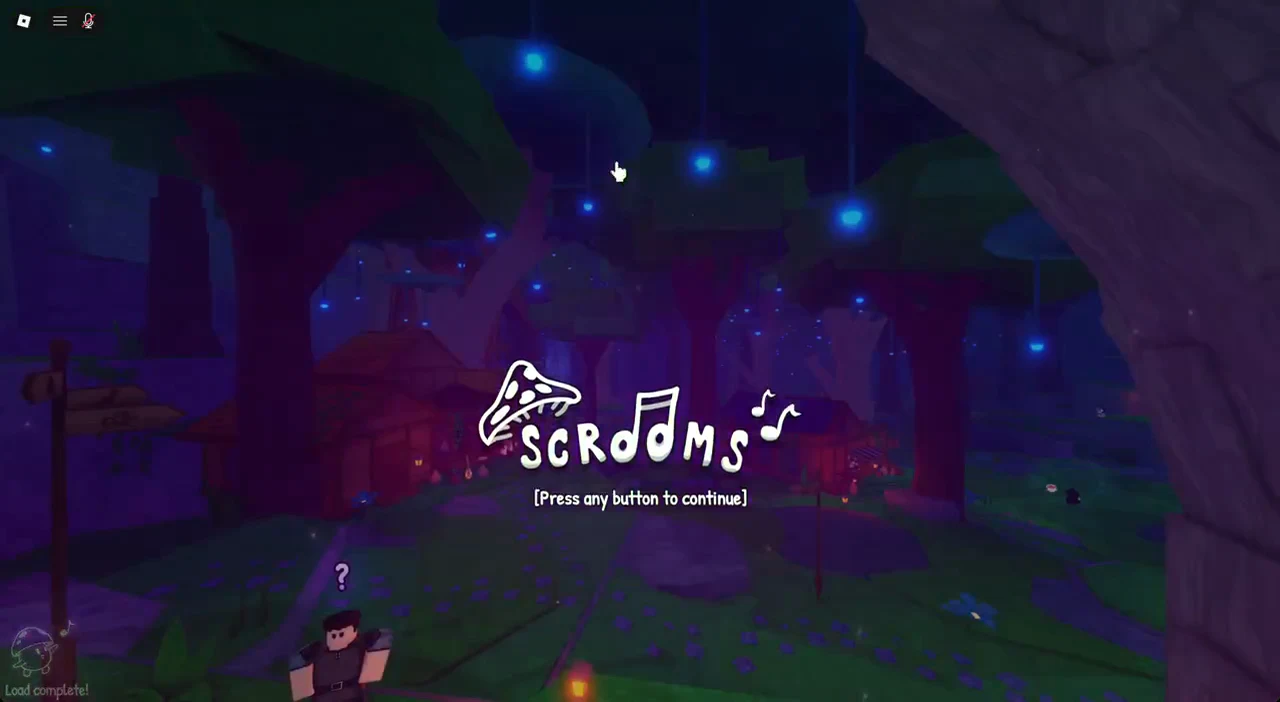
PC controls and keybinds in SCROOMS
The hotbar holds the instrument, Equipment Bag, Index and Quest Log. Press E to talk to an NPC (the prompt reads “E Talk”) and G to open the backpack (“Press G to open backpack!”). The mouse handles everything in the two minigames, from the single tuning click to the drag that keeps a scroom in the catch zone.
| Input | What it does |
|---|---|
| E | Talk to a nearby NPC (prompt reads “E Talk”) |
| G | Open the backpack |
| 5 | Ocarina (appears once unlocked) |
| Left click | Start tuning |
| Hold left click | Find the frequency, and drag the scroom in the catch zone |
The Ocarina appears in hotbar slot 5 once unlocked. Chimes are the game’s currency, represented by a music-note icon in the lower-right corner, and aren’t assigned to a control.
Mobile controls in SCROOMS
On a touchscreen, the keyboard shortcuts are replaced by on-screen buttons and finger gestures. The prompts change wording to match, so the backpack cue reads “Tap to open backpack!” instead of pointing at the G key.
- Tap the instrument button to play.
- Tap to bring up the tuning gauge.
- For the frequency phase, press and move a finger while holding.
- Hold and drag a finger to move the scroom during the catch.
- Tap the on-screen prompt to open the backpack.
The catch zone moves quickly, and a finger drag on a touchscreen makes small corrections easier than dragging with a mouse. Several mouse attempts in a row can fail where touchscreen catches land, so mobile players have a real advantage during that phase.
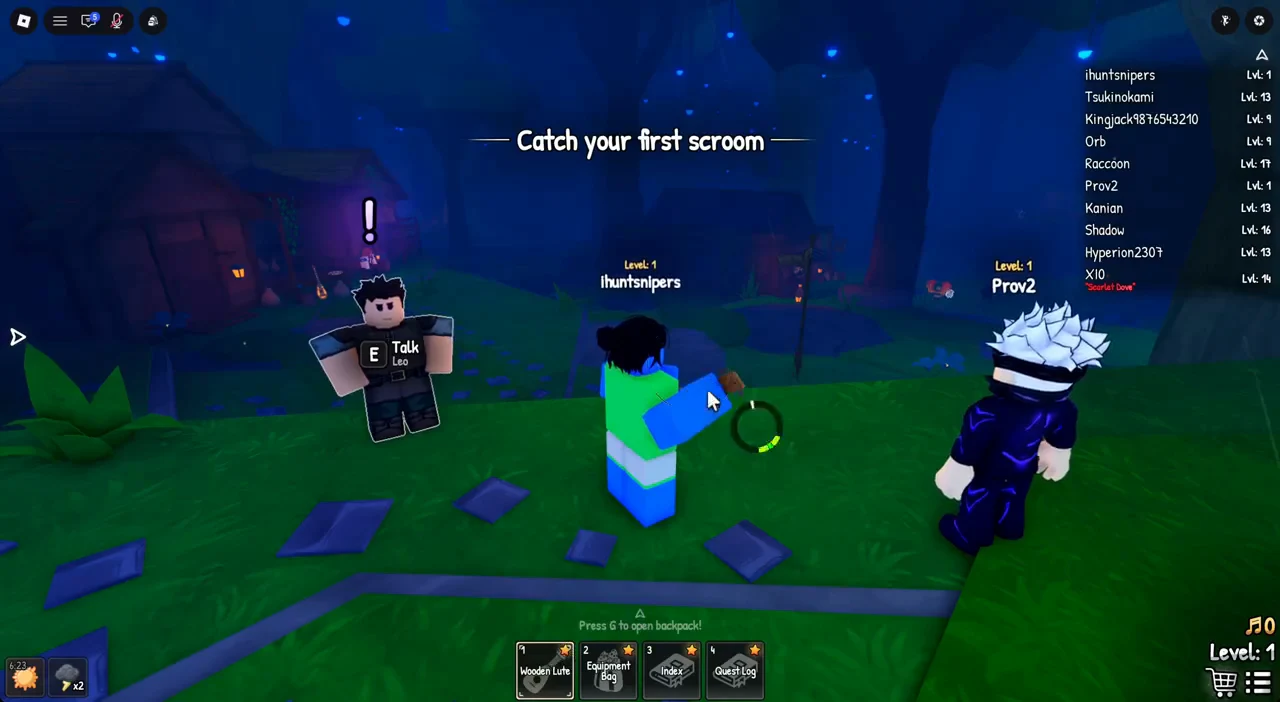
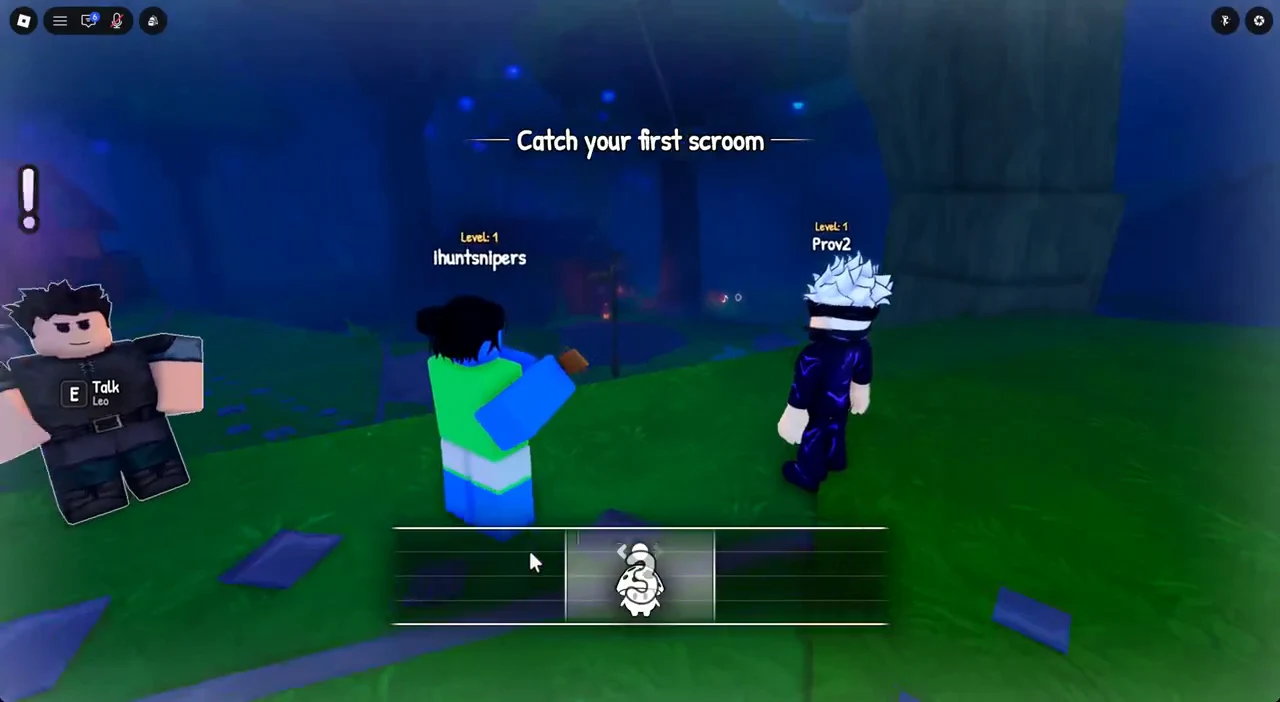
Get your instrument from Leo
You spawn into Songkeeper’s Grove and the “Welcome, Tamer!” badge pops for joining the game. A path later leads out of the Grove toward Bluestone Approach, but your first job is right here.
Tune the instrument
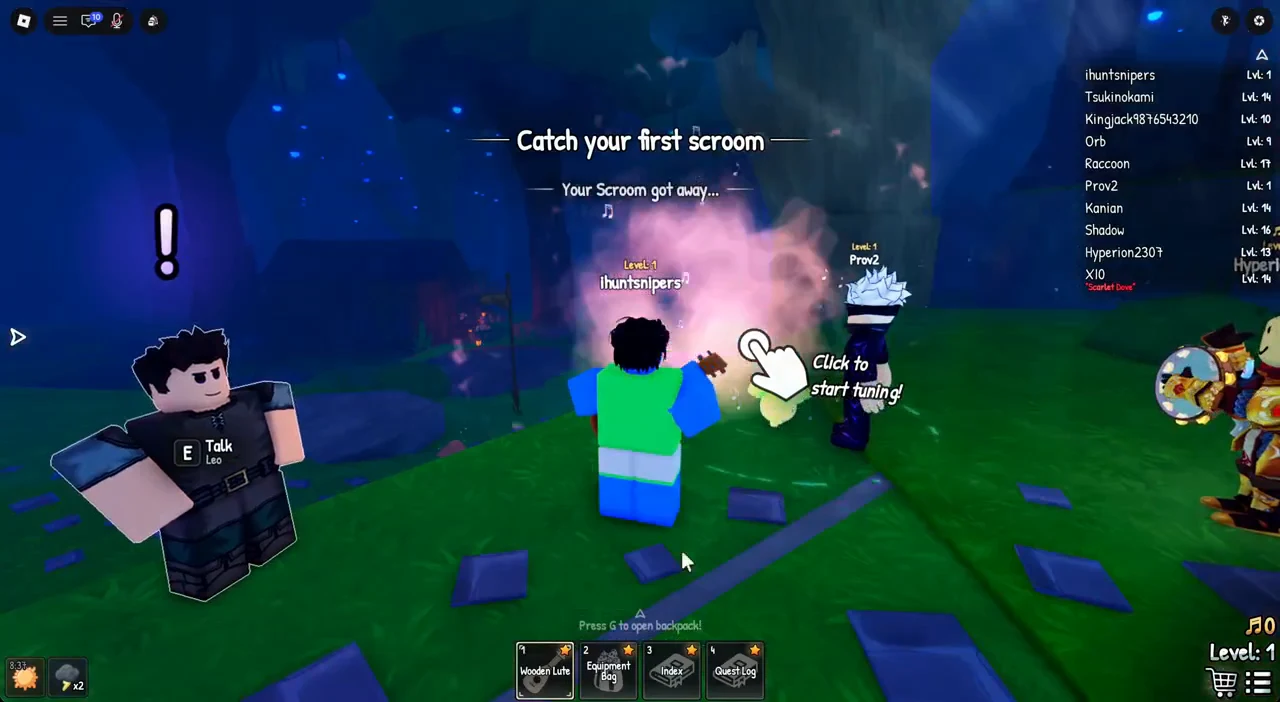
Tuning runs in two parts. First a circular tuning gauge, then a frequency phase. The official game description notes that you must tune before the Scroom commits, and that a faster Tune Speed makes tuning quicker.
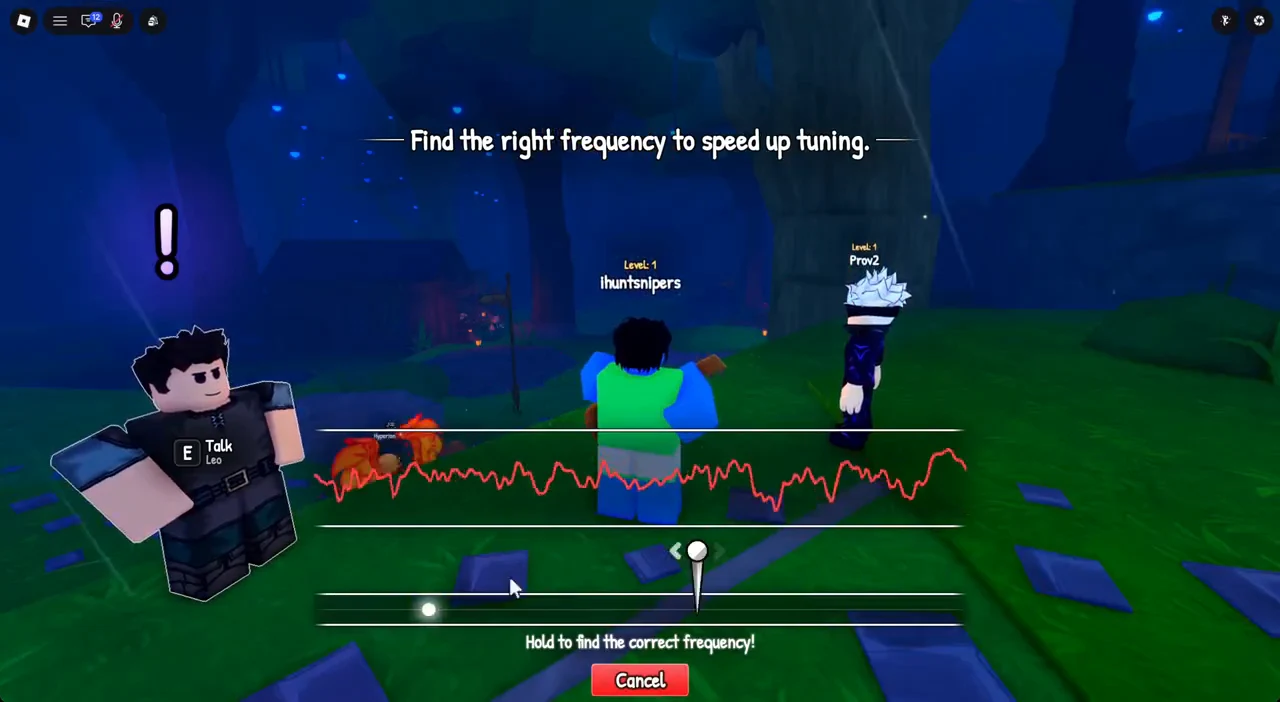
Once the frequency matches, a 3-second countdown runs and the catch begins.
Catch the scroom
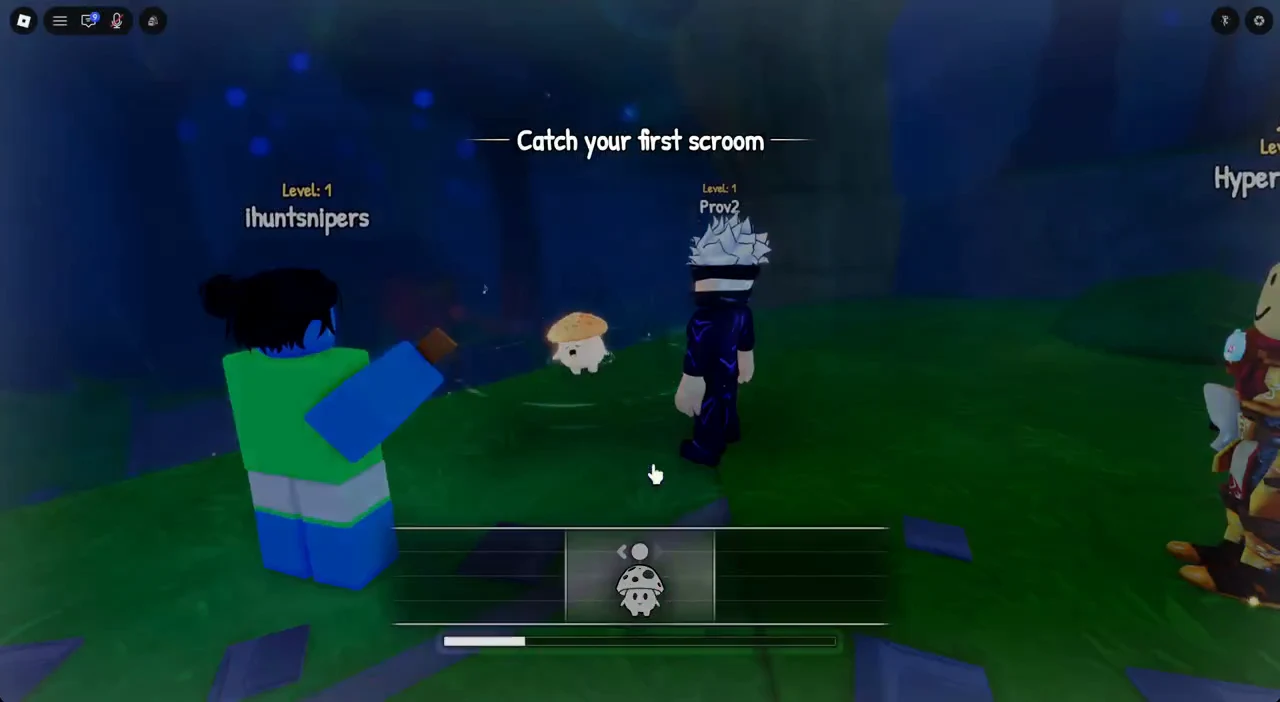
Hold and drag to keep the Scroom in the catch zone. Three tutorial popups walk you through the scroom icon, the catch zone, and the progress bar the first time around.
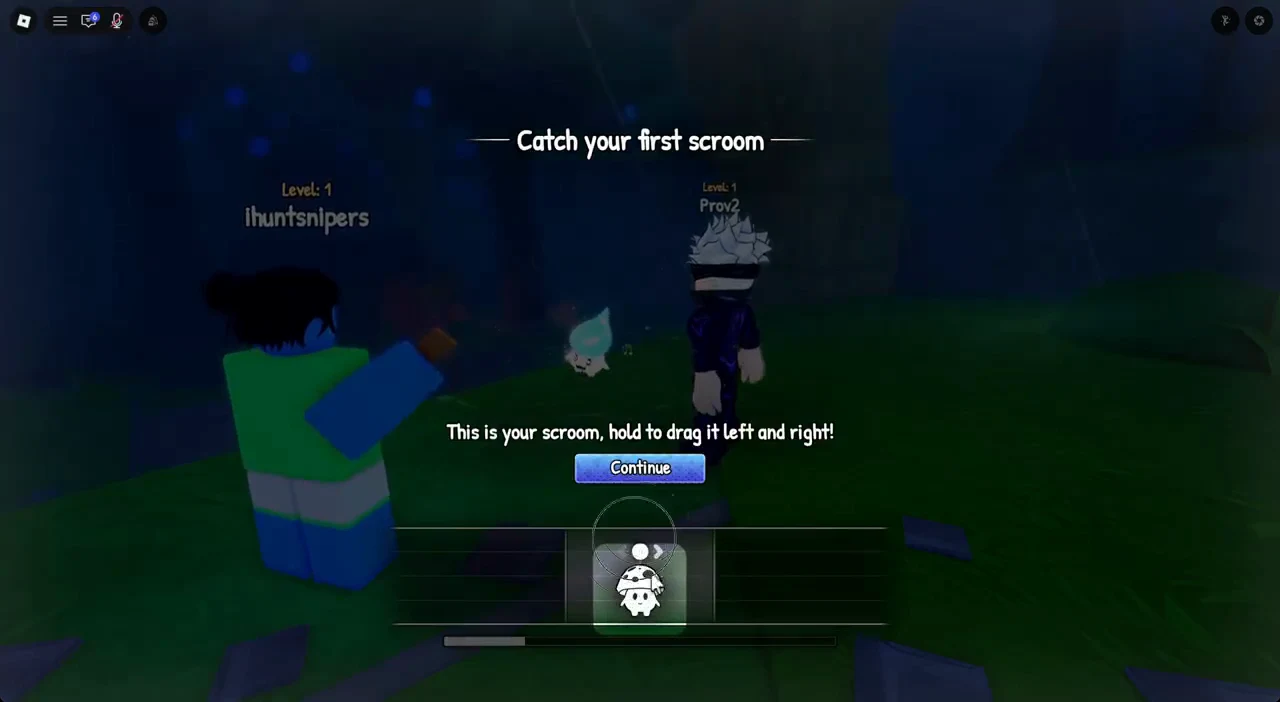
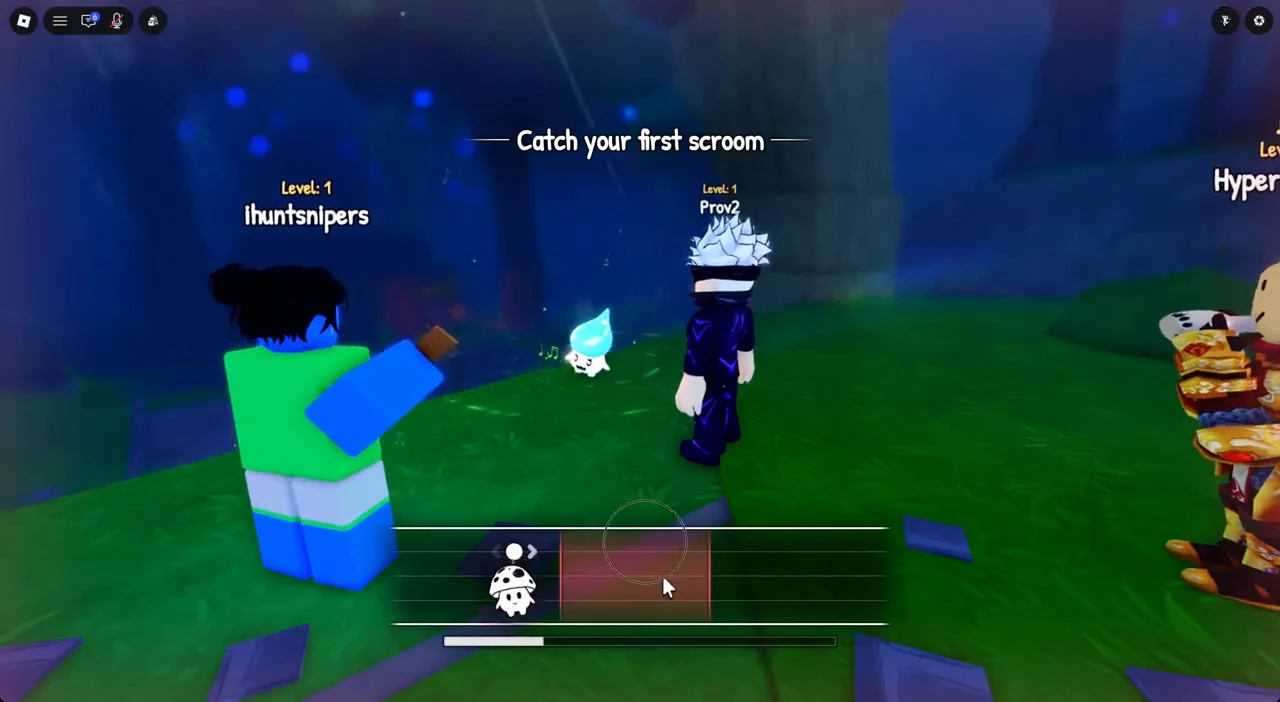
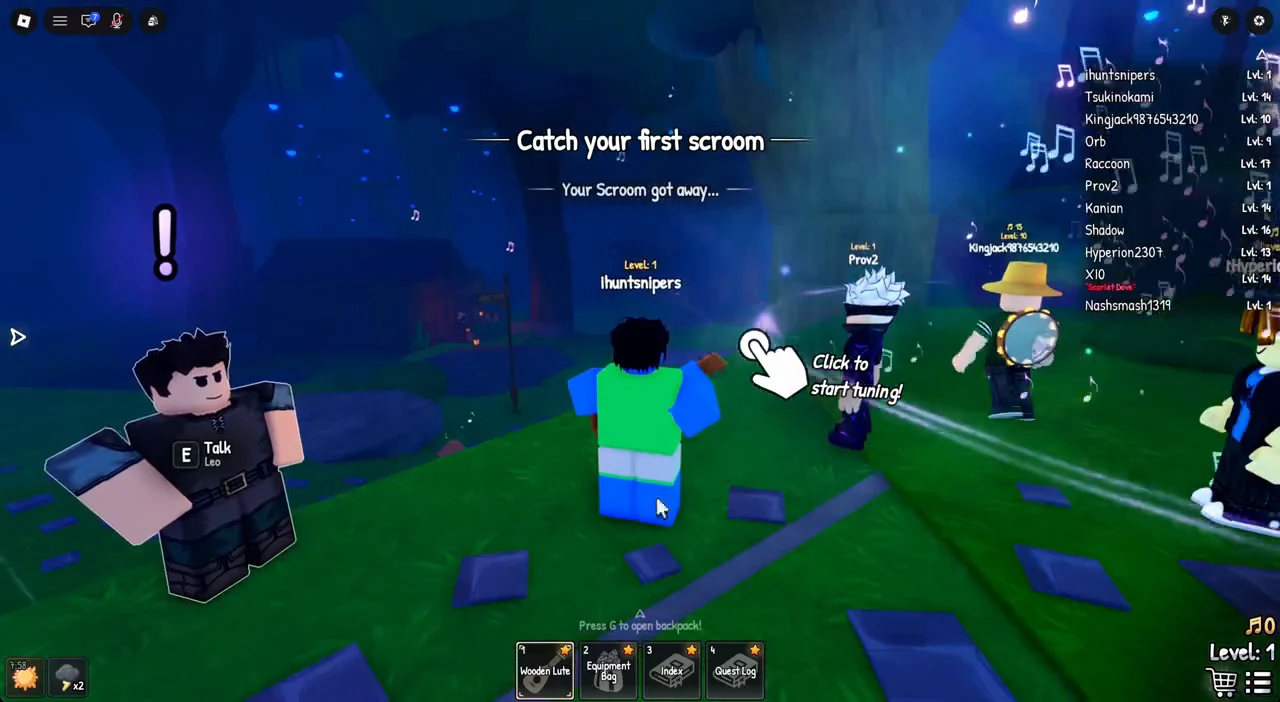
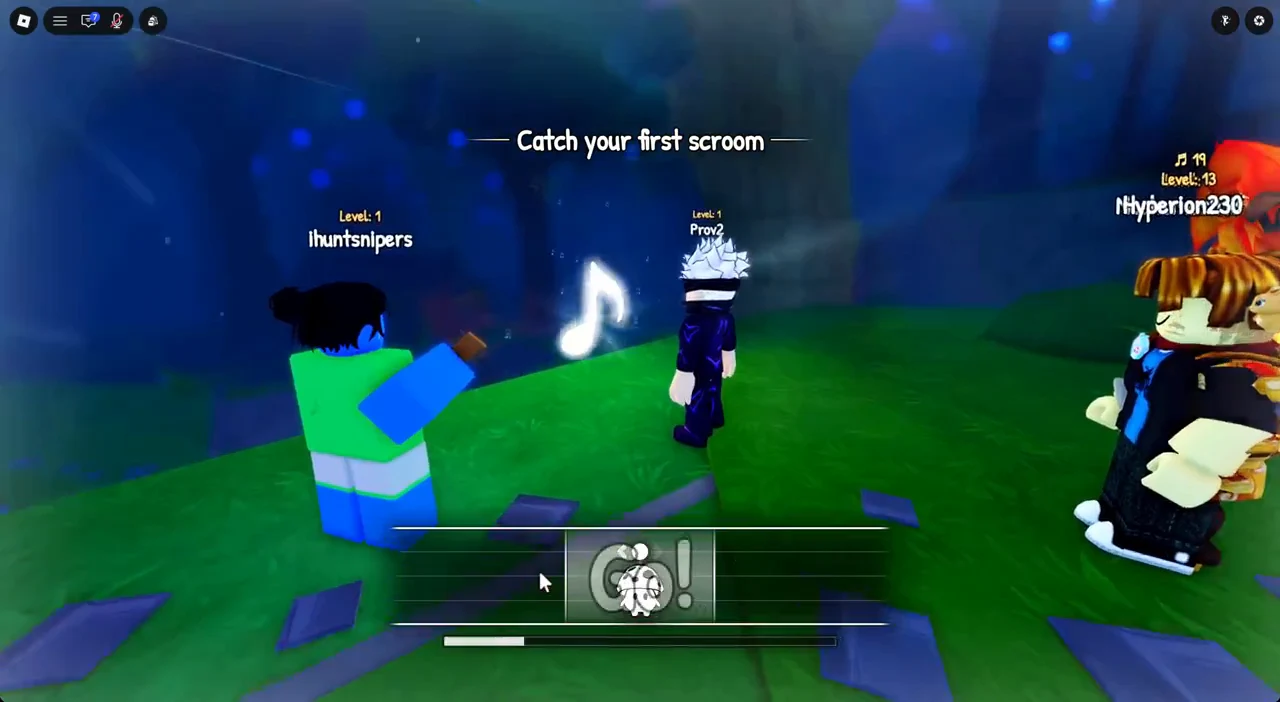
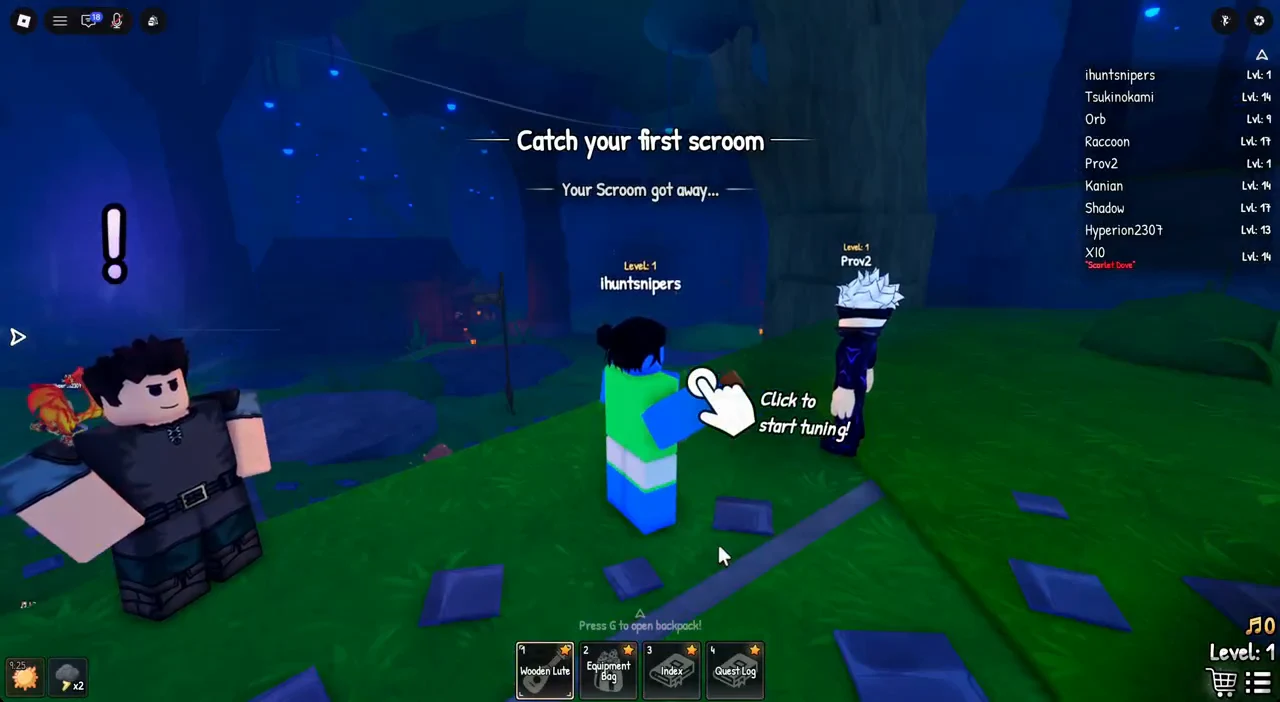
If the scroom icon drops outside the catch zone, the zone turns red and the progress drains. Let it empty and the scroom gets away, with “Your Scroom got away…” appearing on screen, and you can try again.
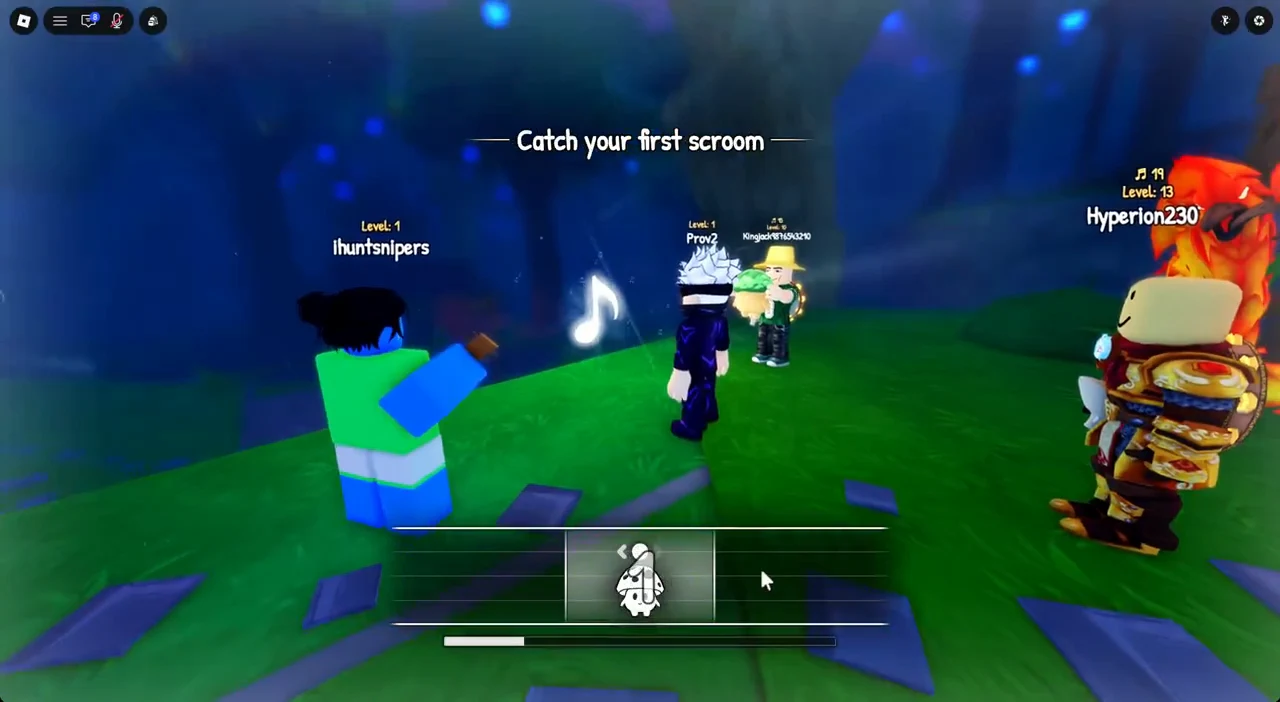
Because the catch zone moves quickly, keeping up with the mouse takes small, fast corrections. A finger drag handles those corrections more easily, which is why touchscreen attempts can succeed where mouse drags slip.
Retune after a miss
Click when the marker is in the tuning wedge, then hold the mouse to find the frequency; on mobile, tap for the tuning gauge and hold and drag a finger. If your Scroom got away, you can try again by repeating this loop.
Leave the game
To stop playing, open the Roblox menu from the top-left corner of the screen and choose Leave to exit the game.