Handing an item to a quest giver in Dragon’s Dogma 2 runs through a dedicated Deliver screen, and it behaves in one of two ways. Either the game names the exact item it wants, or it leaves the choice entirely to you. Knowing which mode you are in before you press anything saves you from staging the wrong thing by accident.
Quick answer: Hold the talk key on the character until the Deliver screen opens, read the mode at the top, use Q and E to reach the item’s tab, press F so its counter reads x1/1, then choose Deliver and Yes.
Open the Deliver screen by holding the talk key
The Deliver screen does not sit in a menu. It opens on its own during a conversation, at the moment a character asks you for something. To reach that moment you have to start a full talk, not a quick greeting. The on-screen prompt reads F Hail (Hold to Talk), and the word “hold” matters here.
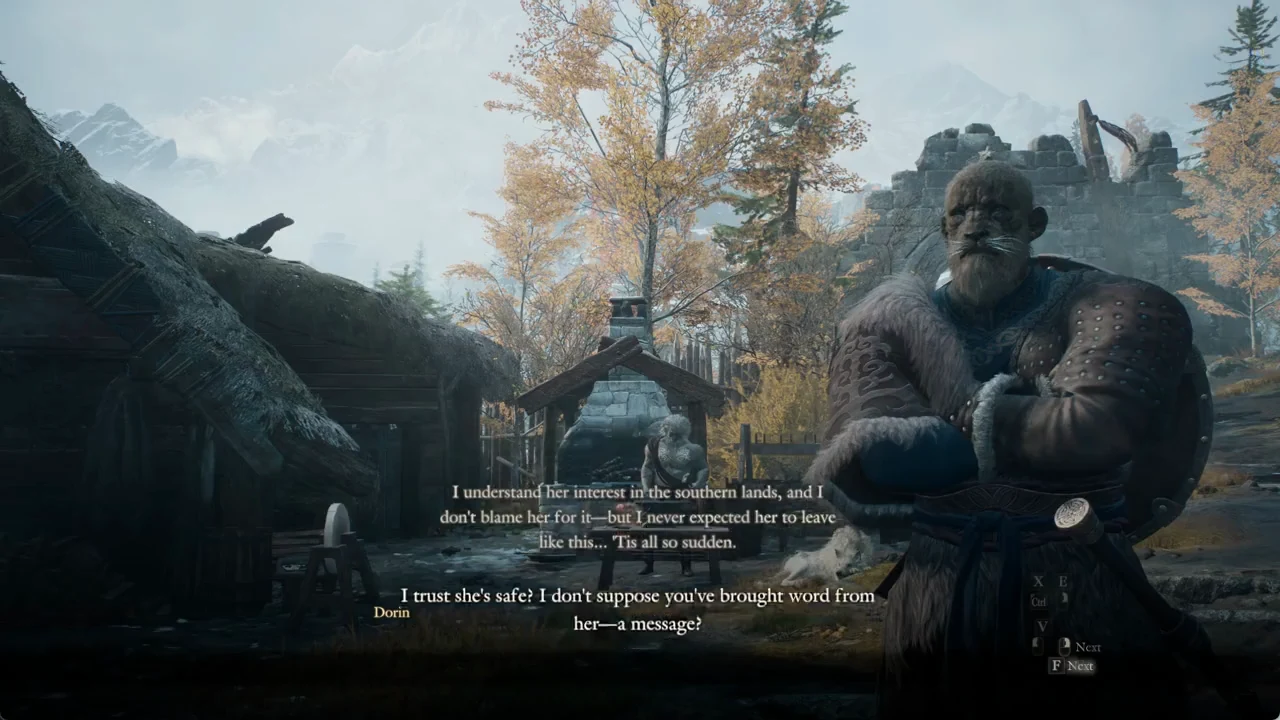
Walk up to the character and hold the talk key rather than tapping it. A tap only hails them. Keep it held until the dialogue plays through and the request appears. When Dorin asks whether you have brought word from Ilda, for example, finishing that exchange is what brings up the screen.
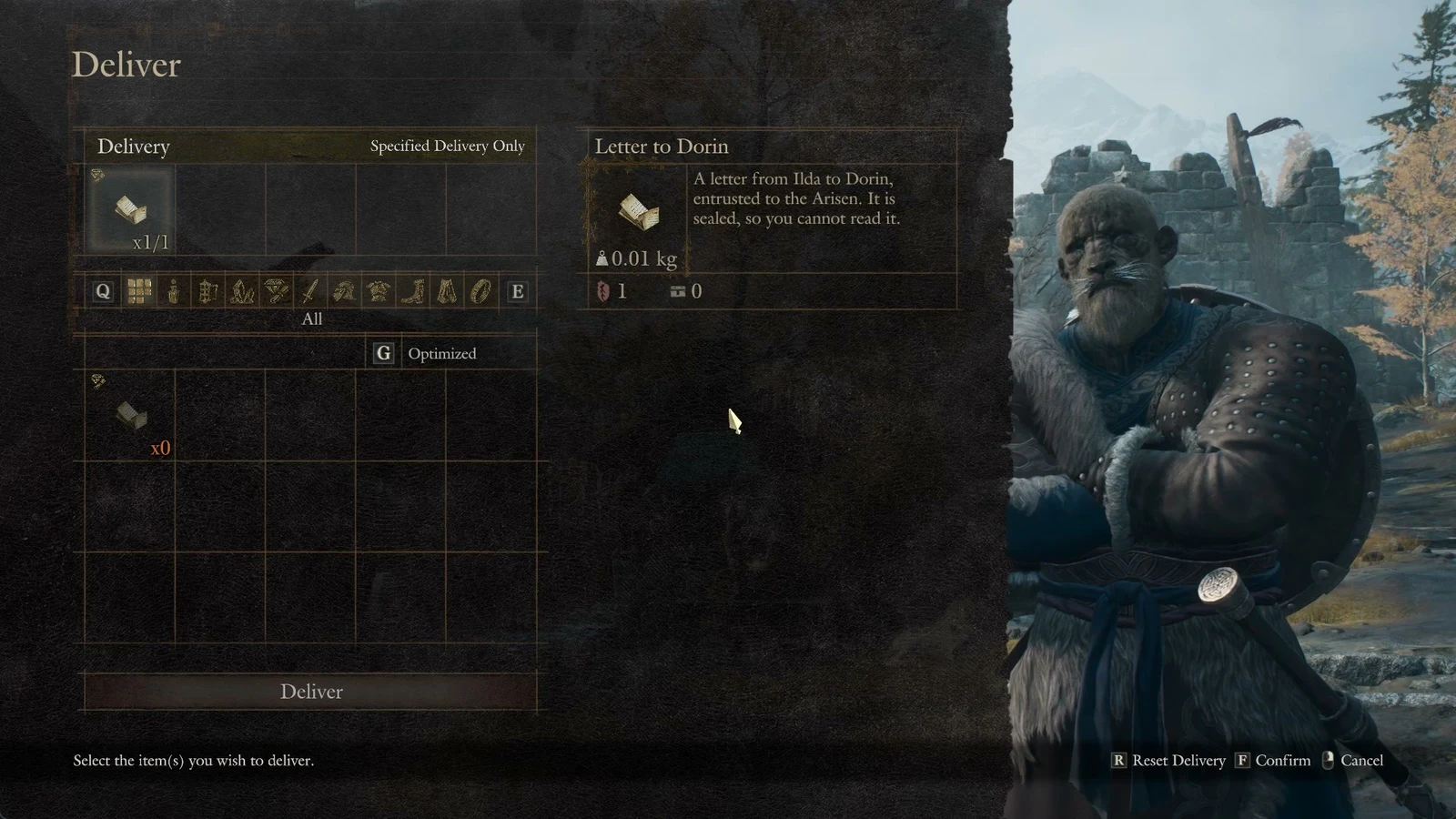
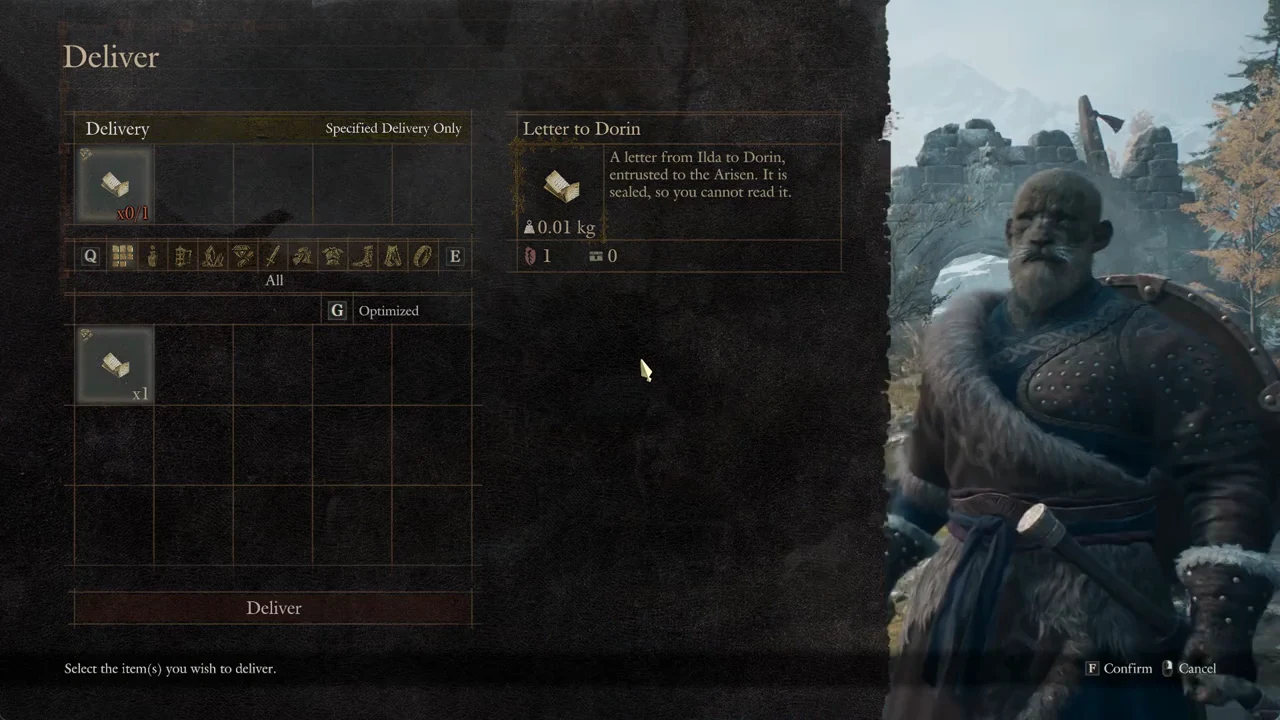
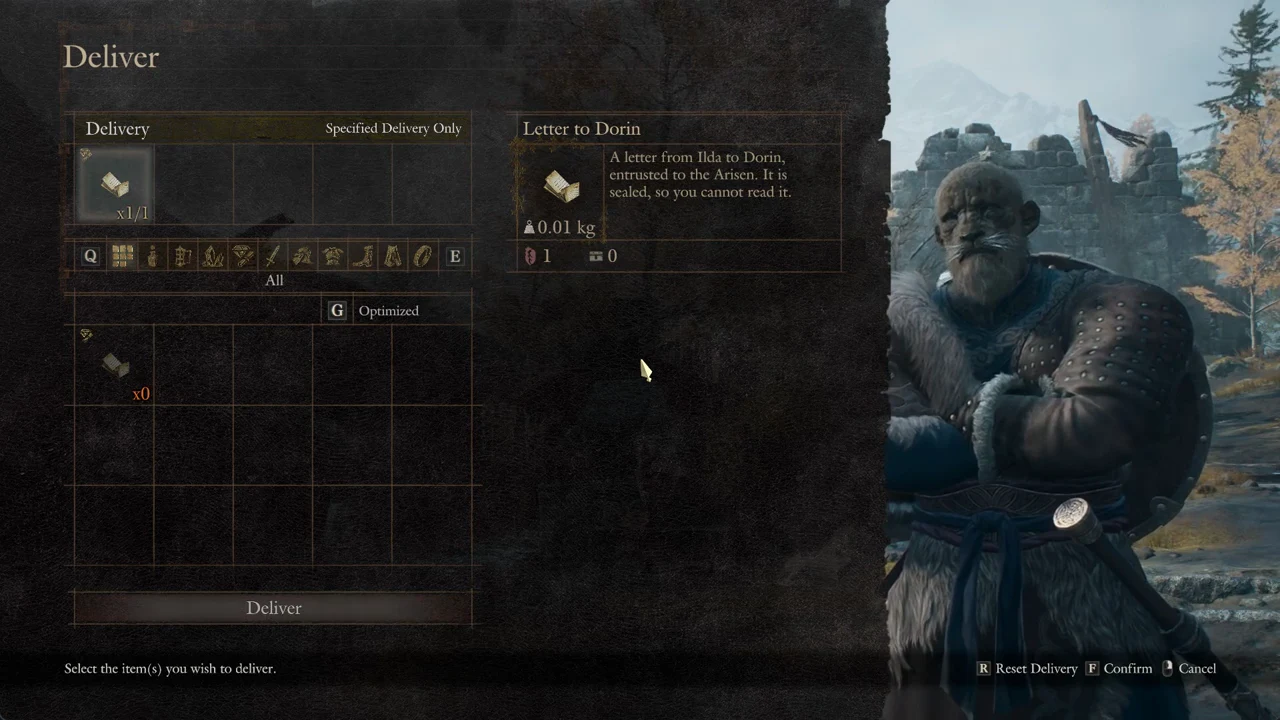
Once open, the screen is titled Deliver. The top-left panel reads Delivery, with the current mode printed at the right end of that line. Below it sits a row of category tabs and your pack. The right-hand panel shows the name, picture, description, and weight of whatever item the cursor is on. A Deliver button sits at the bottom, and the footer line reads “Select the item(s) you wish to deliver.” alongside the F Confirm and Cancel prompts.
Specified Delivery Only vs Deliver Anything
The mode printed at the top of the Delivery panel tells you how much freedom you have. There are only two, and the difference comes down to whether the game has already decided what it wants.
| Mode | What the slot shows | What you can hand over |
|---|---|---|
| Specified Delivery Only | The requested item’s image, accompanied by a red count such as x0/1 | Only the requested item; the pack shows only what fits |
| Deliver Anything | A “?” with x0/1 | Anything in your pack, across every category |
Specified Delivery Only
In this mode the game names the item for you. Its picture already sits in the delivery slot with a red counter like x0/1, which reads as “held in the slot out of the number needed.” The pack below is filtered down to what qualifies. Dorin’s request for the Letter to Dorin is a clean example: a sealed letter from Ilda, weighing 0.01 kg, that you cannot read yourself.
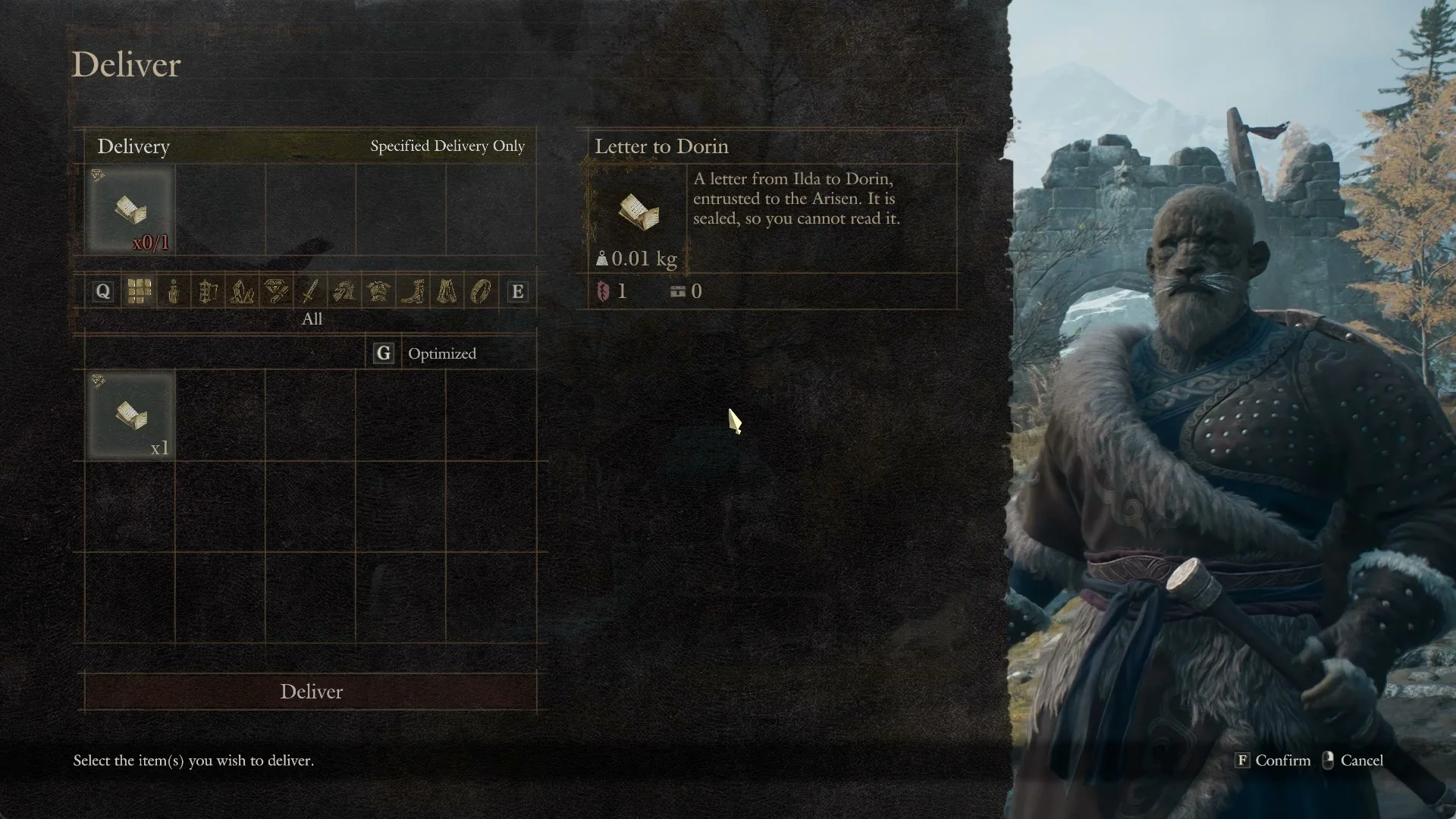
Highlight the item in your pack and hit F; its count changes to x1/1. The game may also stage an item automatically, so the screen can open with x1/1 already displayed, as it does for Hal’s request for a Winterweed Blossom.
Deliver Anything
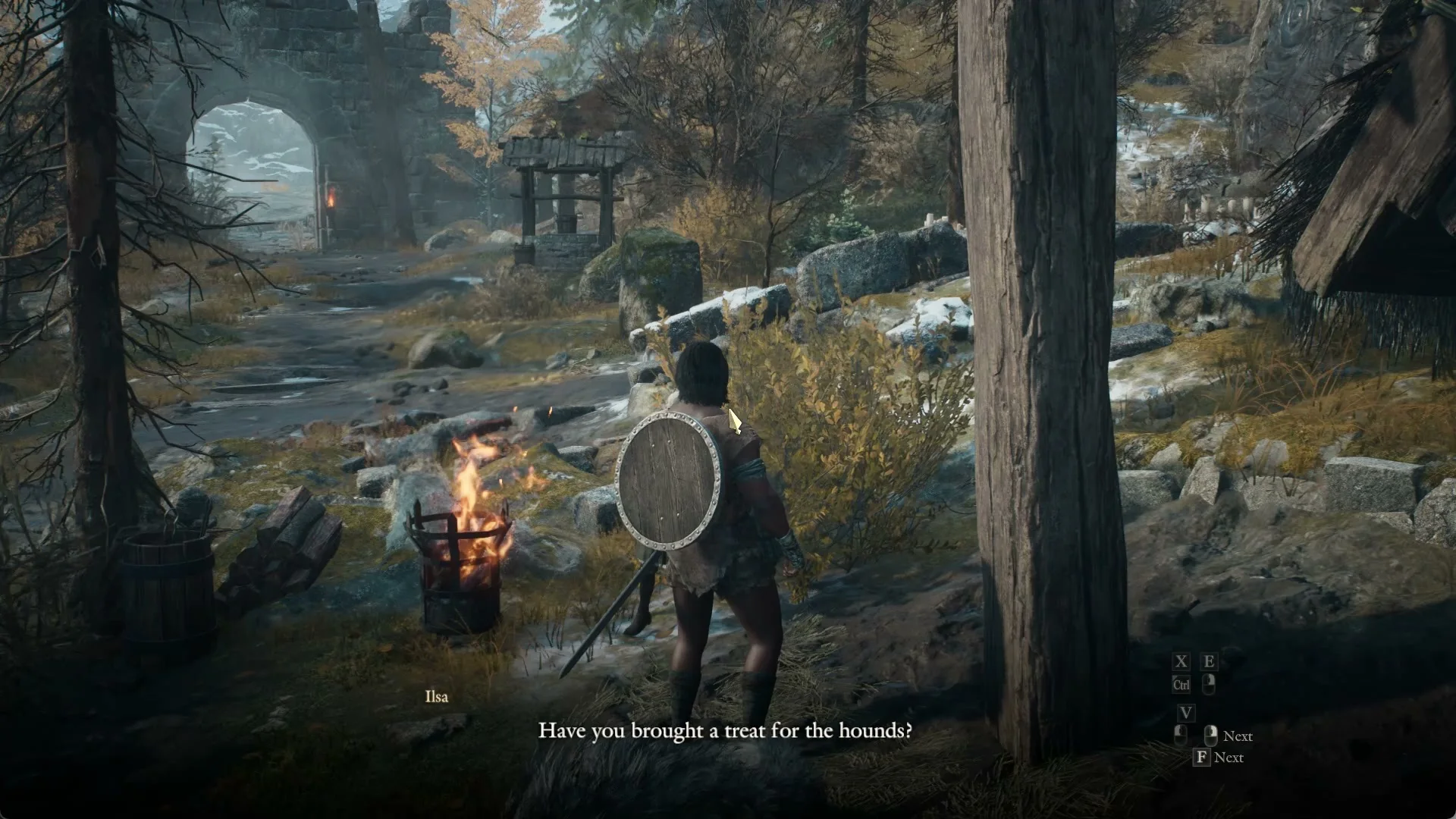
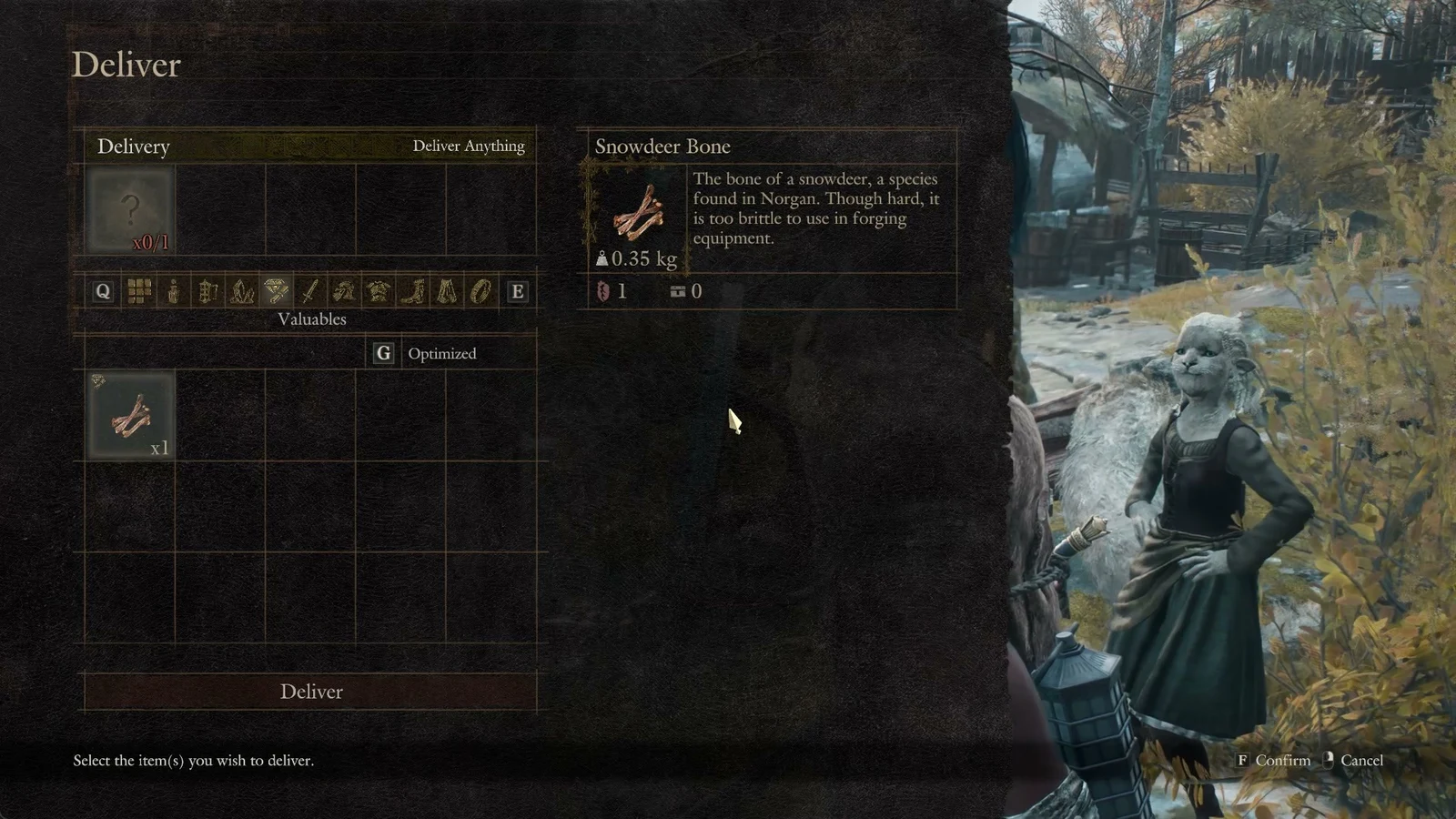
Here the slot shows a “?” instead of a picture, with the same x0/1 counter. The game does not tell you what it expects, and any item in your pack can go in. Ilsa’s question — “Have you brought a treat for the hounds?” — opens this mode, and the Sphinx’s riddle answers use it too.
In Deliver Anything mode, pressing F stages the currently highlighted item straight away. That is often the first entry in your pack, rather than the item you intended to deliver. Highlight the right item before pressing F.
Find the item with the category tabs
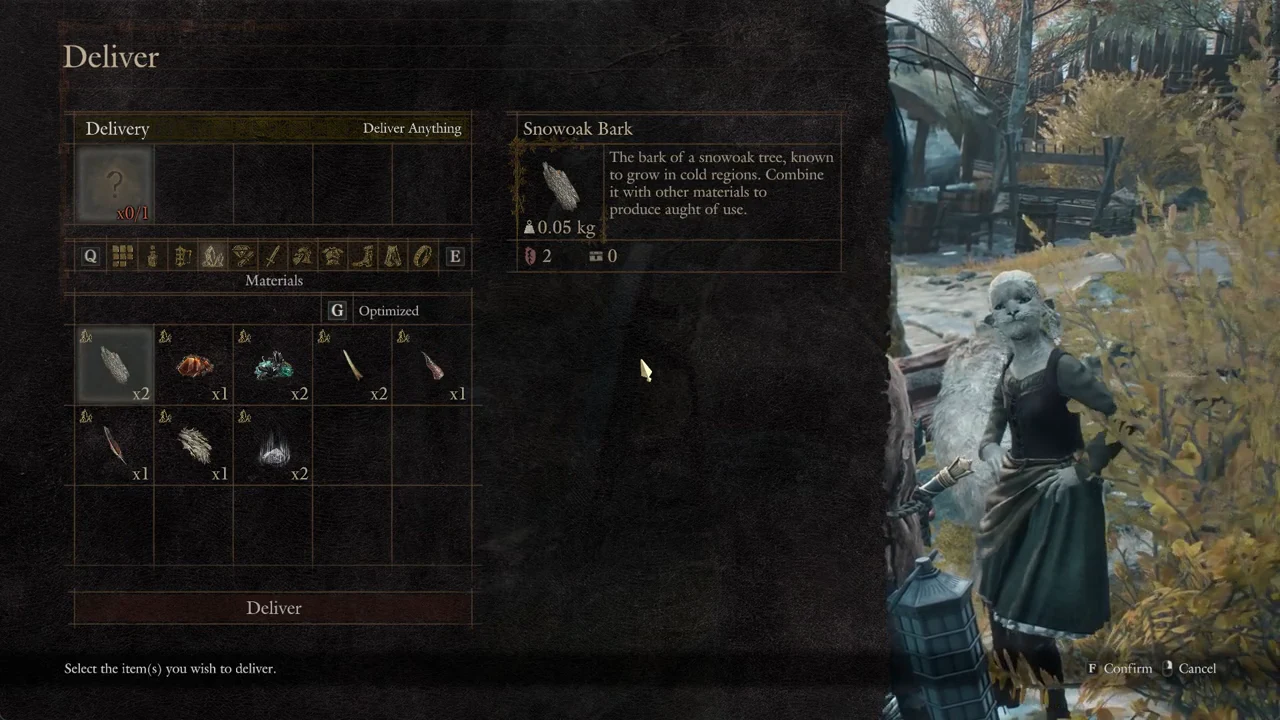
Pack categories appear in this order: All, Curatives, Implements, Materials, Valuables, Weapons, Head Armor, Body Armor, Leg Armor, Cloaks, Rings. Press E to advance a tab or Q to move back. The active category appears beneath the row, and G Optimized determines the sort order.
Check the category tabs before searching for a quest item. Bones, letters, and keepsakes appear under Valuables, rather than Materials. The Snowdeer Bone weighs 0.35 kg and is too brittle for forging, so look in Valuables instead of searching your crafting materials.
Staging an item adds R Reset Delivery to the footer. Press R to clear the slot and make another selection. If Deliver Anything has the wrong item loaded, reset it before confirming.
Deliver the item in order
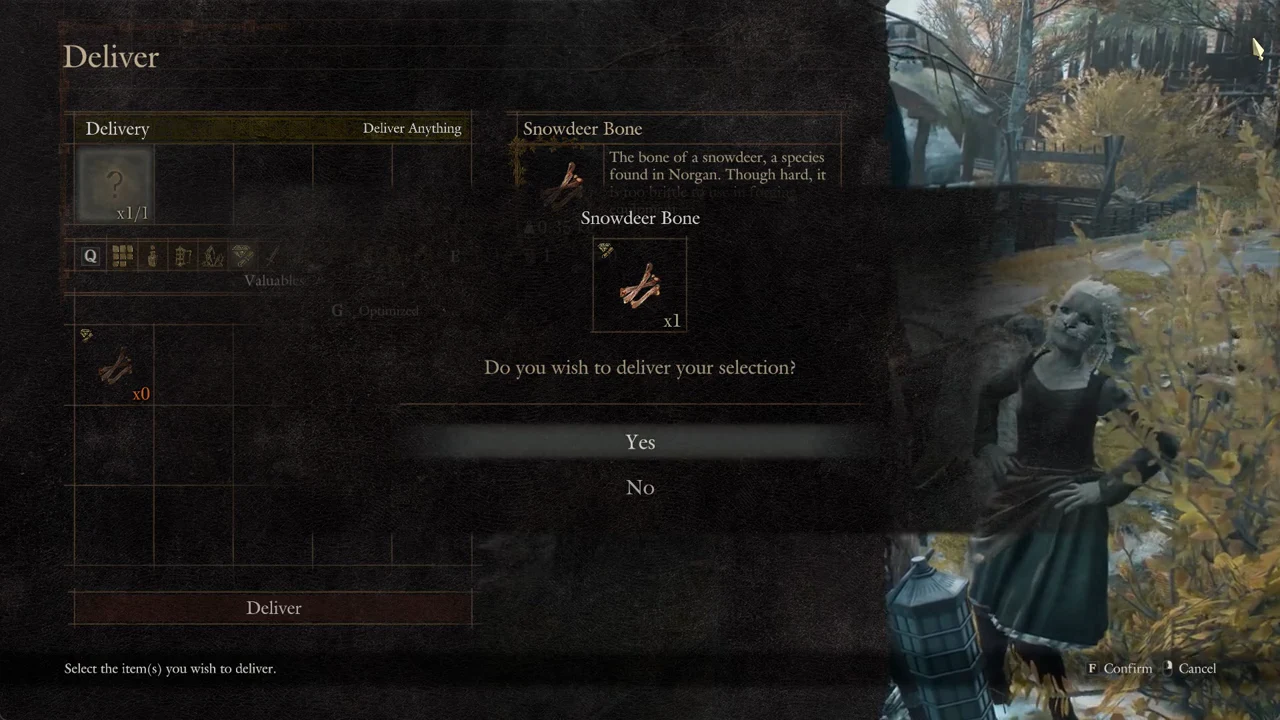
If you back out instead, the screen asks “Cancel the delivery?” with Yes and No. Nothing is handed over, and you can hail the character again to retry.
How to know the delivery worked
Confirmation comes through the character’s own dialogue. After the letter, Dorin reads it and recognises Ilda’s handwriting before continuing. After the bone, Ilsa accepts the treat — “Ooh! This is perfect! The hounds will go for this for sure.” — and thanks you. When the talk resumes on its own, the item has been accepted.
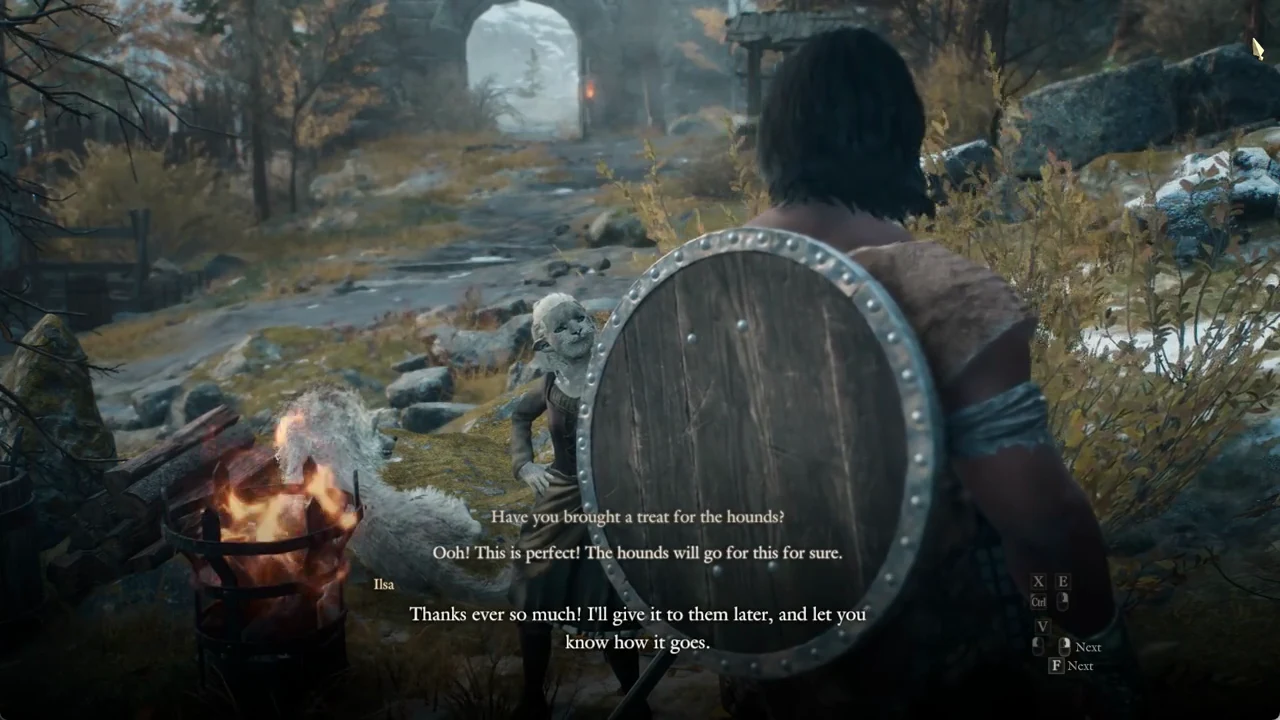
An item shown on this screen is not necessarily taken from your pack. During A Hound and His Bone, Ilsa’s Specified Delivery Only screen lists Skoll’s Snowdeer Bone, but you keep the bone and later give it to the hound Freki through Freki’s own menu. Some delivery sequences also run straight into the next request: in Oh, to Be in Vermund, Ilda asks for three items consecutively without a pause.