Quick answer: No. Phantom Blade Zero on PC has no photo mode at launch. Hide HUD elements in SYSTEM > Game, then capture with Steam’s F12 key or Windows Game Bar.
Is there a photo mode in Phantom Blade Zero?
You won’t find it in the pause menu, in the settings, or in the key bindings.
Tap Esc to display the pause screen. Its six tabs are MAP, then QUESTS, followed by CHARACTER and ITEMS, with ARCHIVES and SYSTEM completing the list; none offers photo mode.
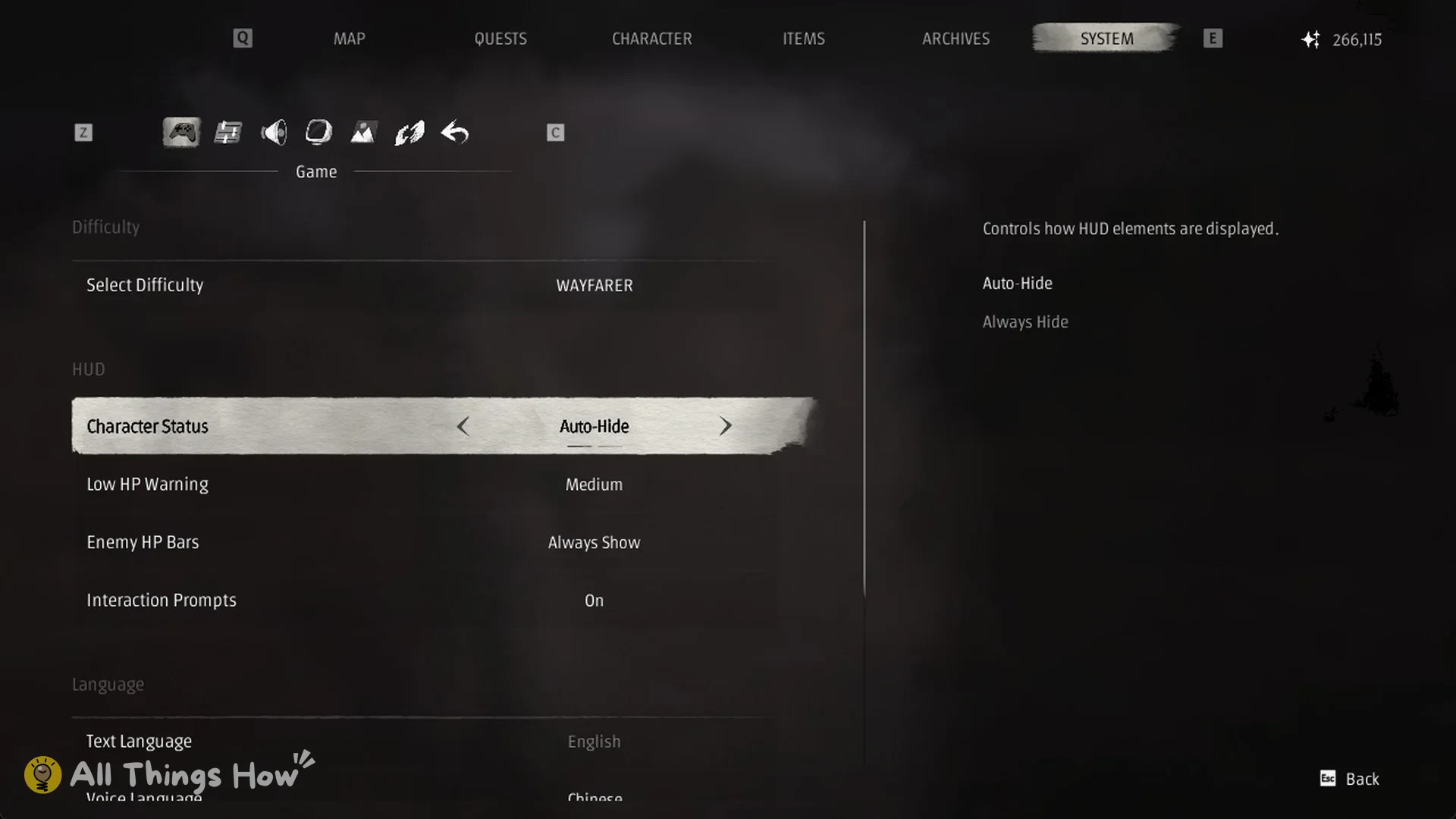
The SYSTEM tab is where a photo mode toggle would normally sit. Its sub-tabs are Game, Controls, Audio, Display, Graphics, Help, and Quit Game, and you switch between them with Z and C. Quit Game holds only Load Game, Return to Title Screen, and Quit to Desktop.
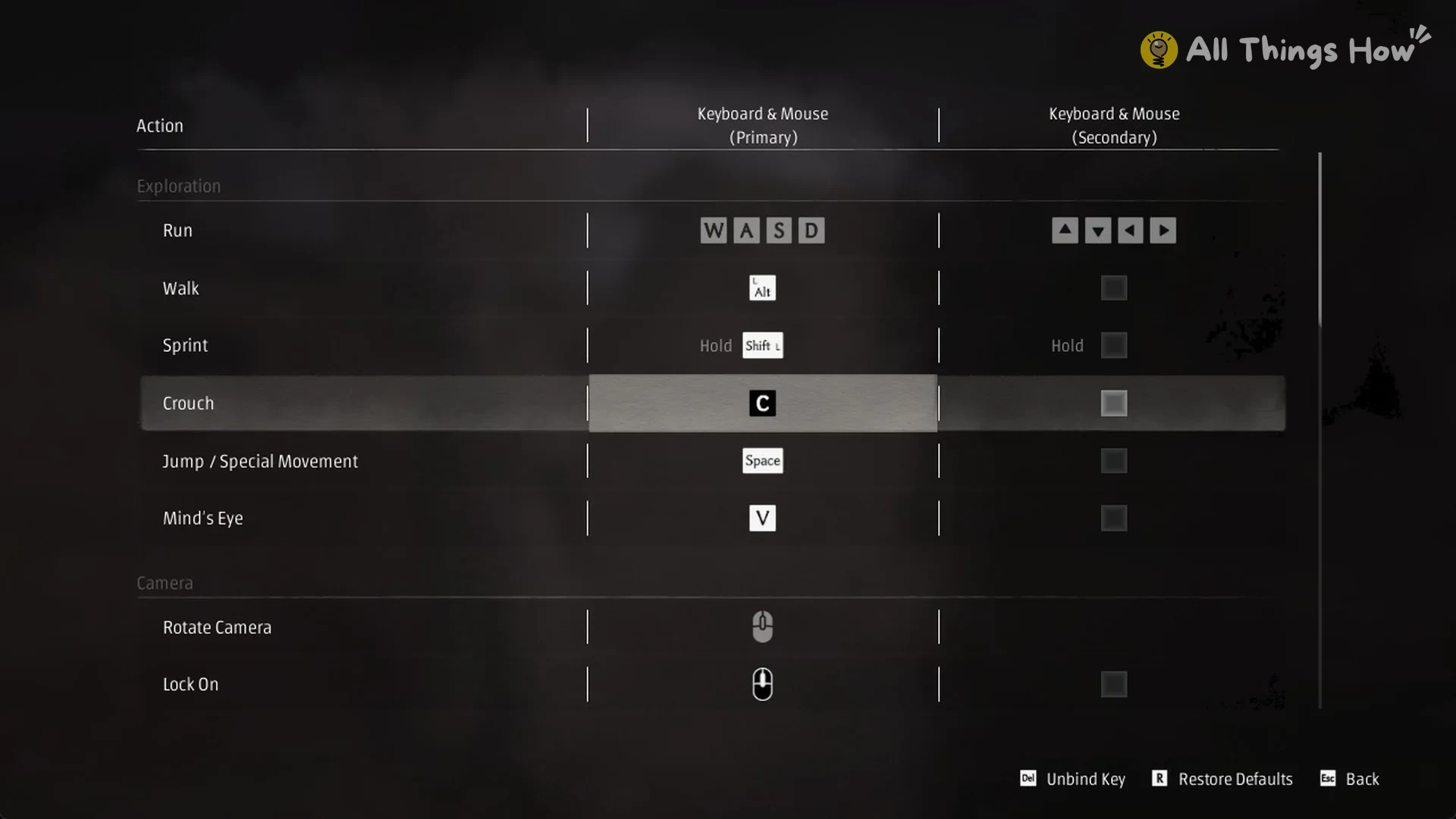
Go to Controls > Button Bindings > Custom 1 > Edit to see every keyboard and mouse action. The list is split into Exploration, Camera, Combat, Combat Assist, and Menu Controls. Camera covers only Rotate Camera and Lock On. Menu Controls covers Character Menu (I), Map (M), Interact (E), Confirm (Space), and Back (Esc). There is no photo mode action to bind; the full controls list covers every key and controller button.
How to hide the HUD for clean screenshots
The closest substitute is to strip the on-screen HUD and take a regular screenshot. Every option you need is in the HUD section of the Game sub-tab.
The same HUD section also lists “Low HP Warning,” which shows Medium. The Game sub-tab holds a few unrelated options too, including Select Difficulty (difficulty modes), Text Language, and Voice Language (changing the voice language). You can ignore those for screenshots.
How to take the screenshot
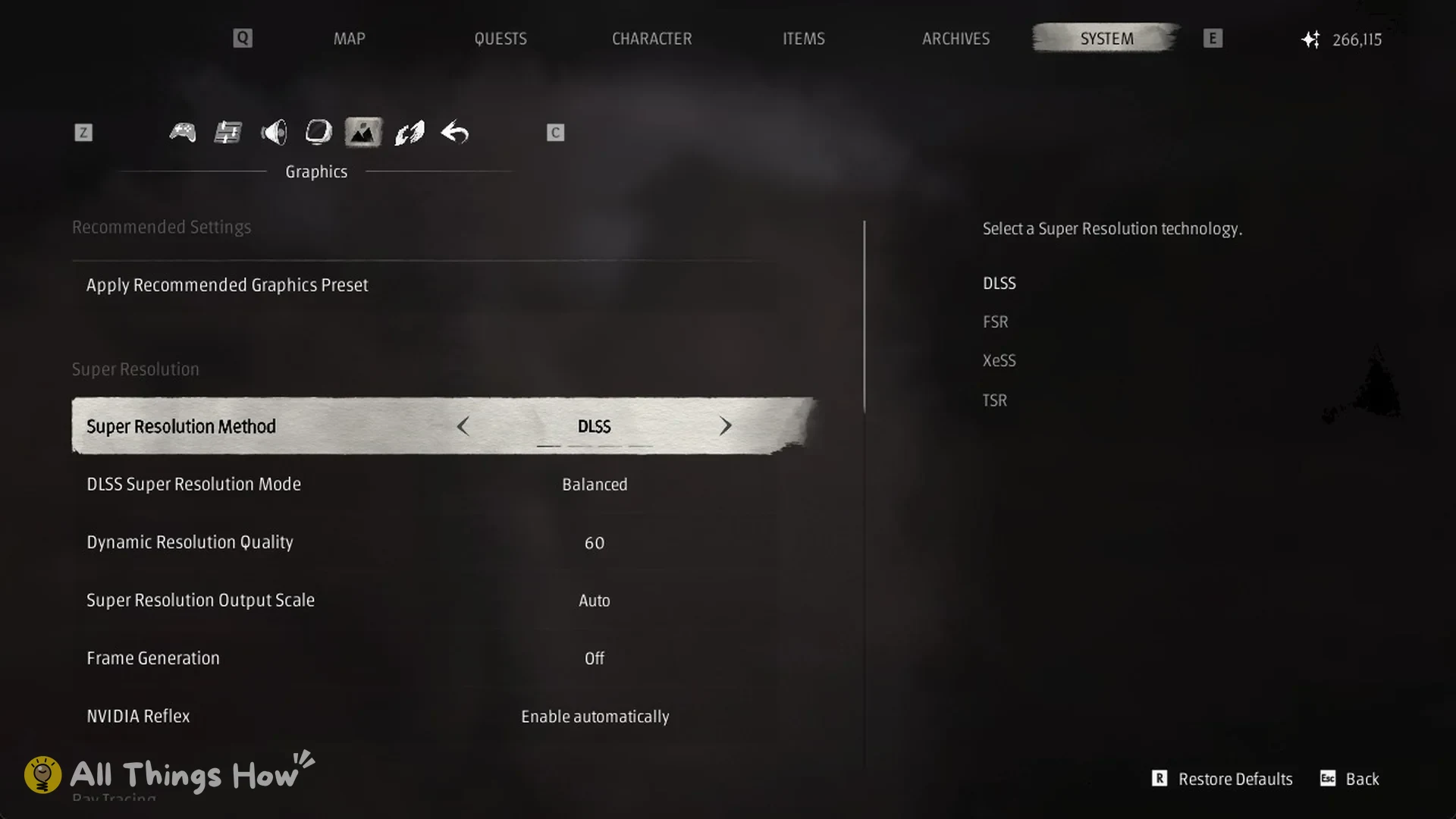
Phantom Blade Zero has no built-in screenshot control, so use a separate capture tool. On Steam, press the overlay’s screenshot shortcut, F12 by default. Windows Game Bar is another option: press Win + Alt + PrtScn. Window Mode and Resolution are under SYSTEM > Display; graphics options like DLSS are under SYSTEM > Graphics, and the best PC settings guide has the recommended setup.