Phantom Blade Zero on PC uses a mouse-driven combat layout. Attacks and blocking sit on the mouse buttons, and most other actions sit on keys around WASD. Controller players get the same set of actions on the face buttons, bumpers and triggers. You can remap many keyboard actions, but not all of them. The rest of the options are covered in our Phantom Blade Zero best PC settings guide, and the four modes in Phantom Blade Zero difficulty modes explained.
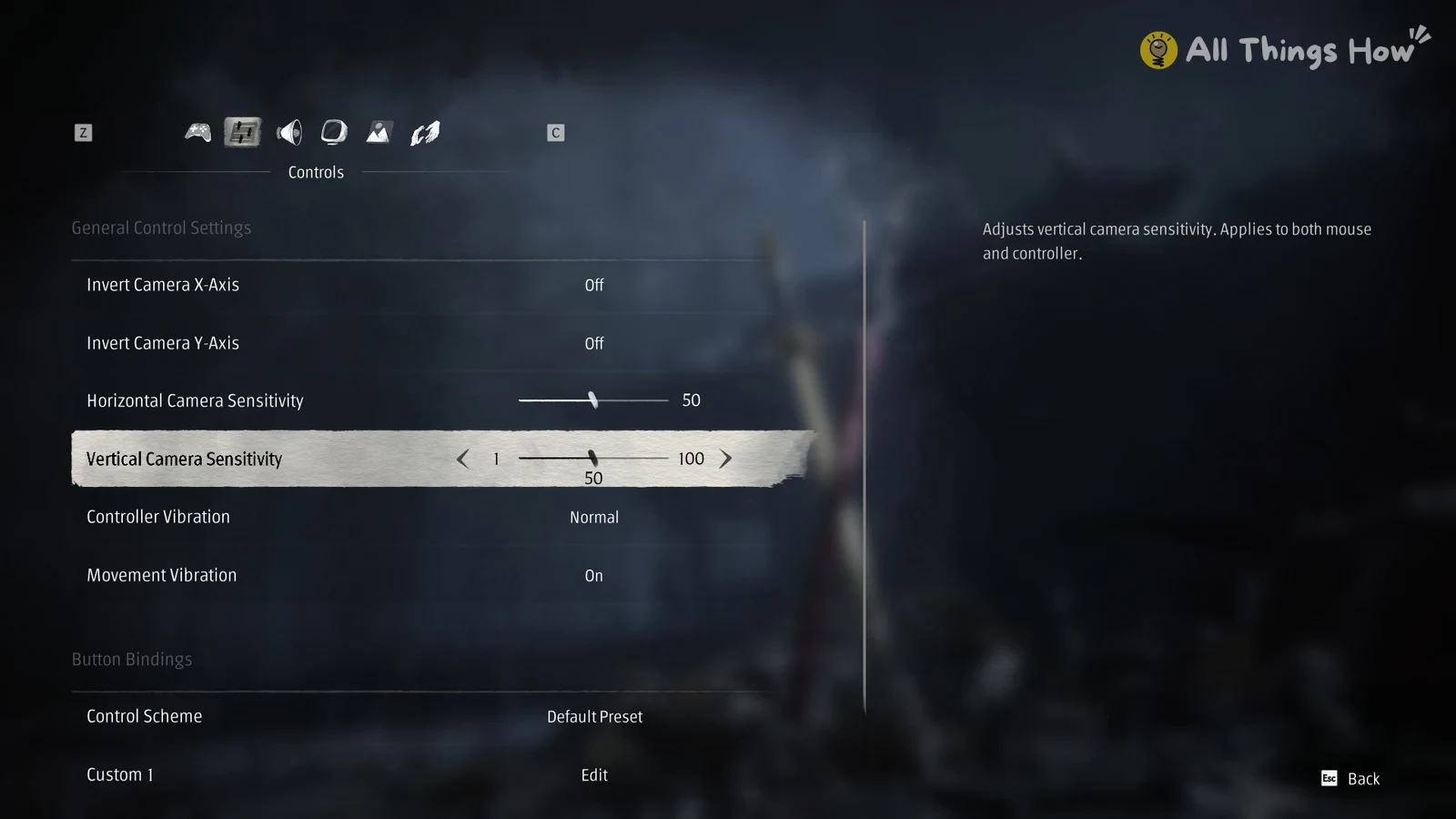
Quick answer: Light attack is Left Mouse, heavy attack is F, block is hold Right Mouse, and dodge is Left Shift. To rebind keys, go to Settings > Controls > Button Bindings and pick Custom 1 or Custom 2.
Phantom Blade Zero keyboard and mouse controls
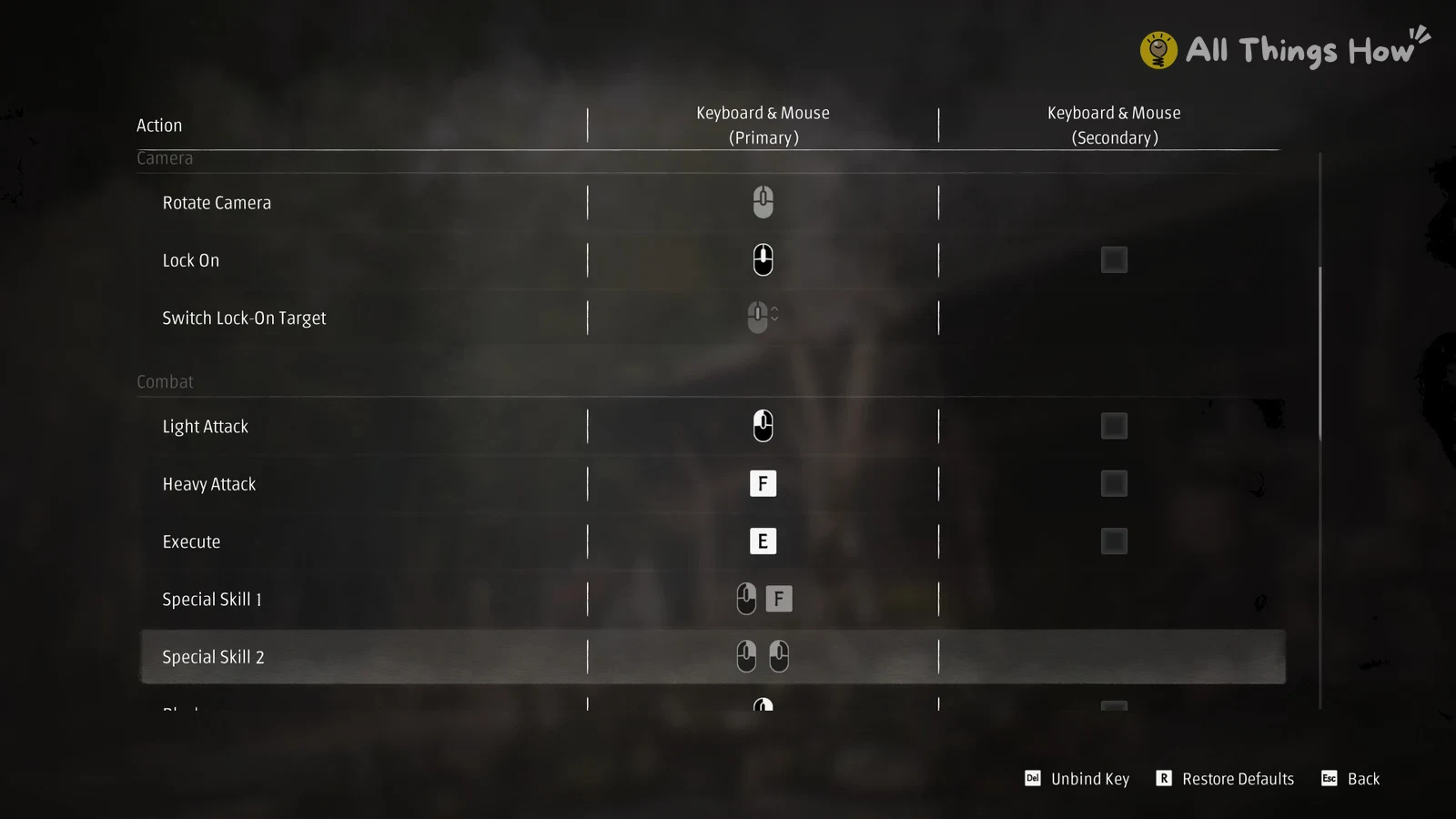
These are the default bindings from the Primary column of the in-game key table. The game groups them the same way: Exploration, Camera, Combat, Combat Assist and Menu Controls.
| Action | Default key |
|---|---|
| Exploration | |
| Run | W A S D |
| Walk | Left Alt |
| Sprint | Hold Left Shift |
| Crouch | C |
| Jump / Special Movement | Space |
| Mind’s Eye | V |
| Camera | |
| Rotate Camera | Mouse movement |
| Lock On | Middle mouse button (wheel click) |
| Switch Lock-On Target | Scroll wheel while locked on |
| Combat | |
| Light Attack | Left Mouse |
| Heavy Attack | F |
| Execute | E |
| Special Skill 1 | Hold Right Mouse + F |
| Special Skill 2 | Hold Right Mouse + Left Mouse |
| Block | Hold Right Mouse |
| Dodge | Left Shift |
| Power Surge | Q |
| Phantom Edges | Left Ctrl |
| Combat Assist | |
| Switch Weapon | 1 |
| Switch Phantom Edge | 2 |
| Use Lower Medicine | R |
| Use Upper Medicine | T |
| Menu Controls | |
| Open Character Menu | I (Esc also works) |
| Open Map | M (secondary: Tab) |
| Interact / Talk | E |
| Confirm | Space (secondary: Enter) |
| Back | Esc (secondary: Backspace) |
| Next Line | Mouse click |
| Switch Main Tab | Q / E |
| Switch Subtab | Z / C |
Movement also works on the arrow keys, which are set as the secondary binding for Run. You can keep moving while you hold Block. Phantom Edges are your secondary weapons. The two medicine keys use separate quick slots, one upper and one lower.
Phantom Blade Zero controller controls (PlayStation and Xbox)
| Action | PlayStation | Xbox |
|---|---|---|
| Move | Left stick | Left stick |
| Walk | Push left stick lightly | Push left stick lightly |
| Sprint | Hold R1 while moving | Hold RB while moving |
| Jump / Crouch | Cross | A |
| Lock On | Press right stick | R3 |
| Light Attack | Square | X |
| Heavy Attack | Triangle | Y |
| Execute | Circle | B |
| Special Skill 1 | Hold L1 + Triangle | Hold LB + Y |
| Special Skill 2 | Hold L1 + Square | Hold LB + X |
| Block | Hold L1 | Hold LB |
| Dodge | R1 | RB |
| Power Surge | L2 | LT |
| Phantom Edges | R2 | RT |
| Switch Weapon | D-pad left | D-pad left |
| Switch Phantom Edge | D-pad right | D-pad right |
| Lower Medicine | D-pad down | D-pad down |
| Upper Medicine | D-pad up | D-pad up |
| Character Menu | Options | Menu |
| Map | Touchpad | View |
As on keyboard, you can move while holding Block. For controllers the game offers Controller Preset 1-3.
How to rebind keys in Phantom Blade Zero
The Default Preset can’t be edited. Custom changes go into one of two custom keyboard and mouse layouts.
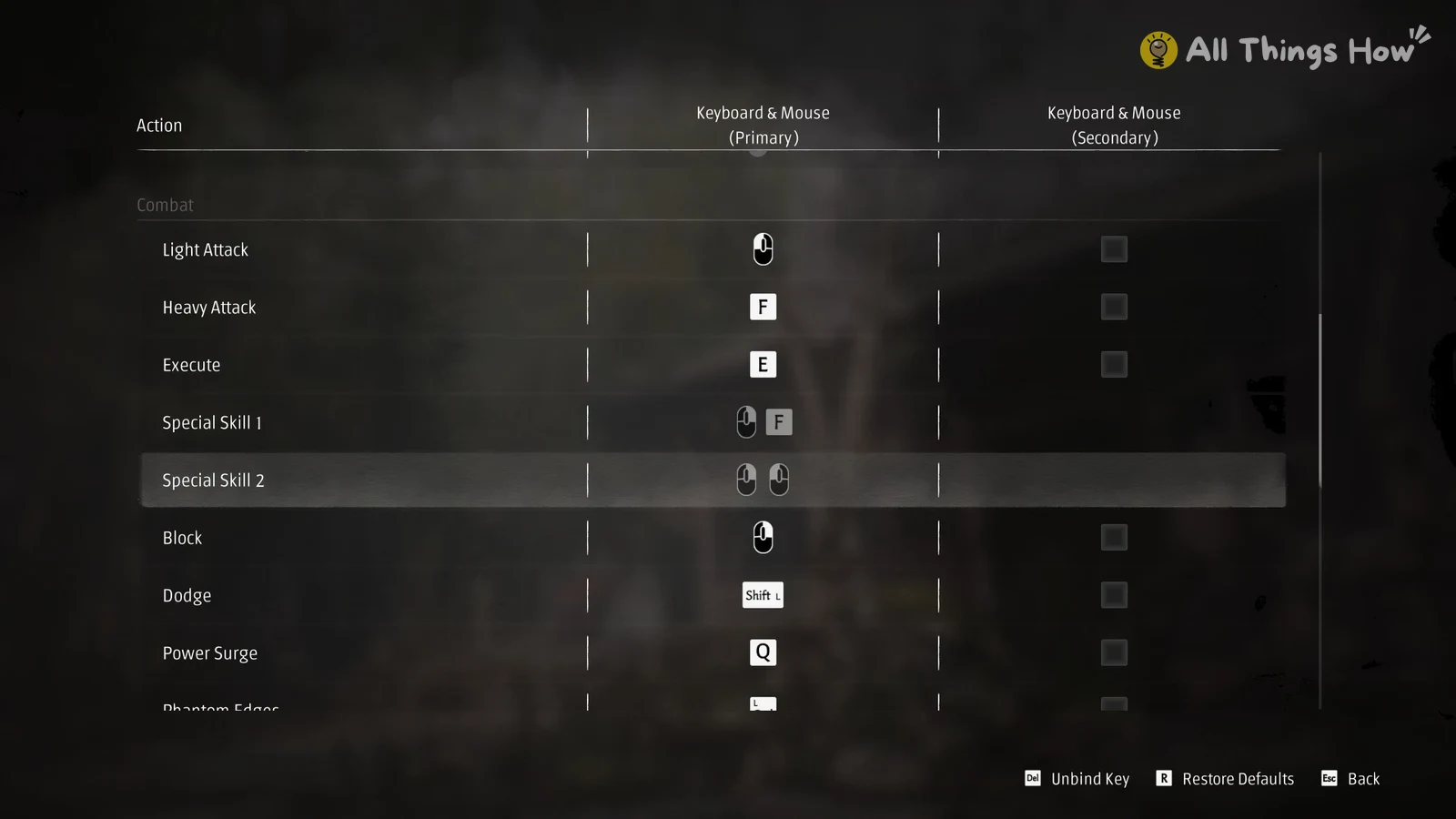
Some bindings are locked and can’t be changed in any layout:
- Movement (W A S D and the arrow keys)
- Camera rotation
- Switch Lock-On Target
- The Special Skill 1 and Special Skill 2 combinations
- The menu confirm, back and tab keys
Phantom Blade Zero camera, vibration and lock-on settings
The Controls tab also has these options next to the bindings:
- Invert Camera X-Axis and Y-Axis, both Off by default
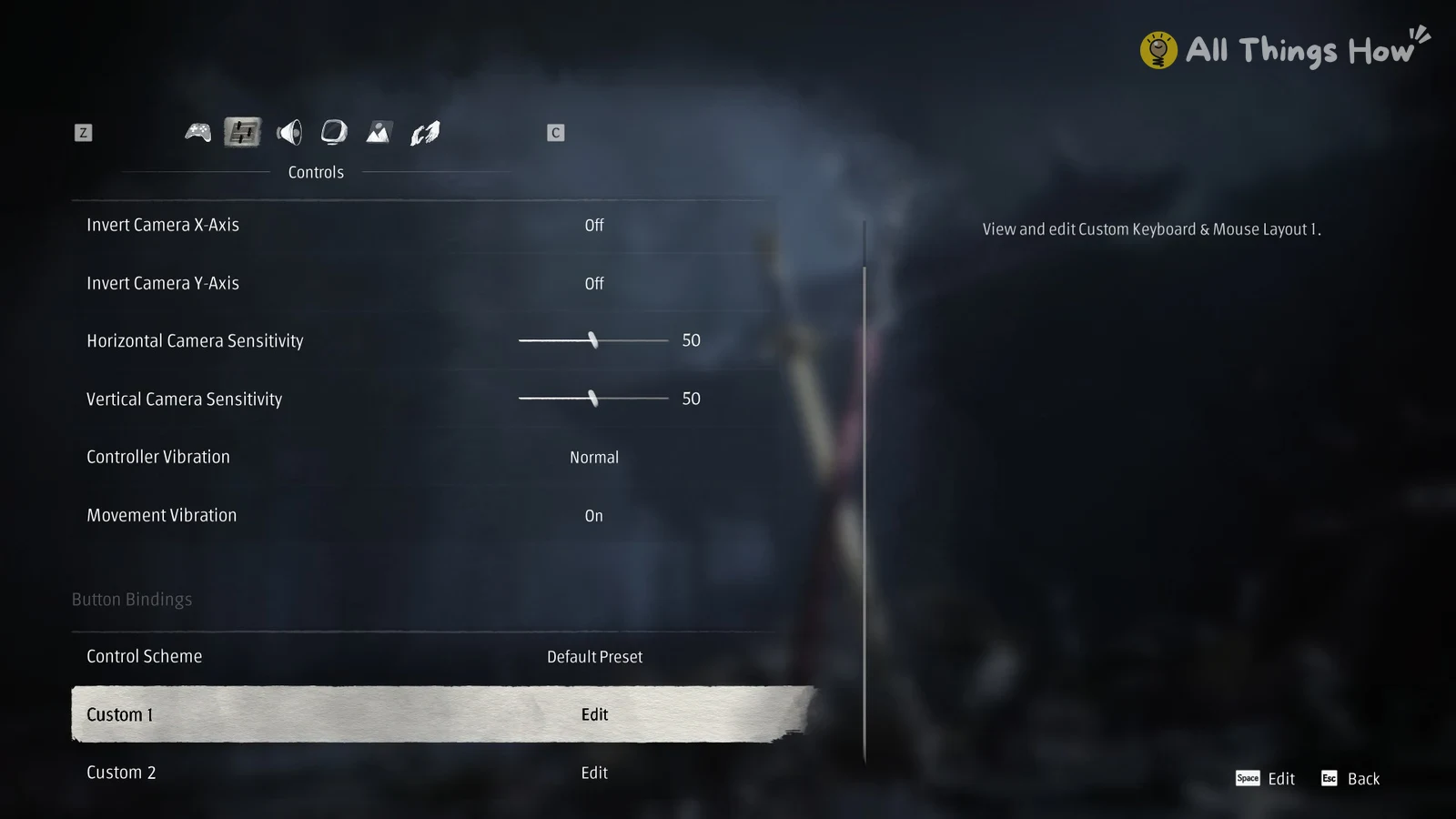
- Horizontal and Vertical Camera Sensitivity, from 1 to 100 with a default of 50
- Controller Vibration (Normal), Movement Vibration (On) and Trigger Effect Intensity
- Auto-Switch Lock-On, Auto Lock-On When Attacking and Combat Assist When Unlocked
The camera sensitivity sliders affect the mouse and the controller alike. The game labels them “Applies to both mouse and controller”, so changing them for one input changes them for the other.