Phantom Blade Zero starts with Chinese voice dialogue on PC, even when the menus and subtitles are already in English. You can switch the spoken language to English from the Settings menu, and the same menu also controls text language and subtitles.
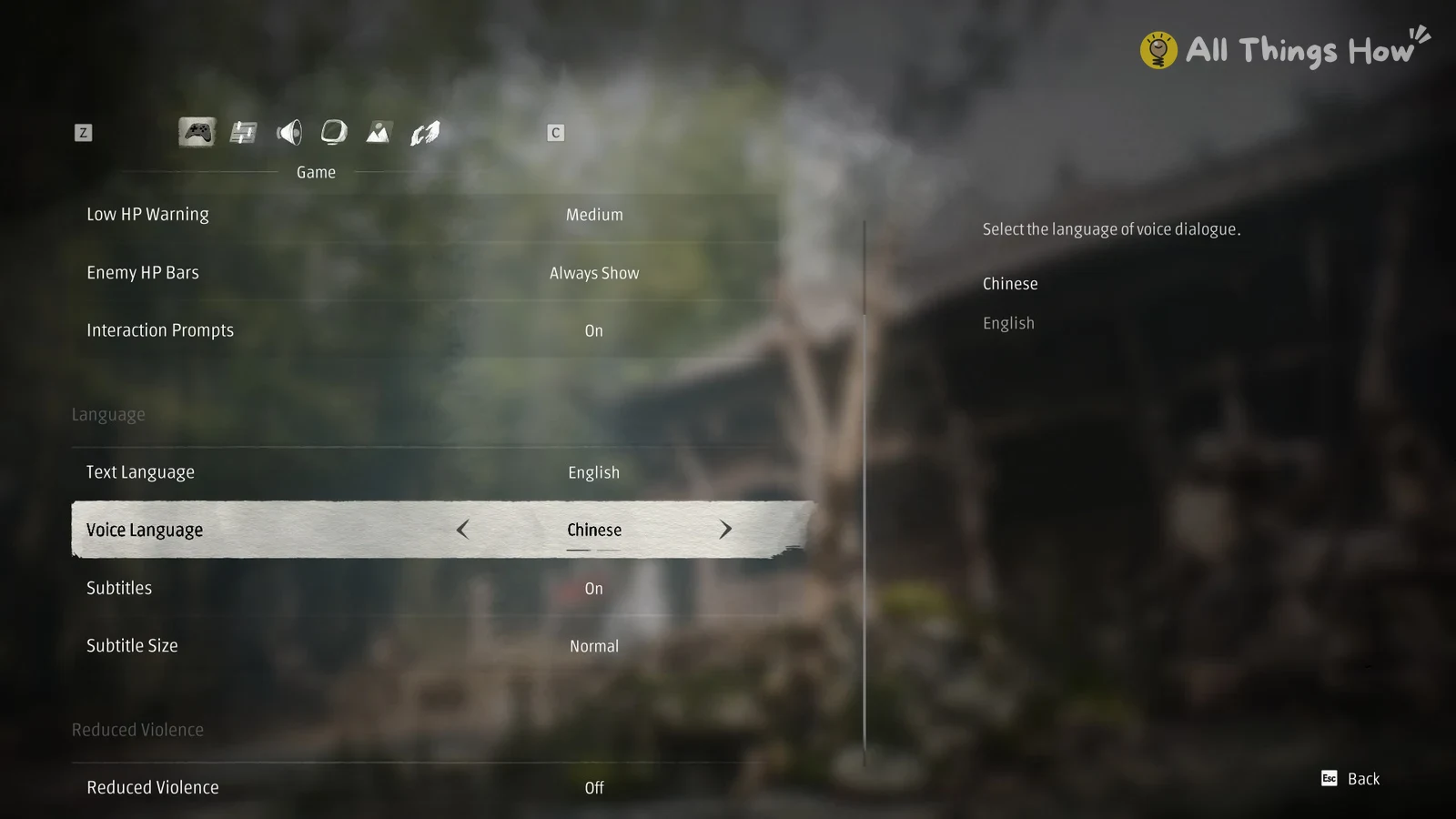
Quick answer: Open Settings, stay on the Game tab, and scroll to the Language section. Set Voice Language to English. Chinese is the default.
Switch Phantom Blade Zero voice language to English
Voice Language offers two choices, Chinese and English. The game describes the setting as “Select the language of voice dialogue.”
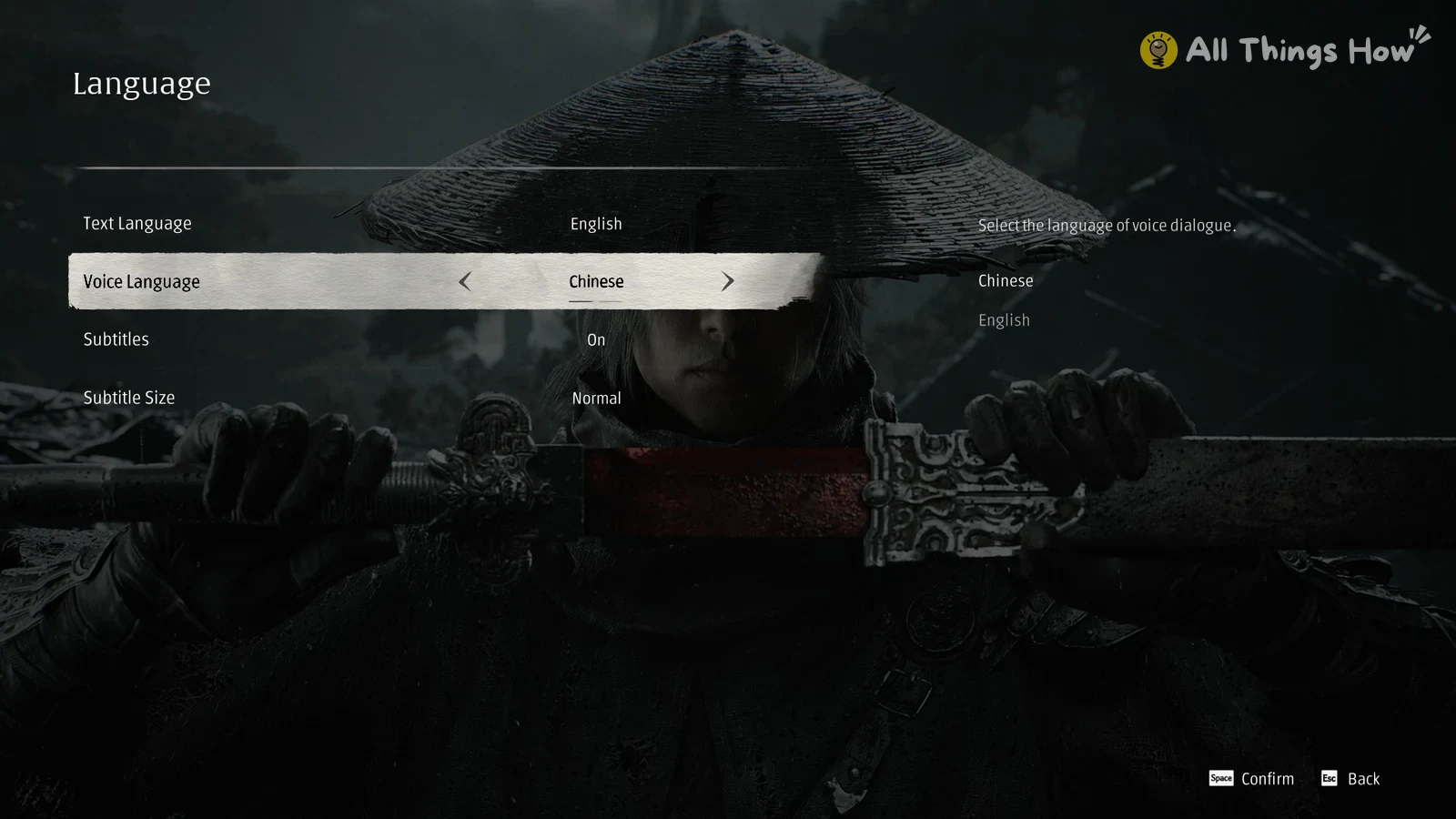
You can tell the change worked when the Voice Language row reads English instead of Chinese.
The same four Language rows also appear on a full-screen “Language” page during the first launch, after shader compilation and gamma calibration. Use the left and right arrows on a highlighted row to set Voice Language to English there, then press Space to confirm.
Text Language: 15 options, set from the Title Screen
Text Language is a separate setting from voice. It controls subtitles and interface text, and the game’s own description reads “Selects the language for subtitles and interface text. Only changeable from the Title Screen.” On an English Windows PC, it defaults to English.
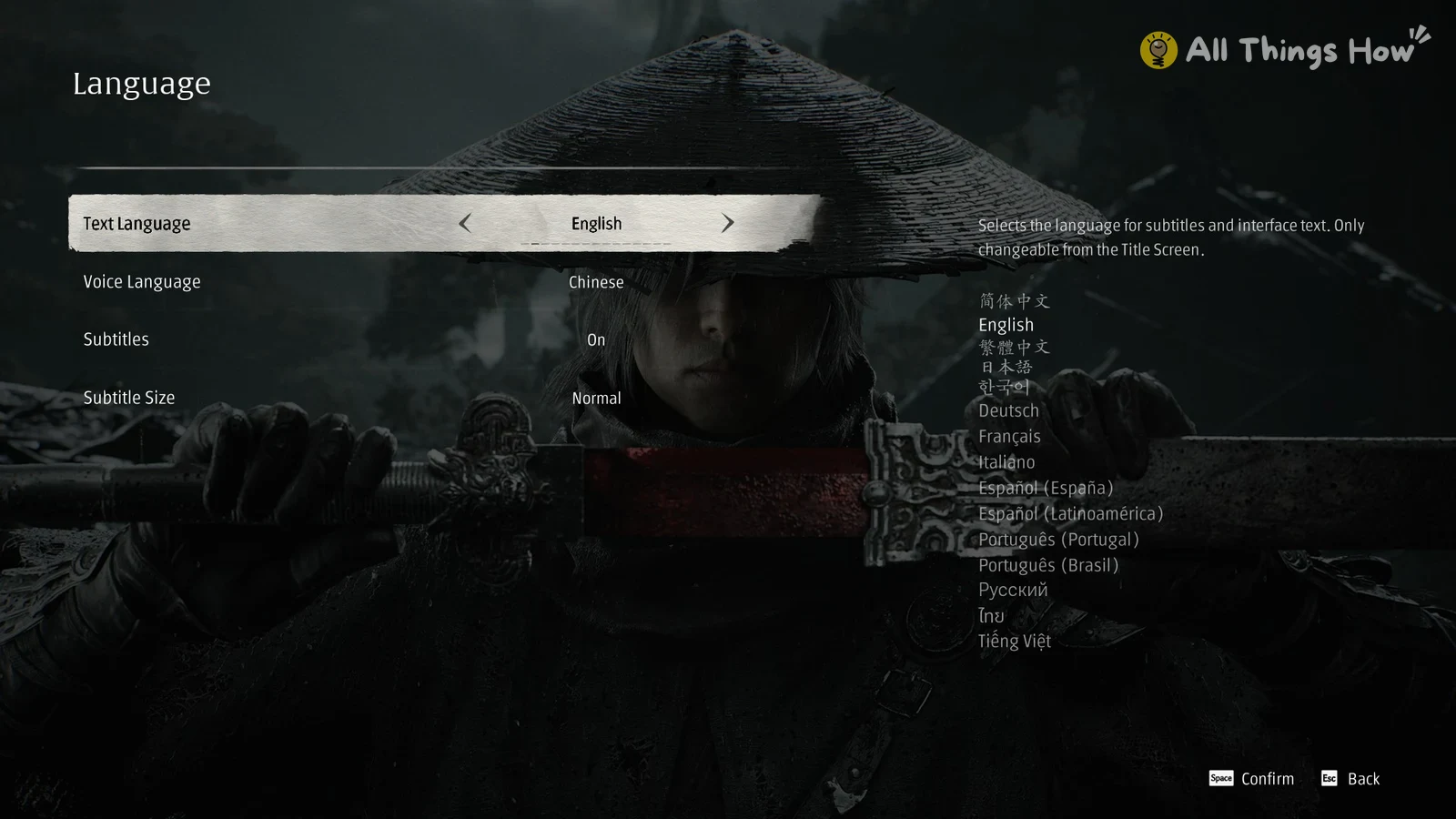
The list includes 15 languages:
- Simplified Chinese (简体中文), Traditional Chinese (繁體中文), English
- Japanese (日本語), Korean (한국어), Thai (ไทย), Tiếng Việt
- Deutsch, Français, Italiano, Русский
- Español (España), Español (Latinoamérica)
- Português (Portugal), Português (Brasil)
Voice and text languages are set independently. For example, you can keep the Chinese voice acting while reading English subtitles. The rest of the Game tab (HUD, Reduced Violence) is covered in our Phantom Blade Zero best PC settings guide.
Subtitles and Subtitle Size settings
Subtitles and Subtitle Size are the last two rows of the Language section. Subtitles defaults to On, and Subtitle Size defaults to Normal. To turn subtitles off, highlight the Subtitles row and change it with the left or right arrow.
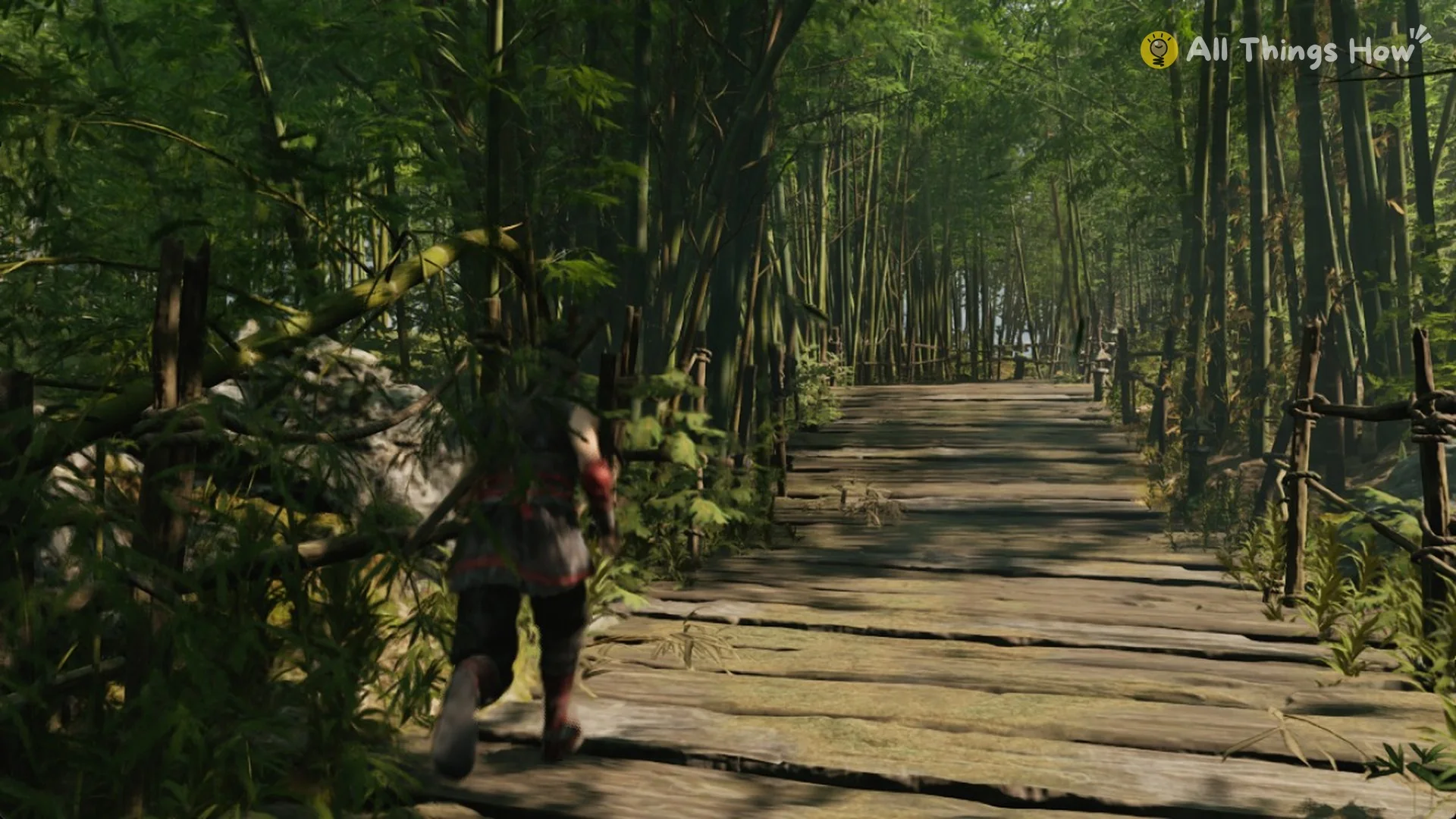
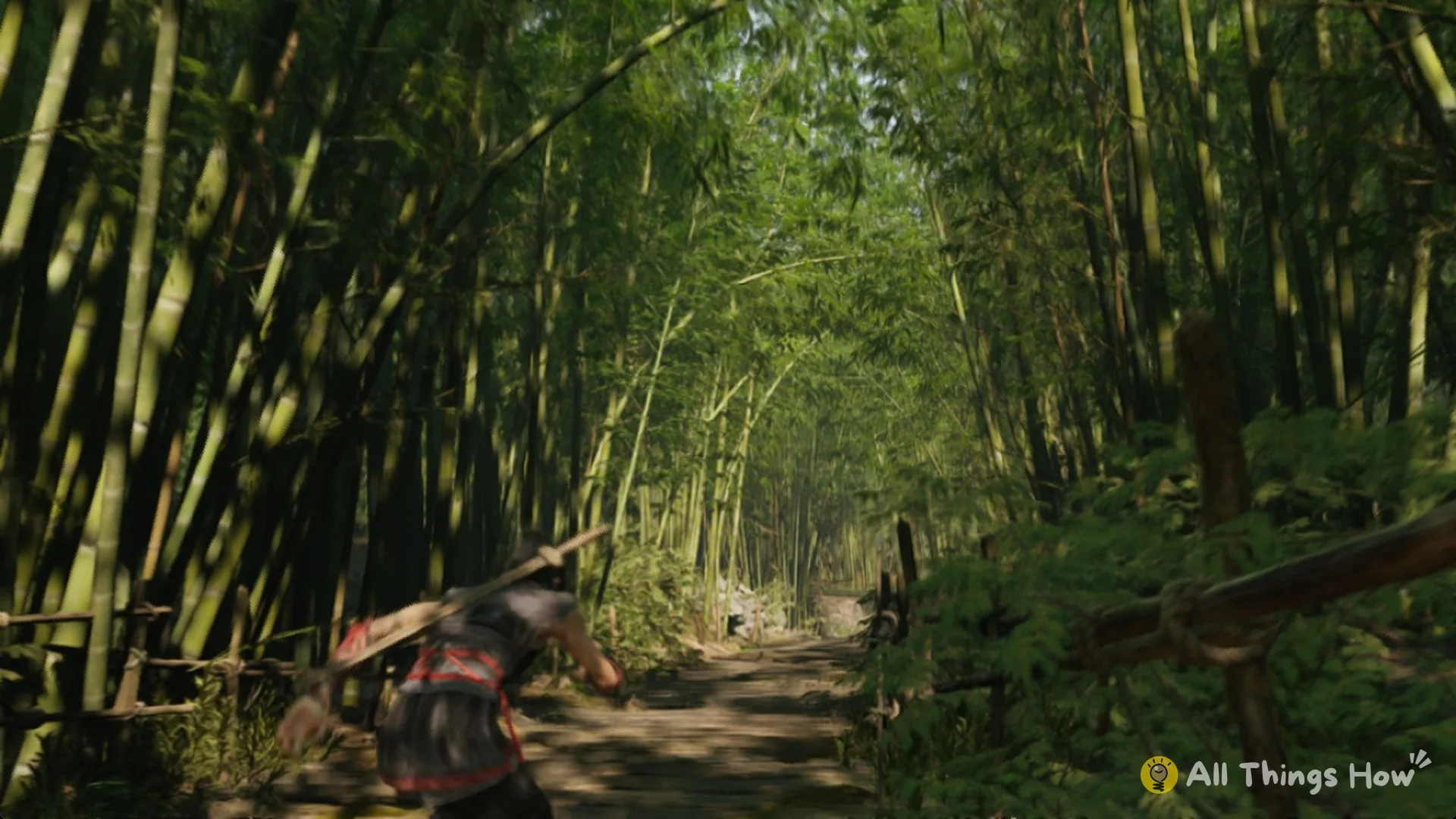
When subtitles are on, spoken lines appear at the bottom center of the screen, with the speaker’s name shown above each line. In the prologue’s bamboo forest, for example, Soul’s line “I wonder if Shifu’s coming back today…” appears as English text even with the Chinese voice track playing. For every key binding, see the Phantom Blade Zero controls.