
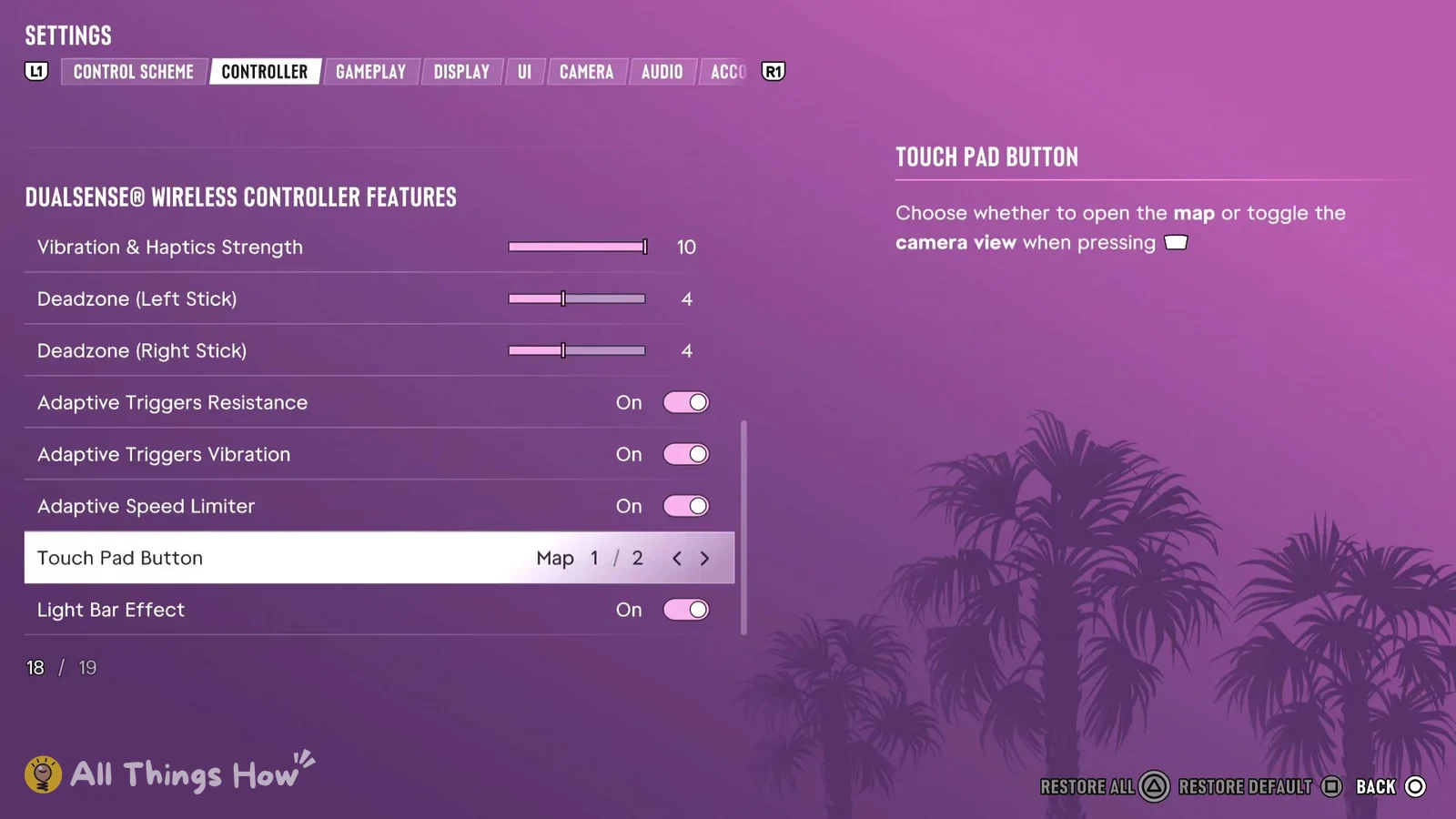
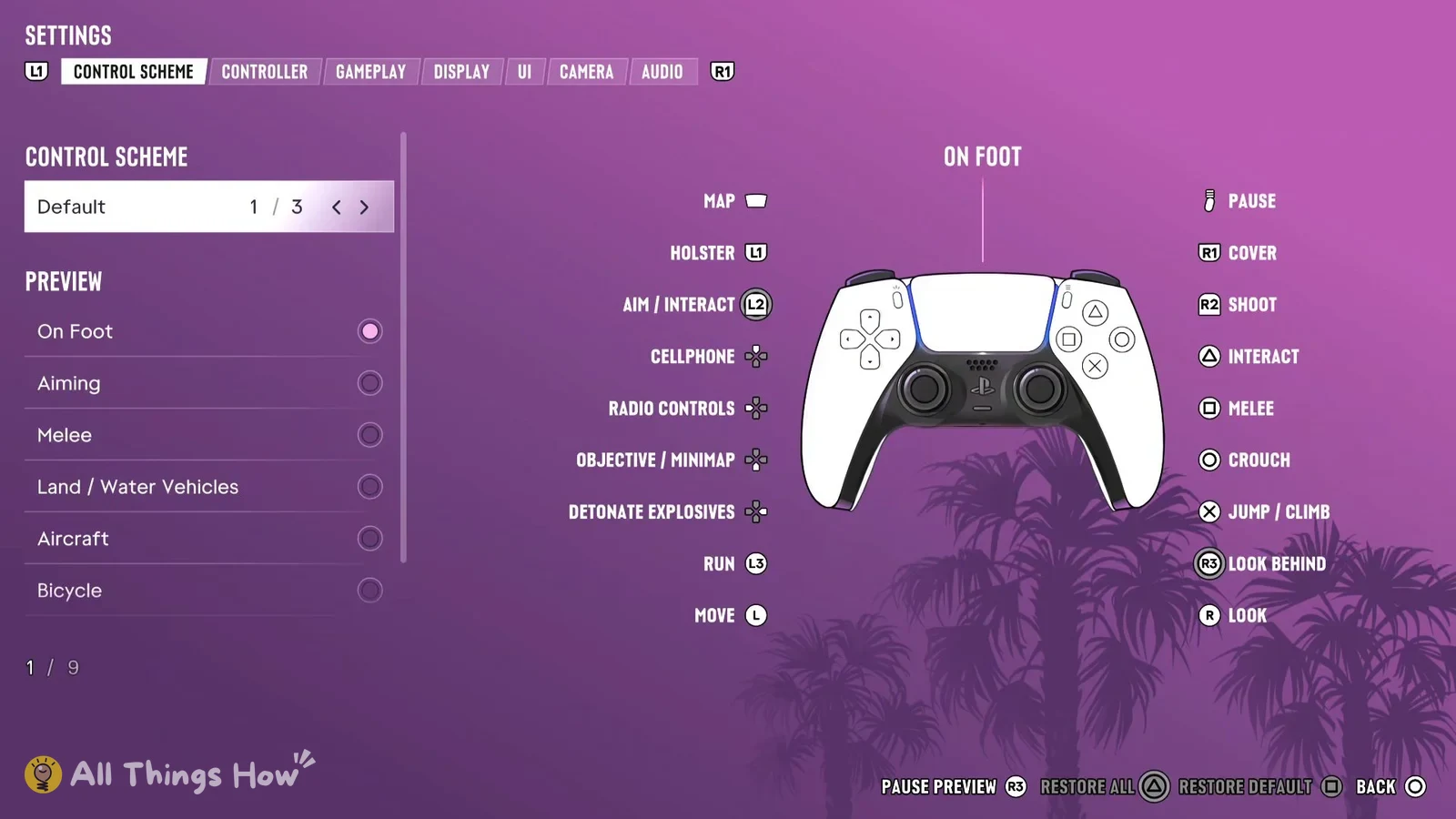
In GTA 6 on PS5, pressing the DualSense touch pad opens the map by default. On the Default control scheme, the On Foot controller preview labels the touch pad “Map.” You can change that in Settings so the same press changes the camera view instead.
Quick answer: From the pause menu, go into Settings. Press R1 once to open the Controller tab, then change Touch Pad Button to Camera.
Set the GTA 6 Touch Pad Button to Camera
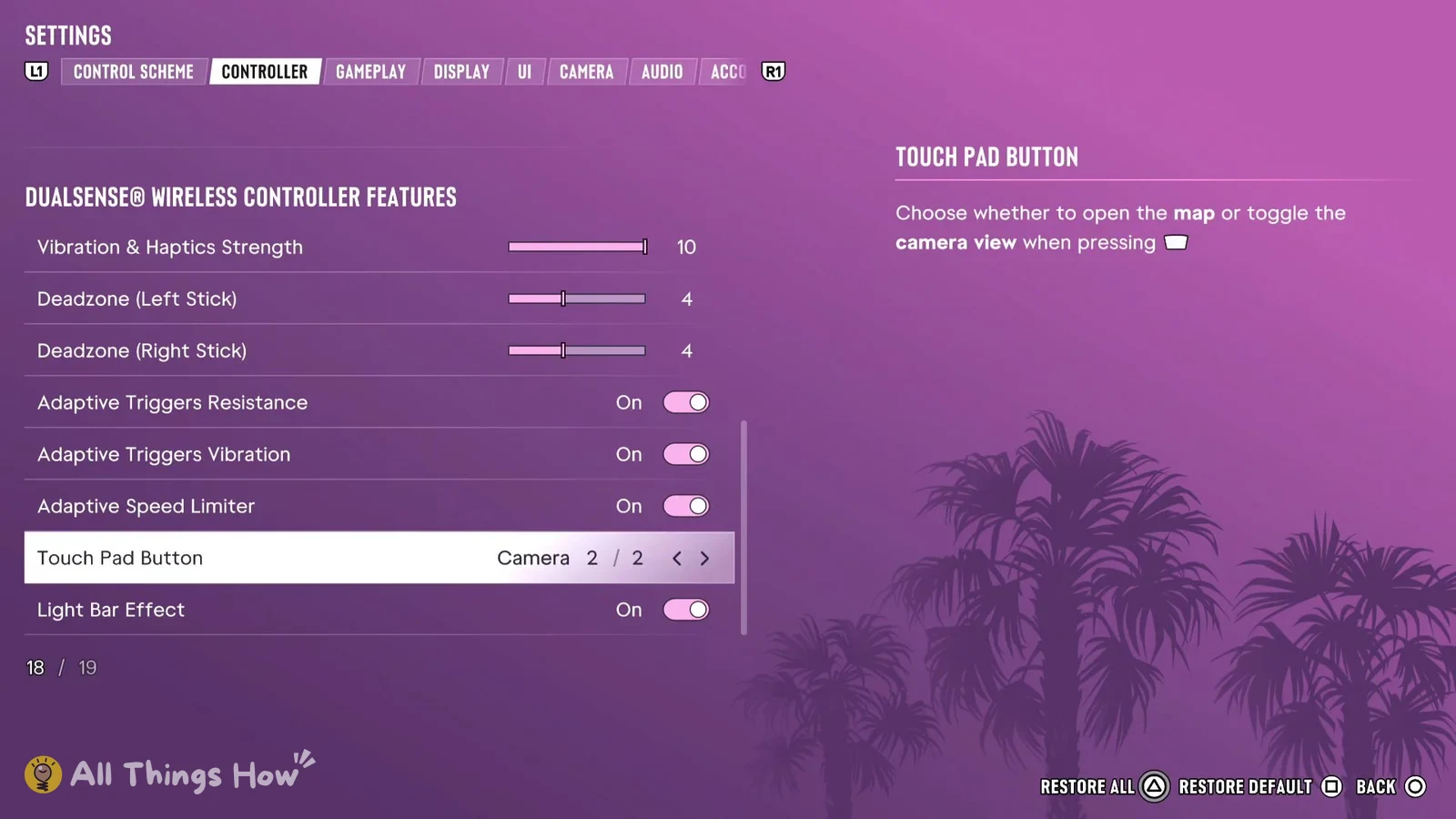
If you want the old behavior back, highlight Touch Pad Button and press Square for Restore Default, which sets it back to Map.
What the Camera setting changes
To check that it worked, go back to the Control Scheme tab and look at the On Foot preview. Where the touch pad used to say “Map,” it now says “Camera Distance”.
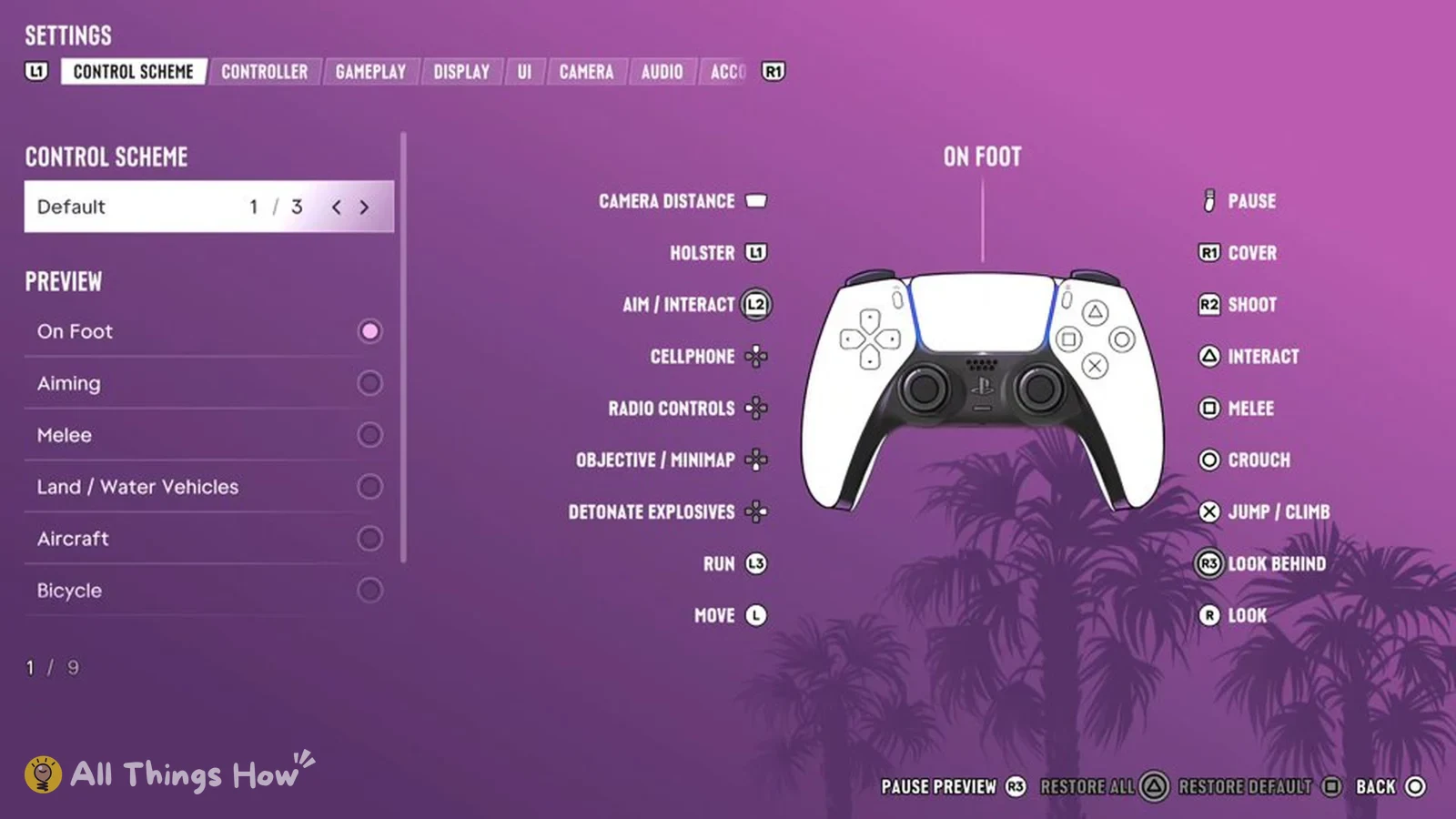
You don’t lose quick access to the map. Map is still the first entry in the pause menu, ahead of Game, Store, Help, Photo Studio and Settings, so you can pause and open it from there. The right stick is still Look and R3 is still Look Behind on the Default scheme.
GTA 6 camera height and Camera Preferences
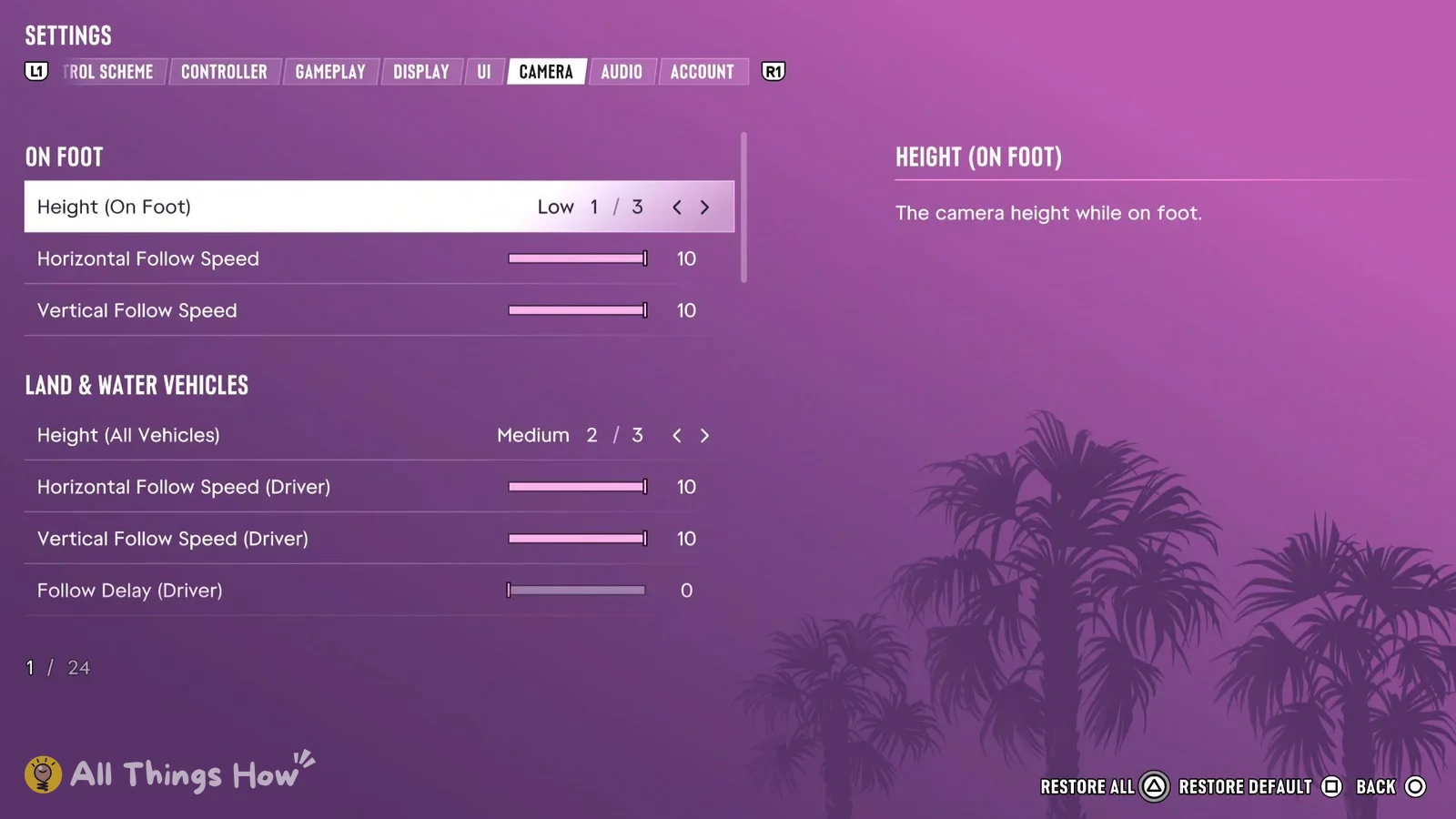
How high the camera sits is set separately, on the Camera tab in Settings. There are two height rows, and both use the same three choices.
| Setting | Where it is | Choices | Default |
|---|---|---|---|
| Height (On Foot) | Camera tab, first row | Low, Medium, High | Medium |
| Height (All Vehicles) | Camera tab, Land & Water Vehicles | Low, Medium, High | Medium |
The game describes Height (On Foot) as “The camera height while on foot.” Further down the Camera tab, in the Comfort group, Camera Preferences is On by default. Its description reads “Remembers your camera preferences in different situations, such as for on foot, vehicles, bikes, boats, or aircraft”, so leave it on if you want the game to keep separate camera choices for walking and for each kind of vehicle.