Two-factor authentication, often shown in Fortnite as MFA, adds a second verification step on top of your password when you sign in to your Epic Games account. Once it is on, a login also needs a temporary code from your authenticator app, email, or phone, so a stolen password alone is not enough to get in. It also unlocks core features like gifting items and entering competitive Cups.
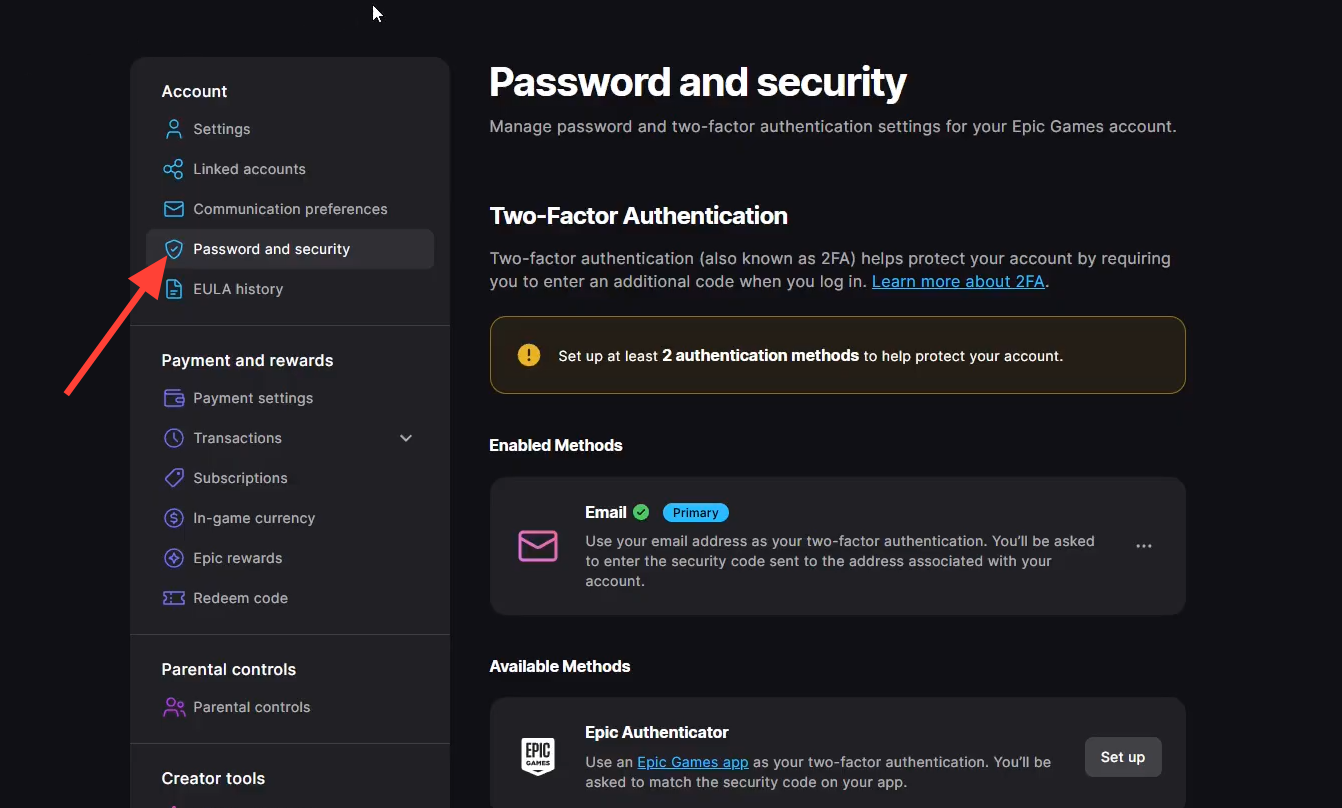
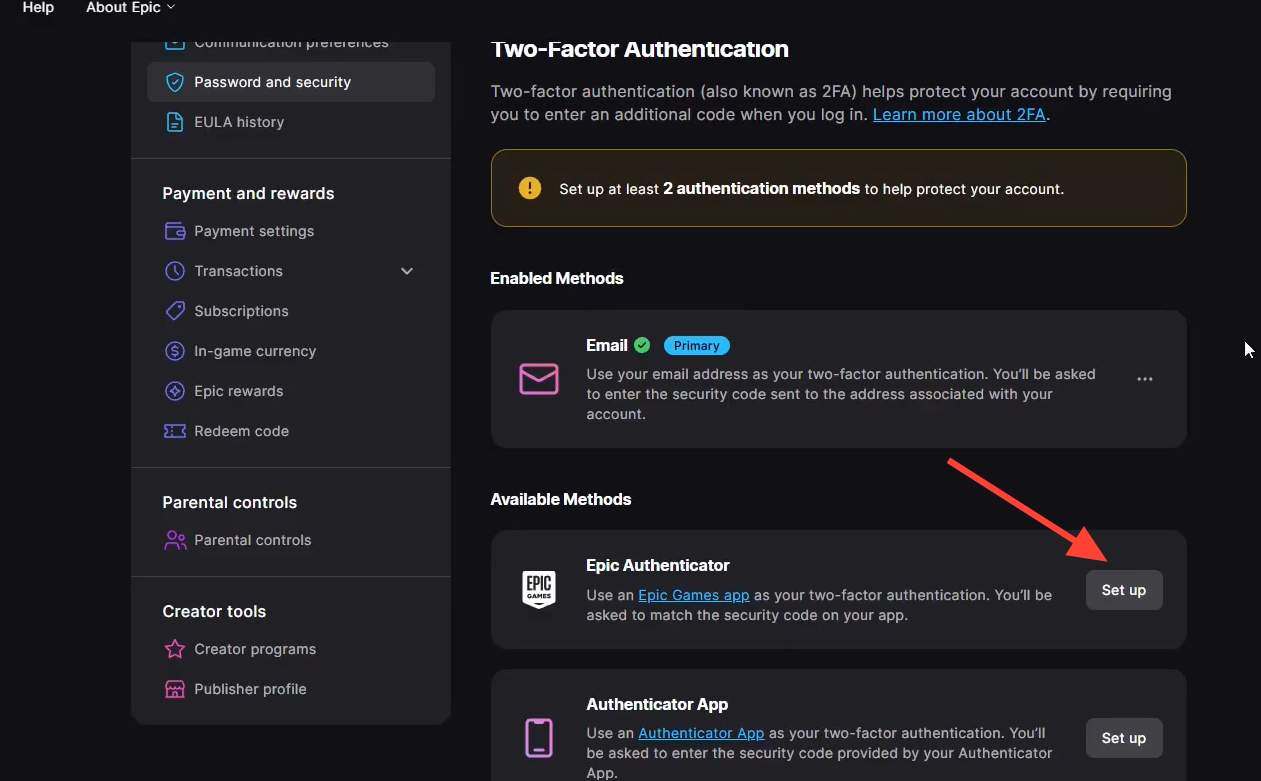
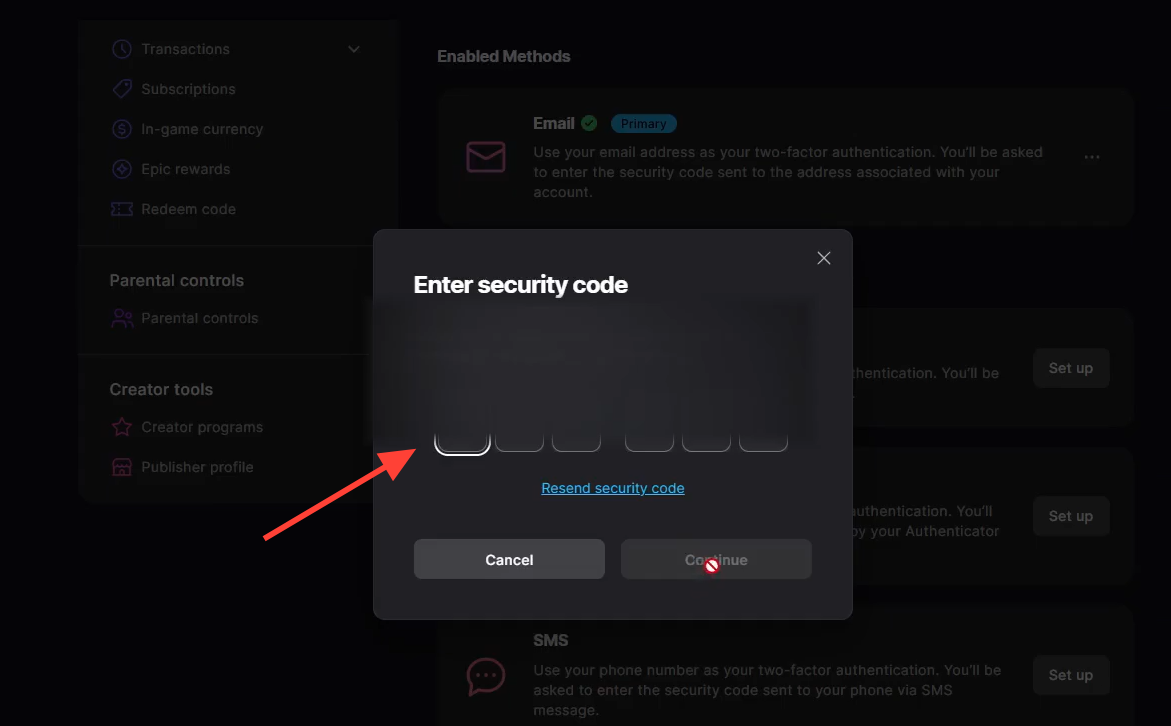
Quick answer: Sign in at fortnite.com/2fa, open Account > Password & Security, scroll to Two-Factor Authentication, pick Authenticator App, Email, or SMS, then enter the code it sends to switch protection on.
What you need before you start
Setup happens on the Epic Games website, not inside the game. This is true no matter which device you play on, so console and mobile players use a browser too. Before you begin, make sure the email address attached to your Epic Games account is verified, since an unverified email can block you from turning the feature on.
Epic Games offers three ways to receive your codes. You can use more than one method on the same account.
| Method | How you get the code | Good for |
|---|---|---|
| Authenticator App | Generated in apps like Google Authenticator, Microsoft Authenticator, LastPass Authenticator, or Authy | Strongest option; works without email access |
| SMS Authentication | 6-digit text sent to your phone number | Quick setup; works without email access |
| Email Authentication | Code sent to your verified account email | Simplest if your email is active and verified |
Turn on two-factor authentication in your browser
Console players: sign in with your platform logo
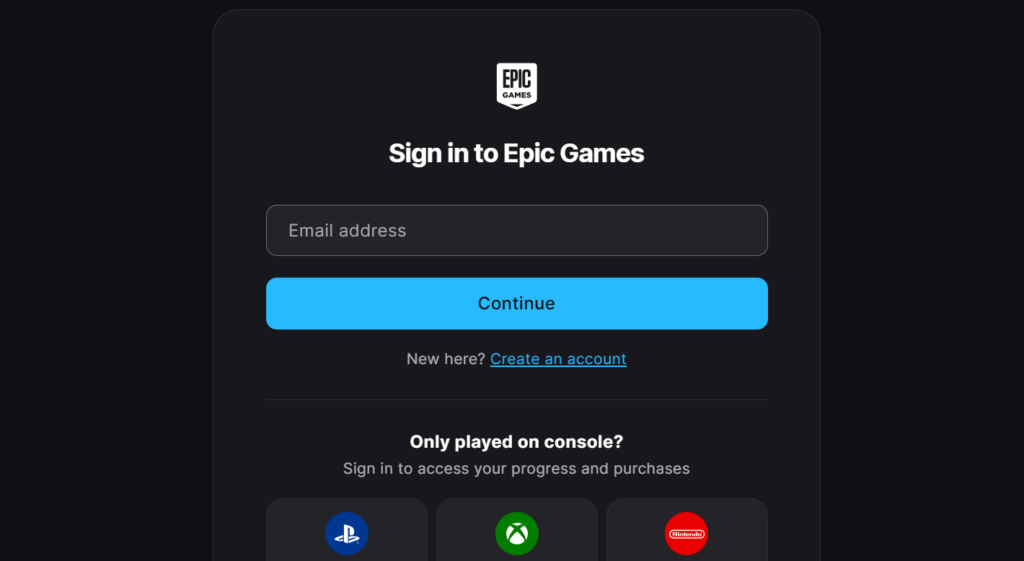
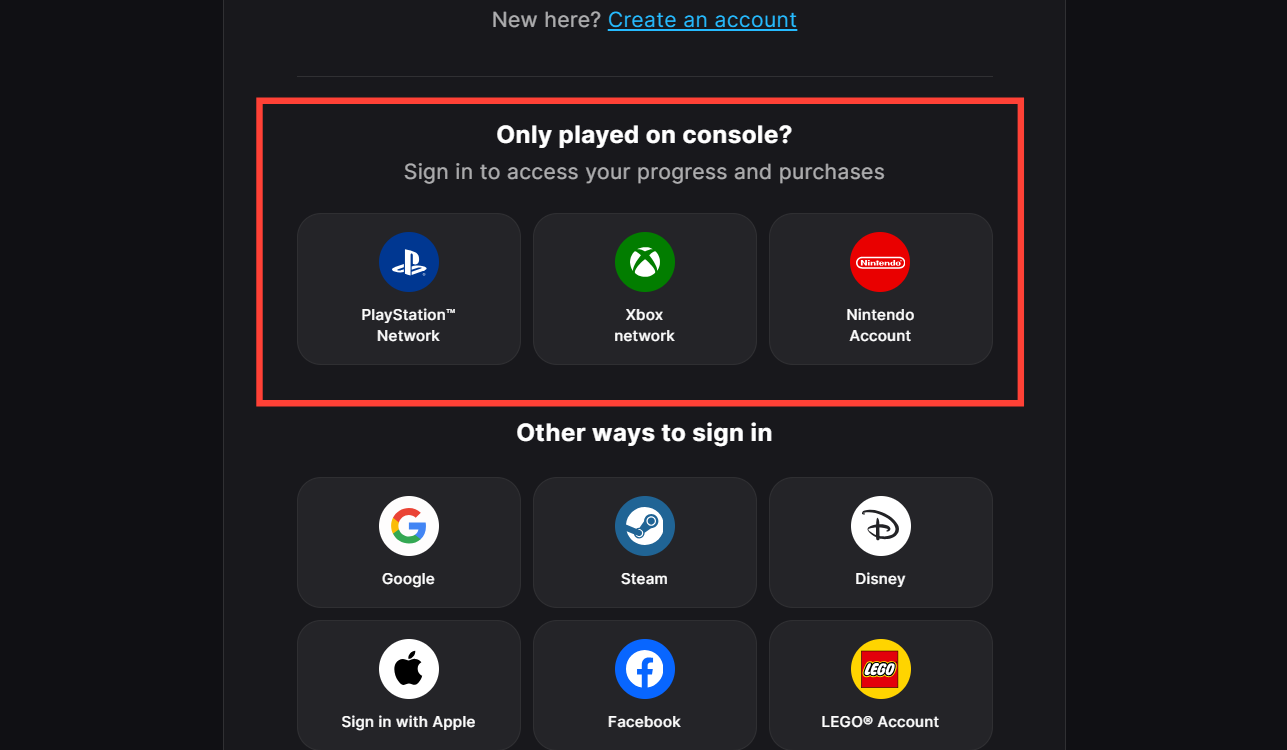
You cannot switch on 2FA from a console game menu. Instead, link your console profile to an Epic Games account by signing in on a browser, then complete the same Password & Security steps above. On the Epic sign-in page, click your platform’s icon and use that account’s credentials.
| Platform | Sign-in on the Epic Games site |
|---|---|
| PlayStation (PS4 and PS5) | Click the PlayStation logo and log in with your PSN credentials |
| Xbox (One, Series X/S, Cloud Gaming) | Click the Xbox logo and log in with your Microsoft or Xbox Live account |
| Nintendo Switch | Click the Nintendo Switch icon and sign in with your Nintendo Account |
How to confirm 2FA is active
You know the setup worked when the Two-Factor Authentication section shows your chosen method as enabled, and the verification code is accepted. From then on, signing in from a new device asks for the temporary code. Turning it on also clears the in-game “enable 2FA” prompts and grants access to features that require a secured account.
Why Fortnite keeps telling you to enable 2FA
The prompt appears when you try an action that needs a secured account. The most common triggers are joining a competitive tournament Cup, claiming certain free games on the Epic Games Store, and sending an in-game item to a friend. Epic requires 2FA on these, so a hacked account cannot drain your V-Bucks by gifting items to another profile.
Gifting skins after 2FA is on
With protection active, open the in-game Item Shop and select the skin, emote, or Battle Pass you want to send. Choose Buy As A Gift instead of the normal purchase, pick a friend from your Epic Games friends list, then confirm to send the item to their account.
Fix common problems enabling 2FA
If the game still says 2FA is off after you enabled it, this is usually a sync delay between the servers and your device. Fully restart the game or console, or log out of your Epic Games account and back in to force a refresh. You can also disable and immediately re-enable the feature on the website to push the change through.
- No code arriving: Check spam and junk folders, confirm your email or phone number is typed correctly, and use the resend option.
- Page won’t load or save: Clear your browser cache and cookies, or open the account in a private/incognito window.
- Settings won’t stick: An unregistered console-only profile won’t save changes, so sign in with your platform logo first to finish creating a full Epic Games account.
- Feature is blocked: An unverified email or a parent-restricted cabined account can prevent changes until the email is verified or a guardian grants permission.
If you can use only one verification method, pick the SMS or authenticator app option so codes go to your phone instead of your inbox. If problems continue after the steps above, Epic Games support can help recover or secure the account through its account security page. Keep your email and phone number current and never share a 2FA code, since that code is the second key that keeps your account yours.