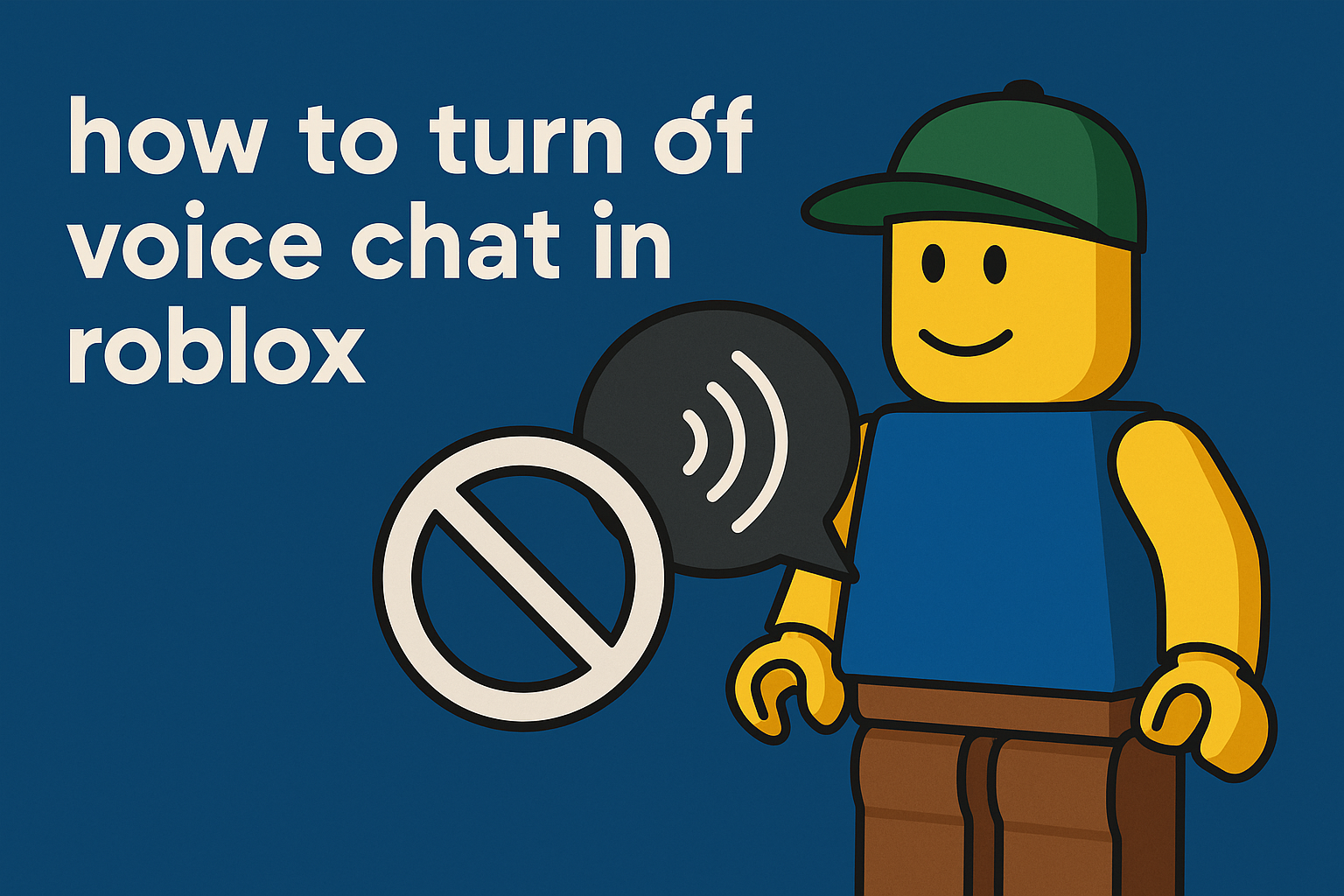
Toggle off the Use microphone to chat with voice setting to stop voice chat at the account level.
Method 1: Turn off voice chat on Mobile (iOS/Android)
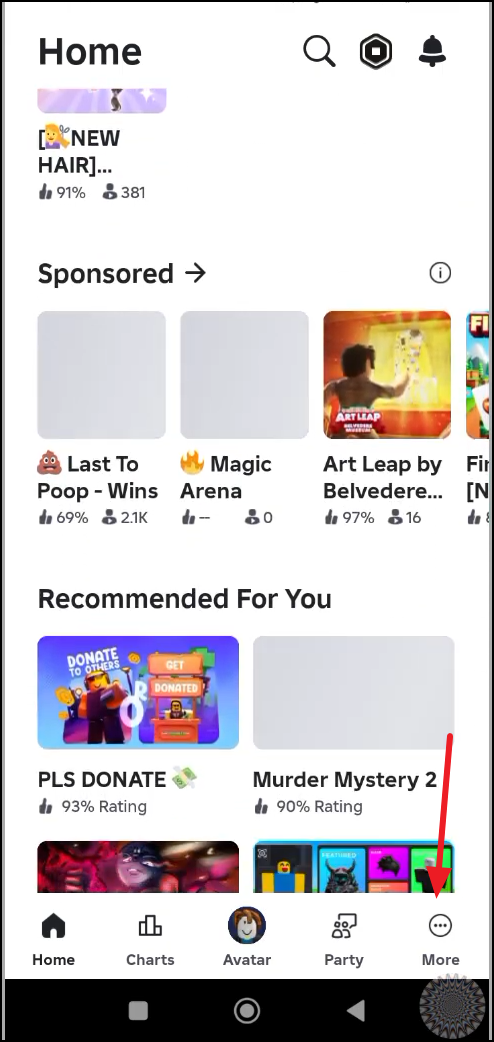
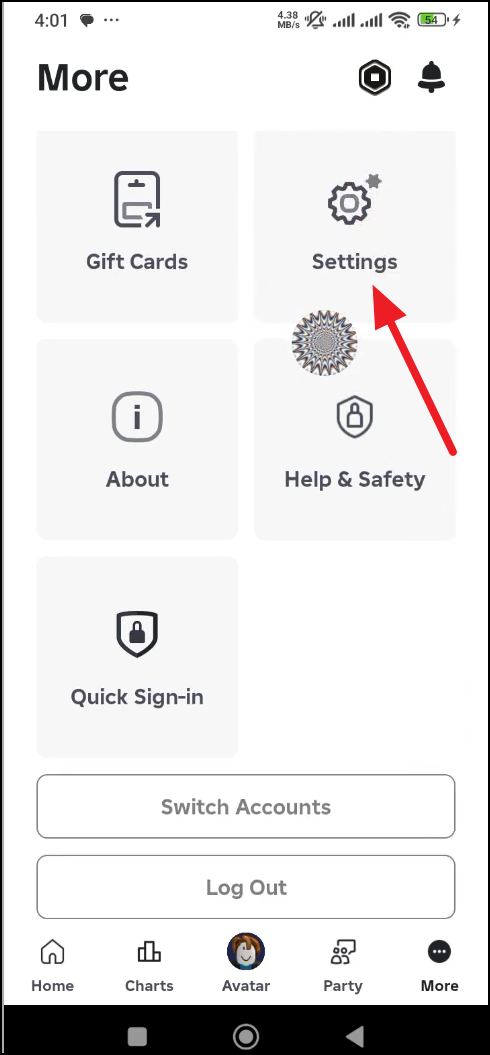
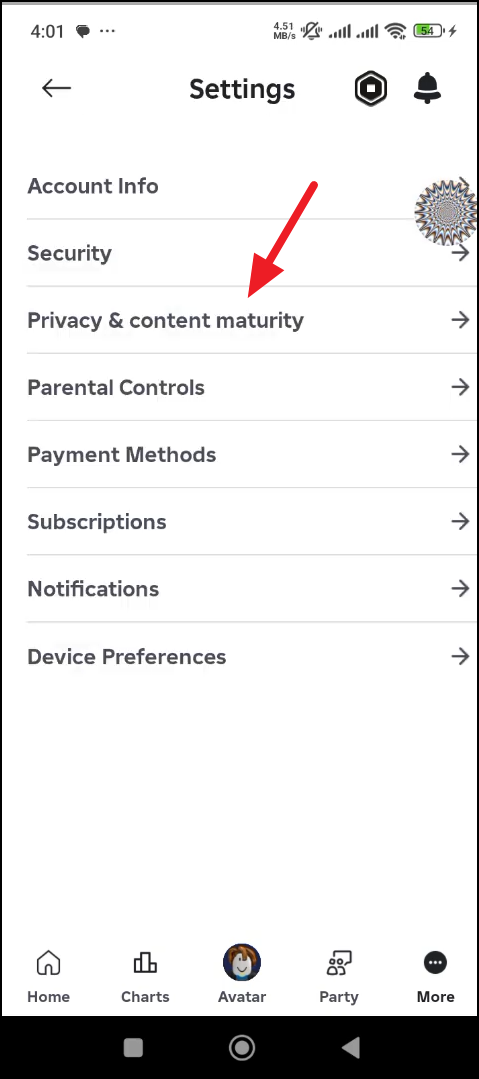
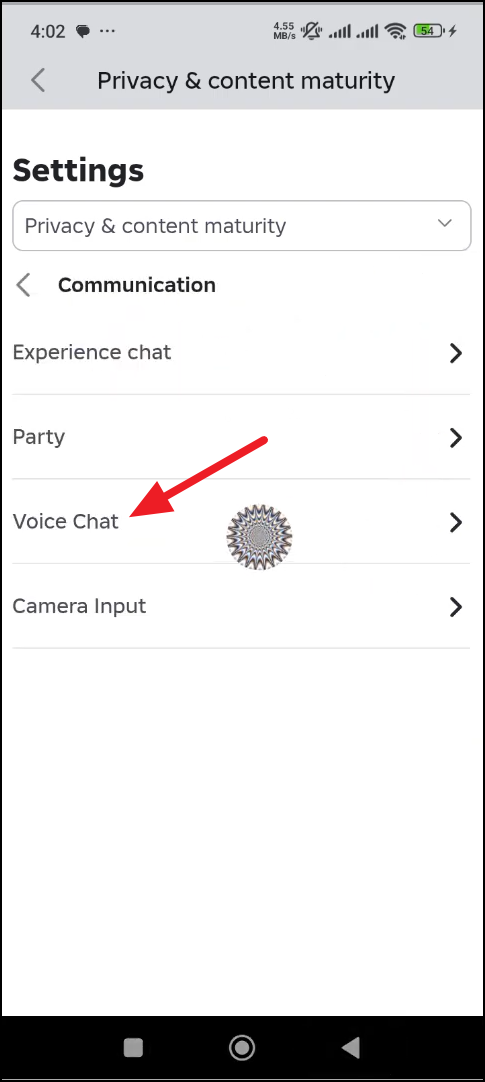
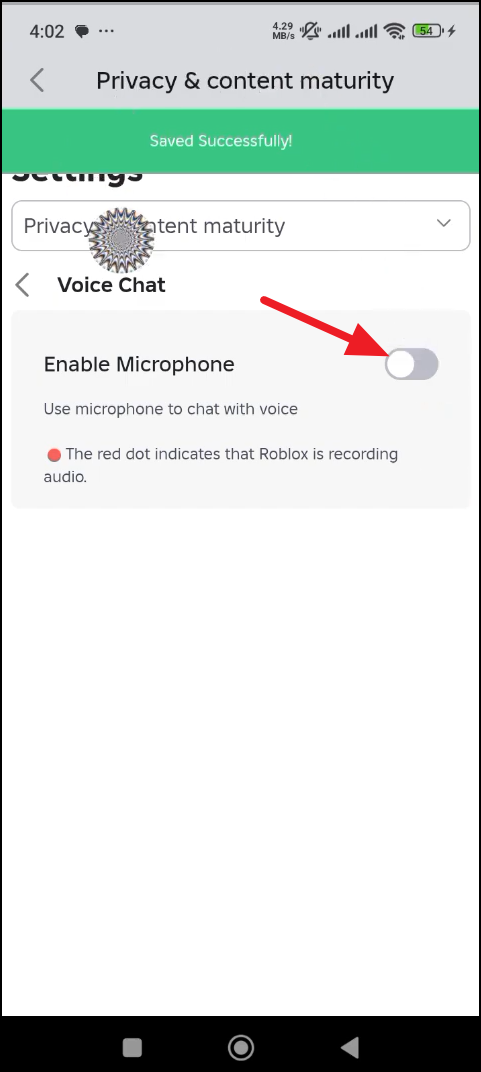
This turns the toggle from green to grey, indicating voice chat is disabled for your account. You can turn it back ON anytime.
Method 2: Turn off voice chat on Web/Desktop
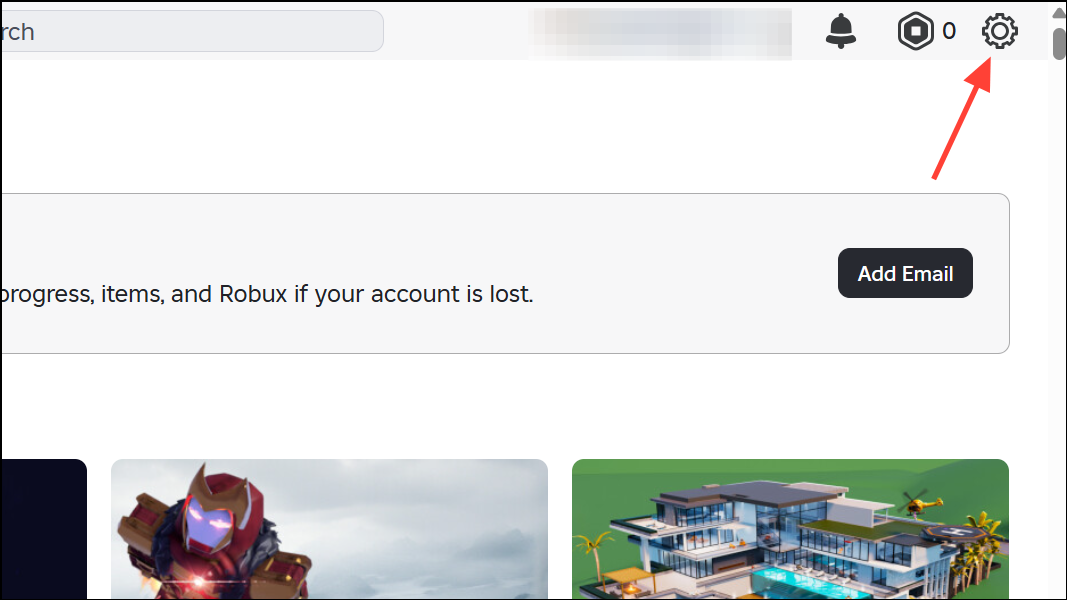
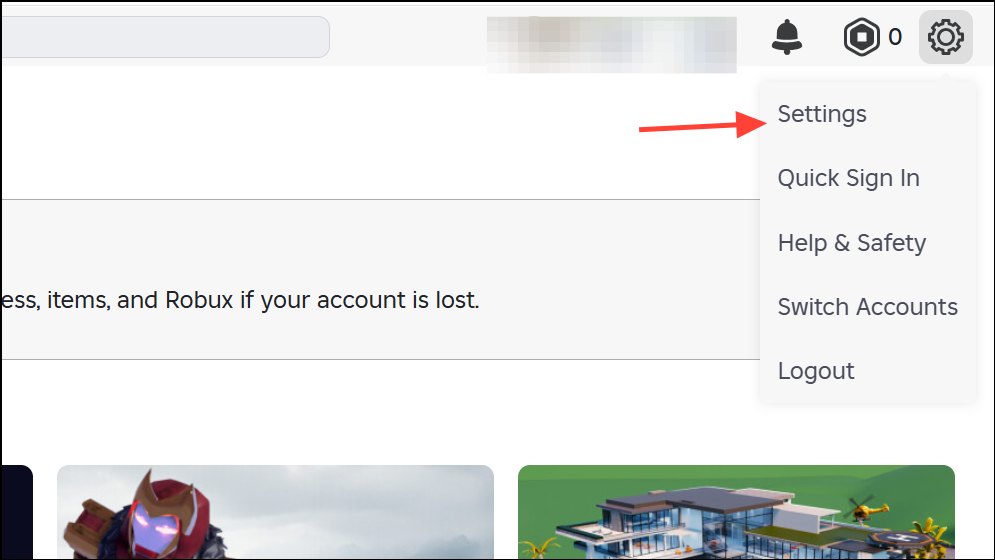
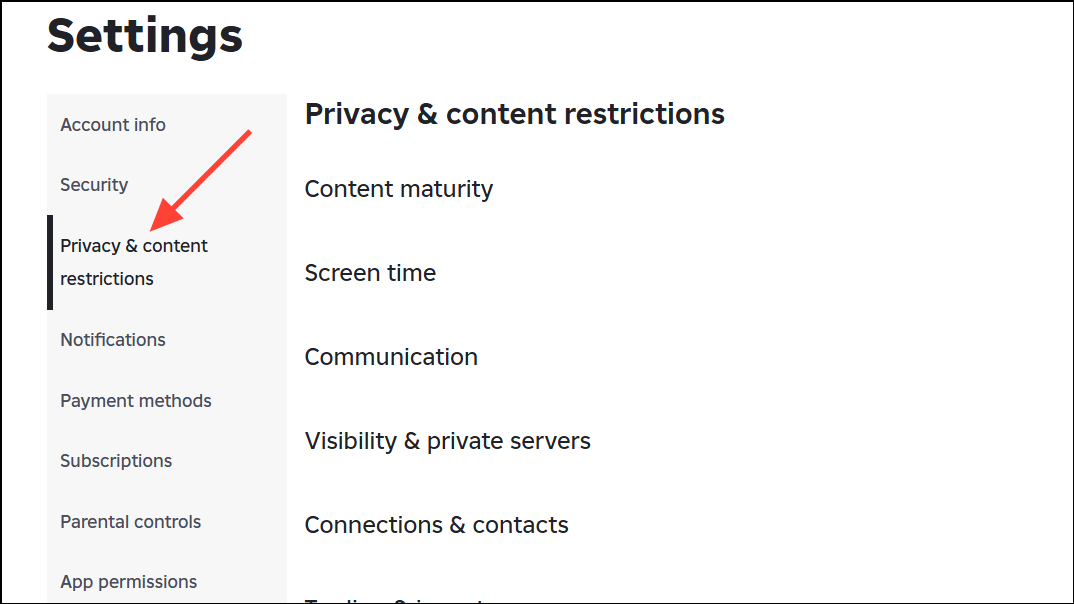
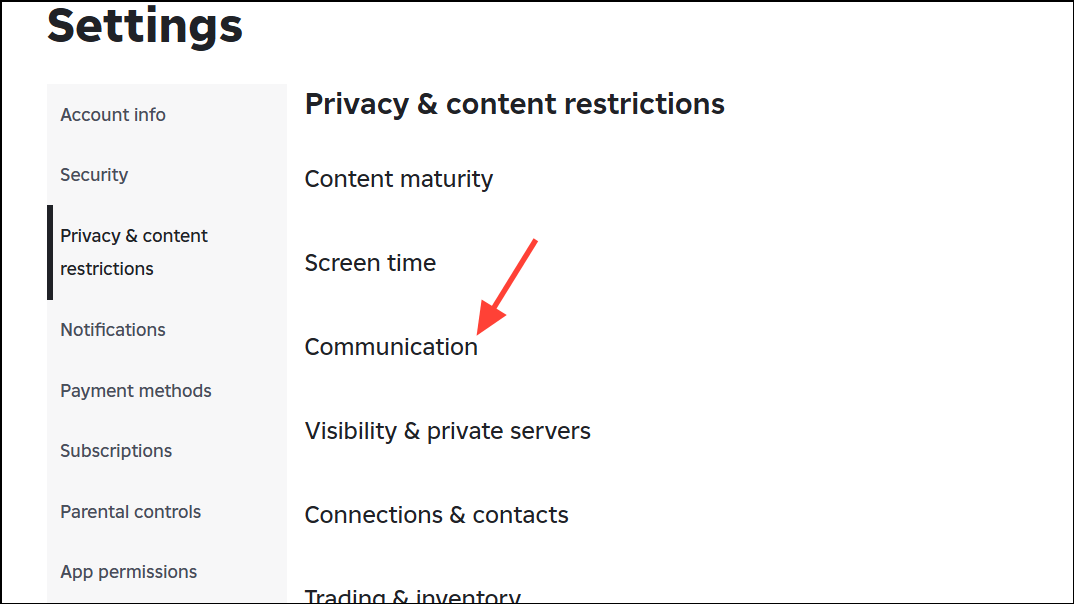
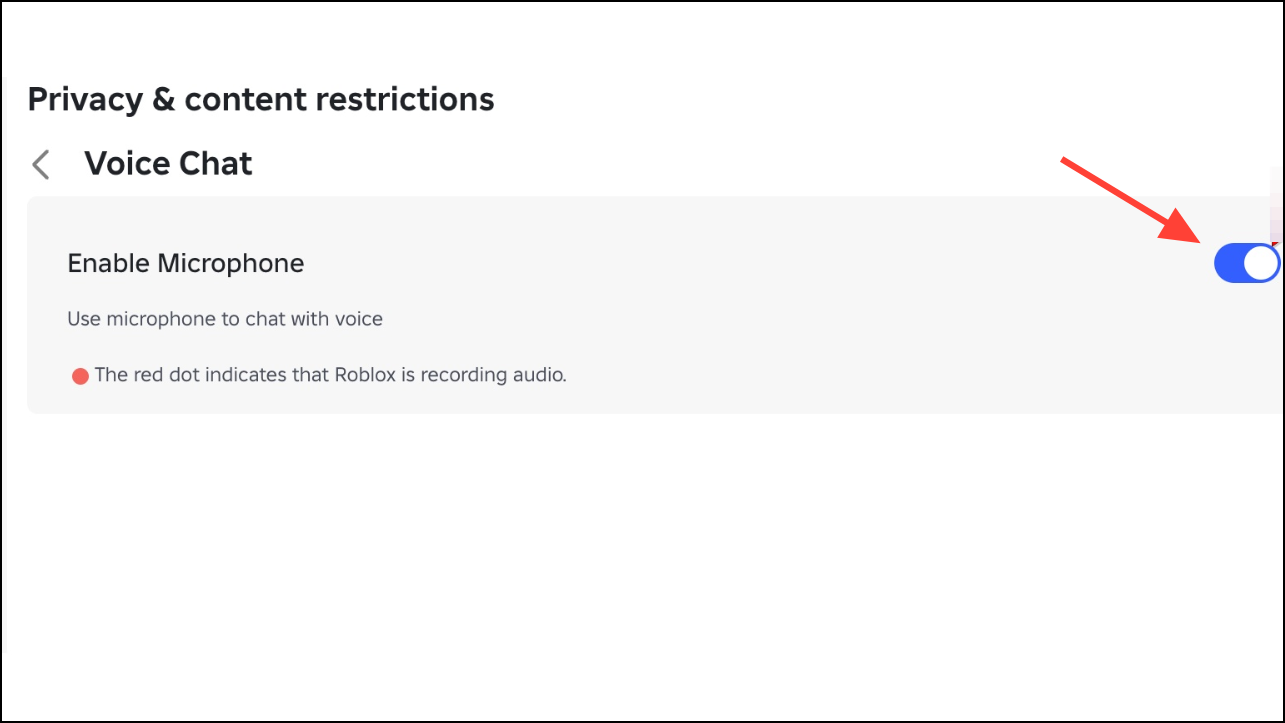
The selector turns grey to confirm it’s off. Switch it back ON if you want to re-enable voice chat later.
Method 3: Disconnect voice chat from within an experience
This is useful if the account toggle is missing or you want to stop voice for the current session quickly.
Method 4: iOS — block Roblox’s microphone access
This prevents Roblox from accessing your microphone at the system level, effectively stopping voice chat in all experiences. If you later re-enable it, iOS may prompt you to grant mic access again.
Method 5: Android — block Roblox’s microphone permission
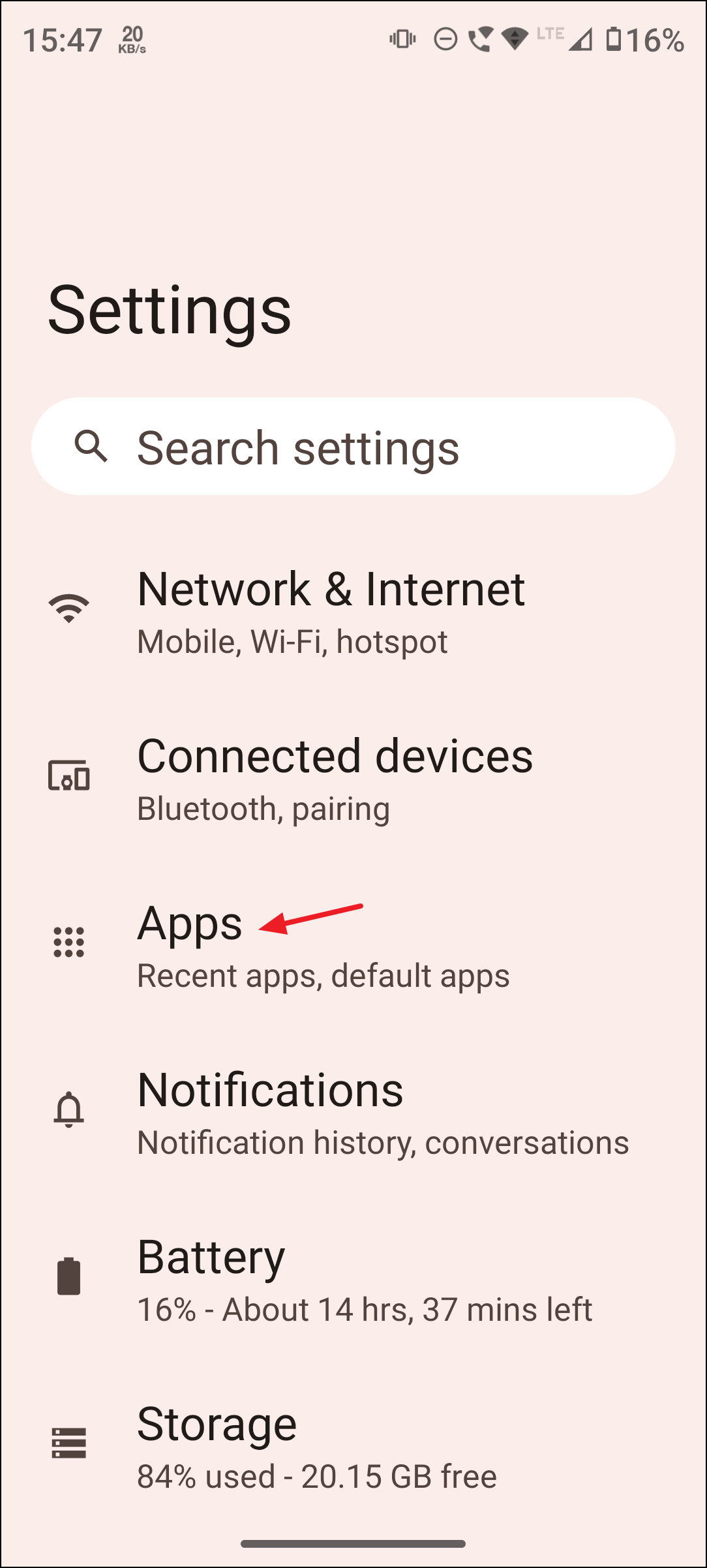
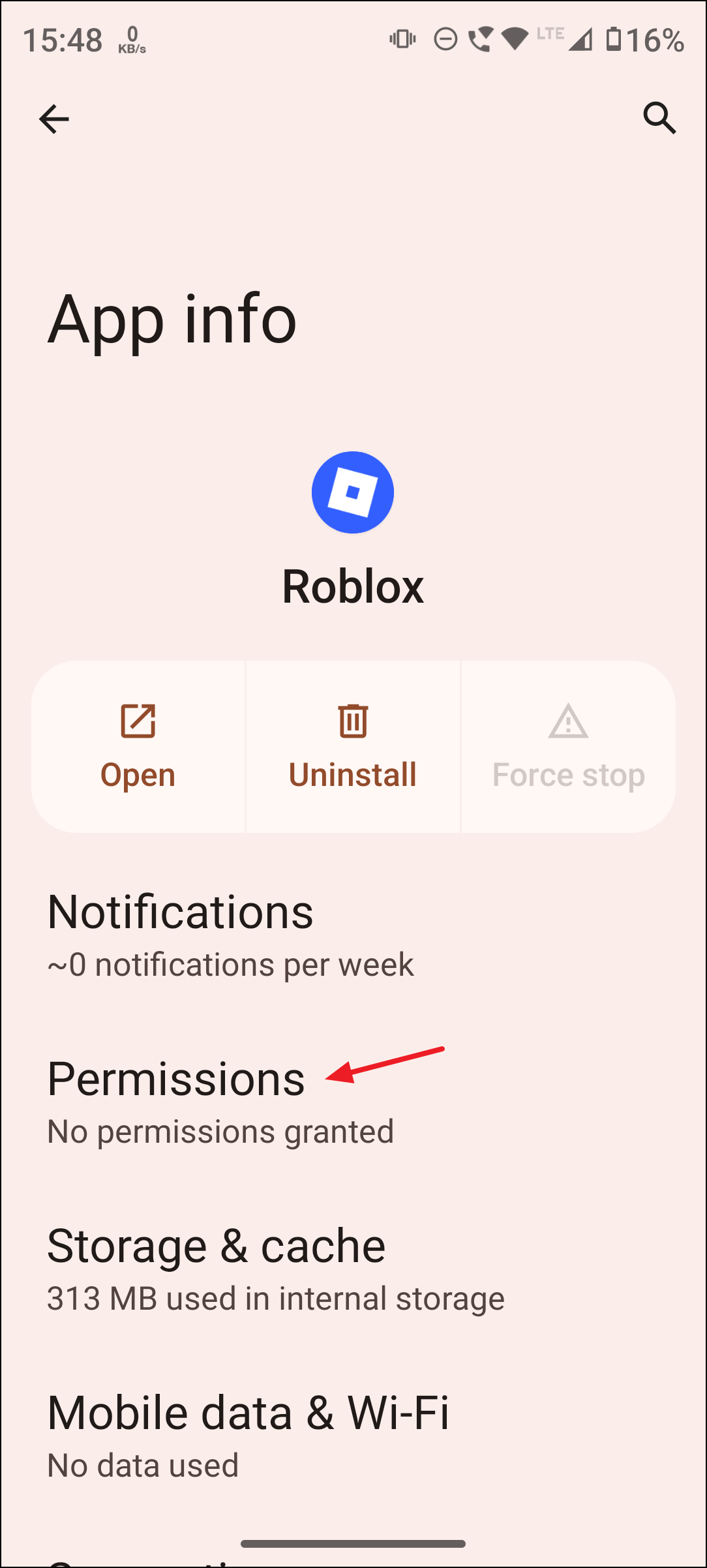
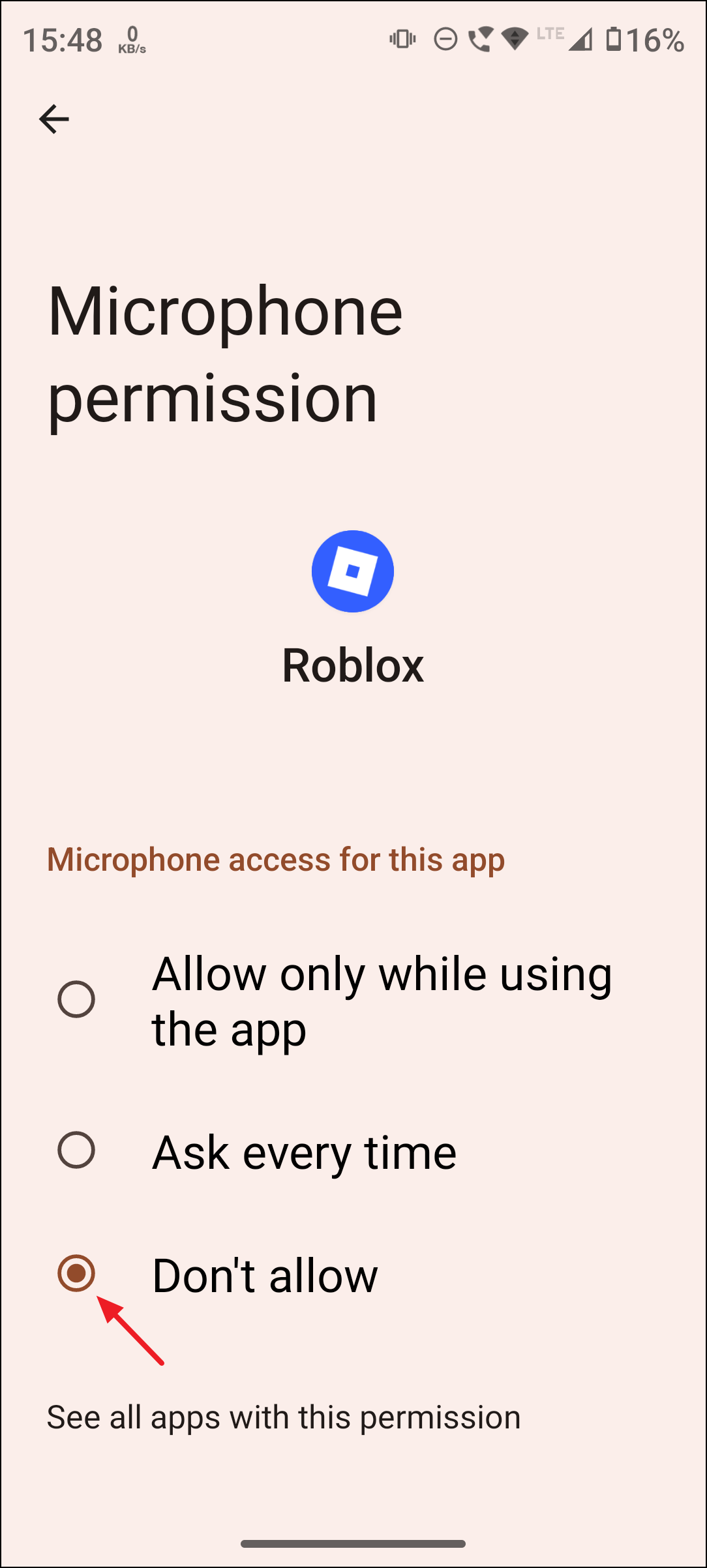
This stops Roblox from using your mic across all experiences. You can restore permission if you decide to use voice chat later.
Method 6: Mute quickly during gameplay
This is a fast, session-level control that silences your mic without changing account settings (Voice Chat FAQs).
If the account toggle isn’t visible, confirm your age is 13+ and that phone number or ID verification isn’t pending. You can always use the in-experience disconnect or OS-level permissions as reliable alternatives.