Adding a word to Chrome’s spelling dictionary can prevent it from being flagged as a typo in the future, but accidentally including a misspelled word can cause Chrome to ignore real errors. Managing your custom dictionary keeps Chrome’s spell check accurate and saves time correcting repeated mistakes. Chrome offers several ways to review, add, or remove words from your custom spelling list, depending on your operating system and Chrome version.
Accessing and Editing the Chrome Custom Dictionary (Most Effective Method)
chrome://settings/editDictionary into the address bar, then press Enter. This direct URL takes you straight to the custom dictionary interface, where all words you’ve manually added are listed.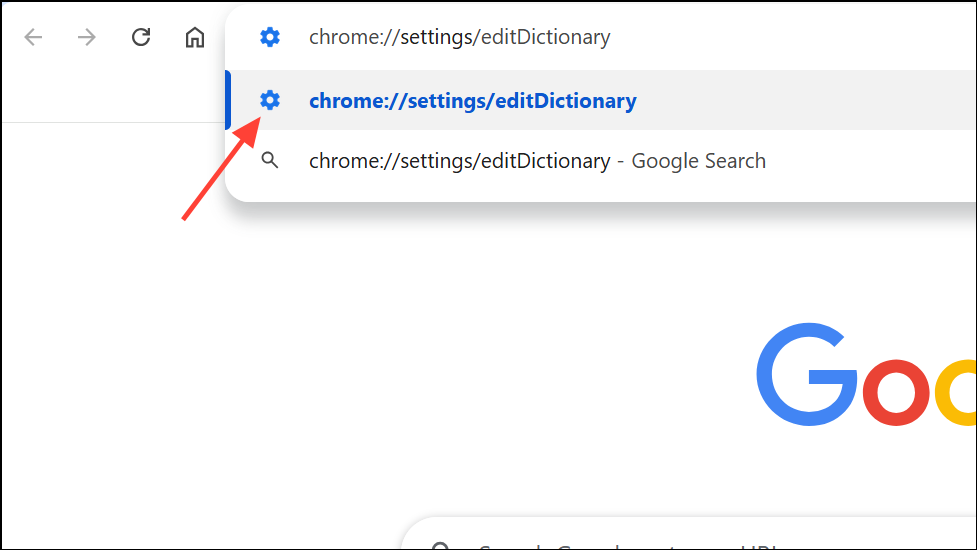
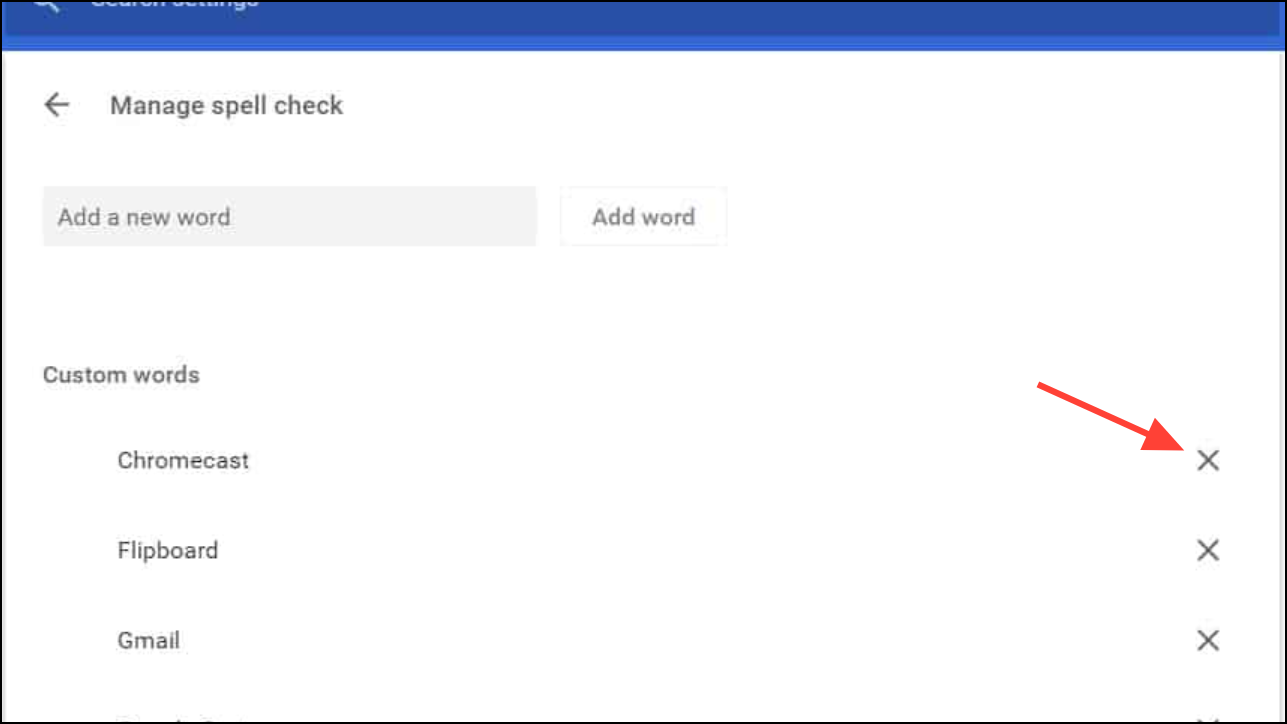
Add word. The word will be included in your custom dictionary and will no longer be flagged as incorrect.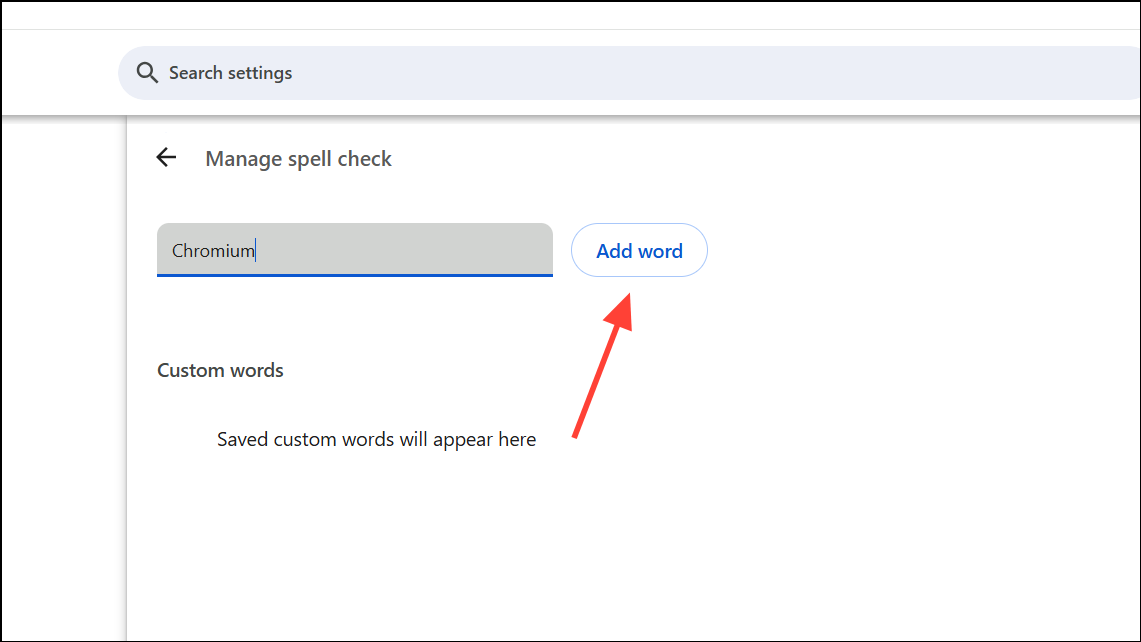
Editing the Custom Dictionary Through Chrome Settings
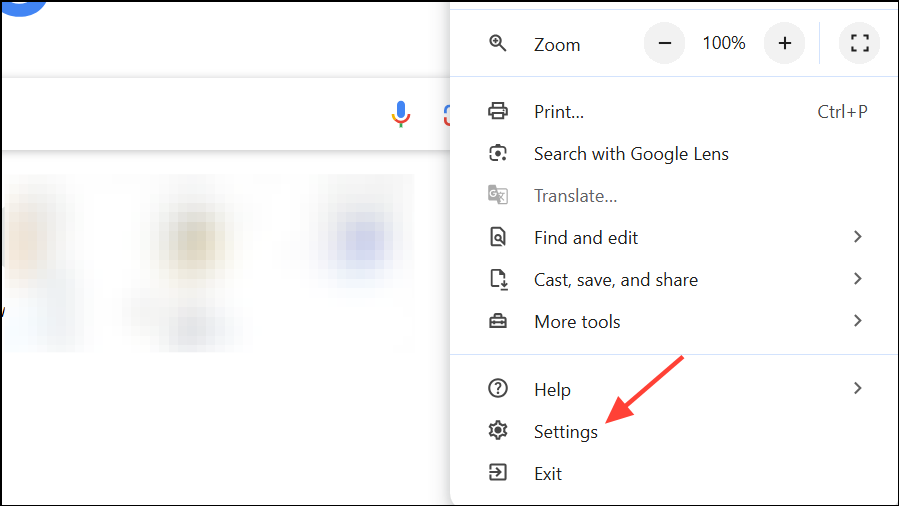
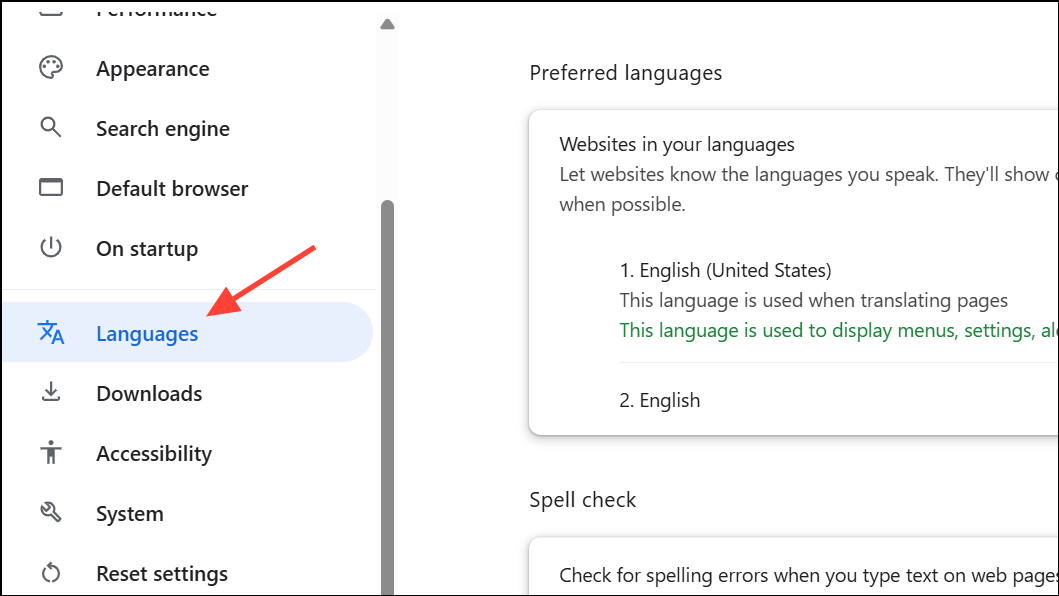
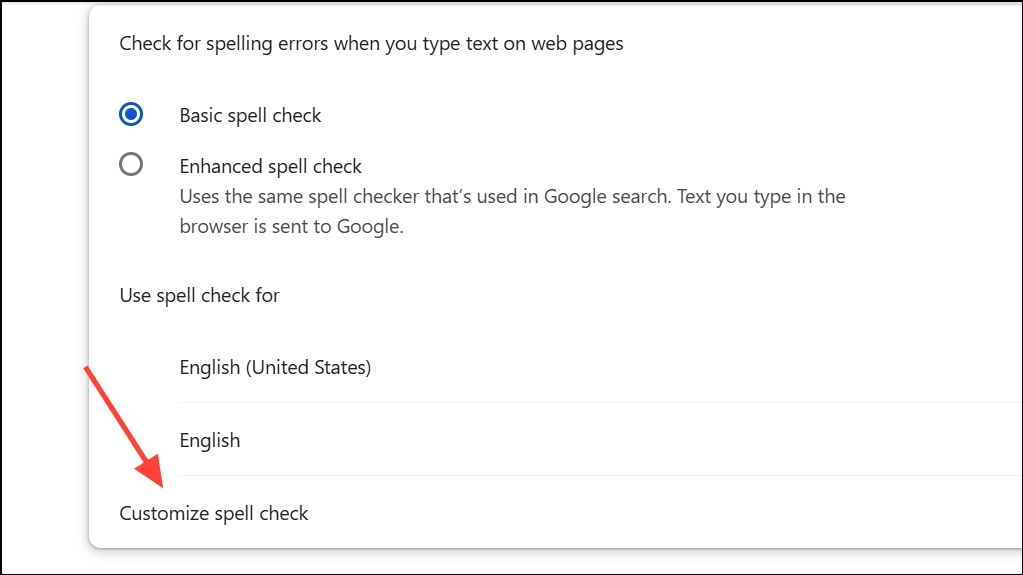
This approach is helpful if you want to explore additional language tools or if you prefer navigating through the user interface rather than entering a URL.
Removing Words Using Console Commands (For Mac Users or When UI Options Are Missing)
On some Mac systems, especially with certain Chrome versions or macOS releases, the custom dictionary editor may not appear in settings or the direct URL may redirect to the main settings page. In these cases, you can use a Chrome console command to remove unwanted words.
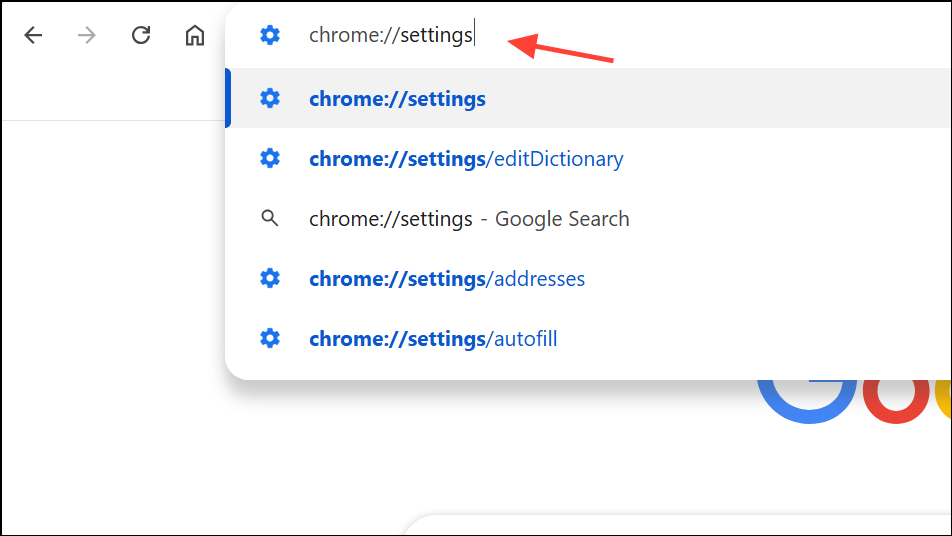
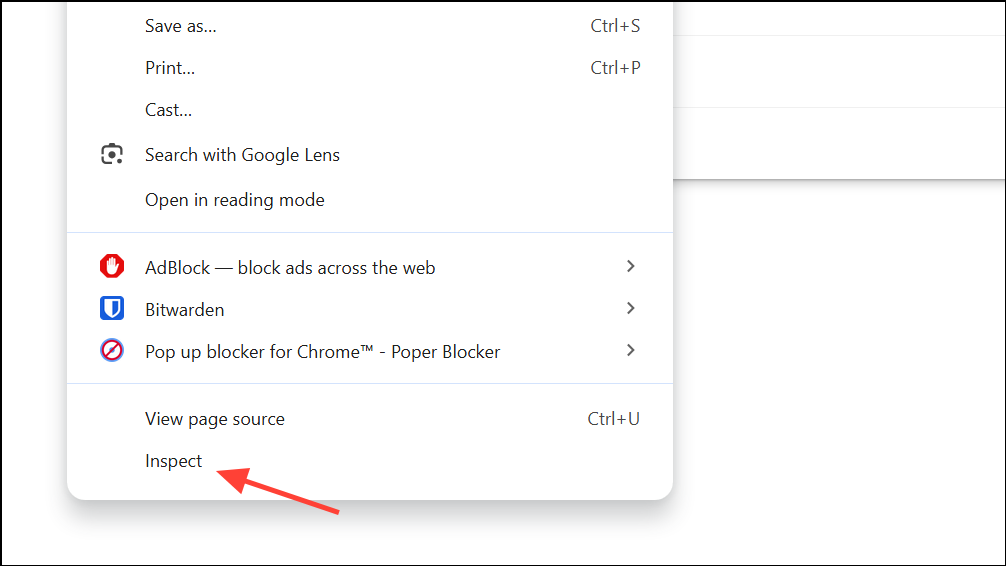
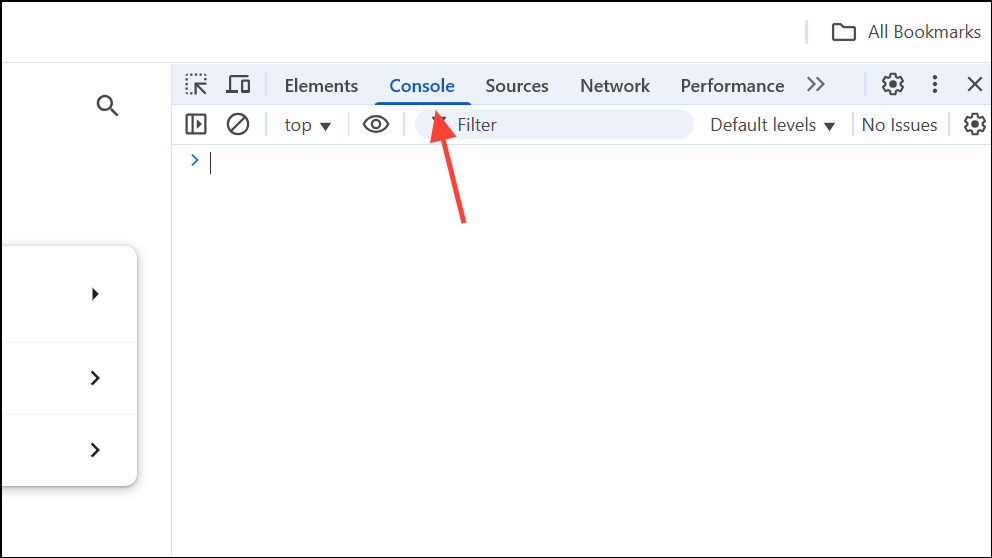
chrome.languageSettingsPrivate.removeSpellcheckWord('word_to_remove');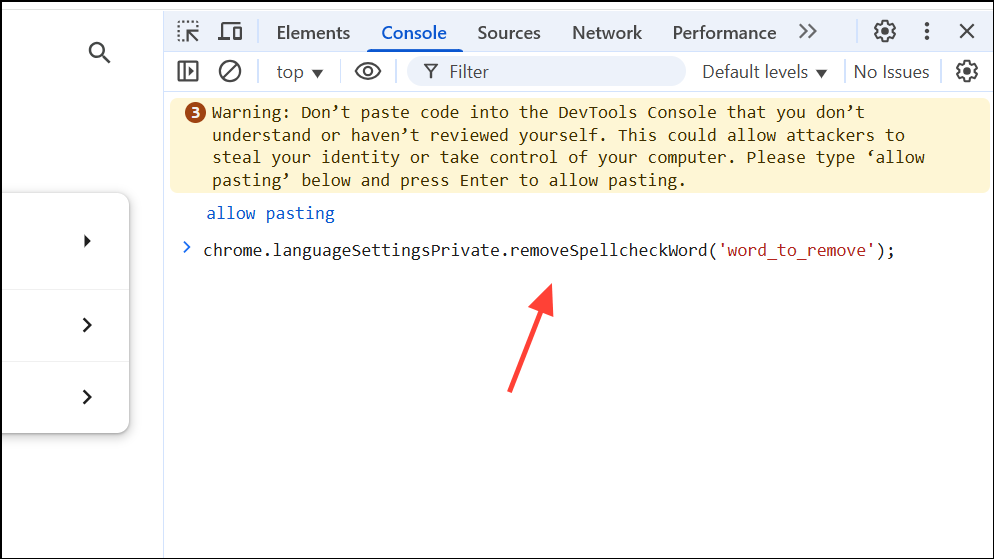
Press Enter to execute the command. The specified word will be removed from your custom dictionary immediately.
Optional: To see all words currently in your custom dictionary, run:
chrome.languageSettingsPrivate.getSpellcheckWords()Click the arrow next to Promise and PromiseResult to view the list.
This method is particularly useful when Chrome’s settings interface does not display the custom dictionary on macOS, or when encountering bugs in recent macOS updates.
Editing the Custom Dictionary File Manually (Advanced Users)
For those comfortable with file navigation, Chrome stores custom dictionary entries in a plain text file on your computer. Editing this file directly allows you to remove or correct entries, especially if the browser interface is not working as expected.
- On Windows: Navigate to
C:\Users\[YourUserName]\AppData\Local\Google\Chrome\User Data\Default\Custom Dictionary.txt. - On macOS: Use Finder to search for
Custom Dictionary.txtin~/Library/Application Support/Google/Chrome/and select the correct profile folder (e.g., “Default” or “Profile 2”).
Open the file in a text editor, delete or modify any unwanted words, and save the file. Restart Chrome to apply changes. Be cautious: editing this file while Chrome is running may cause changes to be overwritten or not saved properly.
Managing Chrome’s custom spelling dictionary lets you keep spell check accurate and tailored to your writing style. Removing accidental entries or adding specialized terms streamlines your workflow and reduces distractions from false positives or overlooked typos.