Adding a mouseover text effect in Microsoft PowerPoint allows you to display extra information when someone hovers their mouse over a specific object, such as an image, icon, or shape. This increases interactivity and can clarify complex visuals or provide definitions without cluttering your slides. The most effective way to achieve this is by using PowerPoint’s ScreenTip feature, which is accessed through hyperlinks. While there are more advanced or workaround methods, the built-in ScreenTip approach is the most straightforward and reliable for most users.
Using ScreenTip with Hyperlinks for Mouseover Text
Ctrl+K on your keyboard. This shortcut is useful if you need to apply this effect to multiple objects.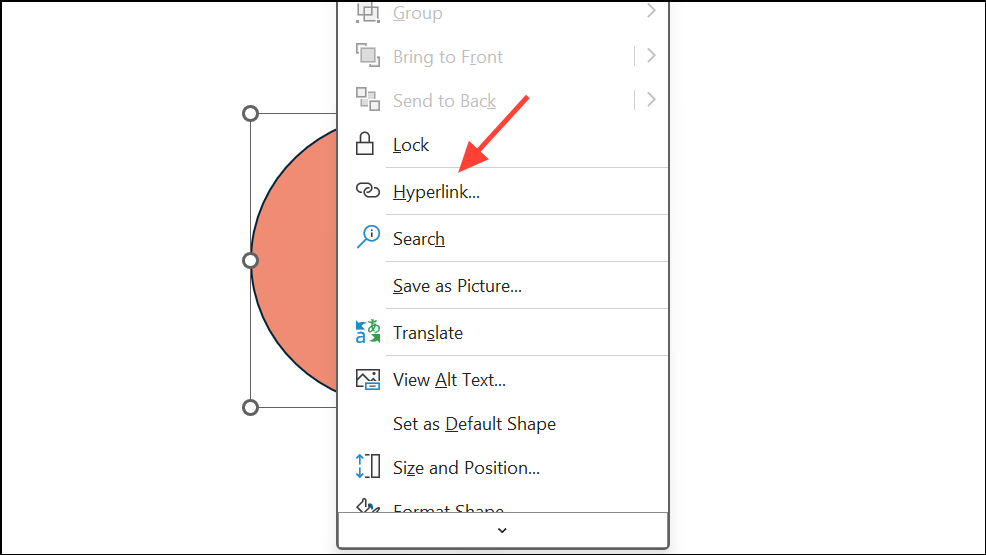
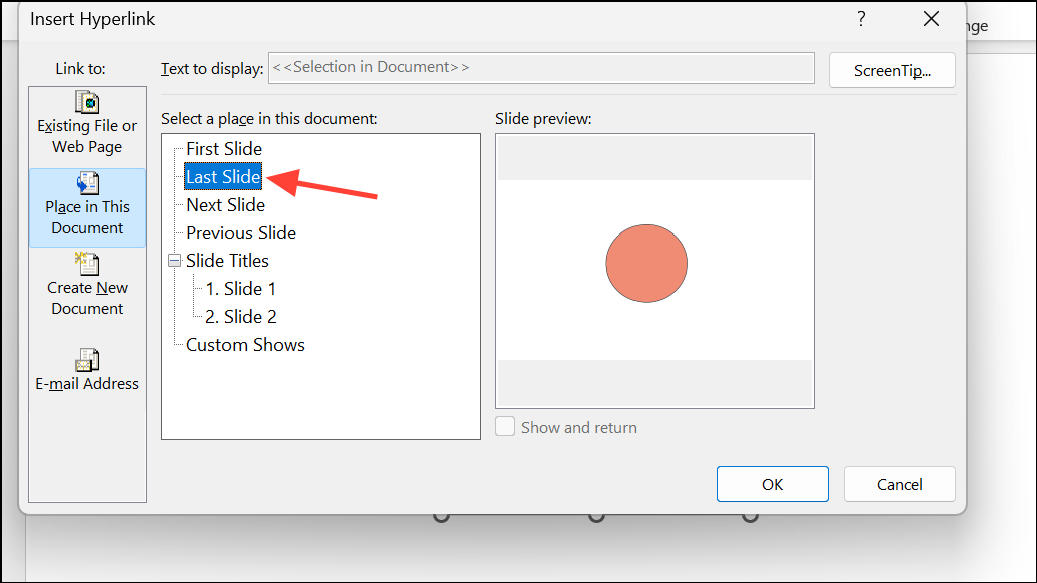
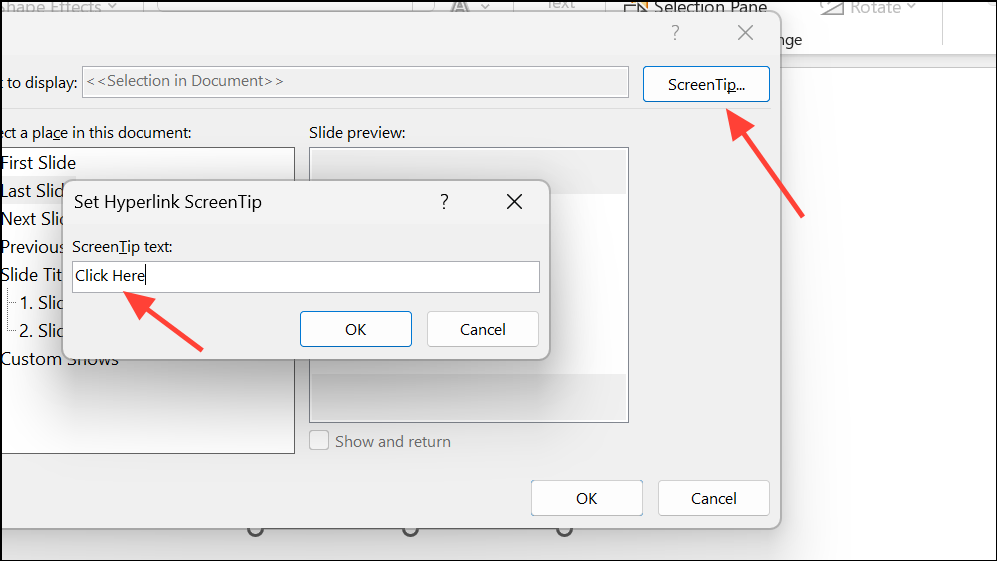
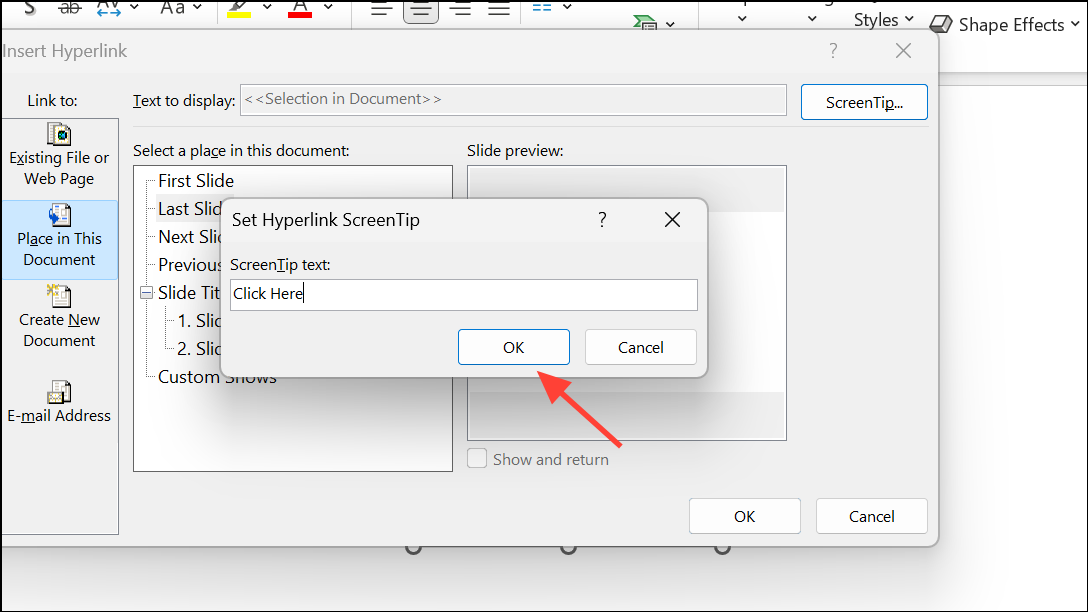
Shift+F5 (to start from the current slide) or F5 (to start from the beginning). Hover your mouse over the object and the ScreenTip text will appear in a small pop-up window. If you click the object, you’ll remain on the same slide, since the hyperlink points to itself.Alternative Methods for Custom Mouseover Effects
Using Trigger Animations for Click-to-Reveal Pop-Ups
PowerPoint’s animation triggers allow objects to appear or disappear when another object is clicked. While true mouseover triggers are not natively supported for animations, you can simulate pop-up messages or images by setting entrance and exit animations tied to a click event. For example, you can create a shape containing your detailed message, apply an “Appear” entrance animation, and set it to trigger when a button or icon is clicked. Add a corresponding “Disappear” exit animation, also triggered by a click. This method provides more formatting flexibility, such as custom fonts, colors, and even embedded images or links. However, it requires an extra click rather than a simple mouse hover, and is best for situations where visual customization outweighs the need for instant hover-based pop-ups.
Advanced: Using VBA for Complex Mouseover Behaviors
For those comfortable with VBA (Visual Basic for Applications), it’s possible to create more advanced mouseover effects, such as multi-line tooltips or objects that appear and disappear as the mouse moves over and away from a trigger shape. This approach requires writing and assigning macros to shapes, and is typically used in kiosk or interactive presentations where default PowerPoint features are insufficient. For example, you can use VBA to set a ScreenTip with line breaks, or to trigger animations on mouseover and mouseout events. This method offers the greatest flexibility, but comes with a steeper learning curve and may be restricted in environments where macros are disabled for security reasons.
Limitations and Additional Tips
- ScreenTip text is limited to 256 characters and does not support formatting or images.
- Mouseover ScreenTips only display in Slide Show mode, not in editing mode.
- When exporting your presentation to PDF, ScreenTips and interactive effects will not be preserved.
- If you need to reuse a slide with mouseover text, copying the slide will retain the effect, but you may need to update the hyperlink’s target for consistency.
- There is no built-in way to change the appearance (such as font size or color) of ScreenTip pop-ups.
- For complex interactions, consider combining triggers and animations or using VBA, but be aware that these methods may require more setup and testing.
Mouseover text effects in PowerPoint make presentations more interactive and informative, especially when you want to provide quick hints or definitions without cluttering your slides. Stick with the ScreenTip method for most uses, and explore triggers or VBA if you need extra customization or interactivity.