Authentication failures in Microsoft Teams, such as error code CAA70007, frequently occur when device credentials become corrupted, network settings block communication, or cached data conflicts with current account information. This error typically appears during the sign-in process, preventing access to Teams on the desktop app, even though the web version may still work. Addressing this error requires a series of targeted troubleshooting steps that focus on device authentication, cache cleanup, network settings, and account management.
Clear Microsoft Teams Cache
Quit. This ensures no Teams processes are running in the background.
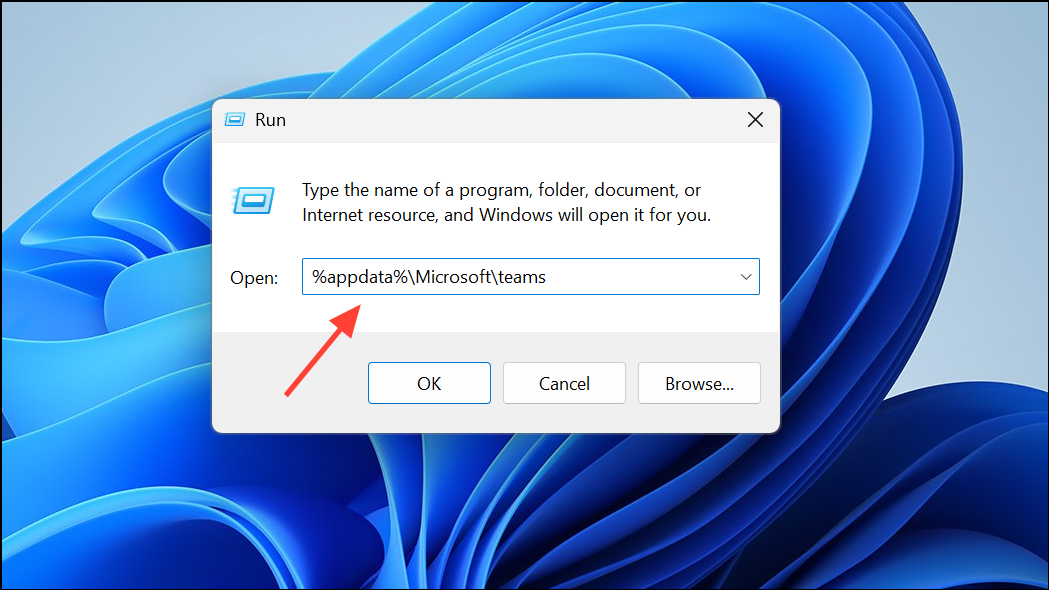
Cache, tmp, and GPUCache subfolders. Removing these files erases corrupted or outdated cache data that can block the login process.Set Date and Time to Automatic
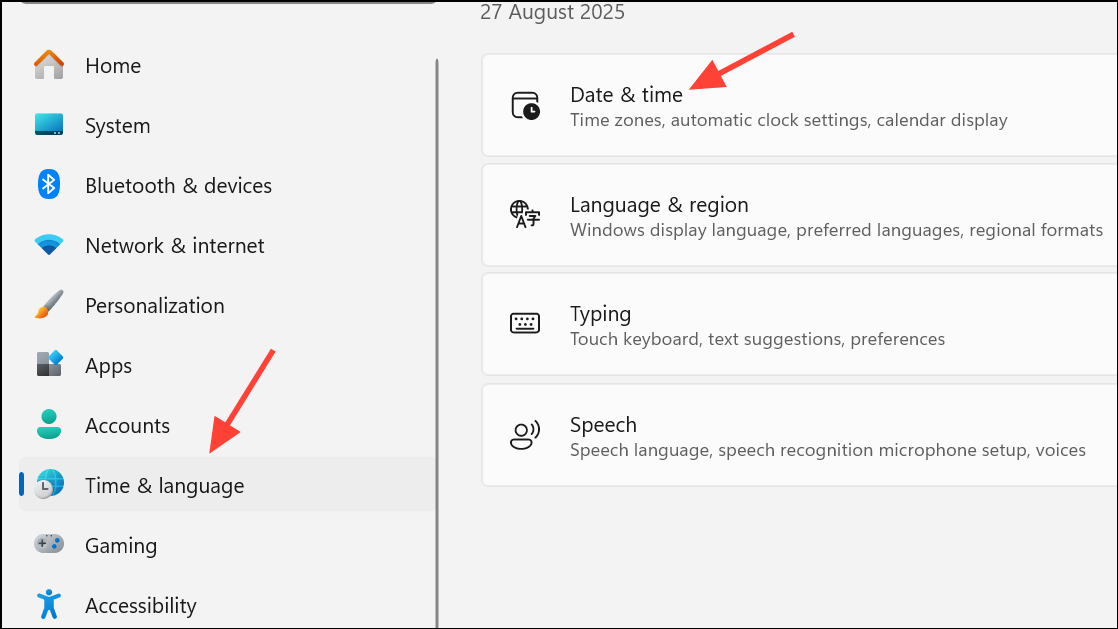
Set time automatically and Set time zone automatically. Click Sync now to immediately update your system clock.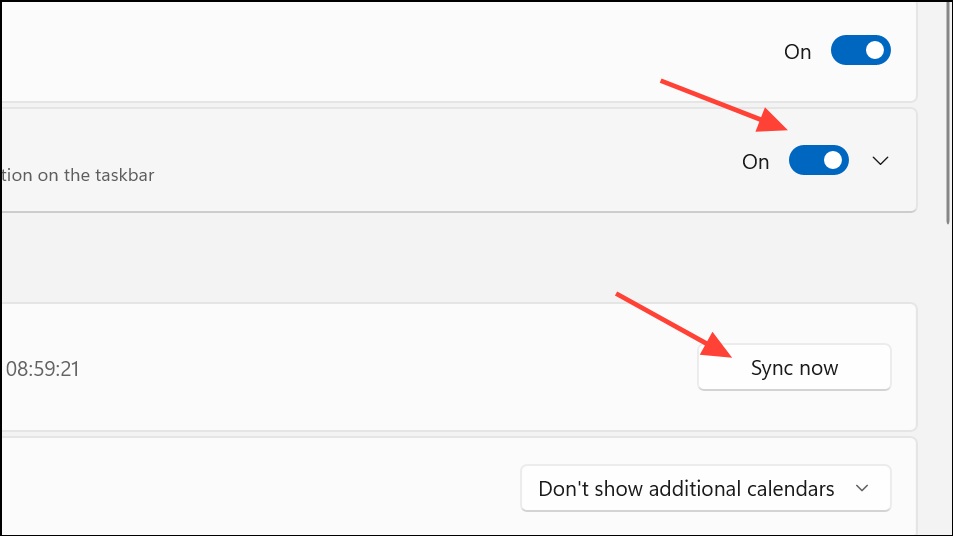
Incorrect system time can cause Teams authentication to fail, as security tokens may be considered invalid if device time is out of sync with Microsoft’s servers.
Disable Server Certification Revocation Check
Internet Options. Select the matching result to open the Internet Properties window.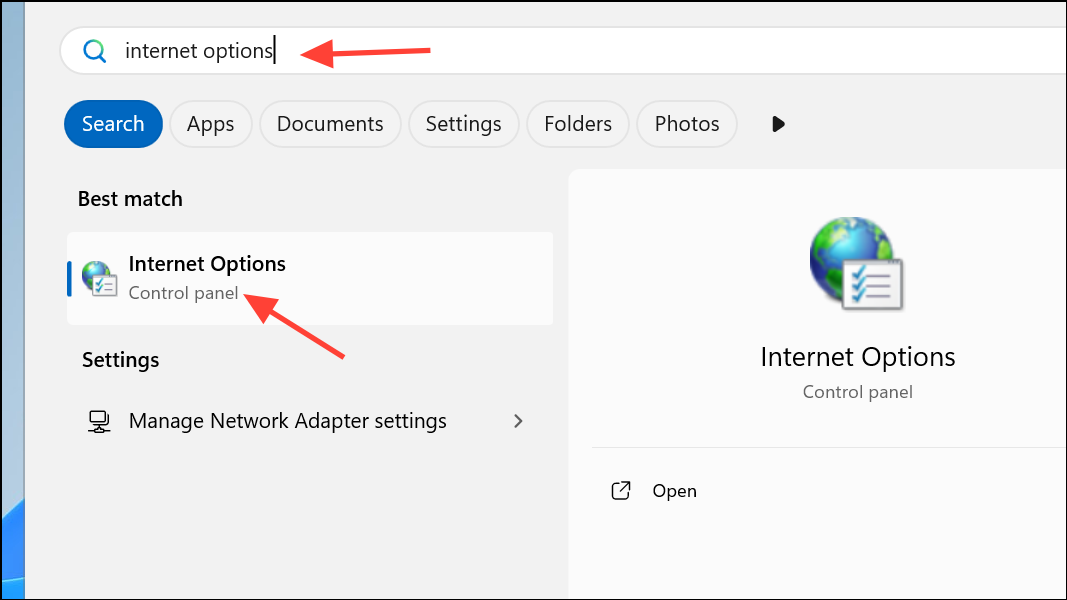
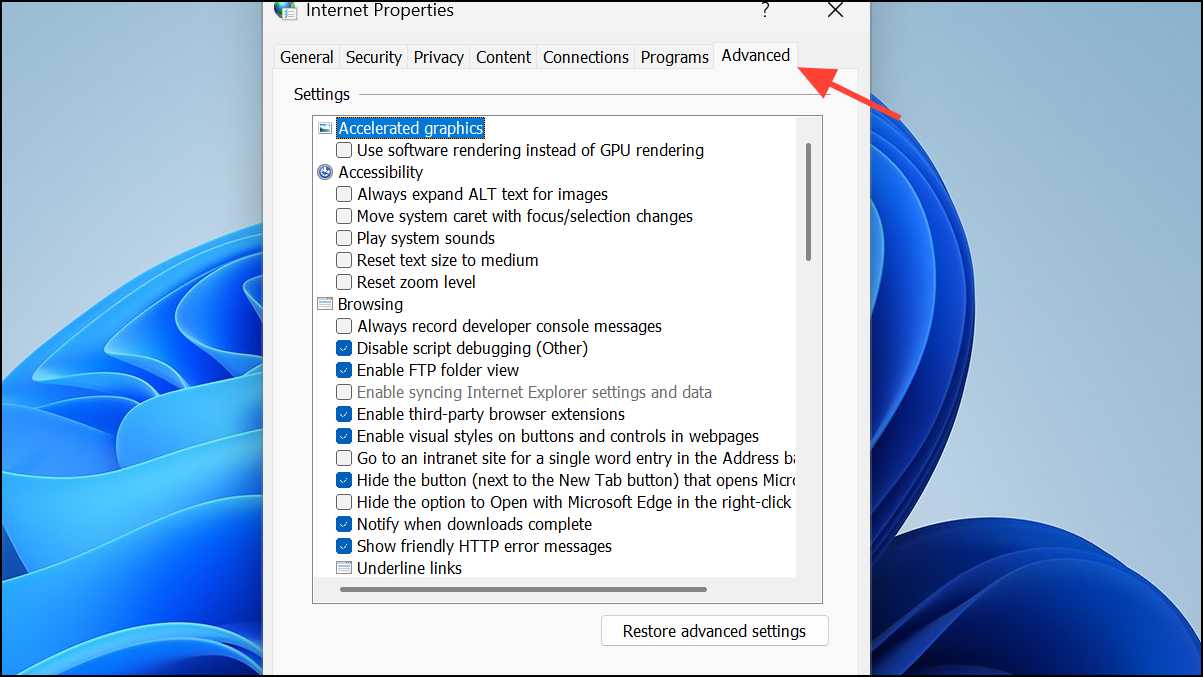
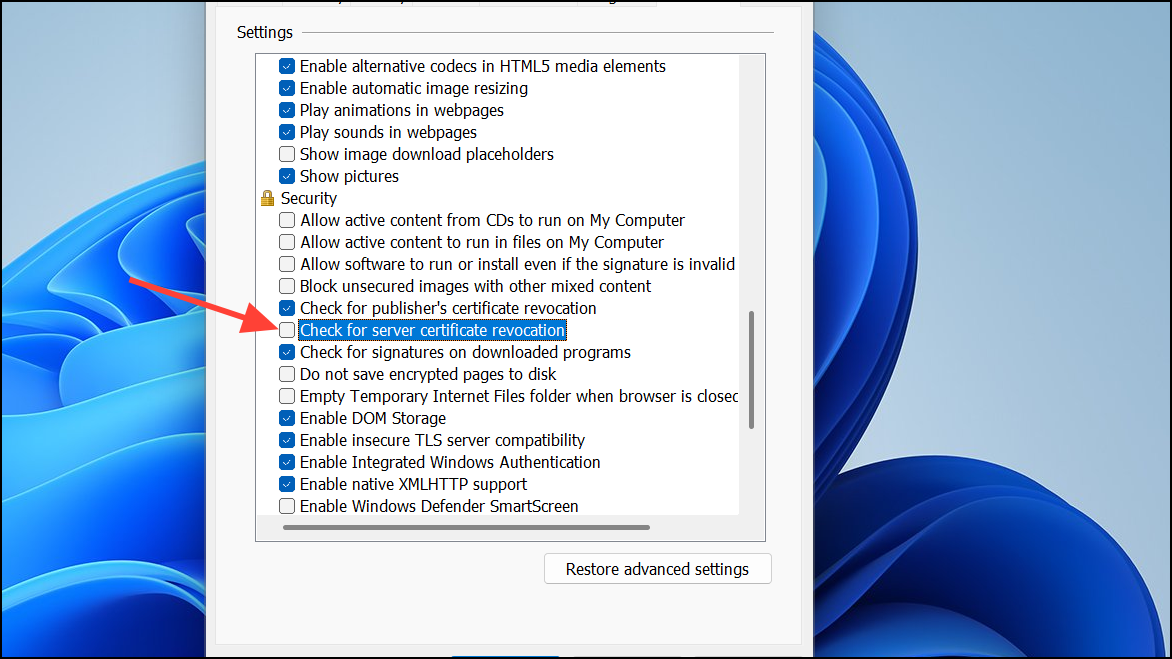
This setting can sometimes block Teams from verifying Microsoft’s authentication servers, especially in environments with strict firewall or proxy rules.
Enable All TLS Options in Internet Properties
Security section, check all boxes for Use TLS 1.0, TLS 1.1, TLS 1.2, and TLS 1.3 if available.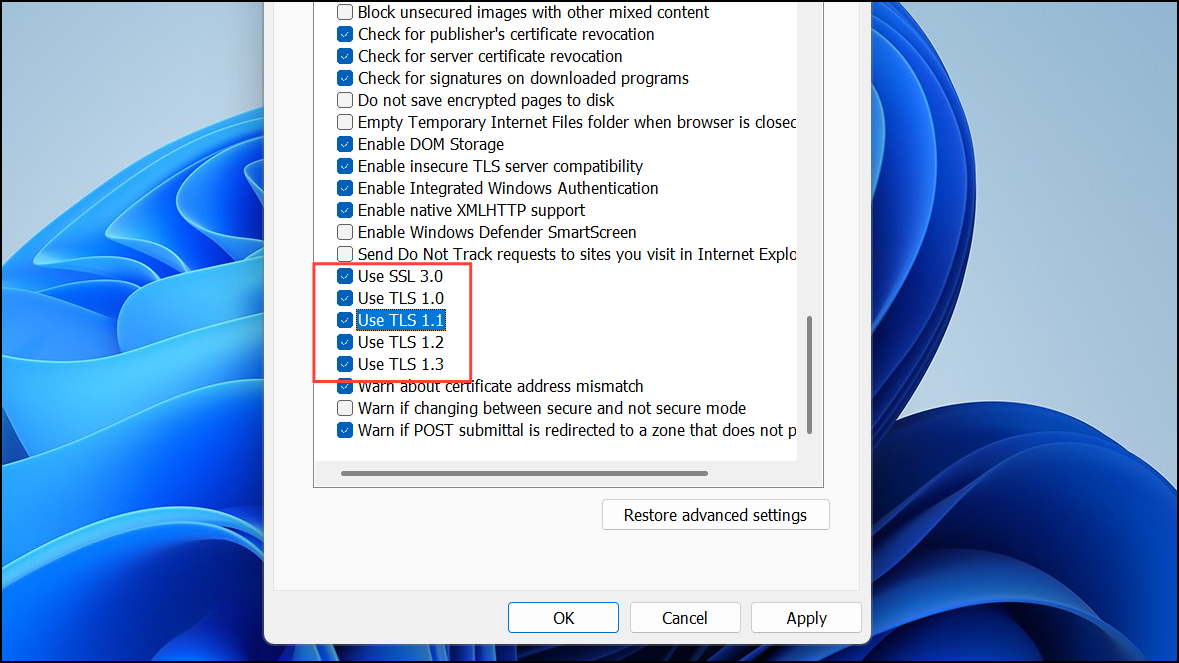
Teams relies on these security protocols for encrypted communication with Microsoft’s cloud services. Missing or disabled TLS versions can interrupt authentication and data transfer.
Release and Renew IP Address
cmd in the Start menu, right-clicking the result, and selecting Run as administrator.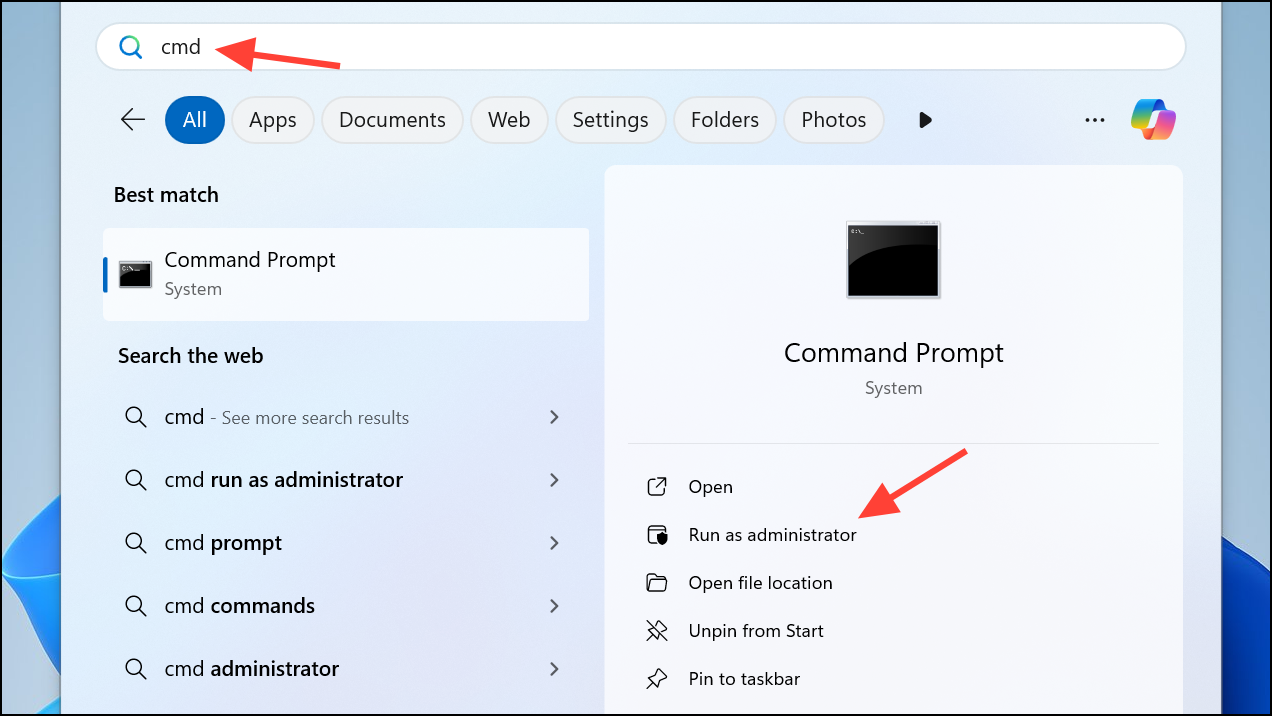
ipconfig /release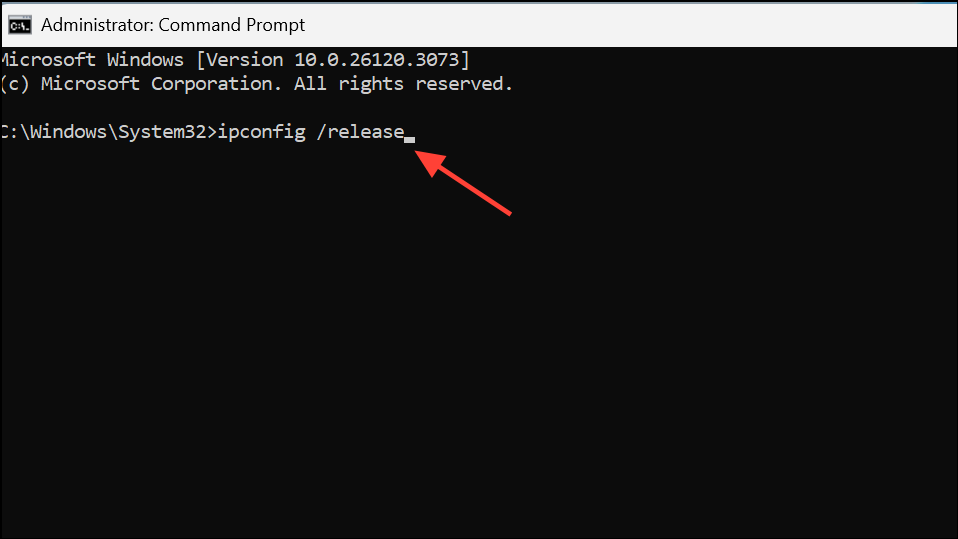
ipconfig /renew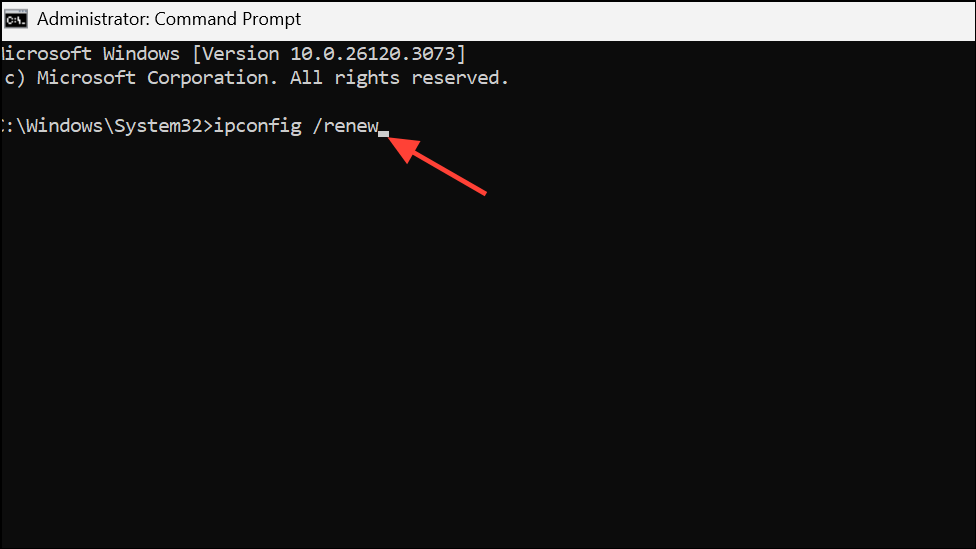
Network issues, such as IP conflicts or outdated DNS information, can block Teams from connecting to authentication servers. Releasing and renewing your IP address refreshes your network configuration.
Run Teams in Compatibility Mode
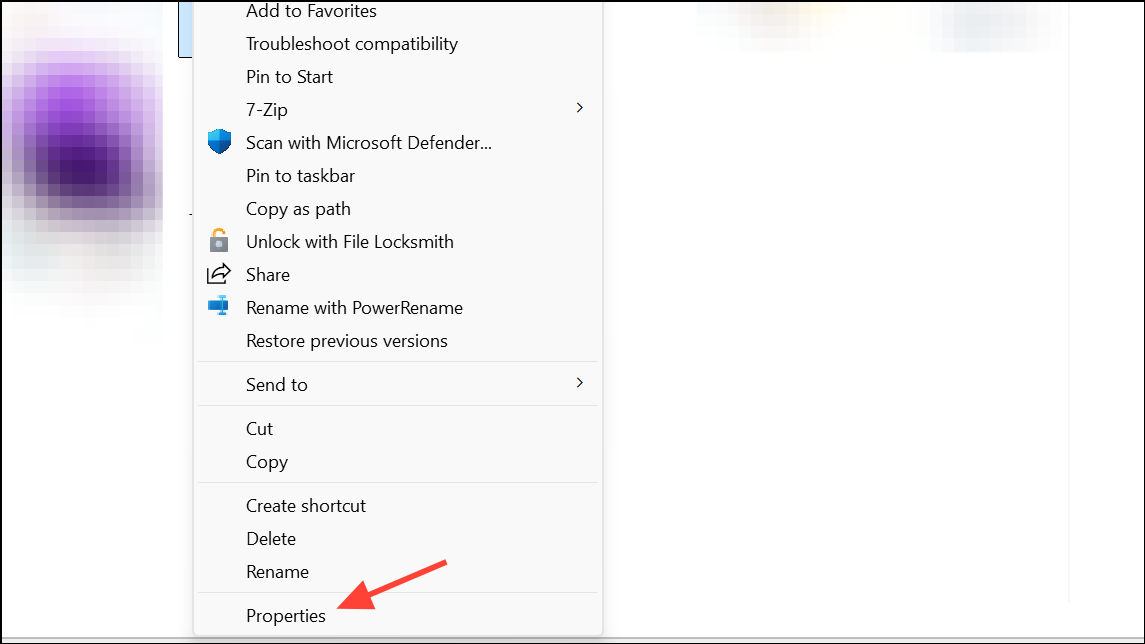
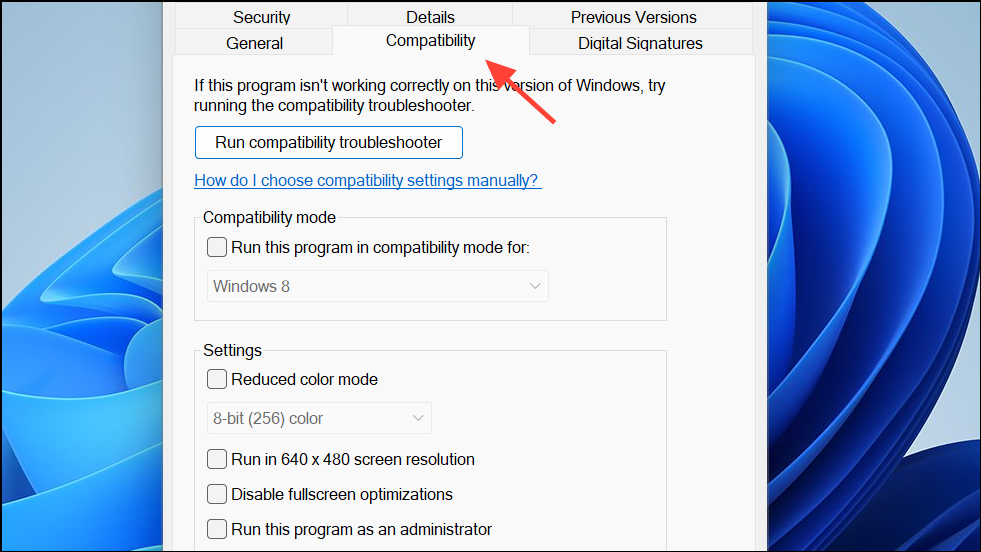
Run compatibility troubleshooter or manually check Run this program in compatibility mode for and select Windows 8 or Windows 7.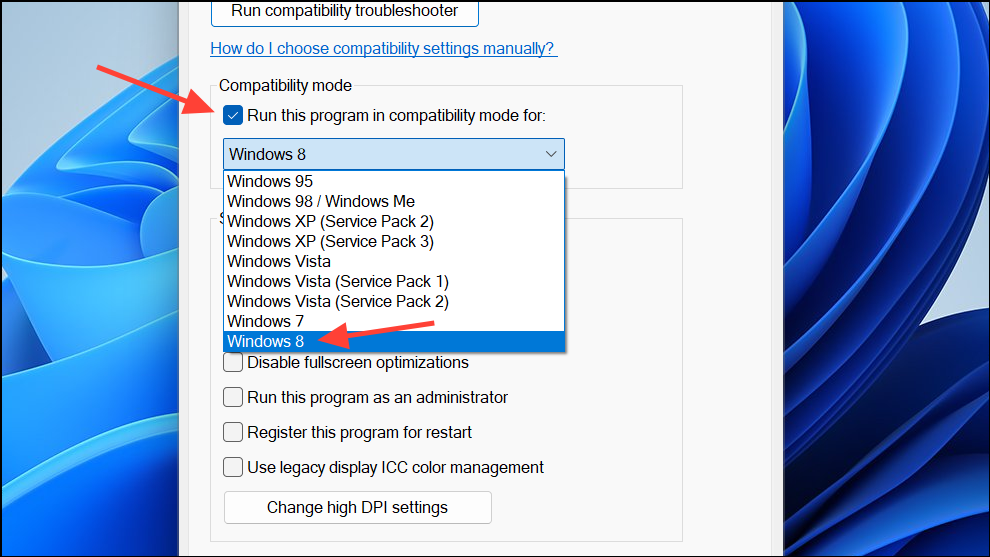
Some users report that Teams starts working after enabling compatibility mode, especially on devices with older Windows builds or after system upgrades.
Check Azure AD Device Registration
dsregcmd /status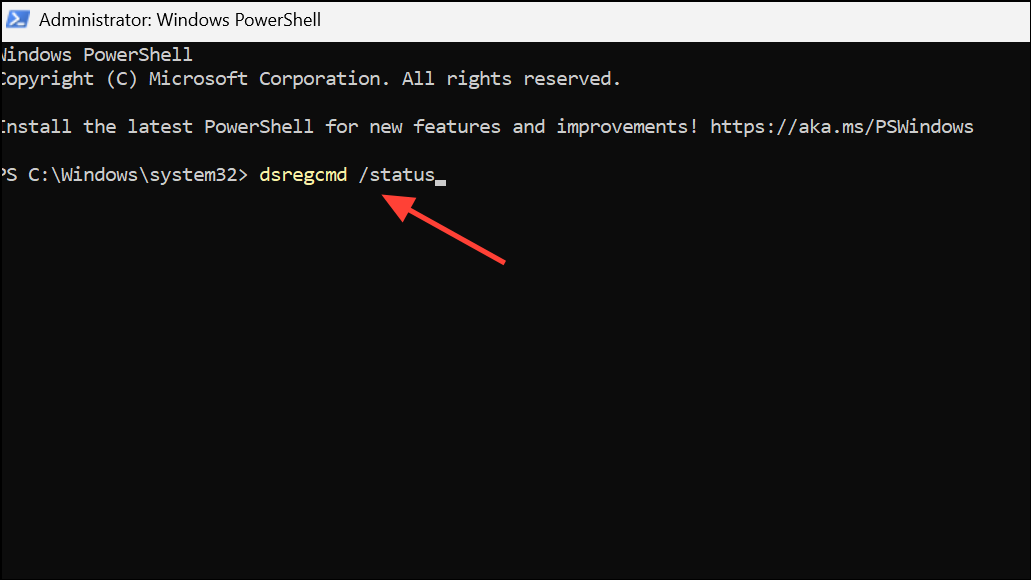
AzureAdJoined : YES in the output. If it shows NO, your device is not properly registered with Azure AD, which can block Teams authentication.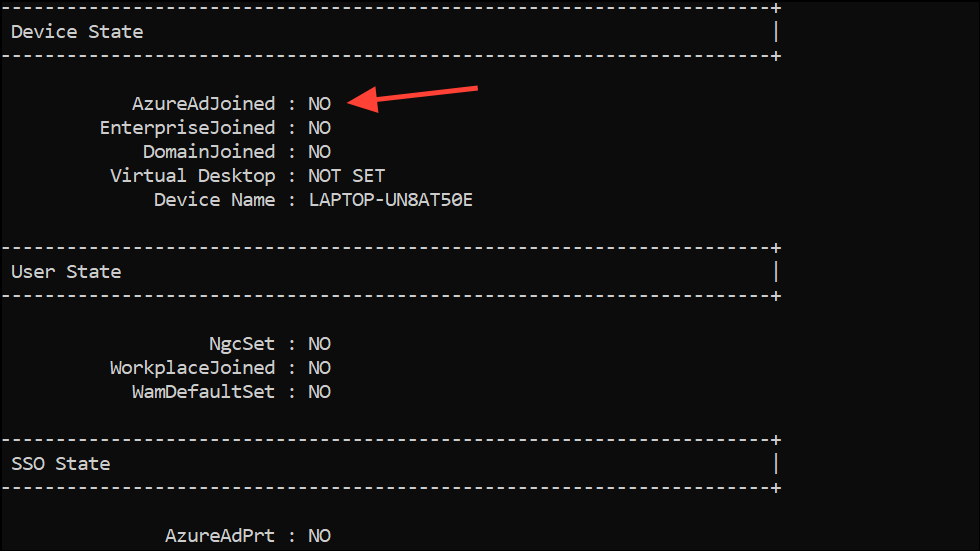
Settings > Accounts > Access work or school, then restart your computer.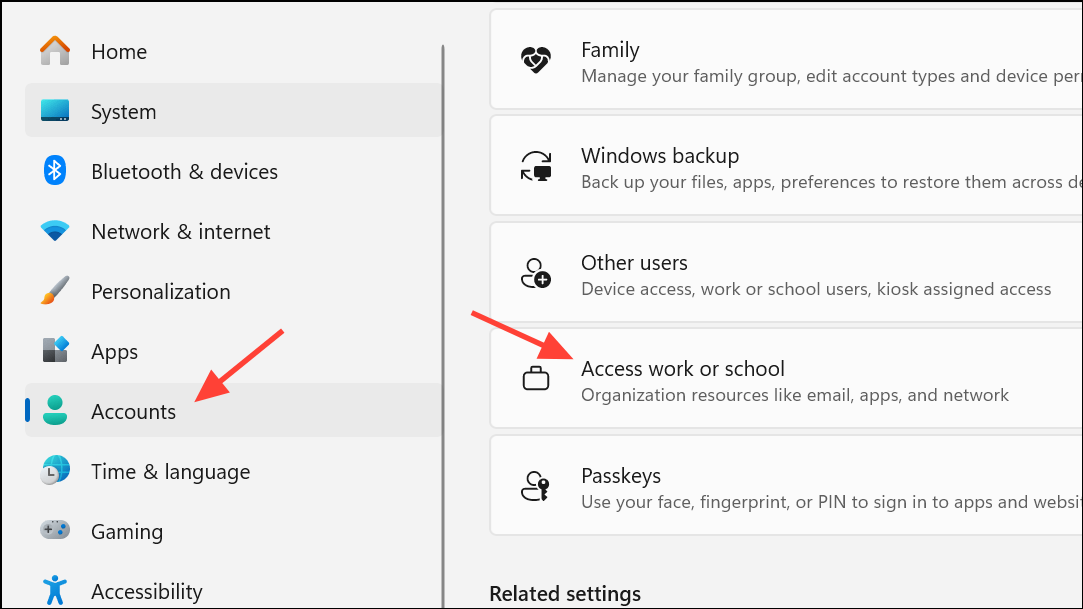
Device registration issues are a common cause of persistent Teams sign-in errors, especially on corporate-managed devices or those set up with Autopilot or hybrid join.
Reset Microsoft Teams
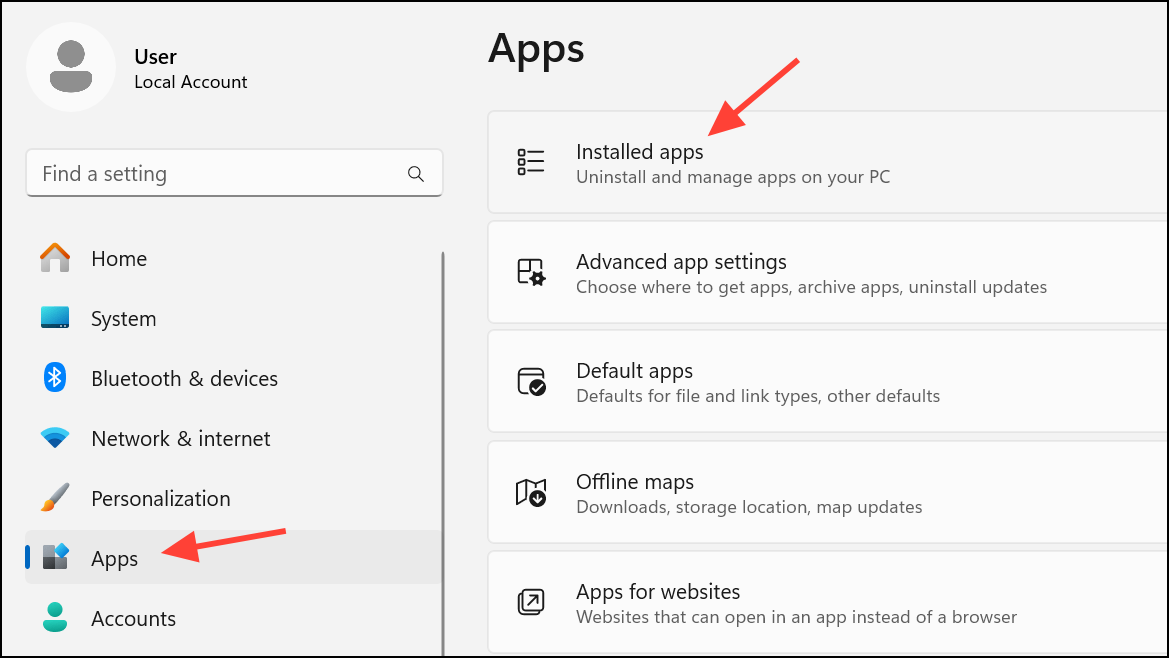
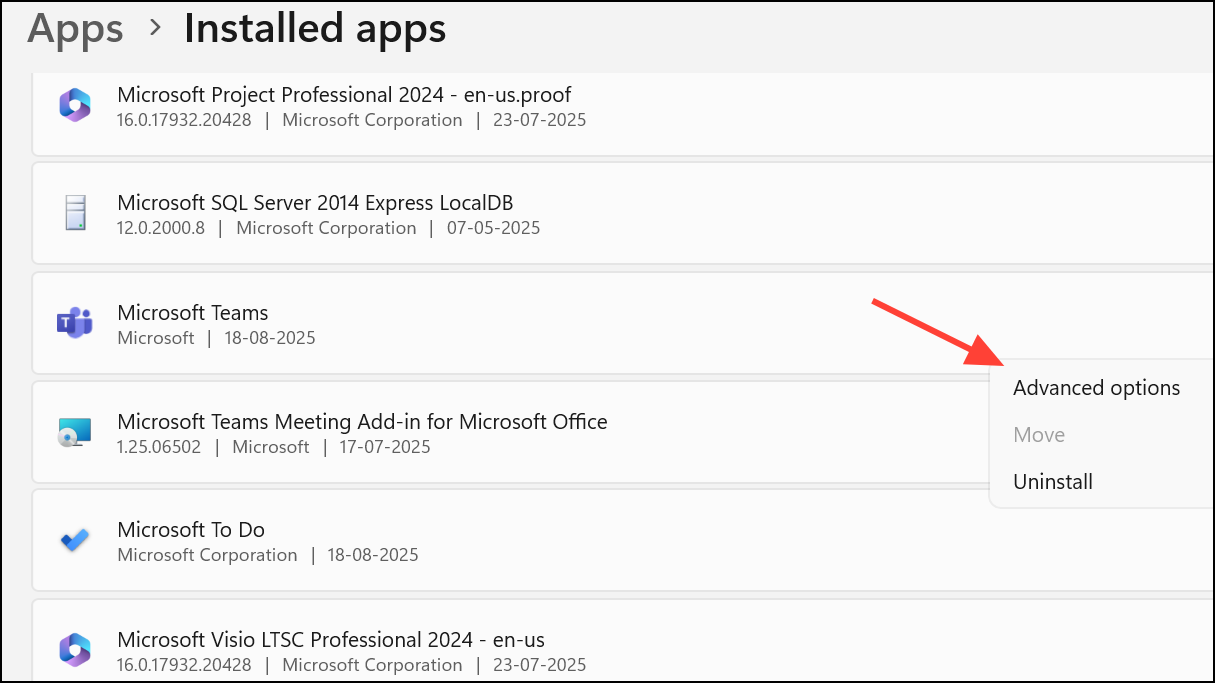
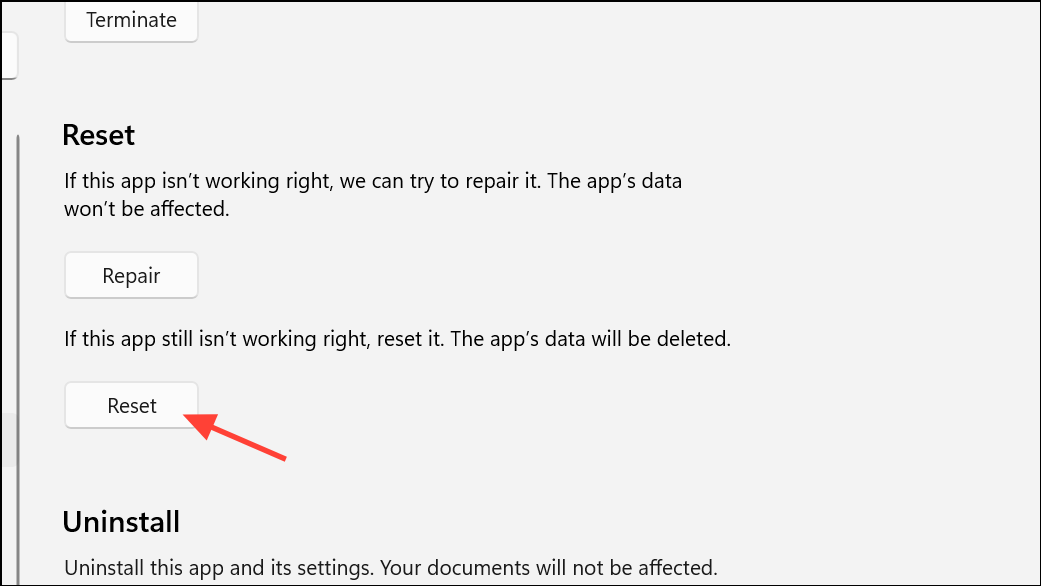
Resetting Teams can resolve persistent issues caused by corrupted app data or failed updates.
Repair Permissions for AAD Broker Plugin in Registry (Advanced)
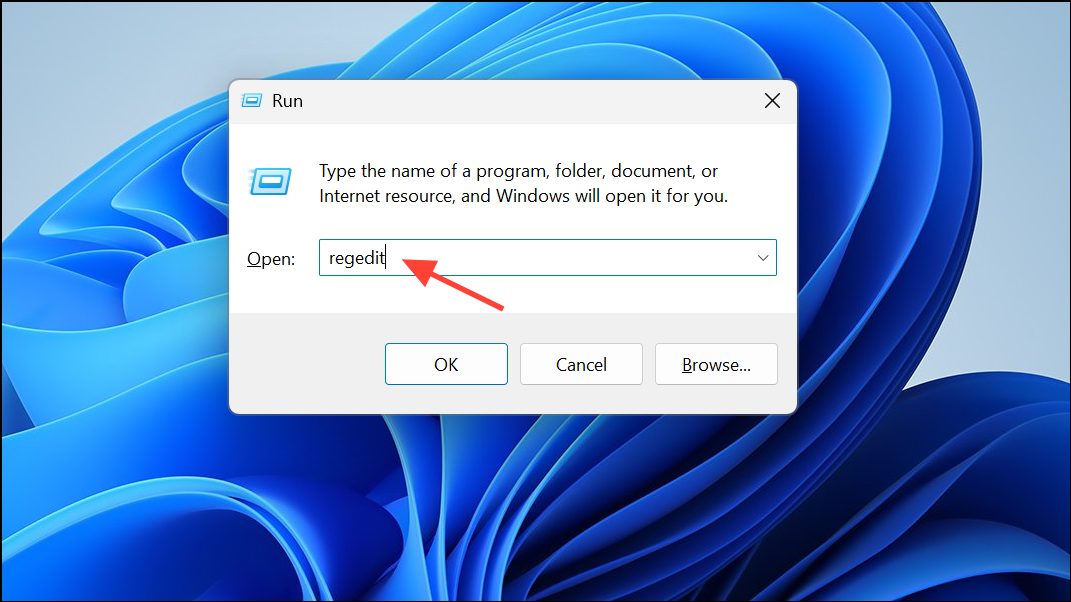
HKEY_CURRENT_USER\Software\Classes\Local Settings\Software\Microsoft\Windows\CurrentVersion\AppModel\SystemAppData\Microsoft.AAD.BrokerPlugin_cw5n1h2txyewy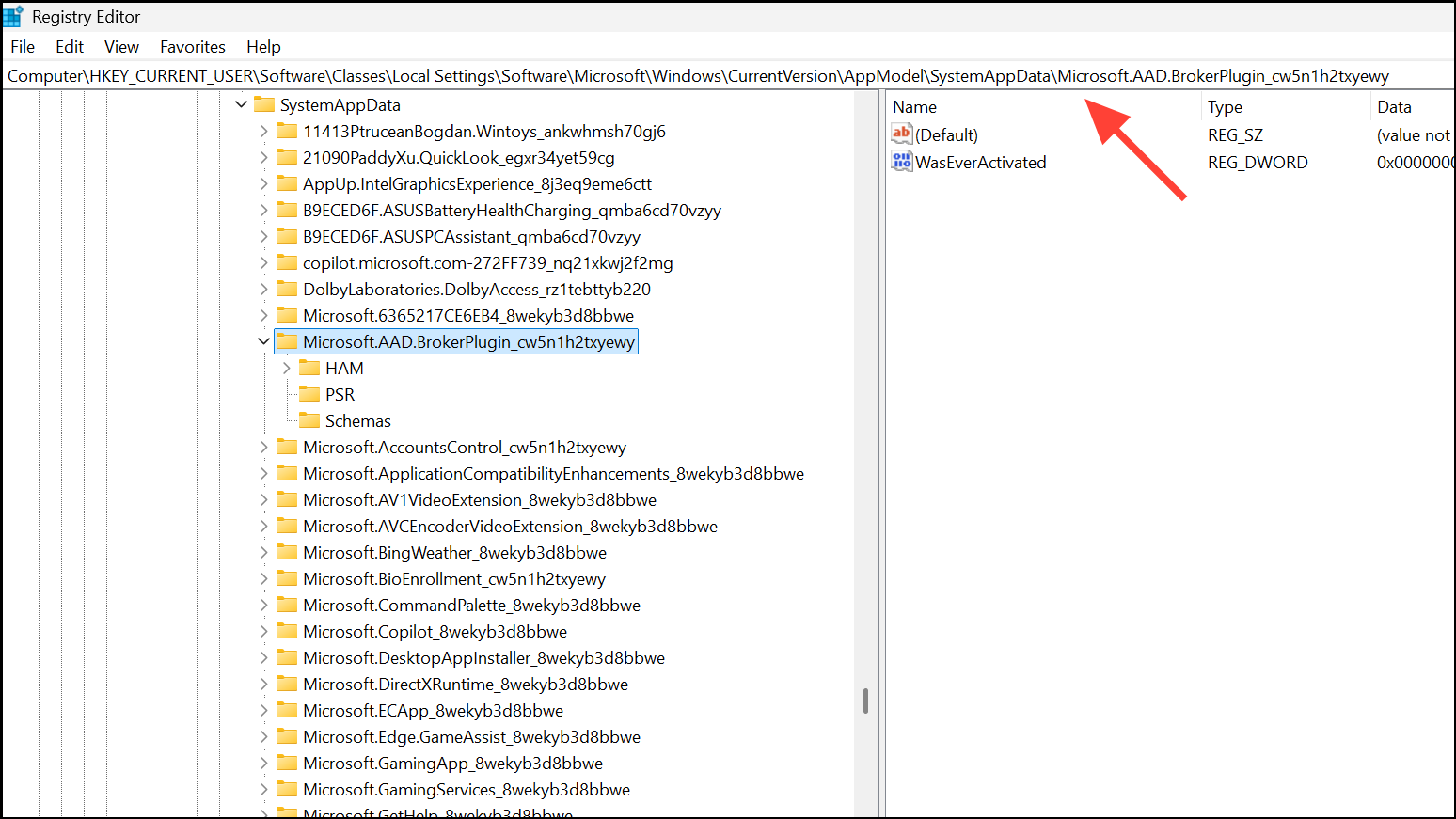
Permissions, disable inheritance (making a copy of current permissions), then re-enable inheritance and check Replace all child object permission entries with inheritable permission entries from this object. Click OK to confirm.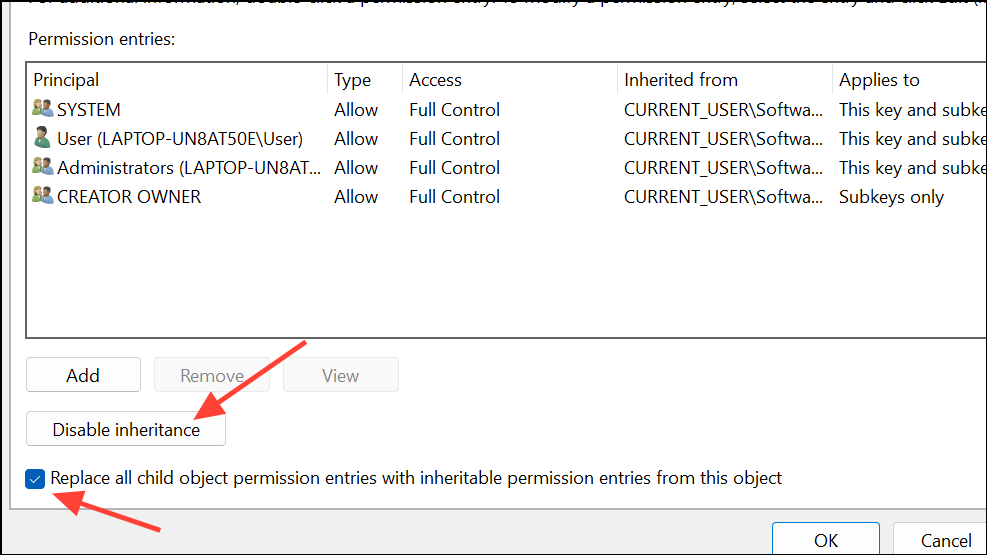
Incorrect permissions on this registry key can disrupt device authentication and cause Teams login failures. Only perform registry edits if you are comfortable with advanced troubleshooting and have backed up your registry.
Additional Tips and Workarounds
- Temporarily disable VPN or proxy services, as these can block Teams authentication traffic.
- If the desktop app still fails, use the Teams web app at
https://teams.microsoft.comas a temporary workaround. - Clearing your browser cache may help if you encounter the error in the web version.
- If none of the above resolves the issue, creating a new Windows user profile can address deep-seated profile corruption.
Resolving error code CAA70007 in Microsoft Teams usually requires a combination of cache cleanup, network troubleshooting, and authentication fixes. These steps restore reliable sign-in and keep Teams running smoothly for work or school.