Download and Install Alienware Command Center on Windows 11
Get the correct Alienware Command Center build and device components on Windows 11 using Dell’s model-specific installer or Microsoft Store.
Get the correct Alienware Command Center build and device components on Windows 11 using Dell’s model-specific installer or Microsoft Store.
by Pallav Pathak
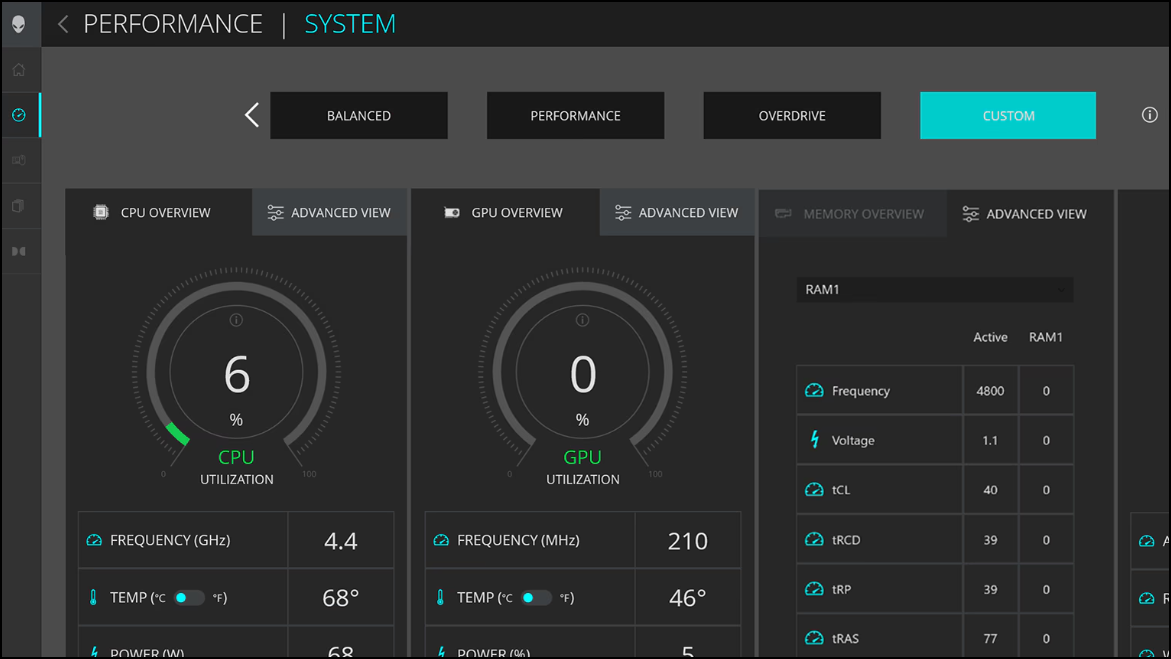
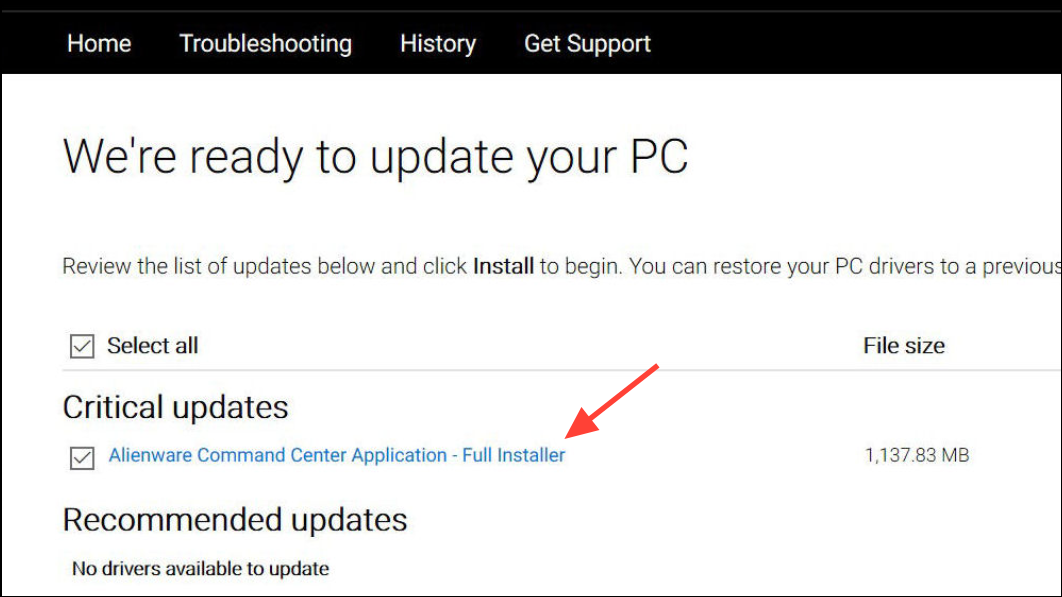
Alienware Command Center (AWCC) controls lighting (AlienFX), thermal and power profiles, and overclocking on supported systems. On Windows 11, the most reliable way to install AWCC is to use Dell’s Drivers & Downloads for your exact Alienware model so device-specific components like OC Controls are installed correctly.
What You’ll Need
Administrator access on the PC.
Stable internet connection.
Your Alienware model name or Dell Service Tag.
5–10 minutes for installation and a reboot window.
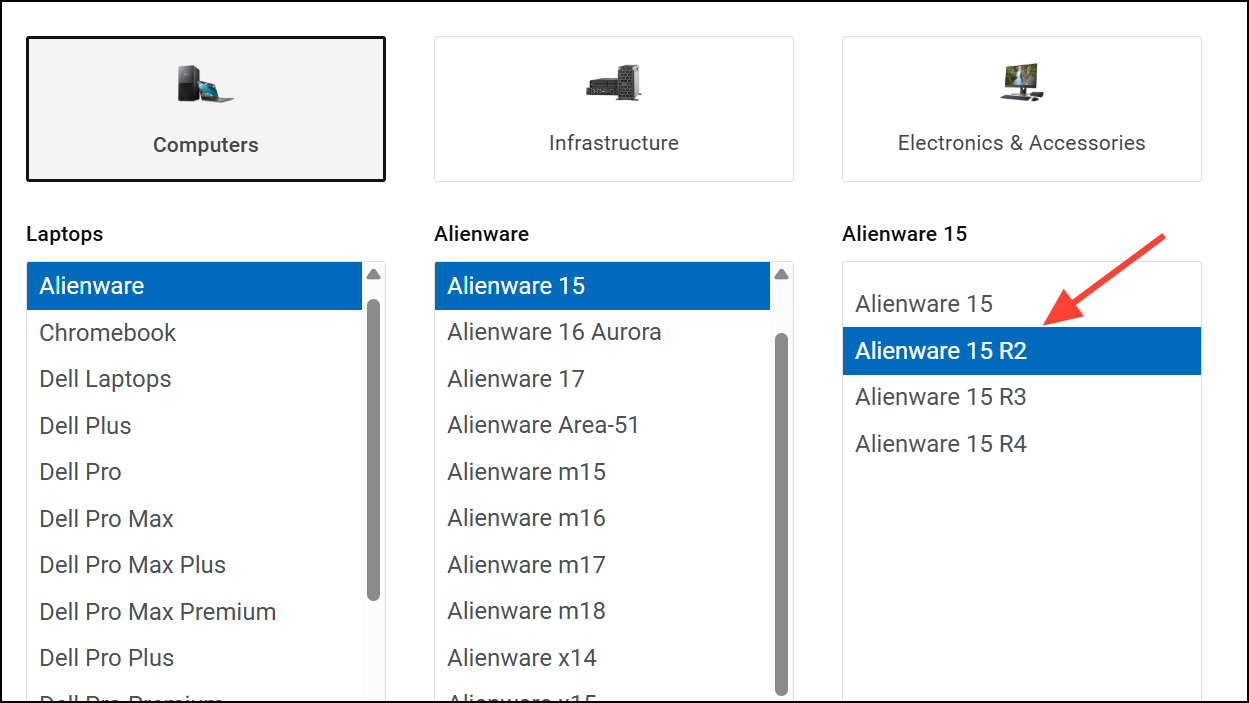
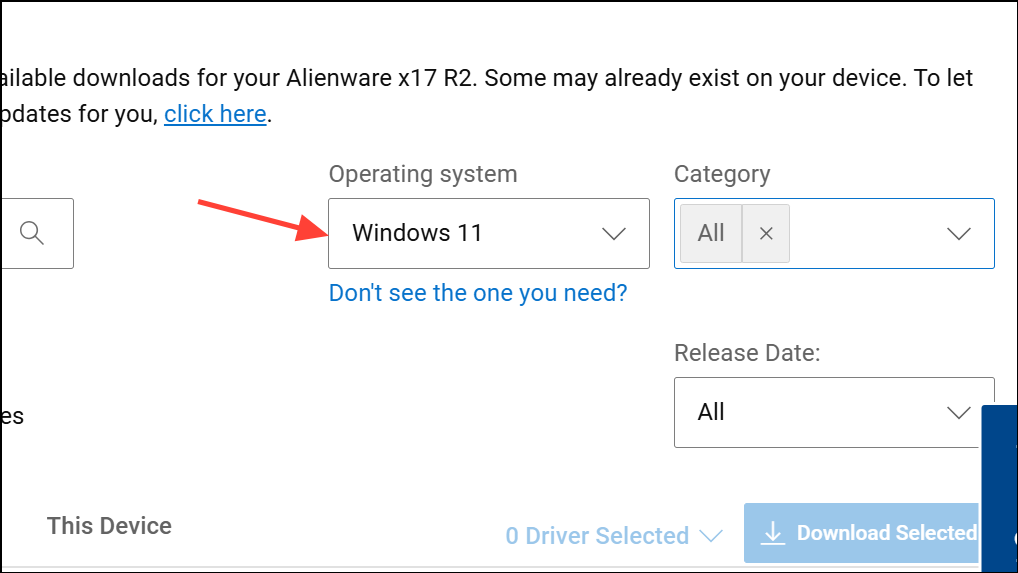
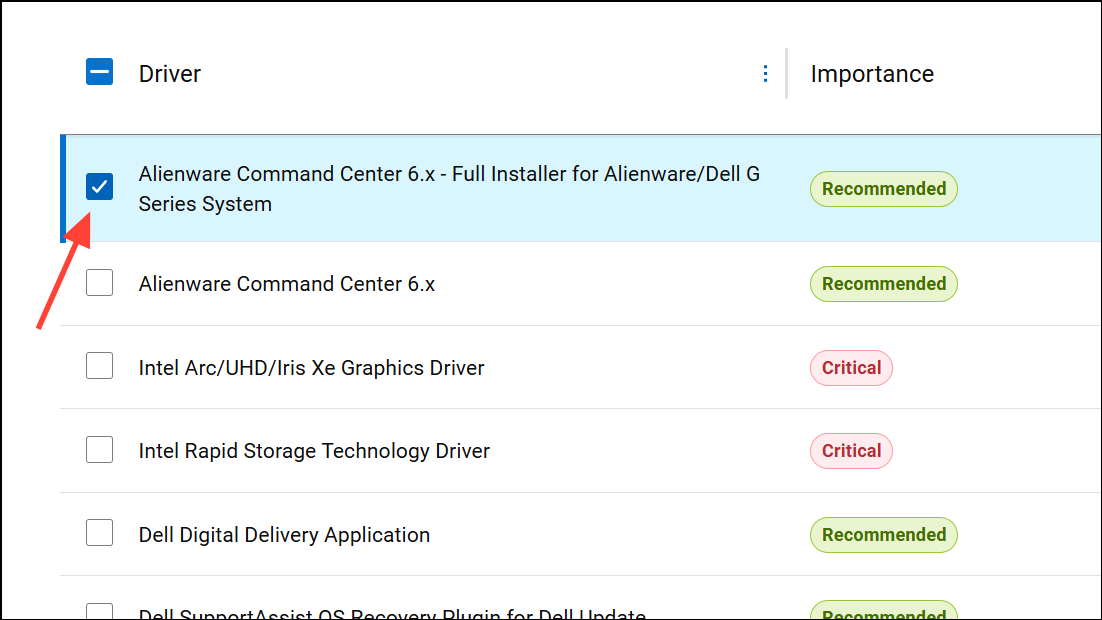
Method 1: Install from Dell Drivers & Downloads (Recommended)
Connect external Alienware peripherals directly to USB ports if you use a hub during initial detection.
Tips for Ongoing Use
Keep AWCC and OC Controls current by periodically checking Dell Drivers & Downloads for your model.
Export or note custom thermal and lighting profiles before reinstalling to avoid re-creating them from scratch.
Allow AWCC to run at startup if you want profiles to apply automatically after boot.
Using Dell’s model-specific installer ensures AWCC gets the exact components your hardware needs on Windows 11. If the Microsoft Store stalls, a quick Store reset usually gets component downloads moving again so lighting and performance controls work as expected.