Microsoft Teams displays error code 42b when its sign-in process fails, often showing the message, “We’re sorry–we’ve run into an issue. Restart.” This problem can prevent access to chats, meetings, and shared resources, disrupting both work and school activities. Clearing the Teams cache and resetting device account associations usually resolves the error and restores normal sign-in functionality.
Clear Microsoft Teams Cache and Remove Device Association
Windows + I to open the Settings app. Navigate to Accounts, then select Email & accounts. Locate your work or school account in the list, click it, and choose Manage. This will open your default web browser and prompt you to log in with your work or school credentials.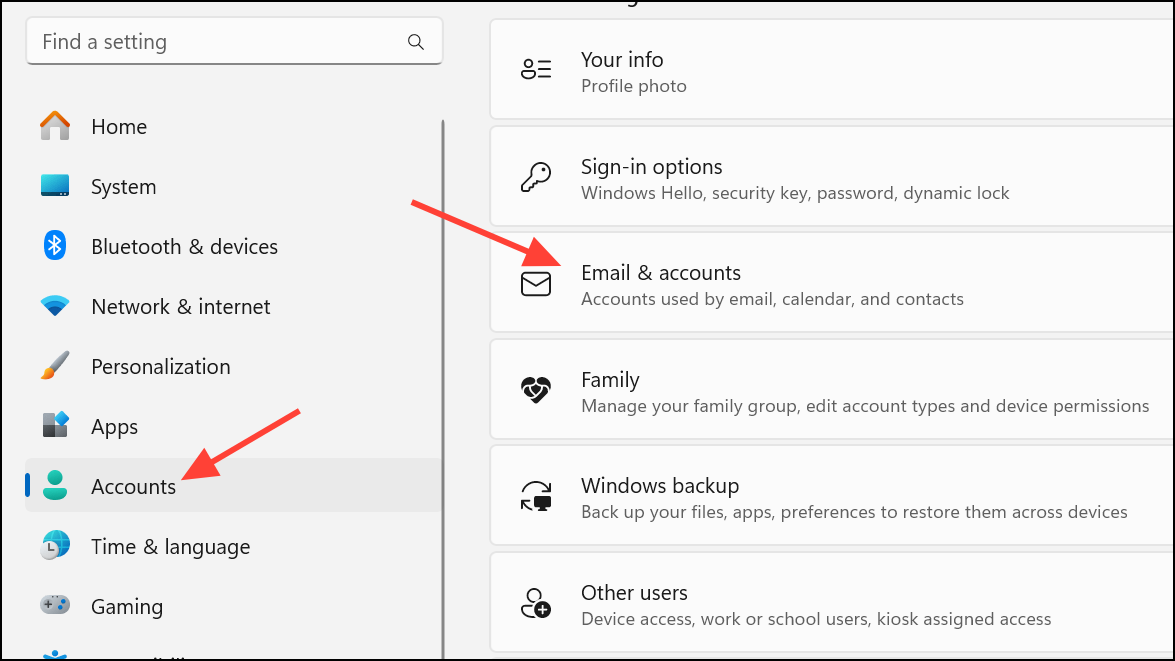
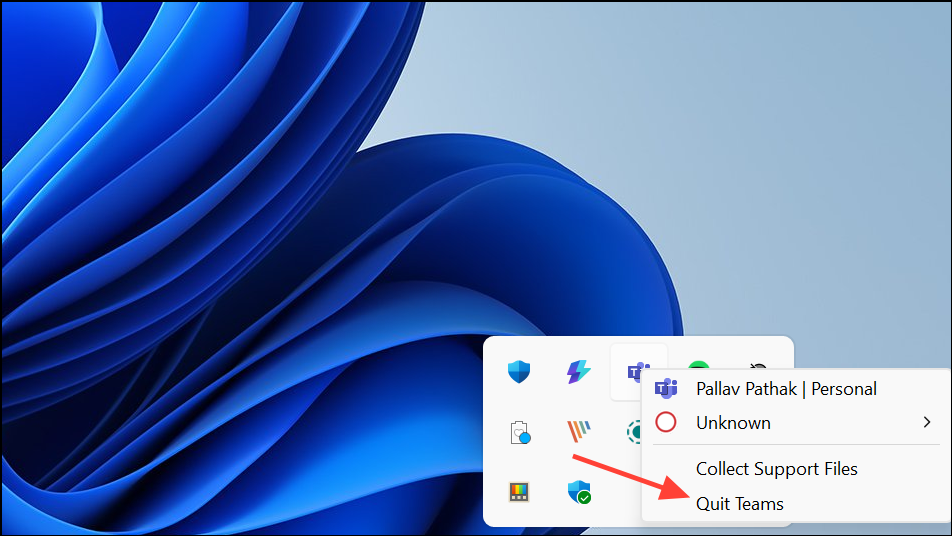
%appdata%\Microsoft\Teams in the address bar. Press Enter to open the Teams folder. Select all files and subfolders in this directory (use Ctrl + A), then delete them. This action removes cached data, stored credentials, and temporary files that can interfere with the login process.Try Signing In on a Different Platform
If the desktop application continues to display error code 42b, switch to the Teams web client. Open your web browser and navigate to https://teams.microsoft.com. Sign in with your work or school account credentials. If you can sign in successfully using the web version, the issue is isolated to the desktop app’s configuration or cache.
This workaround provides immediate access to Teams while you troubleshoot further or wait for a permanent fix. It’s particularly useful for urgent meetings or class participation when the desktop app is unavailable.
Advanced Troubleshooting: Remove Credentials and Registry Keys
If standard cache clearing and device removal do not resolve the issue, further steps may be necessary to remove lingering credentials and identity data. These steps are more technical and should be performed carefully:
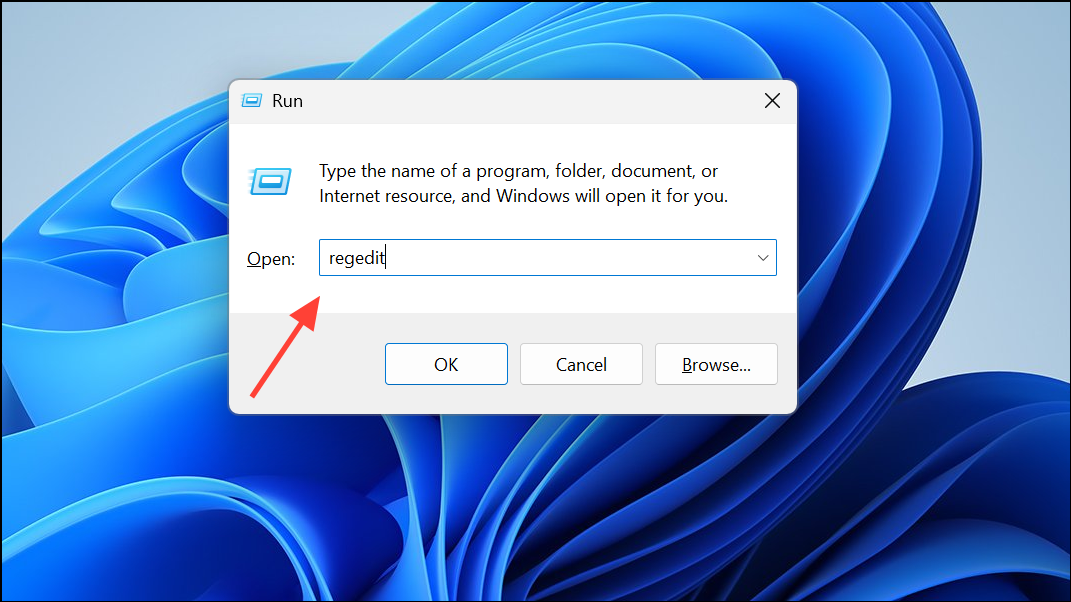
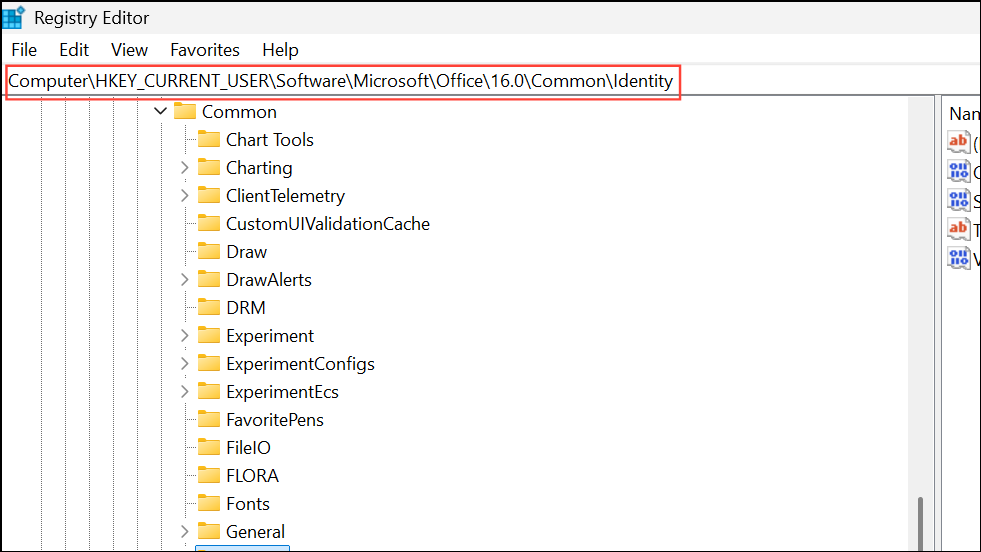
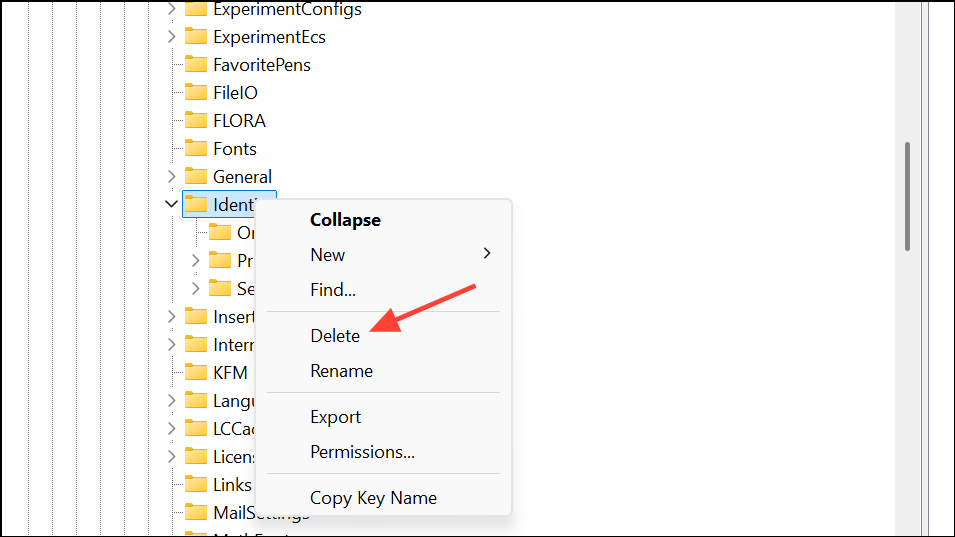
Windows + R and enter %localappdata%\Microsoft\OneAuth and %localappdata%\Microsoft\IdentityCache, deleting all contents in both folders. These locations store authentication tokens and cache files for Microsoft account sign-ins.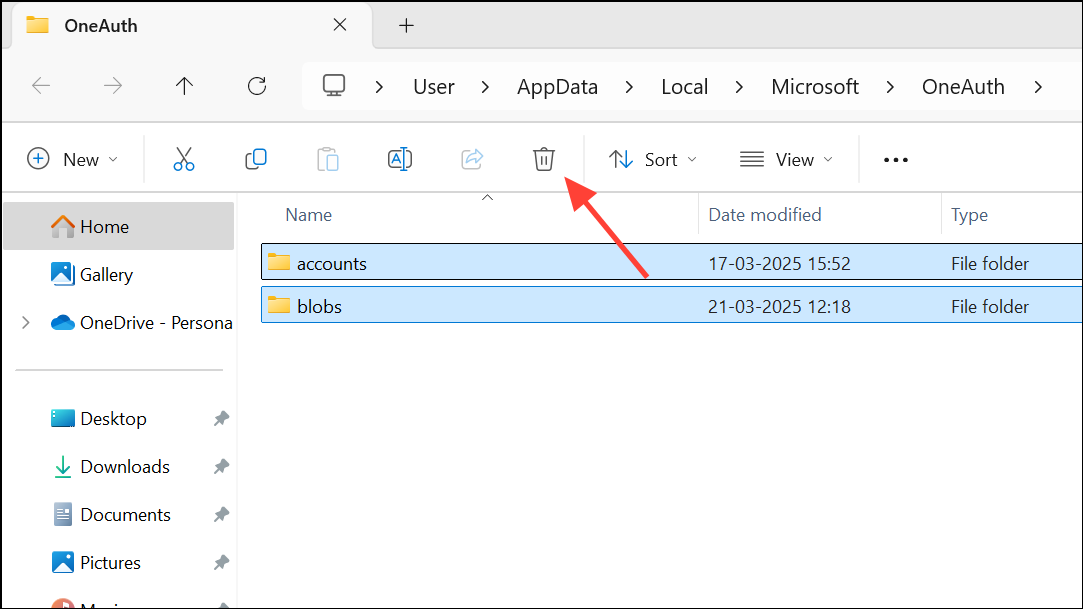
Other Fixes: Uninstall Conflicting Programs or Update Windows
Conflicting software, outdated drivers, or incomplete Windows updates can also trigger error code 42b. If basic troubleshooting fails, consider these steps:
- Uninstall unnecessary or recently installed applications that might interfere with Teams.
- Check for and install pending Windows updates to ensure compatibility.
- Update your graphics drivers if Teams crashes or displays graphical errors.
- Temporarily disable VPN or proxy connections, as network routing issues can sometimes block authentication traffic.
If you’re using a managed device or company network, contact your IT administrator for additional support, especially if device policies or group policy updates have recently changed.
Addressing Microsoft Teams error code 42b by clearing cache, removing device associations, and updating credentials restores access to meetings and chats. If issues persist, using the web client or consulting IT support provides a reliable workaround.