
Unexpected webcam and microphone activity in Chrome or Edge can trigger privacy concerns and disrupt your workflow. Browsers sometimes request access for video calls or voice features, but background processes, browser extensions, or even operating system behaviors may cause access attempts you didn’t authorize. Adjusting browser and Windows settings, along with using security software, can block these permissions and restore your control.
Block Camera and Microphone Access in Chrome
Settings. This opens the main configuration page for the browser.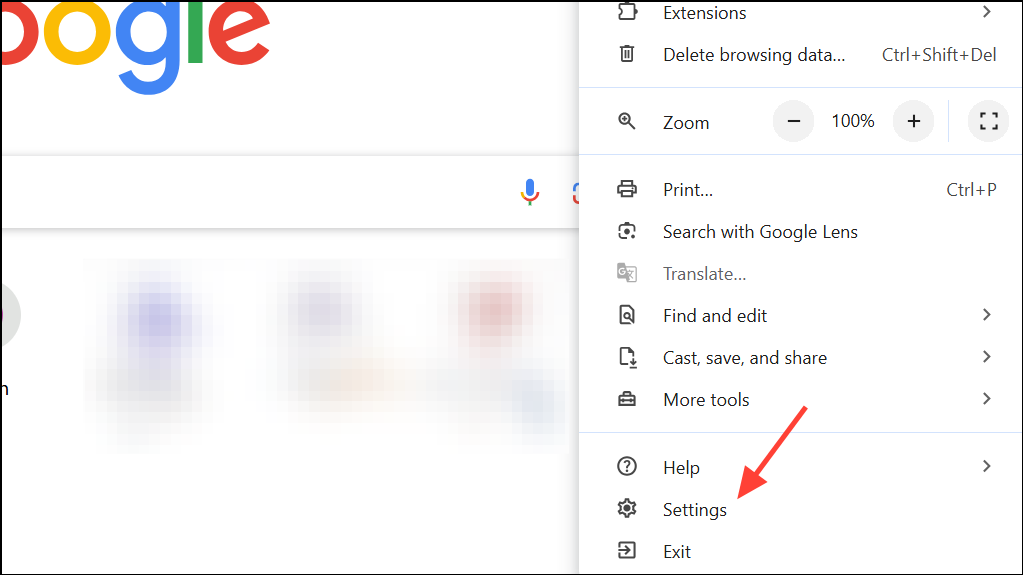
Privacy and security on the left sidebar, then click Site settings. This section manages permissions for websites, including camera and microphone usage.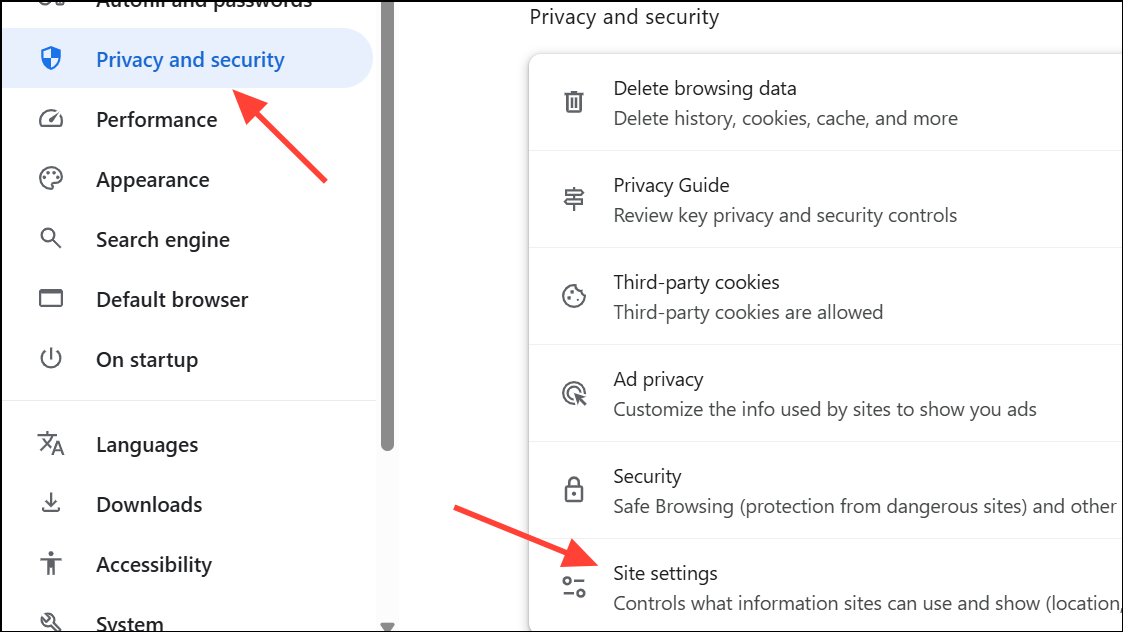
Permissions section, then click Camera and Microphone individually. Here, you can review which sites are allowed or blocked from accessing your devices.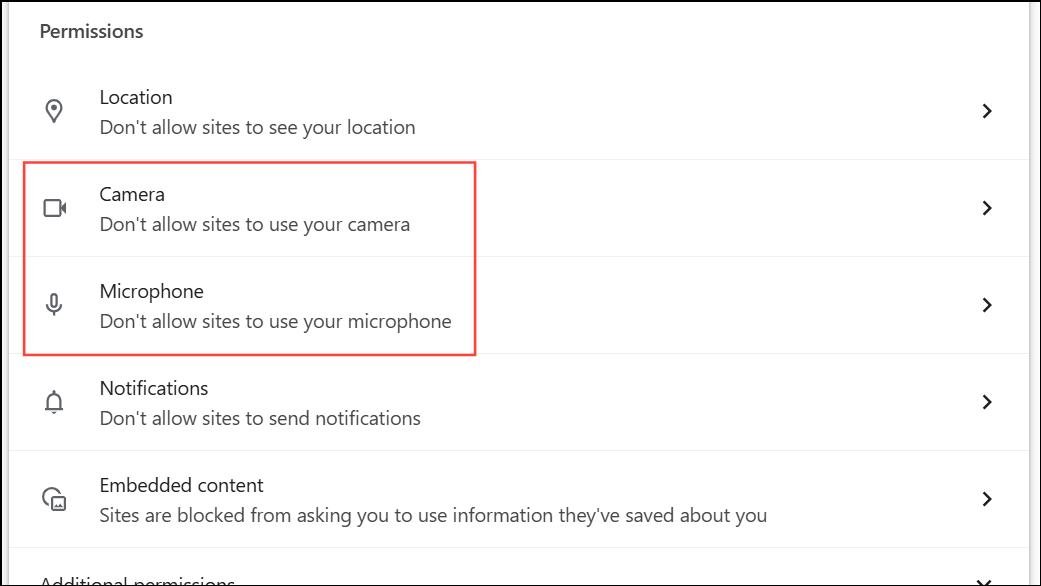
Don't allow sites to use your camera option. Repeat the process for the microphone as well. This stops new permission prompts and blocks all sites by default.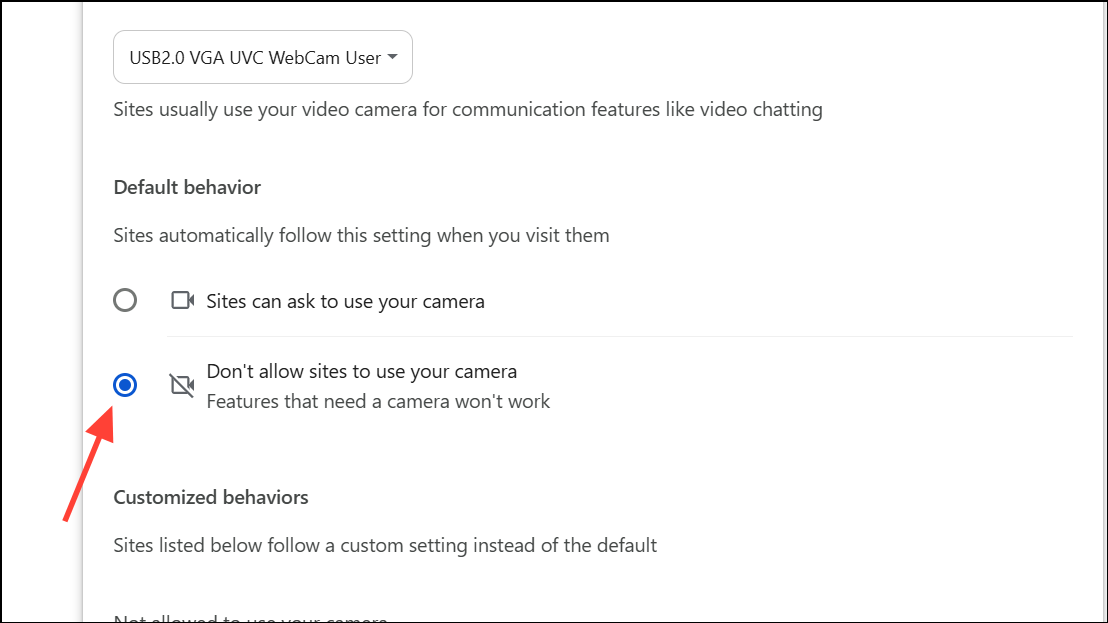
Allowed list. This revokes previously granted permissions and ensures only trusted sites can request access in the future.Block Camera and Microphone Access in Microsoft Edge
Settings to open the browser’s configuration panel.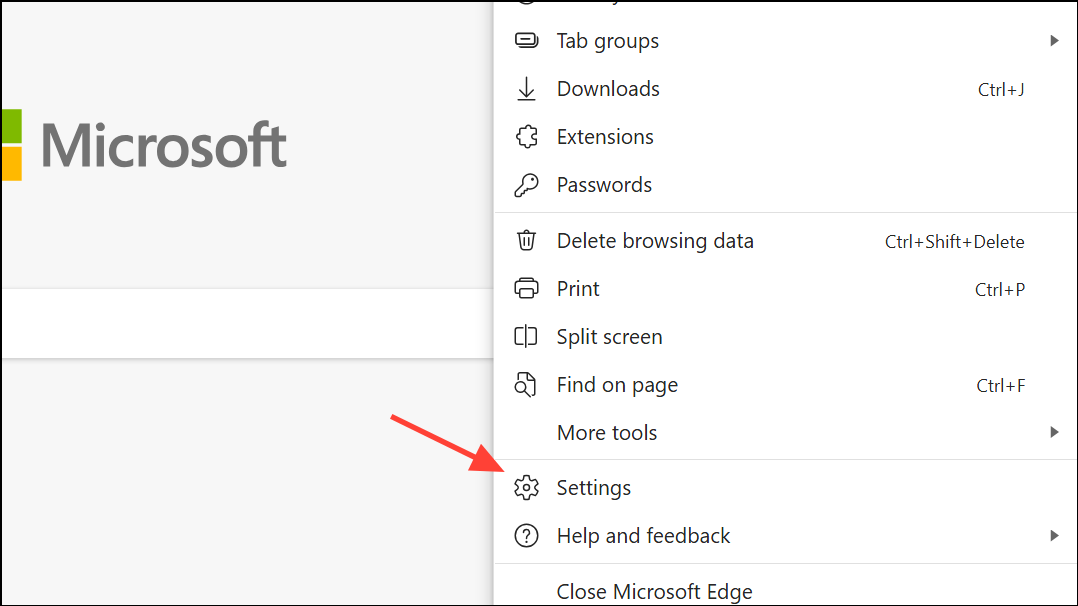
Privacy, search and services and then select Site permissions on the right. This area manages site-specific permissions, including camera and microphone access.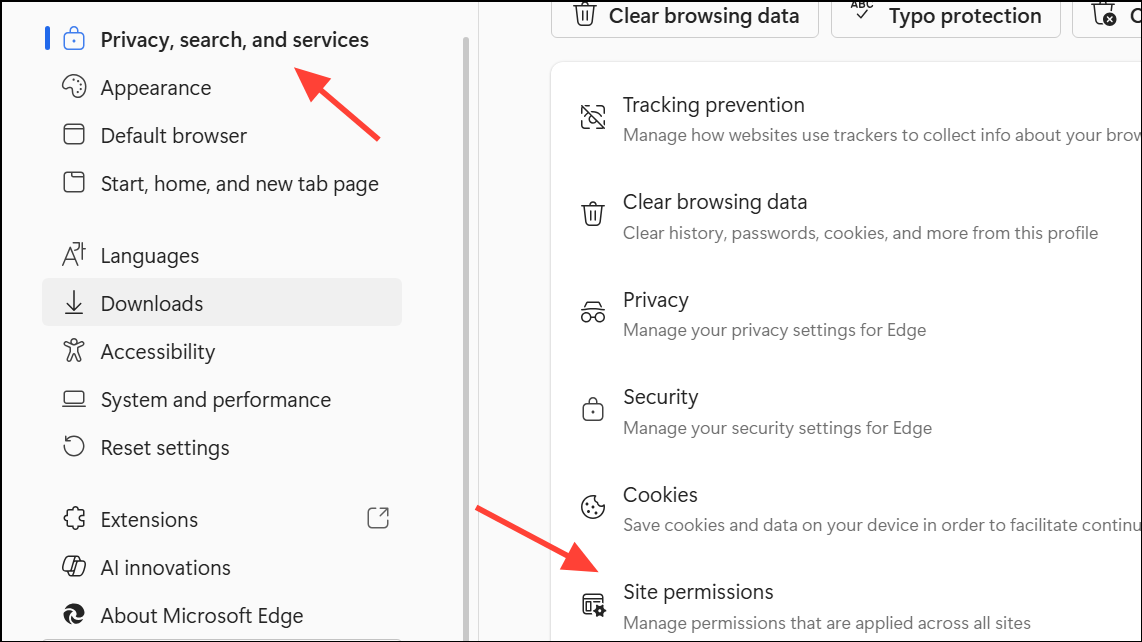
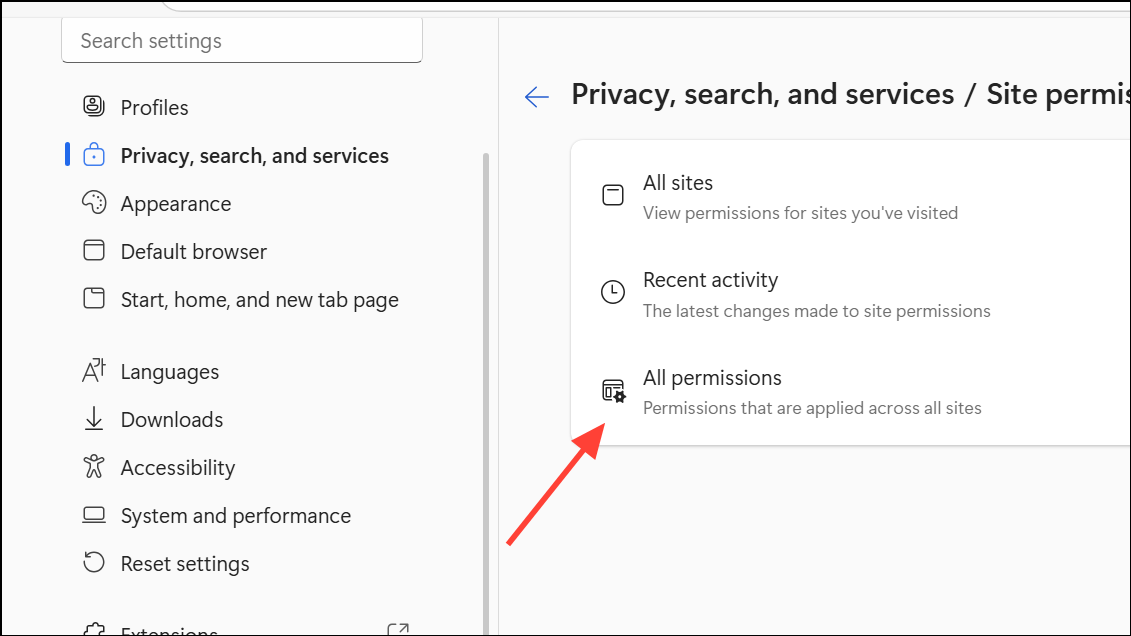
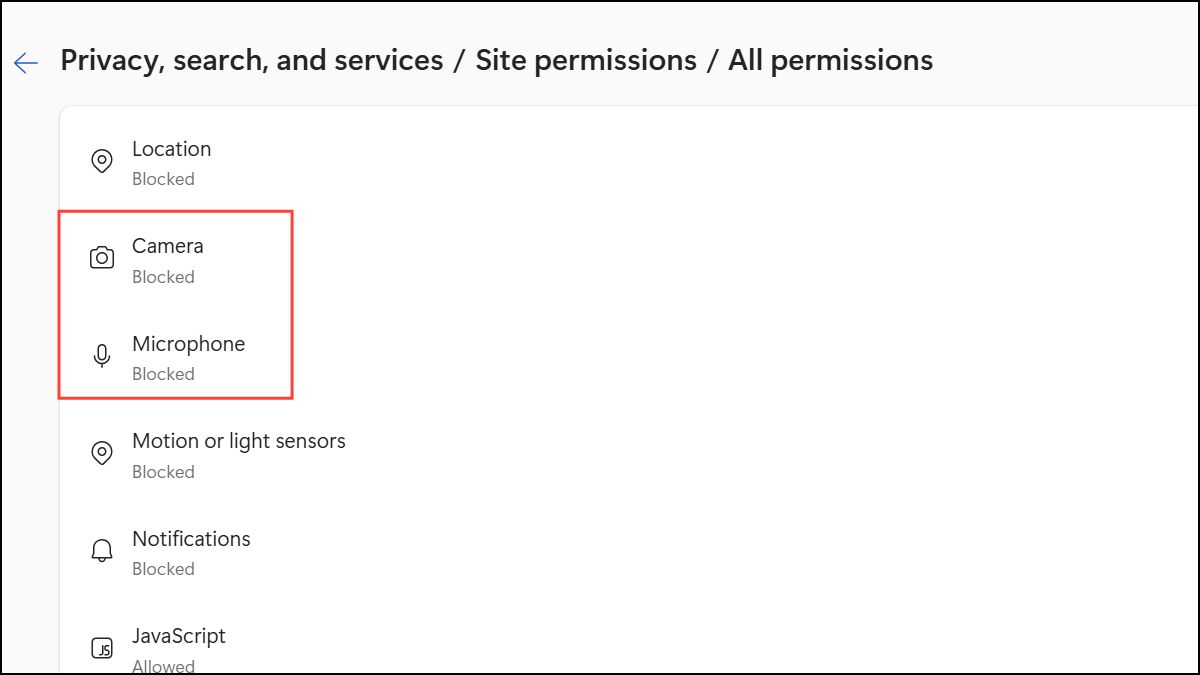
Ask before accessing (recommended) toggle to disable access permissions for your camera or microphone. This prevents new requests for camera or mic access from websites.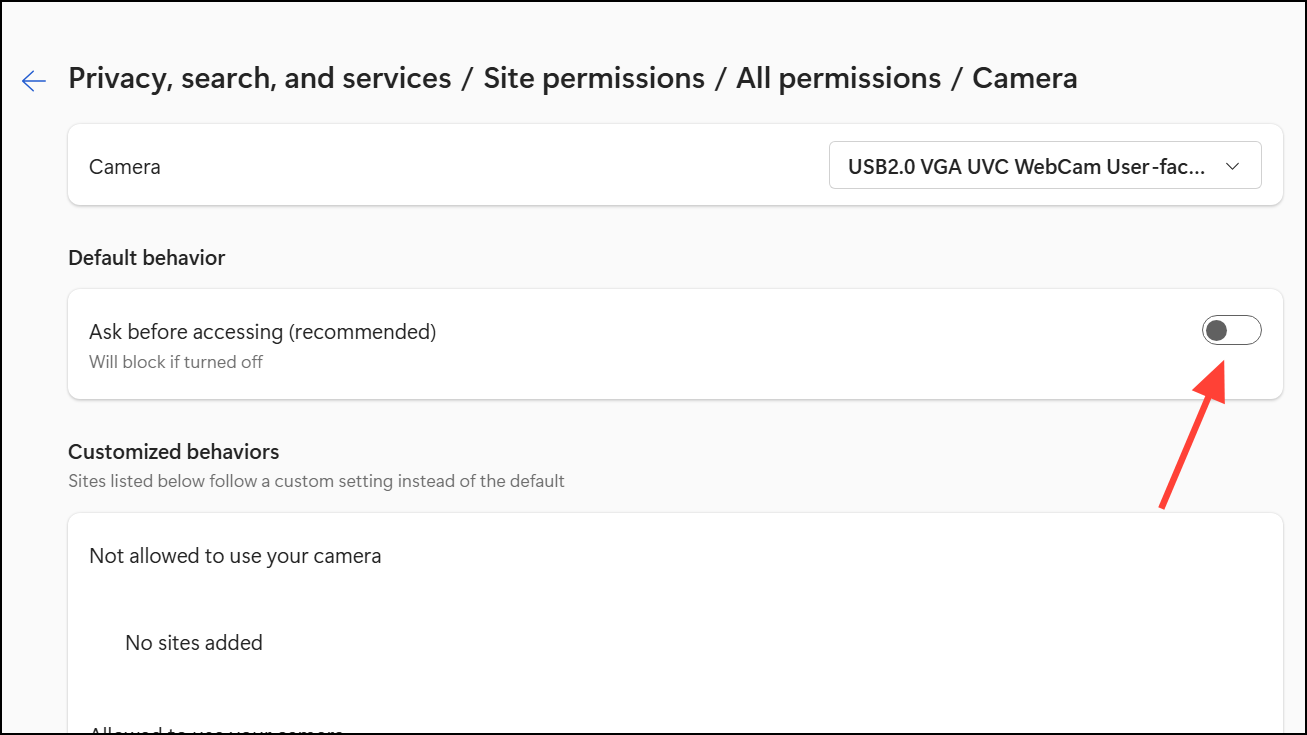
Allow or Block lists. This ensures that only trusted sites can request access in the future.Restrict Camera and Microphone Access in Windows Settings
Settings app. On Windows 10, go to Start > Settings > Privacy. On Windows 11, go to Start > Settings > Privacy & security.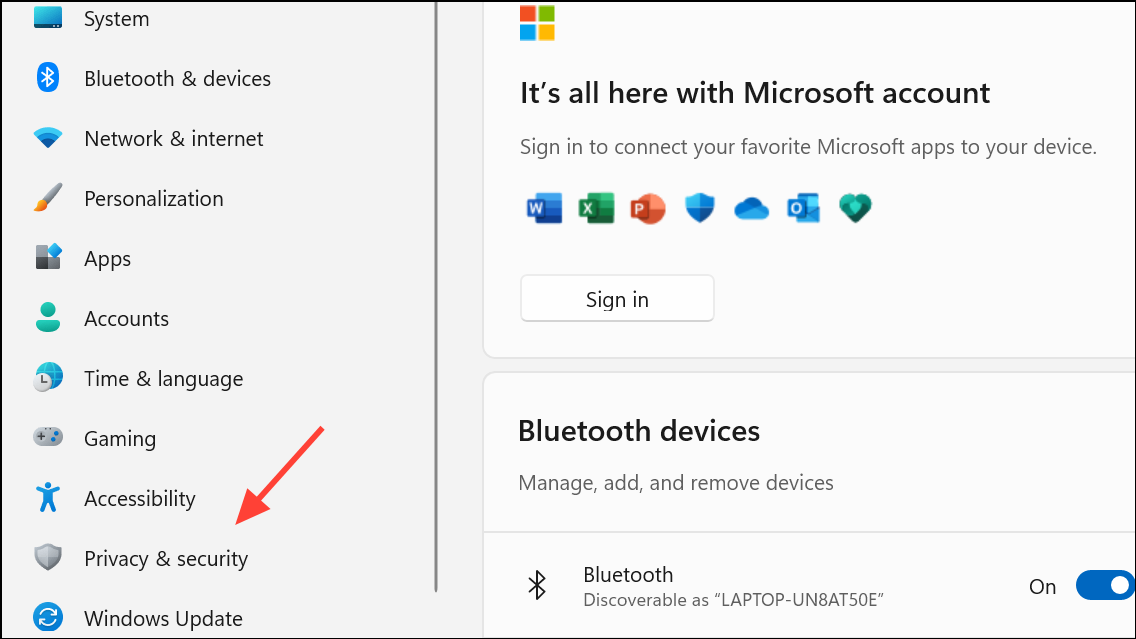
Camera and Microphone in the sidebar. You’ll see options to allow or deny access for all apps, as well as toggles for individual Microsoft Store apps.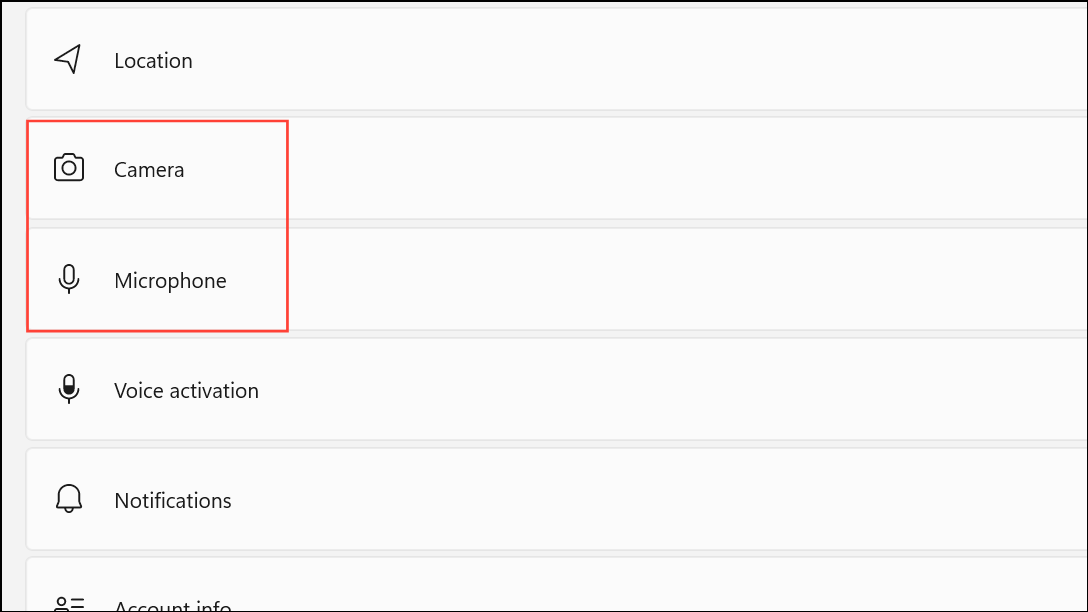
Camera access for this device and Microphone access for this device to Off if you want to block all access. For more granular control, leave these on but disable access for specific apps you don’t trust.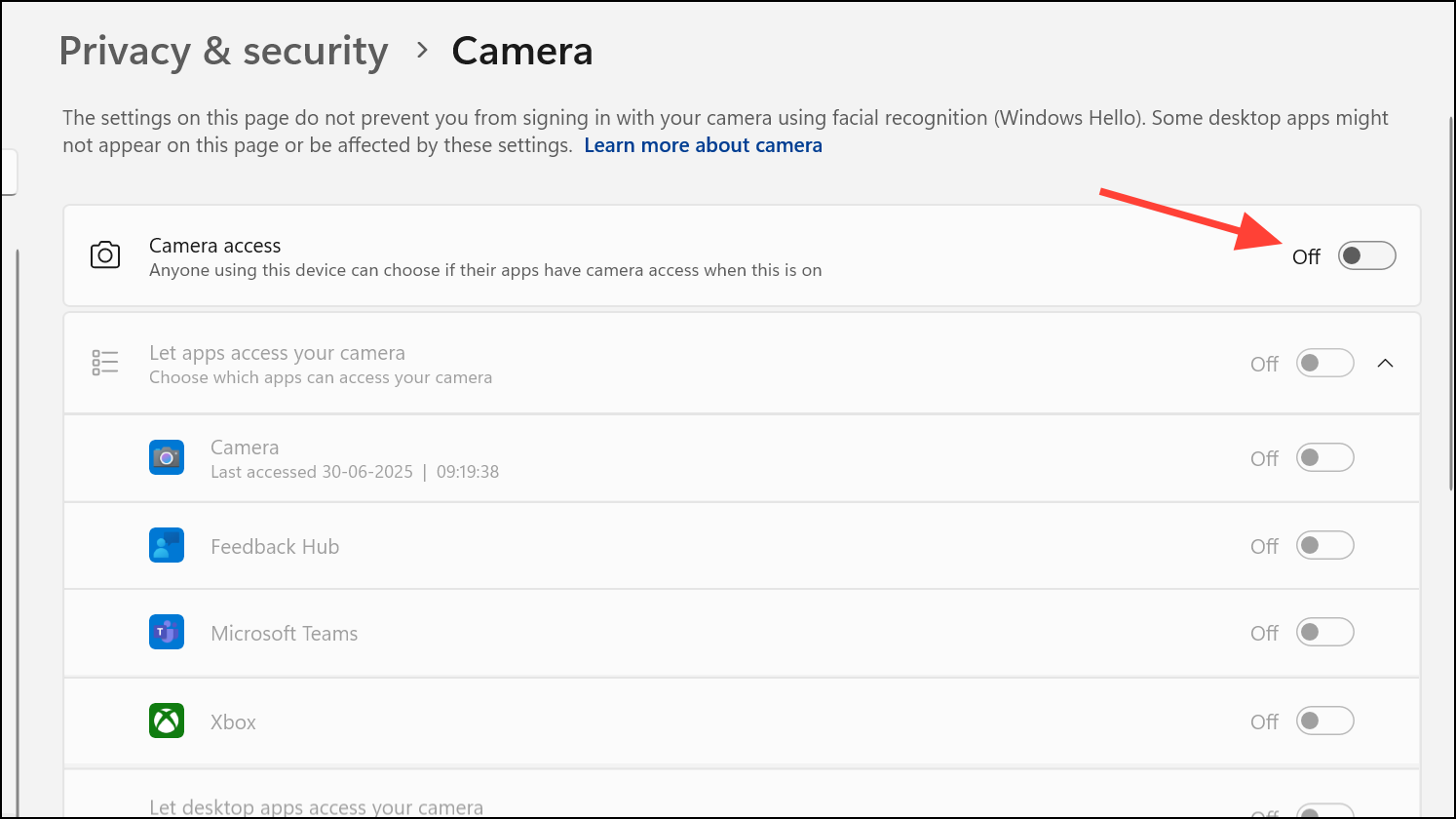
Allow desktop apps to access your camera/microphone or Let desktop apps access your camera/microphone. Turning this off blocks all desktop applications, including browsers, from accessing these devices. Note that some features, like Windows Hello sign-in, may stop working if you disable this setting.Use Security Software to Block Browser Access
Some antivirus programs—such as Norton, Kaspersky, and others—include webcam and microphone protection features. These can block apps like Chrome or Edge from accessing your devices, even if browser or system settings allow it.
chrome.exe or msedge.exe) in the list of monitored apps. You may need to use a search function or scroll through the list.Deny for each browser you want to restrict. This blocks all attempts by those browsers to use your camera or microphone, regardless of browser or system settings.Allow or Prompt in your security software.Physical and Hardware-Based Blocking
For maximum privacy, consider physically covering your webcam with a sliding cover or tape, and unplugging external microphones or webcams when not in use. This method eliminates the risk of unauthorized access, even if software controls fail or are bypassed.
- Use a sliding webcam cover on laptops or external cameras.
- Unplug USB webcams and microphones when not needed.
- Mute built-in microphones in system sound settings if possible.
While physical blocking does not address software requests, it provides a last line of defense against spying or accidental activation.
Adjusting browser, Windows, and antivirus settings together stops Chrome and Edge from accessing your mic and webcam without your consent. Regularly reviewing permissions and using physical covers further reduces privacy risks.





