
PowerPoint freezing or hanging disrupts workflow, risks unsaved changes, and can halt live presentations. These problems often stem from outdated software, conflicting add-ins, overloaded system resources, or antivirus interference. Addressing the root causes not only restores normal function but also prevents repeated interruptions and potential data loss.
Install the Latest Updates
Outdated PowerPoint or Windows components frequently cause freezing and hanging. Updates replace faulty files, patch vulnerabilities, and improve program stability.
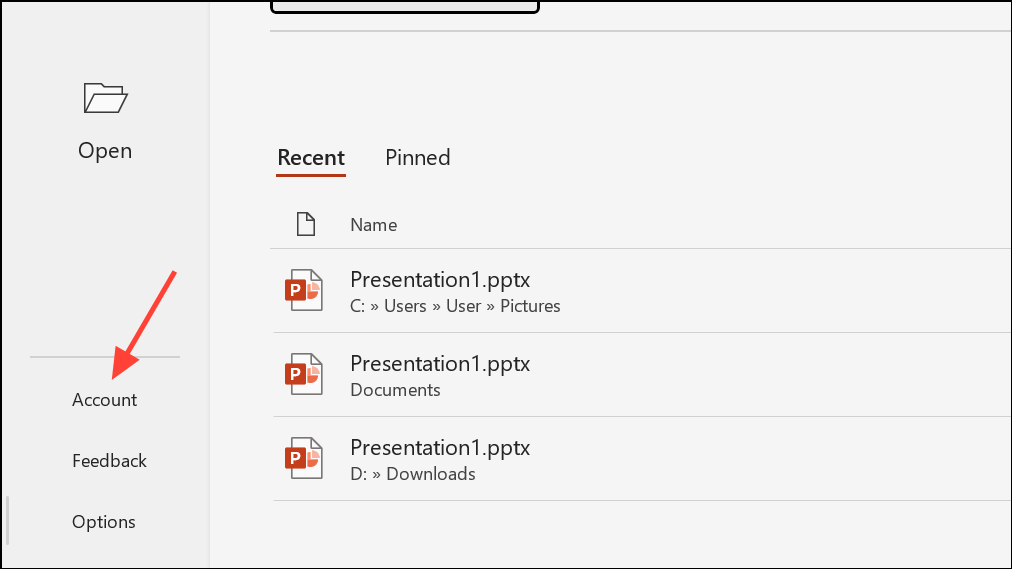
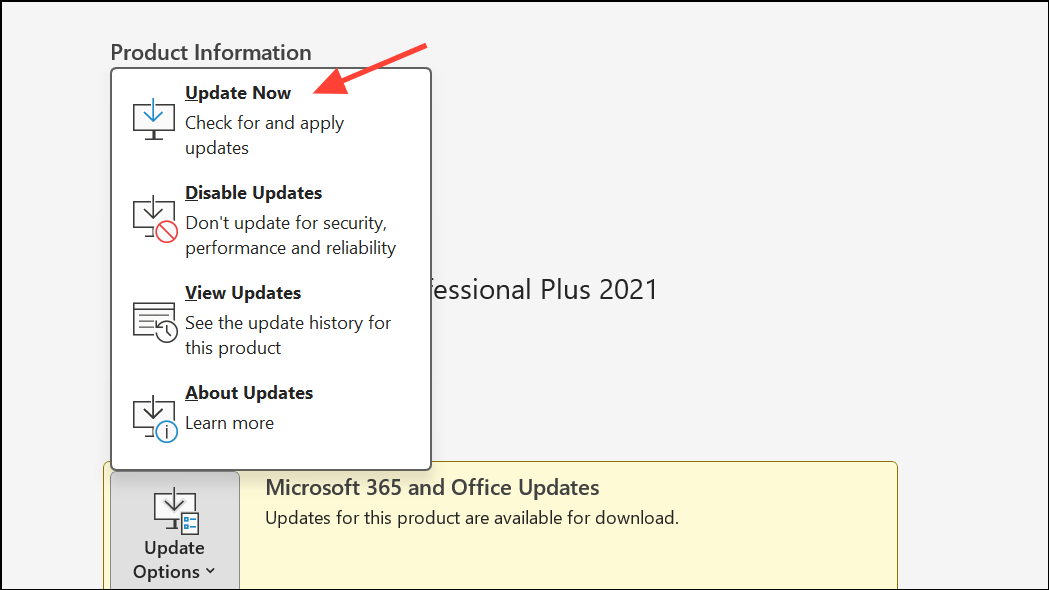
Start + I to open Settings, choose Update & Security, then click Check for updates. Apply any pending updates and restart your computer if prompted.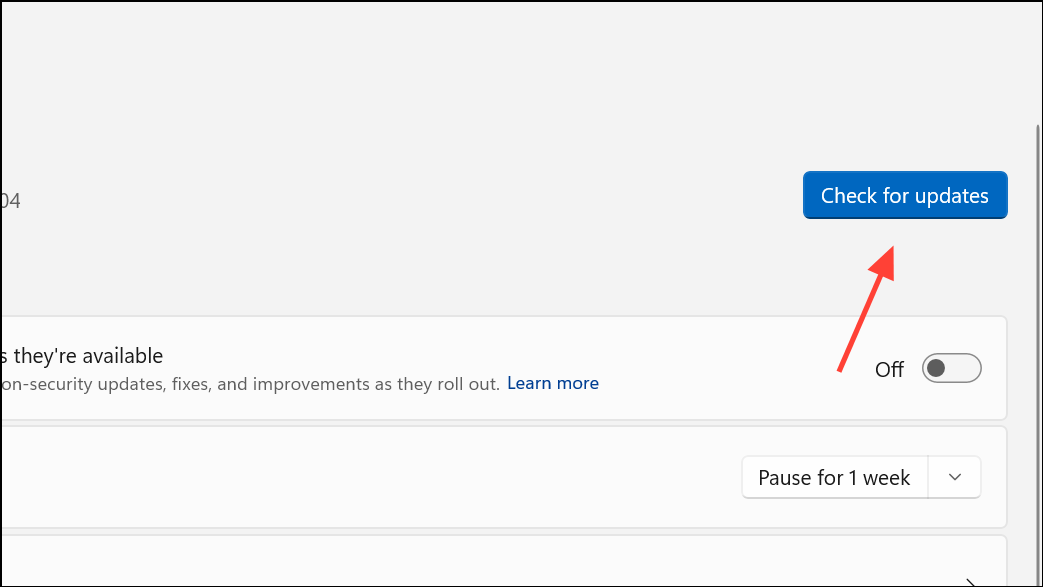
Keeping both Office and Windows updated reduces the risk of freezing caused by software bugs or compatibility issues.
Disable Problematic Add-ins
Add-ins provide extra features but can conflict with PowerPoint, causing it to hang or crash. Running PowerPoint in Safe Mode helps identify if add-ins are the source of the problem.
Win + R, type PowerPoint /safe, and press Enter. This launches PowerPoint without any add-ins enabled.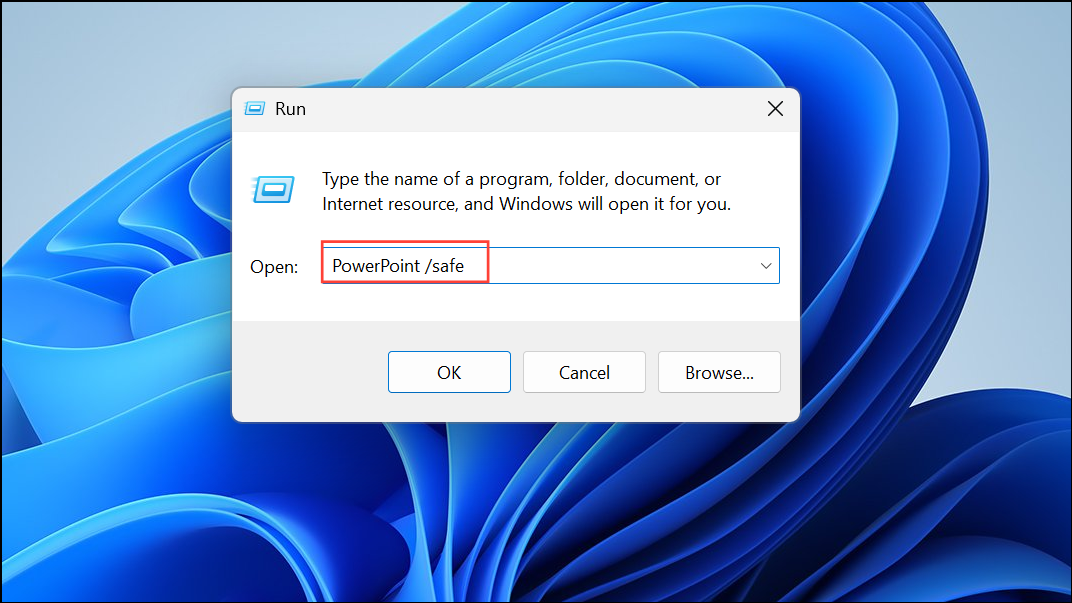
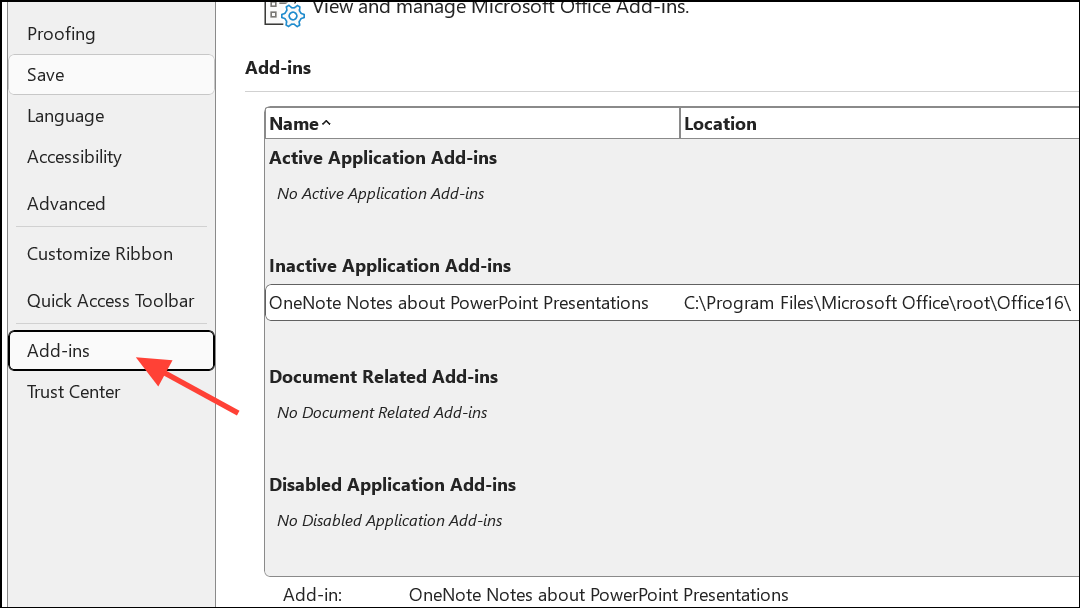
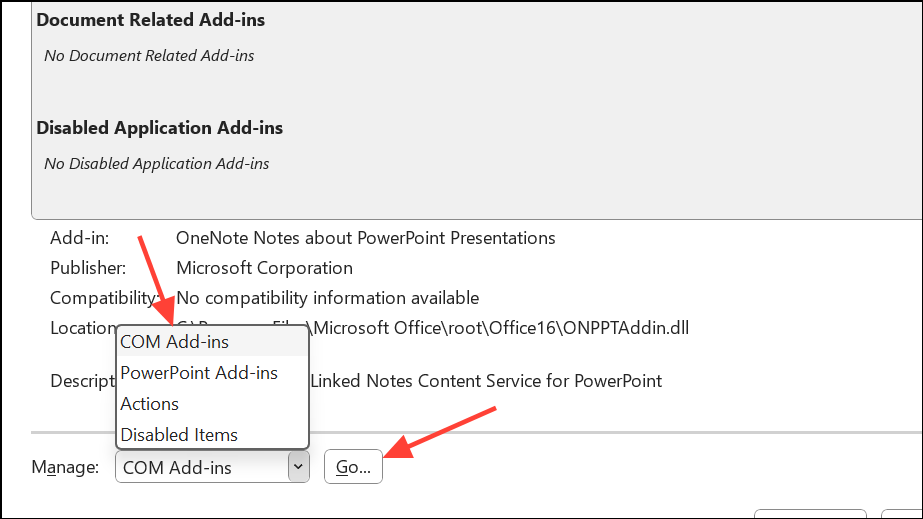
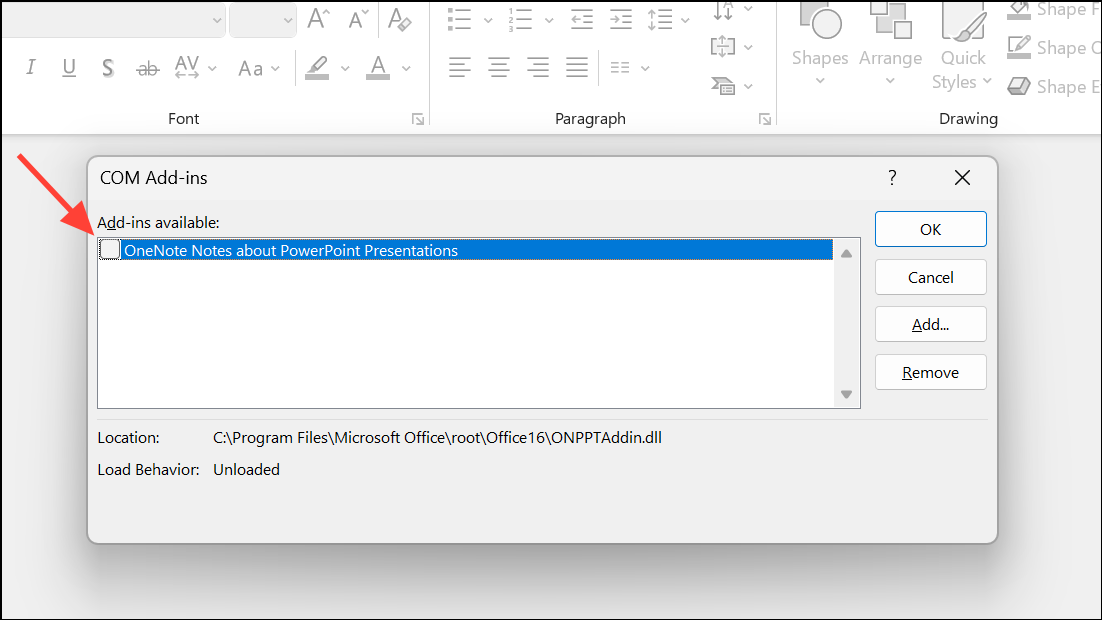
This process isolates and removes conflicts that can lock up your application during use or presentations.
Repair Microsoft Office
Corrupted Office installations can cause PowerPoint to freeze, hang, or become unresponsive. Repairing Office fixes damaged program files without affecting your presentations.
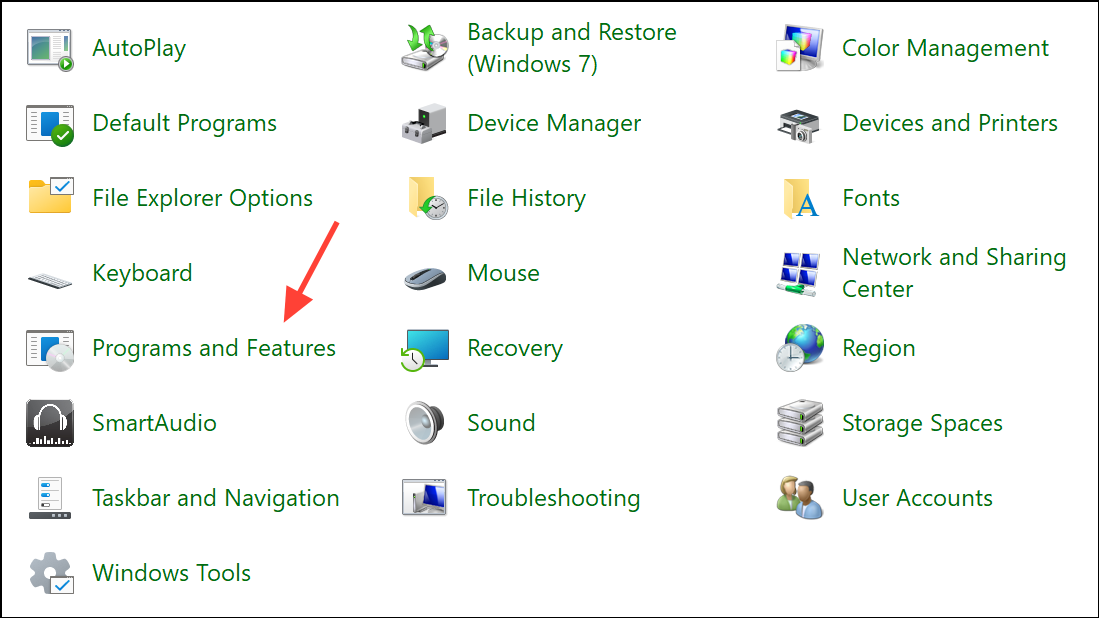
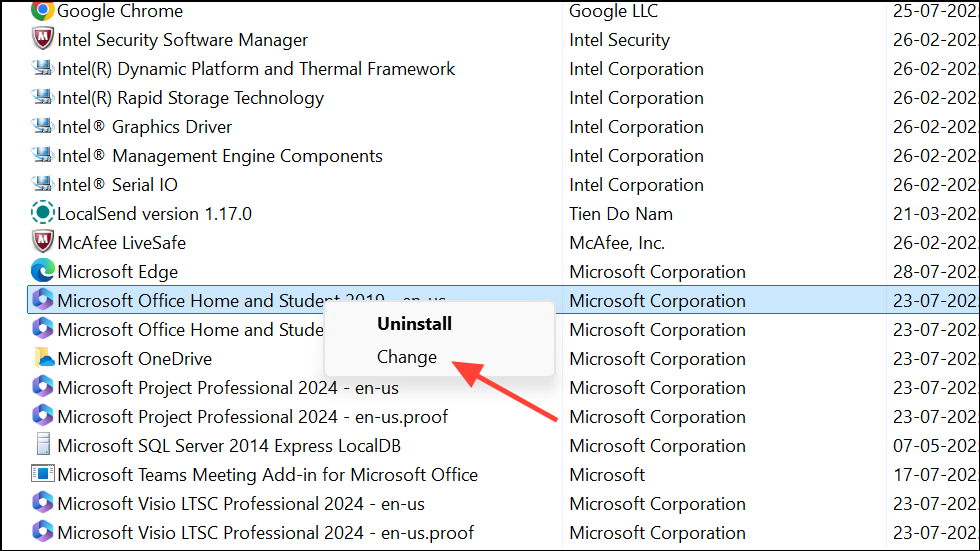
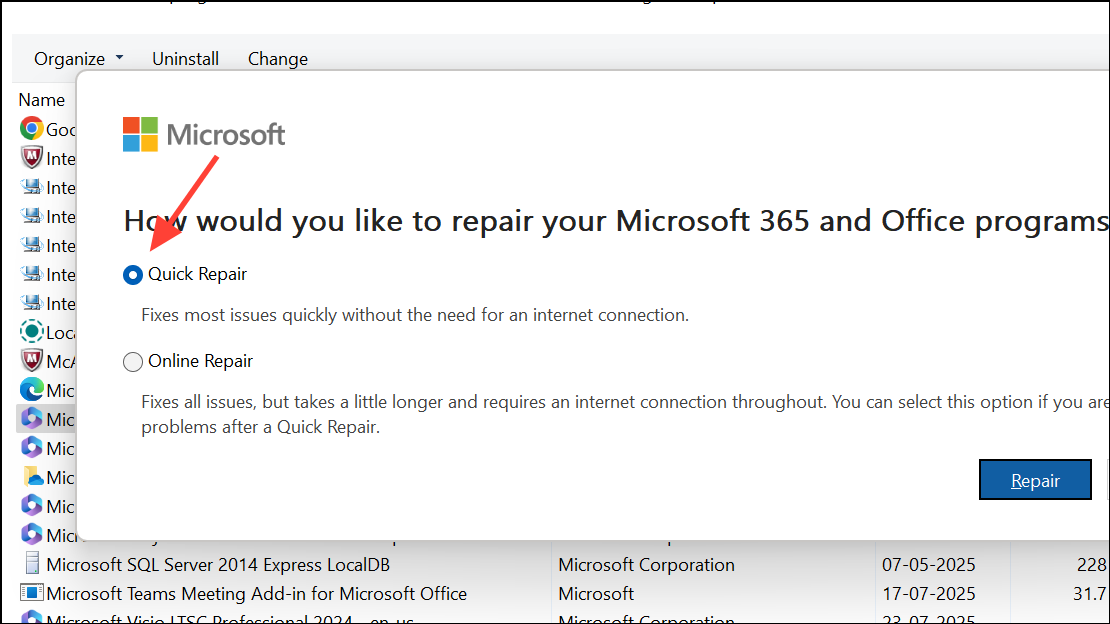
This step restores missing or broken files that may be causing instability.
Check for Antivirus Conflicts
Antivirus programs sometimes interfere with PowerPoint, especially if they scan Office files in real-time or integrate directly with Office applications.
Free Up System Resources and End Background Tasks
Running multiple programs simultaneously can exhaust available memory or processing power, slowing PowerPoint or causing it to freeze.
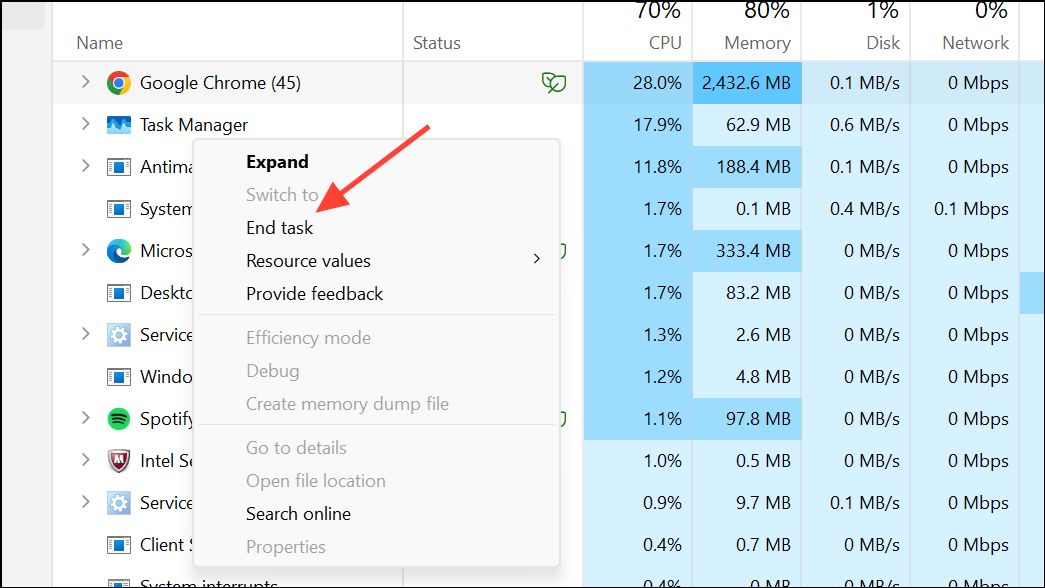
Reducing system load can prevent PowerPoint from freezing due to resource shortages.
Change Default Printer Settings
PowerPoint loads the default printer driver at startup, and issues with the printer or its driver can cause freezing.
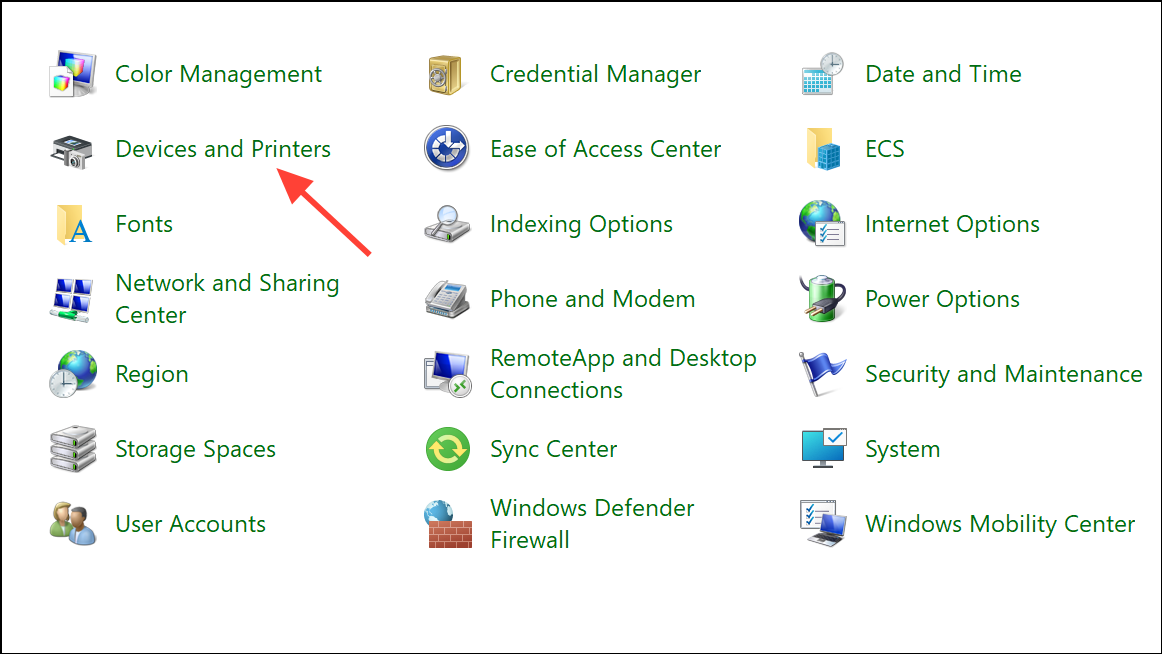
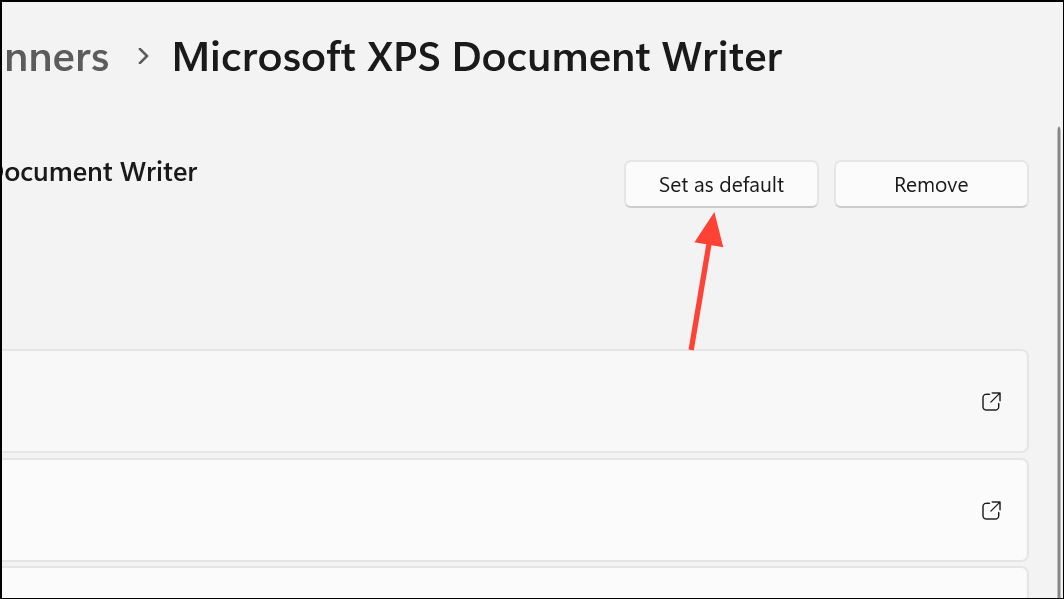
This workaround bypasses problematic physical printer drivers that may be causing the hang.
Advanced Troubleshooting: Selective Startup
Other background applications or services can conflict with PowerPoint. Performing a selective startup helps identify if a third-party program is responsible.
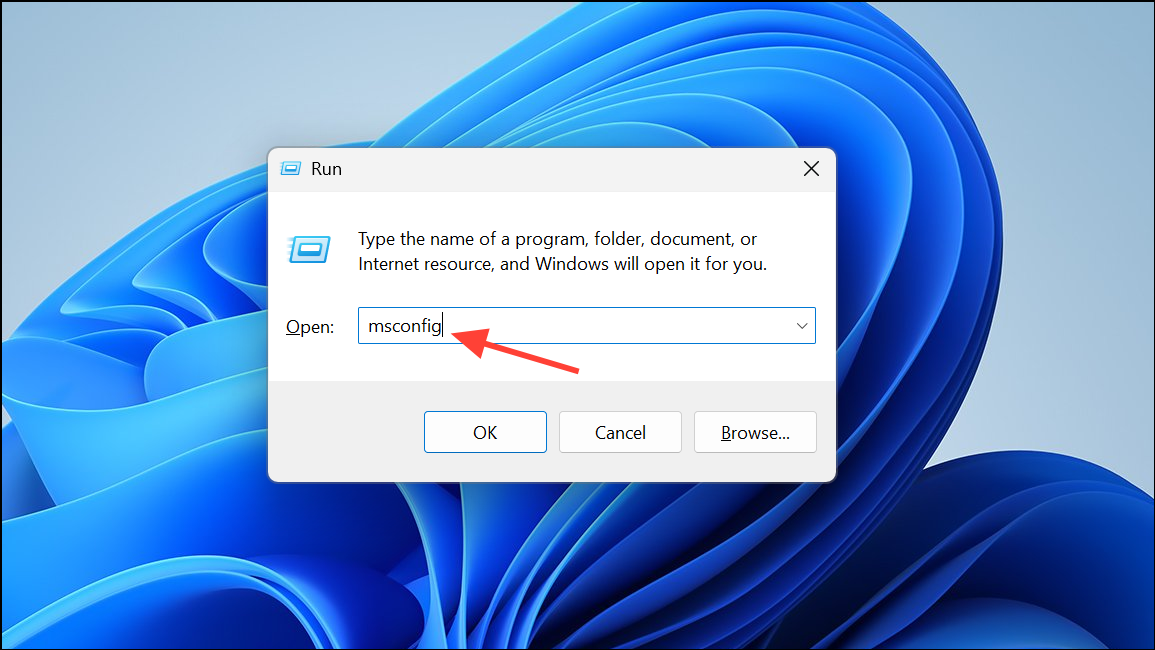
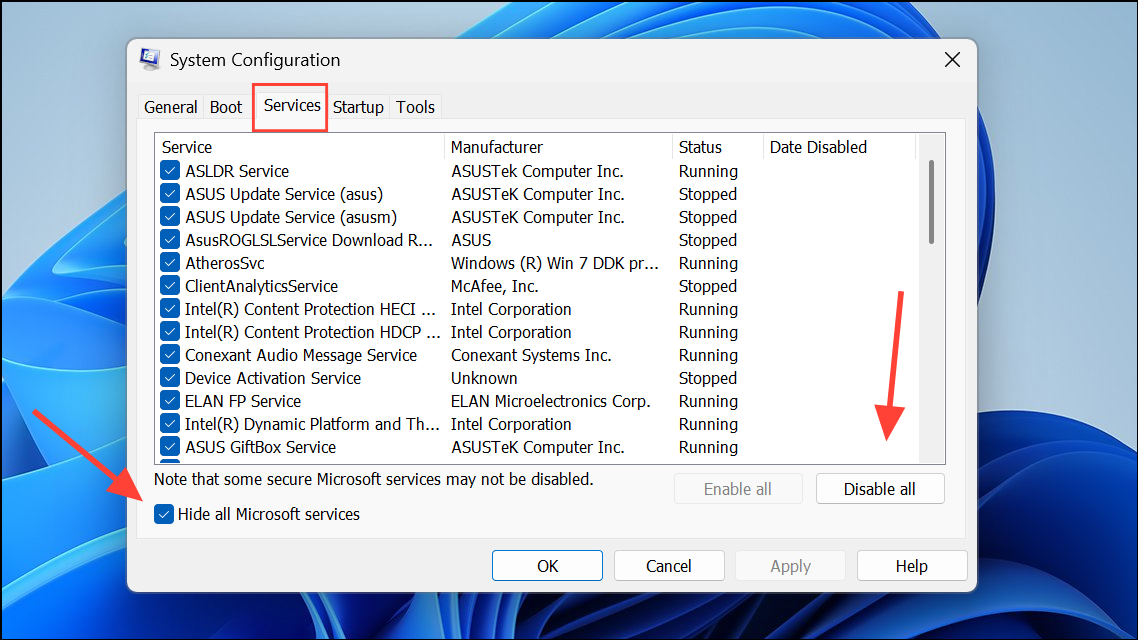
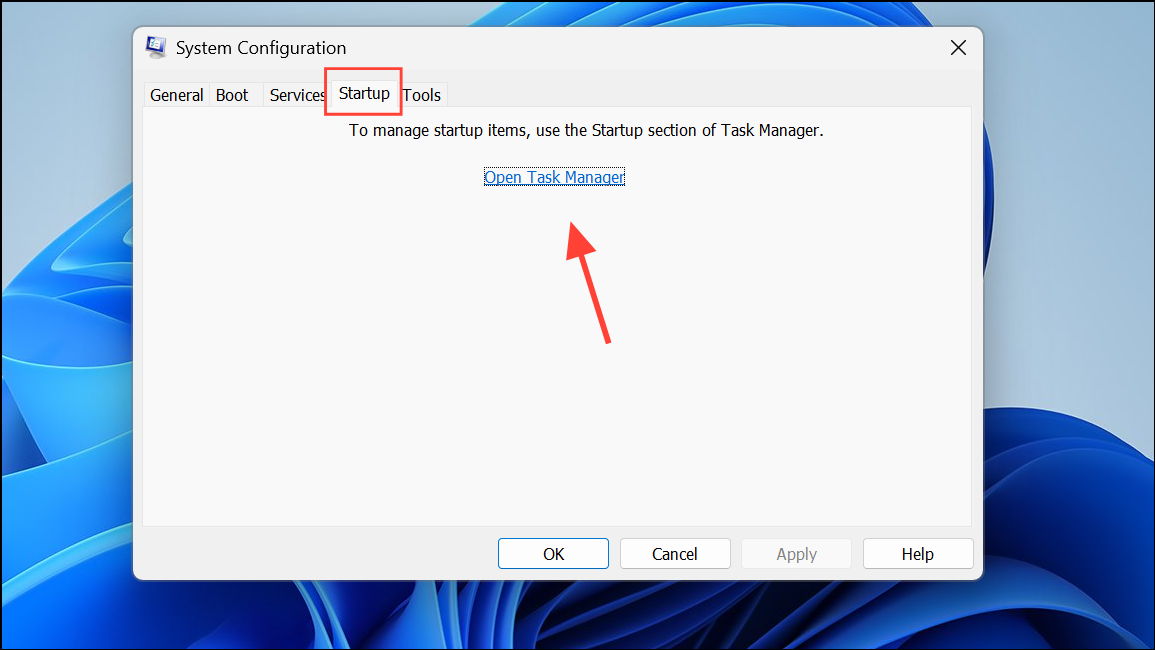
This process isolates problematic software that interferes with PowerPoint’s normal operation.
Recover Unsaved Work After a Freeze
When PowerPoint freezes and you’re forced to restart, unsaved changes can often be recovered using the AutoRecover feature.
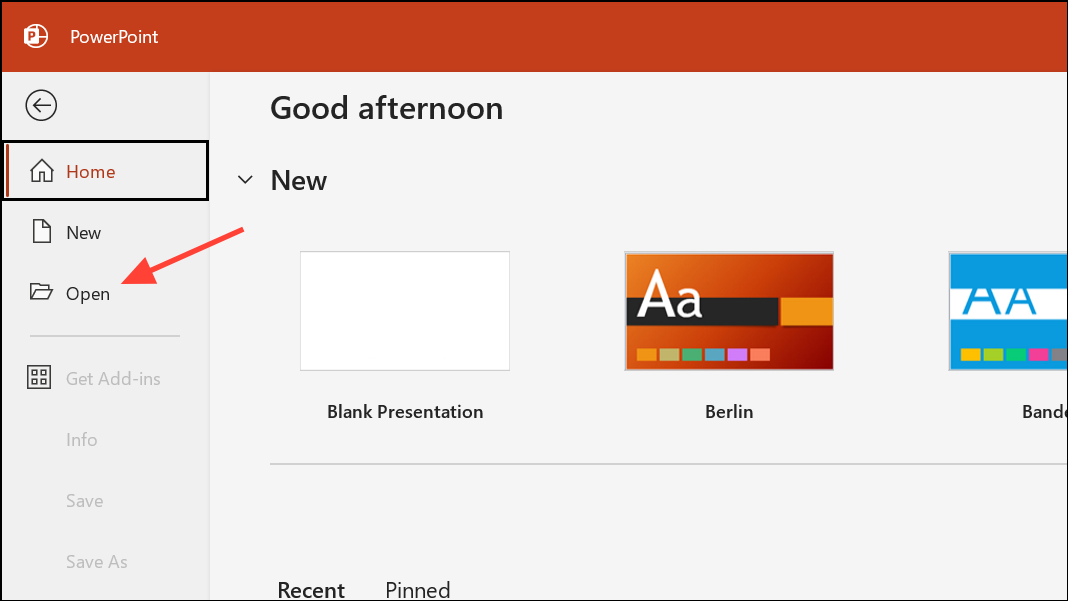
Enabling AutoSave and saving frequently minimizes the risk of data loss in future freezes.
By applying these targeted methods, PowerPoint should run more reliably and disruptions during work or presentations will decrease significantly. Regular updates and careful management of add-ins and background software help keep PowerPoint stable long-term.





