
Clicking the New Outlook app and seeing nothing happen, or getting messages that the app is already running, signals a startup failure that blocks access to email and calendar. This issue often follows a recent Windows update, incomplete app processes, or corrupted local files. Addressing these points directly restores normal Outlook functionality and prevents future launch problems.
End Outlook Processes and Restart the App
Unfinished background processes frequently prevent the New Outlook app from opening. Completely ending these processes before relaunching Outlook can resolve the issue immediately.
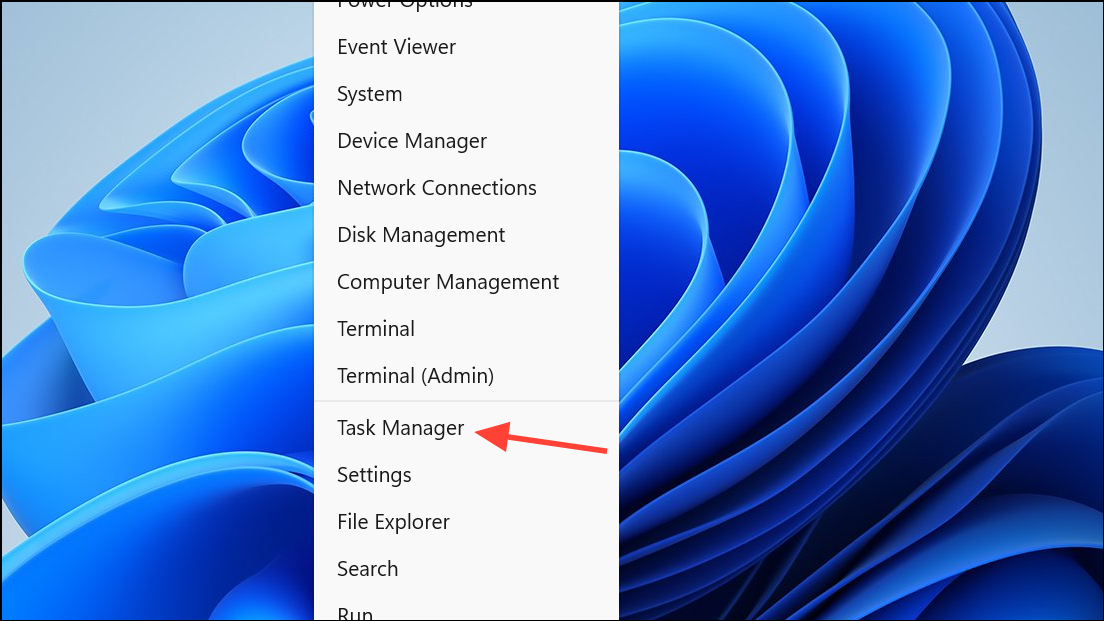
Microsoft Outlook, Outlook (New), or related background processes such as Calendar or OneAuth.End Task. This ensures Outlook is fully closed and not stuck in a suspended state.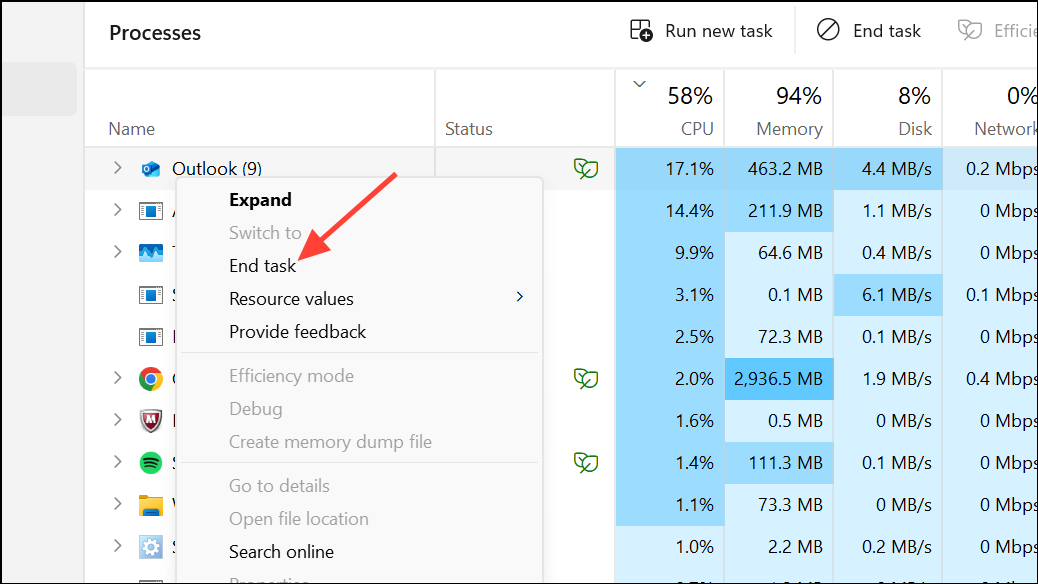
Reset the New Outlook App via Windows Settings
Corrupted app data can prevent Outlook from launching or cause it to freeze on the loading screen. Resetting the app clears temporary files and resets configuration without deleting your email accounts or messages.
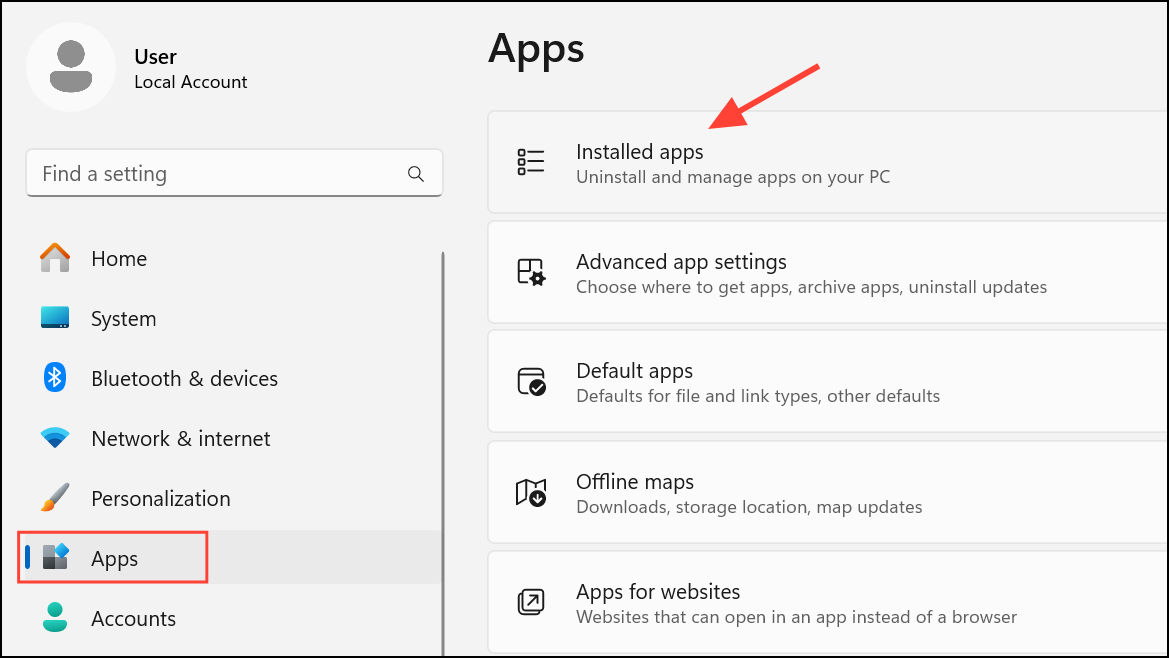
Reset. Confirm the reset when prompted. This process removes cached data and restores default app settings.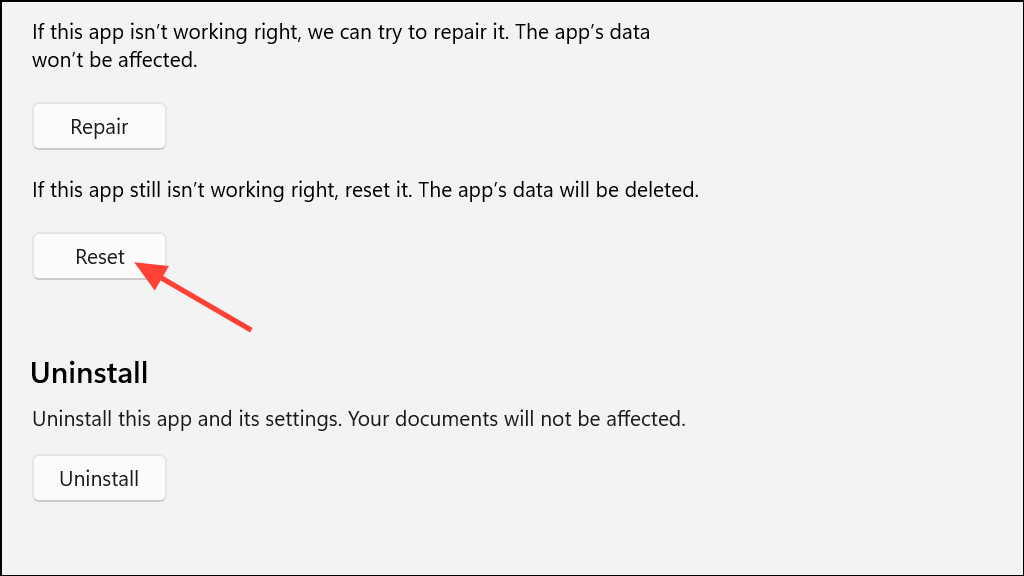
Delete Local Outlook Data Folders Manually
When standard app resets fail, removing specific local data folders forces Outlook to rebuild its configuration and authentication files. This step addresses cases where hidden files are corrupted or stuck.
%localappdata%\Microsoft\Olk in the address bar. Delete the entire Olk folder.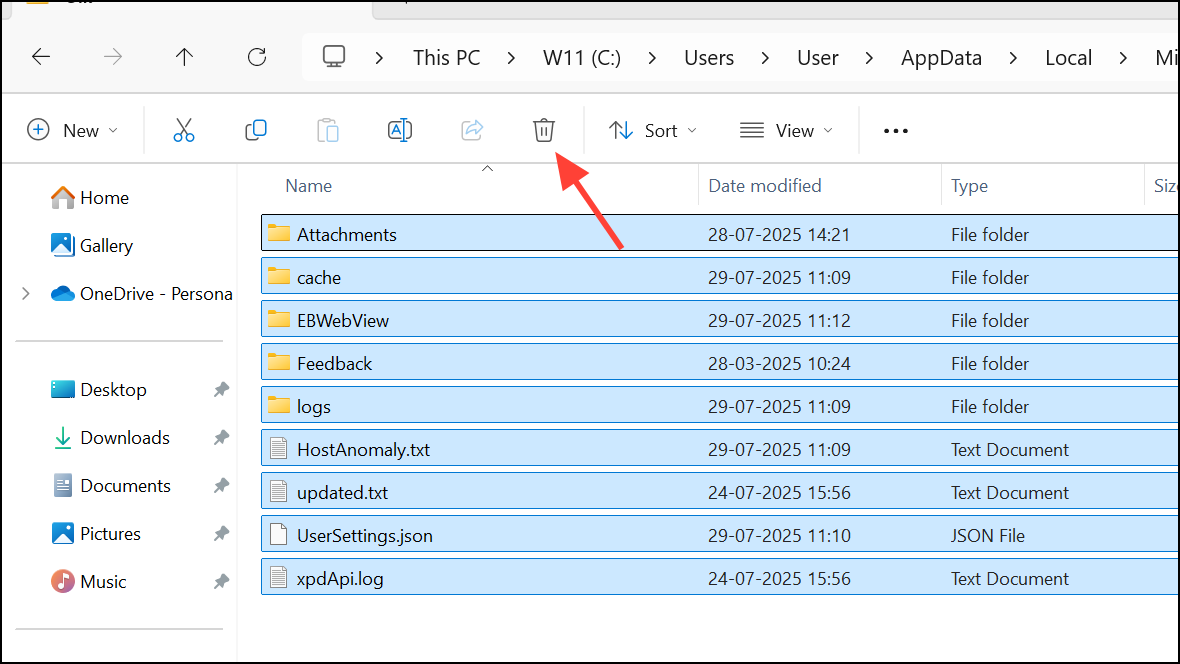
%localappdata%\Microsoft\OneAuth, deleting the OneAuth folder. These folders store cached credentials and local app data.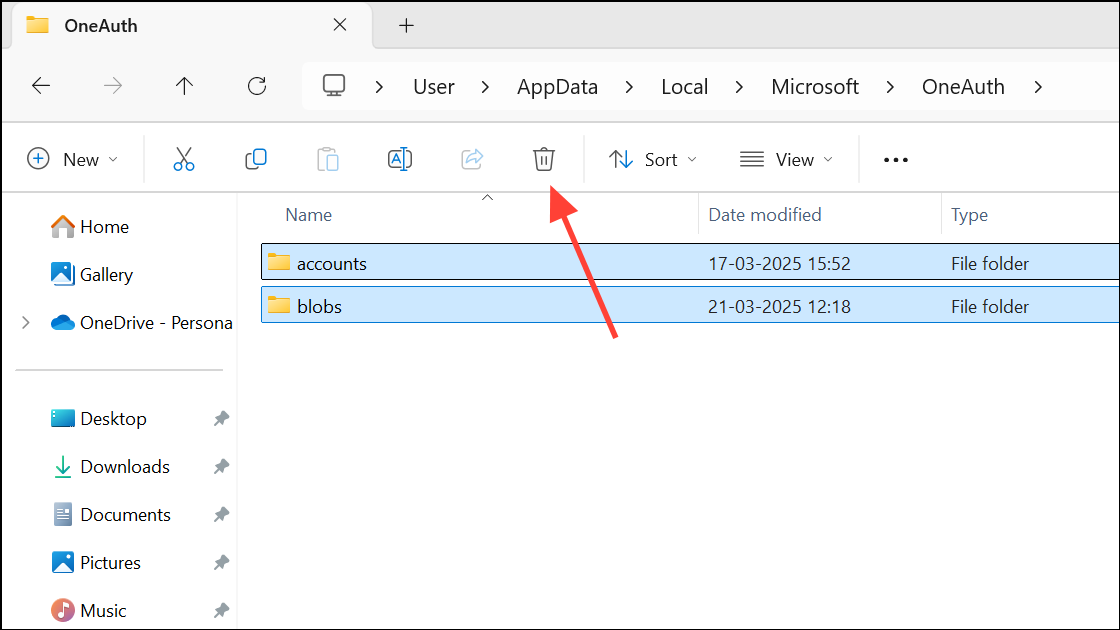
Repair Microsoft 365 Installation
Issues with the Microsoft 365 suite can cause Outlook to malfunction, especially after a failed update or interrupted installation. Repairing the suite replaces missing or corrupted program files.
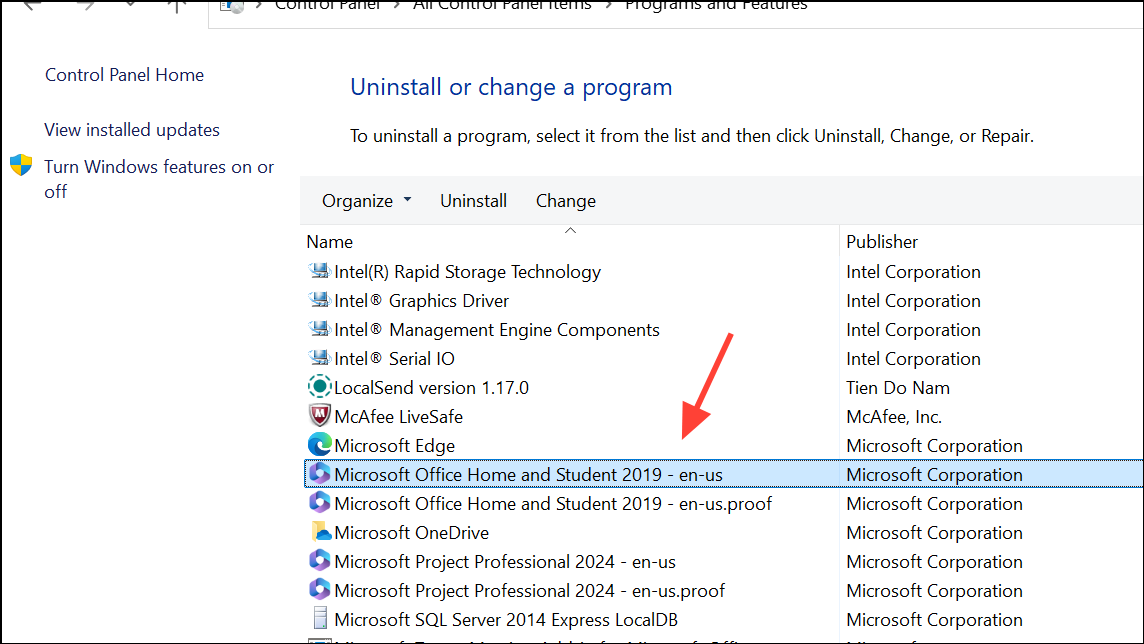
Change. Select either Quick Repair for a fast fix or Online Repair for a more thorough process. Follow the prompts to complete the repair.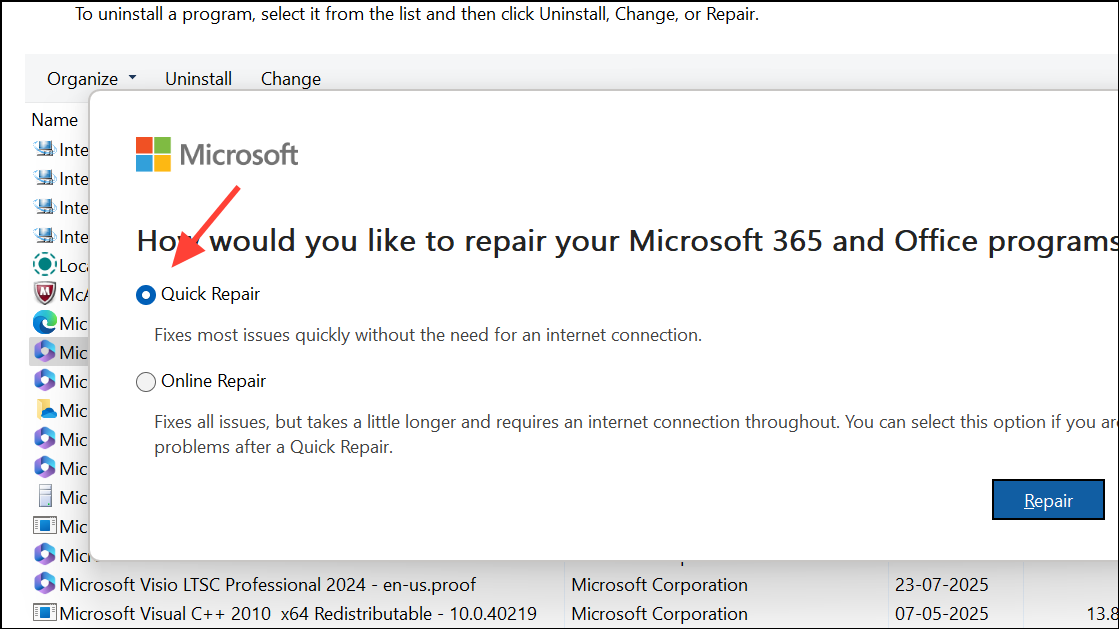
Check for Windows and Office Updates
Outdated system files or Office components can lead to compatibility problems, especially after recent app changes. Keeping Windows and Office updated ensures all required files are current and compatible.
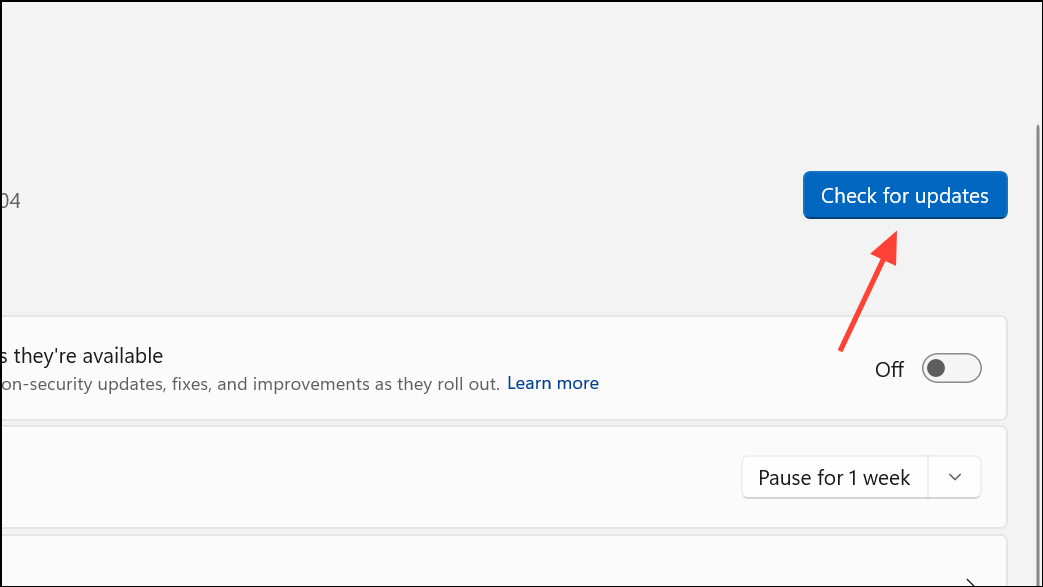
File > Account, then click Update Options > Update Now. This downloads and installs the latest Office patches.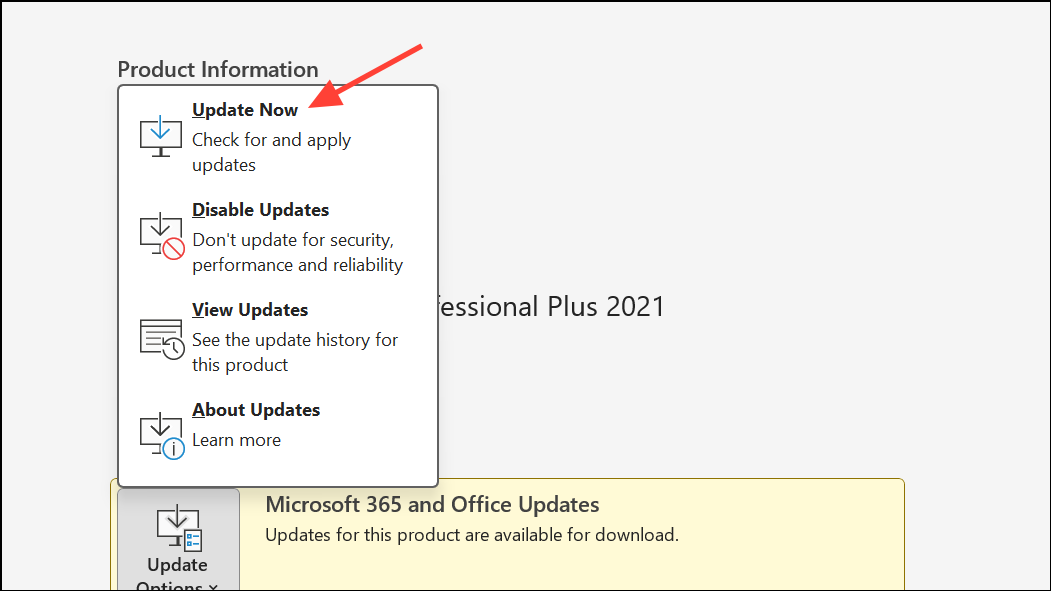
Run System File Checker for Windows Corruption
Corrupted Windows system files may prevent apps like Outlook from starting correctly. The System File Checker tool scans and repairs these files, restoring system stability.
Command Prompt as an administrator. To do this, search for cmd in the Start menu, right-click it, and select Run as administrator.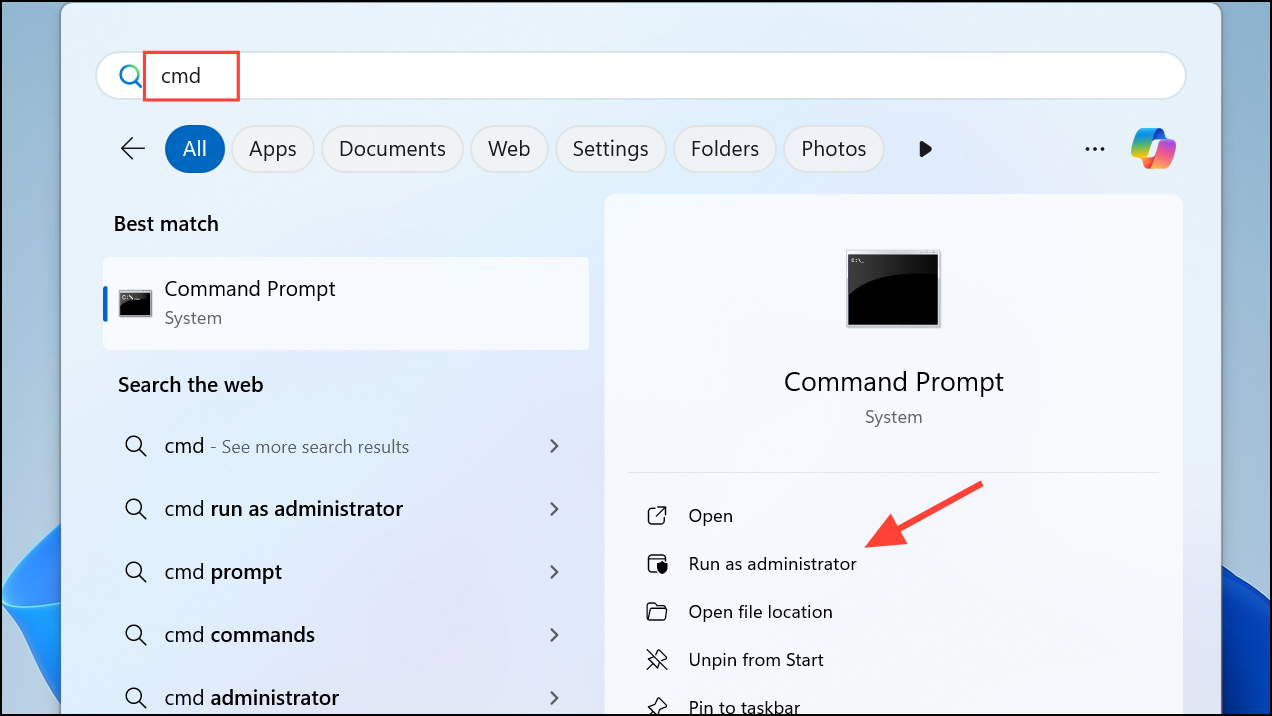
sfc /scannow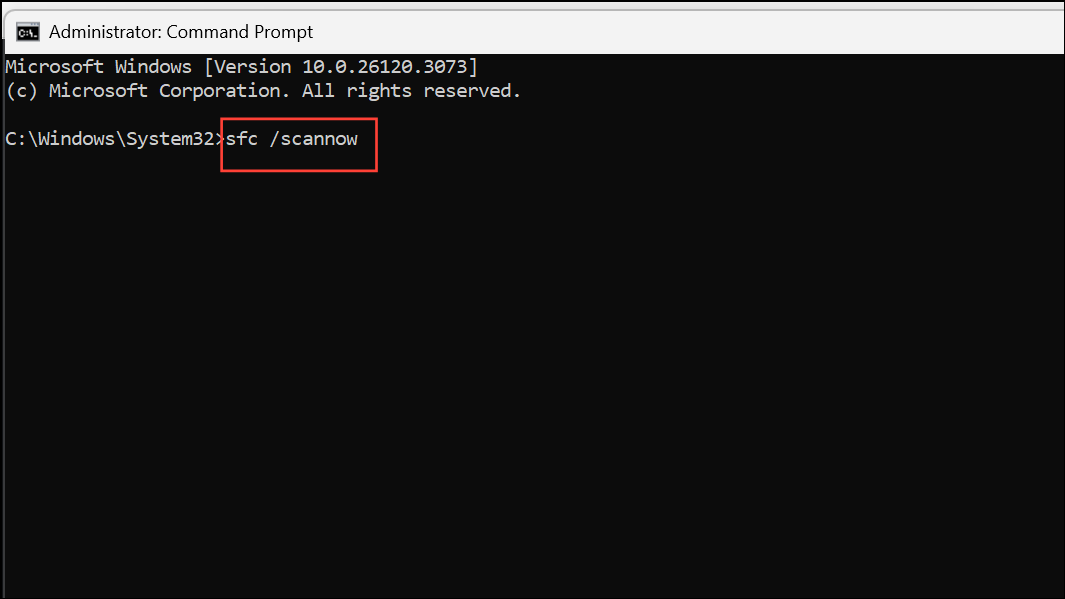
Reinstall or Switch Between Classic and New Outlook
When the app is missing from Installed Apps or cannot be launched, reinstalling or toggling between the New and Classic Outlook versions can restore functionality.
Try the new Outlook toggle in the upper-right corner and switch it on. This reinstalls the New Outlook app.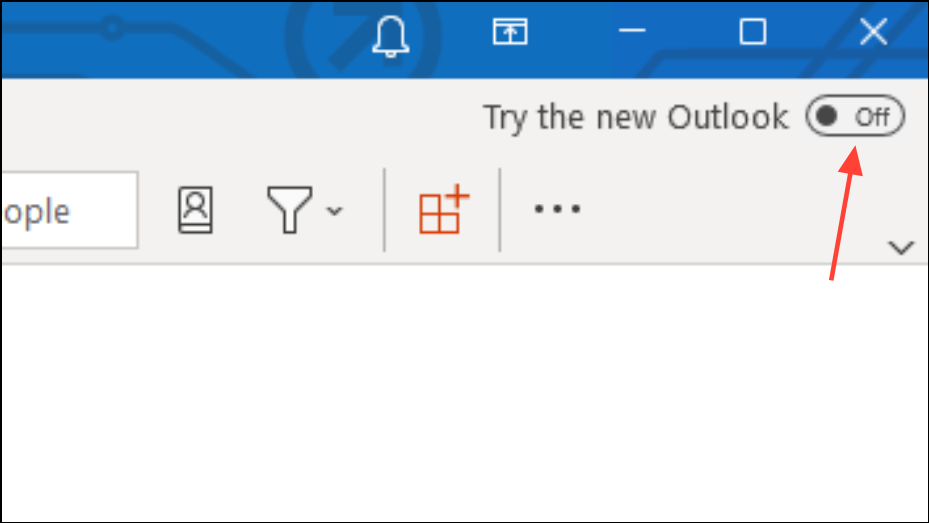
Settings > Apps > Installed apps, find Outlook (New), and click Uninstall. Then follow Step 1 to reinstall.Create a New Outlook Profile
Corrupted user profiles may cause startup failures or persistent errors. Creating a new profile provides a fresh configuration that often resolves profile-specific problems.
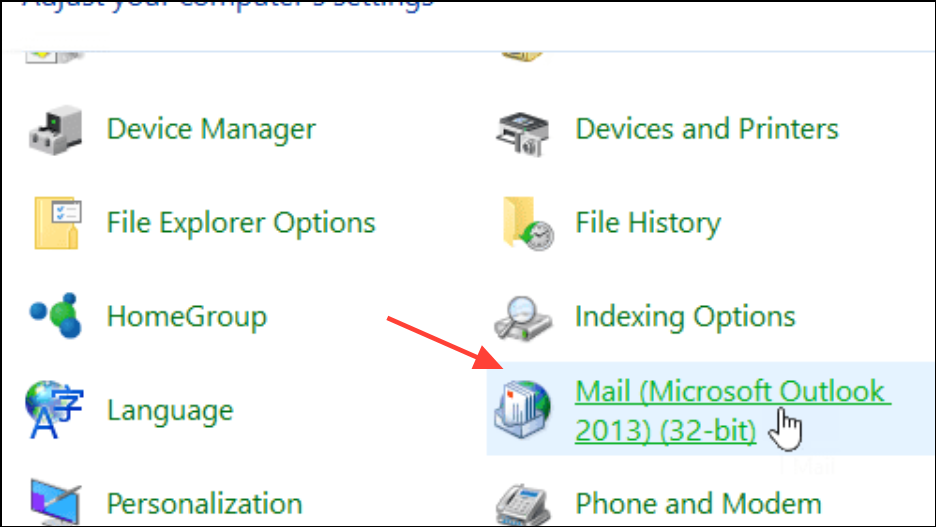
Show Profiles, then select Add to create a new profile. Follow the prompts to configure your email account.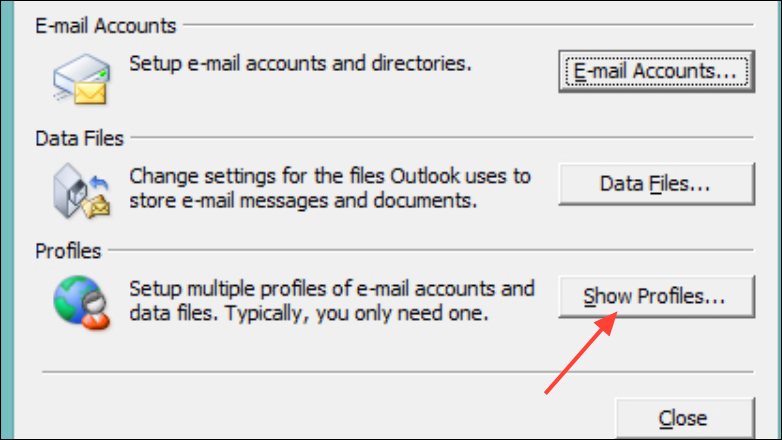
Resolving New Outlook app startup issues typically involves clearing stuck processes, resetting or reinstalling the app, or repairing system and Office files. Keeping Windows and Office updated, and periodically clearing local cache folders, helps maintain reliable Outlook performance.





