

“Outlook cannot open your data file” or “OST file is in use and cannot be accessed” messages indicate Outlook’s offline data file (.ost) has become inaccessible. These errors disrupt email synchronization, prevent access to mailbox content, and can result in data loss if not addressed promptly. The most effective way to regain access depends on the cause—ranging from file corruption, profile issues, permission errors, or software conflicts. Below are detailed methods to fix OST file accessibility errors, starting with the most reliable solutions.
Method 1: Delete and Rebuild the OST File
When Outlook detects corruption in the OST file or cannot access it due to synchronization issues, deleting the problematic file allows Outlook to create a new, healthy copy from the server. This is the fastest way to restore mailbox access if your account is connected to Exchange or Microsoft 365.
Ctrl + Shift + Esc), locating any processes like Outlook.exe, Communicator, Lync, or UCMAPI.exe, and clicking End Task for each.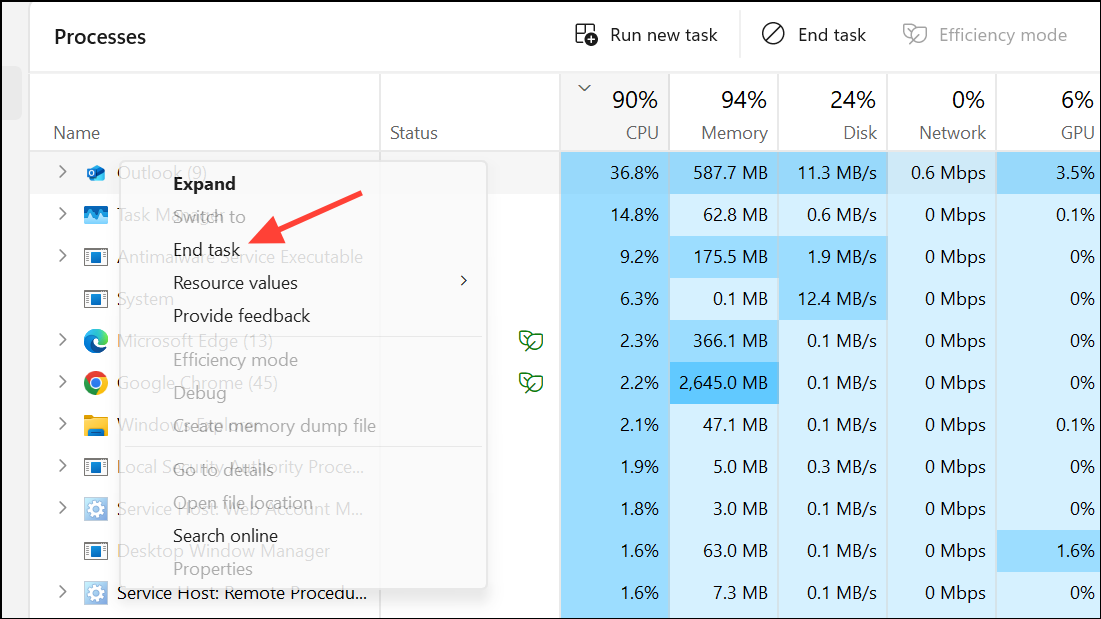
%localappdata%\Microsoft\Outlook. You can also find the exact location in Outlook under File > Account Settings > Account Settings > Data Files.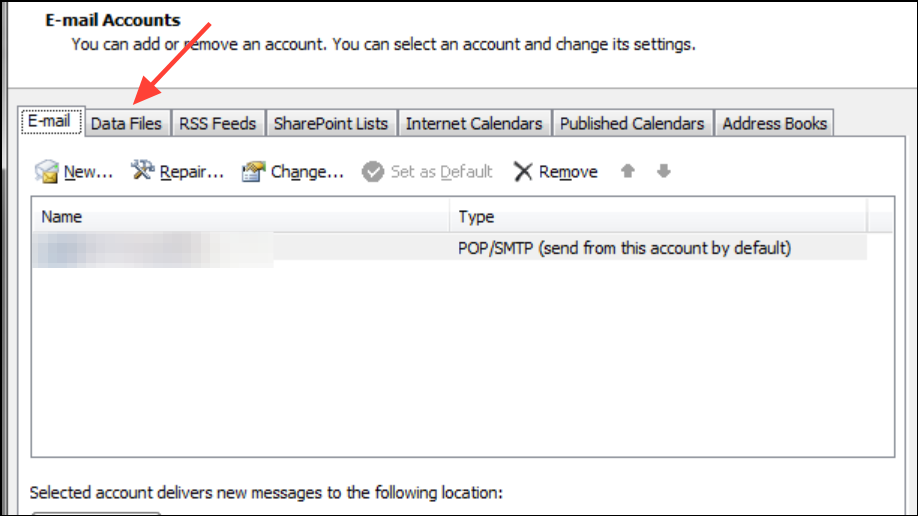
.bak to the filename for backup).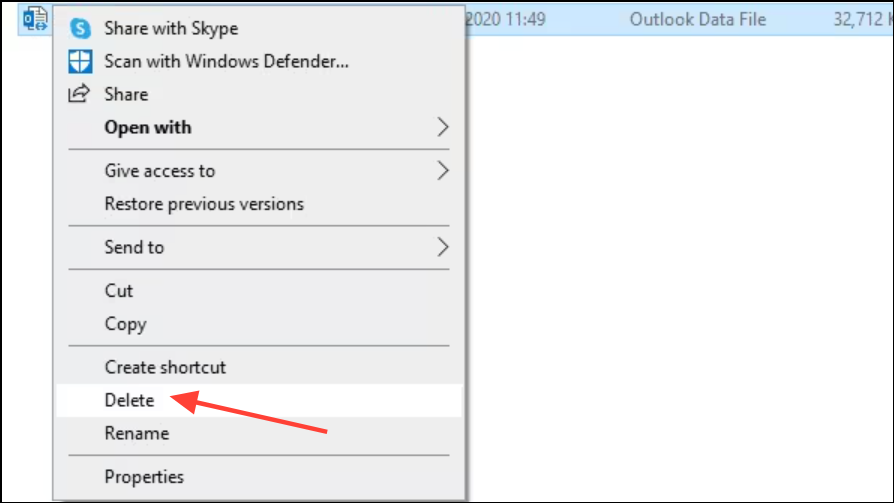
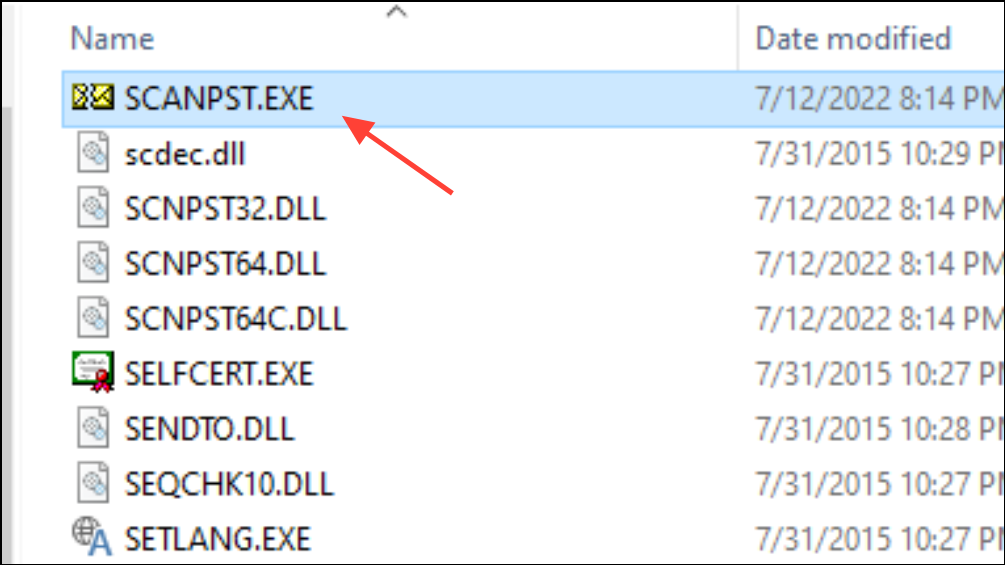
Method 2: Repair the Outlook Data File Using Inbox Repair Tool (Scanpst.exe)
If you need to recover unsynchronized local data or if your OST file is not automatically recreated, use the Inbox Repair Tool to attempt repairs. This tool scans for corruption and repairs errors in both PST and OST files.
C:\Program Files (x86)\Microsoft Office\root\OfficeXX\ (where XX is your Outlook version number).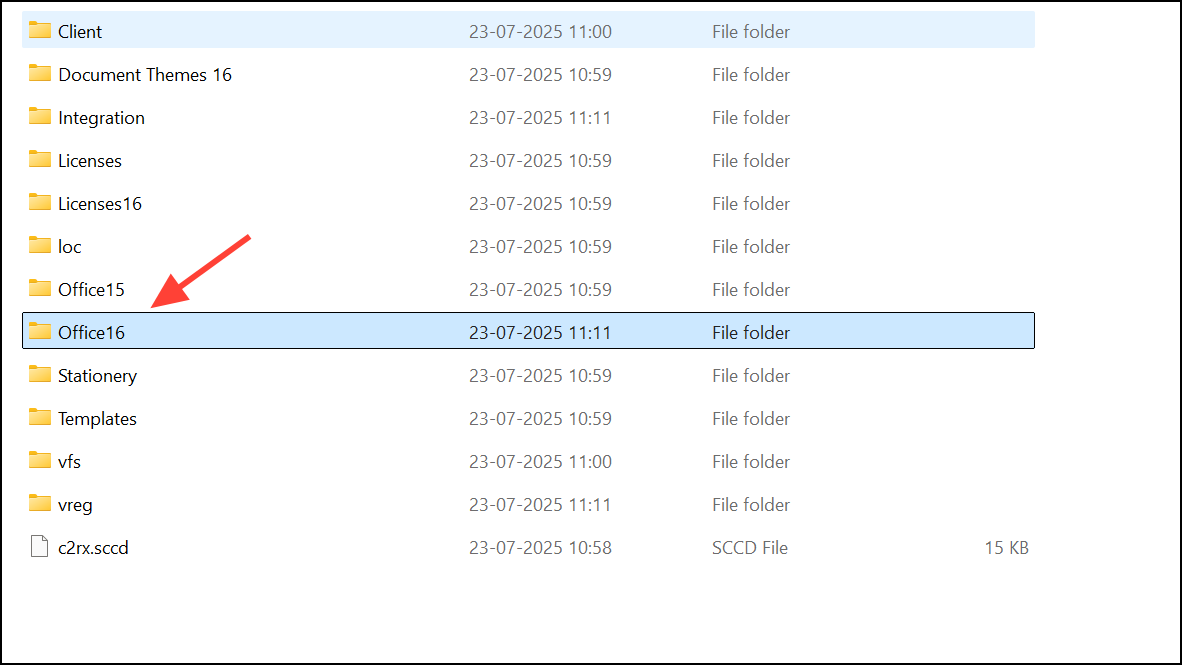
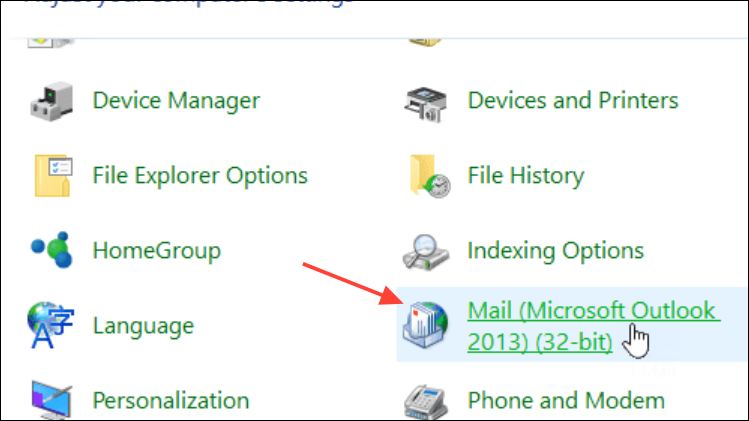
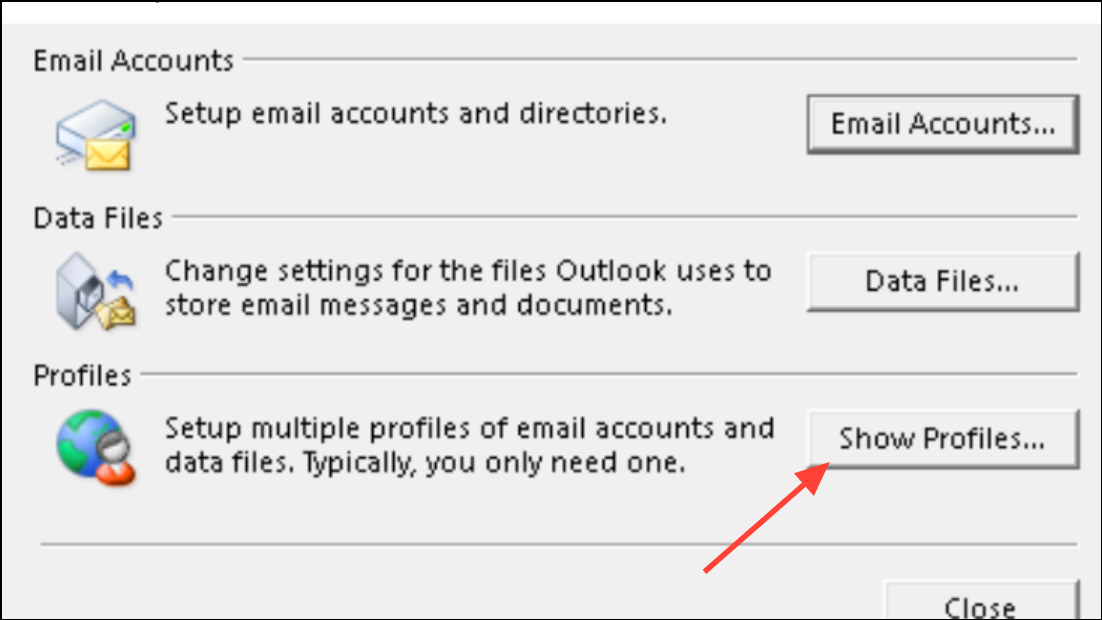
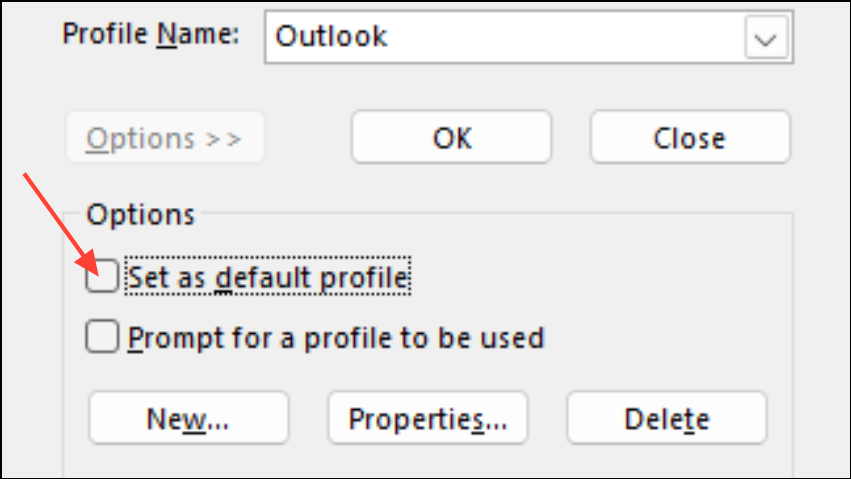
Method 3: Create a New Outlook Profile
Corrupted or misconfigured Outlook profiles can prevent OST files from loading. Creating a new profile often resolves persistent access errors.
If you have unsaved data in the old OST file, use a professional OST to PST converter to extract and import it into your new profile.
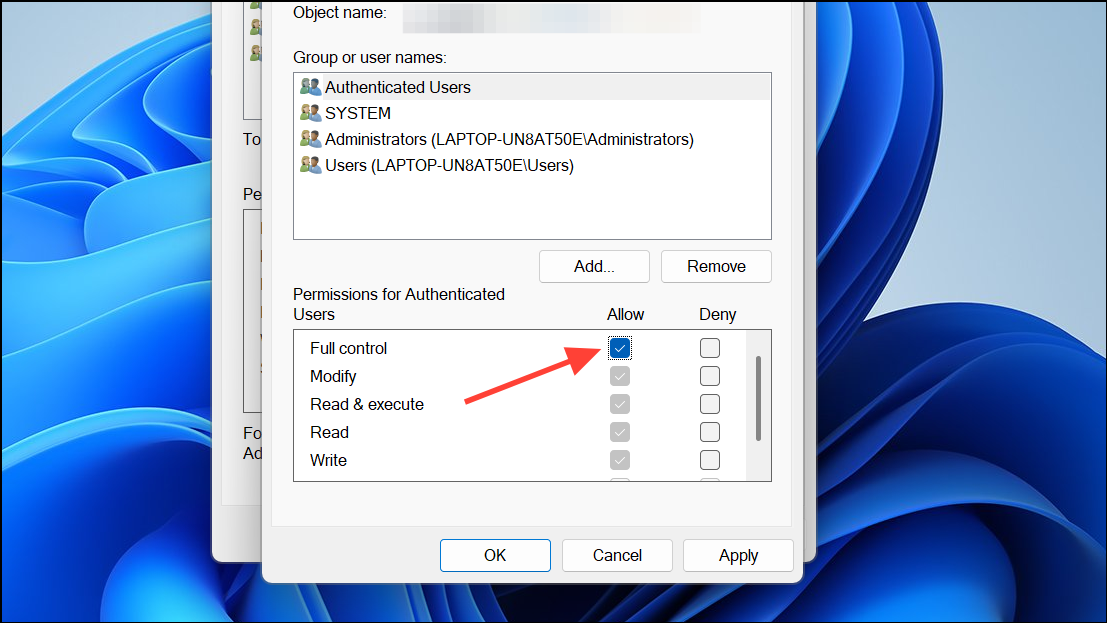
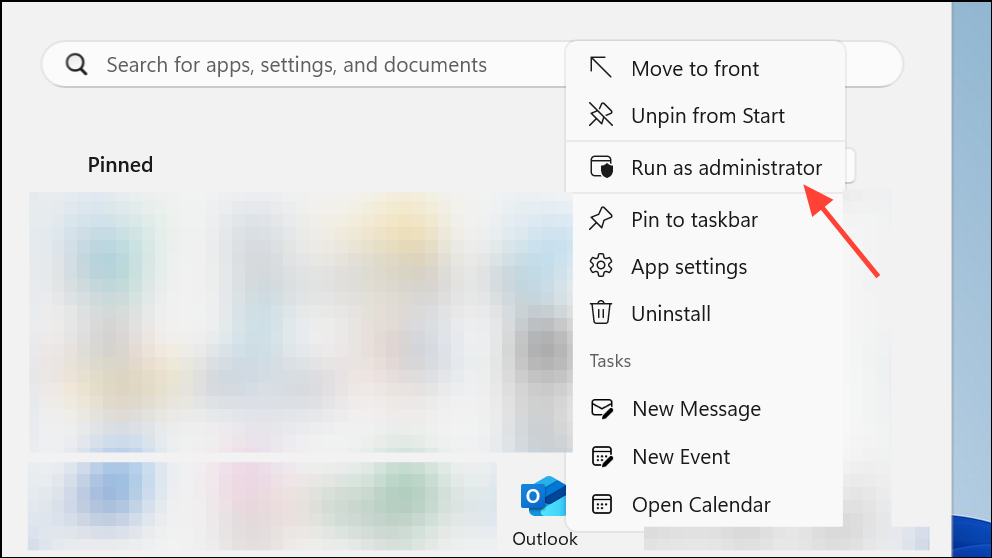
Method 4: Adjust File Permissions and Run Outlook as Administrator
“Access denied” errors occur if the OST file’s permissions are incorrect or if Outlook lacks administrative rights.
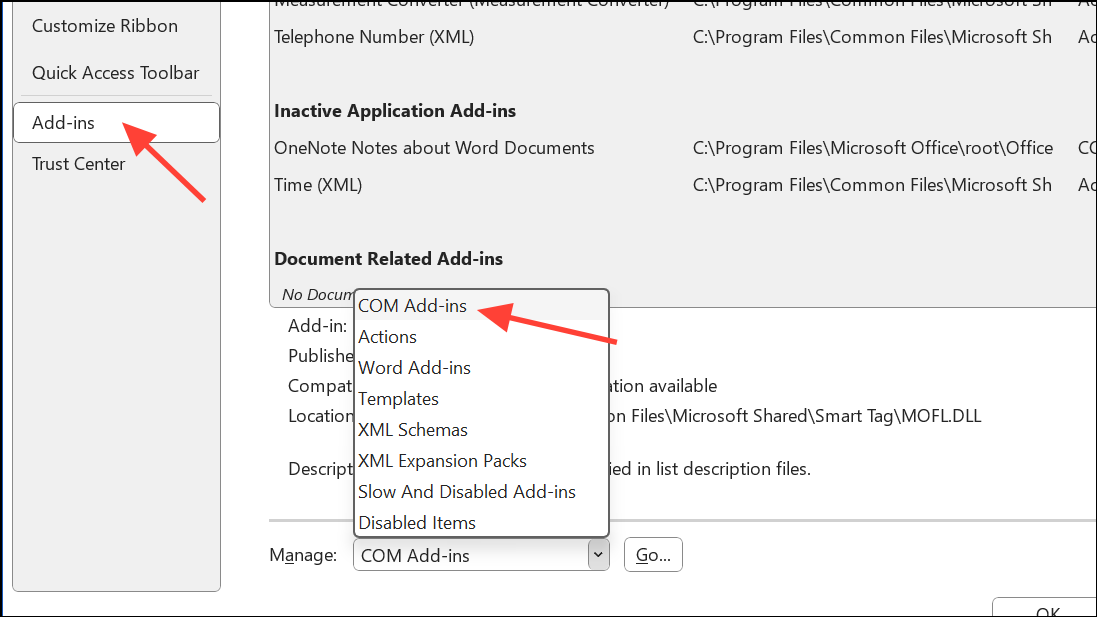
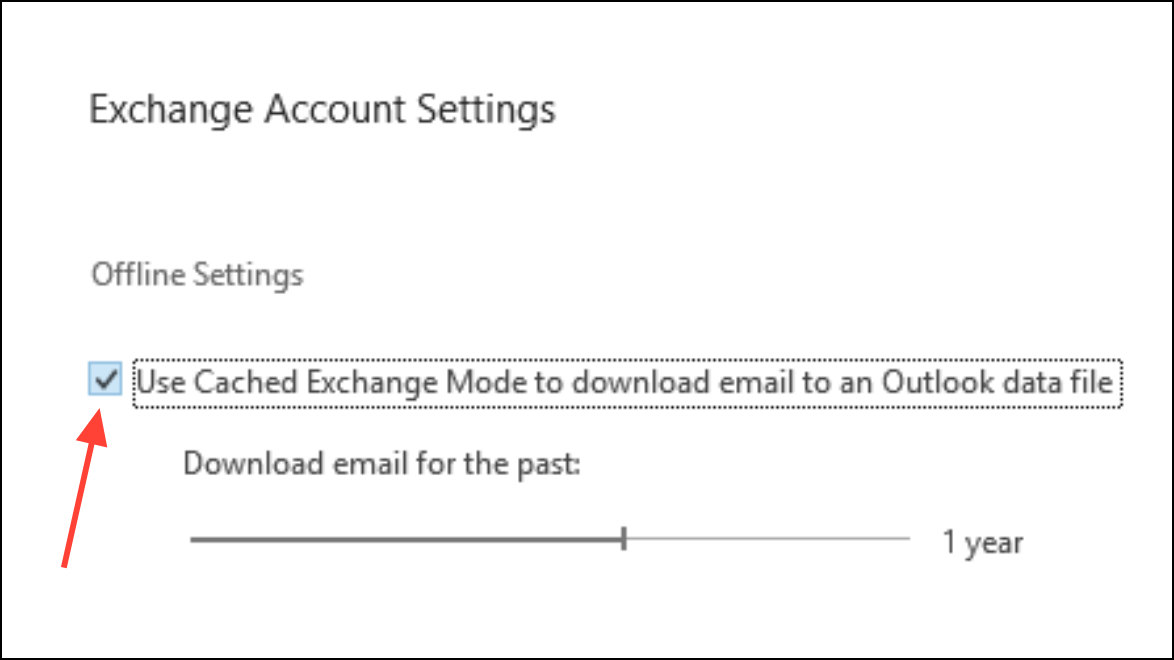
Method 5: Disable Conflicting Add-ins and Cached Exchange Mode
Conflicting add-ins or issues with Cached Exchange Mode can prevent Outlook from accessing the OST file.
Windows + R, typing outlook.exe /safe, and pressing Enter. If Outlook opens without errors, an add-in is likely the cause.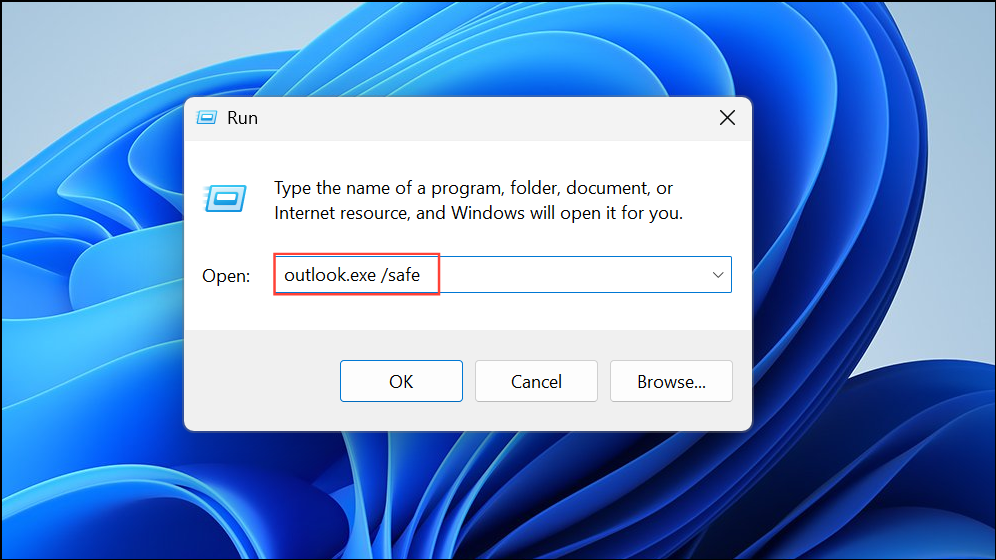
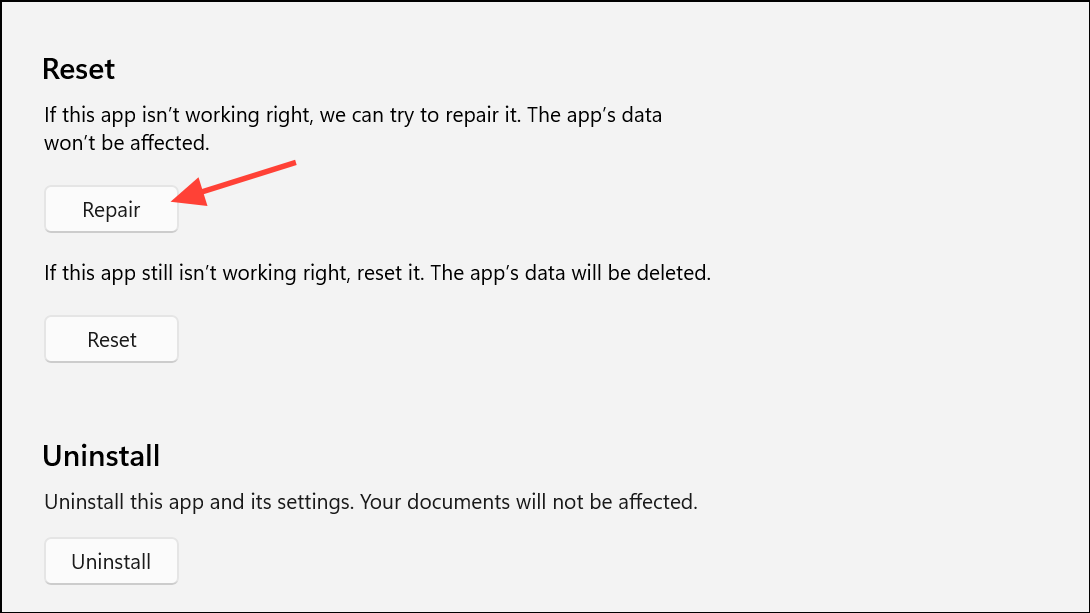
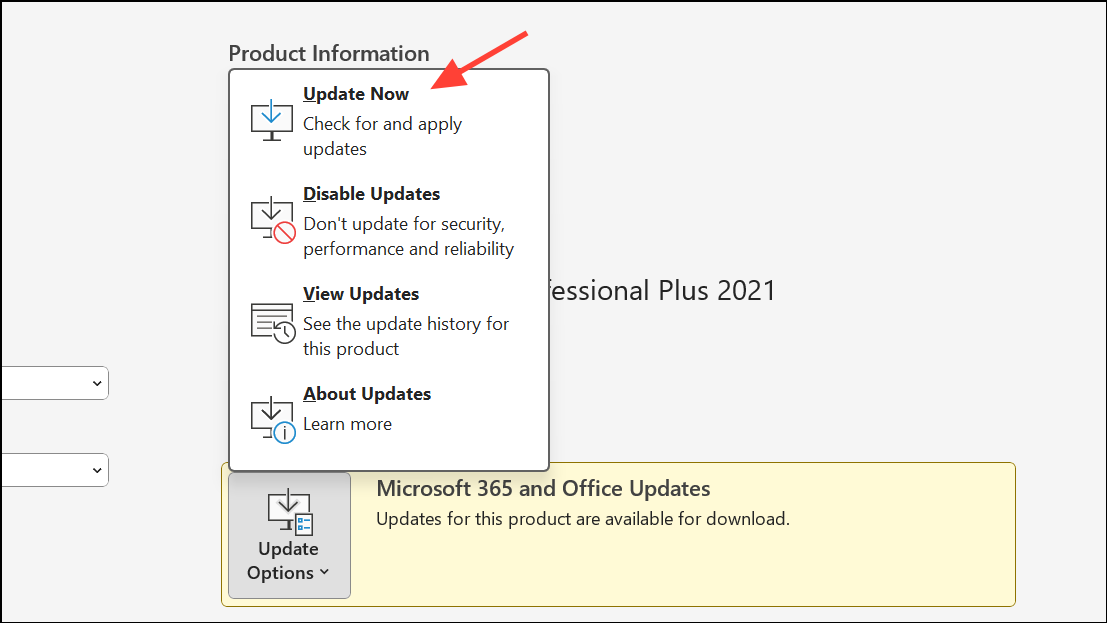
Method 6: Repair or Update Outlook Installation
Outdated or corrupted Outlook installations may fail to handle OST files correctly.
Method 7: Use Professional OST to PST Converter Tools
When the OST file is orphaned, severely corrupted, or cannot be opened by Outlook, third-party OST to PST converter software can extract mailbox data that would otherwise be lost. These tools scan the damaged OST, allow you to preview recoverable items, and export them to a PST file for import into Outlook or migration to Office 365 or Exchange.
This approach is particularly useful when you must recover data from an OST file that is no longer linked to an Exchange account or cannot be fixed by other methods.
Addressing OST file inaccessibility in Outlook restores mailbox functionality and prevents data loss. Regularly backing up important data and keeping Outlook updated can minimize future disruptions.





