Resolve persistent Microsoft Teams crashes on Windows PCs by following targeted troubleshooting steps that address software conflicts, outdated drivers, and system-level issues.
Resolve persistent Microsoft Teams crashes on Windows PCs by following targeted troubleshooting steps that address software conflicts, outdated drivers, and system-level issues.
by Pallav Pathak
Microsoft Teams desktop applications may abruptly crash or freeze during meetings, often causing the entire PC to become unresponsive or force a restart. These crashes can interrupt calls, disconnect meetings, and severely disrupt daily workflows, especially when the Teams web version remains stable but the desktop app fails repeatedly. Addressing this issue requires a systematic approach that tackles both Teams-specific glitches and underlying system conflicts.
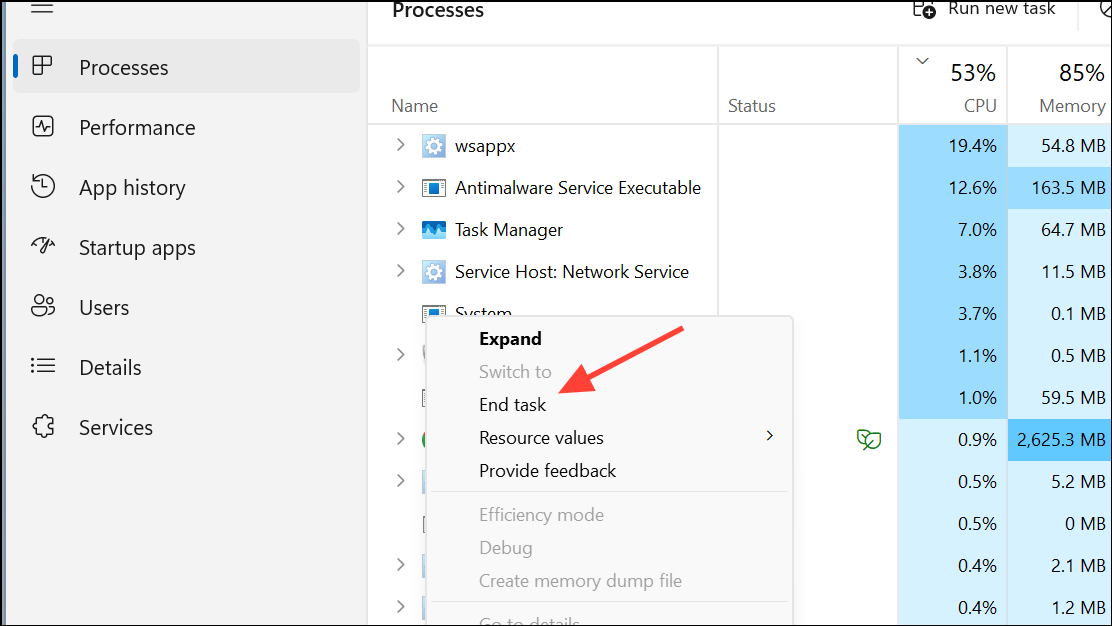
Right-click each Teams process and select End task. This ensures no background Teams instances remain, which can cause repeated crashes or prevent successful restarts.
After ending all Teams processes, close Task Manager and relaunch Microsoft Teams from your Start menu or desktop shortcut. Restarting the app after a full process termination can resolve temporary glitches that prevent Teams from running reliably.
Clear Microsoft Teams Cache
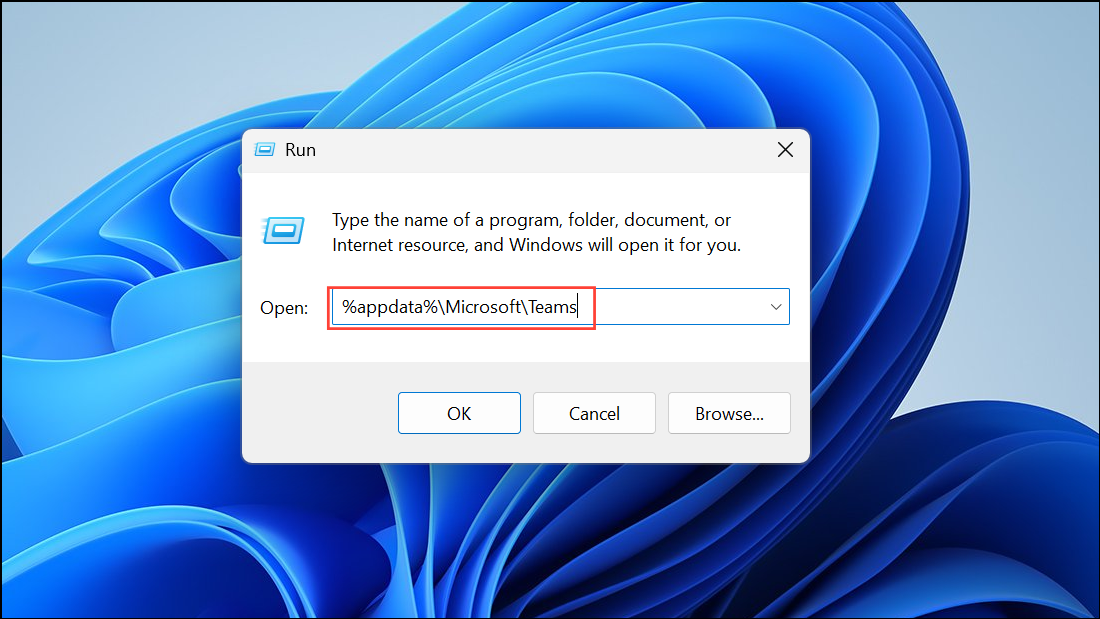
Corrupted or outdated cache files frequently cause Teams to crash or freeze, especially after updates or profile changes.
Restart your PC. Once Windows reloads, open Teams and sign in again. Clearing the cache can resolve persistent crashing caused by corrupted temporary files.
Update Microsoft Teams and Windows
Running outdated versions of Teams or Windows can introduce compatibility issues that trigger crashes, especially after major updates or when new features are rolled out.
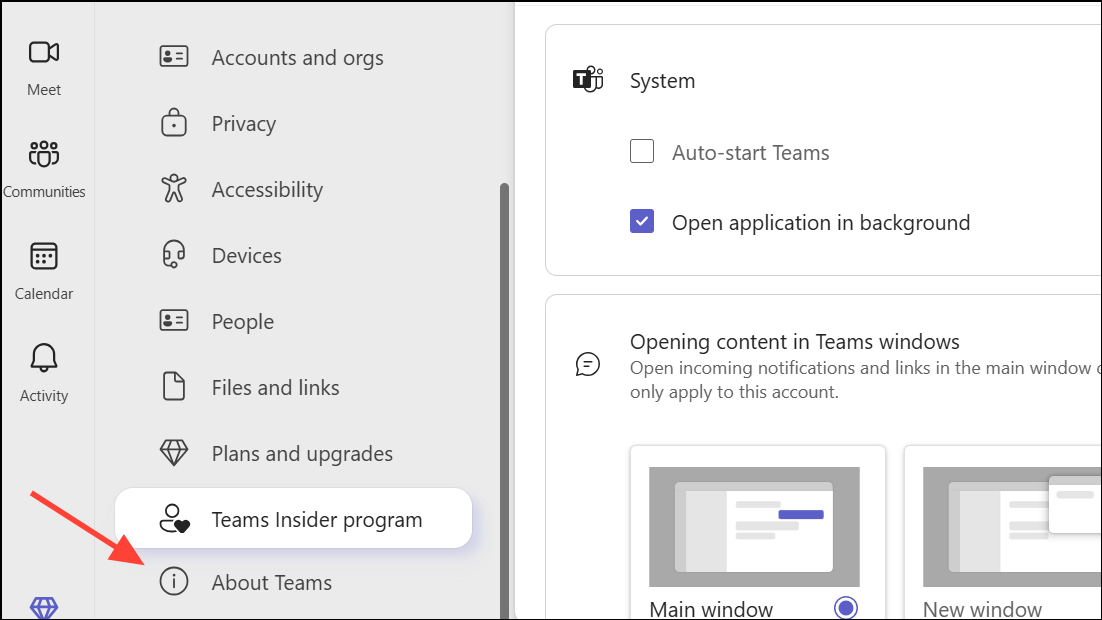
Launch Teams and click the three-dot menu in the top-right corner. Navigate to Settings, then select About Teams. The app will check for updates and install any available patches automatically.
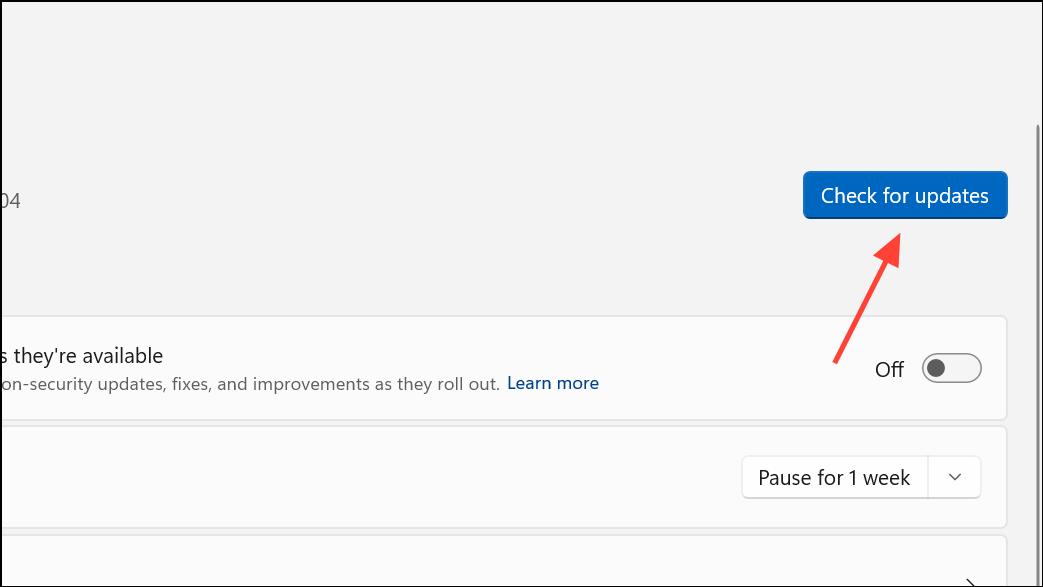
For Windows updates, open Settings, choose Update & Security, and click Check for Updates. Install all pending updates and restart your PC if prompted. Keeping both Teams and Windows updated improves stability and resolves known bugs.
Repair or Reset the Teams App
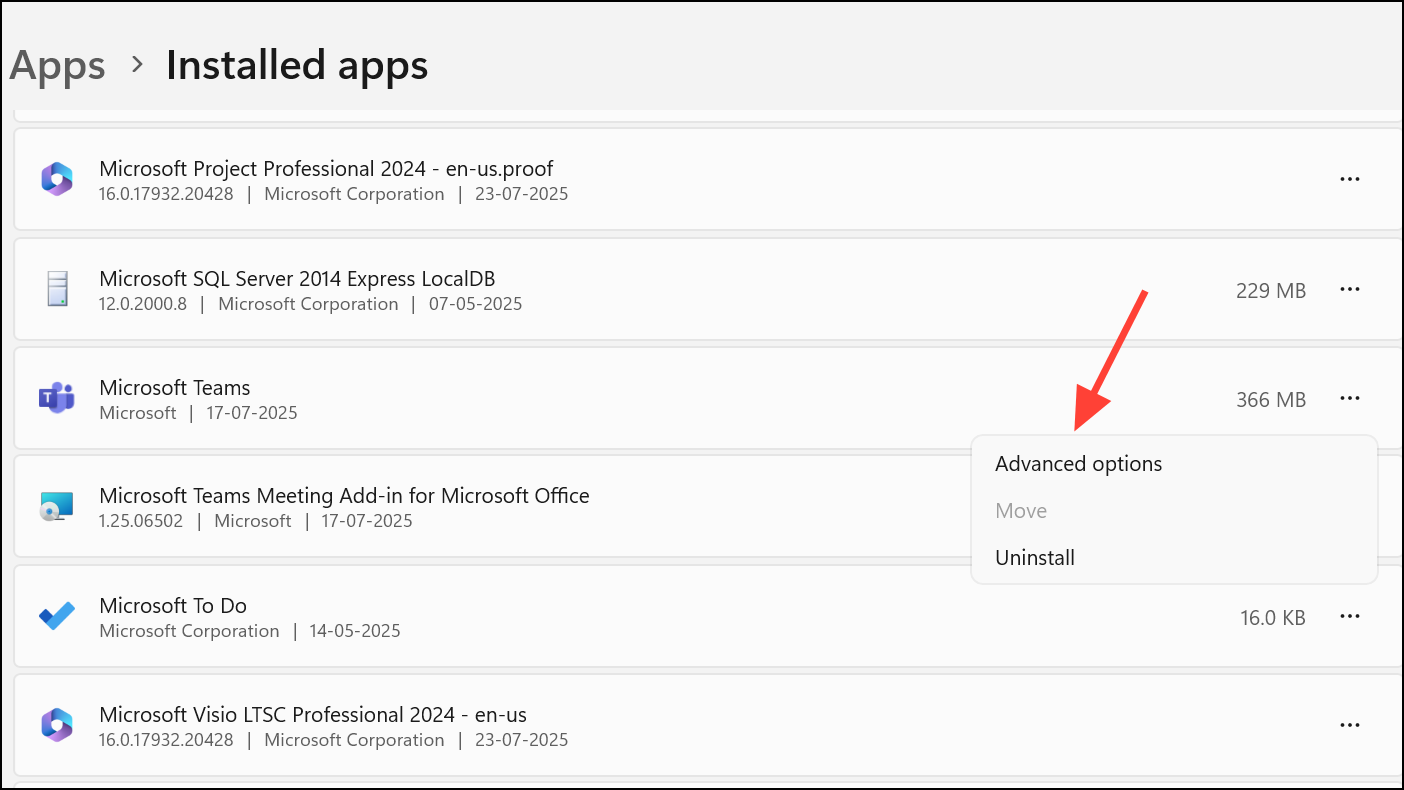
Repairing or resetting the Teams app can fix issues caused by corrupted installation files or misconfigured settings.
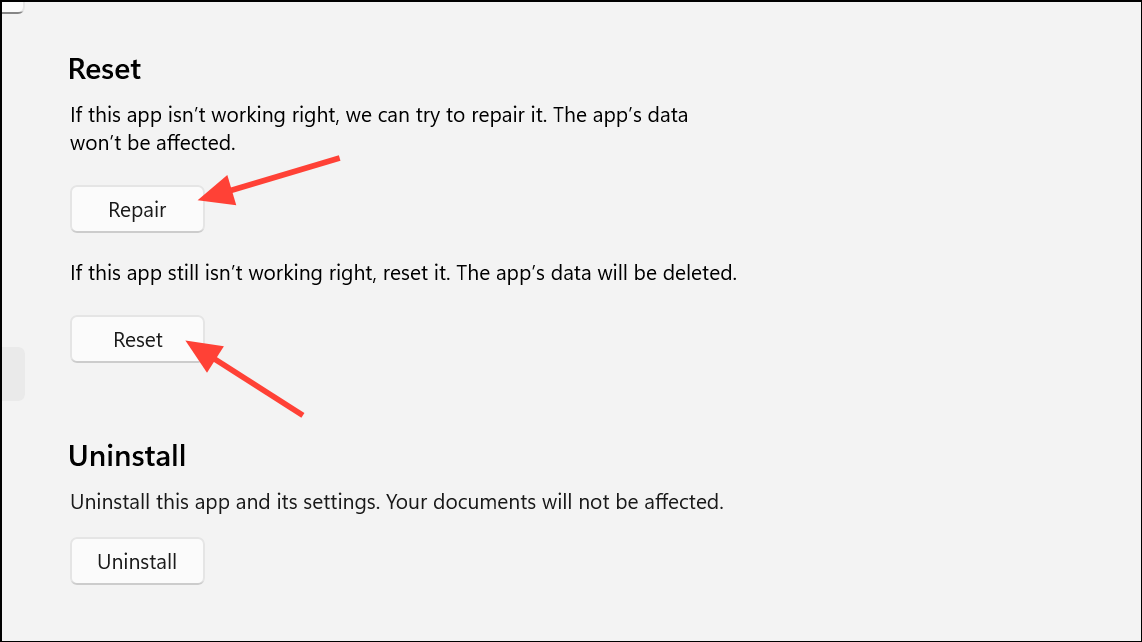
Scroll to the Reset section. First, try Repair to fix the app without affecting your data. If Teams continues to crash, use the Reset option, which restores factory defaults and removes all Teams data from your device. Note that you will need to sign in again and reconfigure any custom settings after a reset.
Update or Reinstall Display Adapter Drivers
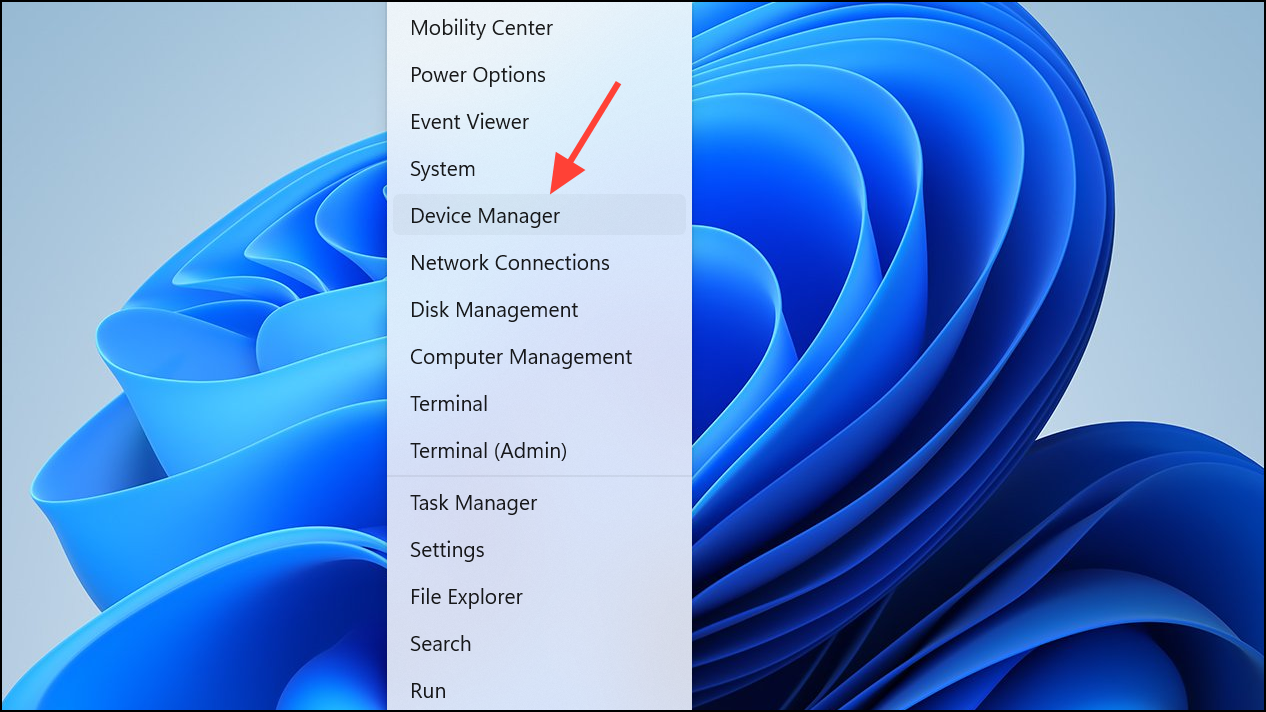
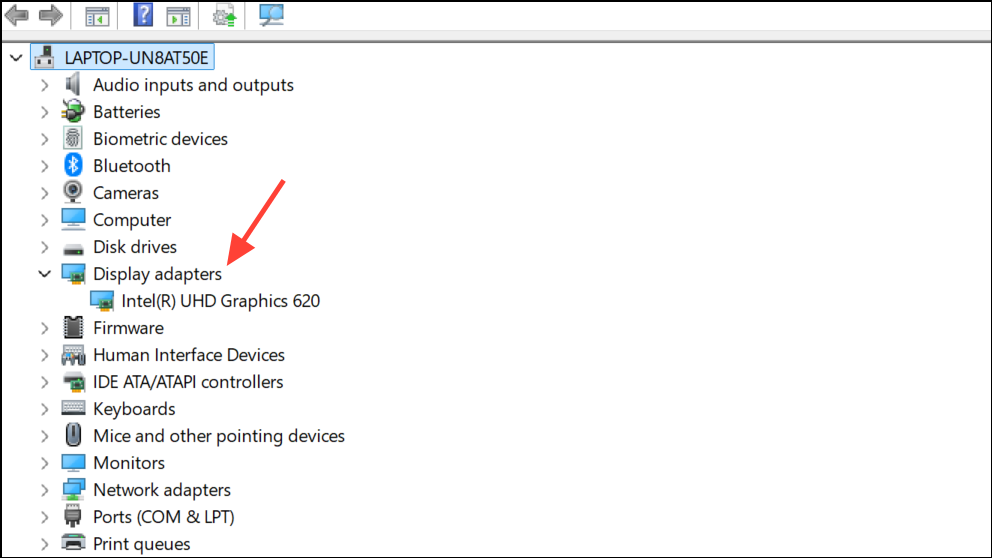
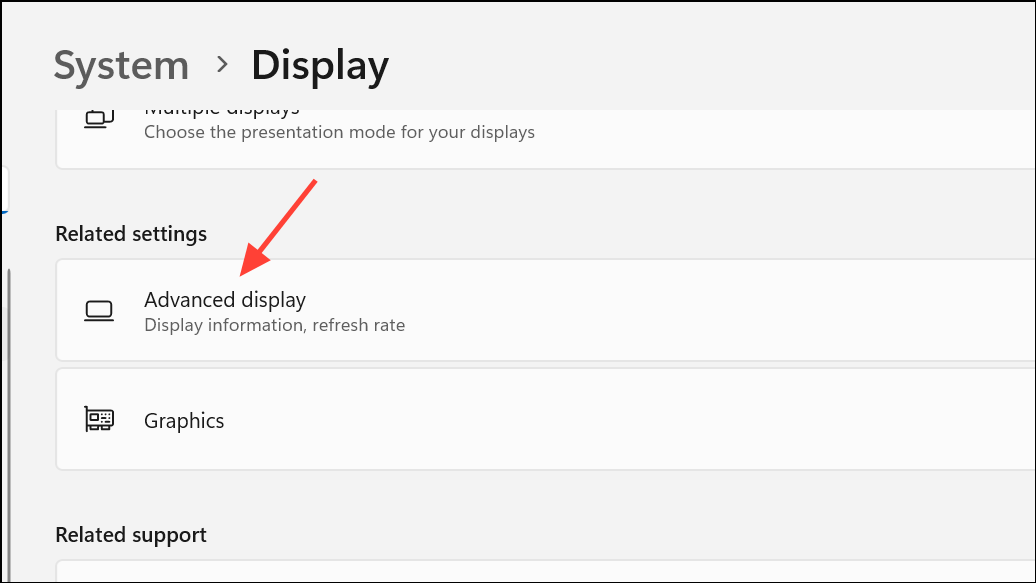
Display driver incompatibilities are a common root cause of Teams crashing, particularly when screen sharing or using high refresh rate monitors. Updating or temporarily disabling the display adapter can help isolate and resolve these conflicts.
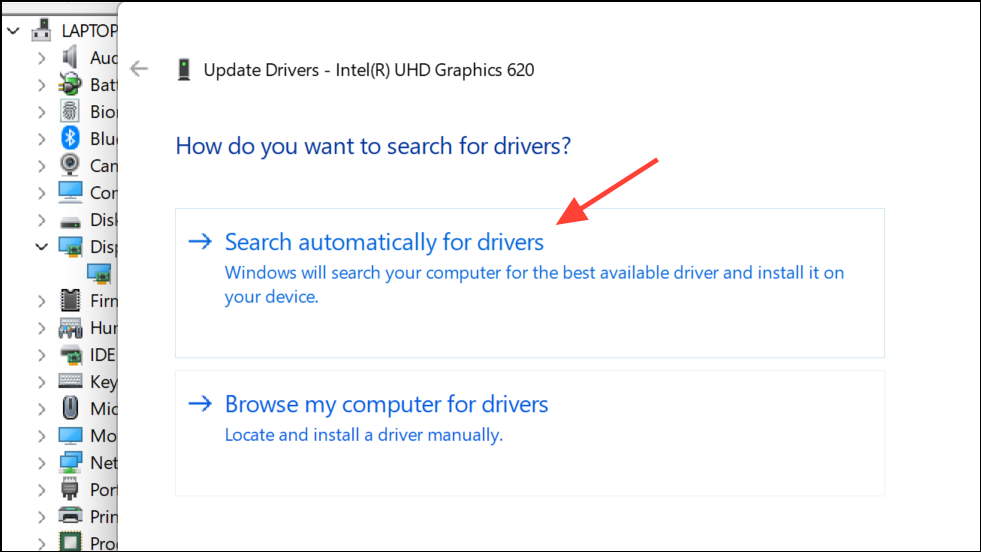
Right-click your graphics device (such as Intel HD Graphics or NVIDIA/AMD), then select Update driver. Choose Search automatically for drivers to let Windows find and install the latest version.
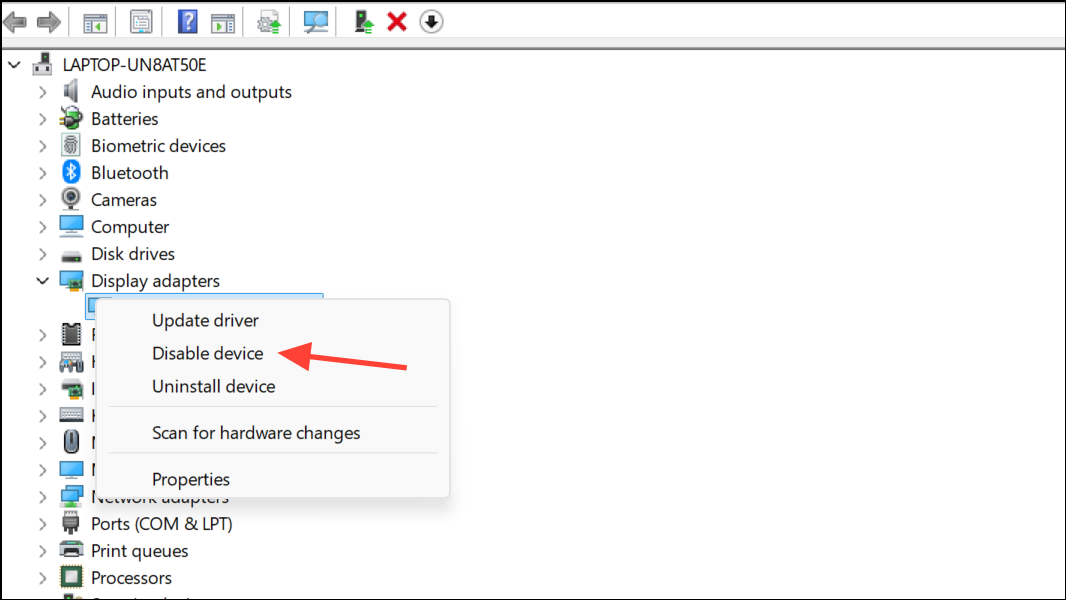
If updating does not resolve the crashes, right-click the graphics device in Device Manager and choose Disable device. Confirm the action, then test Teams again. If Teams stops crashing, the display driver is likely the culprit. Re-enable the device after testing.
Adjust Monitor Refresh Rate and Docking Station Usage
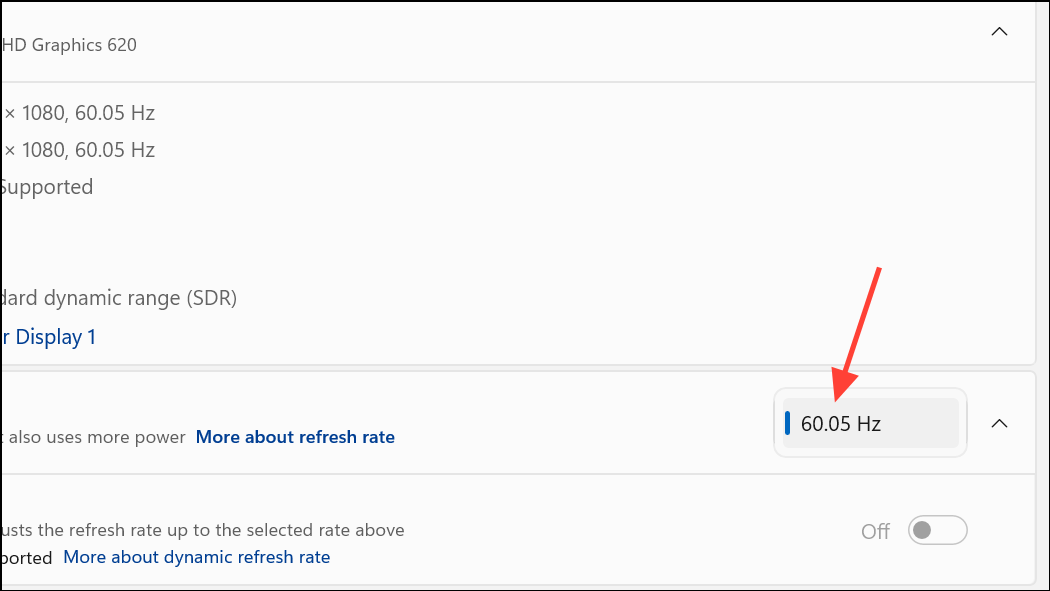
Teams may crash during screen sharing or video calls if your monitor is set above 60Hz, or when using specific docking stations with certain laptops (notably some Lenovo models).
If you use an external docking station, check for firmware updates from your dock’s manufacturer. Some users report that switching from DisplayPort to HDMI connections, or running Teams on the laptop’s internal display, prevents crashes.
If you use a USB headset with a Microsoft Link USB dongle, try disconnecting the dongle and using Bluetooth instead. Certain USB audio devices have been linked to Teams instability on some hardware setups.
Reinstall Microsoft Teams Completely
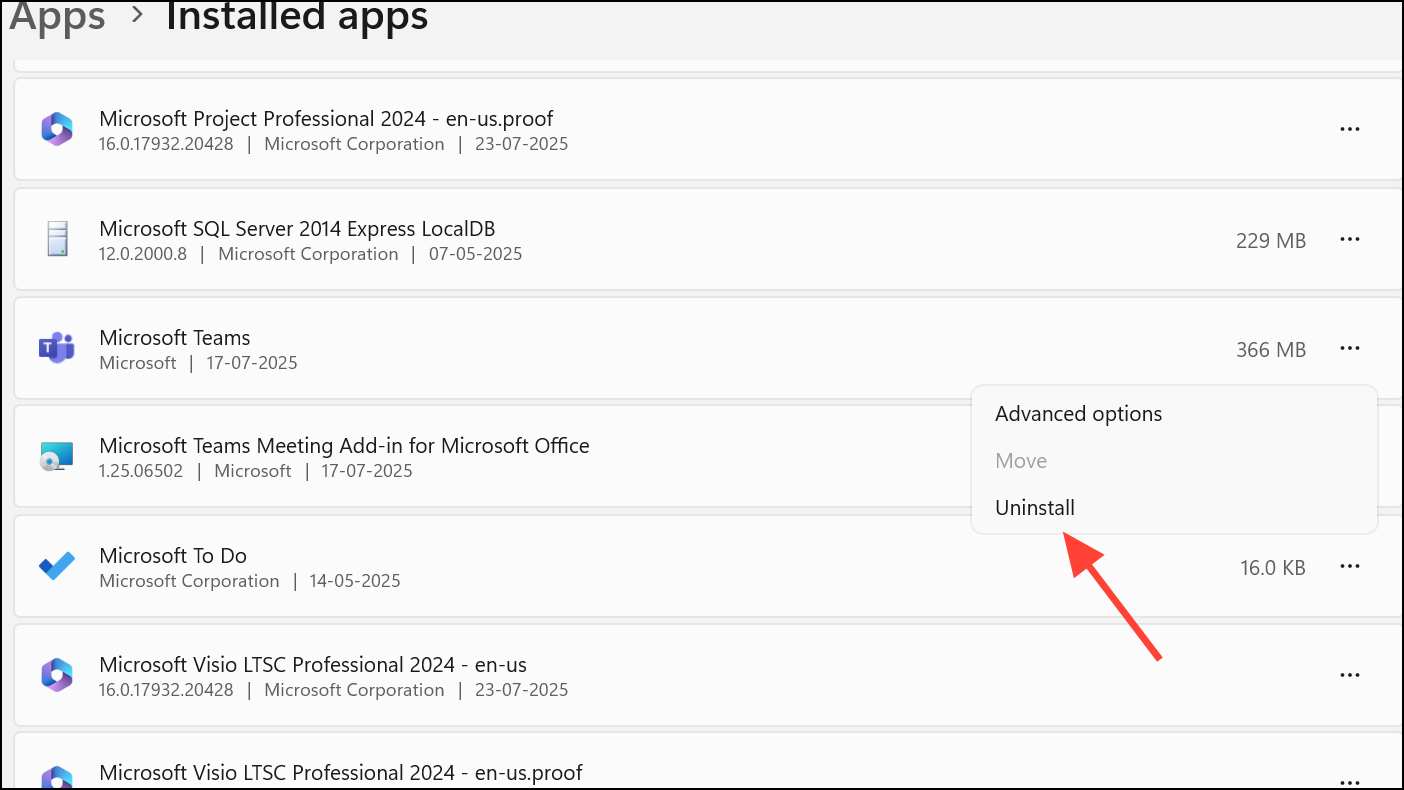
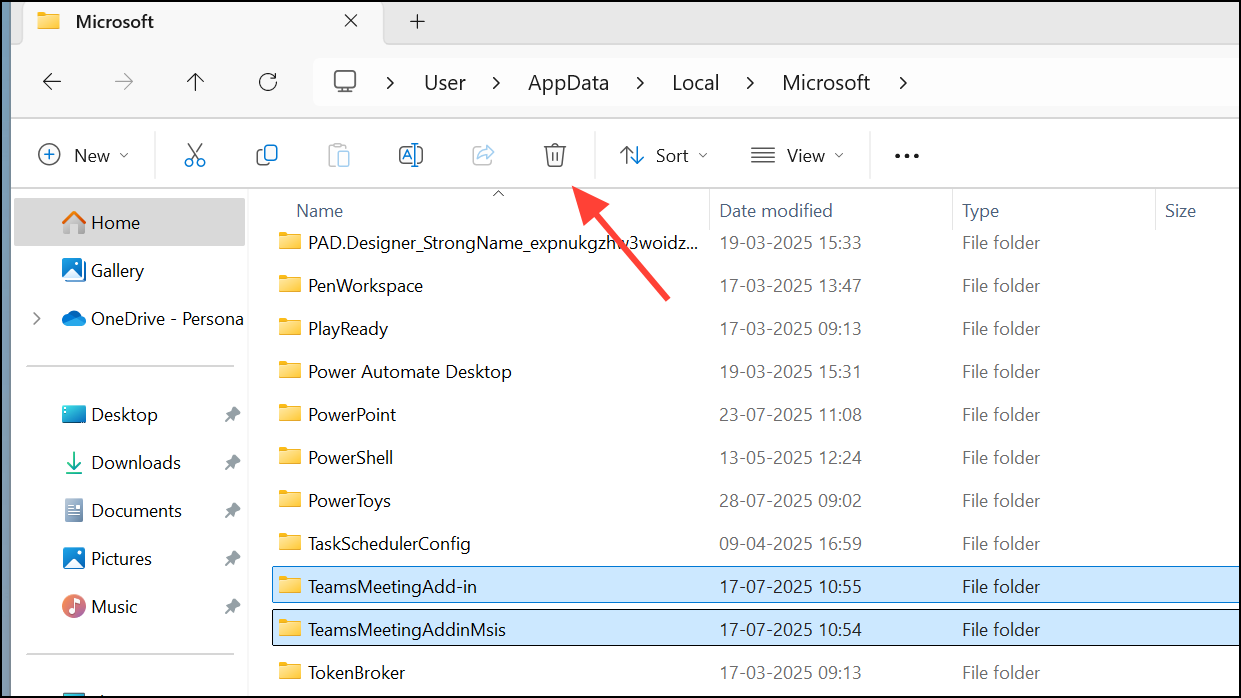
When other fixes fail, a full uninstall and reinstall of Teams can resolve persistent issues caused by damaged installation files or conflicting user profiles.
Download the latest Teams installer from the official Microsoft Teams website. Consider using the Microsoft Store version or the MSI installer if the standard EXE fails to install properly.
Check the option Run this program in compatibility mode for and select Windows 7 or Windows 8 from the dropdown. Apply the changes and launch Teams to check for improved stability.
Additional Steps: System File Checker and Profile Isolation
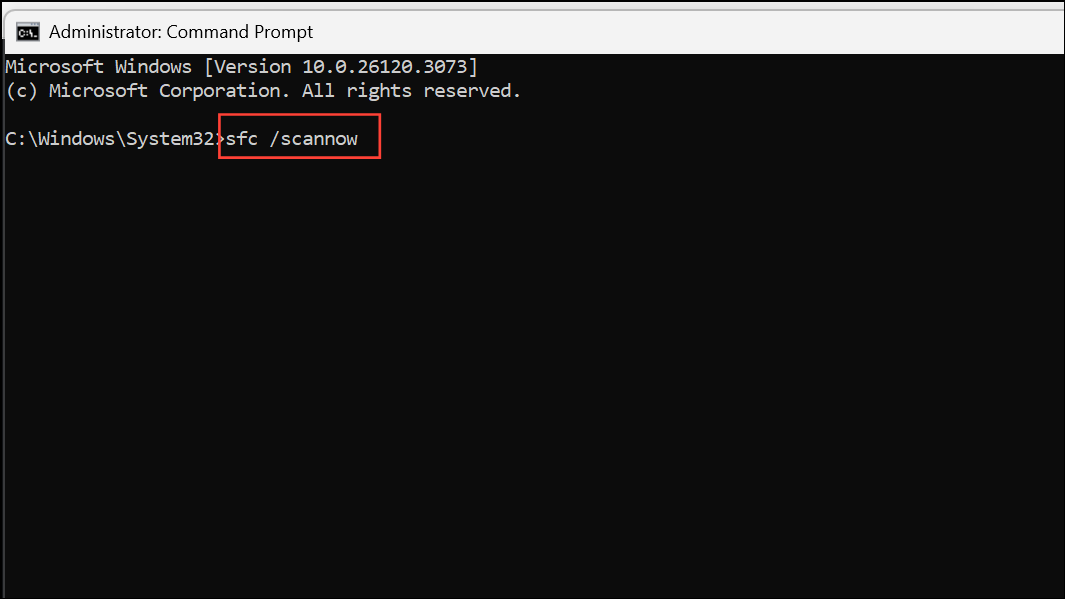
If Teams continues to crash, system file corruption or profile-specific issues may be at fault.
Create a new Windows user profile via Settings > Accounts > Family & other users > Add account. Log in with the new profile and install Teams to test if the issue is isolated to your original user account.
Consistently applying these troubleshooting steps resolves most Microsoft Teams crashing issues on Windows PCs. If the desktop app remains unstable, using the web version at https://teams.microsoft.com offers a reliable alternative until a permanent fix is released.