

Outlook search returning incomplete or no results often points to problems with the search index—a database that catalogs your emails, contacts, and calendar items for quick retrieval. Rebuilding this index restores accurate search performance, allowing you to find messages and information without delay. The process is straightforward but varies slightly between Windows and Mac systems, and for Exchange environments.
Rebuild Outlook Search Index on Windows
File > Options > Search. This section manages all search-related settings in Outlook.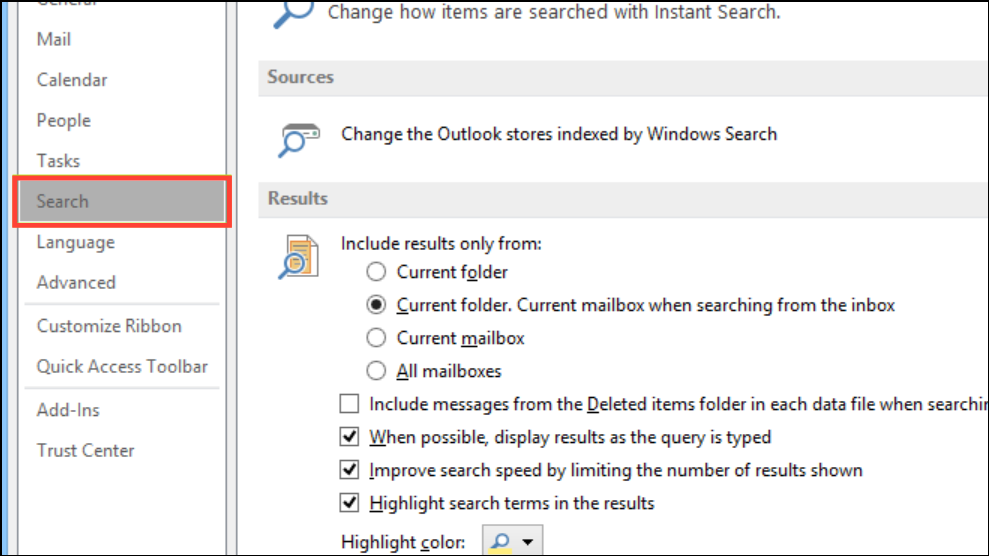
Indexing Options. In the dialog box, confirm that Microsoft Outlook appears in the list of indexed locations. If it’s missing, select Modify, check Microsoft Outlook, and click OK. This ensures Outlook data files are included in the index.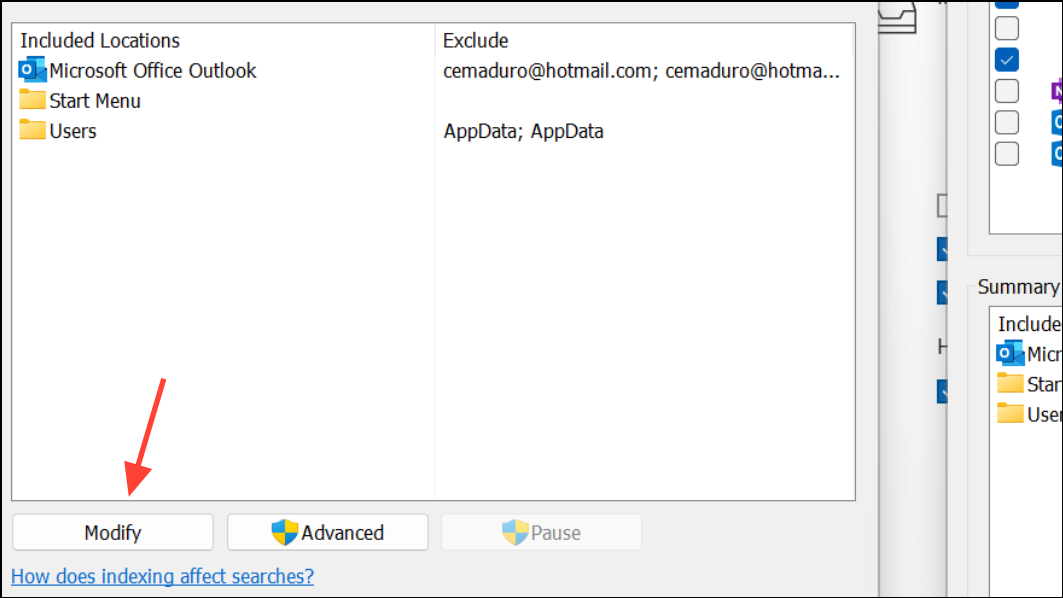
Advanced in the Indexing Options window. Under the Index Settings tab, click Rebuild. A warning appears, noting that rebuilding may take time depending on your mailbox size. Click OK to begin. The index will be deleted and rebuilt from scratch in the background.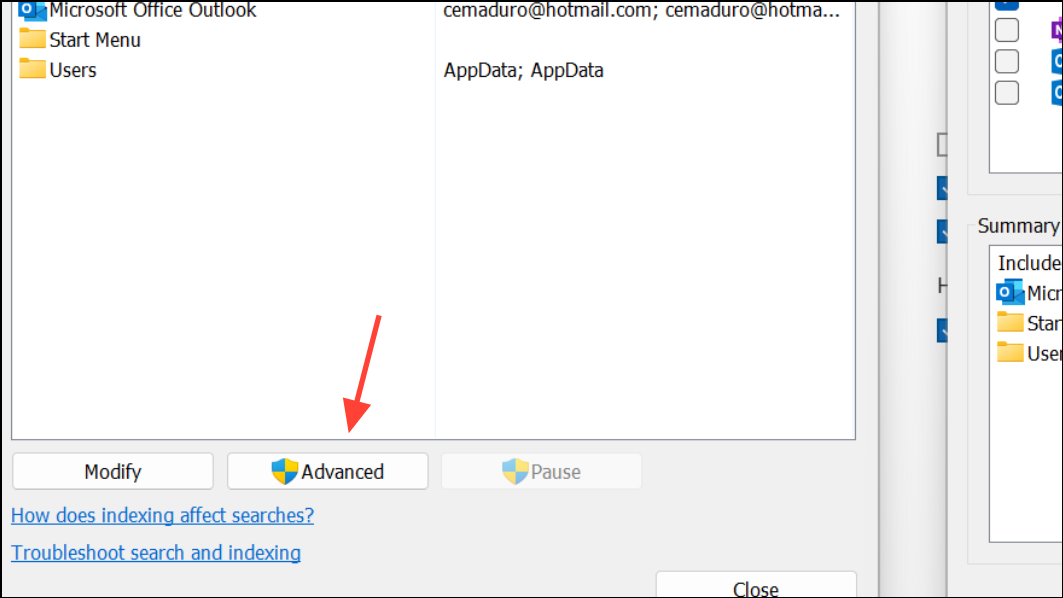
Search Tools > Indexing Status. The dialog will show how many items remain to be indexed. Searches may return incomplete results until indexing finishes.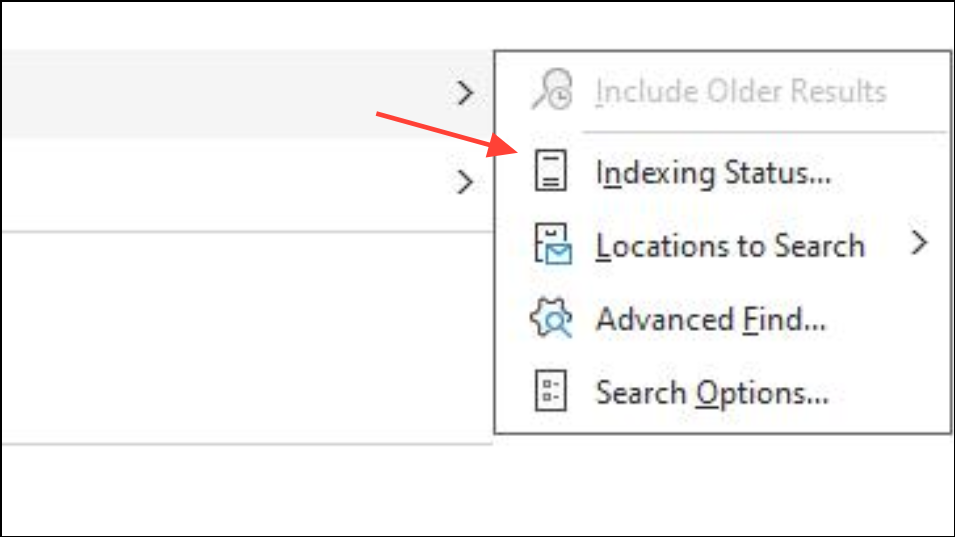
Repair Office Installation (If Index Rebuild Does Not Work)
Programs > Programs and Features. Find Microsoft 365 or Microsoft Office in the list.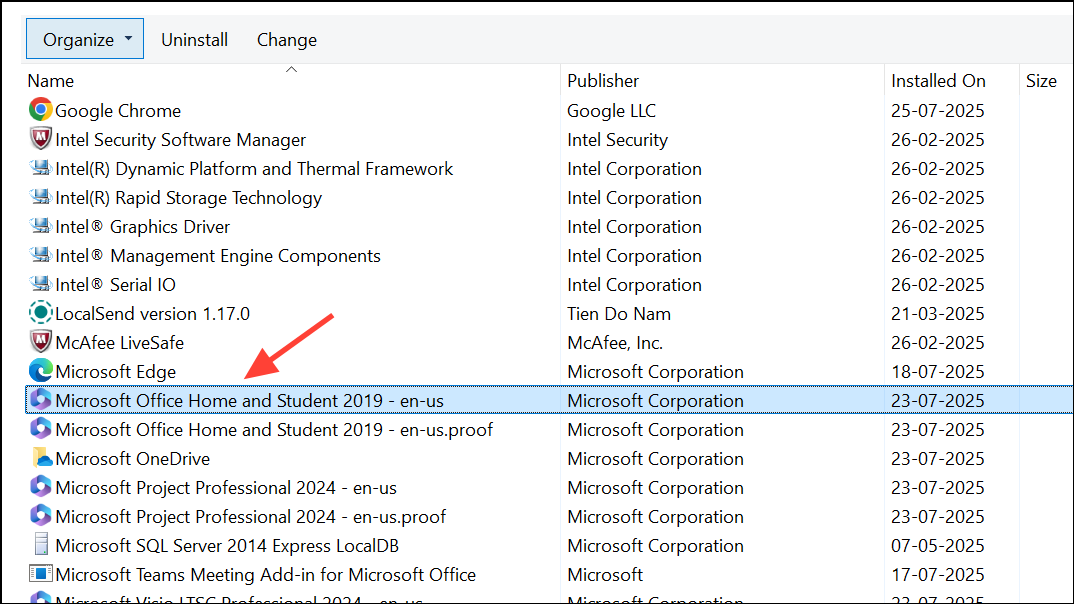
Change at the top of the window. Choose Online Repair for a full repair, or Quick Repair if you do not have internet access. This process will fix any corrupted Outlook components that could interfere with indexing.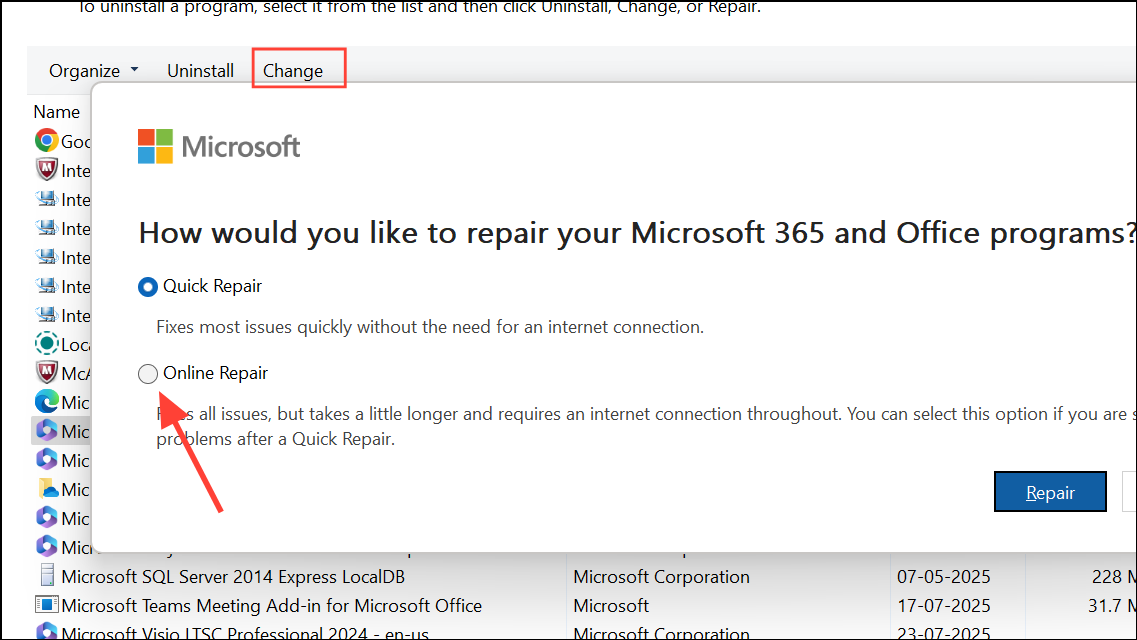
Rebuild Outlook Search Index on Mac
System Settings (or System Preferences on older macOS versions) and select Siri & Spotlight or Spotlight.Privacy tab. Add your entire Macintosh HD or your Home folder to the list by clicking the + button. This action temporarily excludes the selected location from Spotlight indexing, which is used by Outlook for search.- button. This triggers Spotlight to reindex the location, including Outlook data.Alternatively, advanced users can use Terminal commands to force a full reindex:
sudo mdutil -a -i off
sudo launchctl unload -w /System/Library/LaunchDaemons/com.apple.metadata.mds.plist
sudo launchctl load -w /System/Library/LaunchDaemons/com.apple.metadata.mds.plist
sudo mdutil -a -i on
These commands stop and restart the Spotlight indexing service, forcing a rebuild. Use caution and ensure you have administrator rights before running these commands.
Rebuild Exchange Search Index (For Administrators)
<mailbox> with the affected mailbox:
Start-MailboxAssistant -Identity <mailbox> -AssistName BigFunnelRetryFeederTimeBasedAssistant
Additional Troubleshooting Tips
- Verify that Outlook is listed in the Indexing Options. If missing, add it via the
Modifybutton. - Check file type settings in the Advanced Indexing Options. For email messages, ensure the
msgextension is set toIndex Properties and File Contents. - Update Outlook to the latest version to prevent compatibility issues with indexing.
- For persistent problems, consider creating a new Outlook profile.
Rebuilding the Outlook search index restores reliable search performance, speeds up finding emails, and prevents information gaps that slow down your workflow. For large mailboxes, be patient—indexing may take several hours, but the result is a faster, more accurate search experience.
Once the index is rebuilt, Outlook search should return all expected results and respond more quickly. Regularly updating Outlook and checking index status helps keep your searches running smoothly.





