

Outlook freezing at the “Loading Profile” screen prevents users from accessing emails, calendars, and contacts, disrupting daily workflow. This issue often results from background processes, profile corruption, add-in conflicts, or data file errors. Addressing the root cause restores Outlook’s normal operation and avoids lengthy downtime.
Check and Sync System Date and Time
Incorrect system date or time can prevent Outlook from loading profiles, especially in environments where authentication relies on accurate timestamps. Even a difference of one hour can block Outlook from starting.
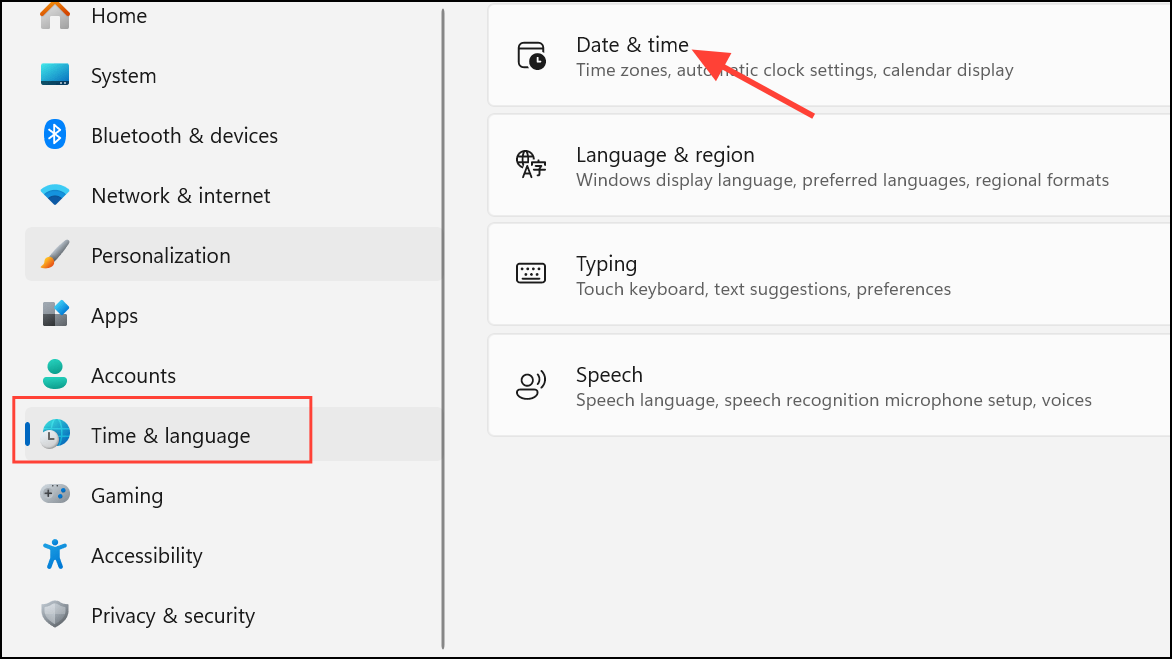
Sync now under Additional settings.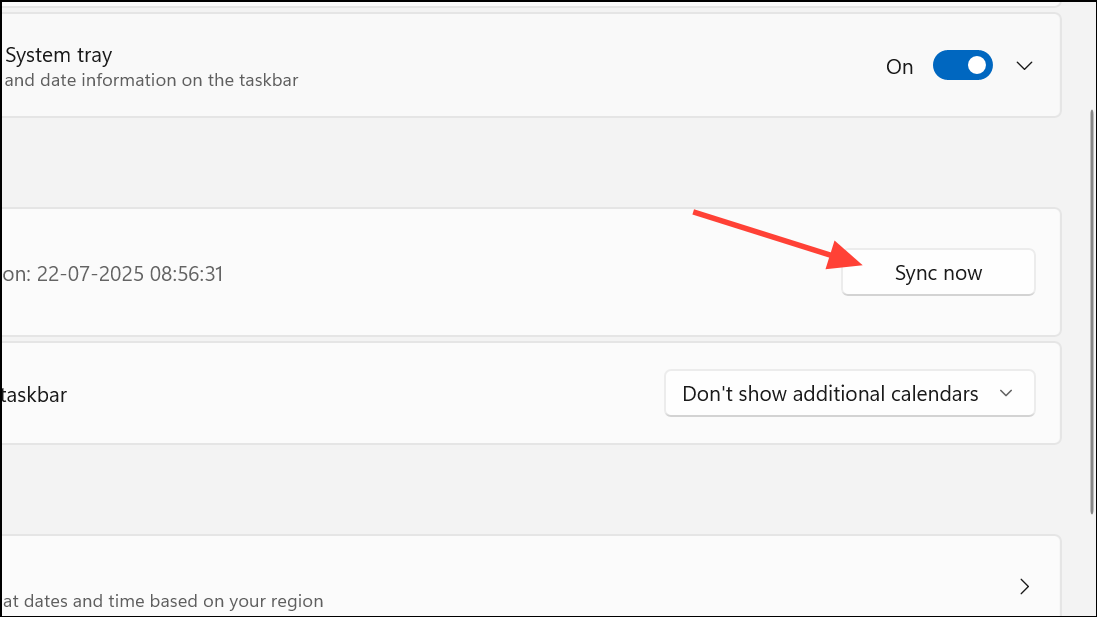
Stop Background Office Processes
Outlook may remain stuck if other Office applications or processes are running in the background. Ending these processes forces Outlook to start cleanly.
Processes tab, look for Outlook.exe, Teams, Skype, or any Office-related background tasks.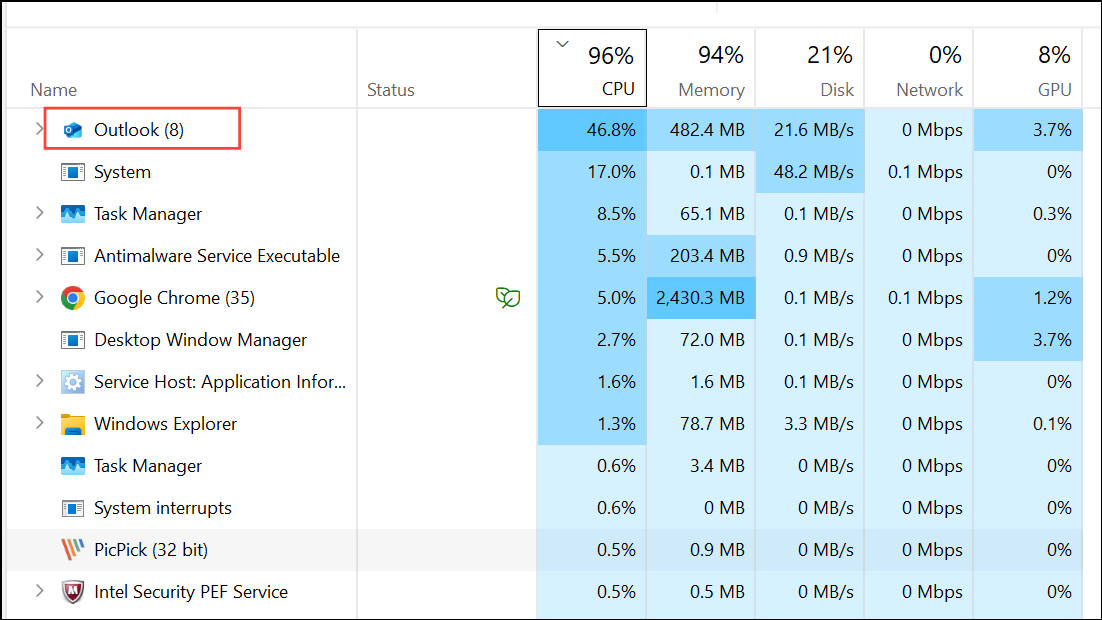
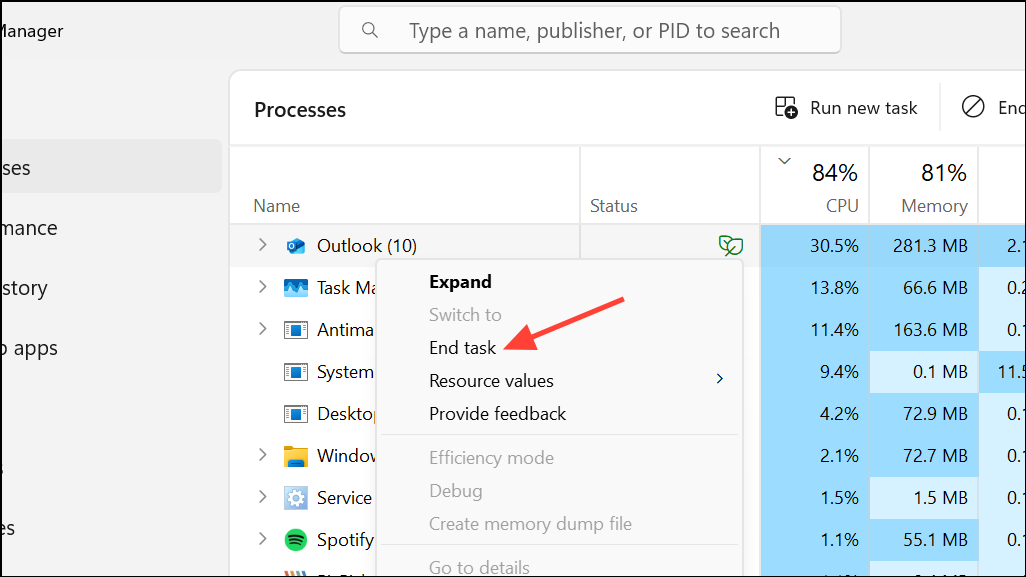
File > Options > People, then uncheck Display online status next to name and Show user photographs when available. Click OK and restart Outlook.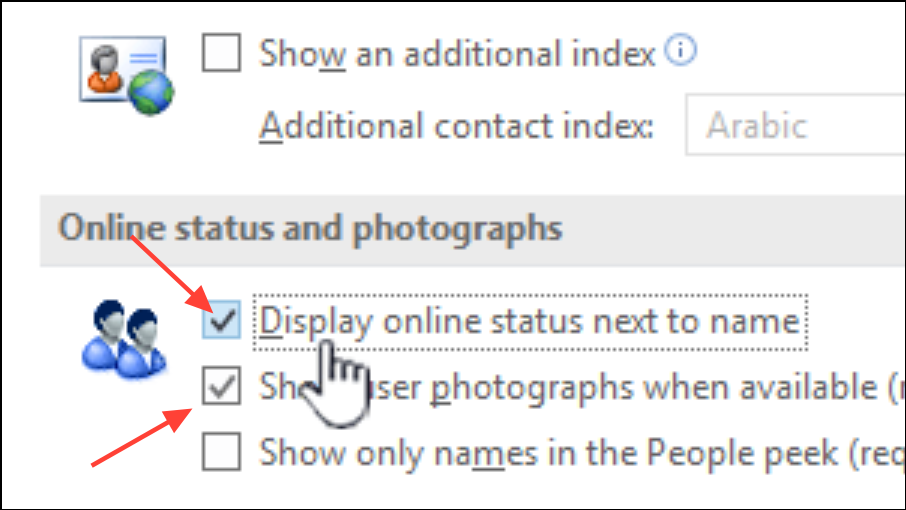
Start Outlook in Safe Mode and Disable Add-ins
Problematic add-ins can interfere with Outlook’s startup process. Safe Mode loads Outlook with only essential components, allowing you to isolate and disable faulty add-ins.
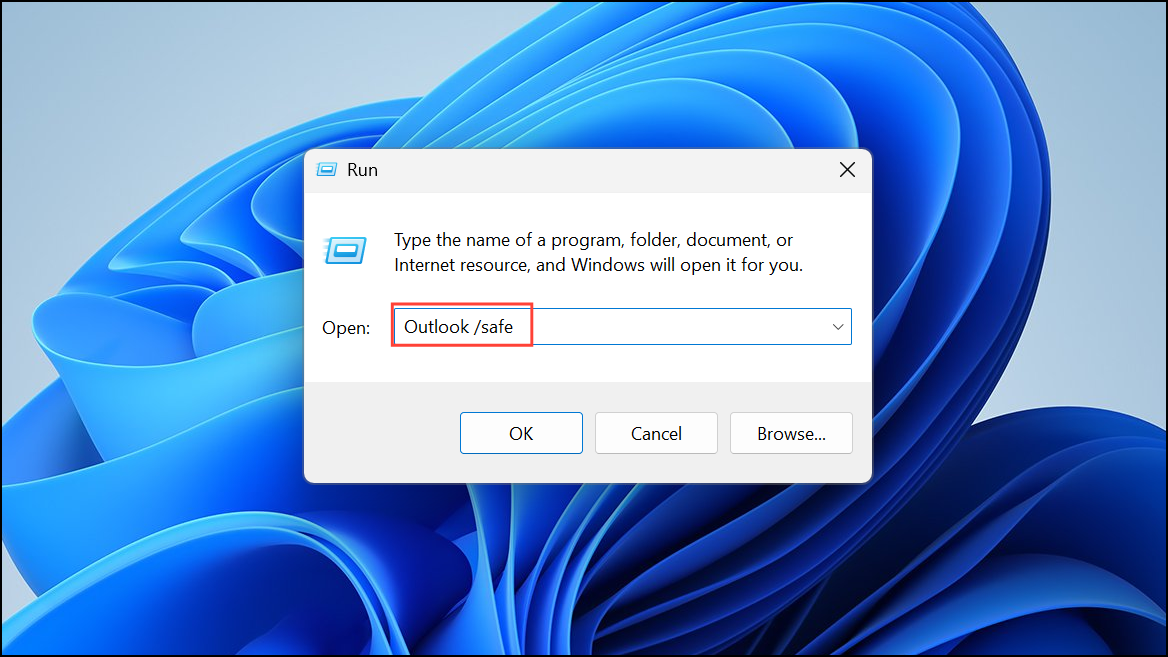
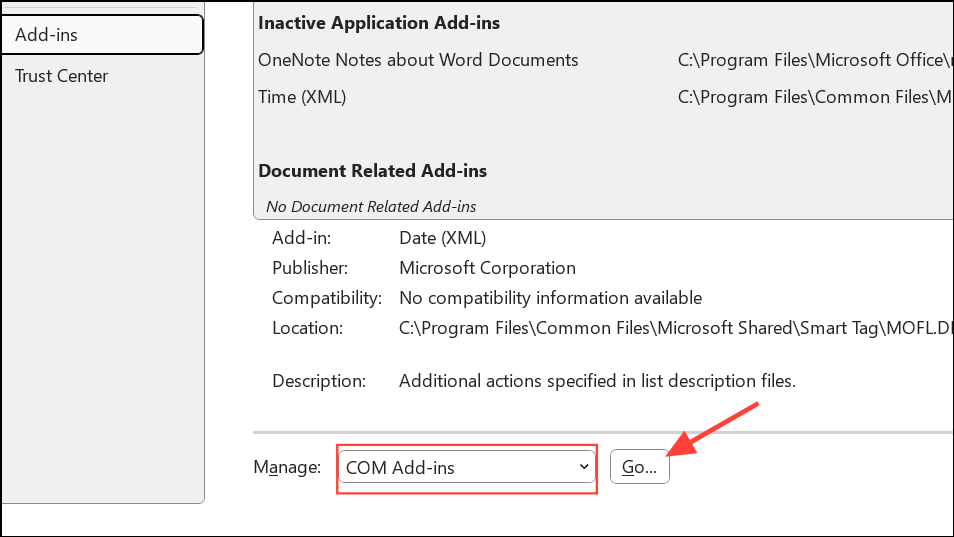
Re-enable add-ins one at a time to identify the culprit if Outlook starts successfully.
Reset Outlook’s Navigation Panel
Corrupt navigation panel settings can block Outlook from loading profiles. Resetting this component restores default navigation settings.
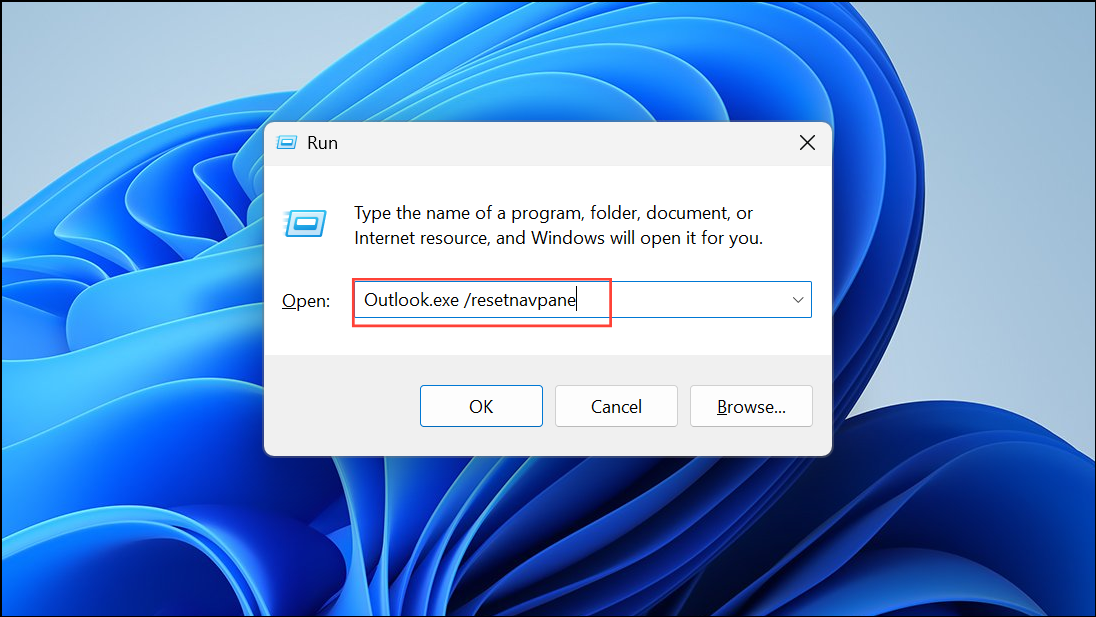
This command launches Outlook with a fresh navigation panel, often resolving profile loading hangs.
Create a New Outlook Profile
Corrupted profiles frequently prevent Outlook from progressing past the loading screen. Creating a new profile establishes a clean environment for Outlook to start.
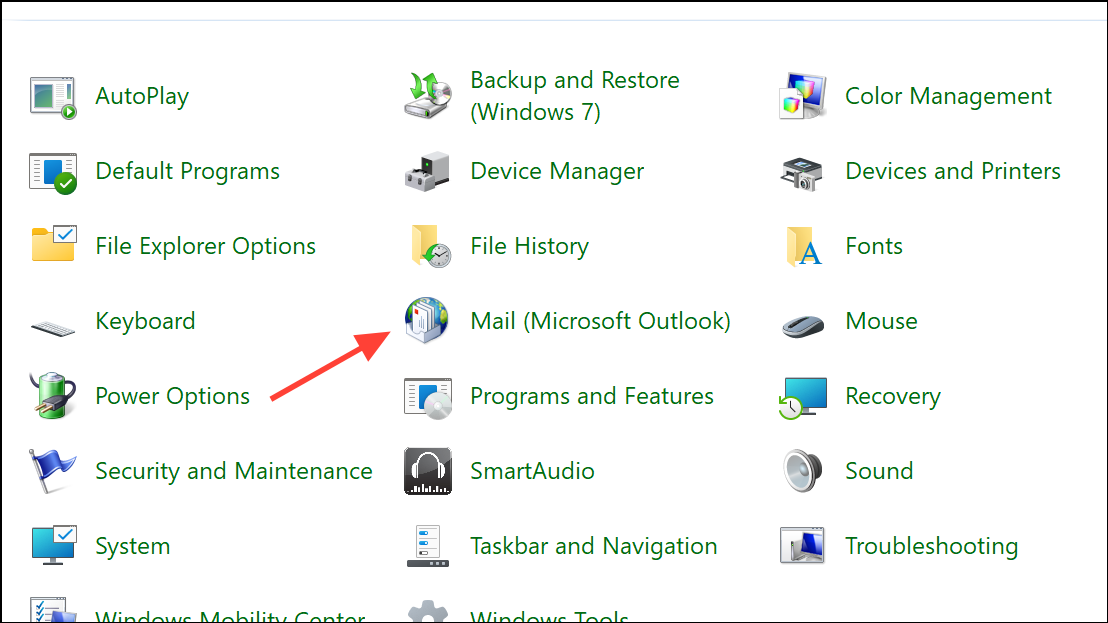
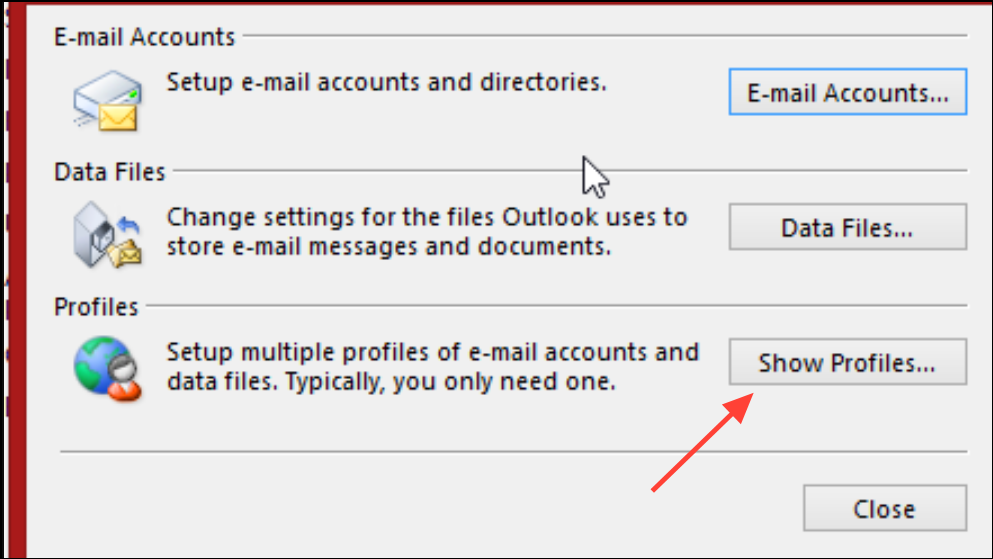
Always use this profile and choose the new profile from the dropdown.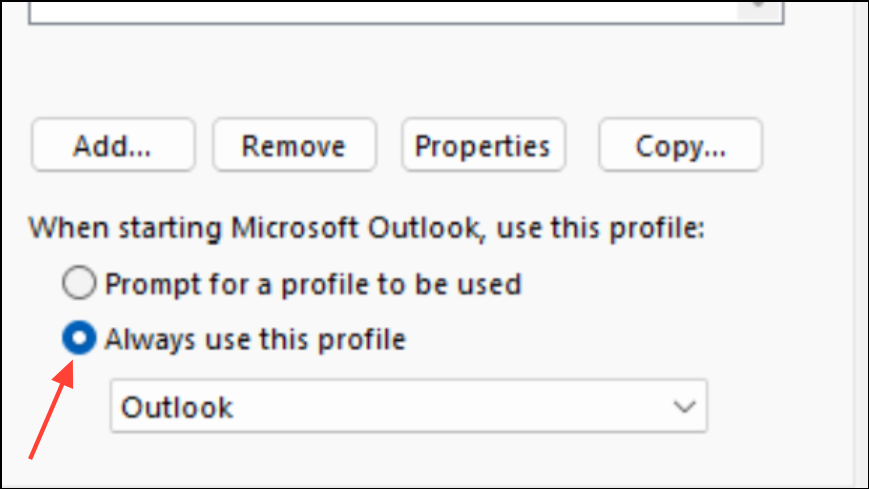
Repair or Rebuild Outlook Data Files
Corrupted PST or OST data files can prevent Outlook from loading. Microsoft’s ScanPST tool can repair minor corruption; more severe cases may require deleting and rebuilding the data file.
Scanpst.exe (the Inbox Repair Tool). Its location varies by Outlook version but is typically in the Office installation folder.Scanpst.exe, browse to your PST file (commonly found in %localappdata%\Microsoft\Outlook), and start the scan.%localappdata%\Microsoft\Outlook, and delete or rename the OST file. Outlook will rebuild it upon restart.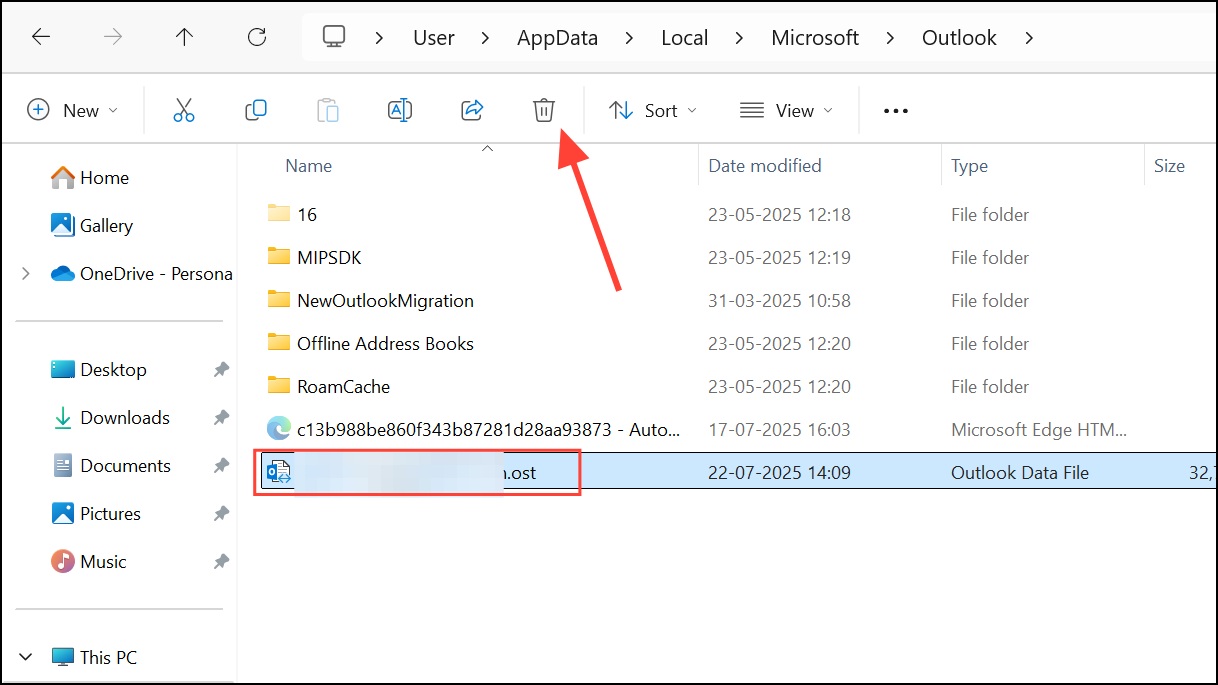
Additional Troubleshooting Steps
- Disable antivirus or firewall software temporarily to check for interference with Outlook startup.
- Disconnect from the internet, then open Outlook. Some users report that Outlook loads offline and continues working after reconnecting.
- Check for pending Windows or Office updates and install them to address known bugs.
- If using a work or school account, disconnect and reconnect the account under
Settings > Accounts > Access work or school. - End background processes for other Office apps like Word or Excel, as they may interfere with Outlook’s startup.
- For organizations using firewalls with intrusion detection, ensure Microsoft’s IP addresses are not being blocked.
Resolving Outlook’s “Loading Profile” hang involves a mix of system checks, process management, and profile or data file repair. Applying these targeted steps gets Outlook running smoothly and restores access to your mailbox.





