Microsoft Teams disconnects disrupt meetings, chats, and collaboration—especially when Teams repeatedly tries (and fails) to reconnect or displays a “disconnected” error. These issues can stem from network instability, outdated software, cached data, or hardware configuration problems. Addressing these root causes restores stable Teams connectivity and minimizes interruptions in your workflow.
Check and Restore Internet Connectivity
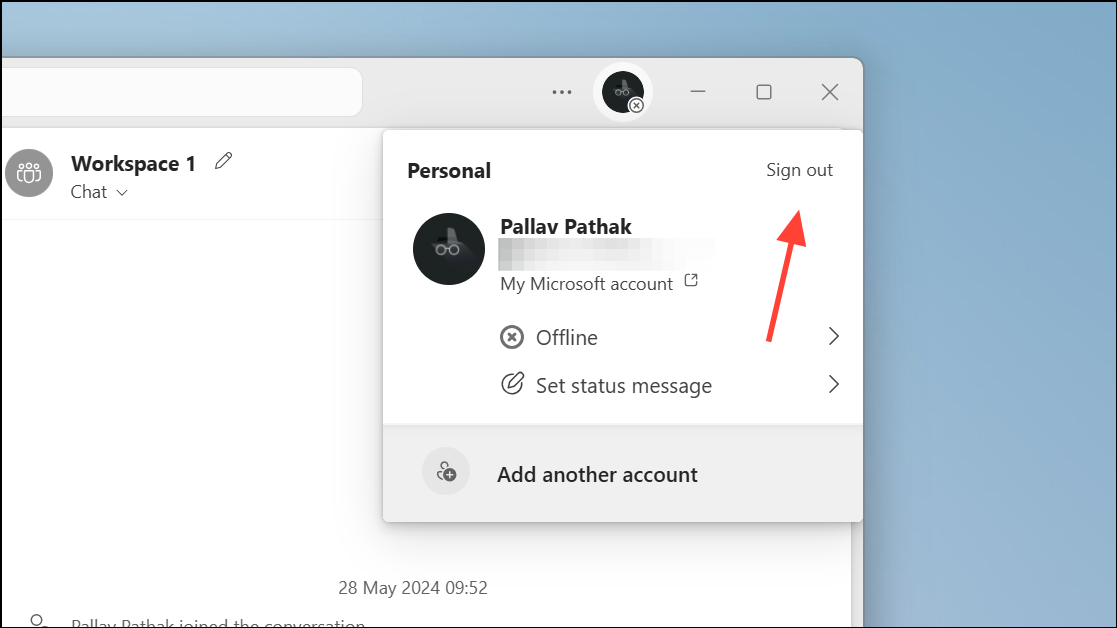
https://www.microsoft.com) to confirm your internet connection is active. If the page loads slowly or not at all, restart your modem/router and verify your device is connected to the correct WiFi network or Ethernet port. If using a VPN, try disconnecting and reconnecting, as VPNs can sometimes disrupt Teams connections.Sign Out and Restart Microsoft Teams
Clear Teams Cache to Resolve Persistent Issues
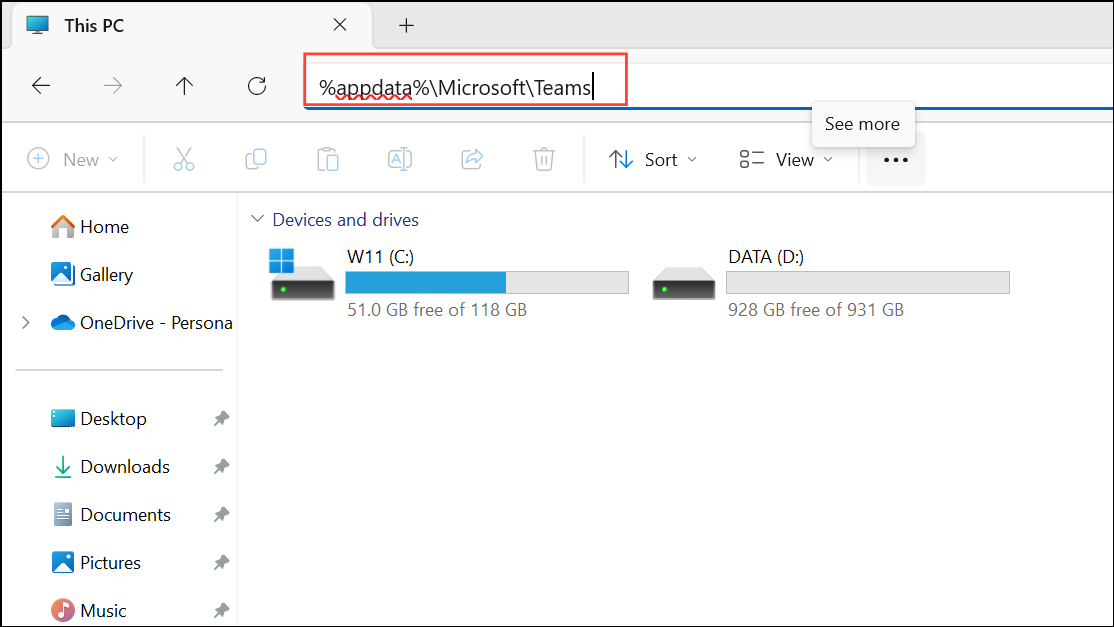
Step 1 (Windows): Right-click the Teams icon on the taskbar and select Quit to fully close the app. Open File Explorer and enter %appdata%\Microsoft\Teams in the address bar. Delete all files and folders inside this directory. This step removes cached data that sometimes causes connection loops or loading failures.
Step 1 (Mac): Right-click the Teams icon in the dock and choose Quit. Open Finder, then select Go > Go to Folder… and enter ~/Library/Application Support/Microsoft/Teams. Delete the entire Teams folder to clear the cache.
Update, Reinstall, or Switch Teams Versions
https://teams.microsoft.com. If the web version works, the issue may be isolated to your local Teams installation or device.Troubleshoot Teams Rooms and HDMI Connectivity
Teams Rooms systems (used for conference room setups) can display “no signal” or “display disconnect” errors due to hardware or cabling issues:
- Check that the HDMI input module is properly connected to the compute unit, using only the original manufacturer cables.
- Power off the compute module, reseat all HDMI and USB cables, then power on the system again.
- Verify that the Teams Rooms touchscreen console is powered and responsive. If it is not, consult your device’s OEM documentation for specific troubleshooting steps, such as checking for required external power or replacing hybrid fiber/copper USB cables.
- Update the Teams Rooms device firmware and Windows software to the latest versions. This can address known bugs or compatibility issues.
- If HDMI ingest status remains unhealthy, contact your device OEM for further diagnostics or hardware replacement.
For intermittent HDMI issues, reseat cables at both ends and try a different HDMI cable if possible. Faulty or inconsistent HDMI connections can cause Teams Rooms to lose signal or disconnect displays.
Optimize Device and Network Settings for Teams
Teams can be more sensitive to network and hardware issues than other conferencing apps. To improve stability:
- Disable background animations in Teams: Go to Settings > Accessibility and turn off background animations.
- In Teams Settings > General, disable GPU hardware acceleration if you notice video glitches or freezes.
- Check for power-saving features in your device’s BIOS or operating system. Aggressive power management can interfere with Teams performance—set processor power management to a higher minimum if needed.
- Compare hardware configurations (such as docks, hubs, or network adapters) between devices with and without Teams issues. Sometimes, a faulty dock or incompatible USB hub can cause dropped connections.
- Monitor CPU and network usage during Teams calls. High CPU spikes or network congestion can result in disconnections or poor call quality. Use
CTRL + ALT + SHIFT + 1to generate Teams logs for deeper diagnosis. - Consult Microsoft’s official network optimization guidelines for Teams, especially if calls drop regularly: Prepare your network for Microsoft Teams.
Check for Service Outages and Additional Support
If all troubleshooting steps fail, verify whether Microsoft Teams is experiencing a service outage by checking the official Microsoft 365 status account at https://x.com/MSFT365Status. If no outage is reported, contact Microsoft Support for personalized assistance, especially if the disconnects persist across multiple devices or networks.
Following these targeted steps will resolve most Microsoft Teams disconnected errors, restoring reliable access for meetings and collaboration. For persistent or hardware-specific issues, consulting device documentation or Microsoft Support ensures you’re not missing a deeper configuration or compatibility problem.