
Automatic Wi-Fi connections in Windows 11 can cause your PC to join networks you don’t intend to use, which may lead to privacy concerns, security risks, or simply network confusion. Windows 11 typically remembers networks you’ve connected to and, by default, tries to reconnect to them when they’re in range. Disabling this behavior for specific networks or all saved networks gives you greater control and reduces the risk of connecting to insecure or unwanted Wi-Fi hotspots.
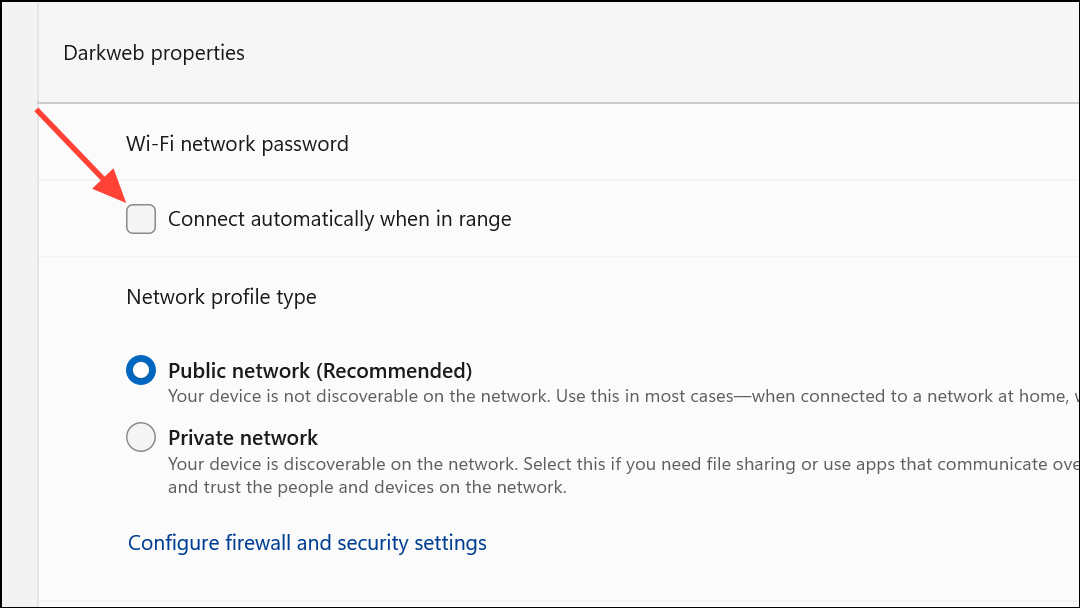
Disable Auto-Connect for a Specific Wi-Fi Network
Windows + I on your keyboard. This shortcut quickly brings up the main settings window.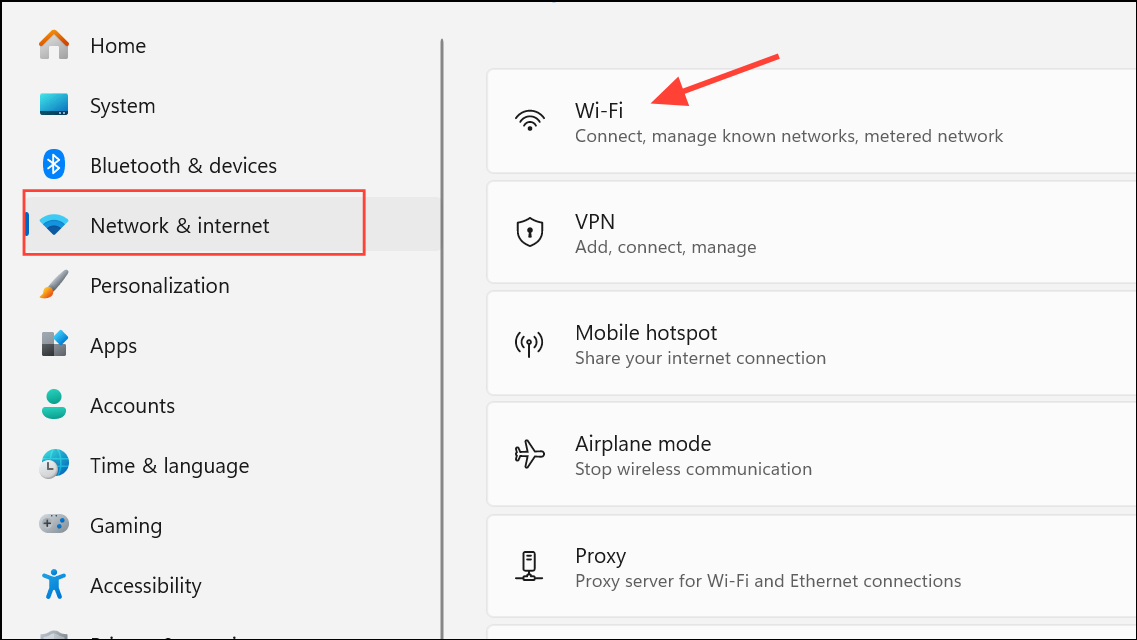
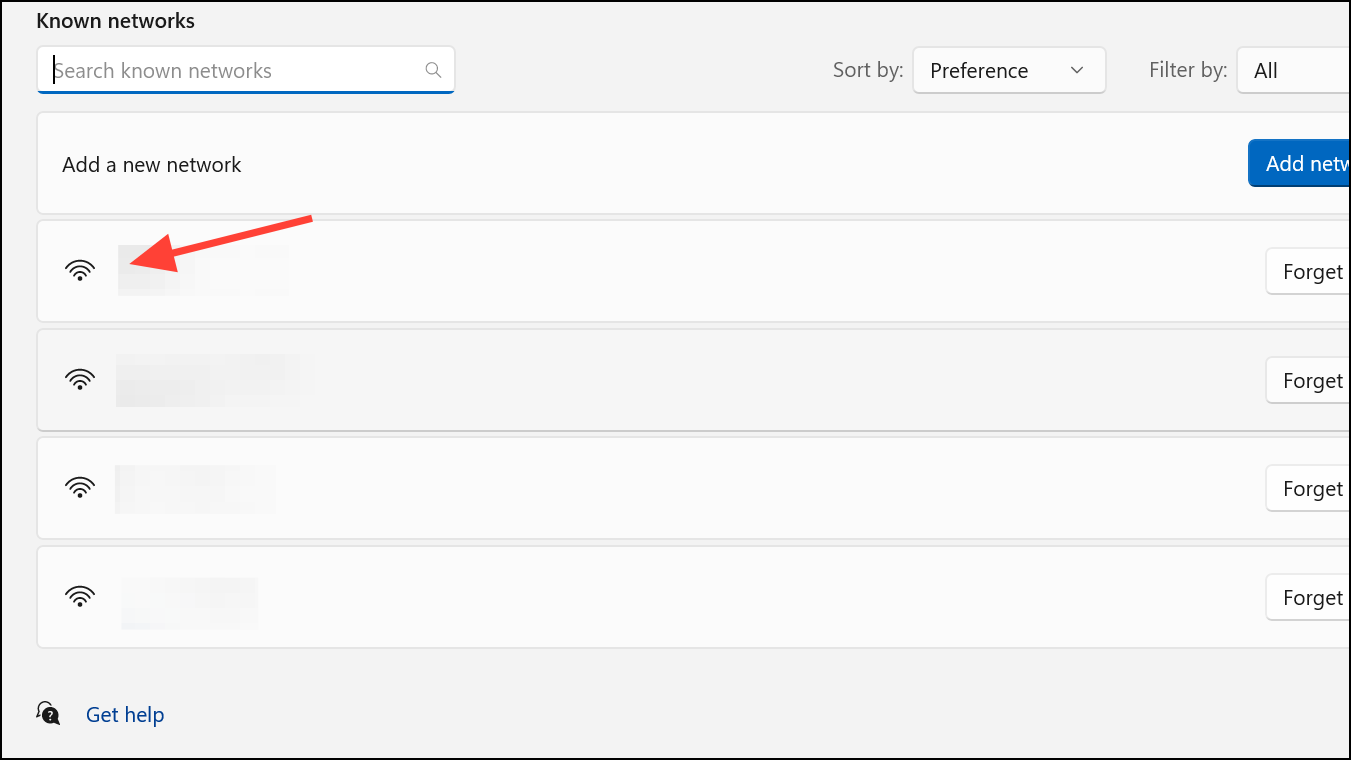
Forget a Wi-Fi Network Entirely
Forgetting a network removes all saved credentials and prevents Windows from reconnecting to it unless you manually join and re-enter the password.
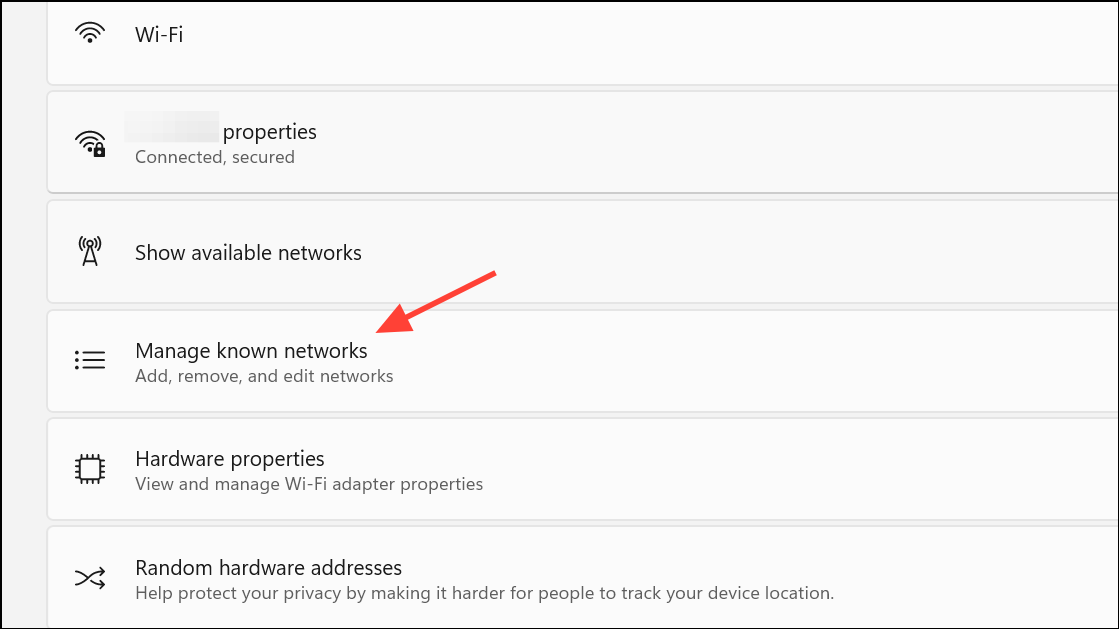
Windows + I, then navigate to Network & Internet > Wi-Fi > Manage known networks.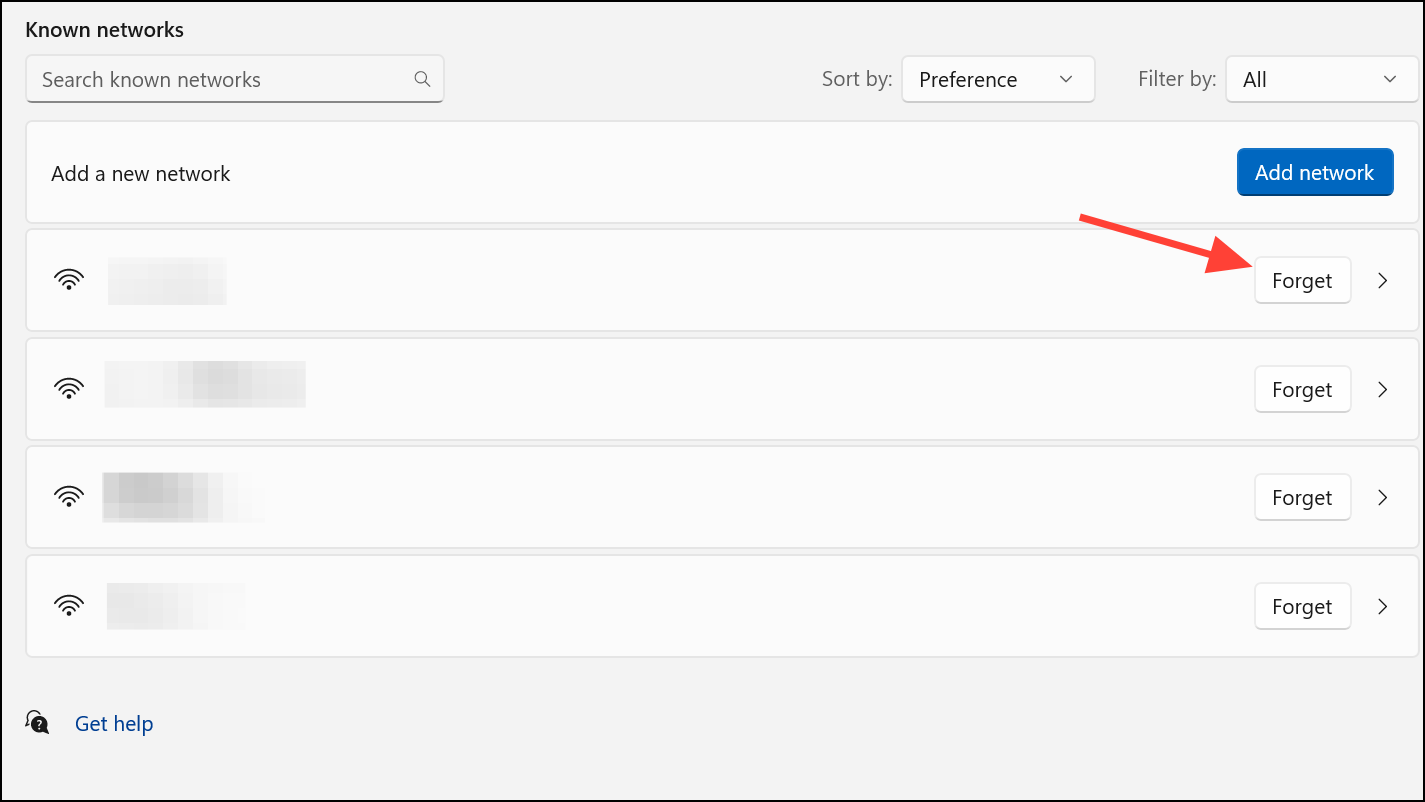
After forgetting a network, Windows 11 won’t attempt to reconnect unless you manually select it and provide the password again.
Turn Off Auto-Connect to Open Wi-Fi Hotspots
Windows 11 does not automatically connect to unknown open (unsecured) Wi-Fi networks by default. However, if you want to ensure your PC never tries to join public hotspots or suggested networks, you can check the following setting:
If you don’t see this setting, it may not be available on all devices or builds, as Microsoft has reduced the automatic connection to public hotspots in recent versions.
Additional Tips and Considerations
- Windows 11 only auto-connects to networks you’ve previously joined and entered a password for. It will not automatically join unknown secured networks without your approval.
- If you use third-party wireless management software (such as Intel PROSet), check its settings for additional auto-connect options, as these can override Windows’ built-in preferences.
- For public or shared computers, regularly review and remove unnecessary saved networks to keep your device secure.
- Restart your PC after making changes to ensure the new settings take effect.
Adjusting your auto-connect settings in Windows 11 gives you more control over which networks your PC joins, helping you avoid accidental connections and improving your overall network security.



