

Windows 11’s search indexing system catalogs files and their properties for faster search results. By default, Windows may include shared folders in the search index, which can lead to privacy concerns, unnecessary resource usage, or slowdowns, especially in networked environments. Disabling the automatic addition of shared folders to the search index ensures that only your intended locations are indexed, keeping searches focused and system resources optimized.
Prevent Automatic Indexing of Shared Folders Using Group Policy Editor
Win+R to open the Run dialog, then type gpedit.msc and press Enter. This launches the Local Group Policy Editor.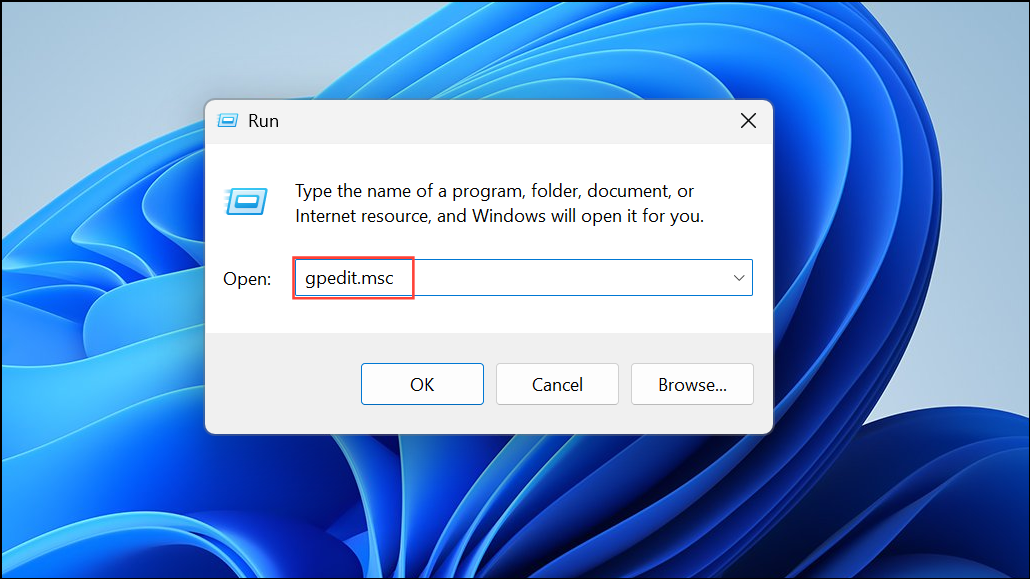
Computer Configuration > Administrative Templates > Windows Components > Search.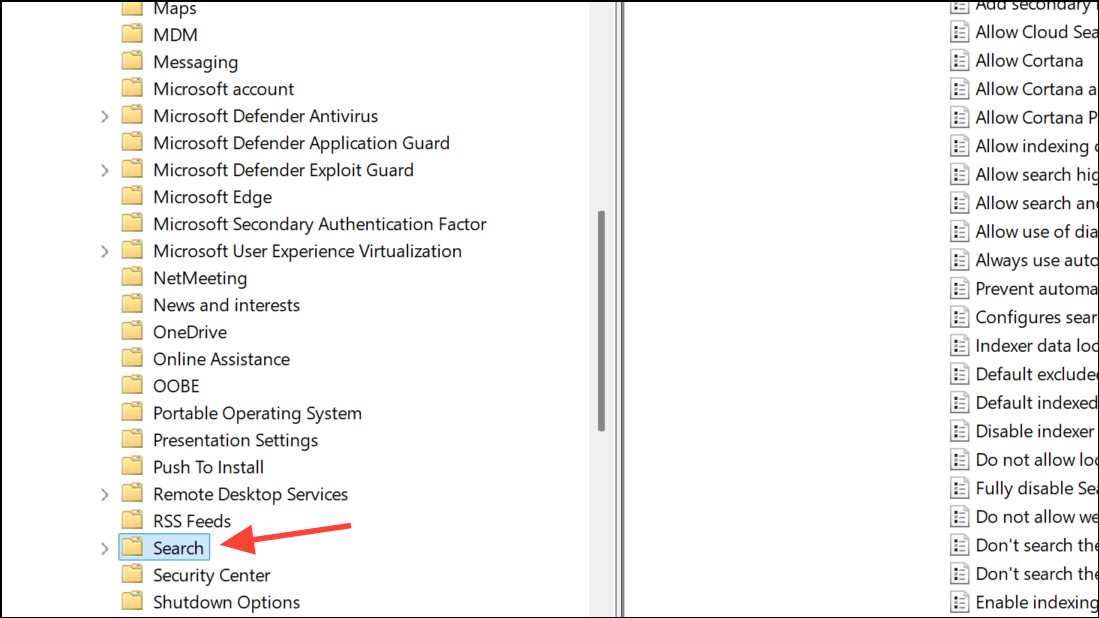
Prevent automatically adding shared folders to the Windows Search index and double-click it.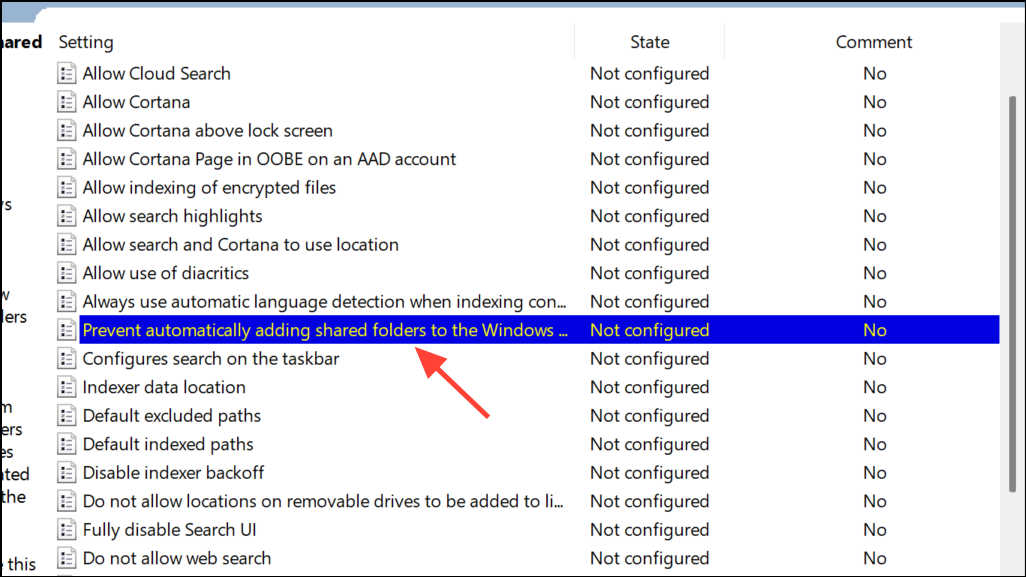
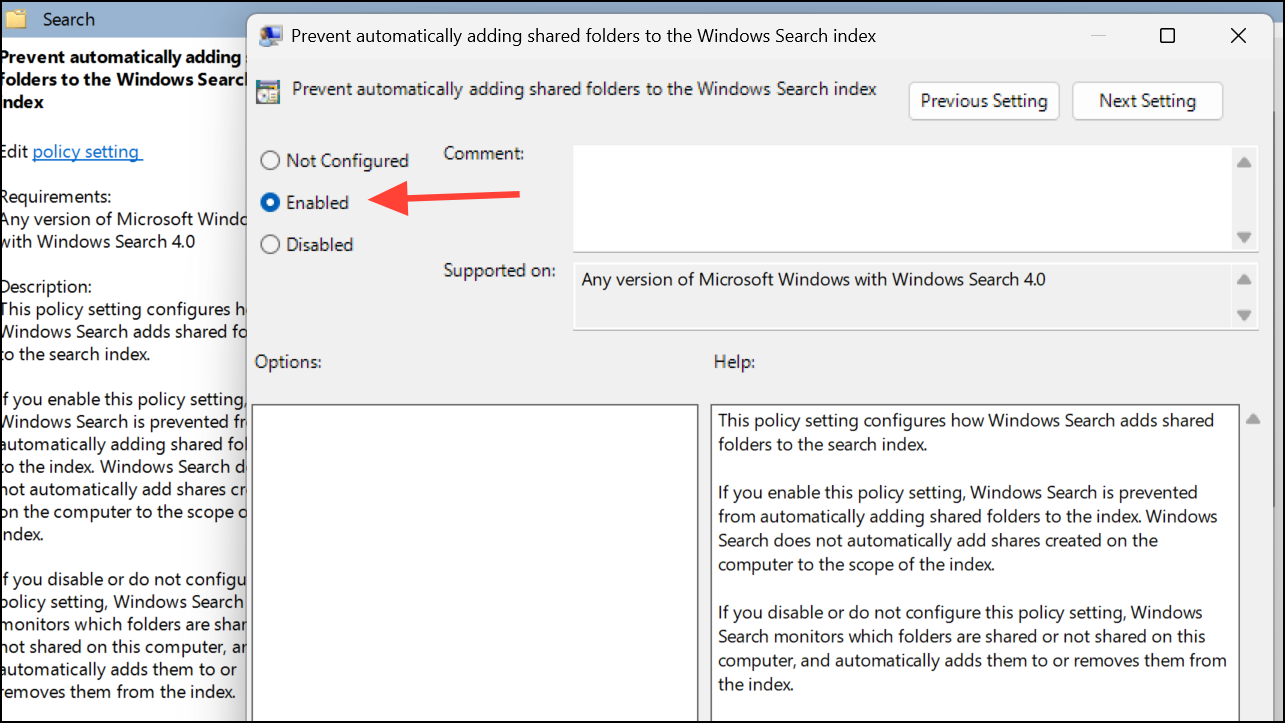
OK to apply the changes. The policy takes effect immediately, preventing shared folders from being added to the search index on this PC.Prevent Automatic Indexing of Shared Folders Using Registry Editor
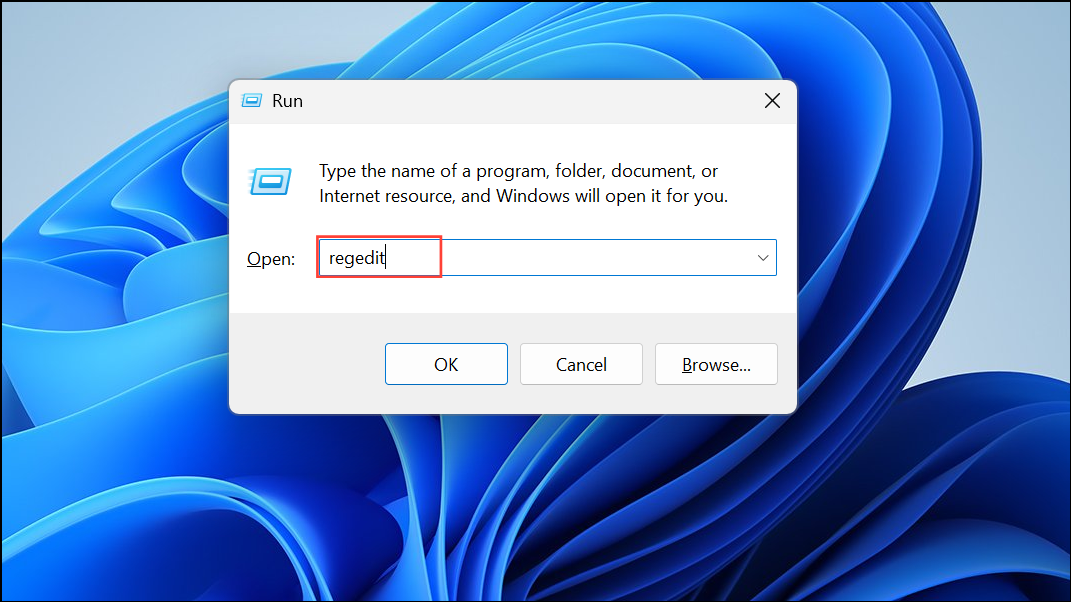
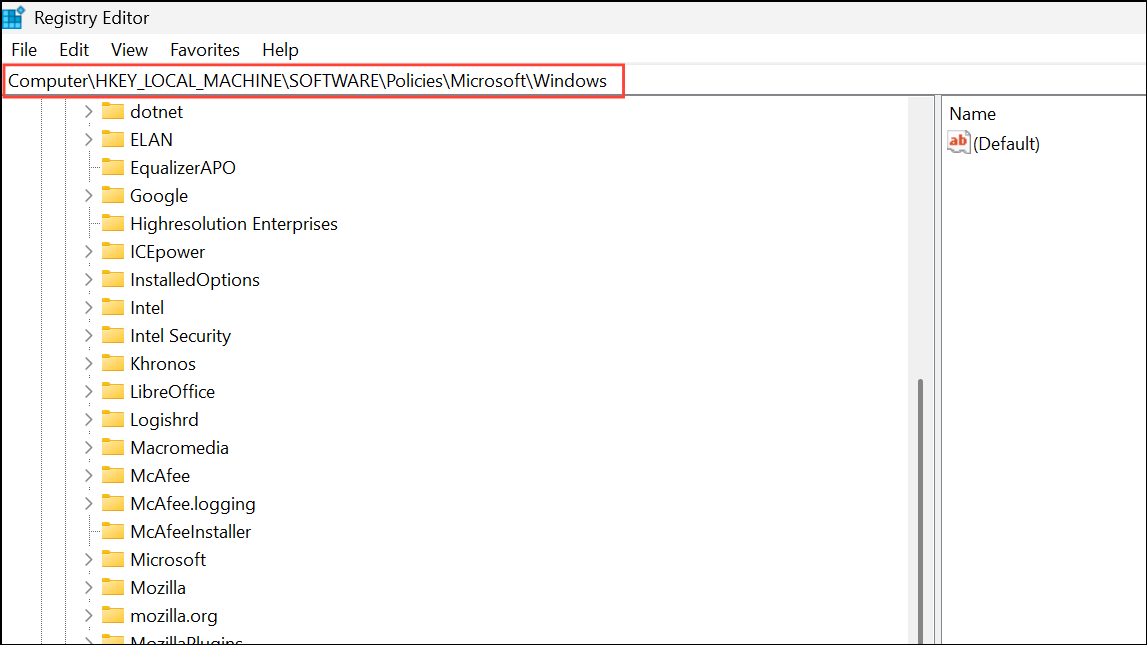
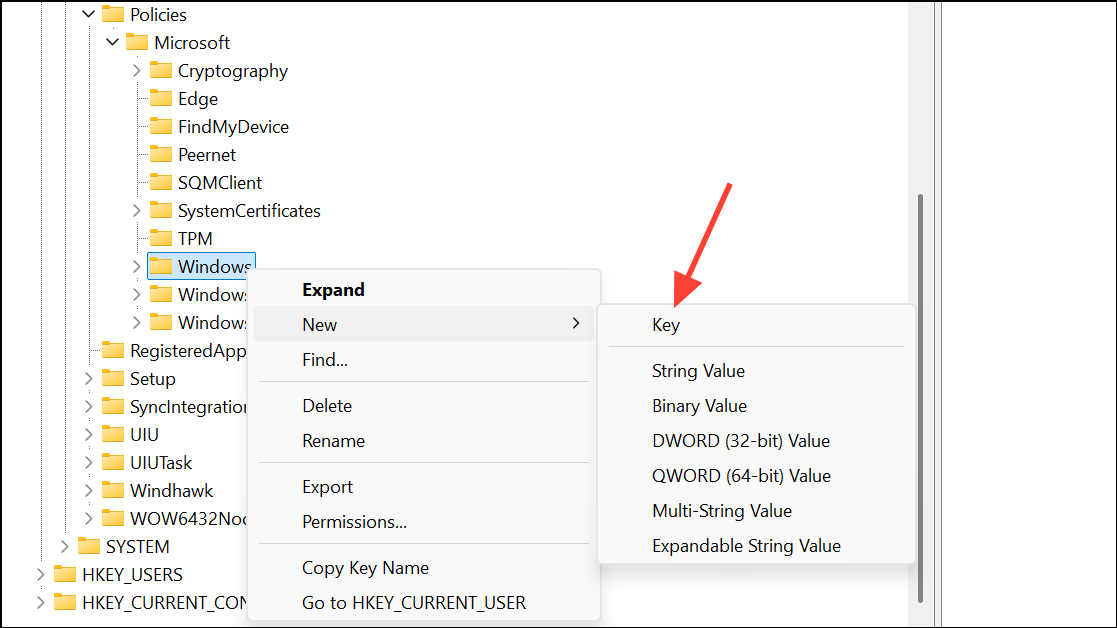
Windows Search key, choose New > DWORD (32-bit) Value, and name it AutoIndexSharedFolders.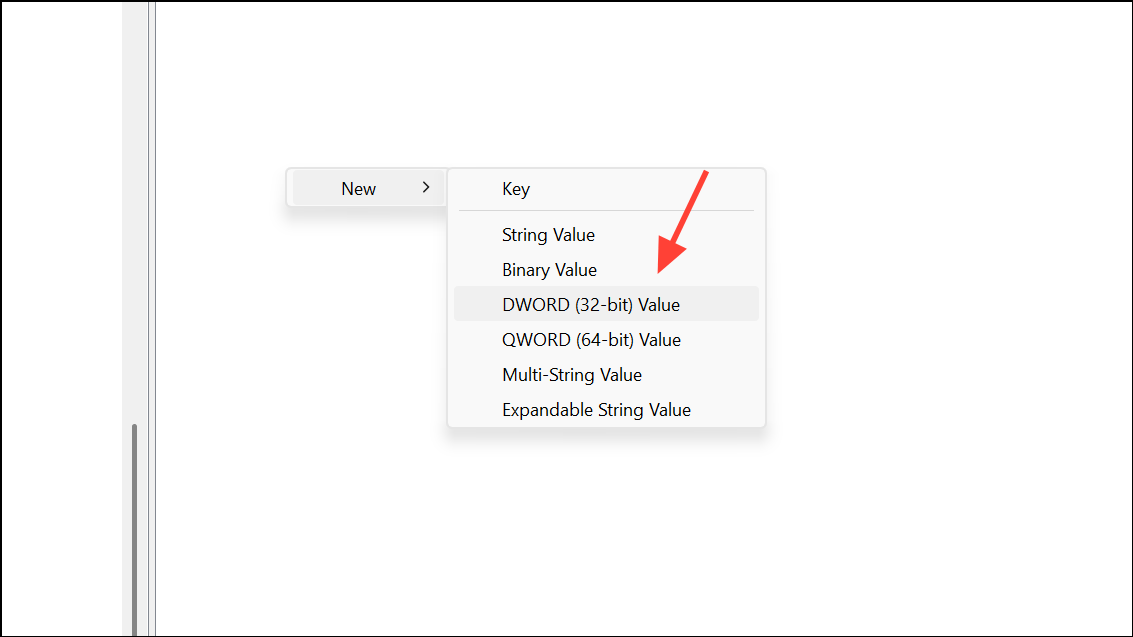
AutoIndexSharedFolders, set its value data to 1, and click OK. This change prevents Windows from automatically indexing shared folders.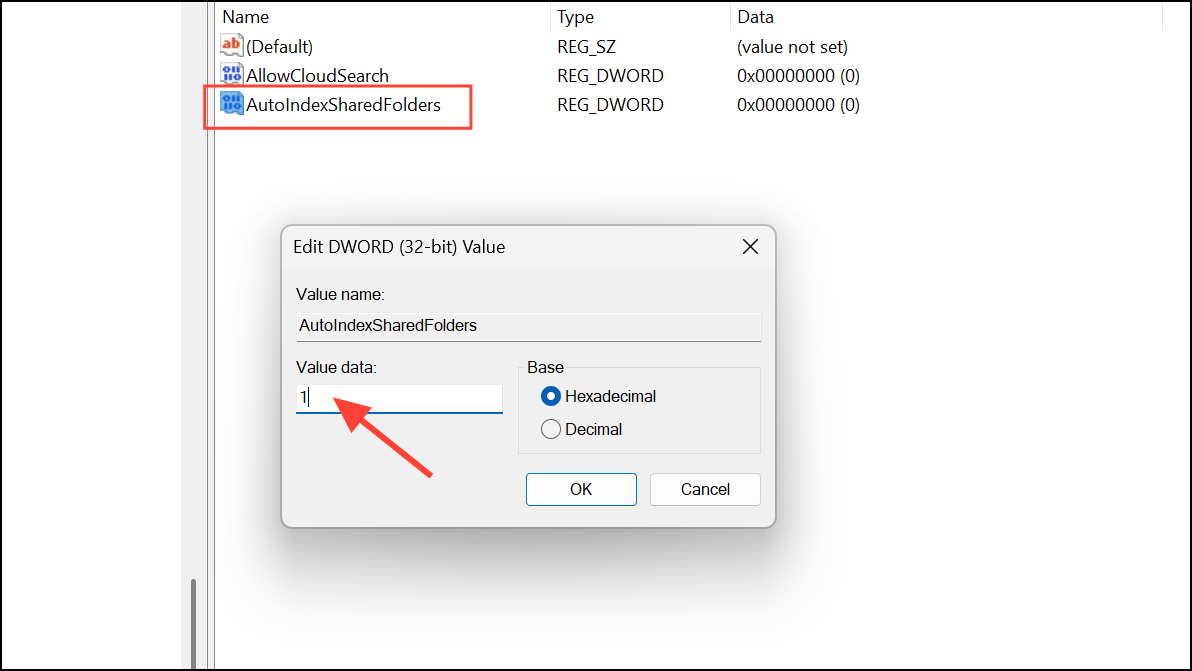
Manually Exclude Shared or Network Folders from Search Index
To further control which folders are indexed, you can manually exclude specific shared or network folders using Windows 11’s built-in settings.
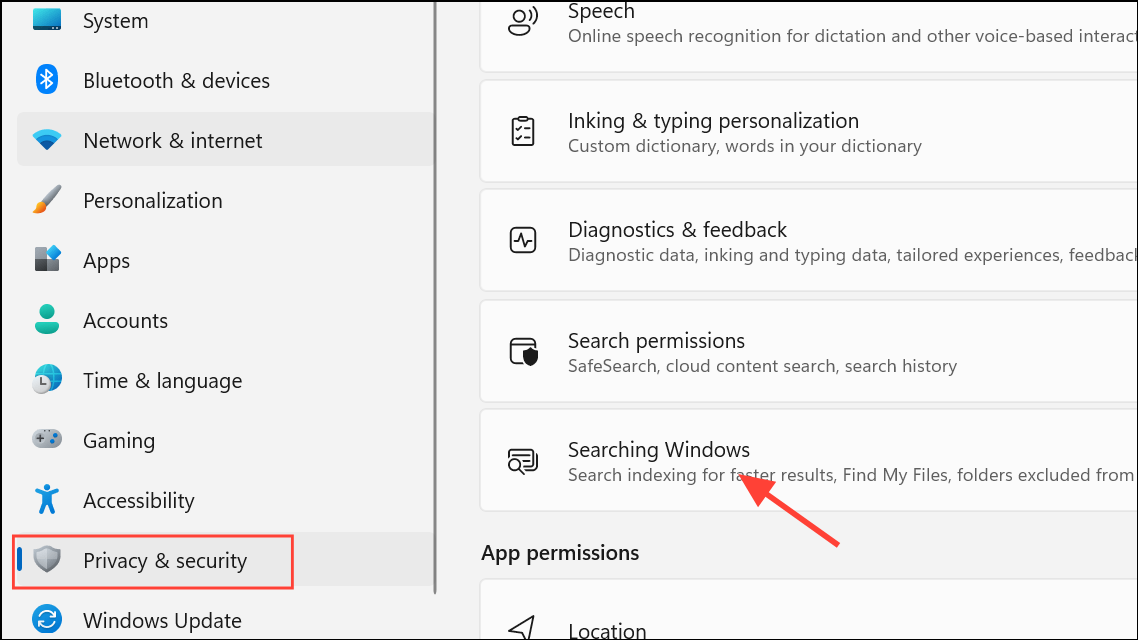
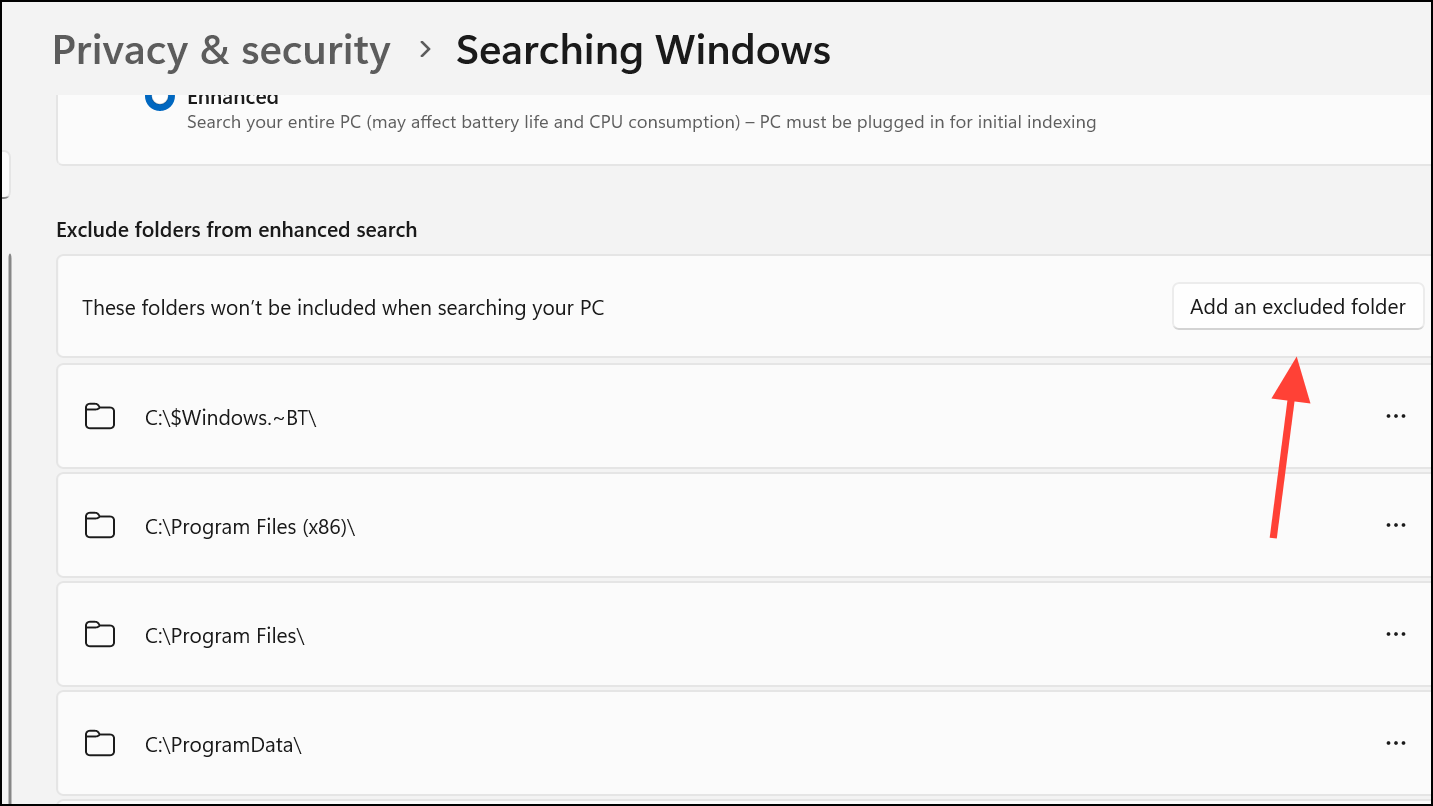
Select Folder to confirm.Additional Notes and Troubleshooting
- Windows 11 does not index network locations by default. When searching network drives, the local machine typically passes the search request to the server hosting the shared folder. The server must have its own index for fast results.
- Disabling indexing for shared folders does not affect the ability to access or share files, but it does mean those files will not appear in local search results unless manually included.
- If you want to stop indexing for all files on a drive, open File Explorer, right-click the drive, select
Properties, and uncheckAllow files on this drive to have contents indexed in addition to file properties. This is a broader approach and may impact overall search speed for local files. - For advanced automation or deployment scenarios, scope rules for indexing can be managed using PowerShell scripts and the Windows Search API, though this is more complex and typically used by IT administrators.
Stopping Windows 11 from automatically adding shared folders to the search index gives you more control over search performance and privacy, especially in networked environments. These changes are simple to reverse if you decide to index shared folders in the future.



