

Windows 11 build 28000.2333 (KB5095091) is the first preview of the July 2026 cumulative update for version 26H1. It carries over a batch of features that already shipped to Windows 11 25H2, including a multi-app camera mode, NPU monitoring in Task Manager, and the option to pick your own user folder name during setup.
Quick answer: This build reaches devices enrolled in the Release Preview channel for version 26H1 only. If your PC runs an Intel or AMD chip, you will never be offered 26H1, because the release is preinstalled exclusively on new ARM64 hardware.
Who can install Windows 11 26H1 build 28000.2333
Version 26H1 is a hardware-optimized release built around next-generation silicon, and it is not an upgrade path from 24H2 or 25H2. Microsoft ships it as a preinstalled experience on select new devices, starting with PCs powered by Snapdragon X2 Plus, Elite, and Extreme processors. The Microsoft Health Dashboard for 26H1 spells out that existing machines do not receive it as a feature update.
So while the changelog overlaps heavily with what 25H2 users already have, the practical audience for this specific build is narrow. It applies to a small set of new ARM64 systems running 26H1 through the Insider Program.
Multi-App Camera and Basic Camera mode
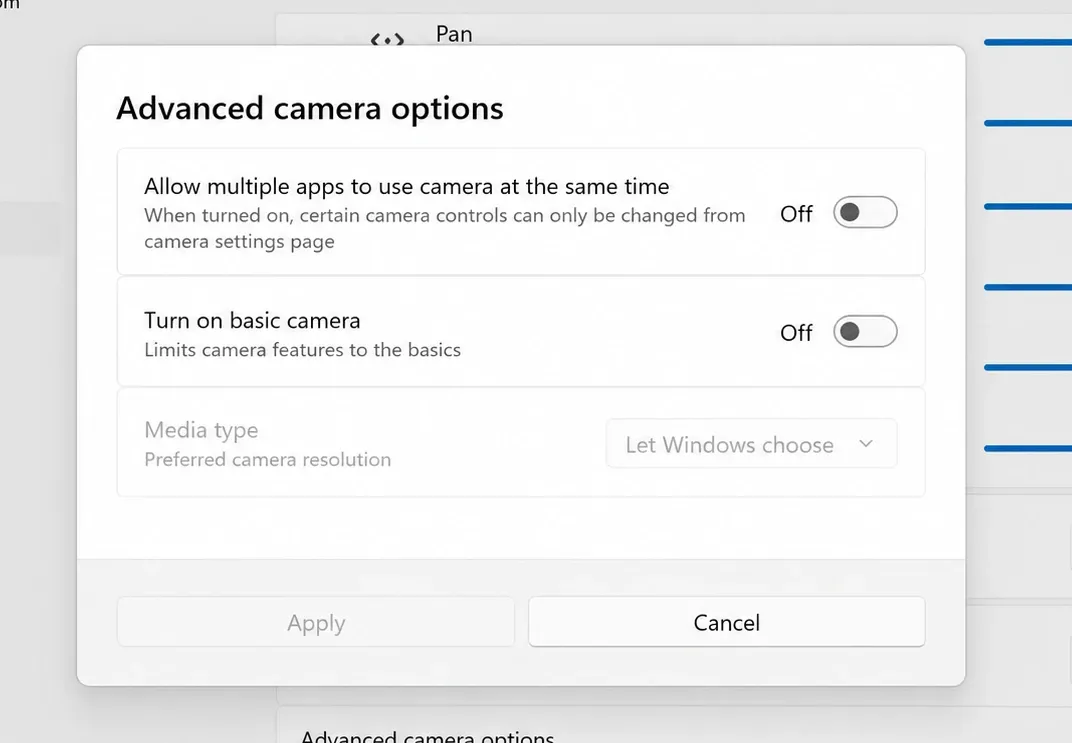
The headline change is Multi-App Camera, which lets several apps pull from the same camera stream at the same time. That removes the old limitation where one program could lock the webcam and block everything else from using it.
There is also a new Basic Camera mode. It strips the camera down to a simplified path that helps with troubleshooting or keeps things stable when a webcam is misbehaving. Administrators can set either mode through Group Policy at Computer Configuration > Administrative Templates > Windows Components > Camera > Configure Camera Options, which makes it possible to standardize camera behavior across a fleet of machines.
Task Manager NPU and AI workload monitoring
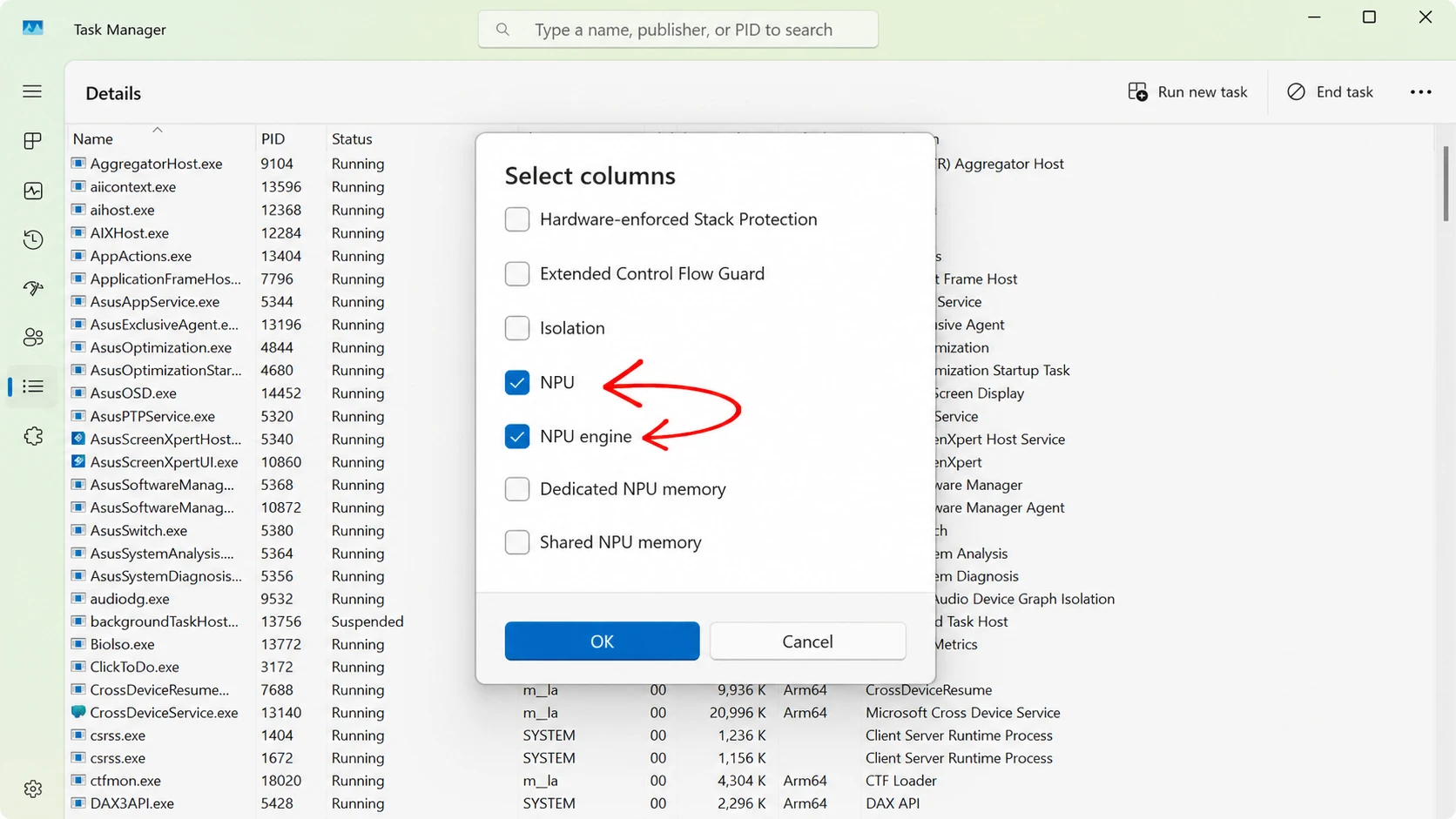
Task Manager now reports much more about AI hardware on machines with a Neural Processing Unit. New optional columns for NPU and NPU Engine appear on the Processes, Users, and Details pages, while the Details page adds NPU Dedicated Memory and NPU Shared Memory columns.
Neural engines built into the GPU also show up on the Performance page, giving a fuller picture of AI activity across the whole system. A new optional Isolation column on the Processes and Details pages flags which apps are running inside an AppContainer, which is useful for spotting sandboxed processes. You turn any of these on by right-clicking a column header and selecting the ones you want.
The update also corrects a reporting bug where the Performance page could display higher-than-expected CPU speeds for virtual machines after they resumed from hibernation.
Custom user folder name during Windows Setup
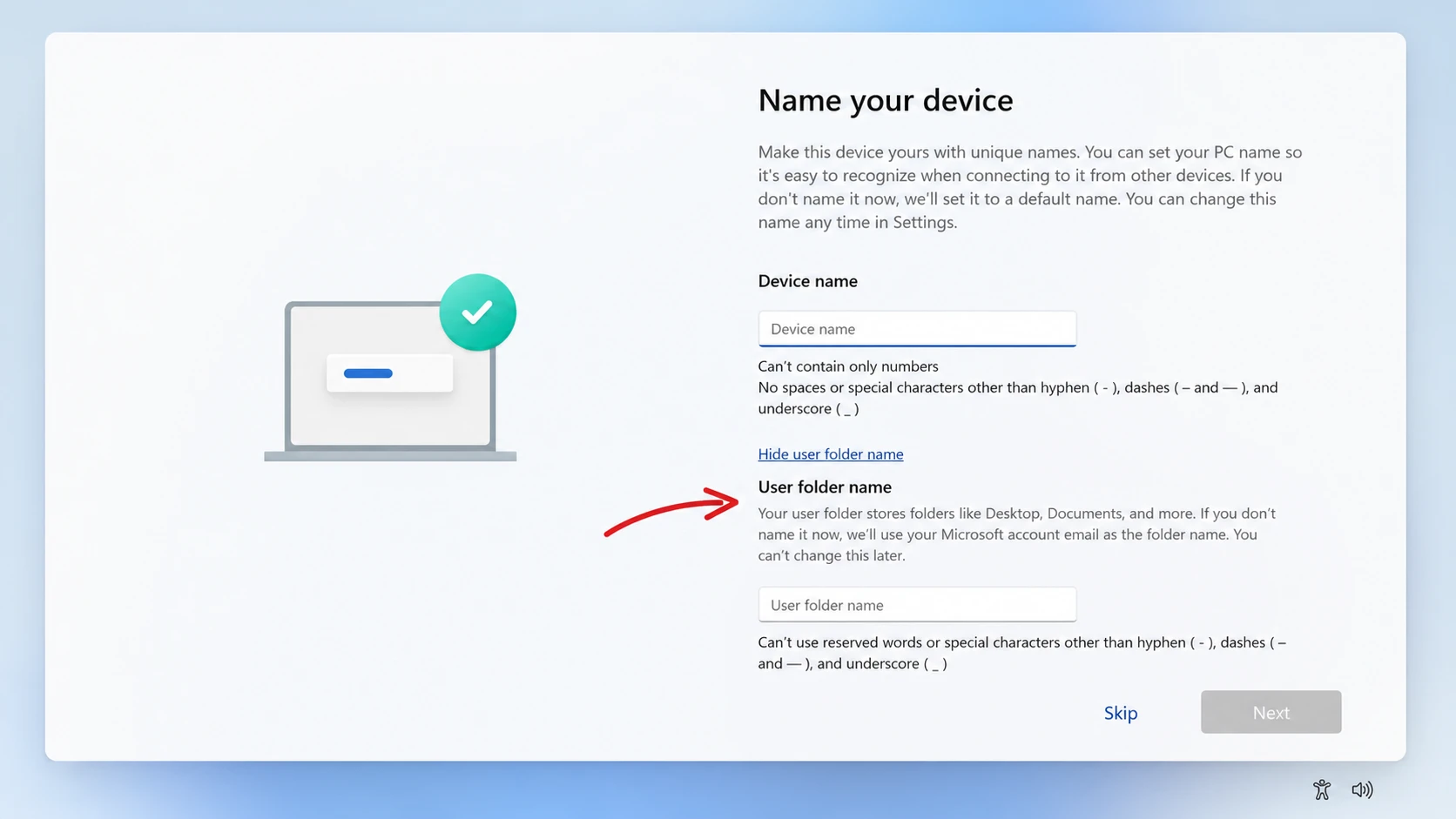
Setup finally lets you name your user profile folder yourself. On the Device Name page during the out-of-box experience, you can type a custom folder name instead of letting Windows generate one from your account details, which often produced shortened or awkward folder names.
If you skip the step, Windows falls back to the default naming method and finishes setup as usual. Custom names still have to follow standard Windows file naming rules.
Windows Hello sign-in changes
Windows Hello gets faster and more predictable. The Windows Biometric Service is optimized so biometric sign-in responds more quickly when a device wakes from Modern Standby, and a fix for missing secure enrollment metadata cuts down unexpected blocks in Enhanced Sign-in Security.
Sign-in priority also changes. When face or fingerprint is set up and available, Windows Hello presents it as the default option every time you reach the lock or sign-in screen, even if you used something else last time. If you enter your PIN three times in a row, Windows keeps showing the PIN until you switch to another method.
Magnifier and personalization fixes
Magnifier now gives clearer announcements when paired with a screen reader, so you hear feedback as you zoom in or out, switch views, toggle color inversion, or turn the tool on and off. It can magnify permitted protected content, and movement in lens mode is smoother.
On the personalization side, automatic accent color selection matches your wallpaper more accurately, and wallpapers survive restarts and upgrades more reliably. The changes include better handling of large-resolution images and reduce the cases where the desktop reset to a solid color.
Other fixes and improvements in KB5095091
| Area | Change |
|---|---|
| Windows Search | Finds and prioritizes files with as few as two characters typed |
| Storage | Dev Drives can be sized in GB; the Temporary Files page only shows a UAC prompt when you choose to view those files |
| USB | More reliable displays on USB4 docks and hubs, plus better recovery from USB hardware faults |
| Sensors | Stops apps from keeping the sensor hub powered on, saving battery |
| HID and Input | Better battery management for HID devices and steadier touch keyboard, input switcher, and clipboard history |
| Fonts | Times New Roman rendering of Greek and Cyrillic diacritics is corrected |
| Task Scheduler | Column widths in task list view are kept across sessions |
| Desktop icons | More reliable loading of desktop app shortcuts |
| Microsoft Store | Faster downloads, lower bandwidth use, and clearer errors when policy blocks a download |
| Authentication | Netlogon secure channel connections to domain controllers set up before 2025 work reliably |
| Reliability | Stability gains on sign-in and lock screens, in File Explorer, for touch gestures, and when changing themes |
The build also includes a general performance change that speeds up app launches and core shell surfaces such as the Start menu, Search, and Action Center. Note that many of these features roll out gradually through Controlled Feature Rollout, so availability can vary by region and hardware, and some take longer to reach users in Europe.
How to install build 28000.2333
If the PC has problems afterward, you can remove the package from Windows Update history. Full details for this release are in the official release notes.
Release timeline for the July 2026 update
| Stage | Build | Date |
|---|---|---|
| Initial preview (Release Preview) | 28000.2333 (KB5095091) | June 13, 2026 |
| Final release (General Availability) | To be confirmed | Scheduled for July 14, 2026 |
The preview lands now for testers, and the stable July cumulative update is set to follow on the second Tuesday of the month. For the wider context of how each 26H1 release has changed over the year, the 26H1 release health page tracks every revision alongside its support dates.



