
VPN Error 806 appears when a connection between a Windows 11 computer and a VPN server is established, but the VPN session cannot be completed. This error typically includes a message stating that at least one Internet device—such as a firewall or router—is not configured to allow GRE (Generic Routing Encapsulation) protocol packets. The issue frequently stems from blocked ports or protocols required for PPTP VPN connections, resulting in disrupted secure access to remote networks.
Open TCP Port 1723 in Windows Firewall
Configuring the Windows Defender Firewall to allow TCP port 1723 is the most direct way to address VPN Error 806. TCP port 1723 is essential for PPTP VPN connections, and if it is blocked, the VPN handshake will fail even if the initial connection is established.
Windows Defender Firewall with Advanced Security, then select the matching result.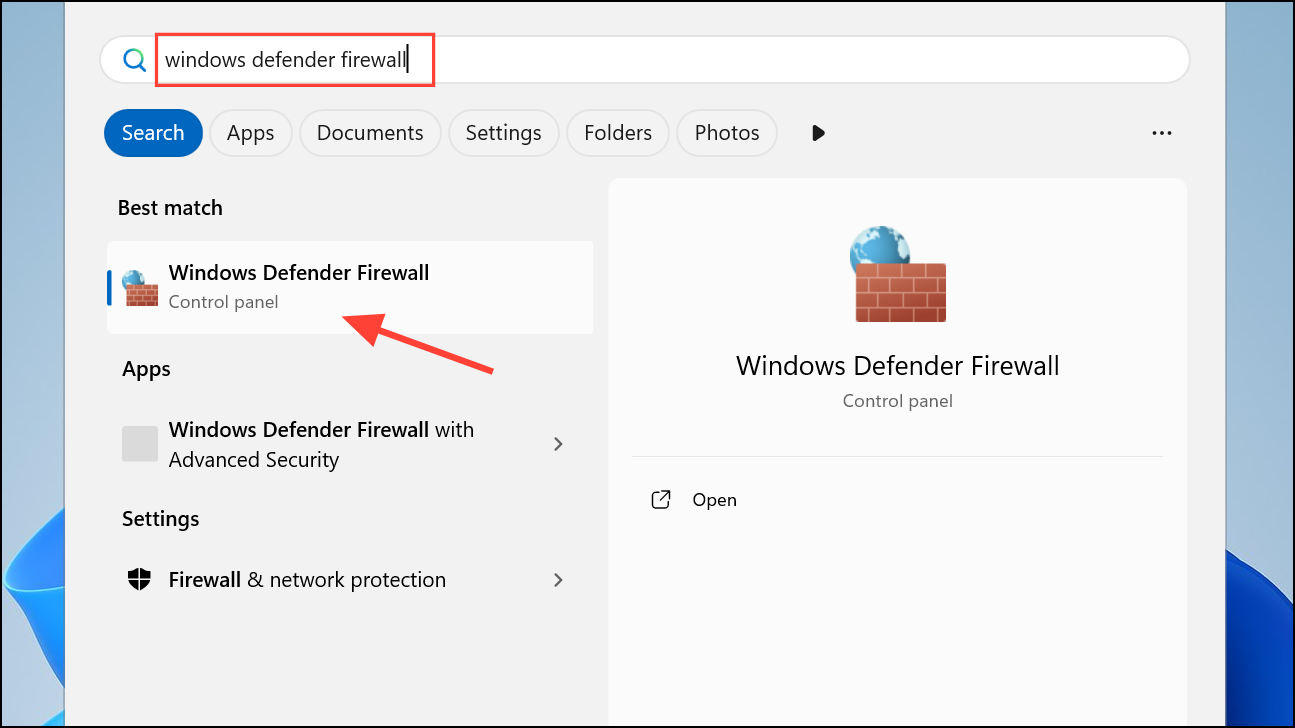
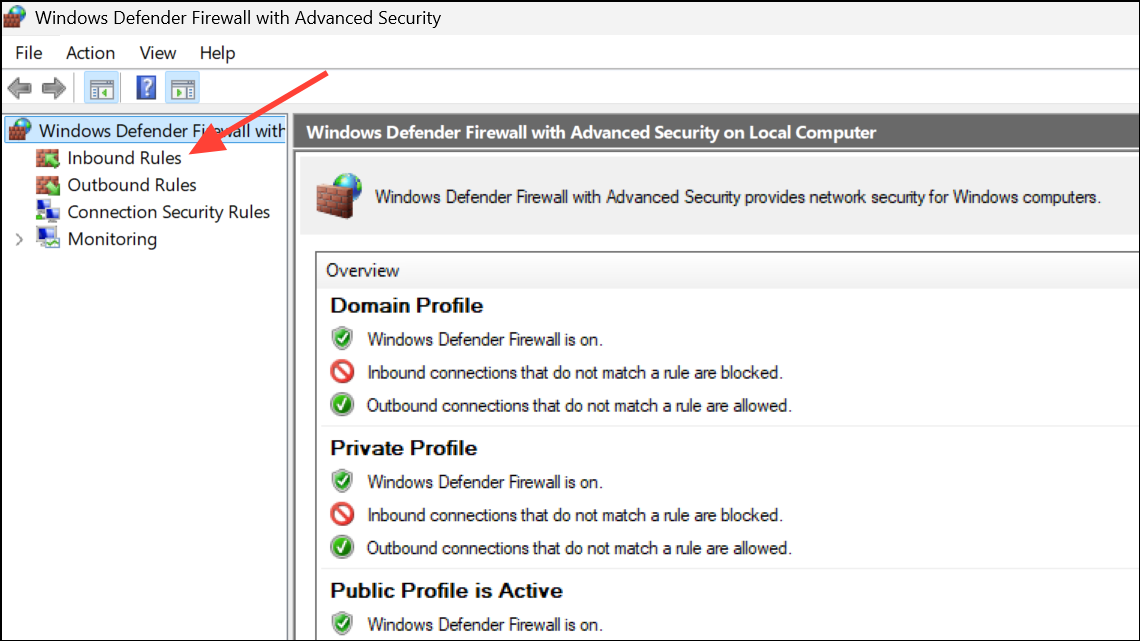
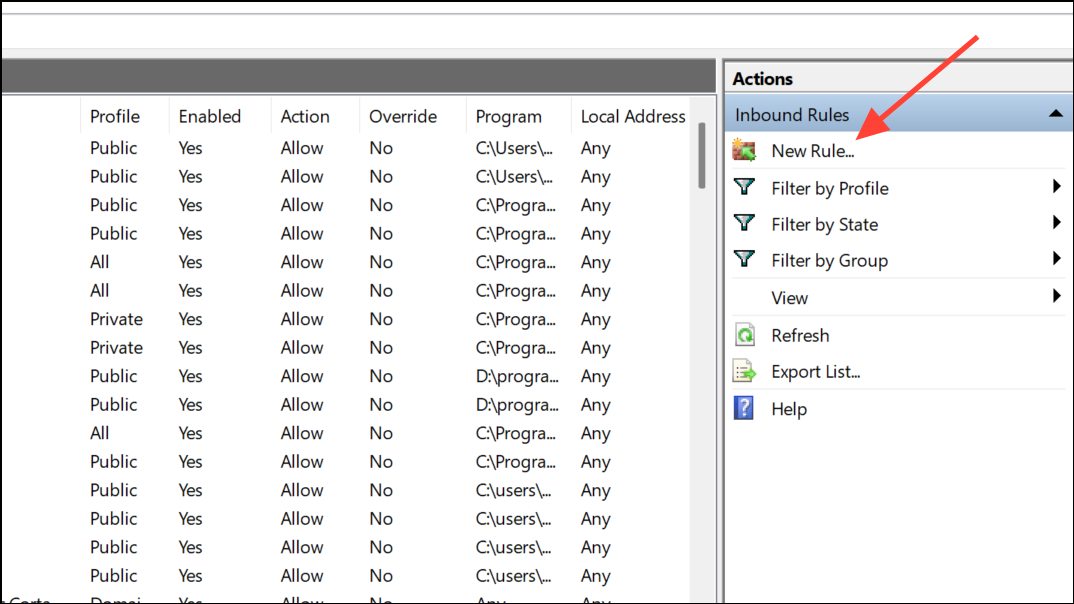
1723 in the Specific local ports field. Click Next.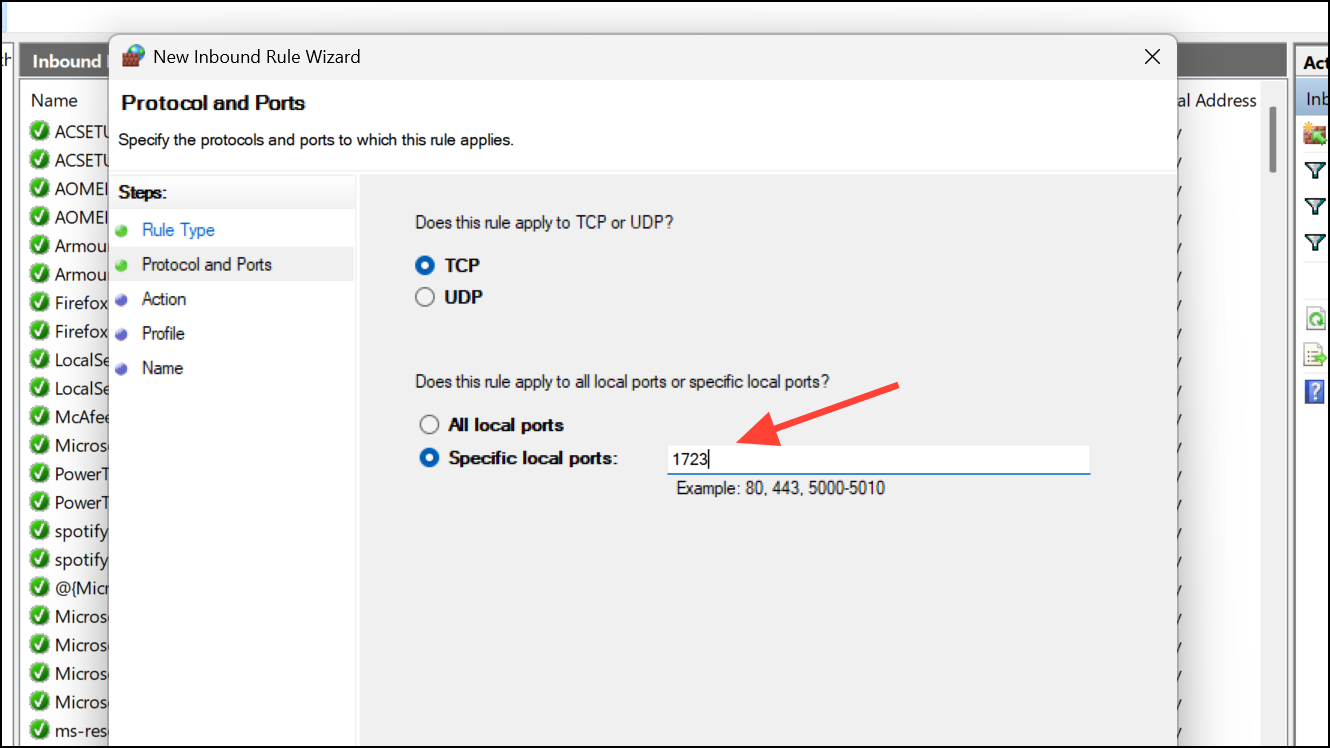
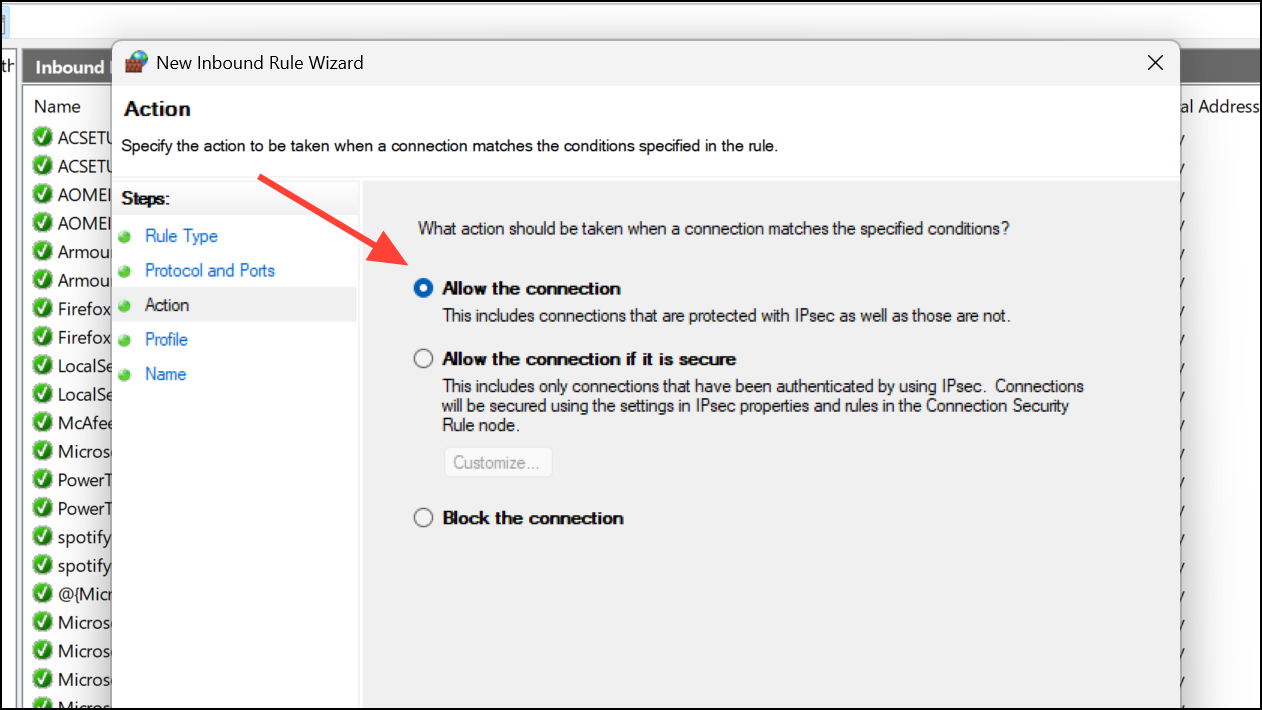
PPTP TCP 1723, and click Finish.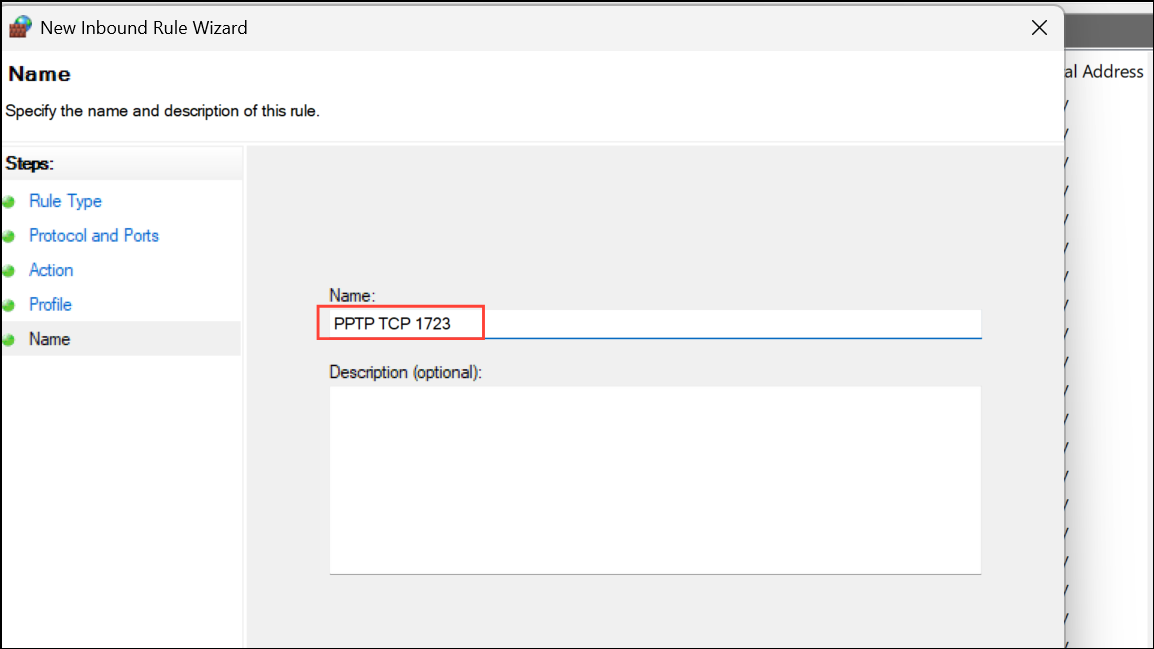
This configuration allows the necessary VPN traffic and resolves the most common cause of Error 806.
Enable GRE Protocol (Protocol 47) in Firewall Settings
GRE (Generic Routing Encapsulation) protocol, also known as Protocol 47, is essential for PPTP VPNs. Even when TCP port 1723 is open, blocking GRE packets will prevent the VPN tunnel from forming correctly.
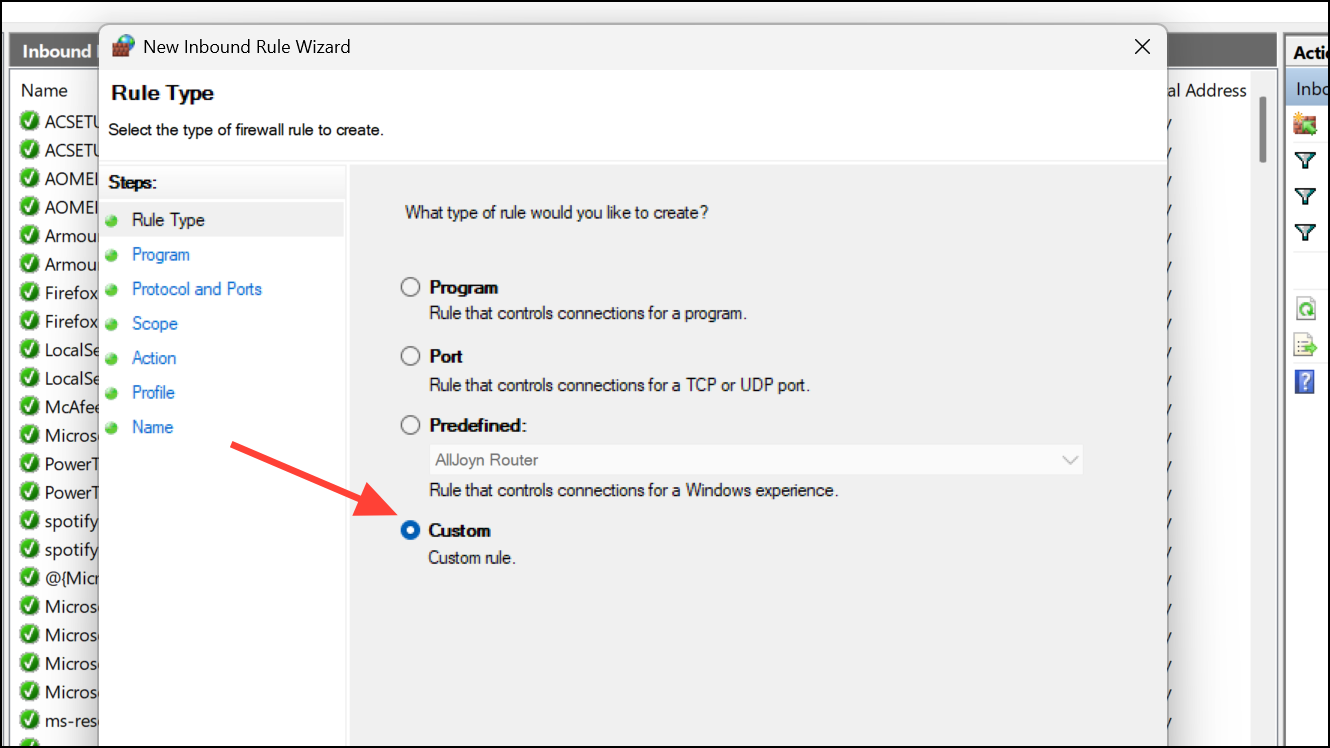
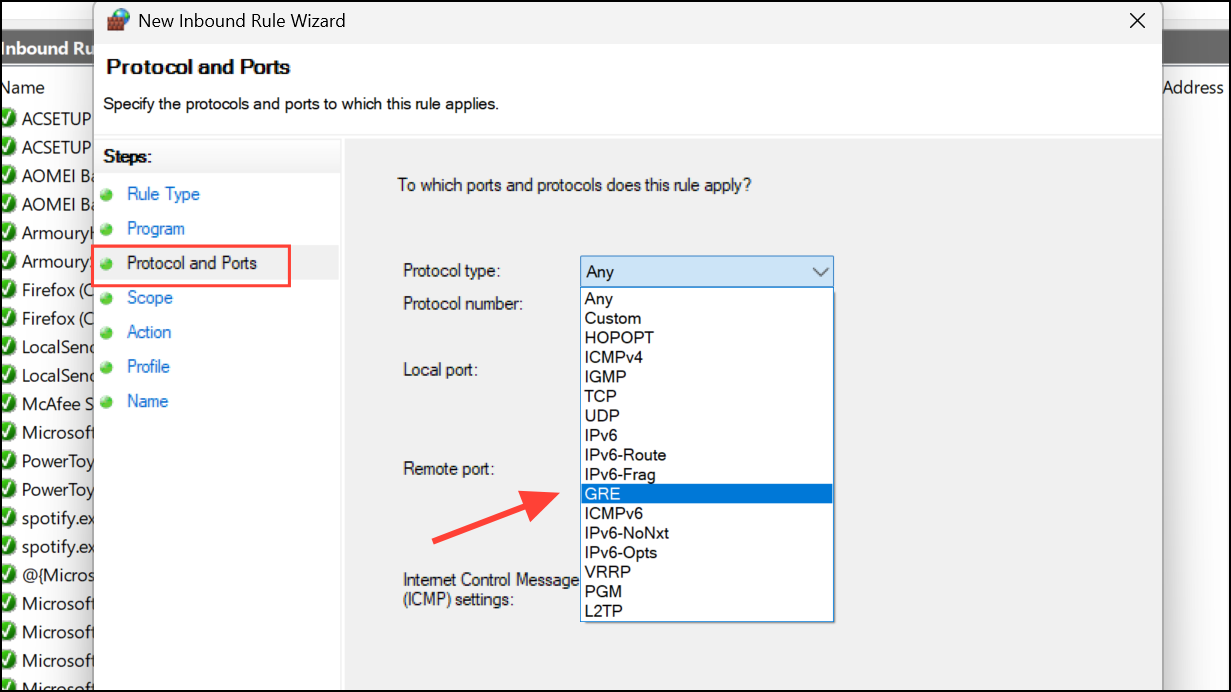
Allow GRE Protocol 47, and finish the setup.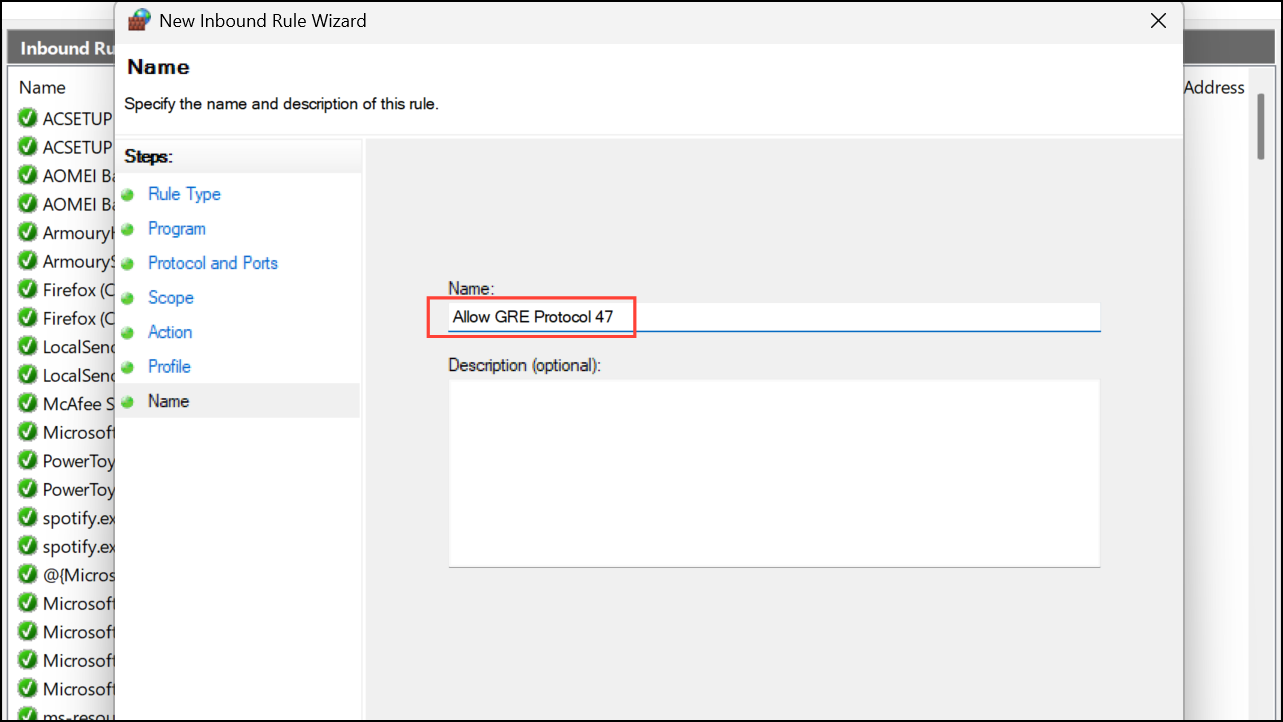
With both TCP port 1723 and GRE protocol permitted, PPTP VPN connections can be established successfully.
Configure Port Forwarding on Routers and NAT Devices
VPN servers located behind a router or NAT device require port forwarding to function correctly. Without forwarding, external VPN clients cannot reach the server’s required ports or protocols.
192.168.1.1 or 192.168.0.1. Refer to your device’s manual if unsure.Proper port forwarding eliminates the VPN Error 806 caused by routers or NAT devices blocking necessary traffic.
Disable or Adjust Third-Party Antivirus and Firewall Software
Some antivirus programs or third-party firewalls override Windows Firewall settings and block ports or protocols required for VPN connections. Temporarily disabling these utilities can help determine if they are the source of the problem.
This approach isolates software conflicts and allows secure VPN operation without compromising overall device protection.
Update Router Firmware
Outdated router firmware may lack support for current VPN protocols or have bugs that interfere with VPN connections. Updating the firmware can resolve compatibility issues that cause Error 806.
Firmware updates often resolve protocol compatibility issues and improve overall network stability.
Resolving VPN Error 806 on Windows 11 means configuring firewall rules, allowing essential ports and protocols, and confirming that routers and security software do not block VPN traffic. Regular checks and updates keep connections reliable and secure.



