

Unwanted autocorrect and spellcheck features in Windows 11 can disrupt typing accuracy, especially when working in multiple languages or entering specialized terms. Disabling these features restores manual control over your input and prevents automatic changes that may lead to confusion or lost productivity. Below are several methods to turn off autocorrect and spell check in Windows 11, with each approach explained in detail.
Turn Off Auto Correct and Spell Check Using Windows Settings
Windows + I on your keyboard.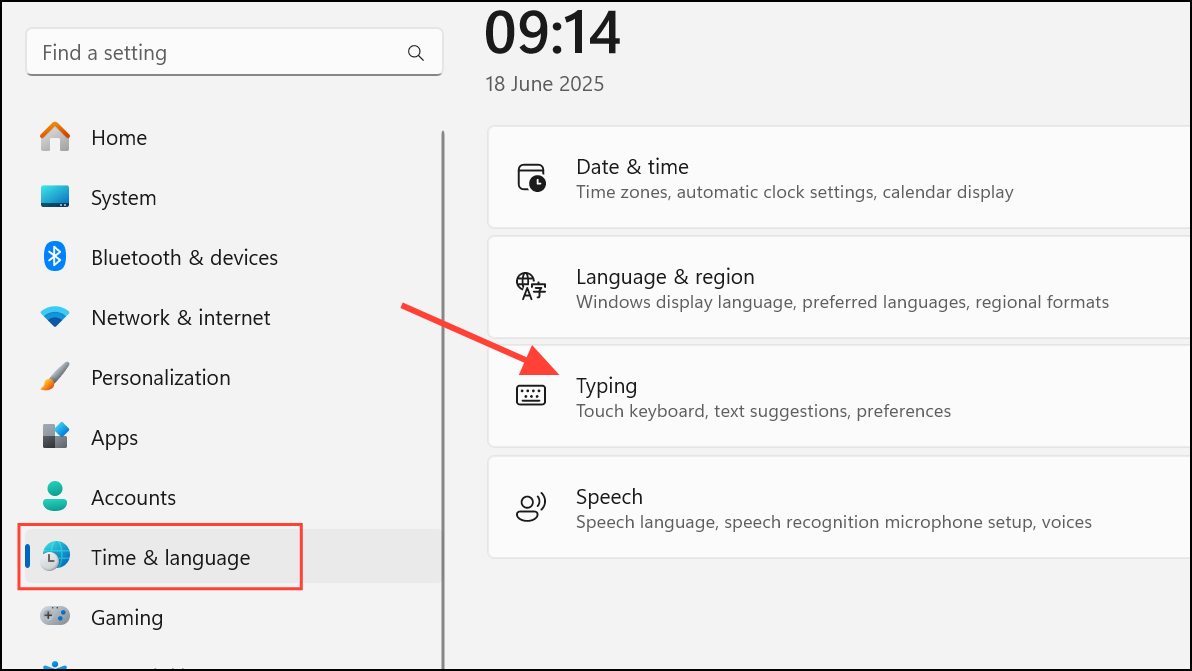
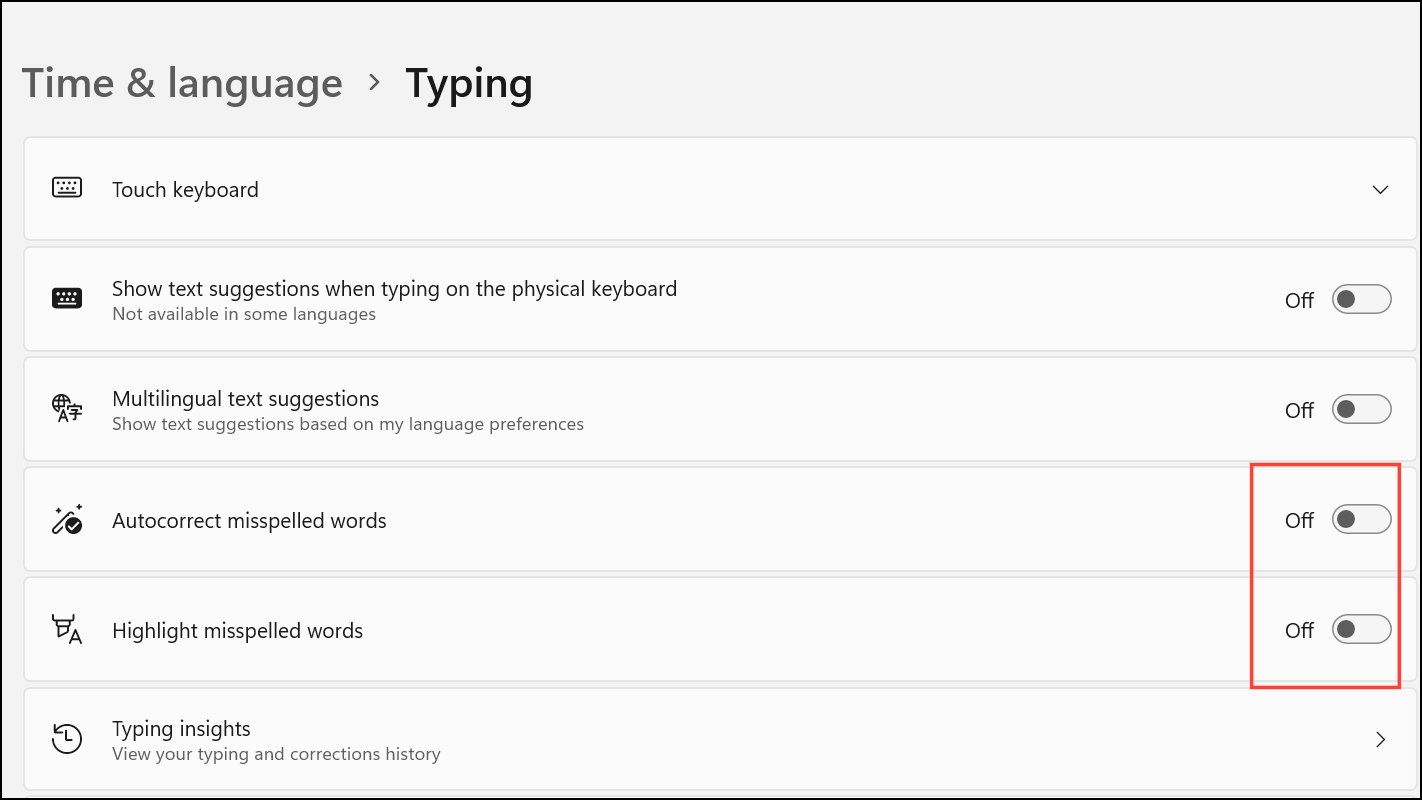
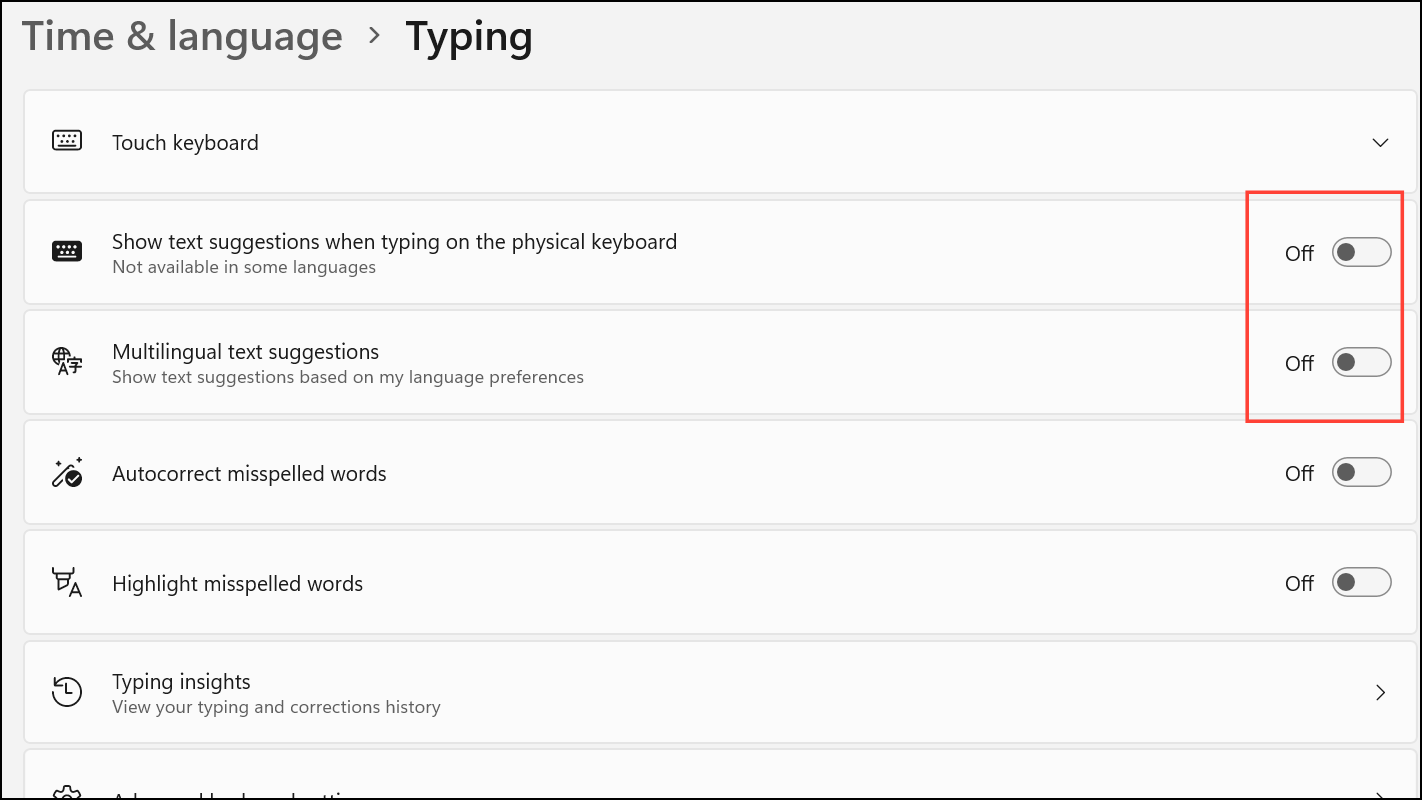
Disabling these settings ensures that Windows will no longer automatically correct or highlight spelling errors in most text fields and applications that use the system typing framework.
Disable Auto Correct and Spell Check via Group Policy Editor
Windows + R to open the Run dialog, then typing gpedit.msc and pressing Enter.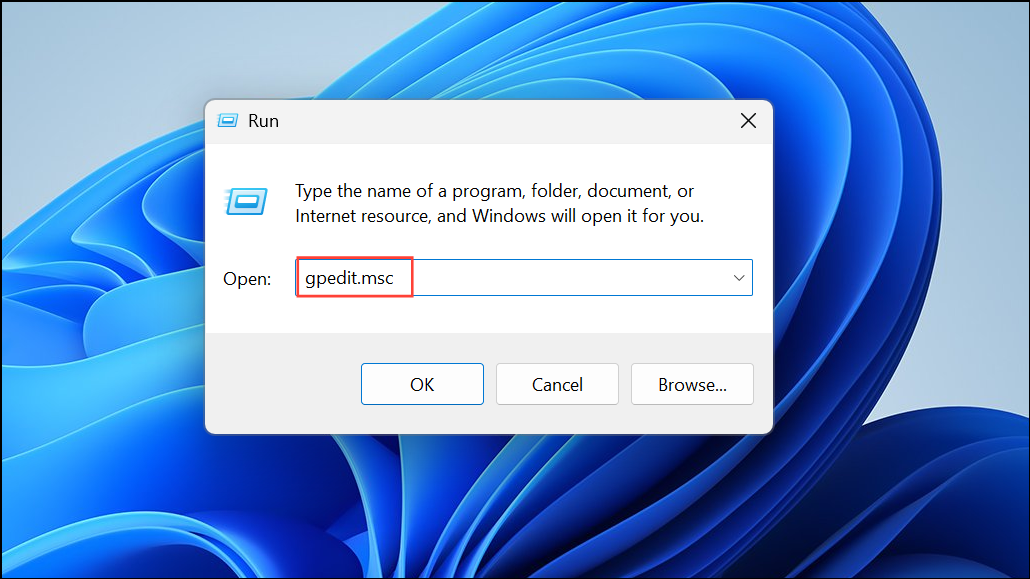
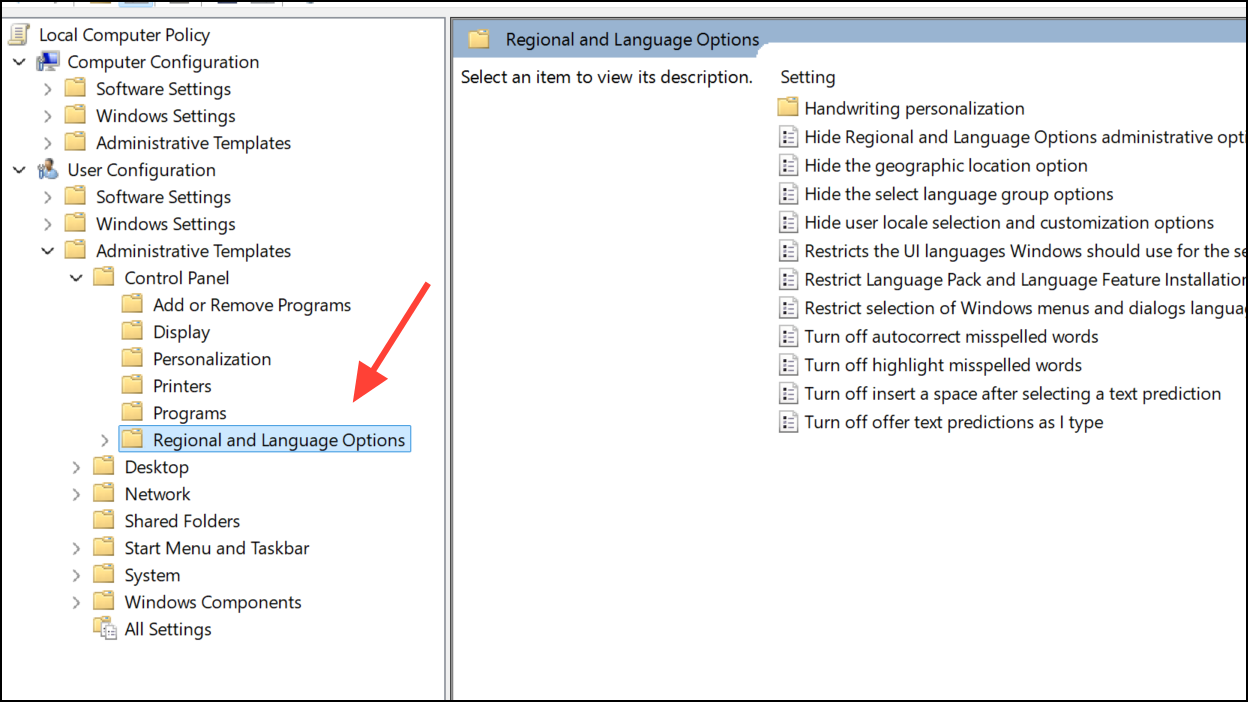
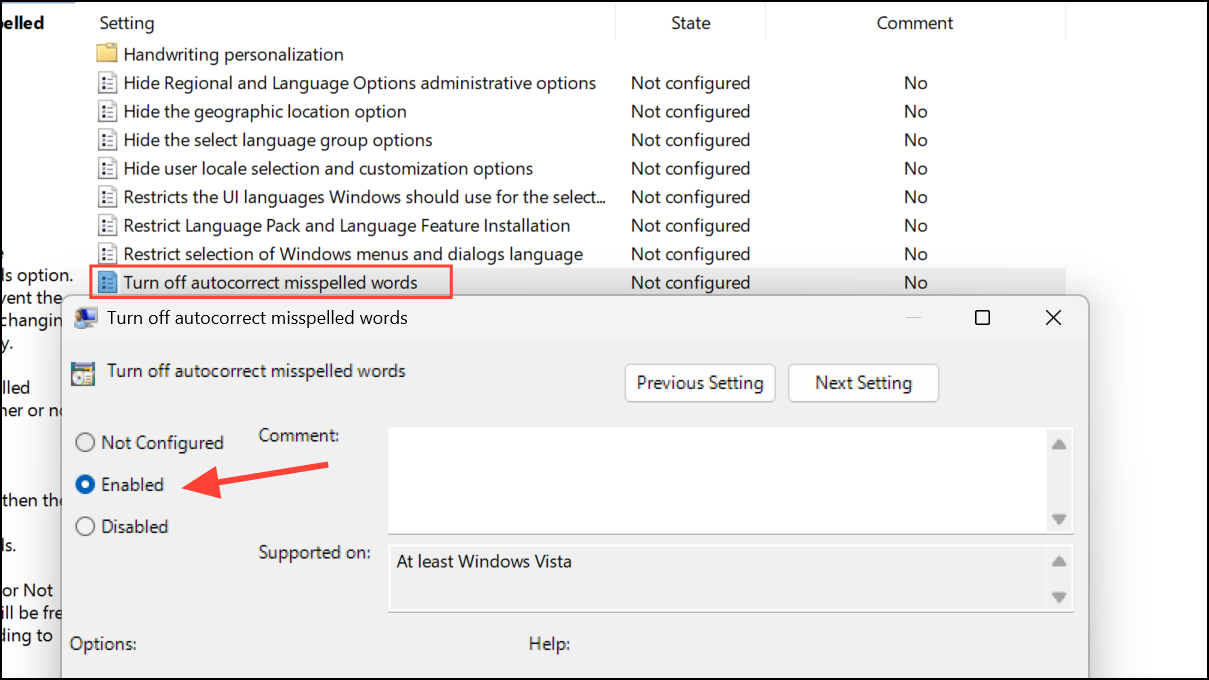
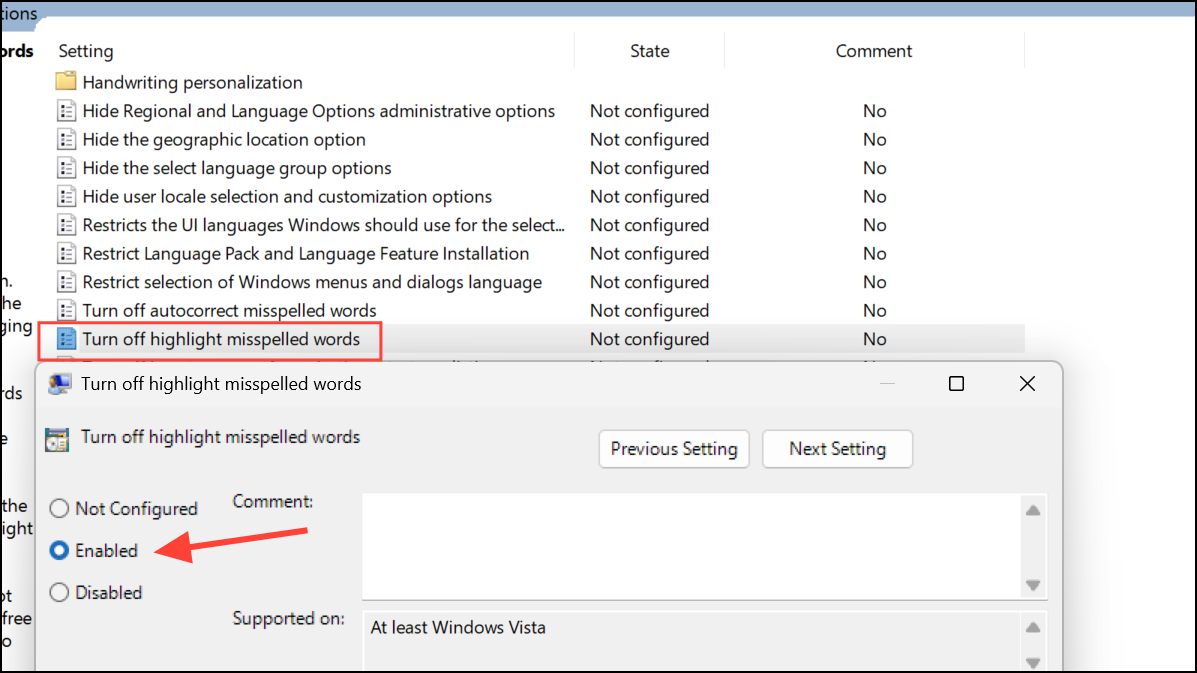
These policy changes will lock autocorrect and spellcheck features in the off state for all users on the machine, unless overridden by an application’s own settings. Note that Group Policy Editor is available only in Windows 11 Pro, Enterprise, and Education editions.
Turn Off Auto Correct and Spell Check Using the Registry Editor
Modifying the Windows Registry allows for granular control over autocorrect and spellcheck features, especially on editions of Windows 11 that lack Group Policy Editor. Always back up your registry before making changes to prevent system issues.
Windows + R to open the Run dialog, type regedit, and press Enter. If prompted by User Account Control, click Yes to continue.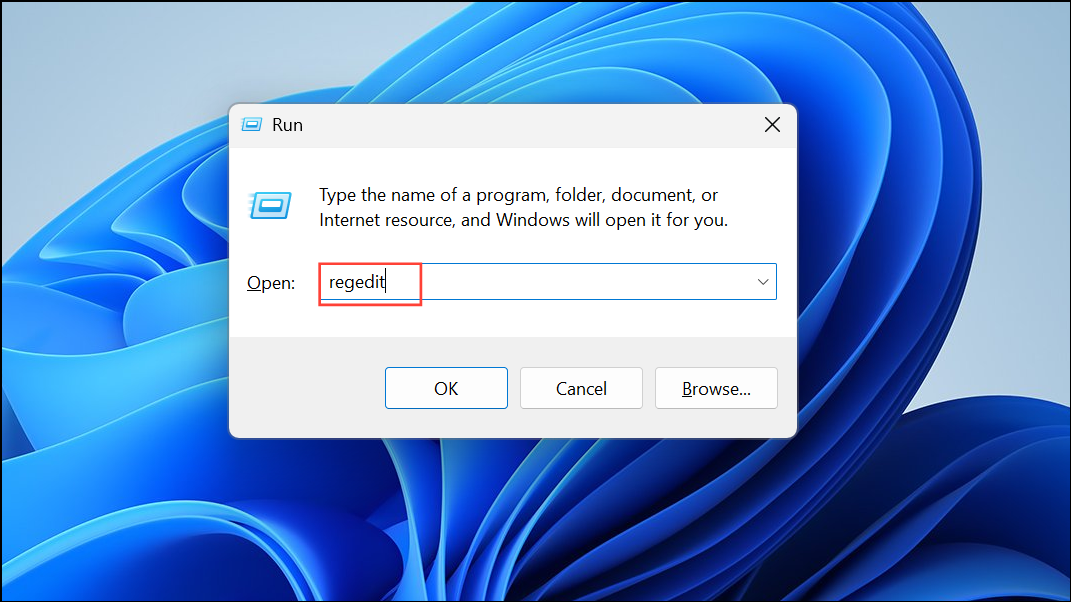
HKEY_CURRENT_USER\Software\Microsoft\Control Panel\International. If the Control Panel or International keys do not exist, right-click to create them as new keys in the appropriate location.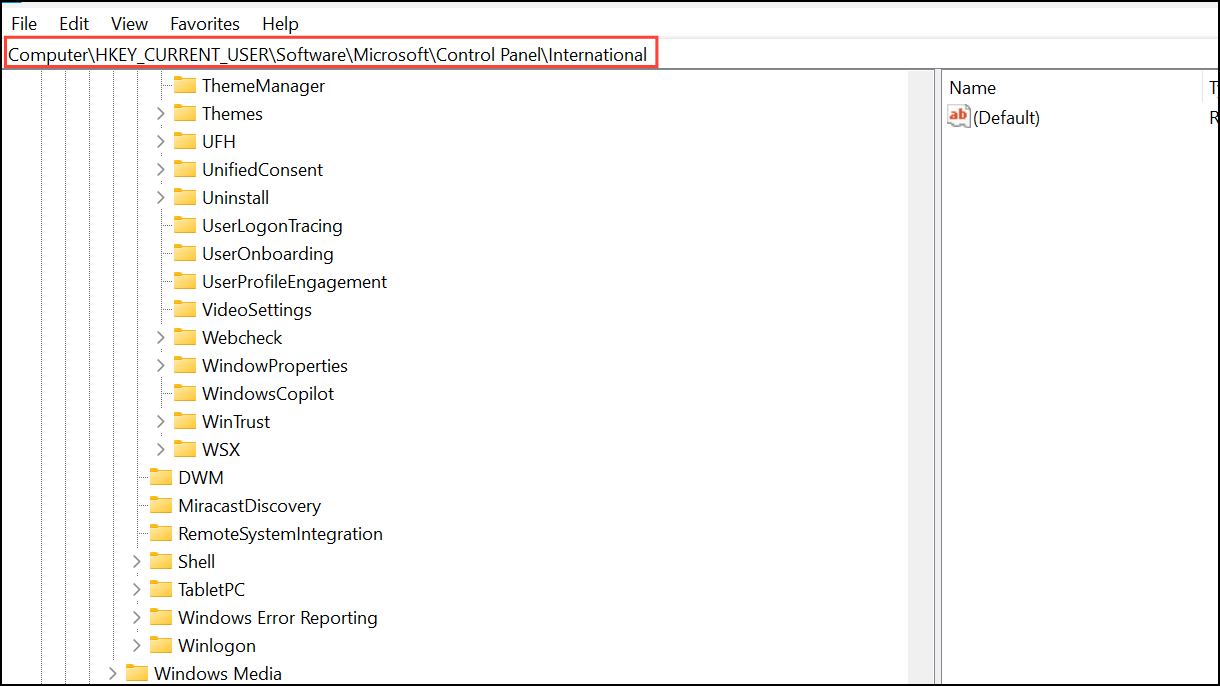
TurnOffAutocorrectMisspelledWords. Double-click it and set its value data to 1 to disable autocorrect. To re-enable, set it to 0.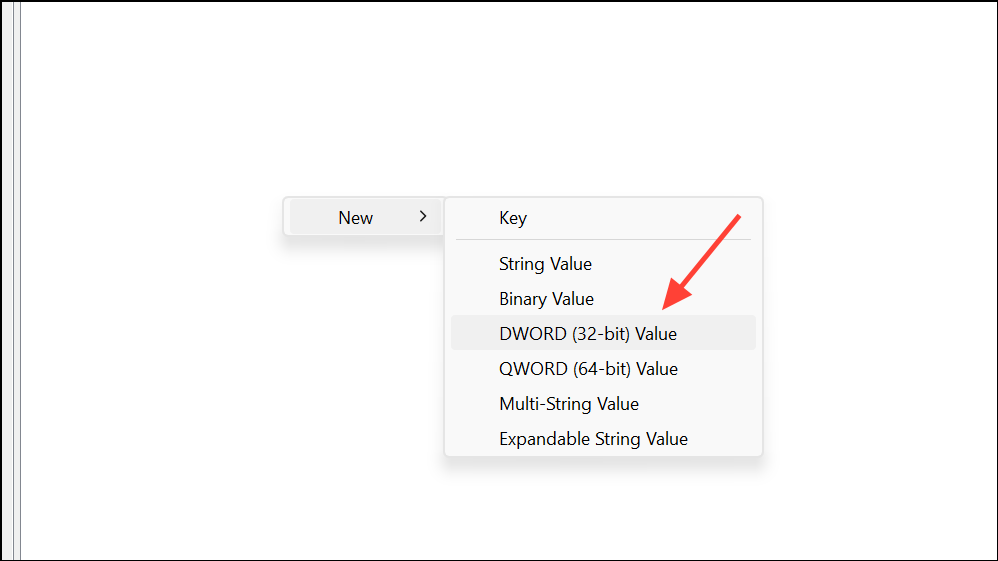
TurnOffHighlightMisspelledWords. Set its value to 1 to turn off the spellcheck underline, or 0 to enable it.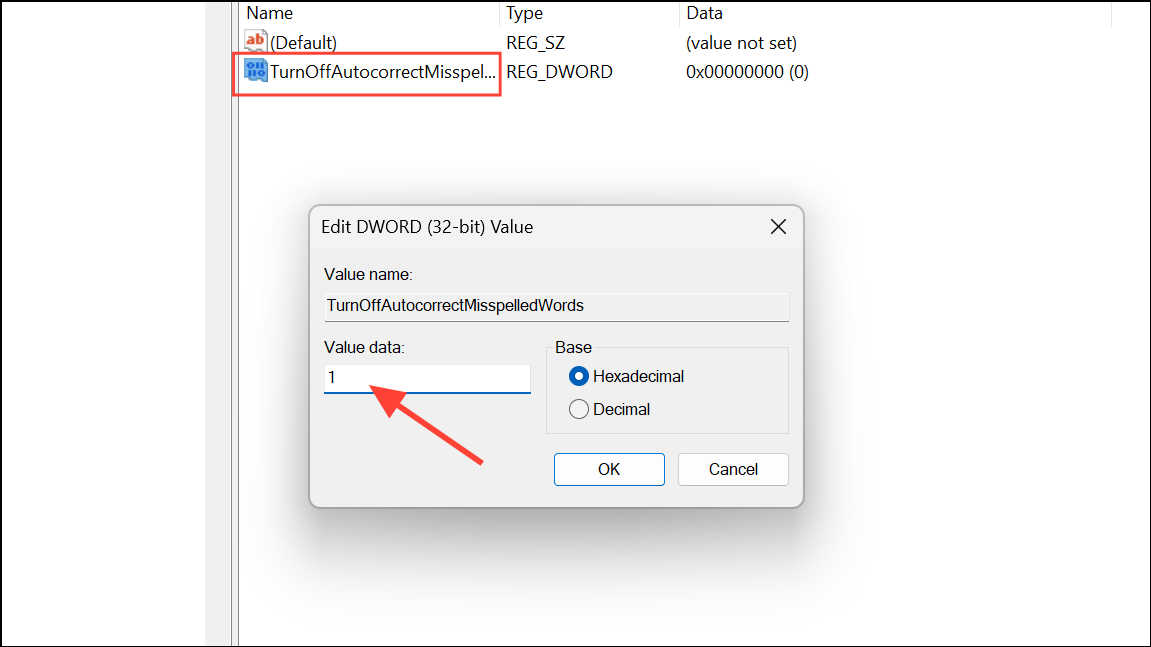
Close the Registry Editor and restart your computer for the changes to take effect.
Disable Auto Correct and Spell Check in Specific Apps
Notepad
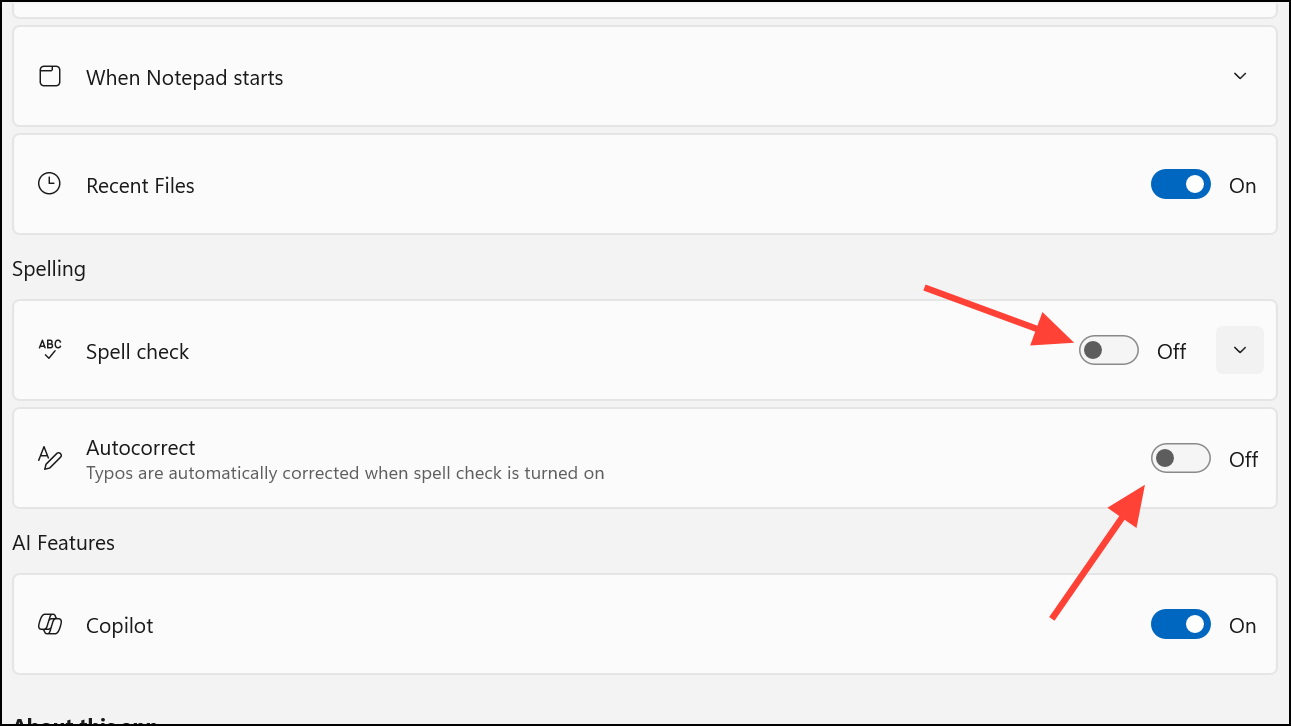
Recent versions of Notepad in Windows 11 include their own spellcheck and autocorrect settings. To turn these off:
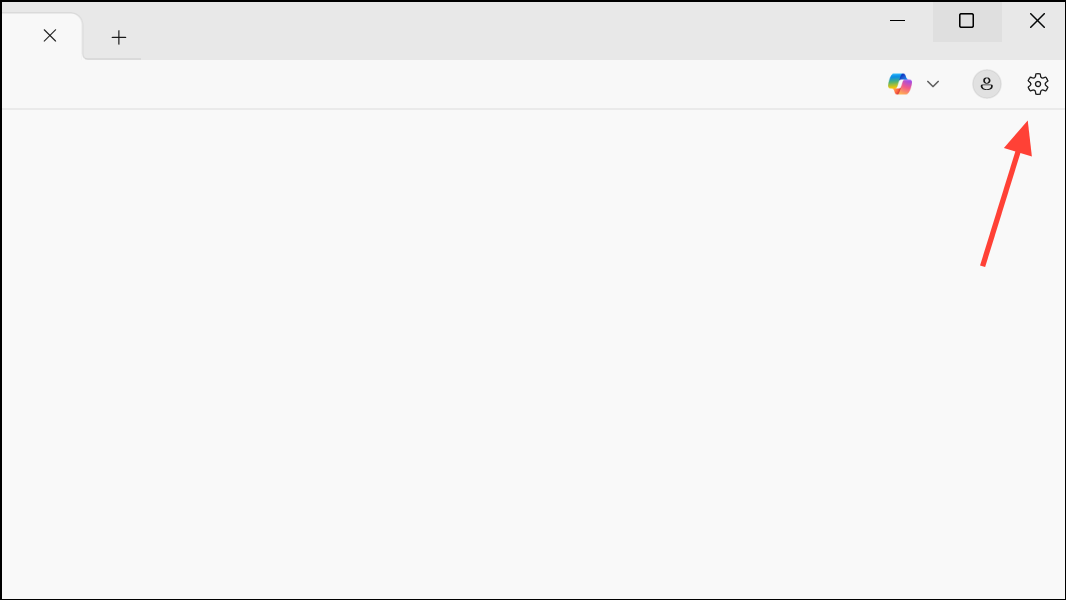
Microsoft Edge
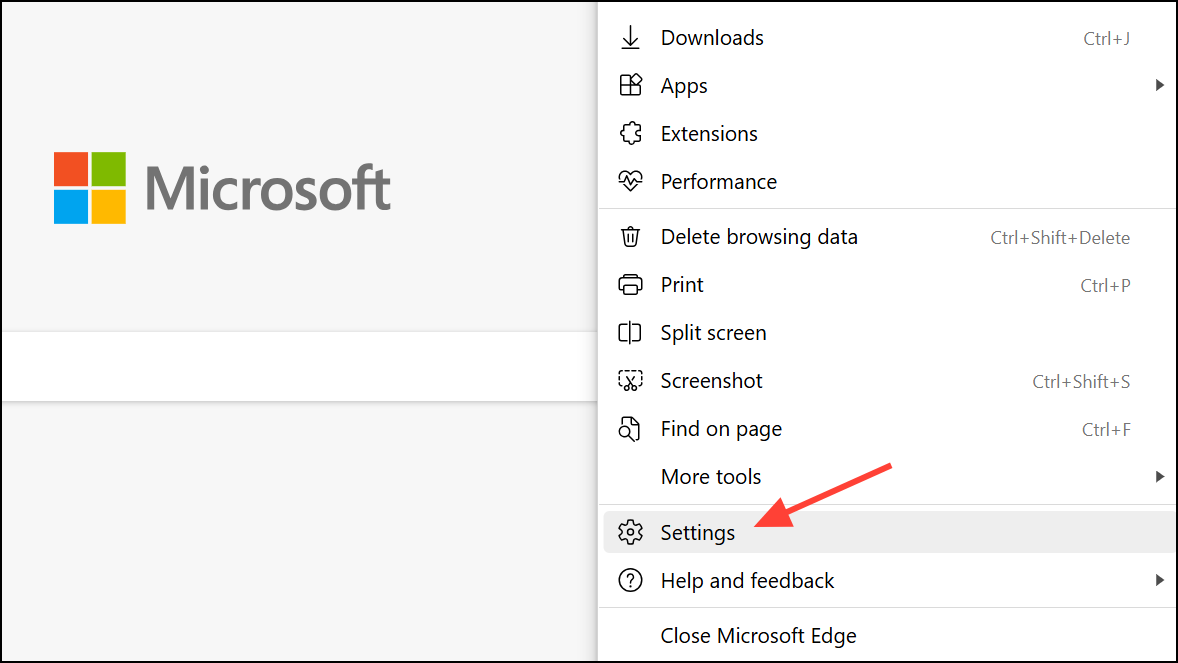
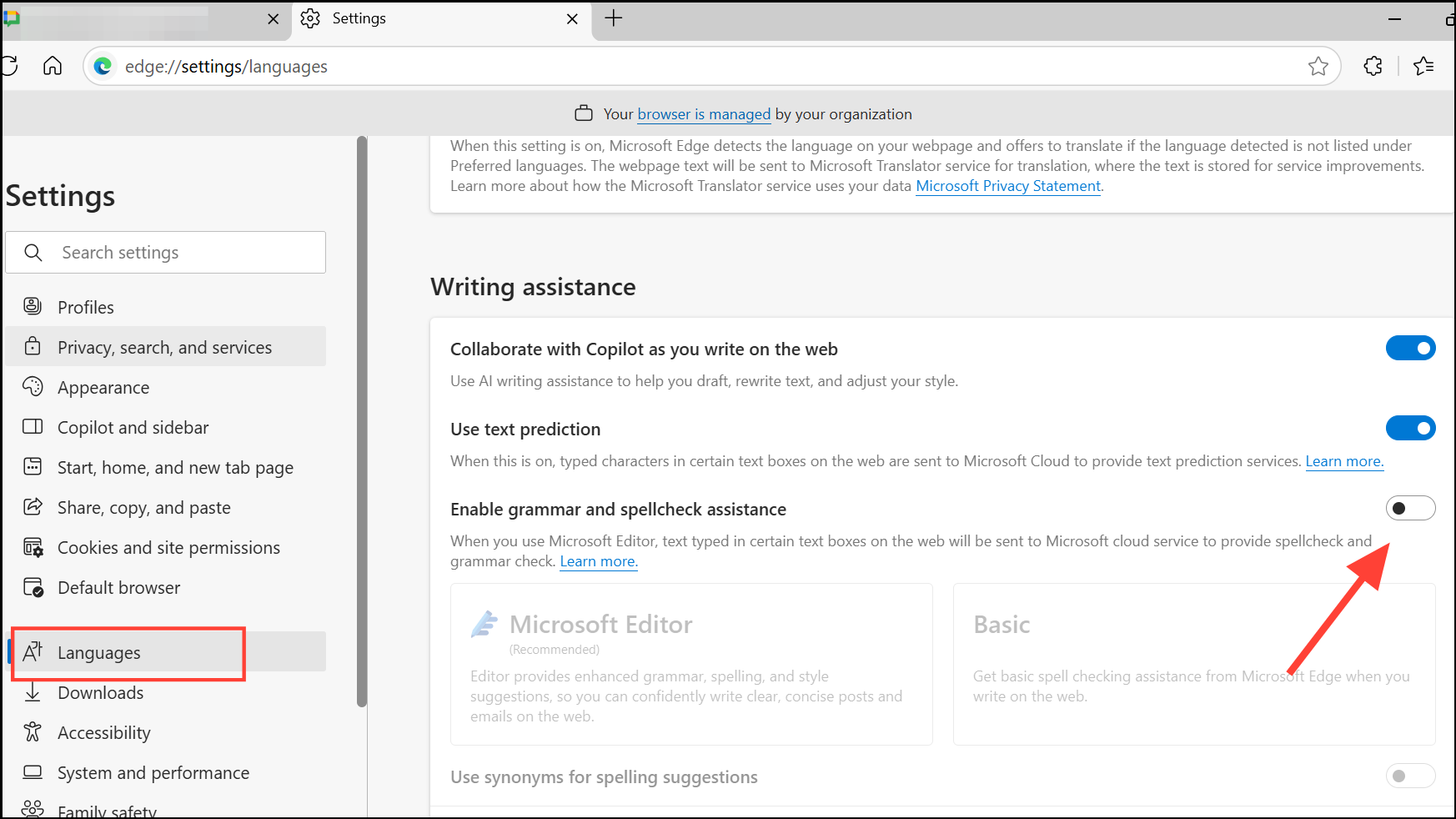
Microsoft Edge has integrated grammar and spellcheck tools. To disable them:
Outlook and Microsoft 365 Apps
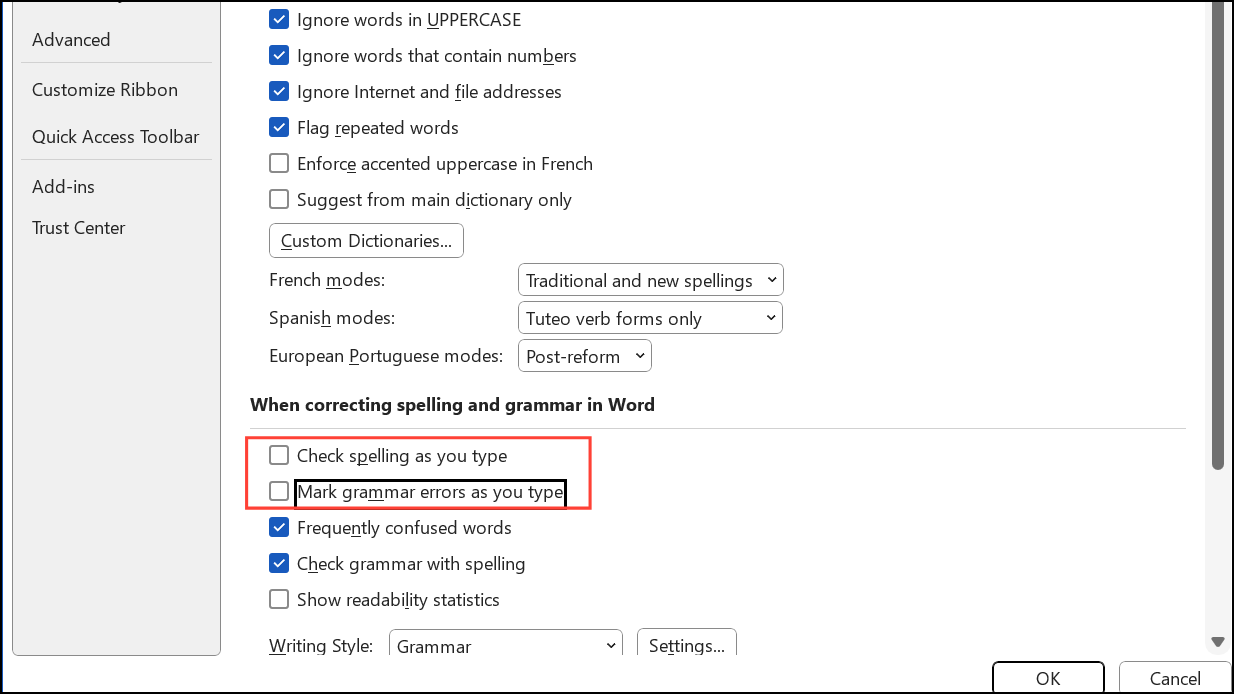
For Outlook and Office apps like Word, Excel, and PowerPoint, spellcheck and autocorrect are managed within the app itself.
Disabling autocorrect and spellcheck in Windows 11 gives you full control over your typing, prevents unwanted changes, and streamlines your workflow. Revisit these settings whenever you need to adjust how Windows and its apps handle spelling and corrections.



