
“The application was unable to start correctly” error in Windows 11 interrupts program launches and can be linked to security features, corrupted files, or incompatible software. This issue often presents with error codes like 0xc00004ac or 0xc000007b, and may affect a wide range of applications, including productivity tools, games, and even system utilities. Addressing this error requires a methodical approach, starting with system security settings and moving through software repairs and updates.
Disable Memory Integrity to Resolve Security Conflicts
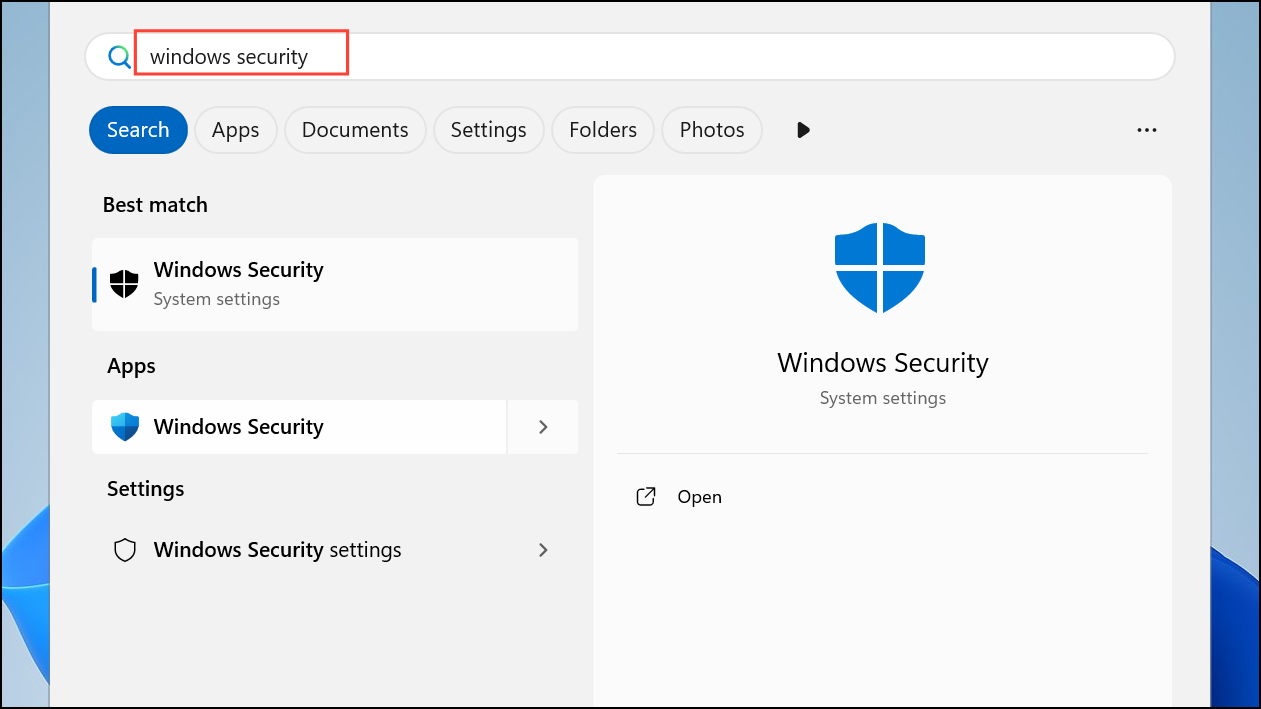
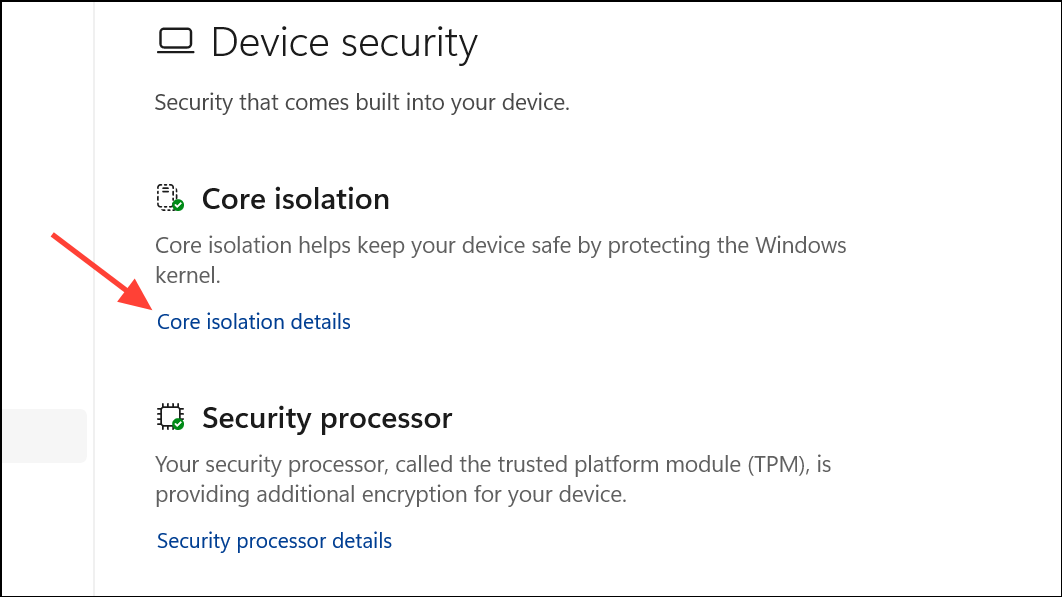
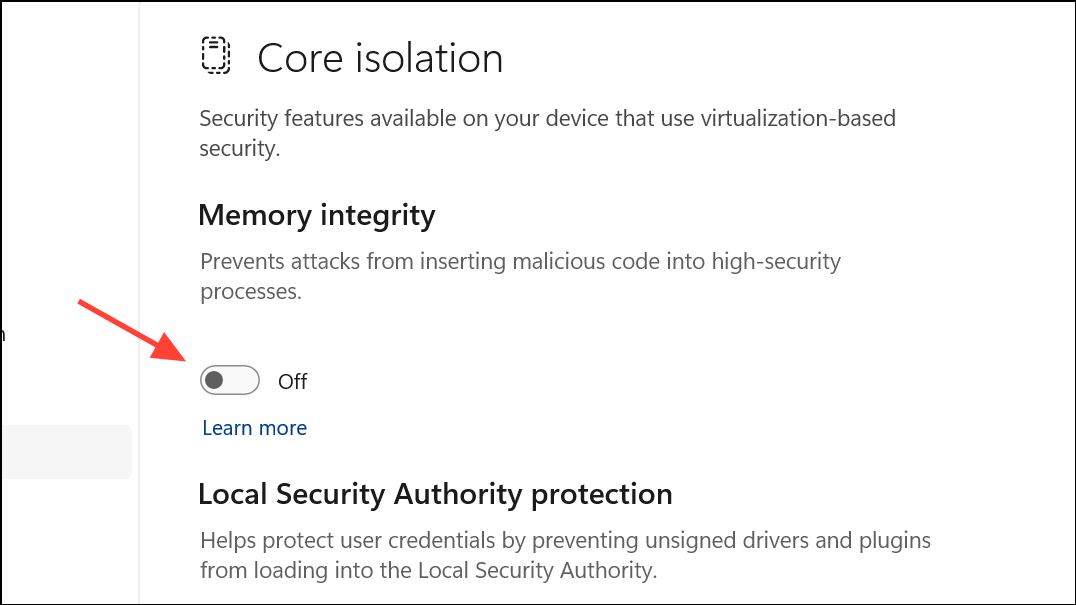
Windows 11 uses a security feature called Memory Integrity (part of Core Isolation) to prevent untrusted drivers and executables from running. While this strengthens system protection, it can sometimes block legitimate applications, especially those with older or unsigned drivers.
Repair System Files Using SFC and DISM
Corrupted or missing system files can prevent applications from starting. Windows provides built-in tools to scan and repair these files: System File Checker (SFC) and Deployment Imaging Service and Management Tool (DISM).
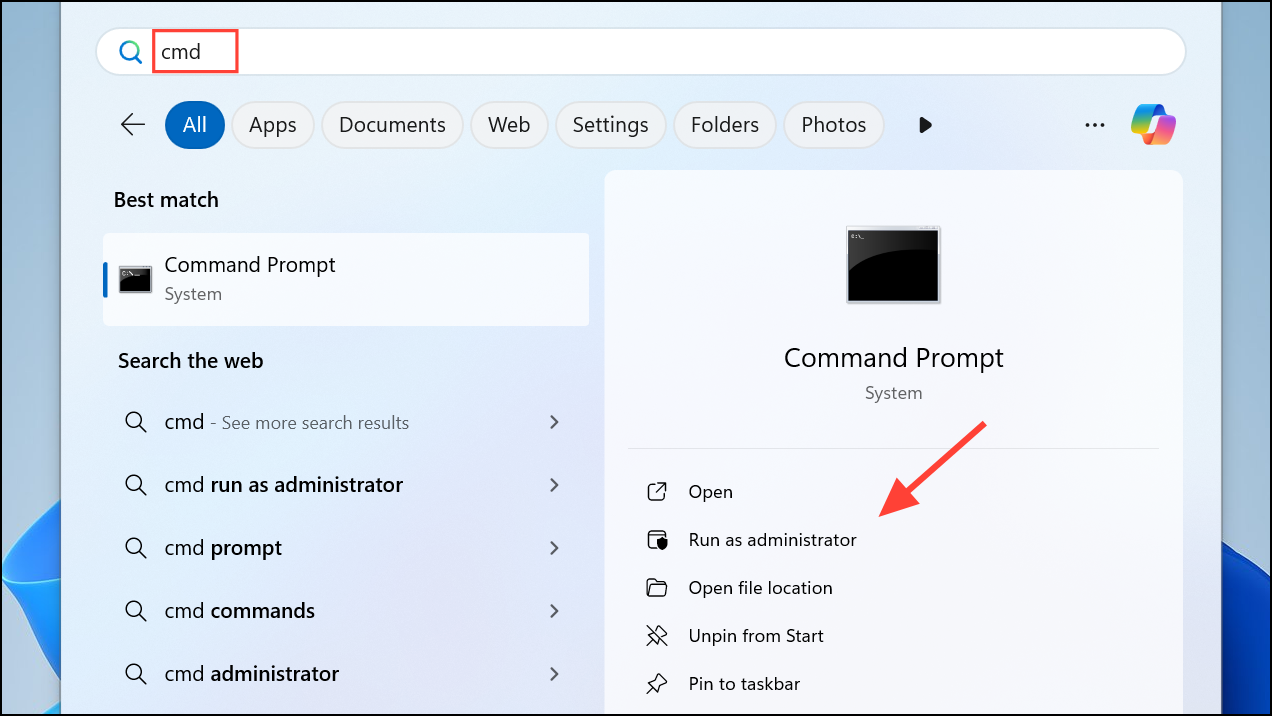
sfc /scannow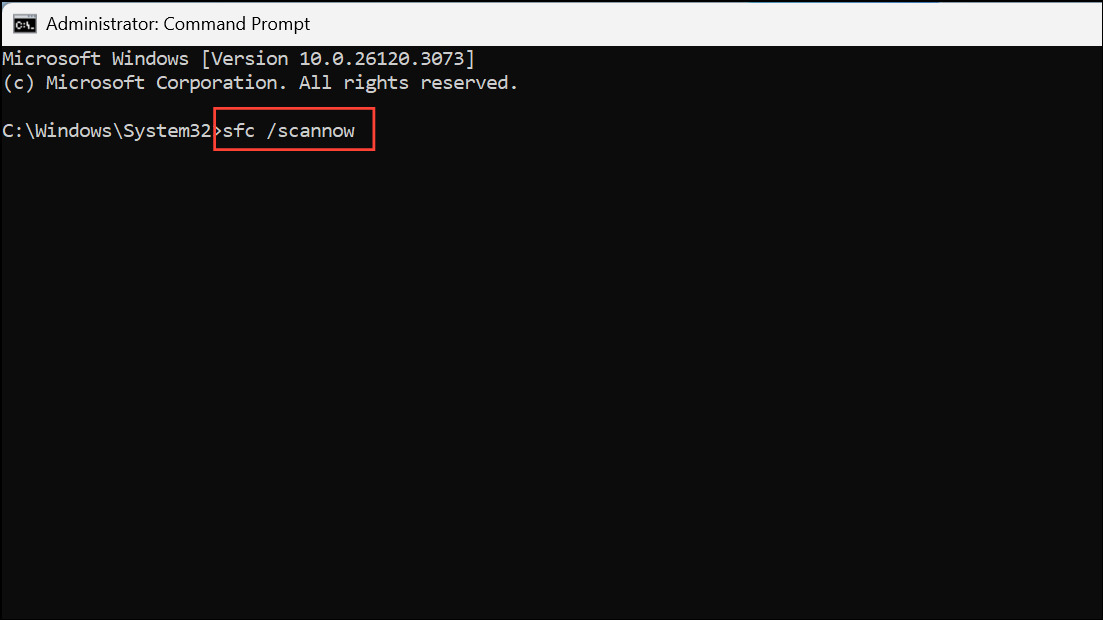
This command scans for and repairs corrupted system files. Wait for the process to finish.
DISM /Online /Cleanup-Image /RestoreHealth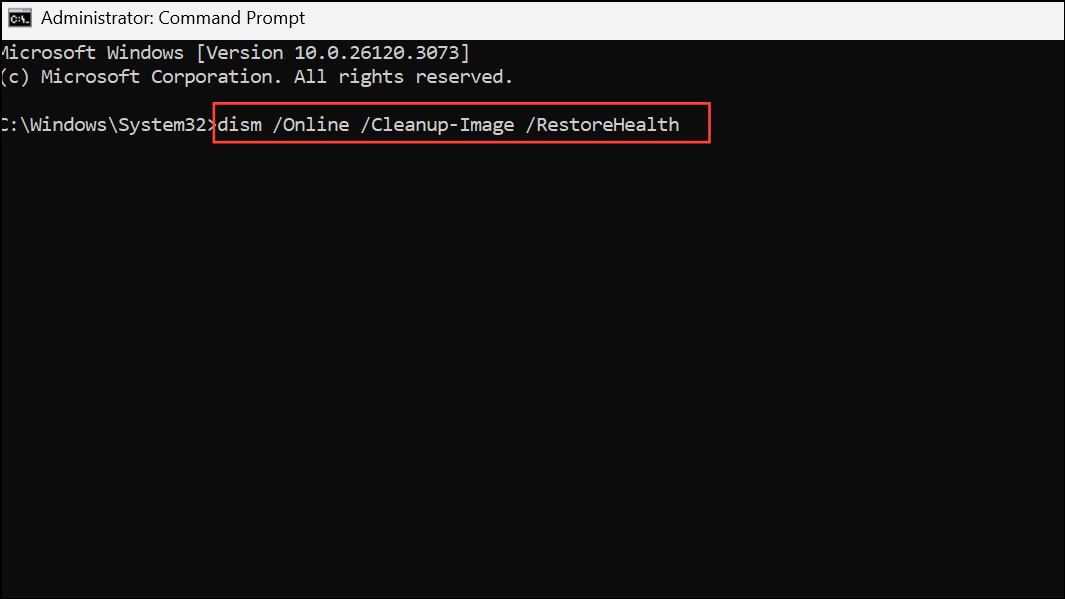
Allow DISM to finish, then restart your PC and check if the error is resolved.
Perform a Clean Boot to Isolate Conflicting Programs
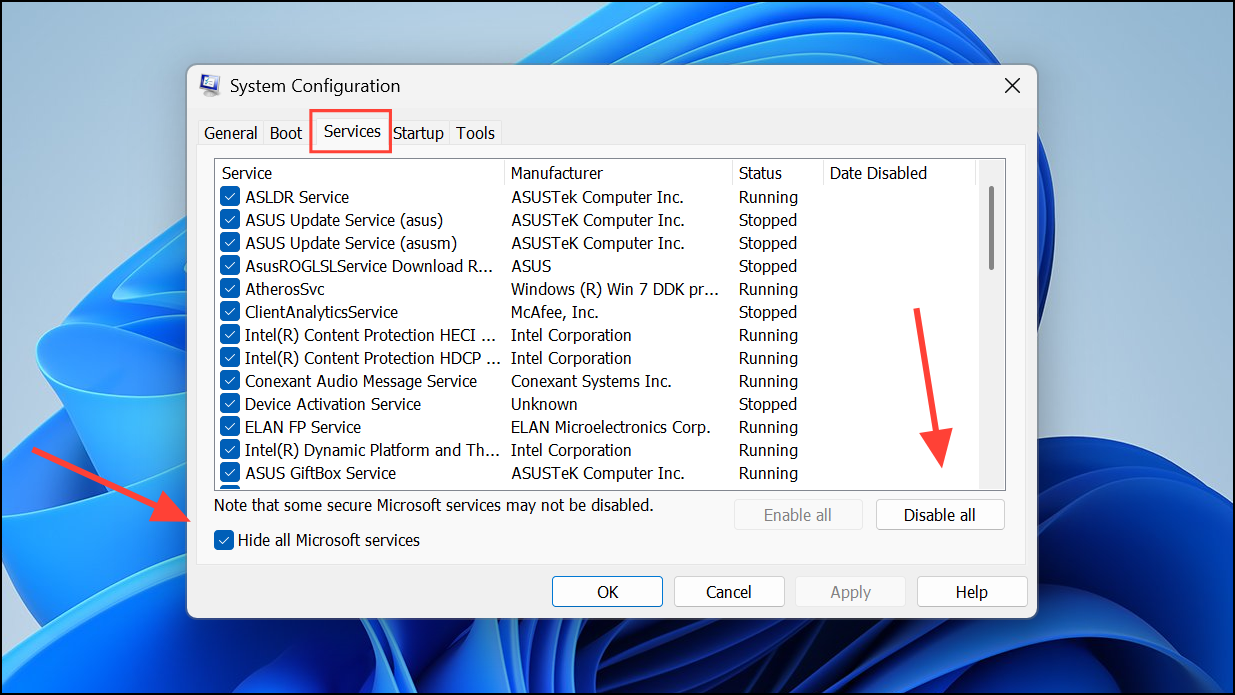
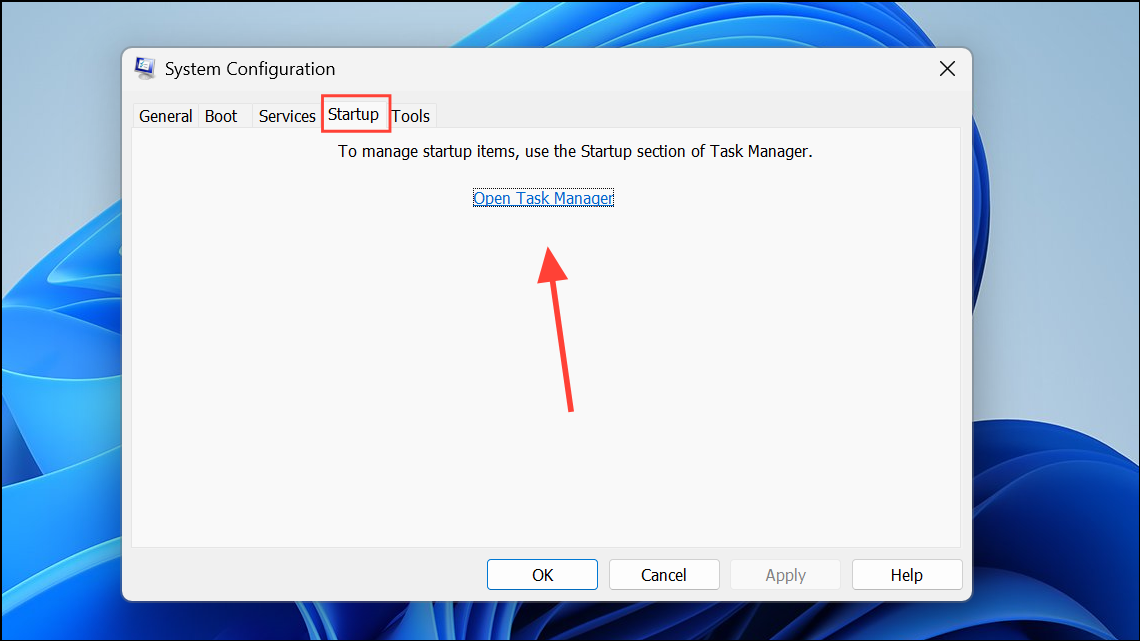
Startup programs and background services can interfere with application launches, especially if they inject code or block system resources. A clean boot starts Windows with only essential services, helping identify software conflicts.
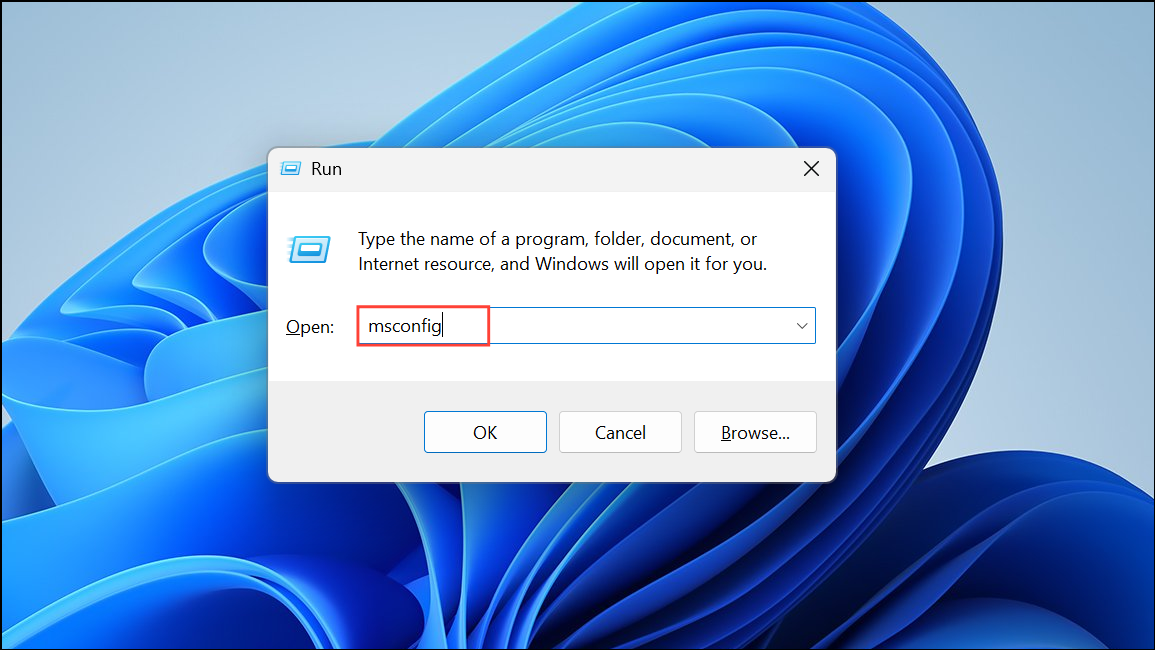
Run the Application as Administrator
Some programs require elevated permissions to access system resources. Running them as administrator can bypass permission-related errors.
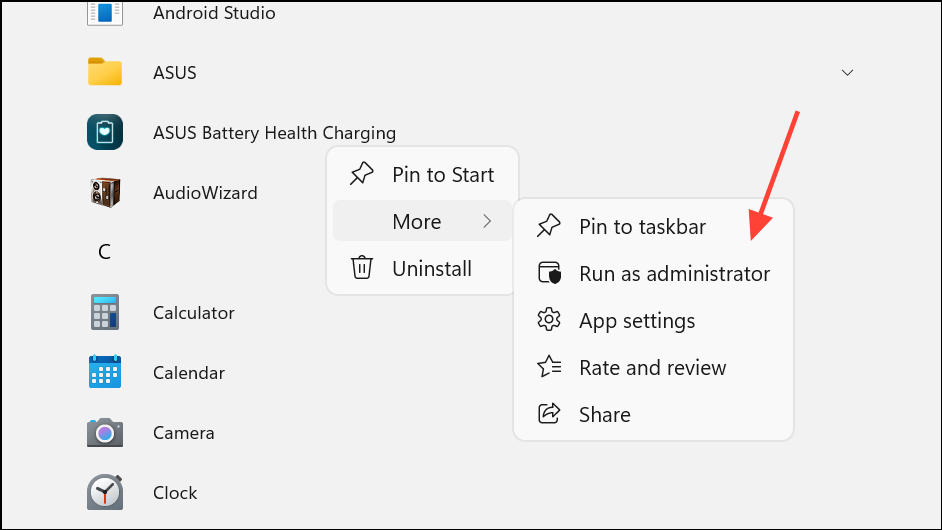
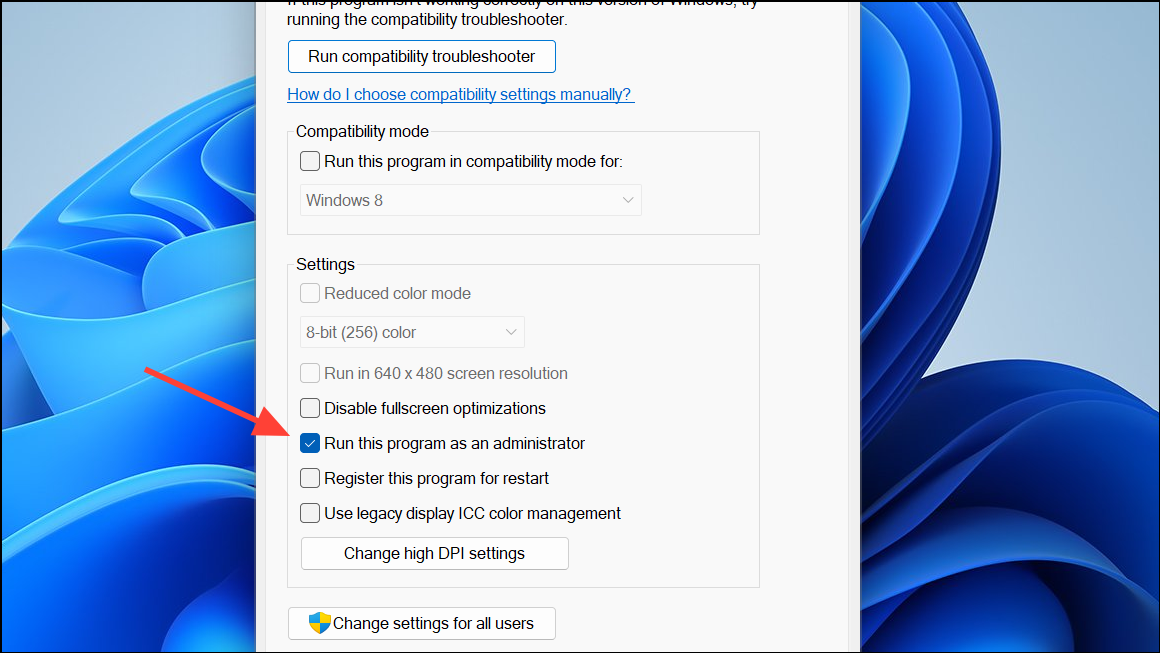
If the program launches successfully, consider setting it to always run as administrator: right-click the shortcut, choose Properties, go to the Compatibility tab, and check Run this program as an administrator.
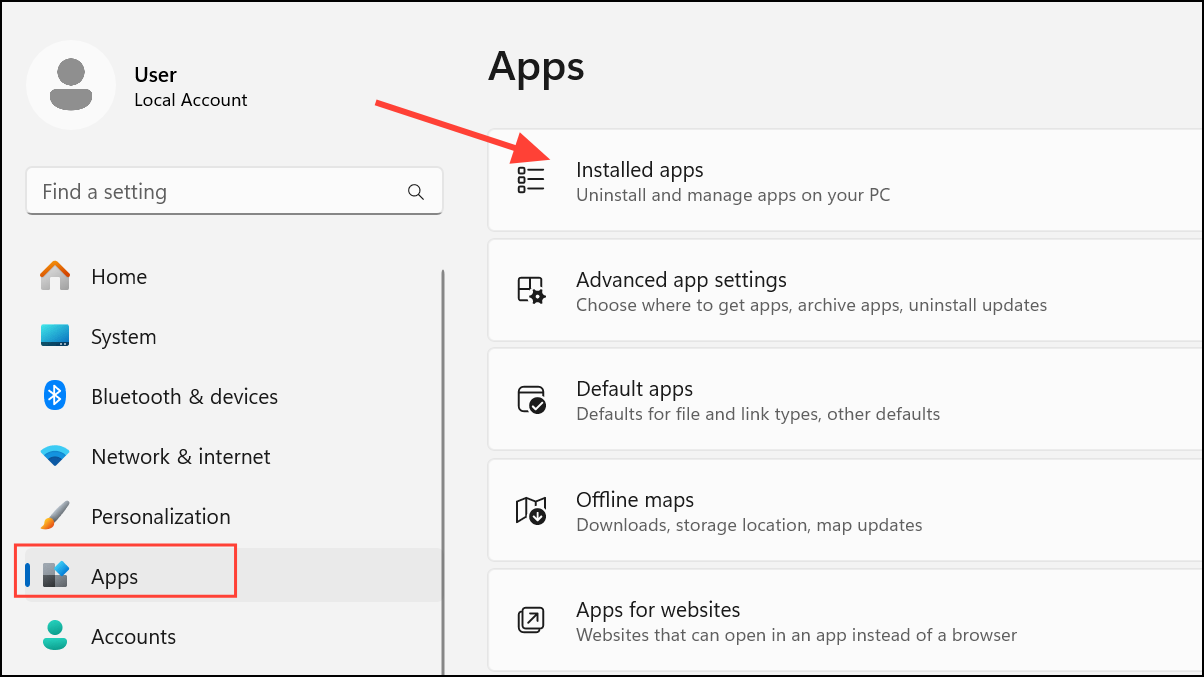
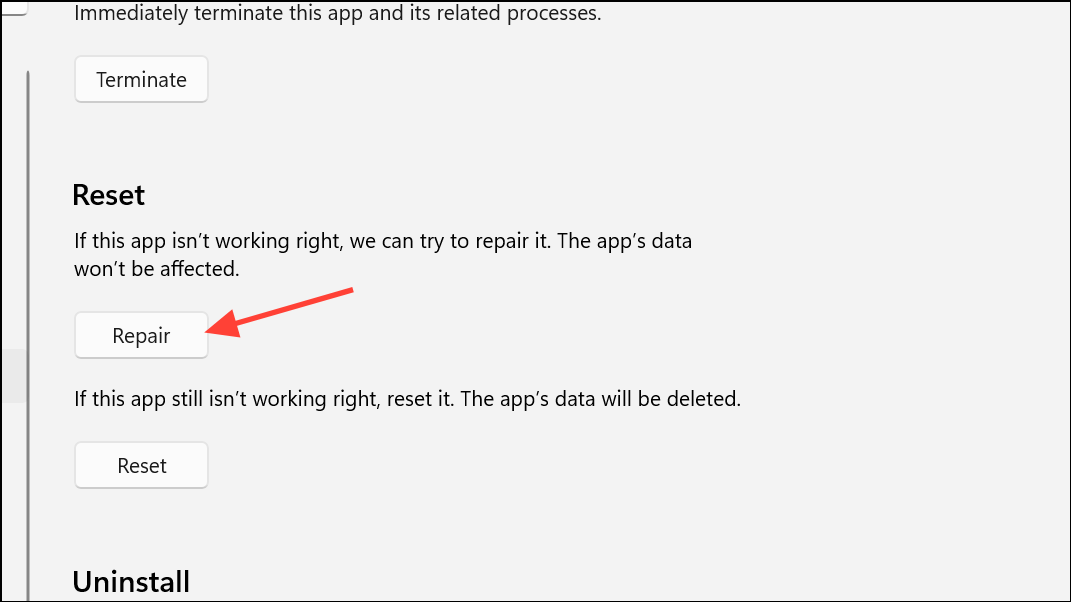
Repair or Reinstall the Problematic Application
Corrupted application files or incomplete installations can trigger startup errors. Repairing or reinstalling the app restores missing components and resets configuration files.
Update Windows and Essential Frameworks
Outdated system files or missing frameworks can cause compatibility issues. Keeping Windows and required runtimes up to date ensures applications have access to necessary components.
Win + I, go to Windows Update, and click Check for updates. Install any available updates and restart your PC.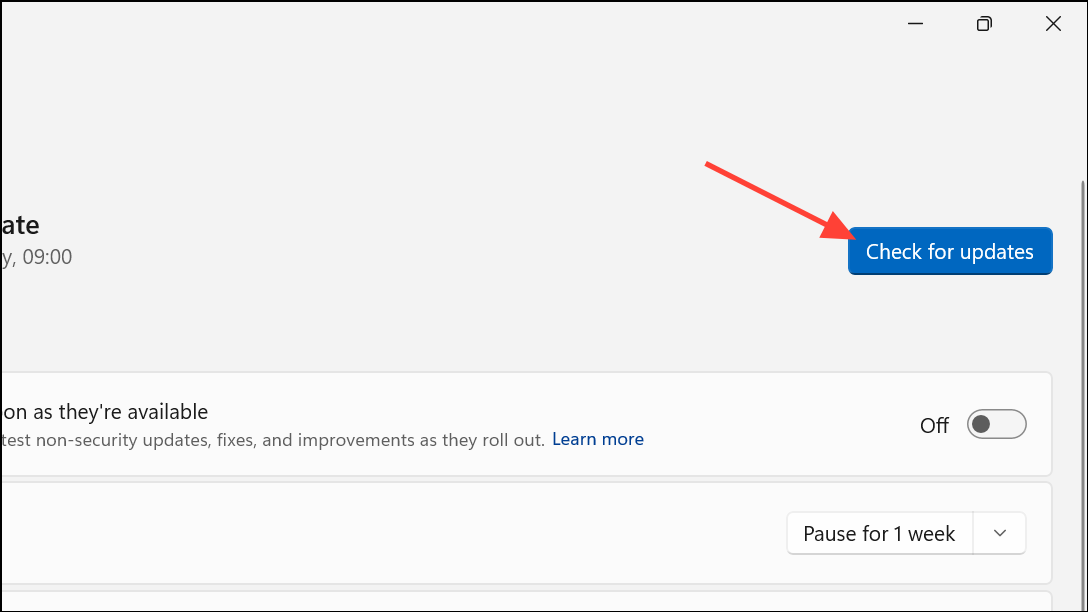
Win + R, type optionalfeatures, and press Enter. In the Windows Features window, check .NET Framework 3.5 (or higher), and click OK to install.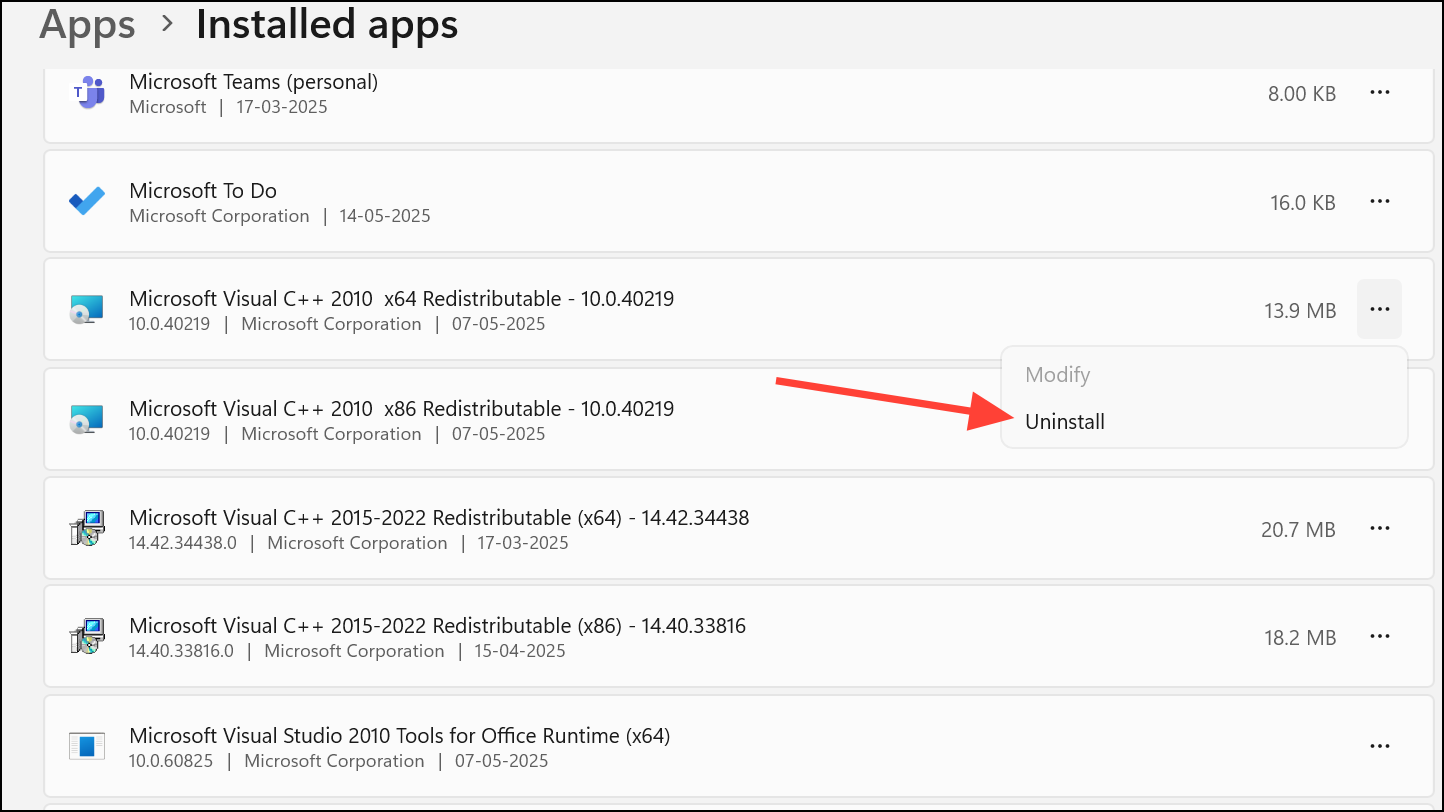
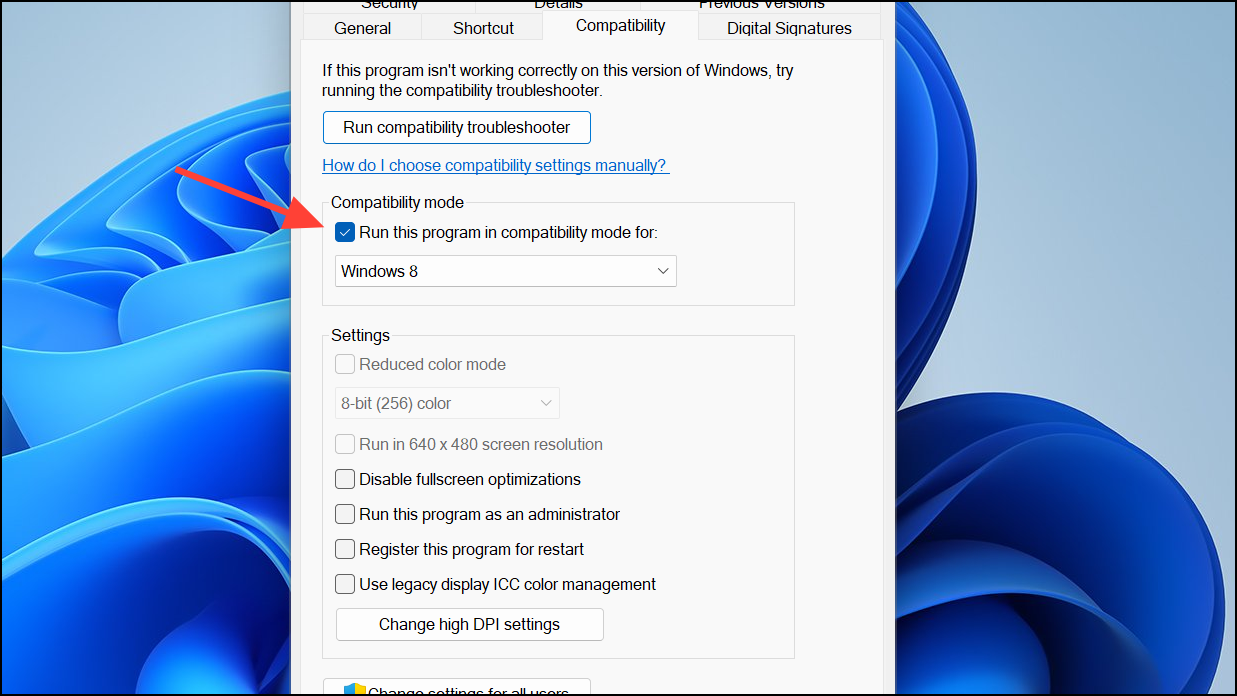
Use Compatibility Mode for Older Applications
Legacy programs may not be fully compatible with Windows 11. Compatibility mode allows these applications to run using settings from previous Windows versions.
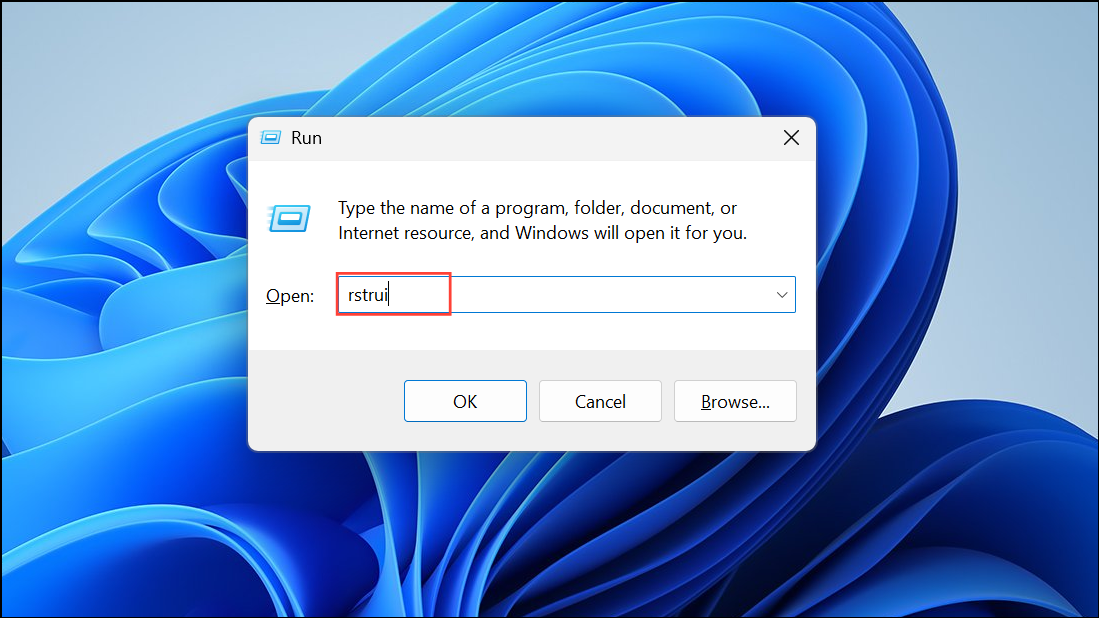
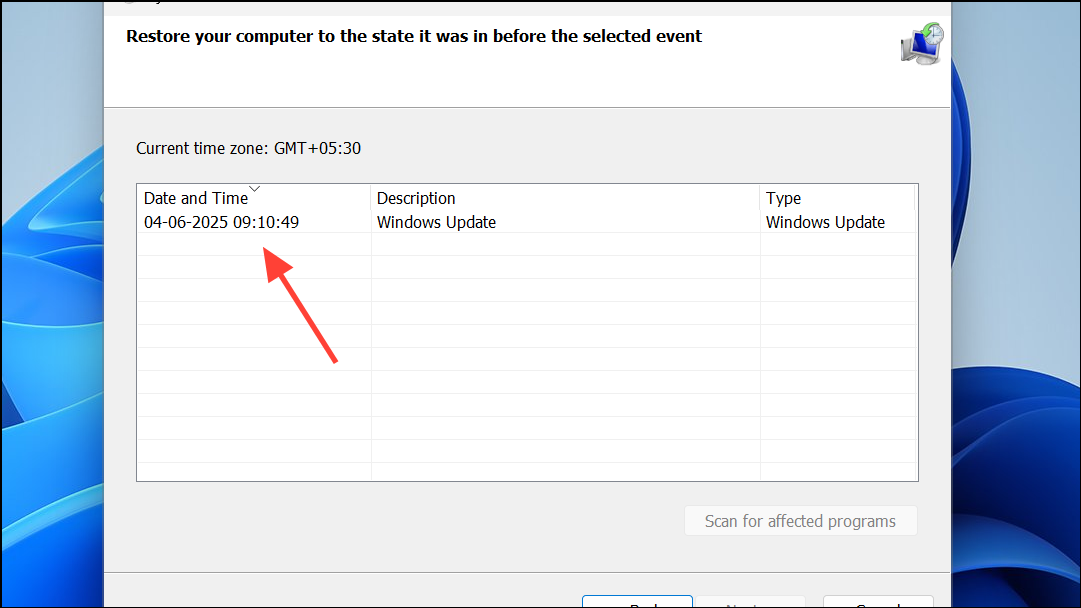
Perform a System Restore if Errors Began After Updates or Changes
If the error started after a Windows update, driver installation, or registry modification, restoring your system to a previous state can undo problematic changes.
By methodically addressing system security settings, repairing files, and updating essential components, you can resolve most causes of the “application was unable to start correctly” error on Windows 11. Regular updates and careful management of third-party software help maintain system stability.



