

System freezes immediately after waking up from sleep mode interrupt workflows and often force users to perform hard shutdowns, risking data loss and hardware wear. Addressing this issue on Windows 11 requires a methodical approach, focusing first on the most effective fixes such as disabling hibernation and fast startup, then progressing to driver updates, system scans, and hardware checks.
Disable Hibernate and Fast Startup
Disabling hibernation and fast startup often resolves freezing issues after sleep, especially when the system becomes unresponsive or fails to generate error logs. Hibernate and fast startup can conflict with certain hardware or drivers, causing incomplete resume cycles.
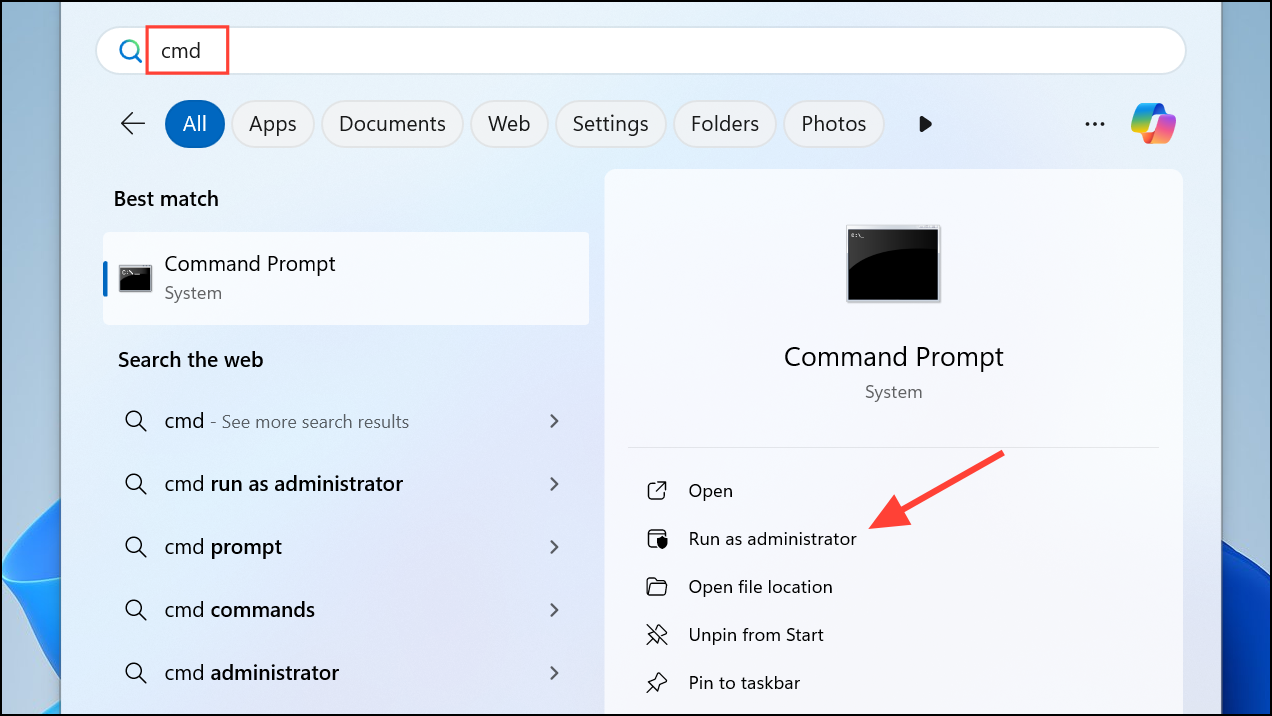
powercfg /h off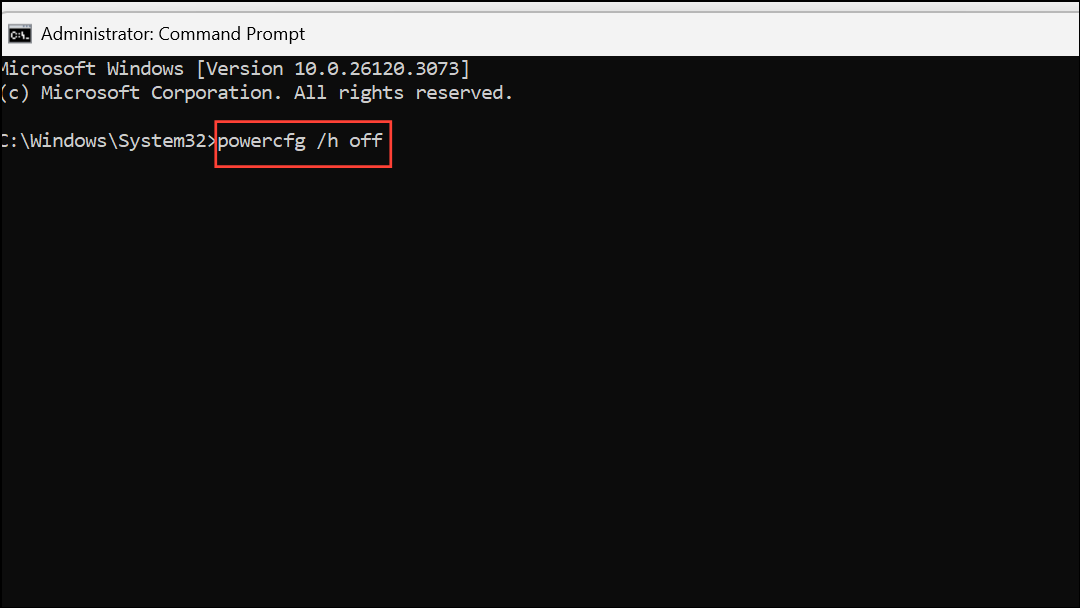
This command turns off hibernation and removes the hiberfil.sys file from your system drive.
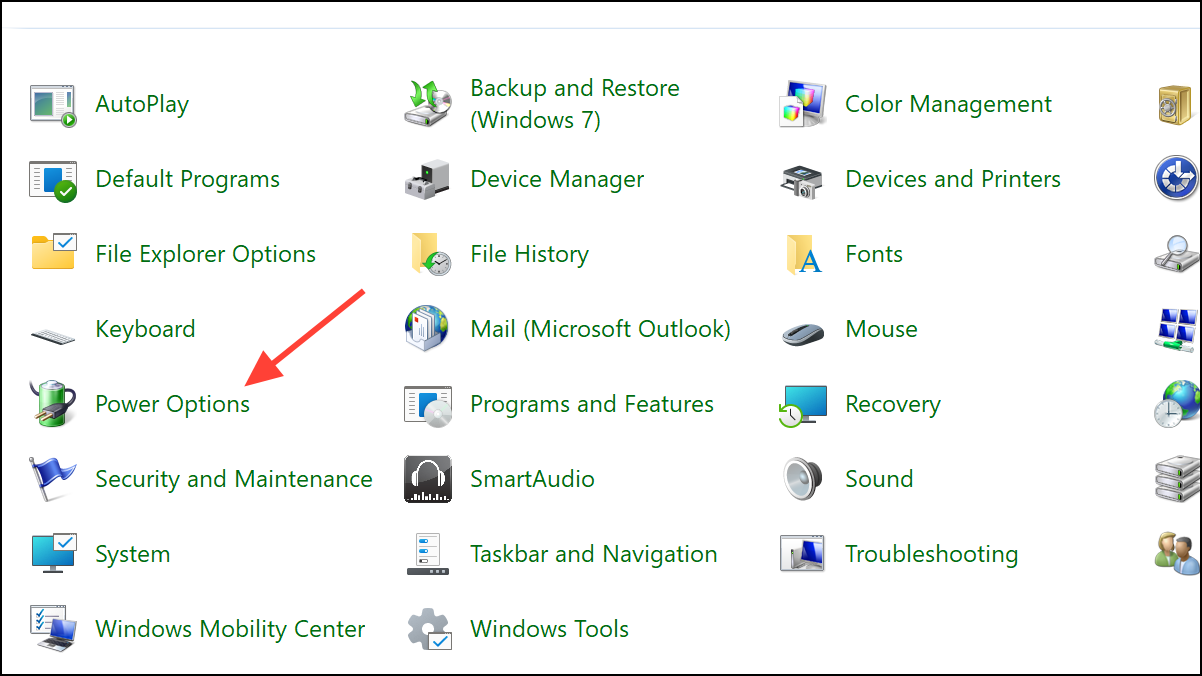
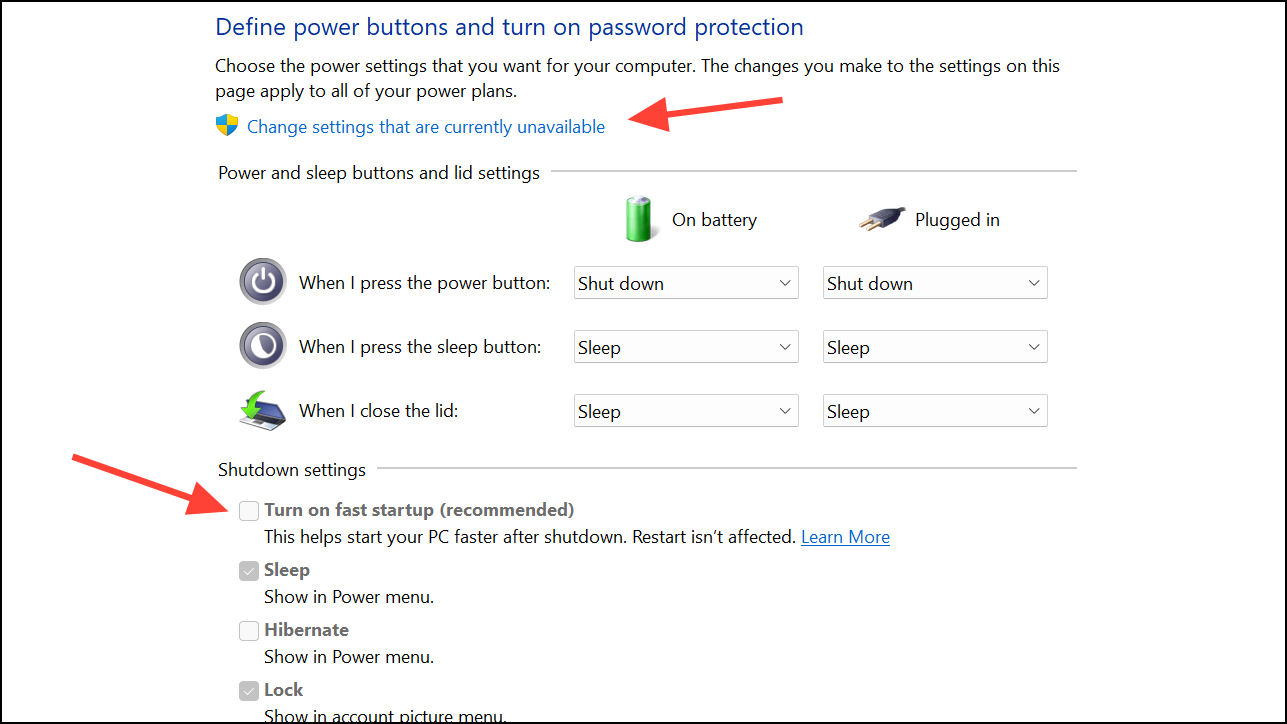
Disabling these features ensures the system performs a full shutdown and resume, reducing the risk of freeze events after waking from sleep.
Update Device Drivers and BIOS
Outdated or incompatible drivers—especially for graphics, chipset, and storage—often trigger freezes when resuming from sleep. Updating drivers and the BIOS can restore compatibility and resolve underlying hardware communication issues.
Up-to-date drivers and firmware reduce the likelihood of system freezes by ensuring all components communicate correctly during power state transitions.
Repair System Files and Check for Corruption
Corrupt system files can disrupt the sleep and wake cycle, leading to freezes or incomplete resumes. Running built-in Windows repair tools checks for and fixes file corruption.
DISM.exe /Online /Cleanup-image /Restorehealth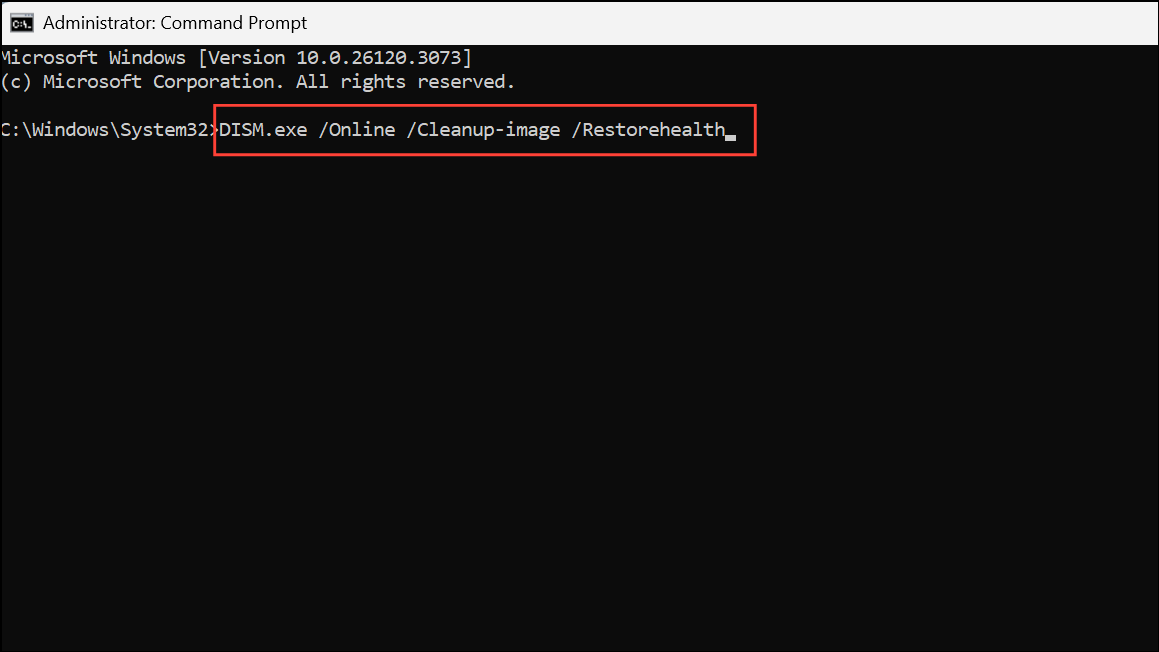
Wait for the process to complete. This step checks the integrity of system files and repairs them using Windows Update.
sfc /scannow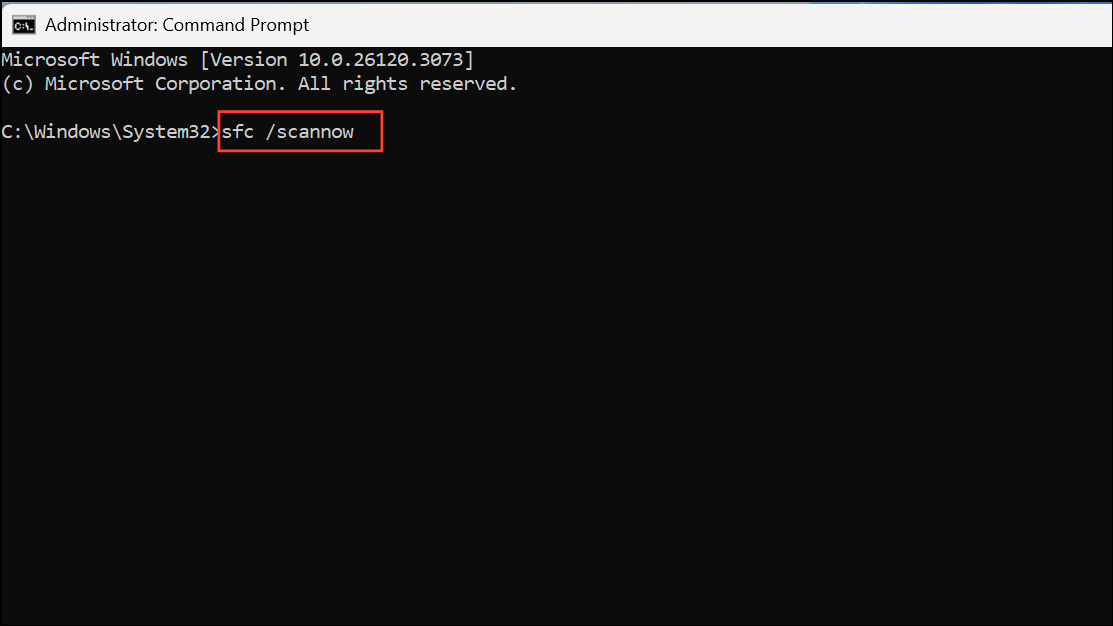
This command scans for and repairs corrupted or missing system files. Allow the scan to finish and follow any on-screen instructions.
Adjust Power Settings and Power Plans
Incorrect or conflicting power settings can prevent proper wake-from-sleep functionality. Adjusting or recreating your power plan may resolve persistent freezing.
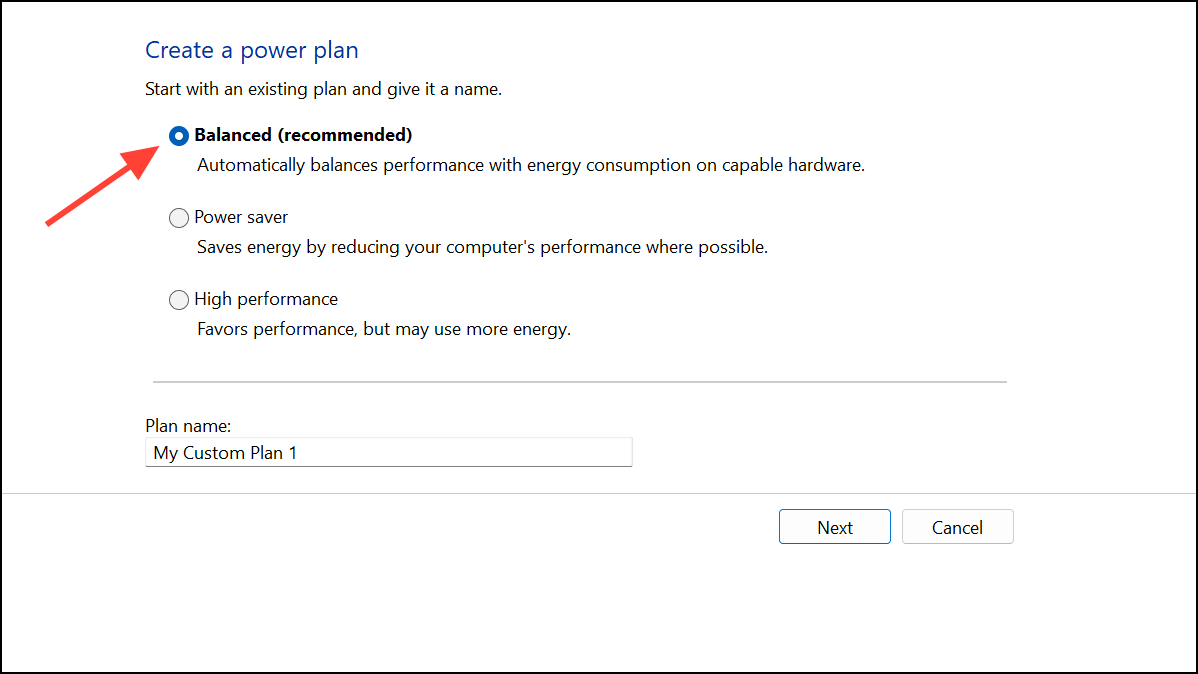
powercfg -restoredefaultschemes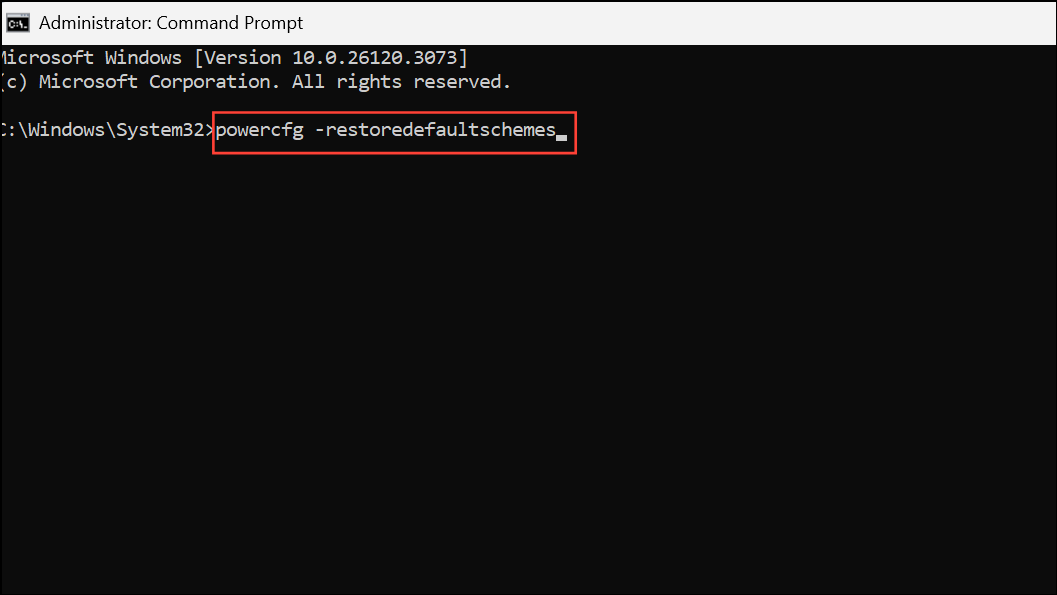
Some systems use Modern Standby (S0), which can also be disabled for troubleshooting by running:
reg add HKLM\System\CurrentControlSet\Control\Power /v PlatformAoAcOverride /t REG_DWORD /d 0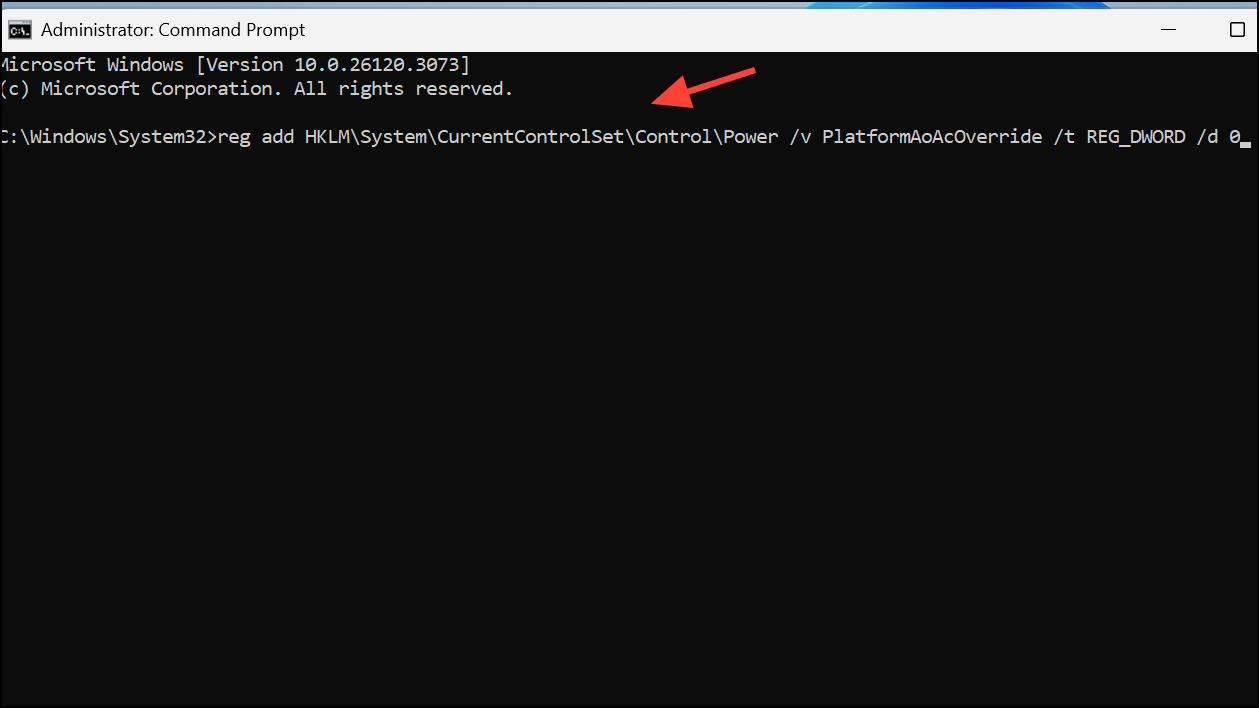
Reboot after making these changes to apply the new settings.
Uninstall Problematic Updates or Conflicting Software
Recent Windows updates or specific software (such as Sonic Studio 3, certain monitoring tools, or G-Sync/FreeSync features) can introduce compatibility issues with sleep states.

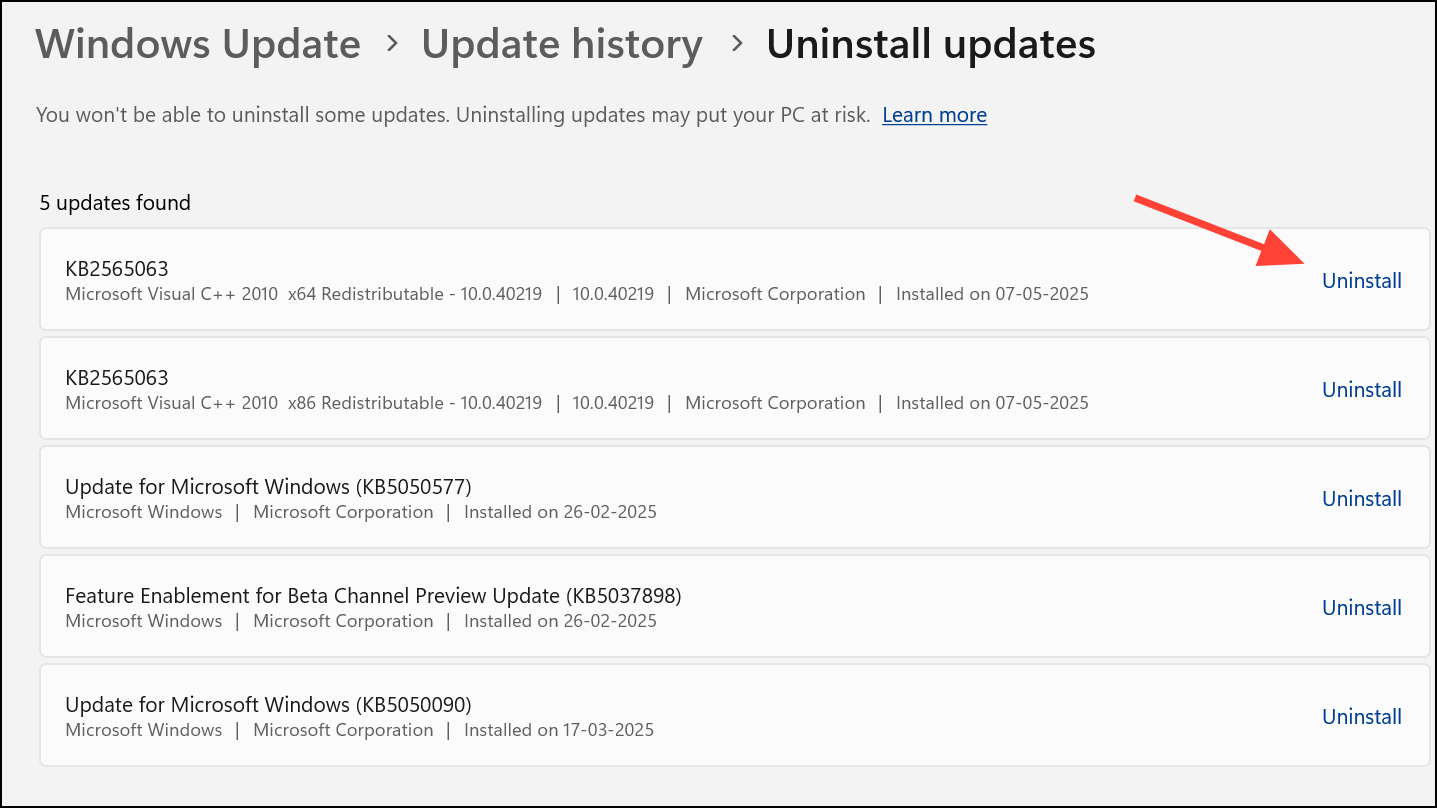
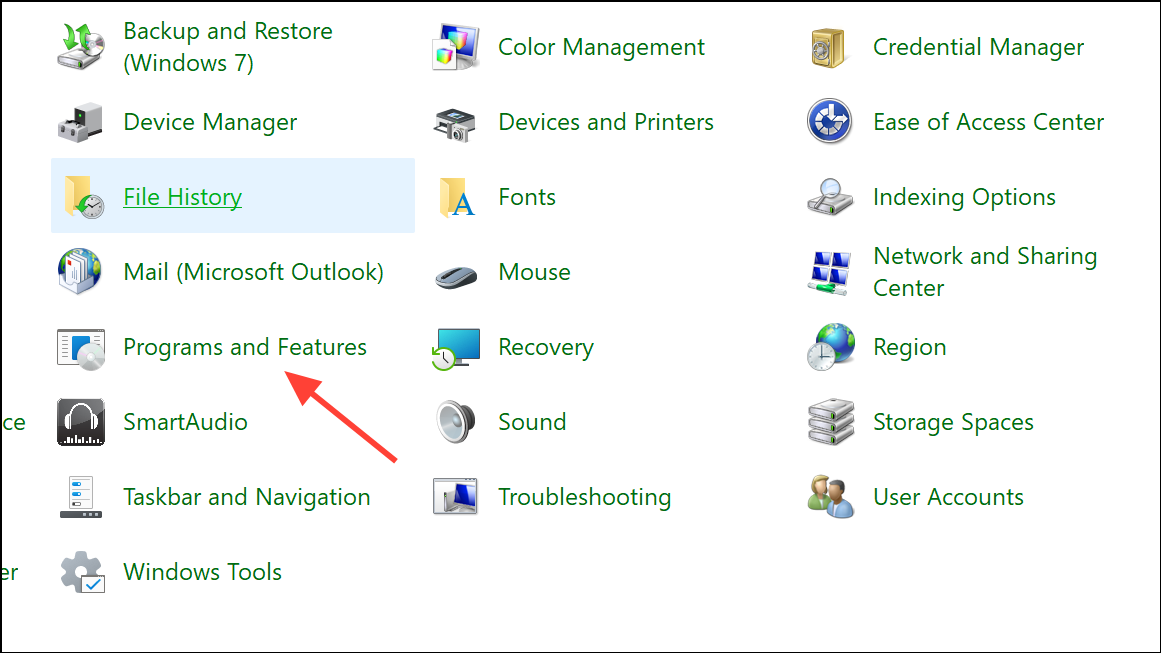
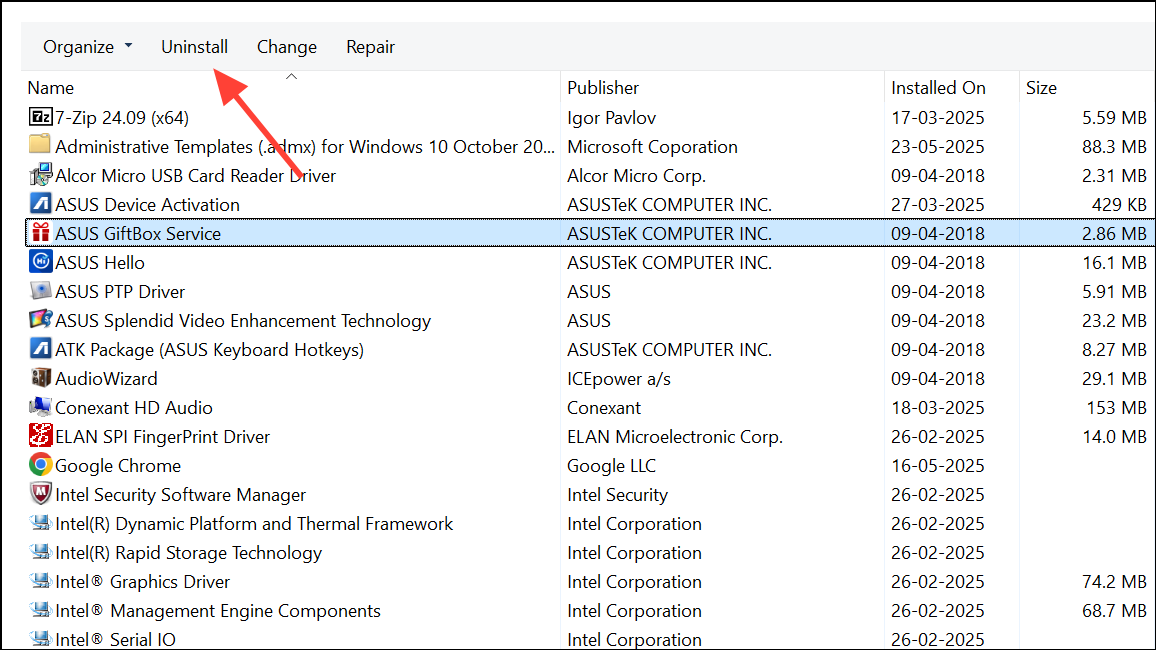
Removing or disabling conflicting updates and software can restore stable sleep/wake behavior.
Check Hardware Health
Faulty RAM, SSDs, or other hardware can cause freezes after sleep due to incomplete state restoration.
Windows + S, typing Windows Memory Diagnostic, and hitting Enter.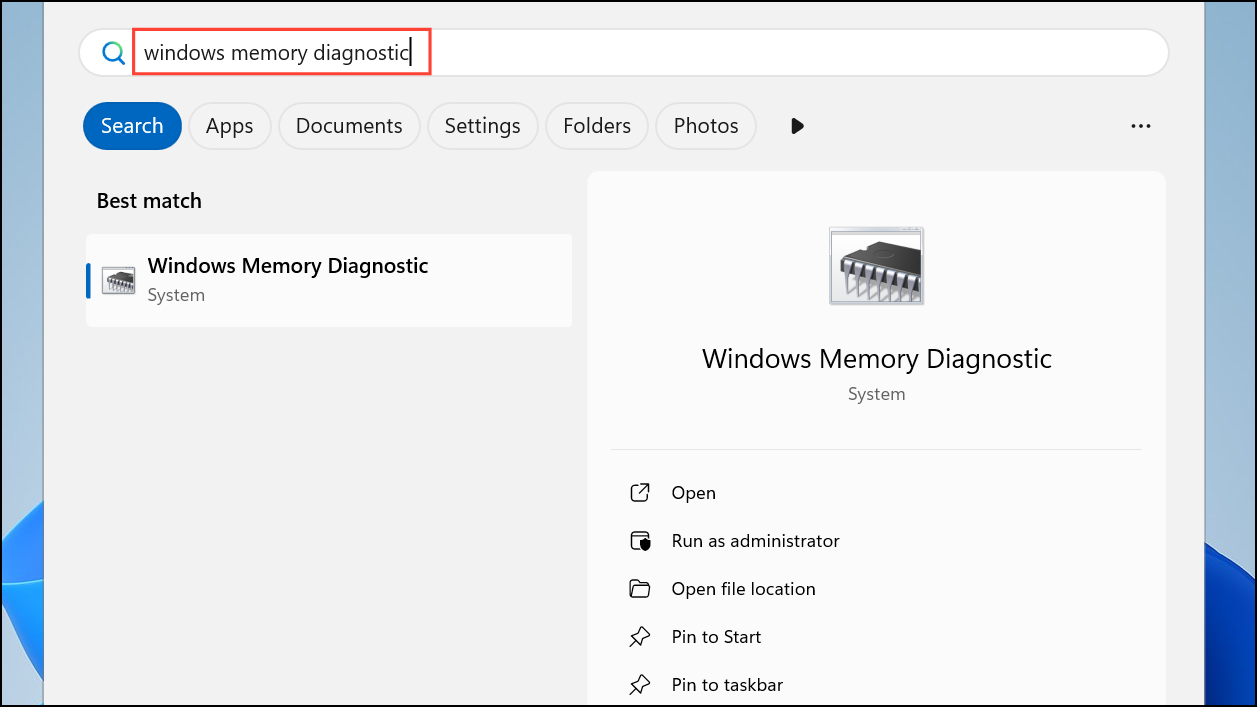
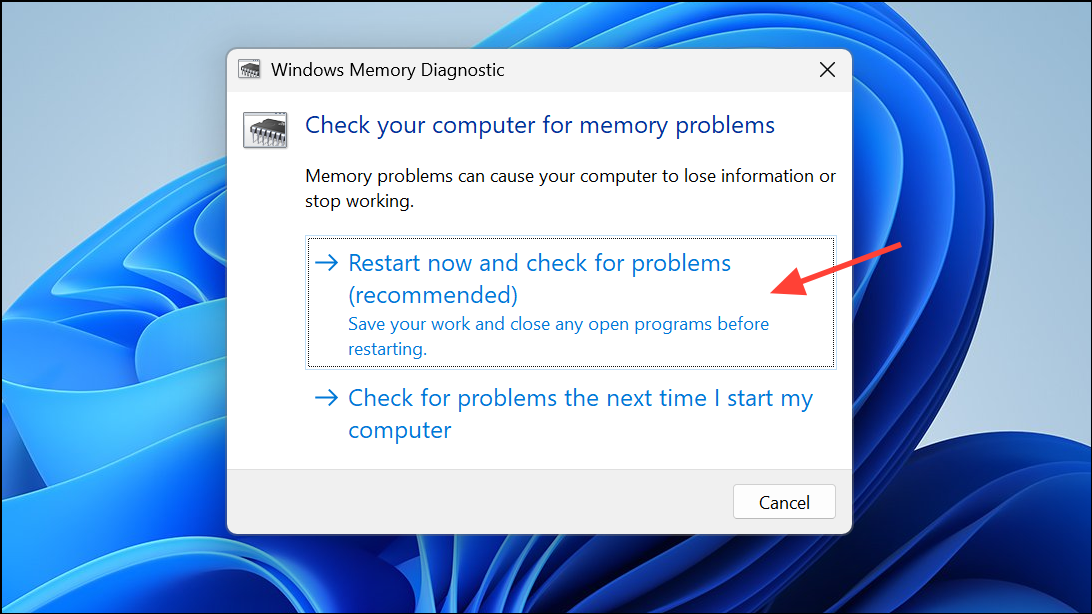
chkdsk c: /f /r in an elevated Command Prompt. This schedules a disk check on the next reboot.Reset Windows 11 as a Last Resort
If none of the above methods resolve the freezing, resetting Windows 11 can restore default system settings and resolve persistent software conflicts.
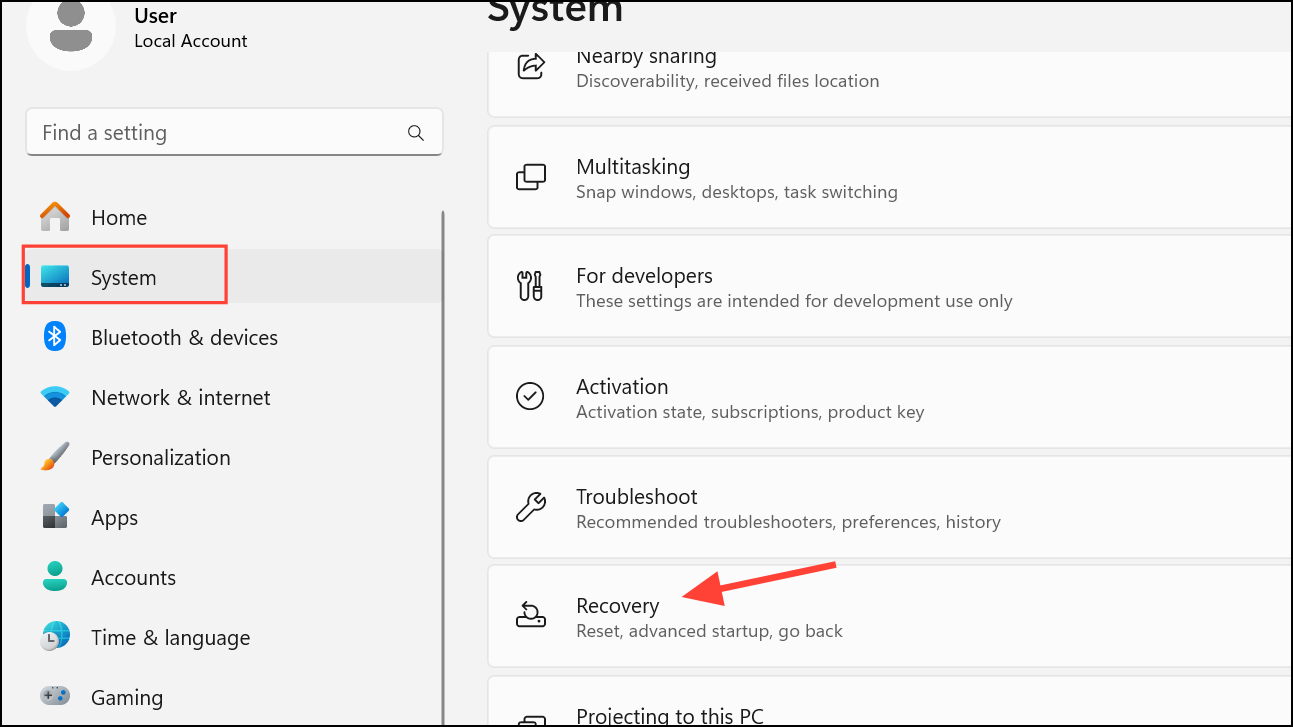
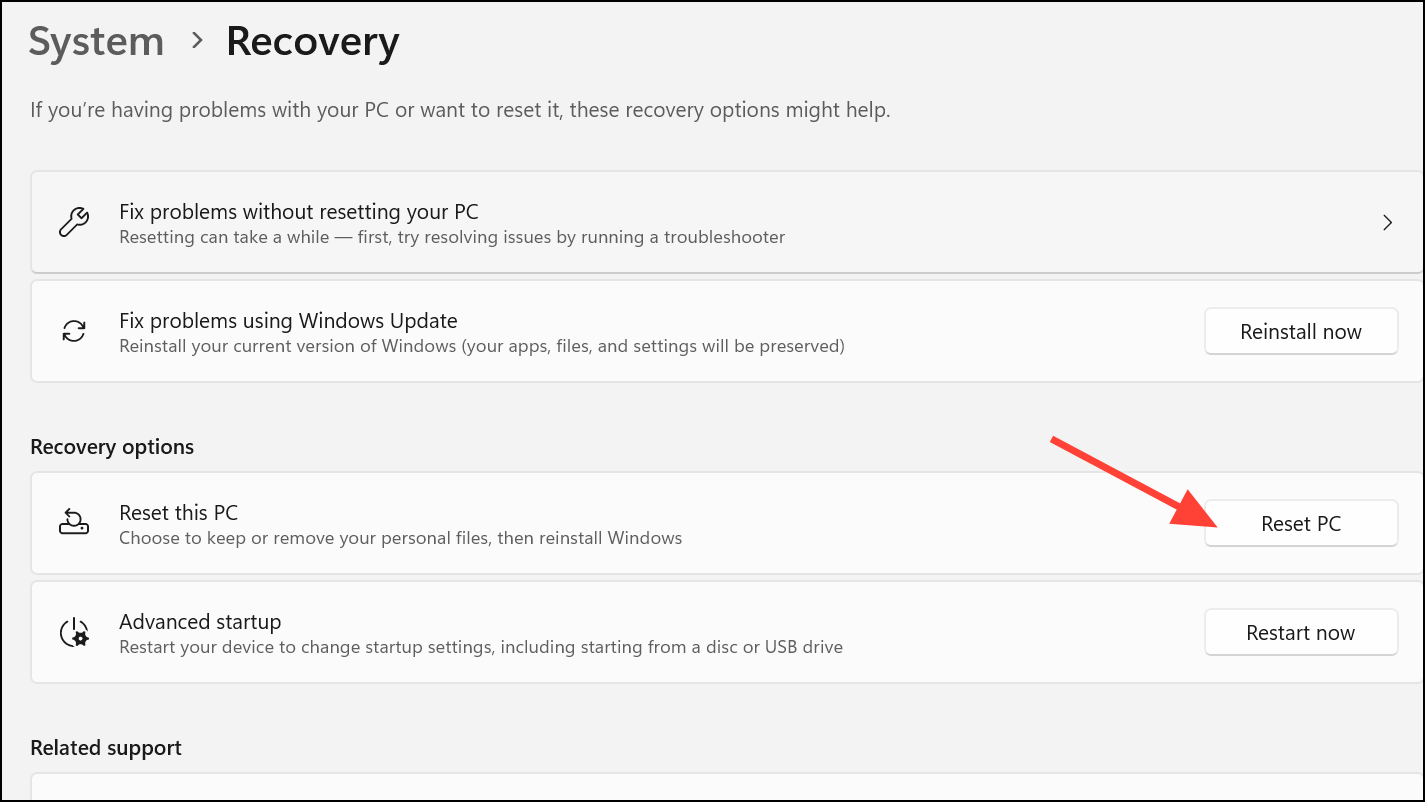
Resetting Windows is a reliable way to resolve deep-rooted software issues but should be used after all other troubleshooting steps.
By methodically disabling hibernation, updating drivers, repairing system files, and checking hardware, you can resolve most Windows 11 freezing issues after waking from sleep. Keeping system software current and monitoring for problematic updates or drivers will help maintain smooth sleep and resume cycles in the future.



