Streamline file and link transfers between Windows 11 devices by activating and configuring Nearby Sharing for fast, cable-free sharing over Bluetooth or Wi-Fi.
Streamline file and link transfers between Windows 11 devices by activating and configuring Nearby Sharing for fast, cable-free sharing over Bluetooth or Wi-Fi.
by Pallav Pathak
Transferring files between Windows 11 devices becomes much faster when you use Nearby Sharing, a built-in feature that leverages Bluetooth and local Wi-Fi connections. This approach eliminates the need for email attachments, cloud uploads, or USB drives, allowing you to send documents, photos, and web links directly to nearby PCs with just a few clicks. Nearby Sharing operates exclusively between Windows PCs, so it’s ideal for users who frequently move files between laptops and desktops within the same workspace or home network.
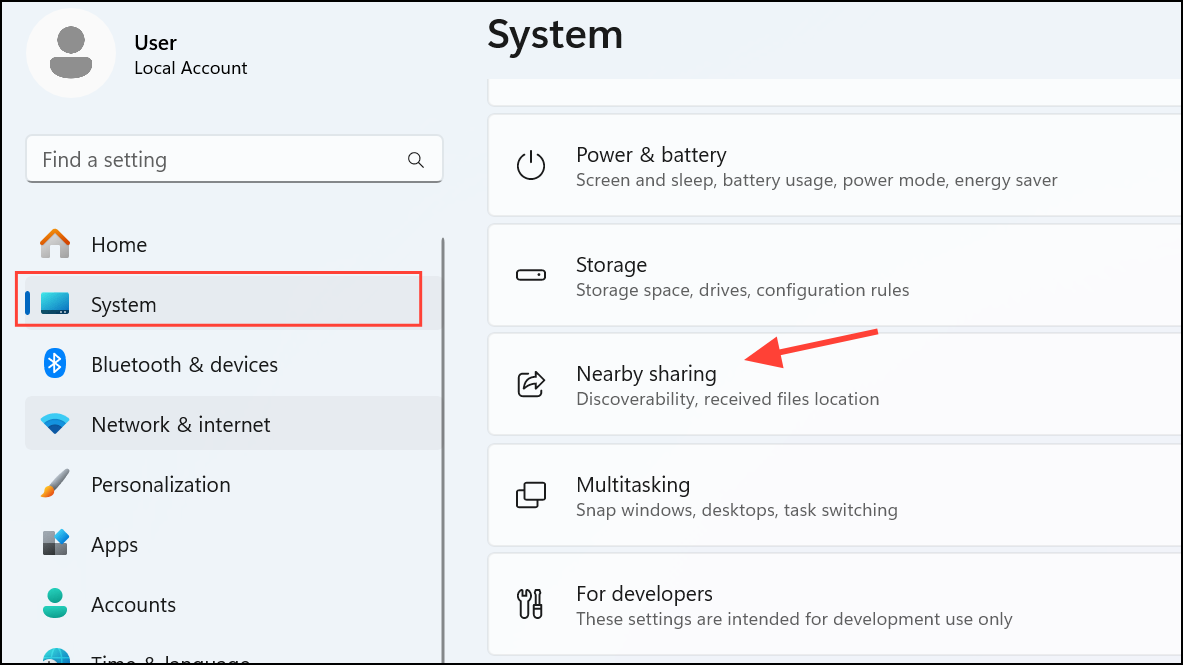
Navigate to System in the left sidebar, then select Nearby sharing from the options on the right. If you don’t see this option immediately, scroll down within the System section until you locate it.
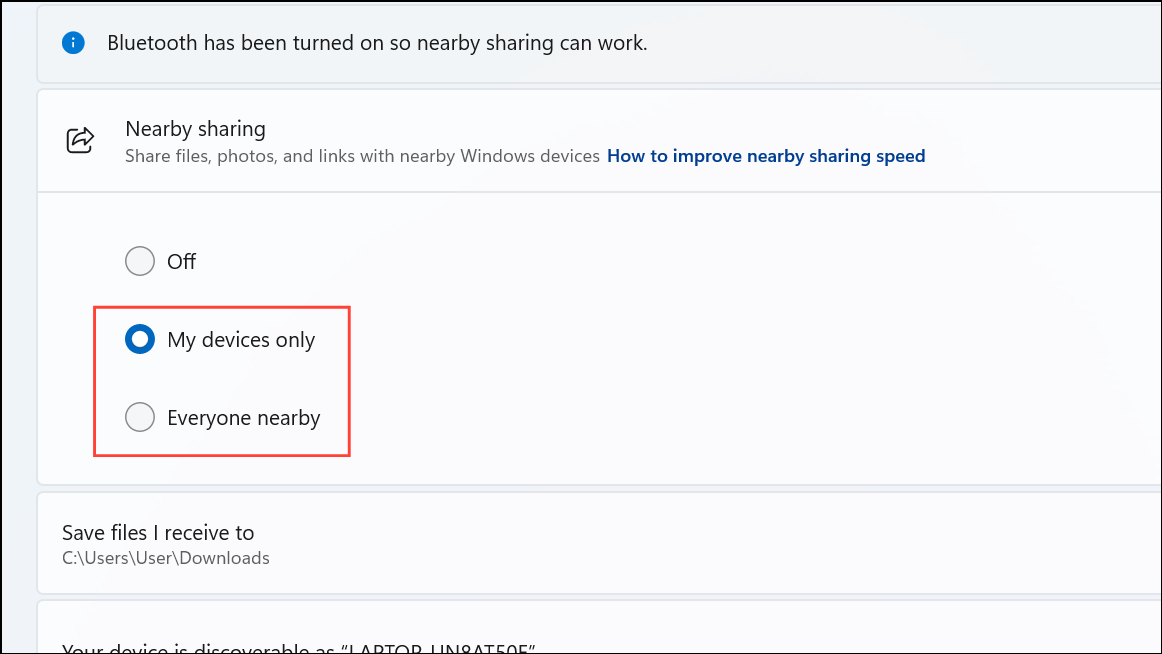
Choose your sharing preference. Select My devices only to restrict sharing to devices using your Microsoft account, or Everyone nearby to allow sharing with any compatible Windows device in range. This setting determines which PCs can discover and send or receive files from your device. Be aware that selecting “Everyone nearby” shares your device’s Bluetooth information with all nearby Windows PCs, which could be used to identify your device.
Repeat these steps on each Windows 11 device you want to use with Nearby Sharing. Both the sending and receiving device must have the feature enabled to complete transfers.
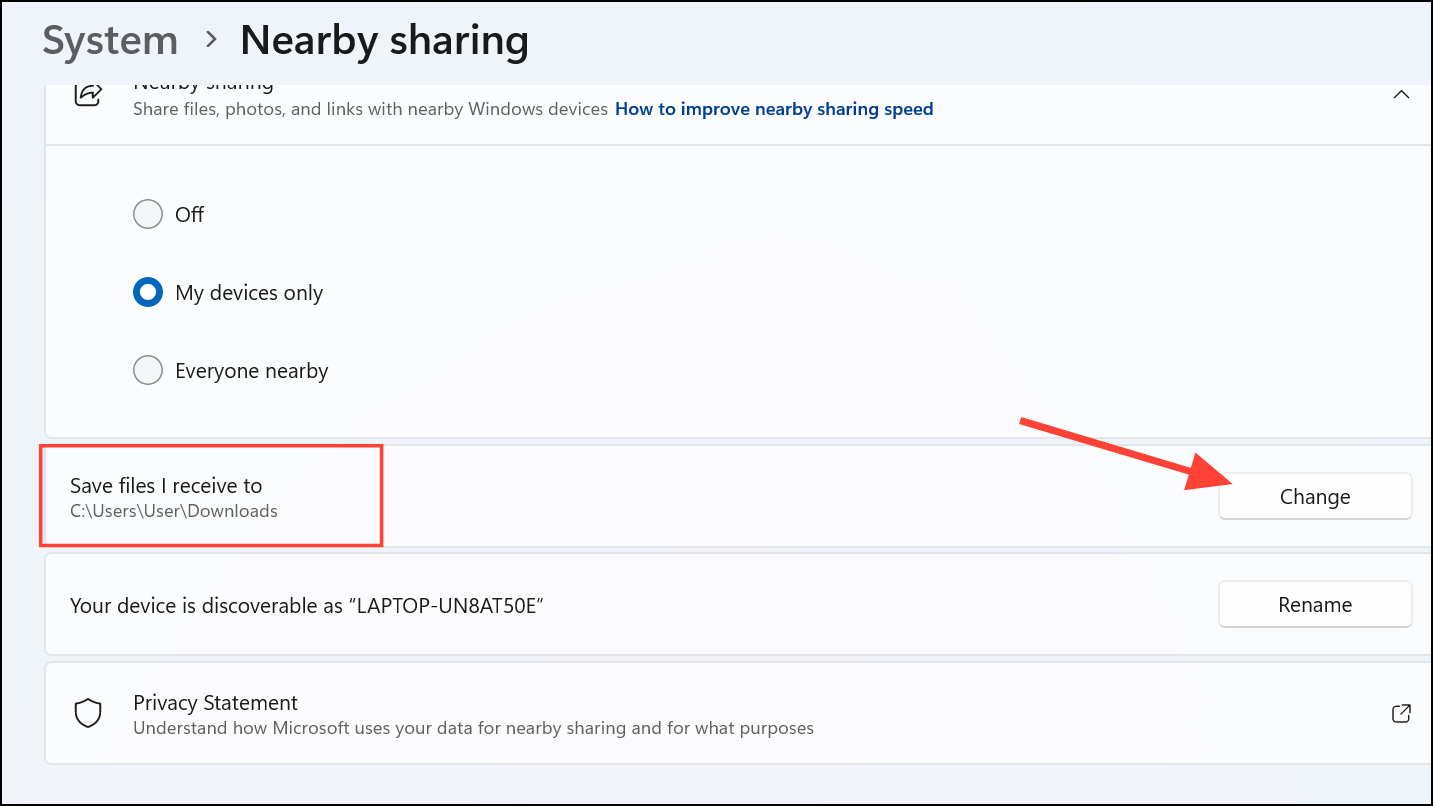
Optionally, adjust the default folder where received files are stored. Under Save files I receive to, click Change, pick your preferred location, and confirm with Select Folder. This helps you keep shared files organized and easy to locate.
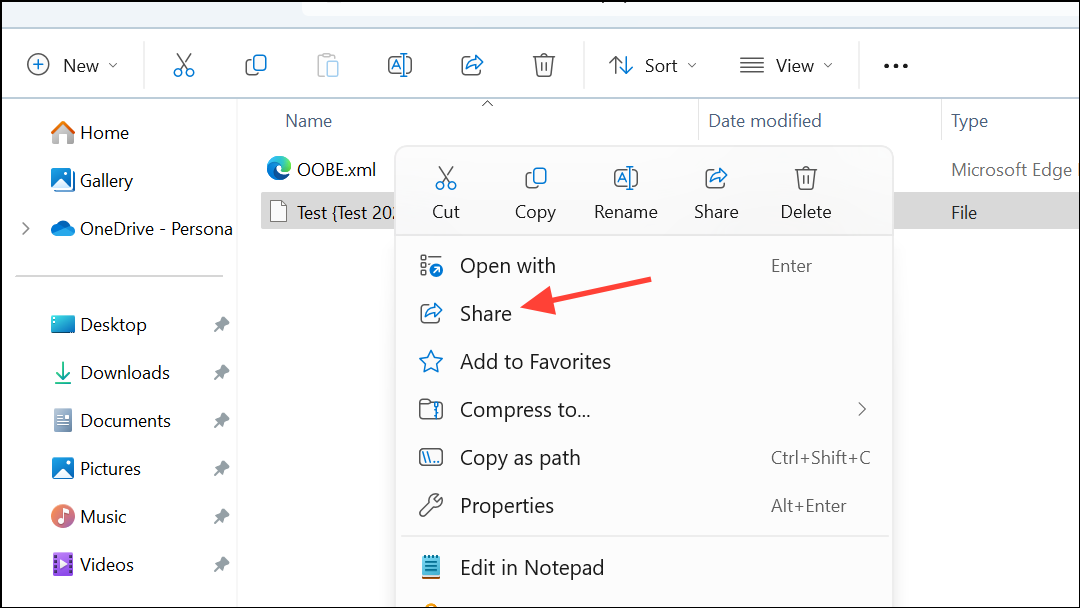
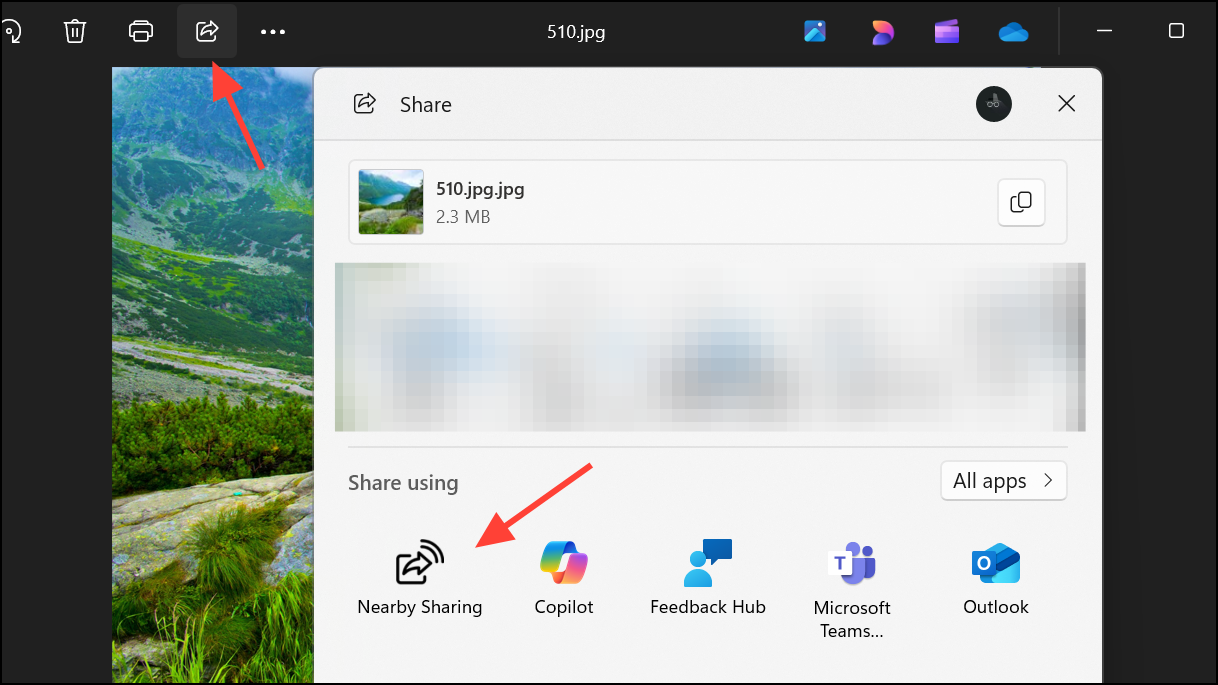
Select the file you want to send. Right-click the file and choose Share from the context menu. If you don’t see the Share option, right-click again and select Show more options, then click Share.
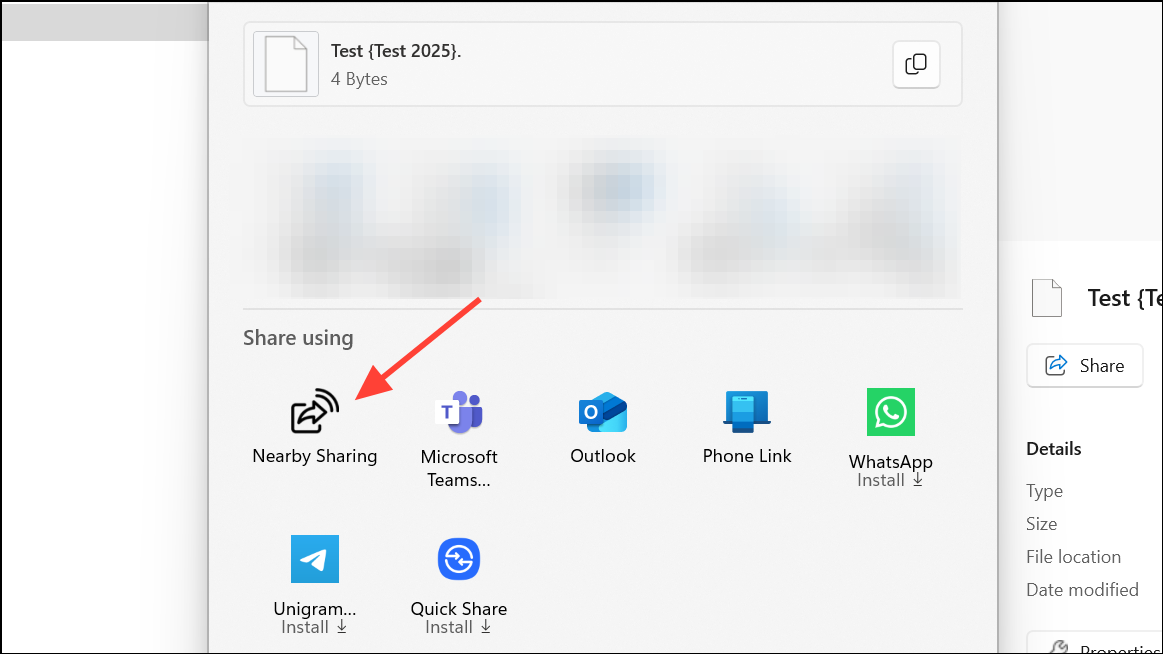
In the Share window, look for the “Nearby sharing” section. Windows will search for compatible devices within range that have Nearby Sharing enabled. Select the device name you want to send the file to.
On the receiving device, a notification will appear. Click Save & open or Save to accept the file. By default, the file will be saved in the designated Downloads folder unless you changed the location earlier.
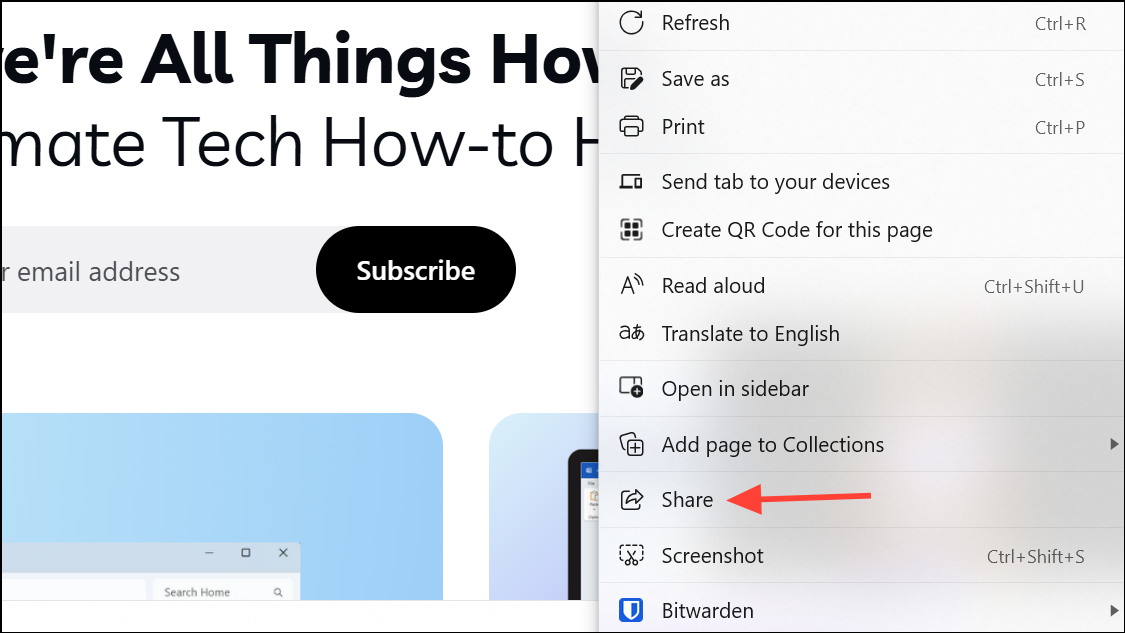
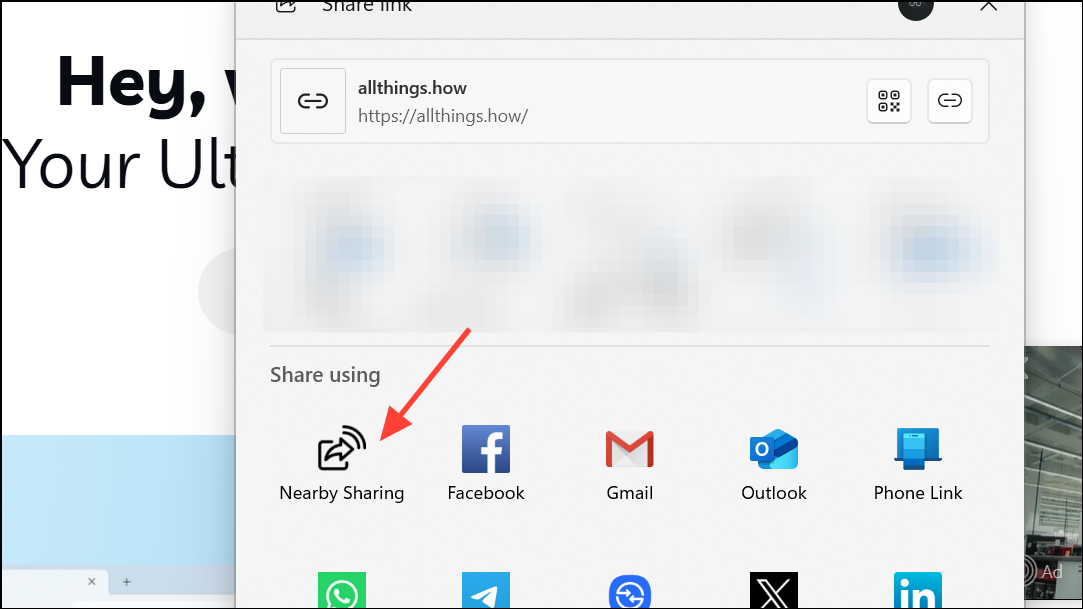
On the receiving device, click Save & open or Save in the notification to accept the image. The file will be stored in the default or specified folder.
Troubleshooting Nearby Sharing
Nearby Sharing relies on Bluetooth and Wi-Fi, so connectivity issues may disrupt transfers. If the feature isn’t working as expected, check the following:
Bluetooth and Wi-Fi must be enabled on both devices. Verify these settings in Settings > Bluetooth & devices and Settings > Network & Internet.
Devices should be within 30 feet (10 meters) for Bluetooth-based sharing. For faster Wi-Fi transfers, ensure both devices are connected to the same private network.
Set network profiles to Private. Go to Settings > Network & Internet > Wi-Fi (or Ethernet), select your network, and confirm it’s set to Private. Public profiles may block device discovery and slow down transfers.
Update Bluetooth and Wi-Fi drivers via Device Manager if transfers fail or devices aren’t detected.
Restart both devices if they fail to recognize each other or transfers get stuck.
Disable Focus Assist or Do Not Disturb if notifications aren’t appearing.
Check for compatibility: Nearby Sharing requires Bluetooth 4.0 or higher with Low Energy (LE) support. To verify, open Device Manager, expand Bluetooth, right-click your adapter, select Properties, and check under the Details tab for “Bluetooth radio supports Low Energy Central Role.” The value should be True.
Transfers between Windows and Android/iPhone require Google’s Quick Share app, not Windows’ native Nearby Sharing.
If you continue experiencing issues, use the built-in Windows troubleshooters for Bluetooth or network problems, or temporarily disable third-party firewalls or antivirus software that might block sharing.
Activating Nearby Sharing in Windows 11 streamlines file and link transfers between PCs, cutting out cables and cloud uploads for a direct, reliable solution. Adjust your sharing and network settings for the fastest results, and enjoy quick, wireless file exchanges across your devices.