
Pressing Windows + V on a Windows 11 device opens the clipboard history, revealing up to 25 of your most recently copied items. While this feature streamlines pasting and reusing text, images, or links, it can also store sensitive data longer than intended. Clearing the clipboard history is essential for privacy, preventing accidental data exposure, and resolving issues like a full clipboard or sluggish system performance.
Clear Clipboard History Using the Clipboard Tab
Windows + V to open the clipboard history panel. This displays all items currently stored in your clipboard, including text, images, and links. The history is limited to the latest 25 items, and pinned items remain even after clearing.Clear all button at the top of the clipboard panel. This action immediately removes all clipboard entries except those you’ve pinned, ensuring that sensitive or outdated data is no longer accessible.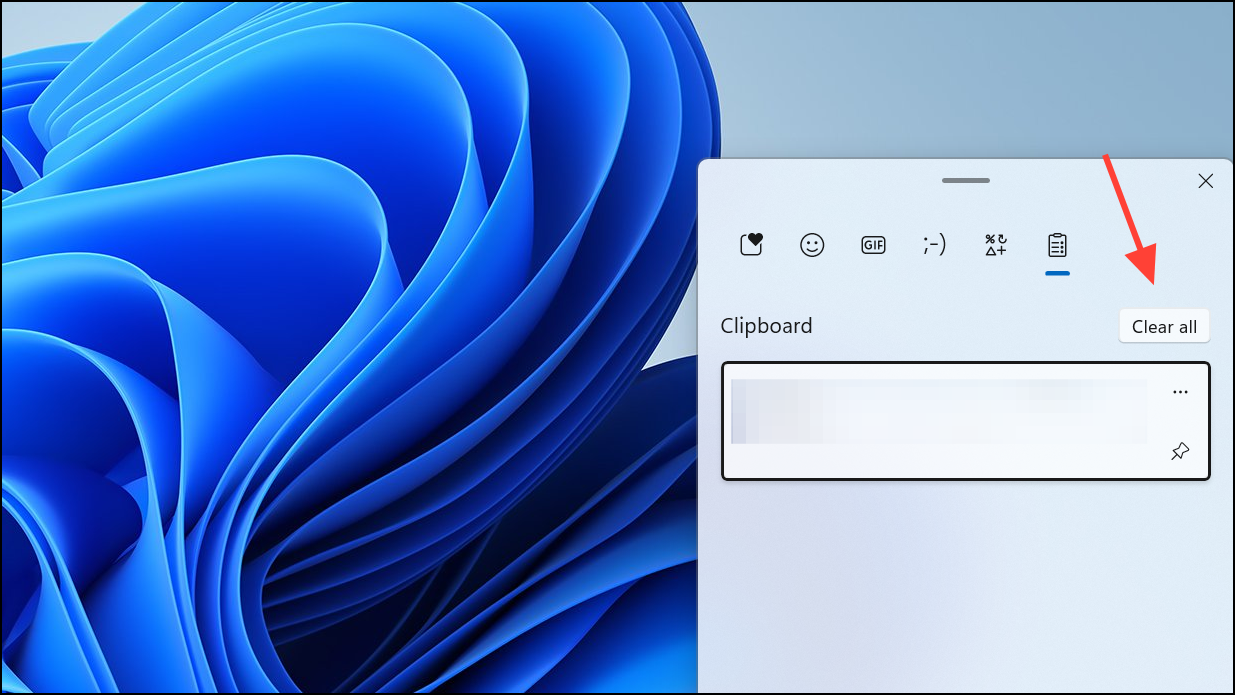
...) next to the entry, and select Delete. This allows for targeted removal without clearing the entire history.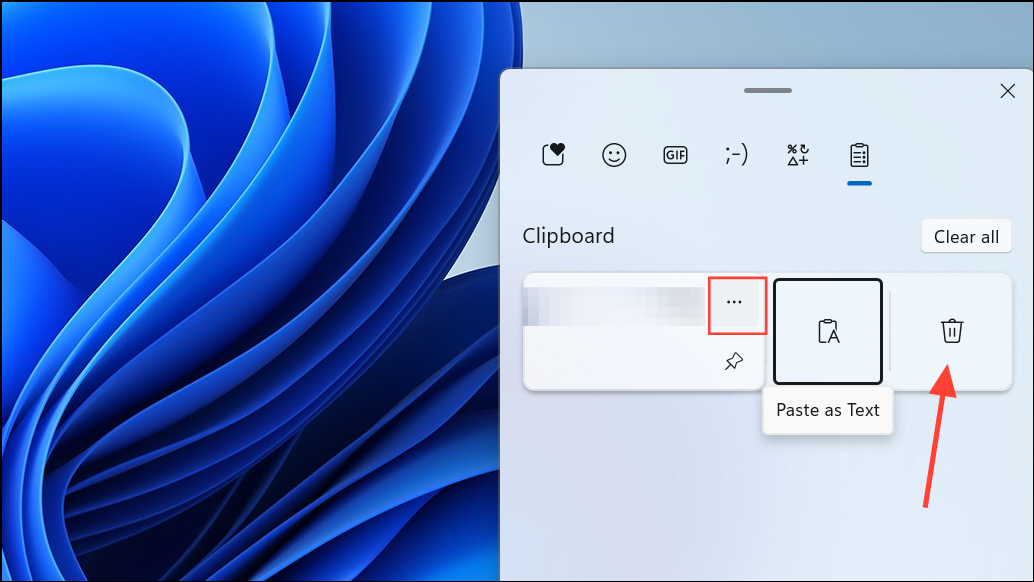
Clear Clipboard Data via Windows Settings
Windows + I. This brings up the main configuration panel for your system.System in the left sidebar, then select Clipboard from the available options. This section manages all clipboard-related settings.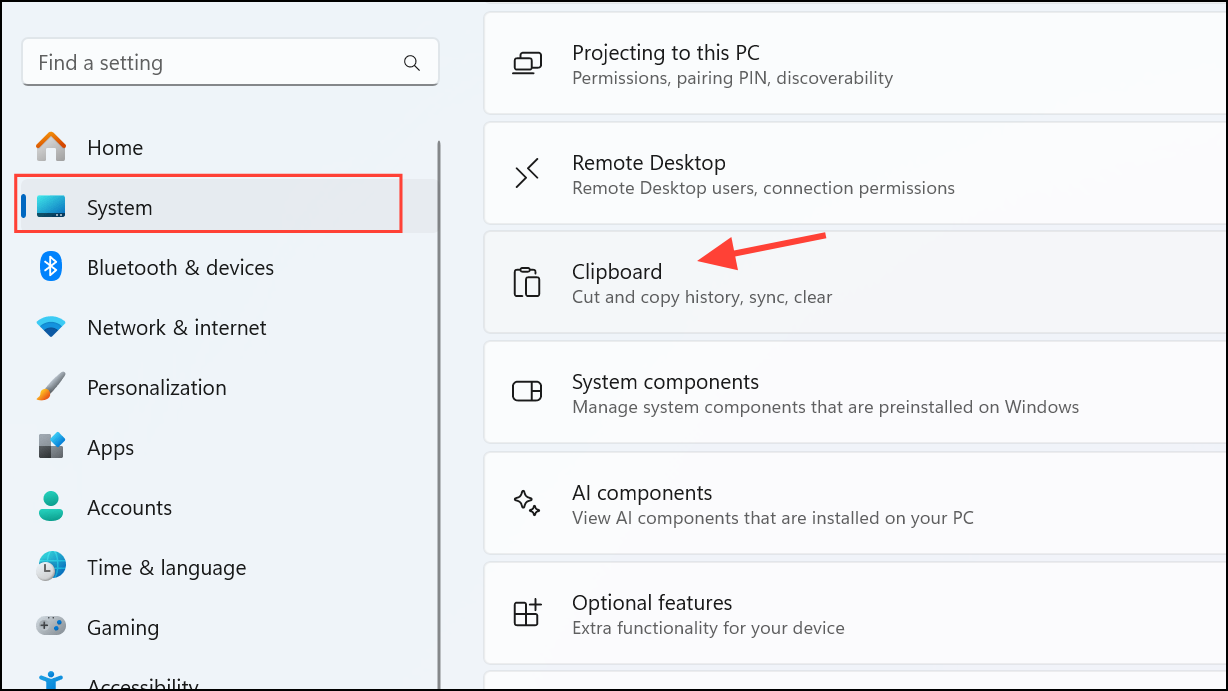
Clear clipboard data section and click the Clear button. This removes all clipboard history except for pinned items, both from your device and any connected cloud clipboard if syncing is enabled.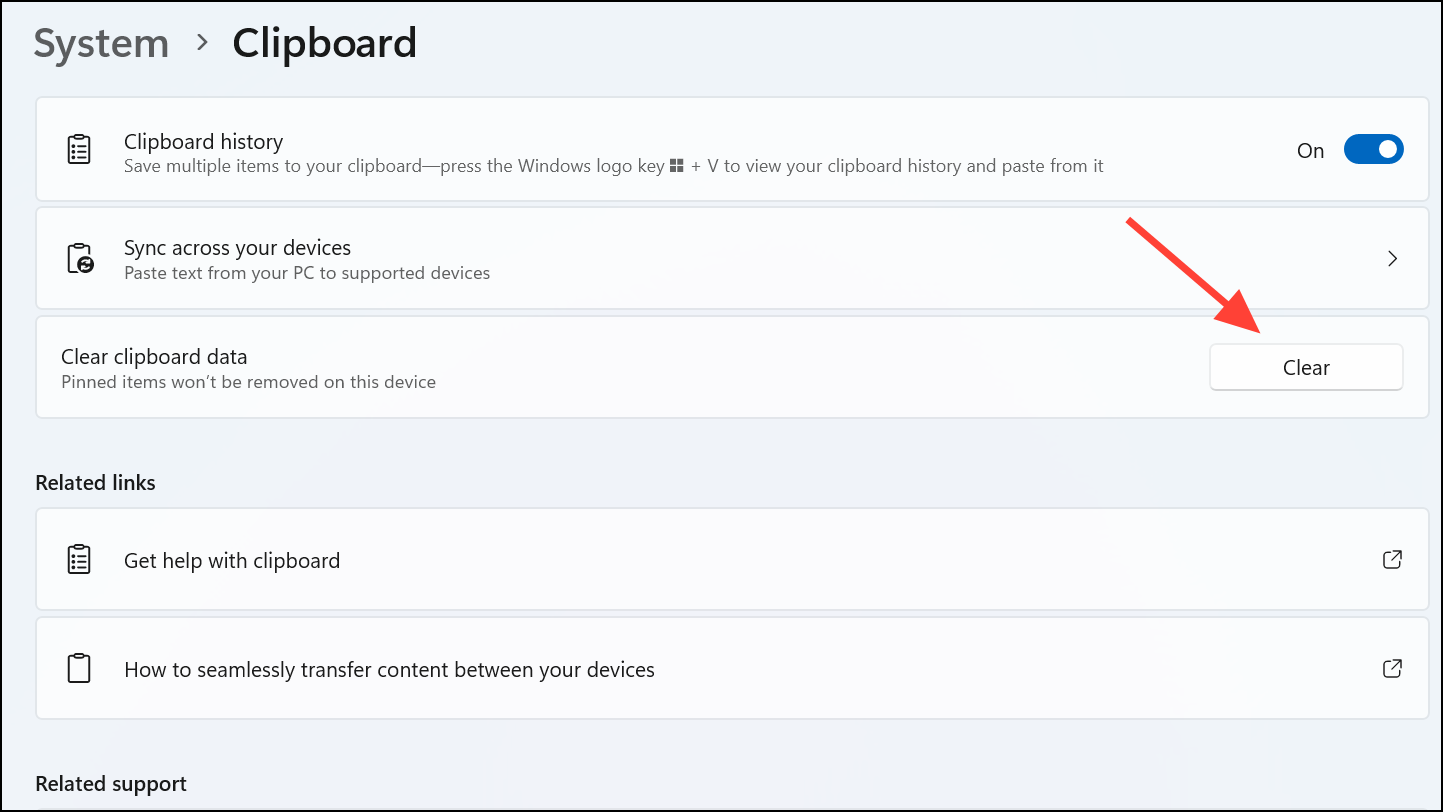
Delete Clipboard Content Using Command Prompt
cmd in the Windows Search bar, right-click on Command Prompt, and choose Run as administrator. Running as administrator ensures you have the necessary permissions for system-level commands.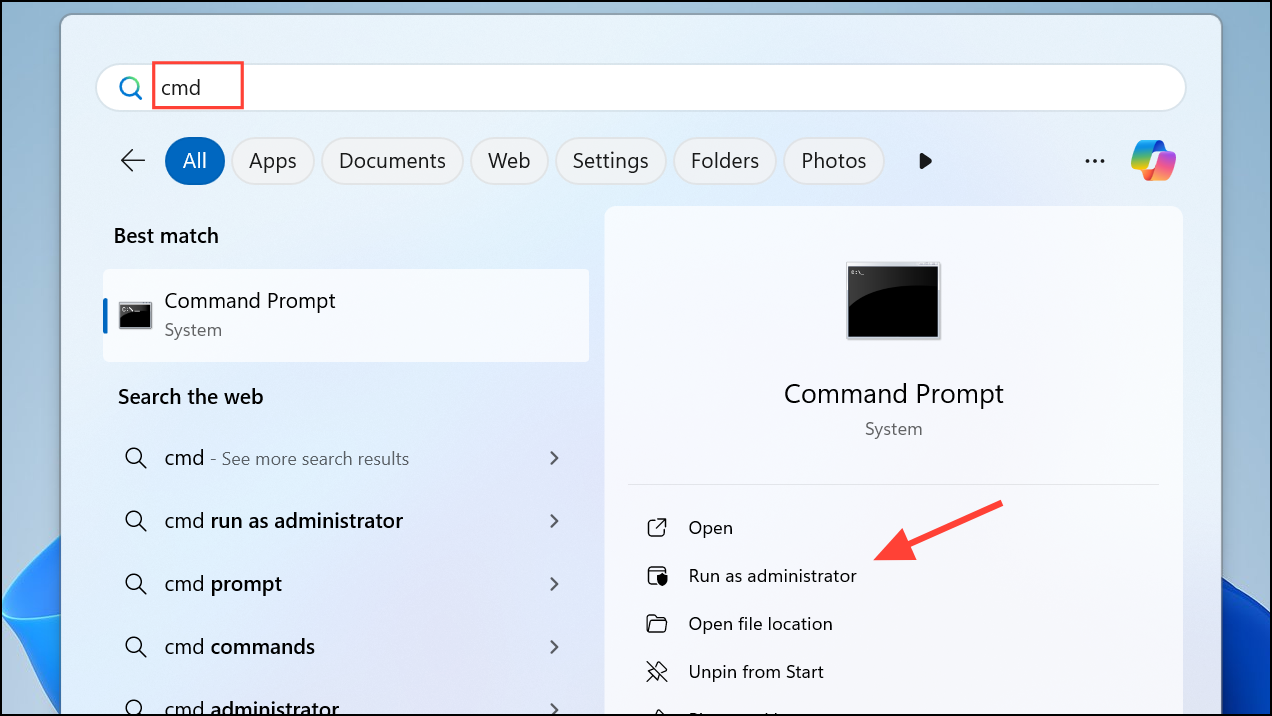
echo.|clip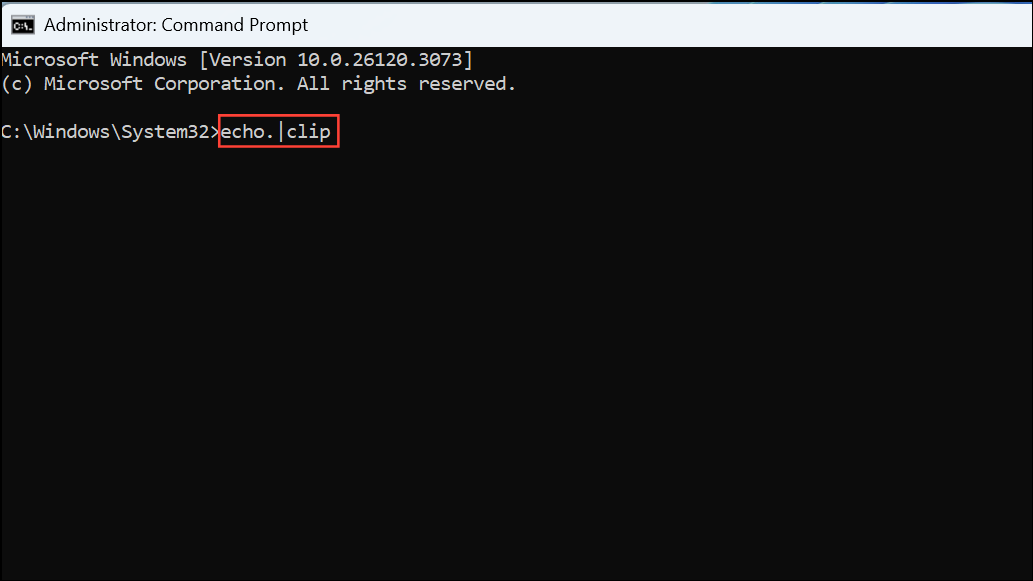
This command clears the current clipboard content by sending an empty string to the clipboard, effectively erasing the last item you copied. It does not remove the full clipboard history if you have clipboard history enabled, but it does clear the active clipboard data for immediate pasting.
Create a Desktop Shortcut to Quickly Clear Clipboard
New, then choose Shortcut. This opens the shortcut creation wizard.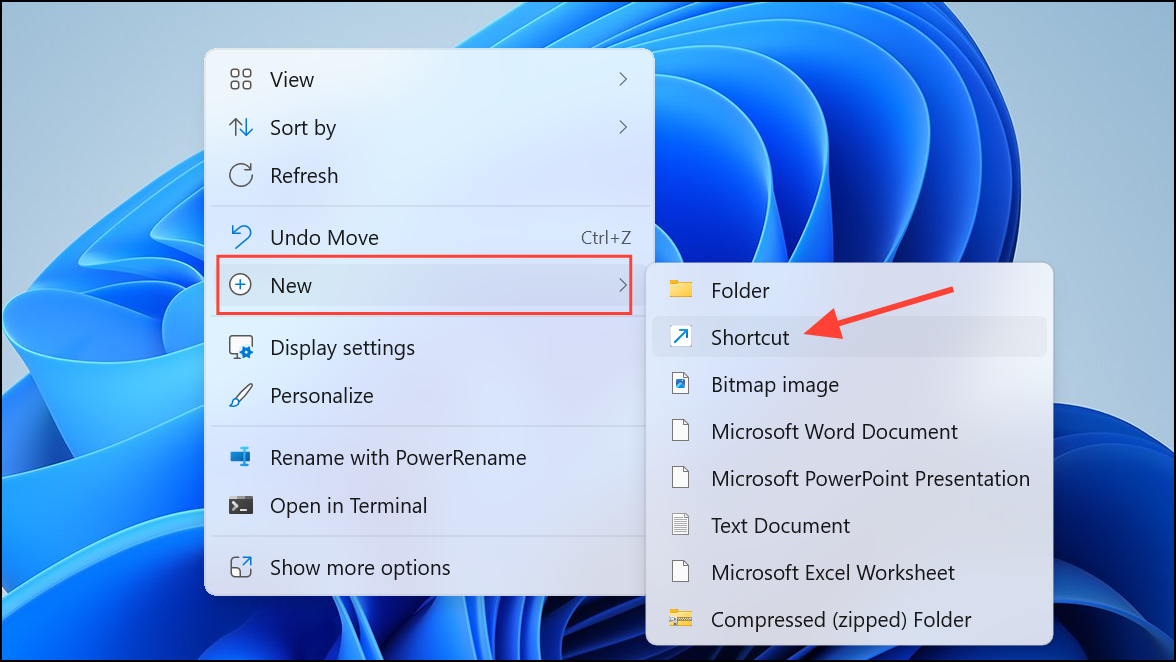
cmd /c echo.|clip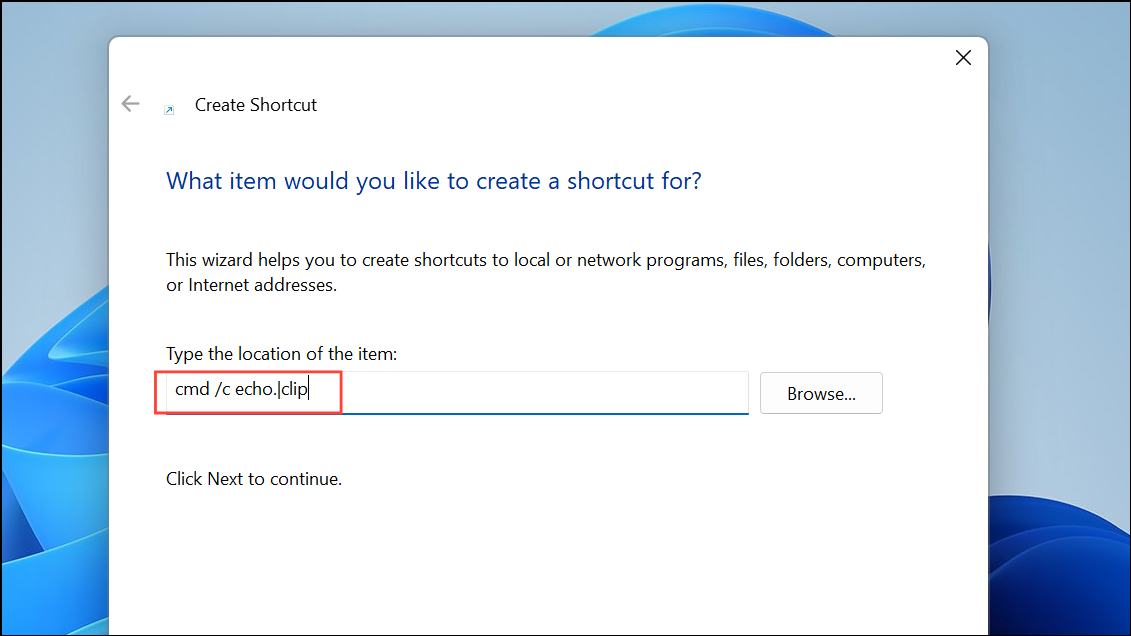
Click Next, name your shortcut (for example, “Clear Clipboard”), and click Finish. The shortcut now appears on your desktop.
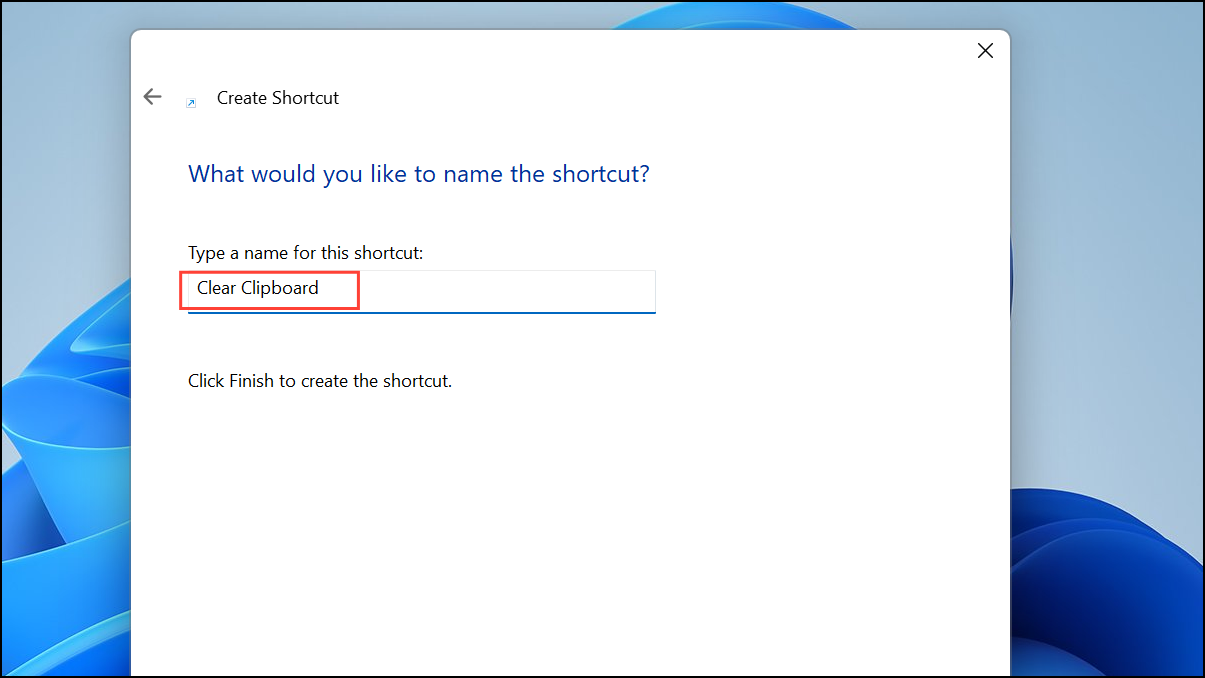
Properties, and set a keyboard shortcut in the Shortcut key field, then click Apply and OK.Restart the Clipboard Service via Task Manager
Clipboard issues, such as the inability to copy or paste new content, sometimes result from a malfunctioning clipboard service. Restarting the relevant service can restore normal clipboard operations without requiring a full system reboot.
Task Manager, or by pressing Ctrl + Shift + Esc.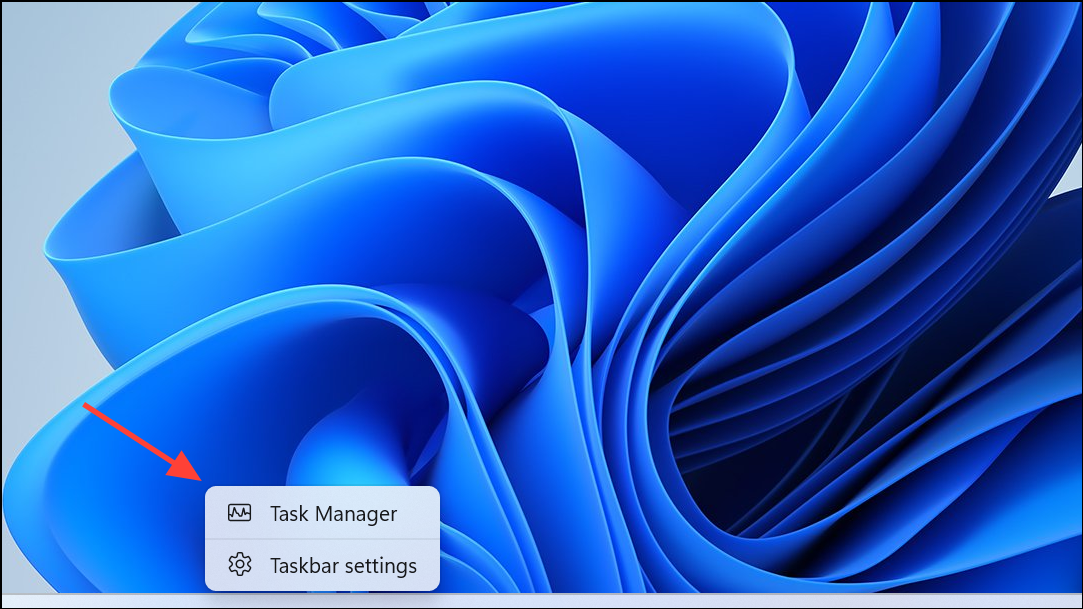
Services tab. Locate the service named cbdhsvc_* (Clipboard User Service)—the asterisk indicates a unique identifier that may vary by system.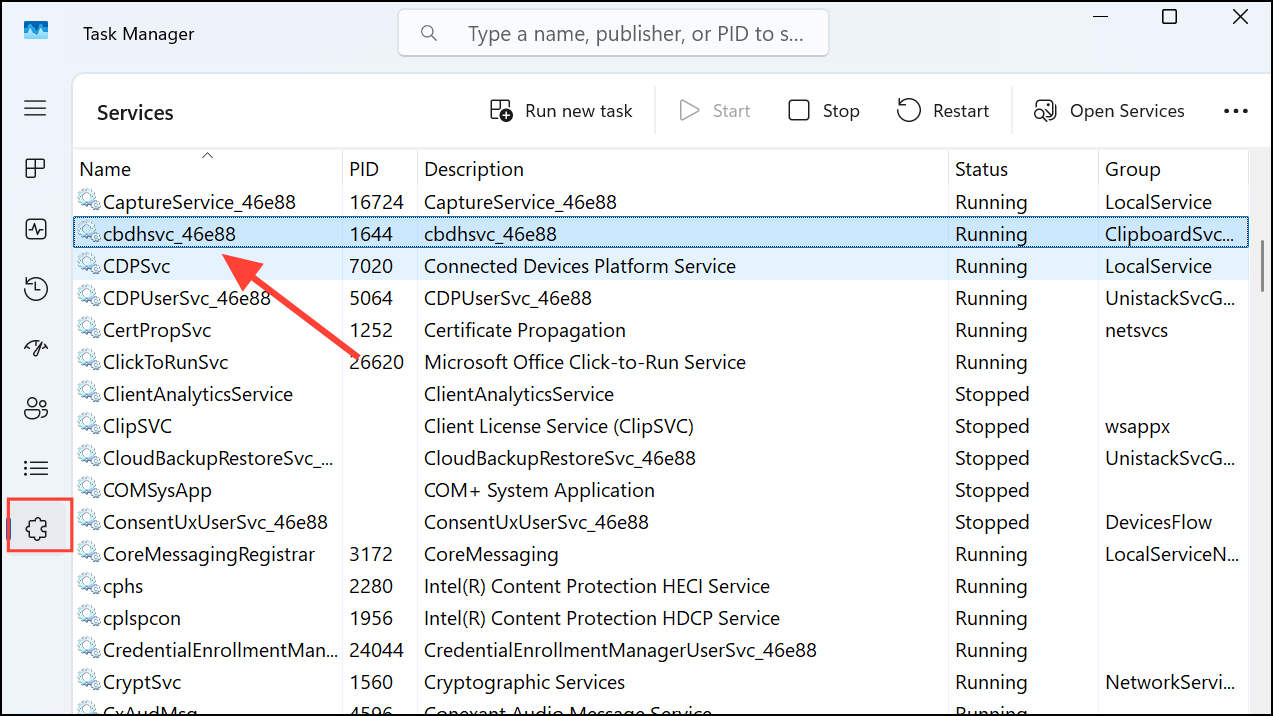
cbdhsvc_* service and choose Restart. This action restarts the clipboard service, resolving most clipboard-related glitches without rebooting your PC.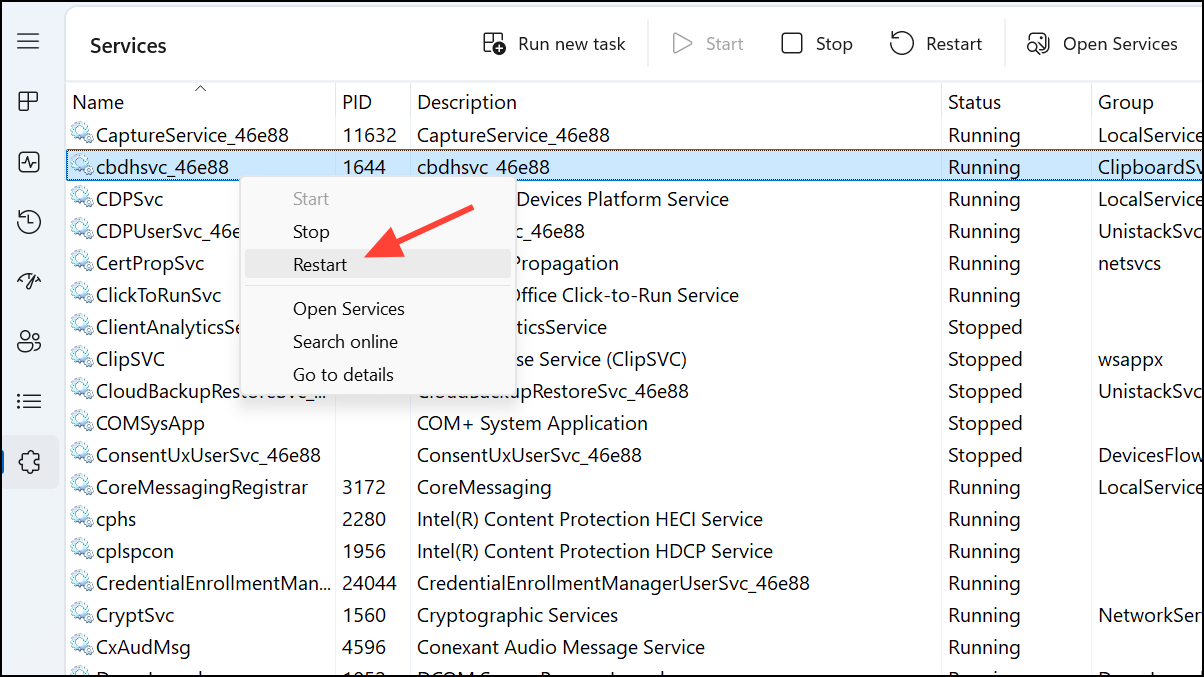
Resolve Clipboard History Issues by Deleting Corrupted Profile Data
When clipboard history fails to save or display items for a specific user account, the issue may stem from corrupted files in the user’s profile. Removing the problematic folders forces Windows to rebuild clipboard-related data, restoring normal functionality.
C:\Users\your-username\AppData\Local\Microsoft\Windows\Clipboard\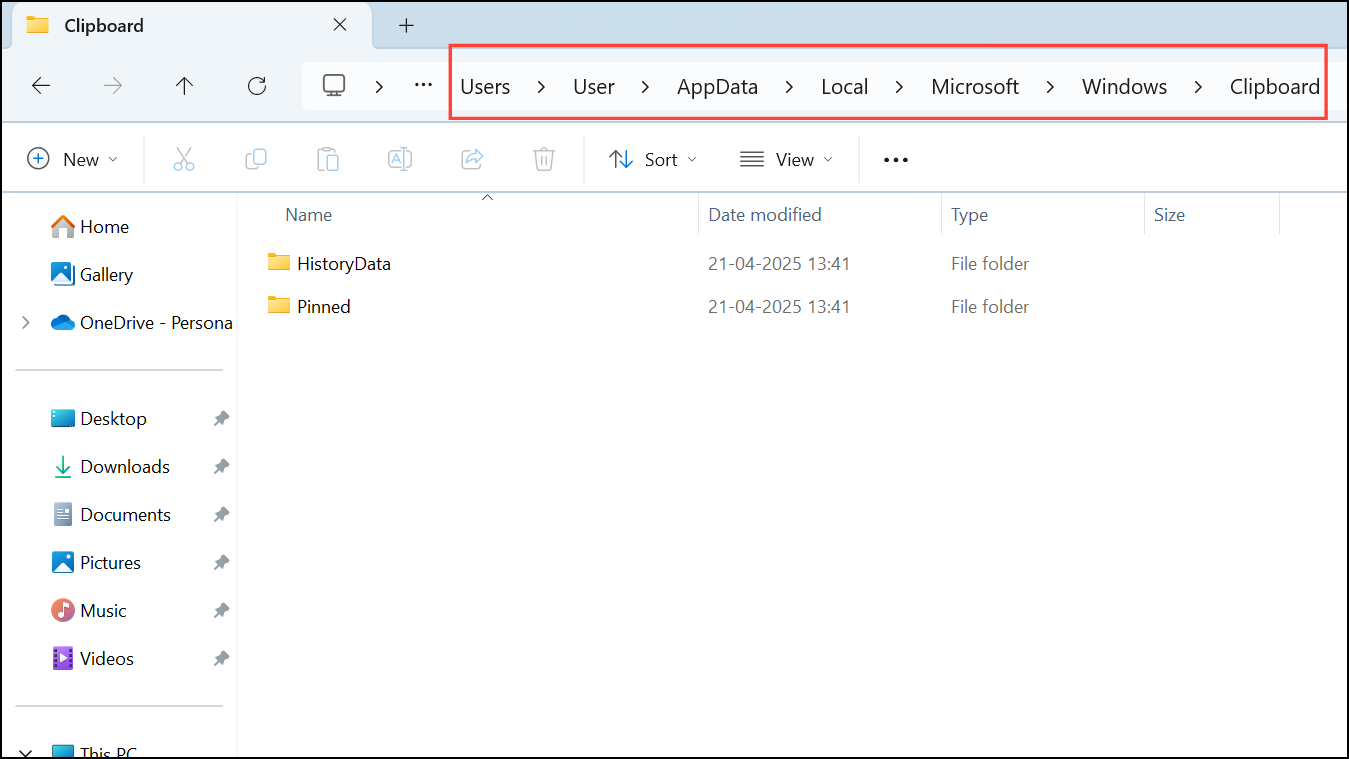
Replace your-username with your actual Windows user name.
Clipboard directory. These folders store clipboard cache and settings data for your profile.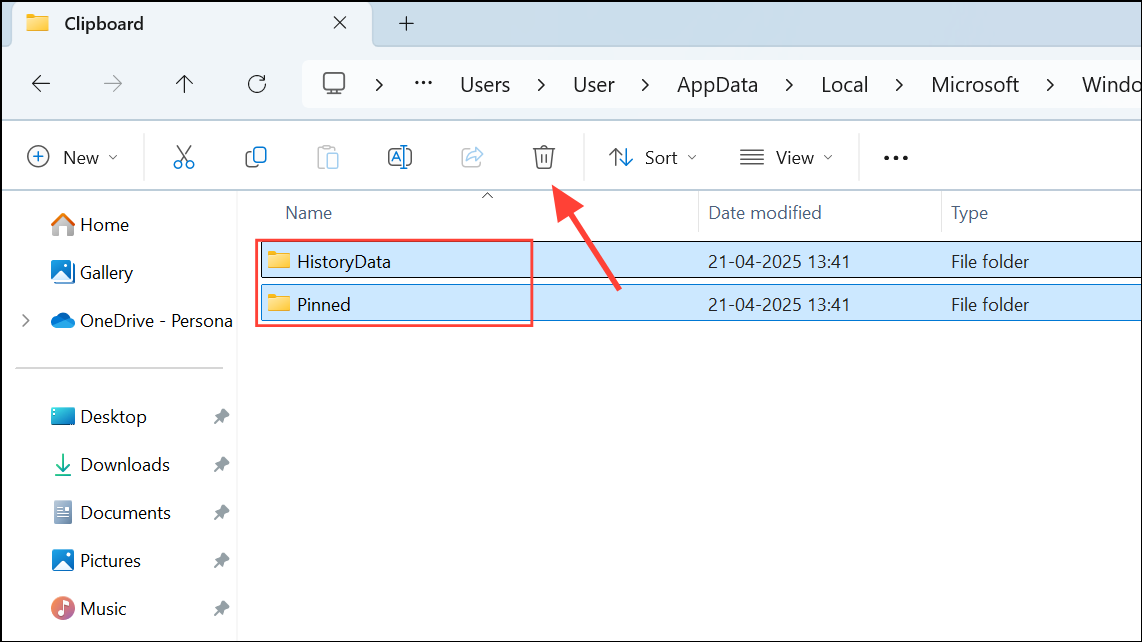
Why Clearing Clipboard Data Matters
Clearing clipboard history and data is vital for:
- Protecting sensitive information copied during work, such as passwords or financial details.
- Preventing accidental pasting of outdated or private data into documents or chats.
- Freeing up system resources and resolving errors when the clipboard is full.
- Fixing glitches or bugs that prevent copying and pasting new items.
Clearing the clipboard on Windows 11 is quick and can be accomplished through the clipboard panel, system settings, command line, or even by creating a handy desktop shortcut. Regularly removing clipboard history safeguards your privacy and keeps your workflow running smoothly.



