
Video decode acceleration issues on Chromium-based browsers in Ubuntu 22.04 often stem from compatibility problems with system libraries and codecs. While native installations may struggle with hardware acceleration, the Snap environment provides a self-contained solution that ensures video decoding functions correctly. Using the Snap version of your browser can significantly improve video playback performance and reduce CPU usage by enabling hardware-accelerated decoding.
Method 1: Install Chromium-Based Browser via Snap for Hardware Acceleration
Ctrl + Alt + T, execute the following command to uninstall the existing browser:sudo apt remove chromium-browserConfirm any prompts to remove the browser completely.
sudo snap install chromiumWait for the installation to complete. This process may take a few minutes, depending on your internet connection.
chrome://flags in the address bar, and press Enter. In the search box, type “Hardware-accelerated video decode” and set it to “Enabled”. Restart the browser to apply the changes.chrome://gpu and look under “Video Decode” to confirm it shows “Hardware accelerated”. If it does, your browser will now correctly utilize your GPU for video decoding.Method 2: Update Graphics Drivers to Improve Compatibility
If hardware acceleration still isn’t functioning properly after installing Chromium via Snap, the issue might be related to outdated or incompatible graphics drivers.
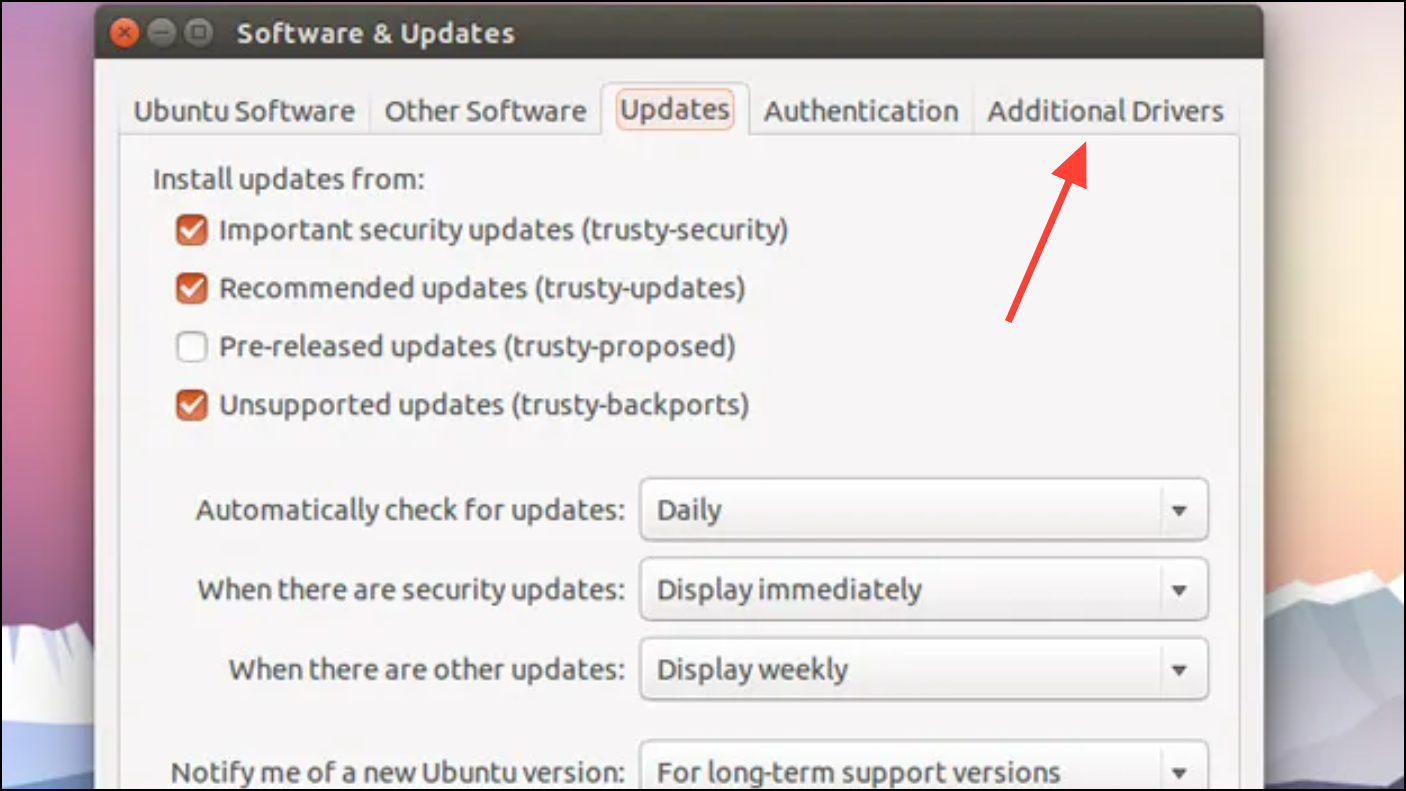
chrome://gpu.Method 3: Adjust Browser Launch Flags Manually
If you’ve verified your drivers and installed the Snap version but still don’t see hardware acceleration enabled, manually adding command-line flags can sometimes resolve the issue.
sudo nano /var/lib/snapd/desktop/applications/chromium_chromium.desktopExec=. Append the following flags after the existing command:--enable-features=VaapiVideoDecoder --use-gl=desktopFor example, your edited line might look like this:
Exec=env BAMF_DESKTOP_FILE_HINT=/var/lib/snapd/desktop/applications/chromium_chromium.desktop /snap/bin/chromium %U --enable-features=VaapiVideoDecoder --use-gl=desktopSave the changes by pressing Ctrl + O, then exit the editor by pressing Ctrl + X.
Following these steps should enable proper video decode acceleration in Chromium-based browsers on Ubuntu 22.04, improving video playback quality and reducing resource usage.





