Windows 11’s Copilot app provides an AI-powered assistant directly on your desktop, but users often find the default text size uncomfortable to read. Unfortunately, the Copilot app itself does not currently offer a direct setting within its interface to alter text size. However, there are a couple of ways to resize the text and improve readability using built-in Windows features.
Method 1: Using Windows Magnifier for Temporary Text Enlargement
If you need a quick, temporary enlargement of Copilot’s text without permanently changing any settings, Windows Magnifier can be a useful tool.
Win + Plus (+) or Win + Minus (-) repeatedly until you reach a comfortable text size.This method is ideal for quick adjustments and does not affect system-wide settings.
Method 2: Installing Copilot as a Progressive Web App (PWA)
A more flexible alternative is to install the Copilot experience as a Progressive Web App (PWA), which allows you to resize and reposition the app window freely, including text scaling through browser settings.
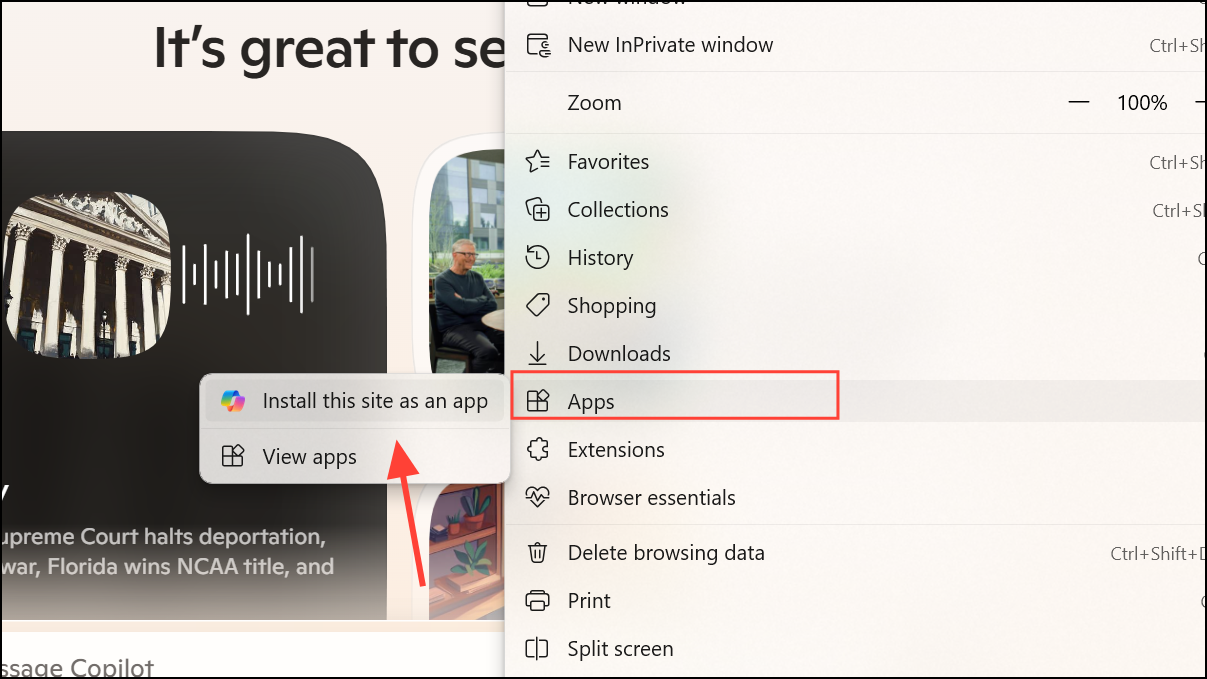
Ctrl + Plus (+) or Ctrl + Minus (-)) to effortlessly adjust text size.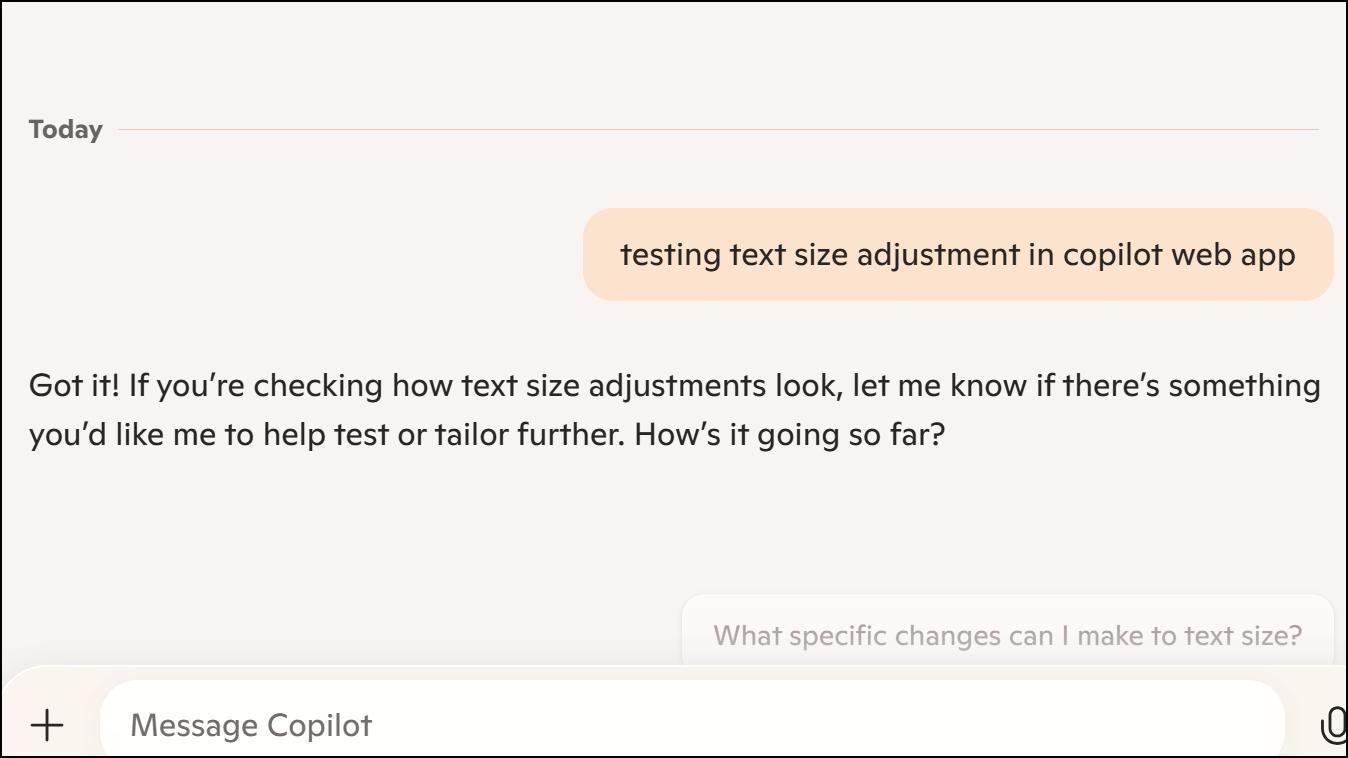
This method gives you greater flexibility in customizing your Copilot experience, allowing for easy text resizing and repositioning.
Adjusting text size in the Copilot app on Windows 11 is straightforward with these methods. Choose the one that best fits your workflow and enjoy a more comfortable reading experience.