
Windows 11 has introduced a built-in feature called Dynamic Lighting, allowing users to control RGB peripherals such as keyboards, mice, headsets, and other accessories directly from the operating system. Previously, managing RGB lighting required separate software from each hardware manufacturer, which often led to cluttered and inconsistent setups. With Dynamic Lighting, you can now unify your RGB customization experience, simplifying your setup and reducing the need for multiple apps.
Checking Device Compatibility with Dynamic Lighting
Before you start using Dynamic Lighting, ensure your RGB devices support the feature. Microsoft has collaborated with major hardware vendors like Razer, Asus, MSI, Lenovo, and Logitech to provide compatibility, but not all devices currently support this feature. You can verify whether your peripherals are compatible by checking Microsoft’s official list of Dynamic Lighting compatible devices.
If your device isn’t listed, keep an eye on updates from your device manufacturer, as support may be added in future updates or firmware releases.
How to Enable and Use Dynamic Lighting in Windows 11
Dynamic Lighting. Select the option labeled “Change lighting colors, brightness, and effects” from the search results. Alternatively, open the Settings app (Win + I), then navigate to Personalization > Dynamic Lighting.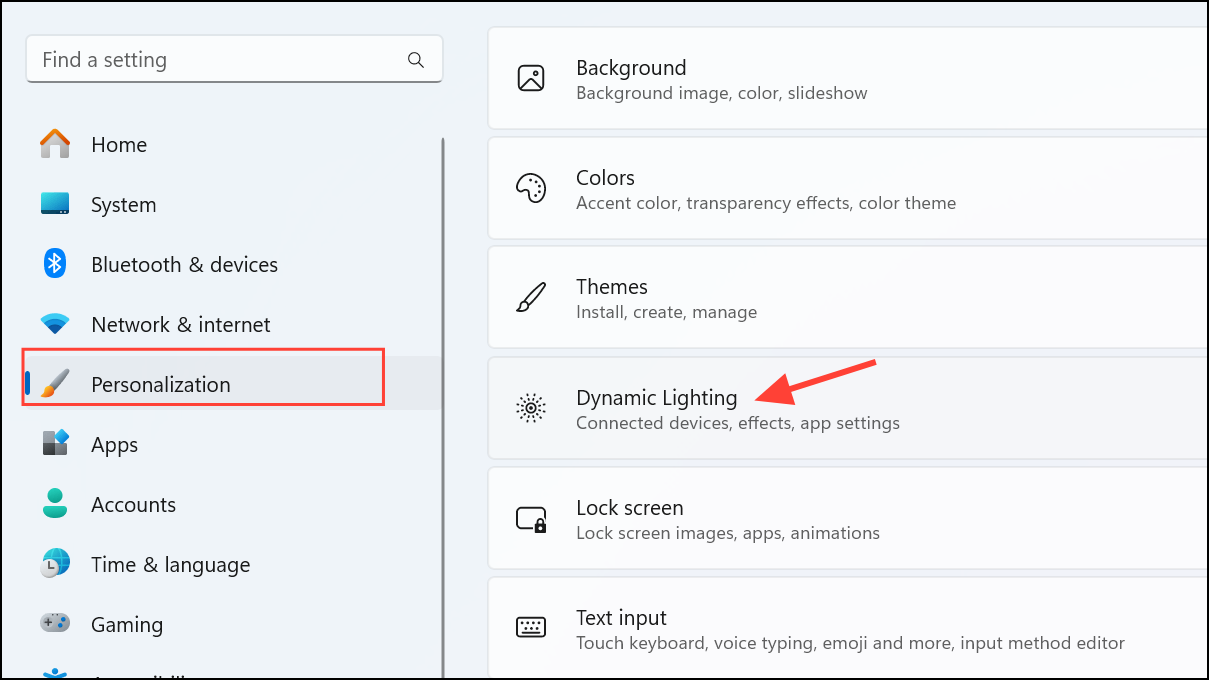
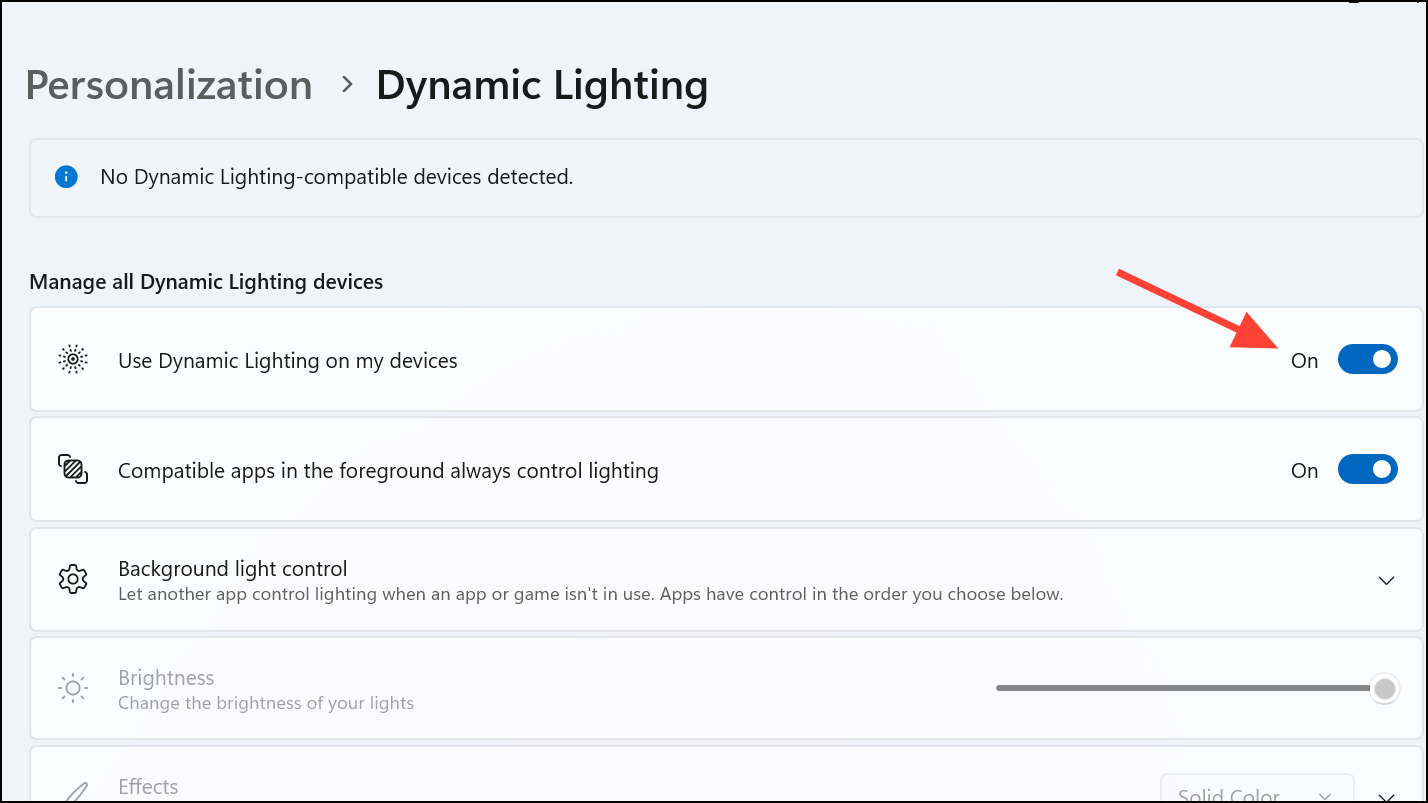
- Solid Color: Maintains a constant color.
- Breathing: Smoothly pulses the selected color.
- Rainbow: Cycles through the entire color spectrum.
- Wave: Creates a wave-like animation using two colors.
- Wheel: Shows a rotating spiral effect.
- Gradient: Blends two colors smoothly.
After adjusting your settings, simply close the Settings app. Your selected RGB lighting configuration will automatically apply to your devices.
Managing App Priority in Dynamic Lighting
Windows 11 Dynamic Lighting also allows you to control whether third-party apps can override your lighting settings. To ensure Dynamic Lighting maintains control:
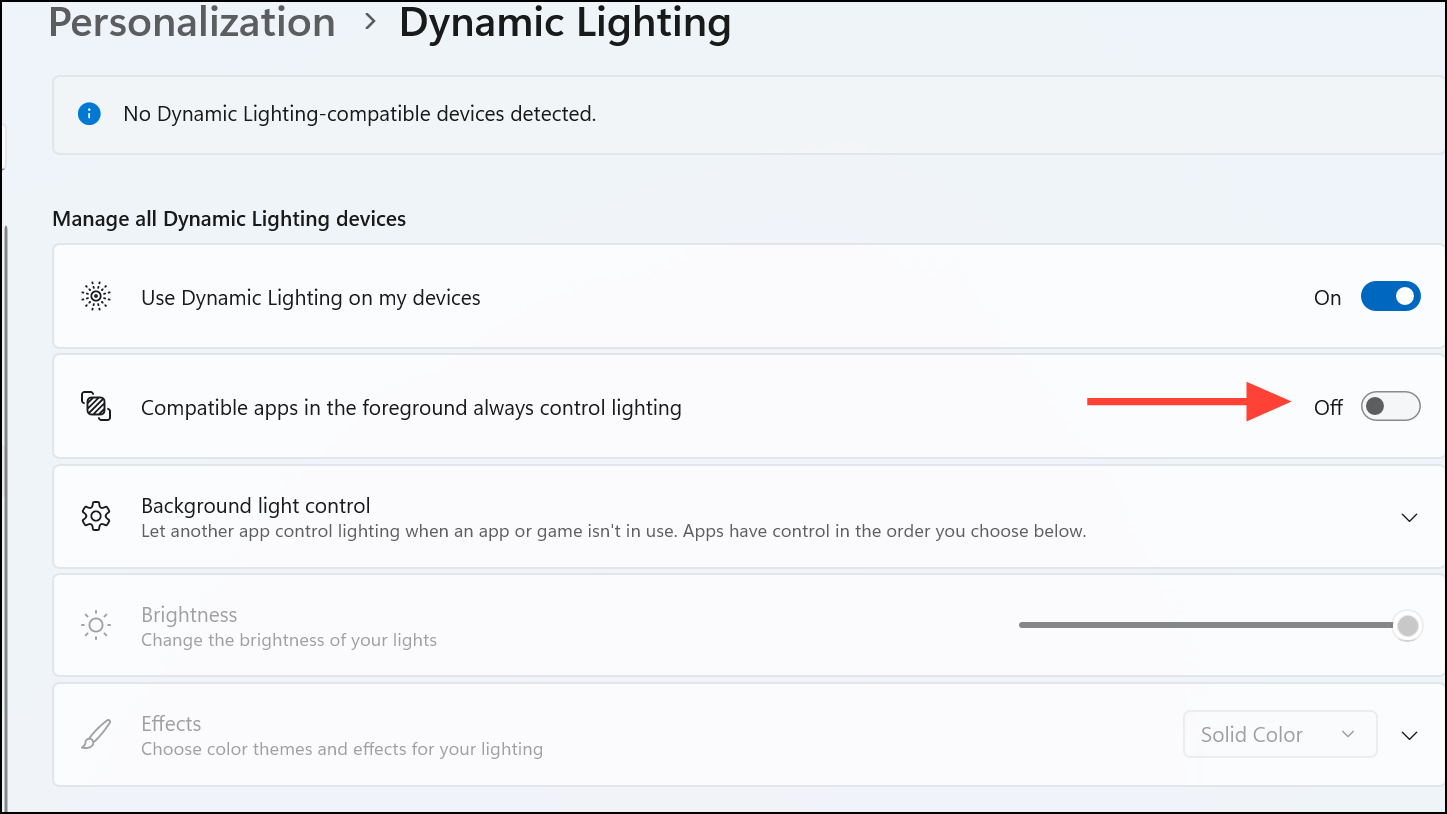
If you experience issues with your RGB settings not applying correctly, verify that Dynamic Lighting is set as the highest priority app in this list.
Troubleshooting Common Dynamic Lighting Issues
If Dynamic Lighting settings aren’t working as expected, consider the following troubleshooting steps:
- Make sure your RGB device is connected properly and supports Dynamic Lighting.
- Update your device firmware and software to the latest version from the manufacturer’s website.
- Restart your computer after applying new settings or updates.
- Ensure other RGB control software is not conflicting with Dynamic Lighting. Disable or uninstall other RGB apps if necessary.
If you continue to experience problems, consult your device manufacturer’s support resources for additional assistance.
With Dynamic Lighting, Windows 11 simplifies RGB management, reduces software clutter, and creates a cohesive lighting experience across your peripherals. Keep an eye on device compatibility updates to expand your RGB setup further!



