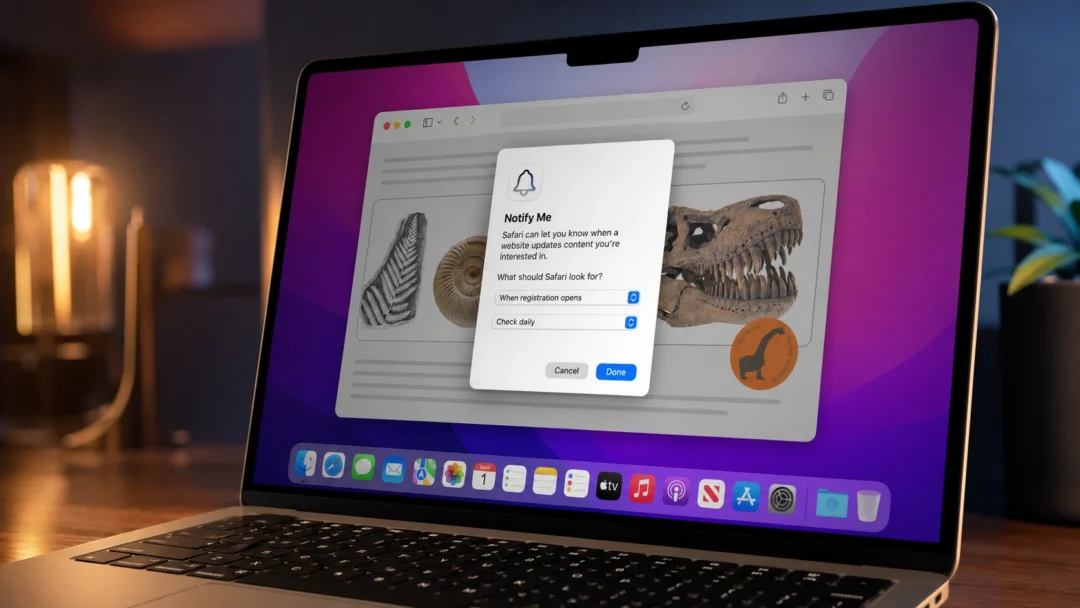
Safari in macOS Sequoia now includes two powerful features—Highlights and an upgraded Reader mode—that simplify finding key information on webpages and streamline your browsing experience. Safari Highlights uses machine learning to quickly summarize content, offer directions, provide quick links, and deliver details about people, movies, music, and TV shows directly within the browser. The updated Reader mode gives you a cleaner view of articles and allows you to control webpage distractions more effectively. To take full advantage of these new tools, you first need to enable and customize them properly.
How to Enable Safari Highlights in macOS Sequoia
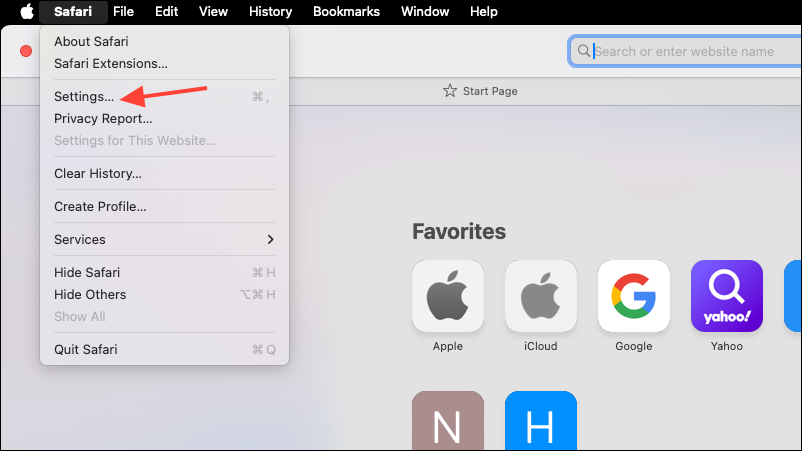
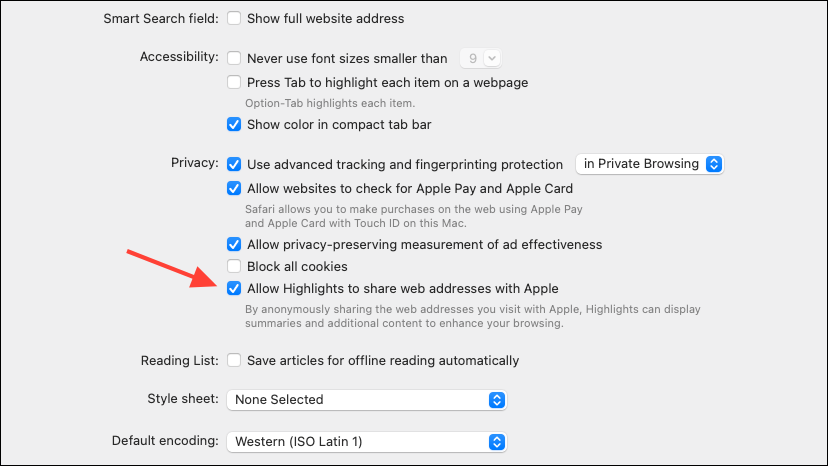
Once enabled, Safari Highlights will automatically detect supported webpages. When you visit a compatible page, you’ll notice a small purple sparkle icon appear on the left side of the Safari address bar. Clicking this icon opens a compact summary or relevant quick links, depending on the page content.
Using and Customizing Safari Highlights on Webpages
To view Highlights on a supported webpage, simply click the purple sparkle icon in the address bar. A small window will pop up, displaying a concise summary of the page content, quick links to related information, or direct links to associated apps like Apple Music or Apple TV.
For example, when viewing a hotel listing, Highlights can display key details like directions, business hours, phone numbers, and direct booking links. If you’re reading about an artist or TV show, Highlights might offer quick links to additional resources or related apps.
To close the Highlights popup, click anywhere outside of it on the webpage, and it will disappear, allowing you to continue browsing uninterrupted.
How to Use and Customize the Enhanced Reader Mode in Safari
Safari’s Reader mode provides a distraction-free reading experience by removing ads, navigation menus, and unnecessary page elements. macOS Sequoia introduces additional customization options for Reader mode, allowing you to further streamline your browsing experience.
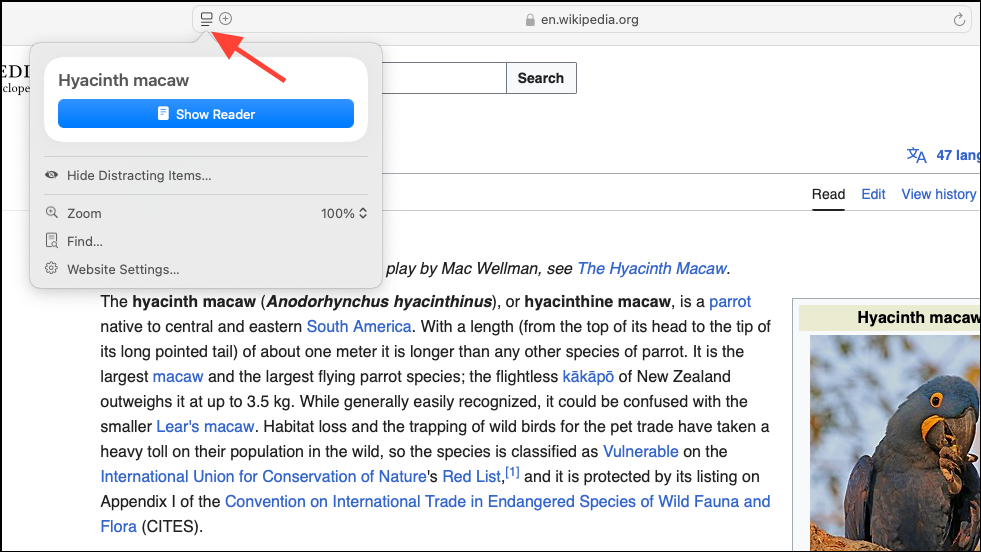
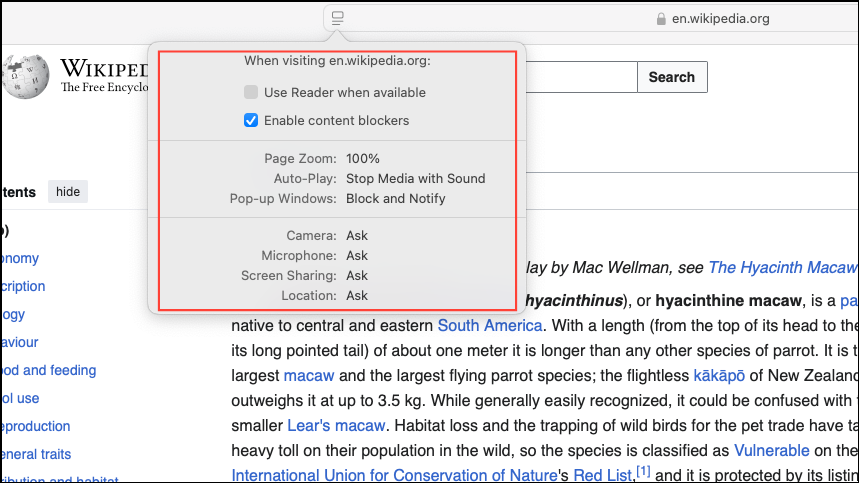
Additionally, Safari Reader mode now includes a convenient table of contents for longer articles, allowing you to navigate quickly between sections. You can access this by scrolling to the top of the article within Reader mode.
How to Hide Distracting Items on Webpages
Safari in macOS Sequoia also includes a “Hide Distracting Items” feature, making it easy to temporarily remove unwanted elements from webpages.
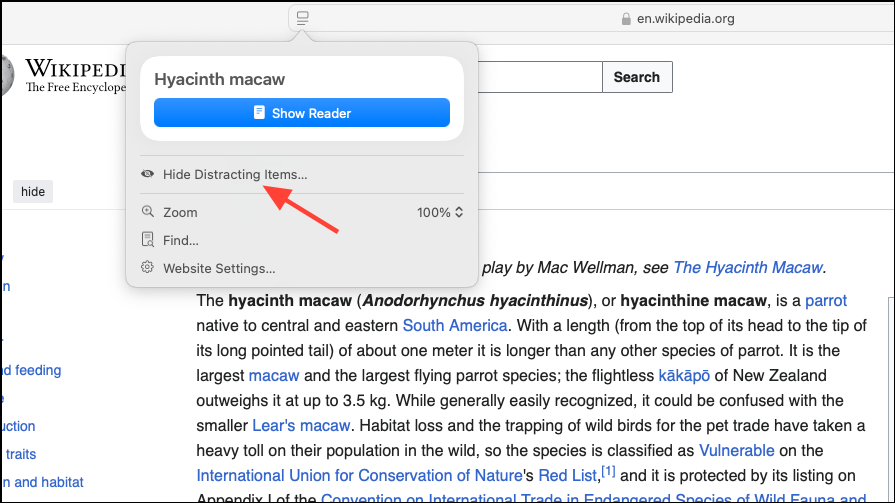
Note that these changes aren’t permanent—refreshing the page will restore the original view.
Privacy Considerations
Safari Highlights uses Apple’s Oblivious HTTP (OHTTP) protocol to maintain your privacy. It sends webpage information anonymously to Apple servers to determine if Highlights are available, but this process does not link data to your Apple ID or personal details.
Safari’s new Highlights and Reader mode in macOS Sequoia streamline your browsing by quickly surfacing the most critical information from webpages. With just a little customization, you can significantly simplify your online experience.