

Live captions in Windows 11 automatically transcribe spoken audio into text, making it easier for those who are deaf, hard of hearing, or in noisy environments to follow along. This feature converts audio from videos, meetings, or any other audio source into readable captions directly on your screen, without needing an internet connection. Here’s how you can turn on and personalize live captions to fit your needs.
How to Turn On Live Captions in Windows 11
Windows 11 offers several straightforward ways to activate live captions. The quickest and most convenient method is using a keyboard shortcut.
Windows + Ctrl + L to instantly toggle live captions on or off. The first time you activate this feature, Windows will ask you whether you want to set up live captions. Click “Yes, Continue” to proceed. This initial setup only happens once and will let Windows download the language files required for captioning.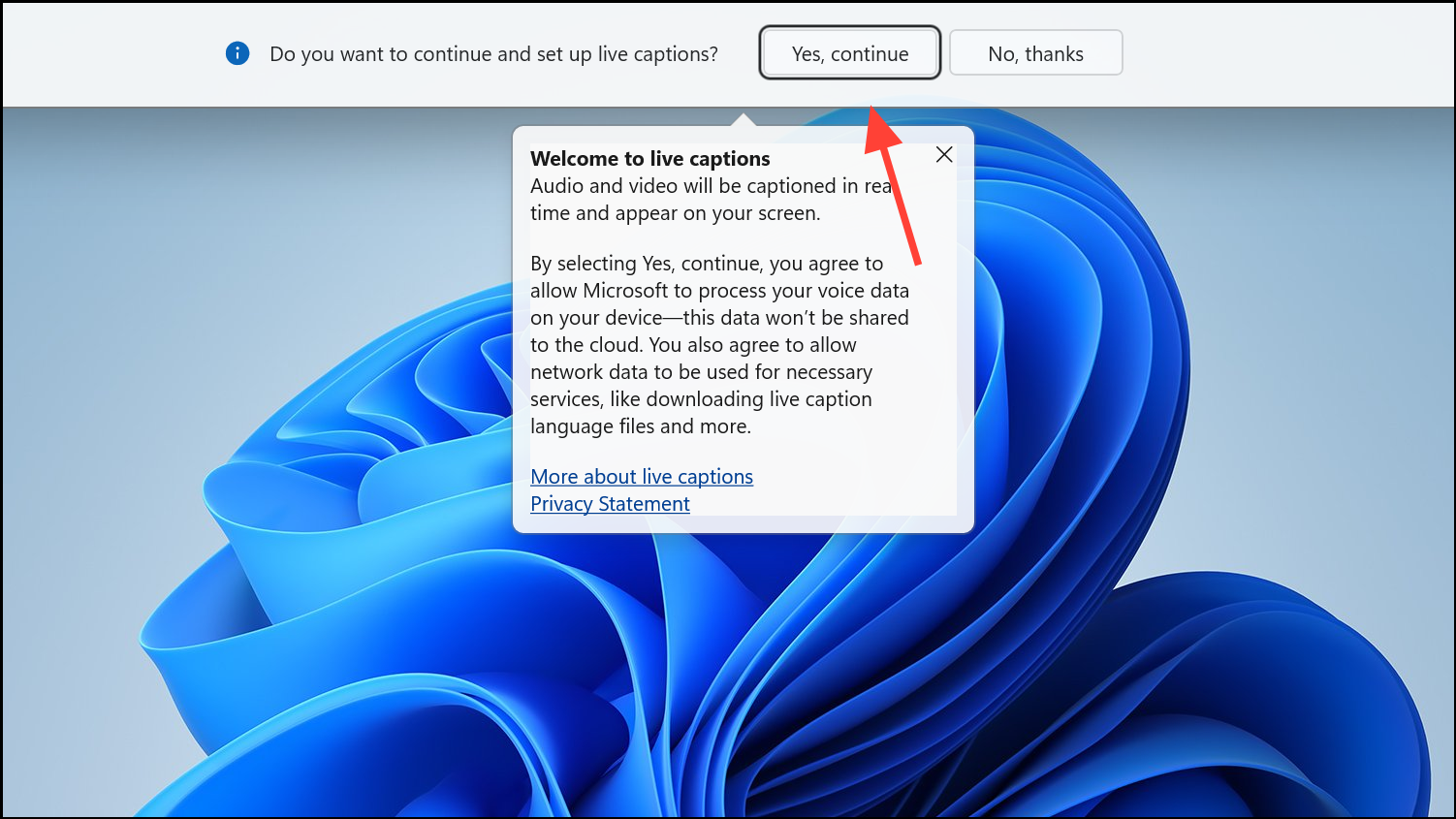
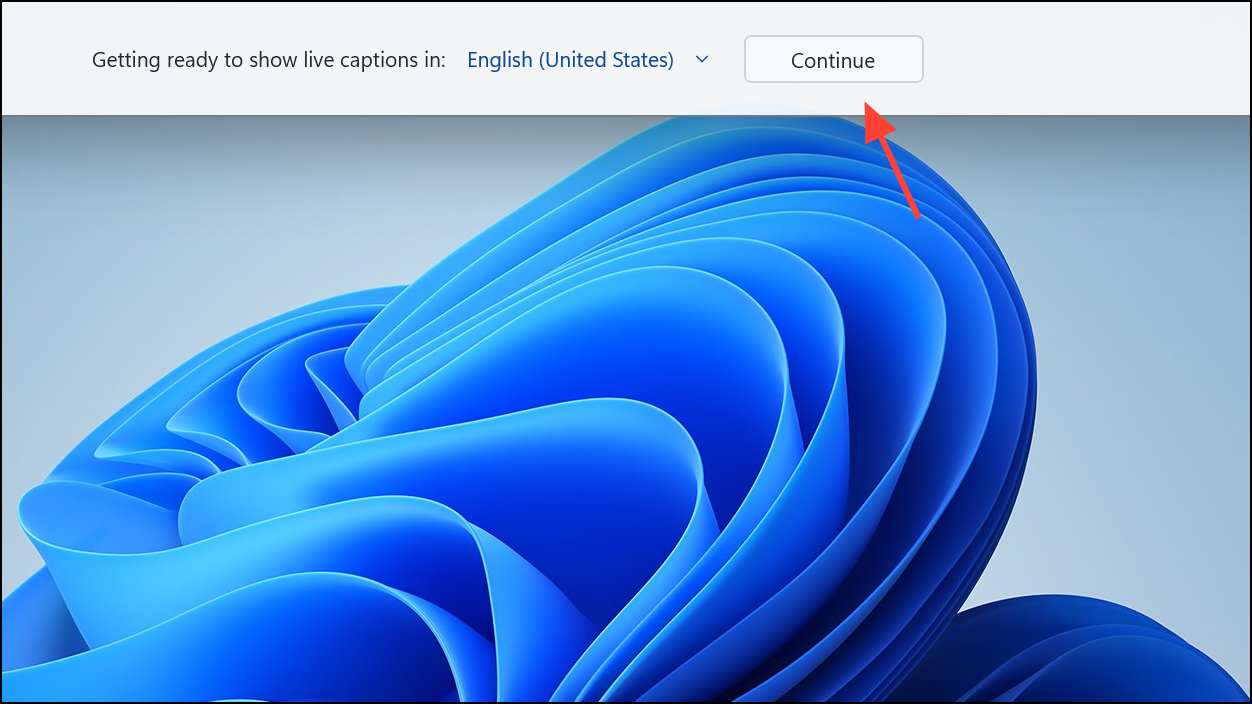
Alternative Ways to Enable Live Captions
Enable via Quick Settings
Windows + A to open the Quick Settings panel. Then click the “Accessibility” icon when the panel appears.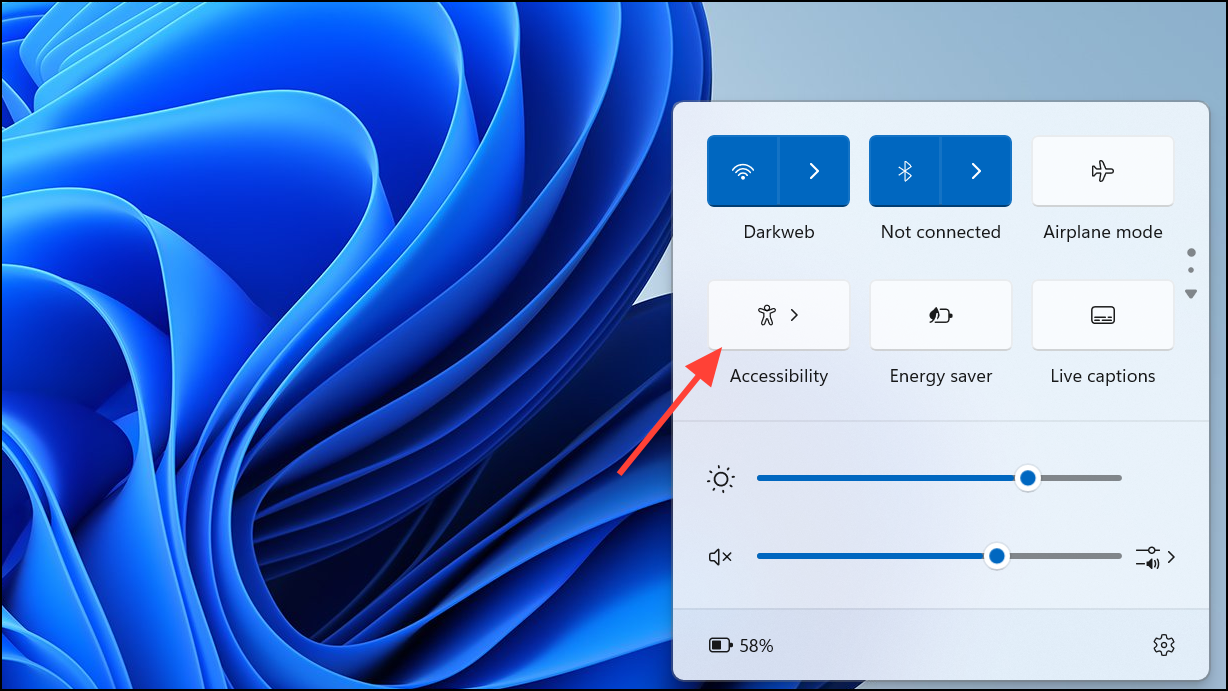
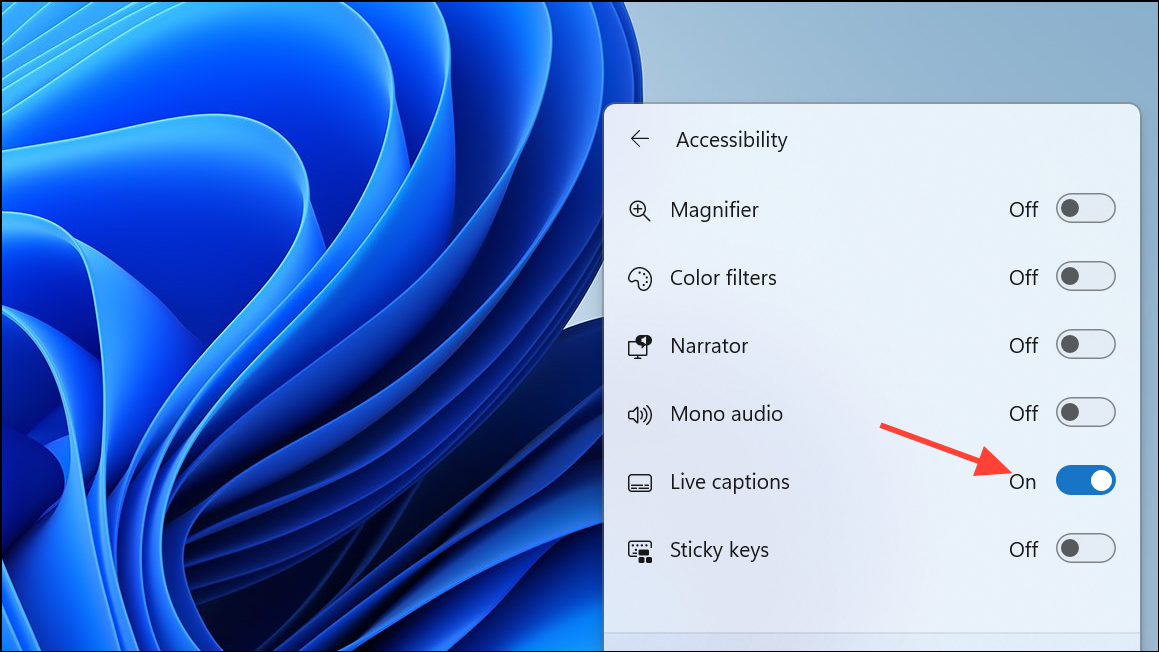
Enable via Windows Settings
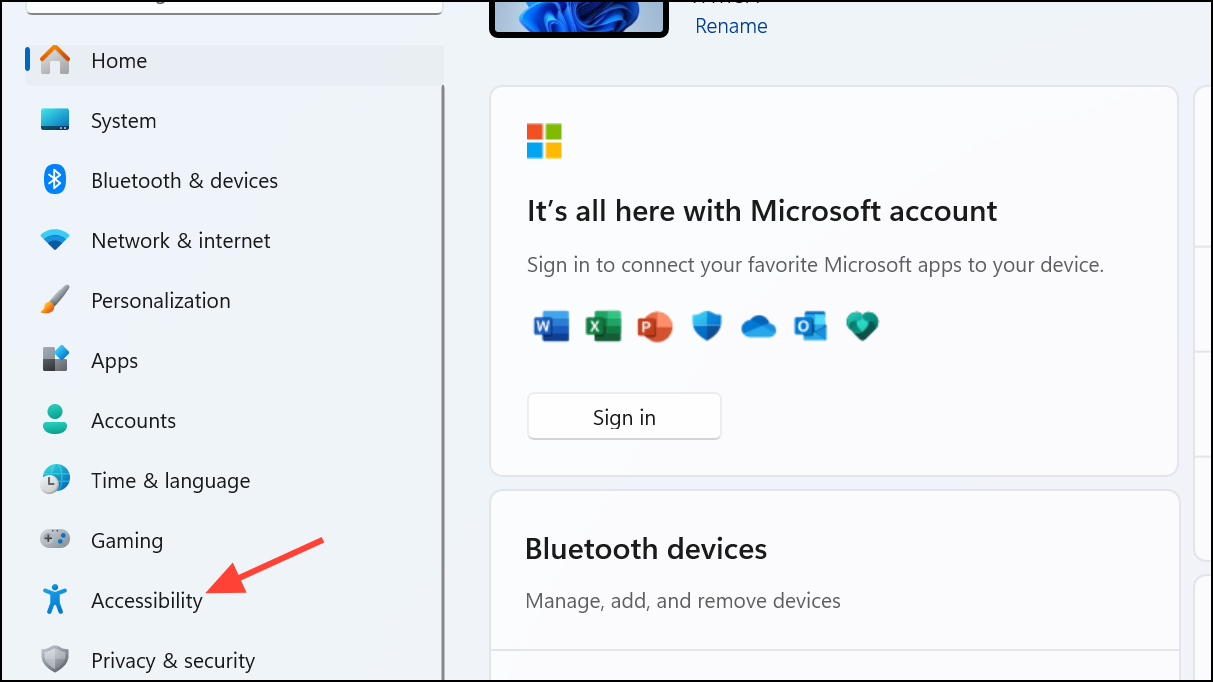
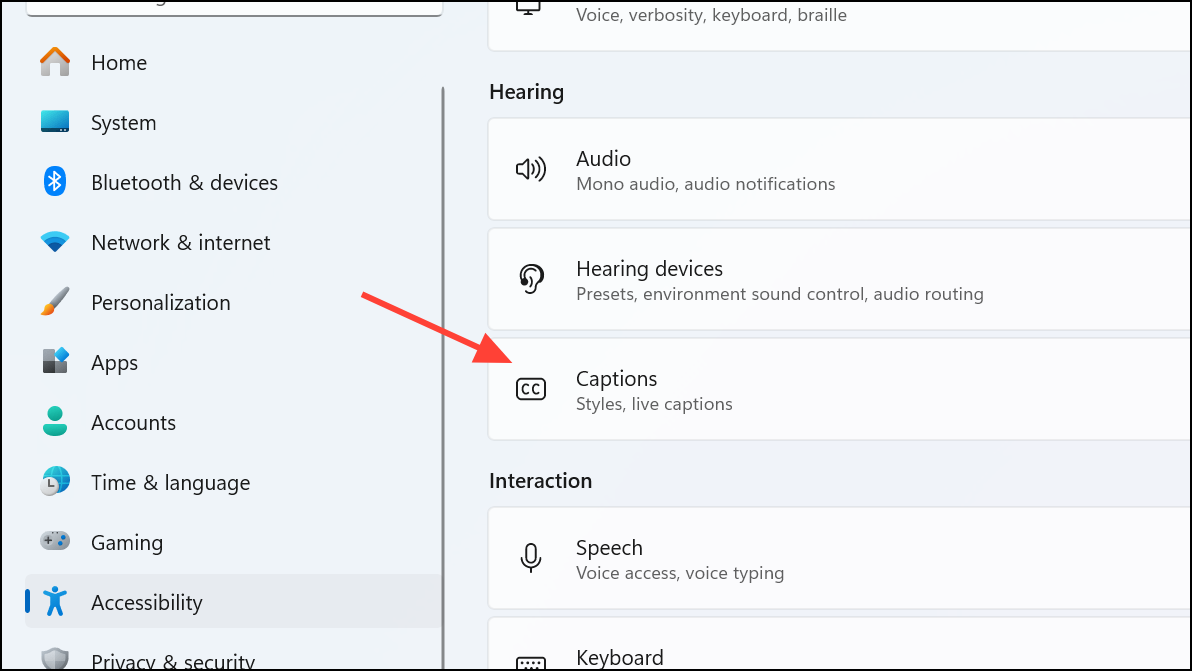
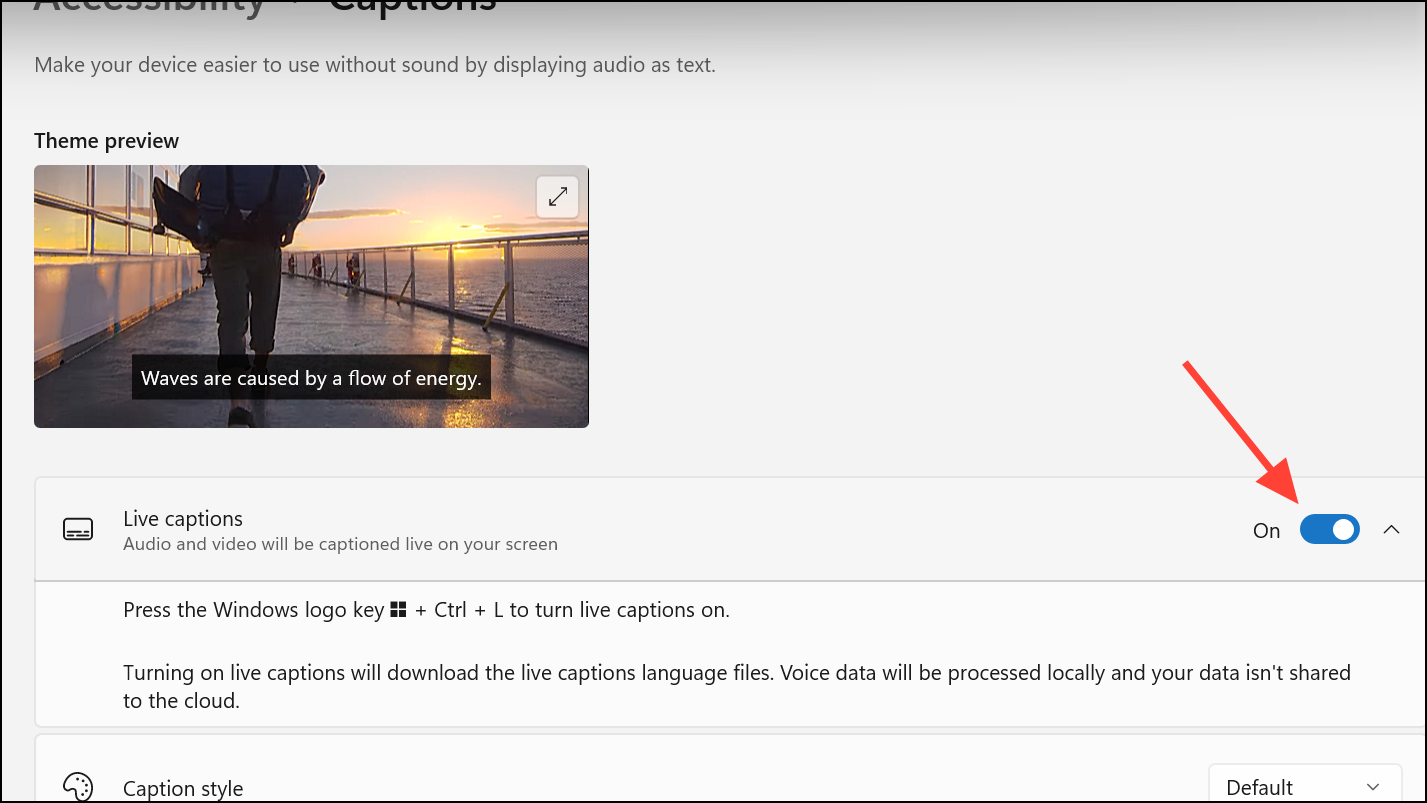
Customizing Your Live Captions Experience
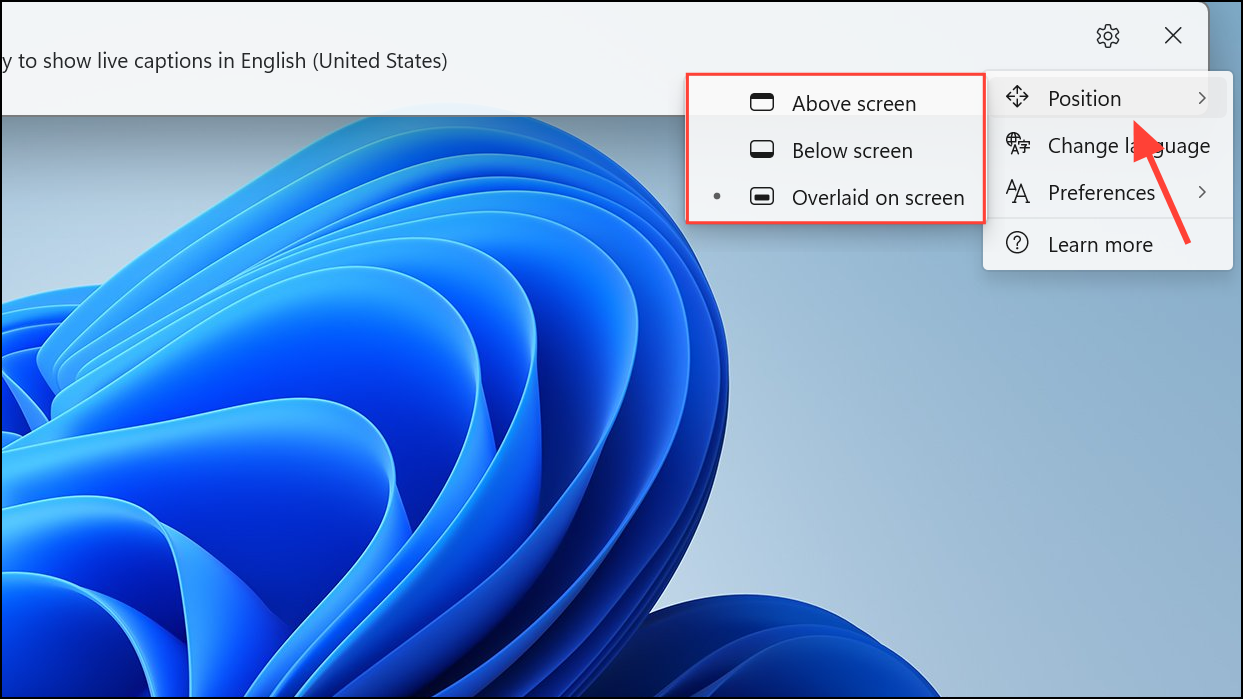
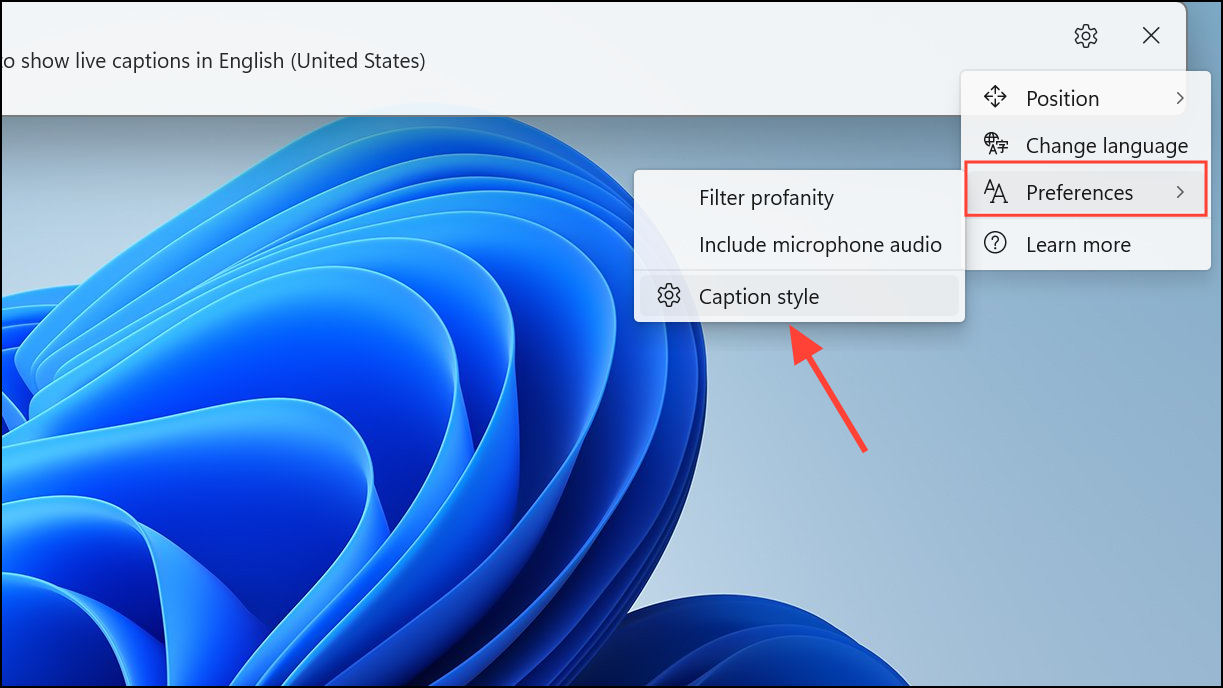
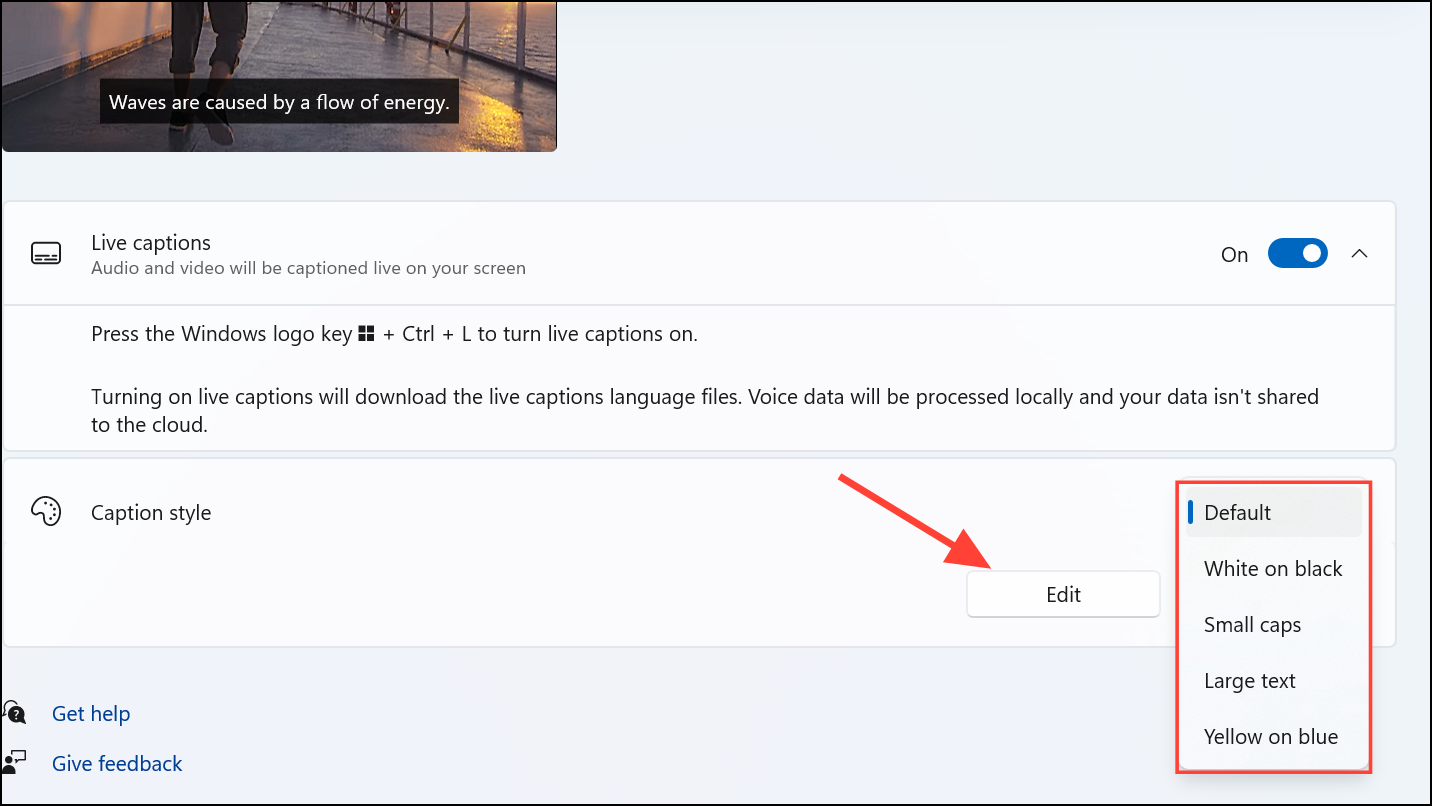
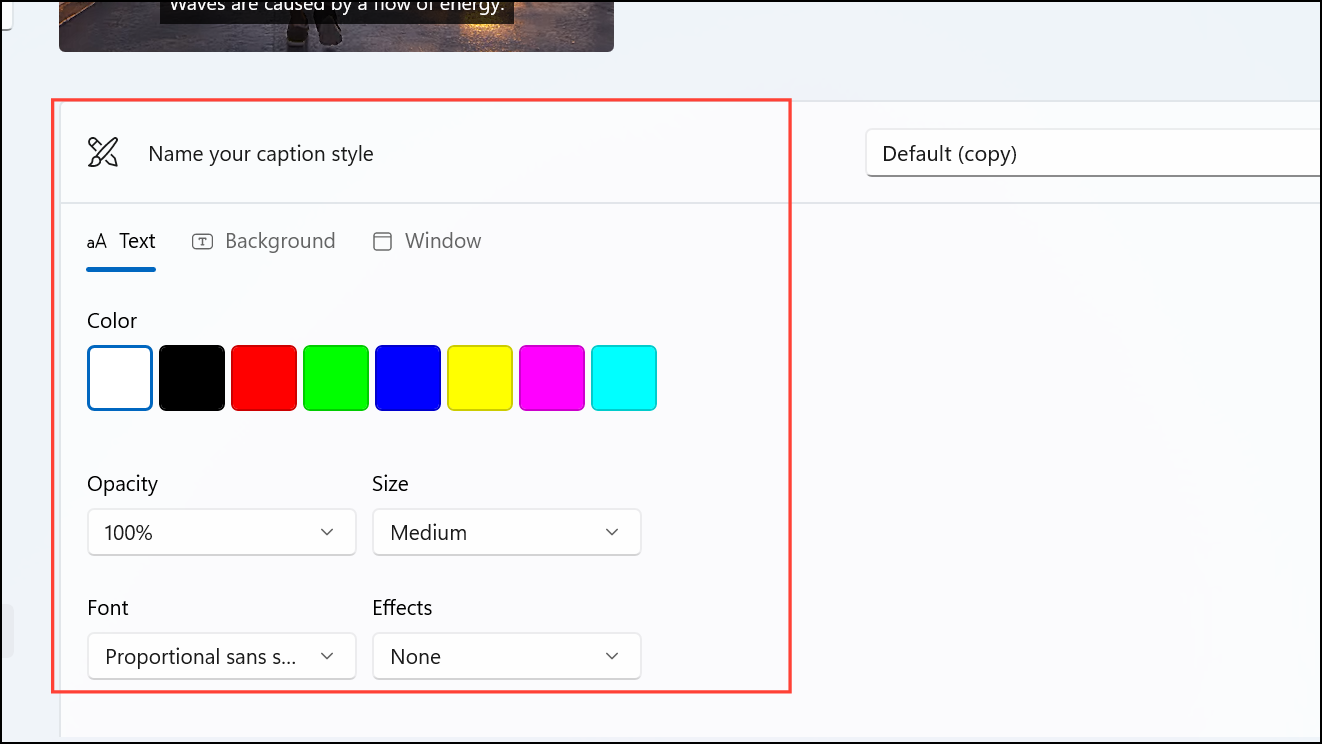
Windows 11 allows you to personalize how live captions appear on your screen, ensuring readability and comfort.
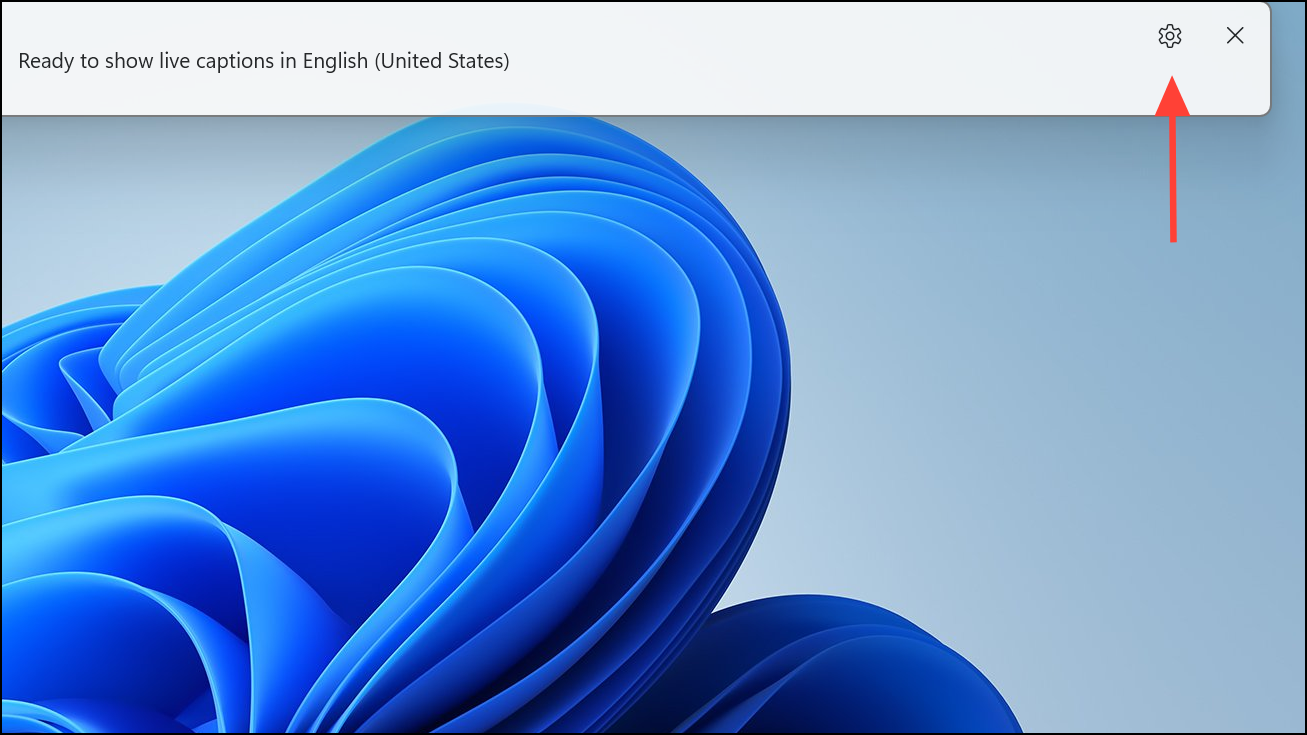
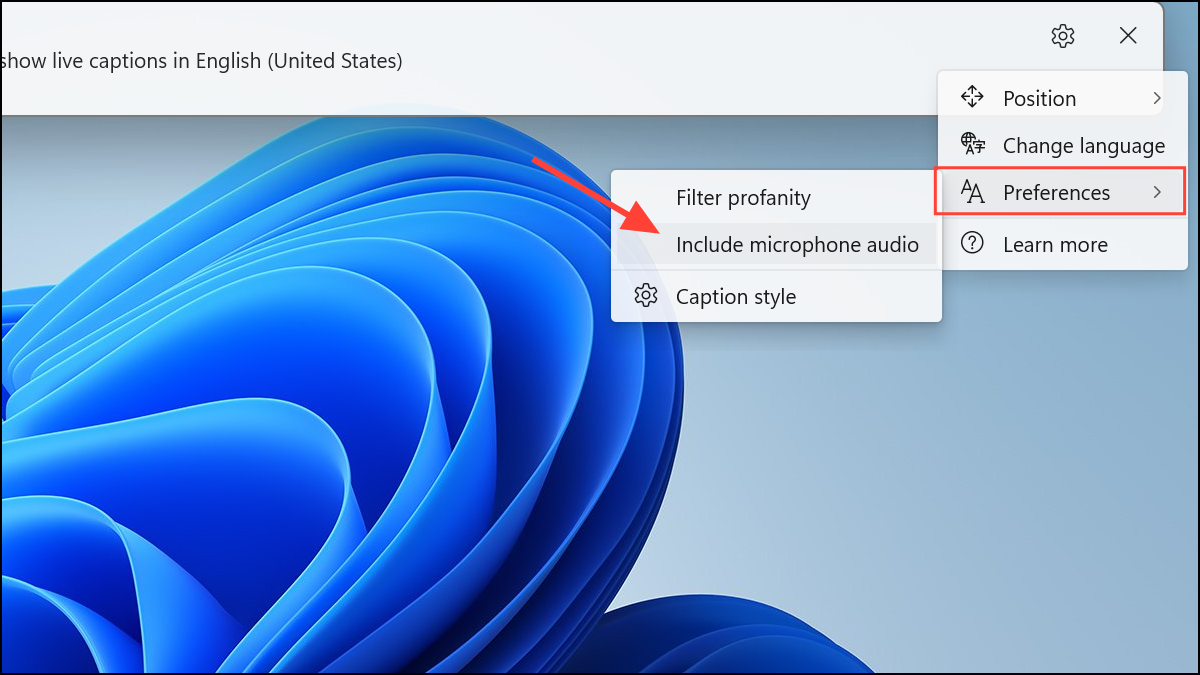
Including Microphone Audio in Live Captions
Windows 11 also lets you caption your own speech captured by your microphone, useful for in-person conversations or presentations.
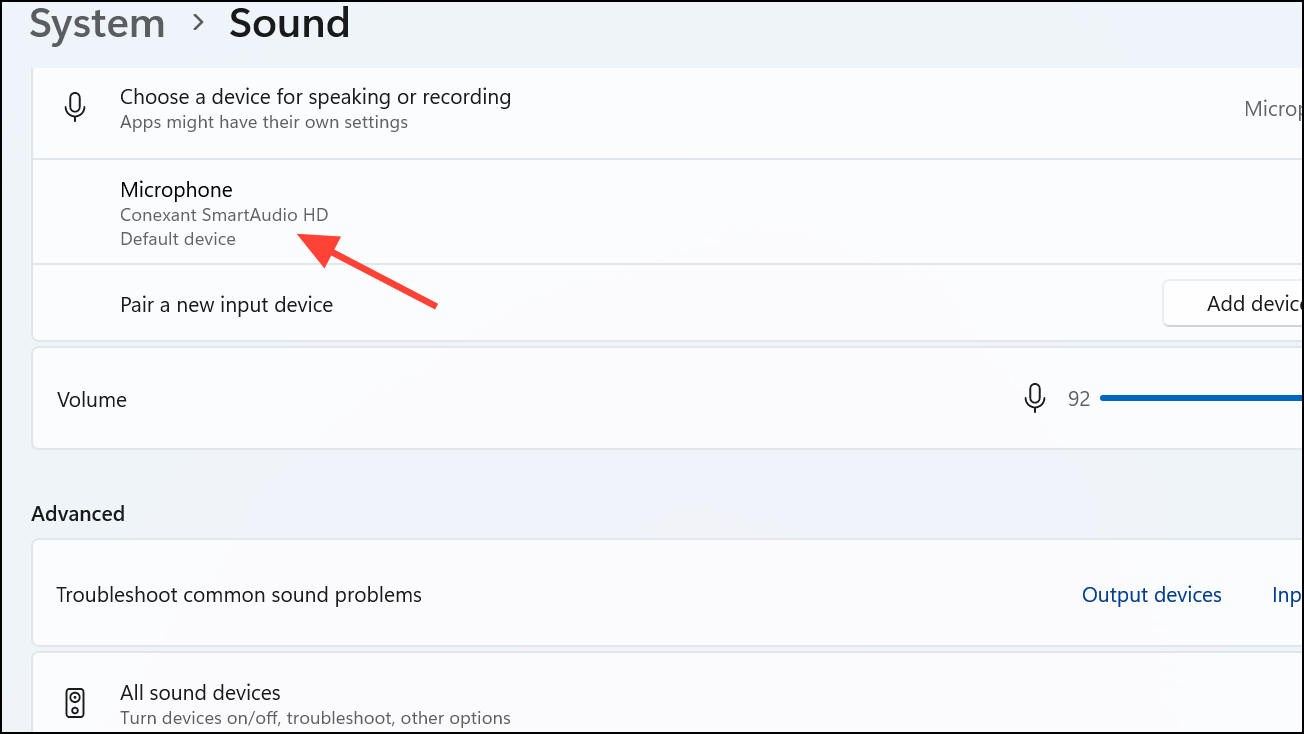
Win + I shortcut and clicking “System” on the left. Then click “Sound” on the right side.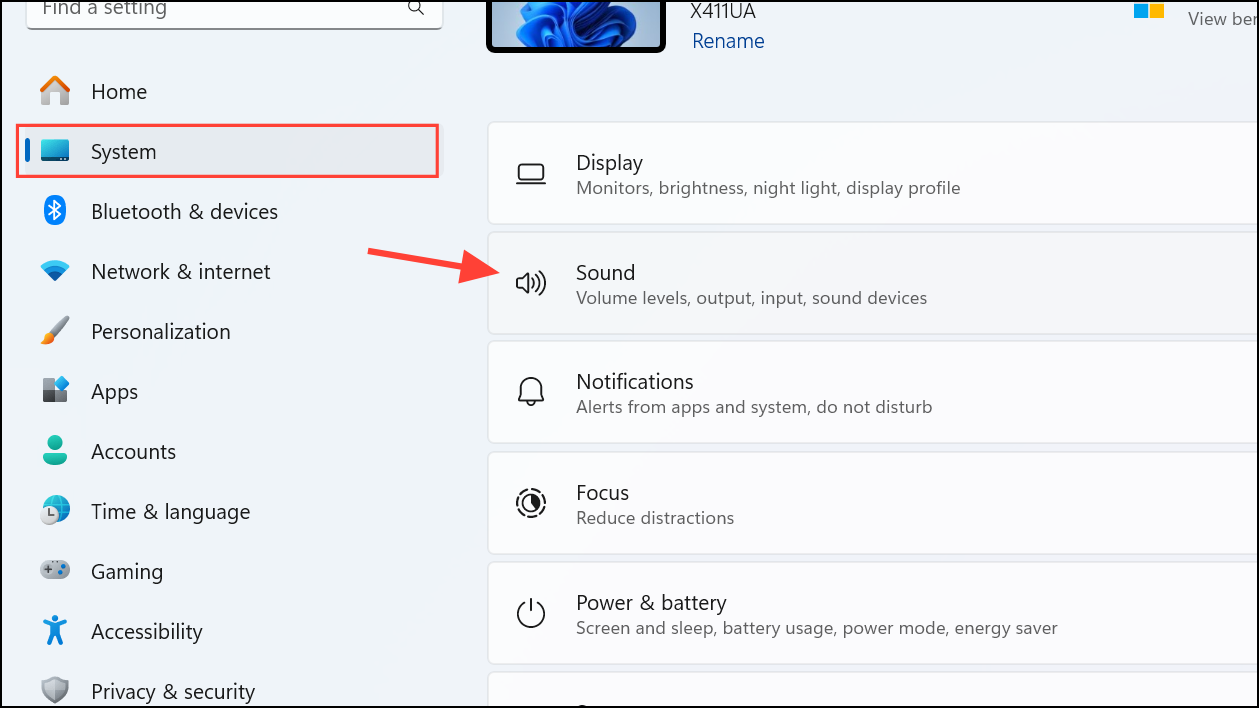
Using Live Captions with Translation (Copilot+ PCs)
If you’re using a Copilot+ PC running Windows 11 version 24H2 or later, live captions can translate audio from 44 languages into English instantly, making it easier to understand foreign-language content.
This feature is especially beneficial if you frequently watch educational content, attend international meetings, or consume media in languages other than English.
Important Privacy Information
All audio processing for live captions happens directly on your device. According to Microsoft’s official documentation, neither audio nor generated captions ever leave your computer or get stored in the cloud. This ensures your privacy and data security while using this accessibility feature.
With live captions enabled and customized to your preferences, you can now comfortably follow along with audio content on your Windows 11 device, whether you’re in a noisy environment, learning a new language, or need accessibility support.



