How to Fix Audio Device Recognition Issues After Updating Windows 11 to 24H2
Resolve audio device detection errors caused by the Windows 11 24H2 update with these clear steps
Resolve audio device detection errors caused by the Windows 11 24H2 update with these clear steps
by Pallav Pathak
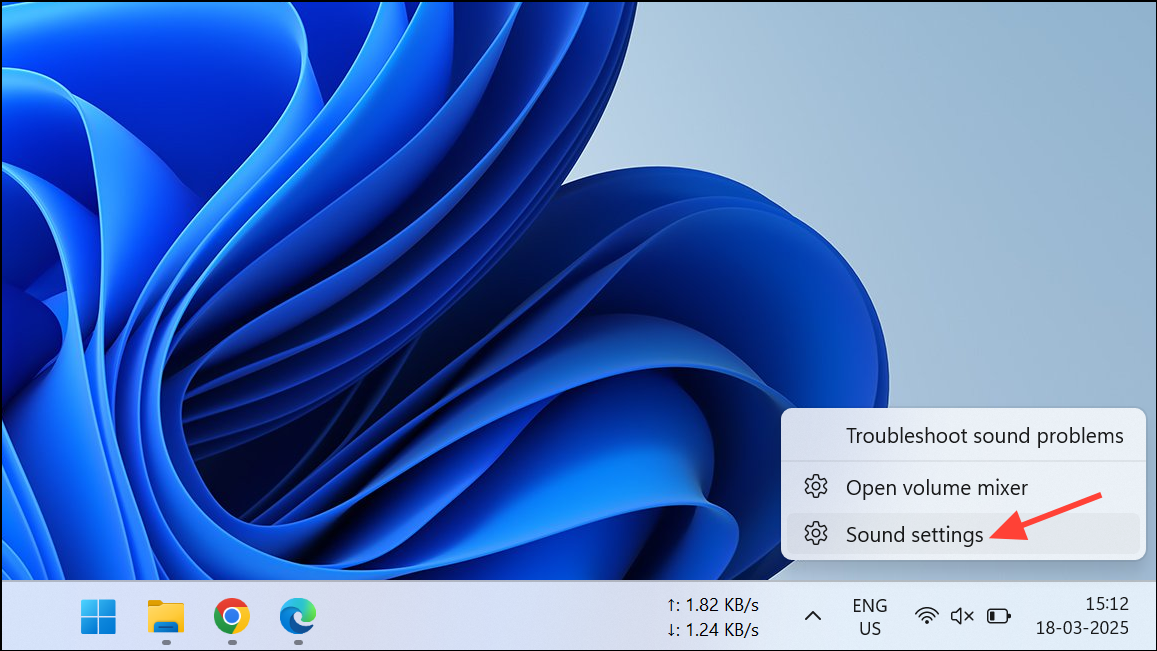
After updating your Windows 11 system to version 24H2, you might see a frustrating message stating “no audio device installed,” despite your audio hardware being physically connected and previously working fine. This issue typically arises due to driver conflicts, incorrect audio settings, or system file corruption triggered by the update. Follow these practical methods to quickly restore audio functionality and get your sound back on track.
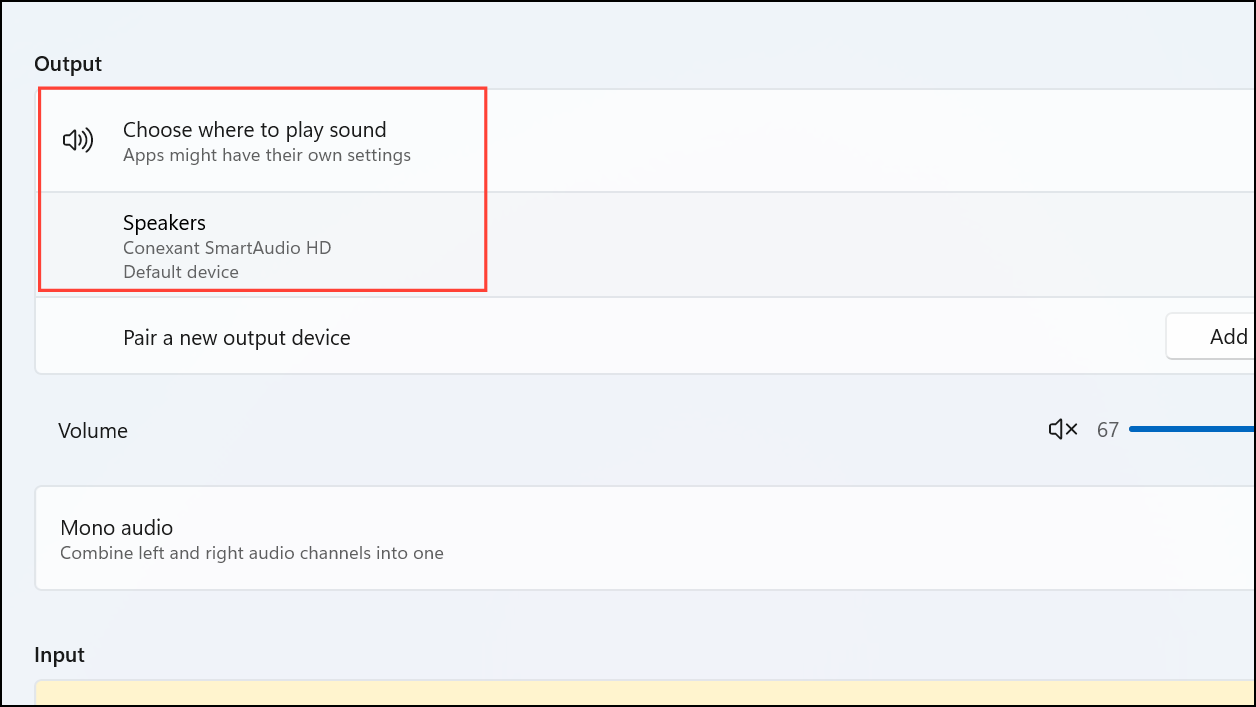
In the Sound settings window, navigate to the “Output” section. Verify that your audio device (for example, Realtek Audio) is selected as the default output. If it isn’t, click on the correct device to select it.
Adjust the volume slider to ensure the device isn’t muted. You can also test the audio by clicking the “Test” button next to your selected output device.
This quick check ensures Windows is directing audio signals to the correct hardware.
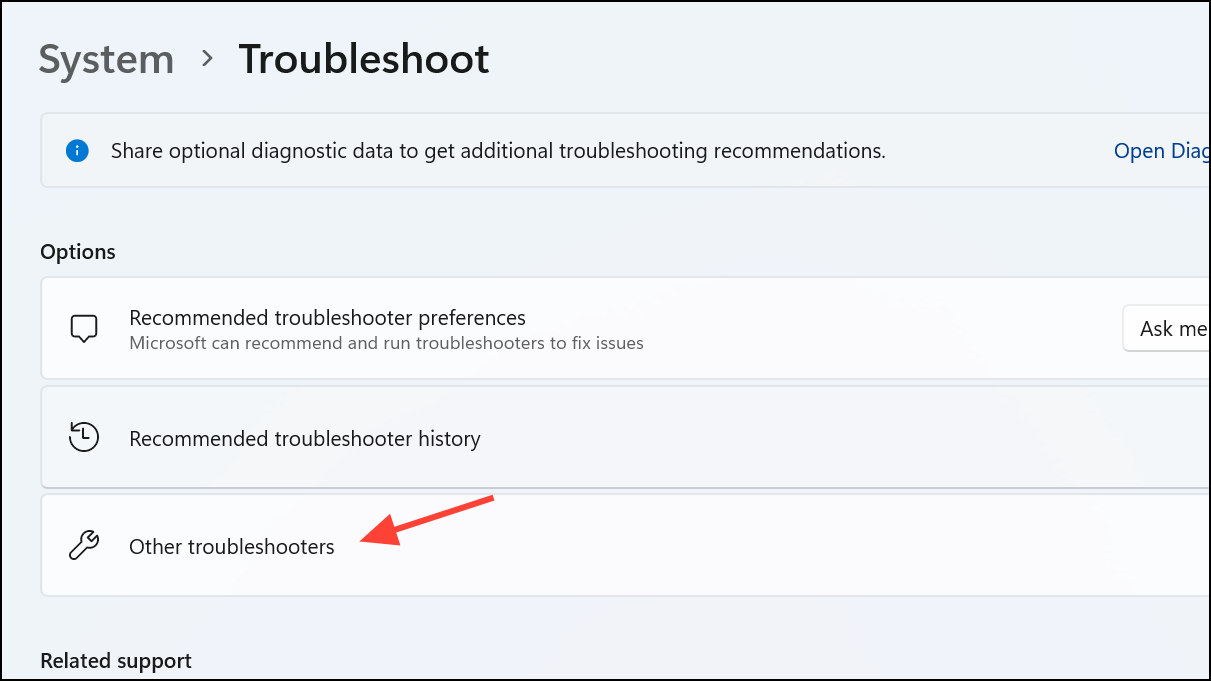
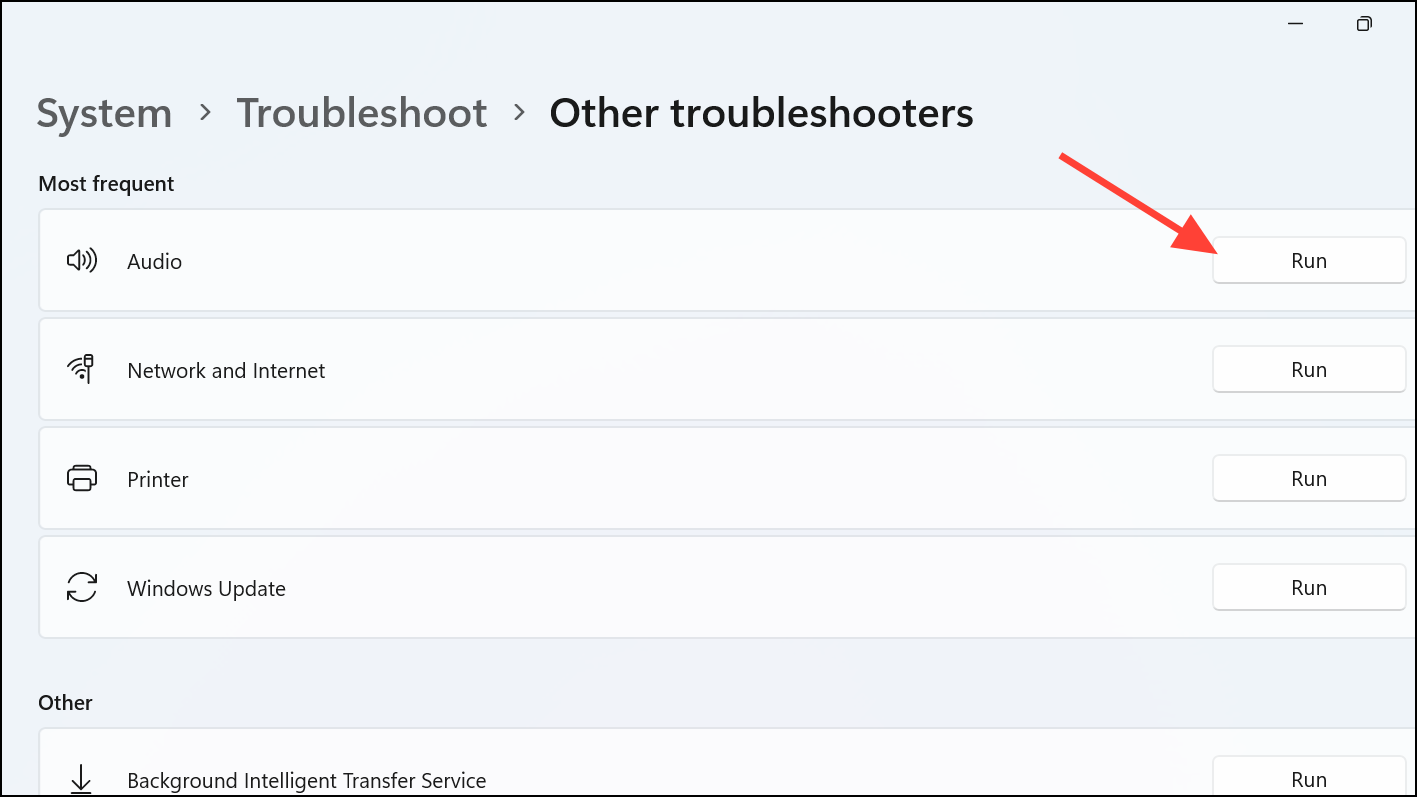
Locate “Playing Audio” and click “Run”. Follow the on-screen instructions to complete the troubleshooting process. Windows will automatically detect and attempt to fix common audio issues.
Running the troubleshooter often resolves basic audio device recognition errors without extensive manual intervention.
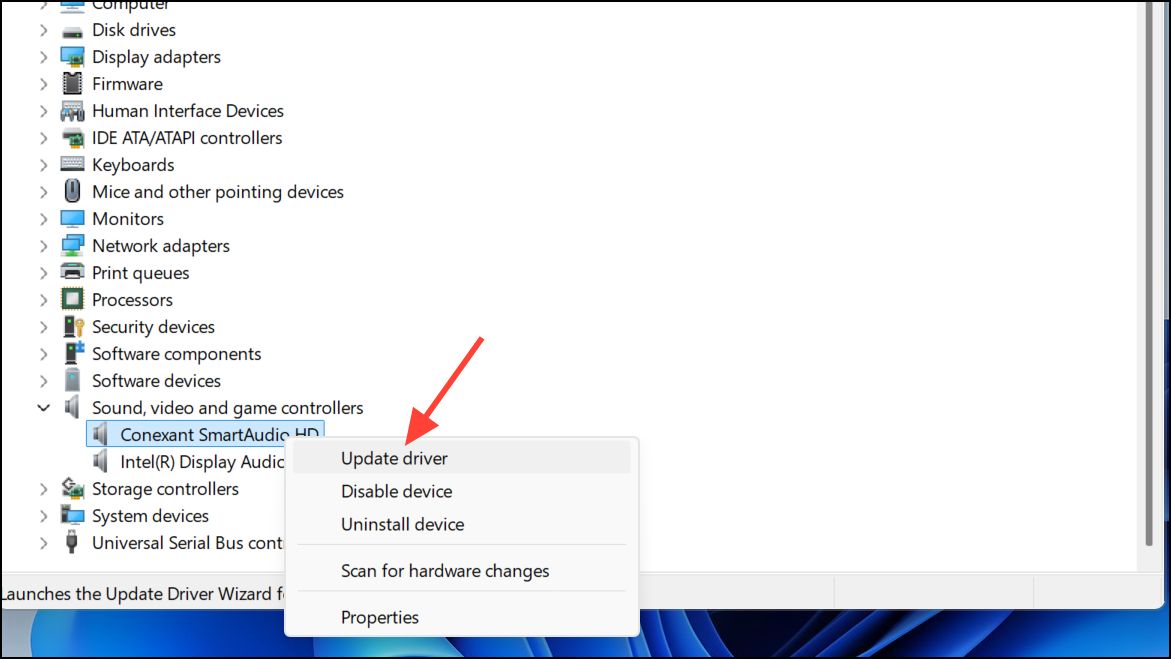
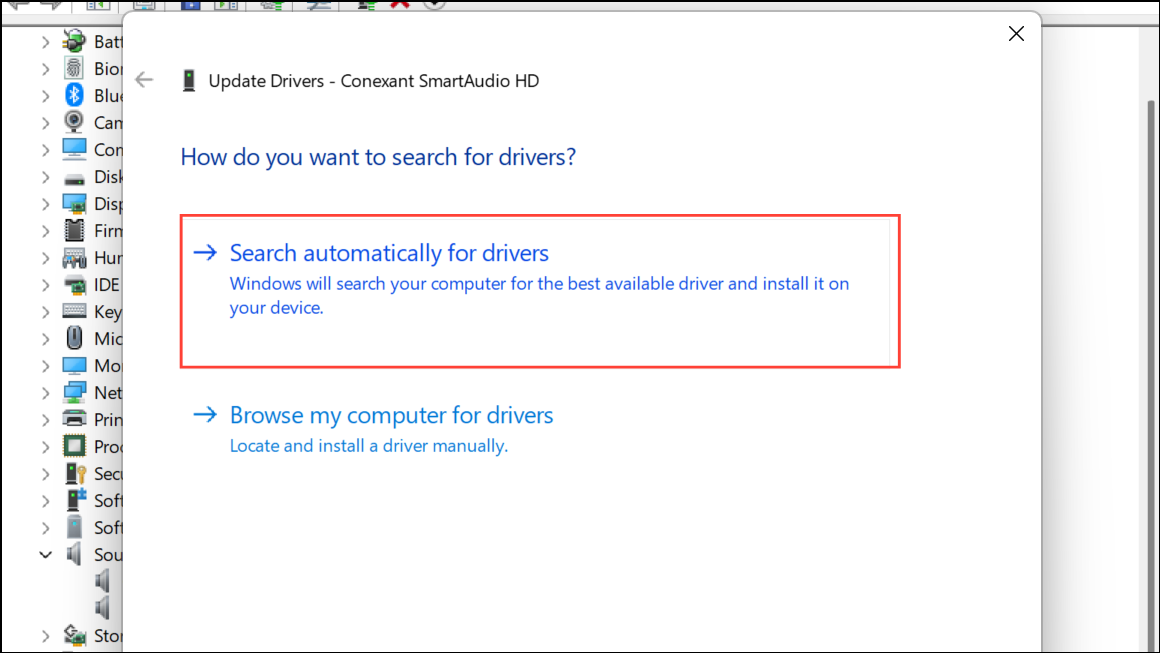
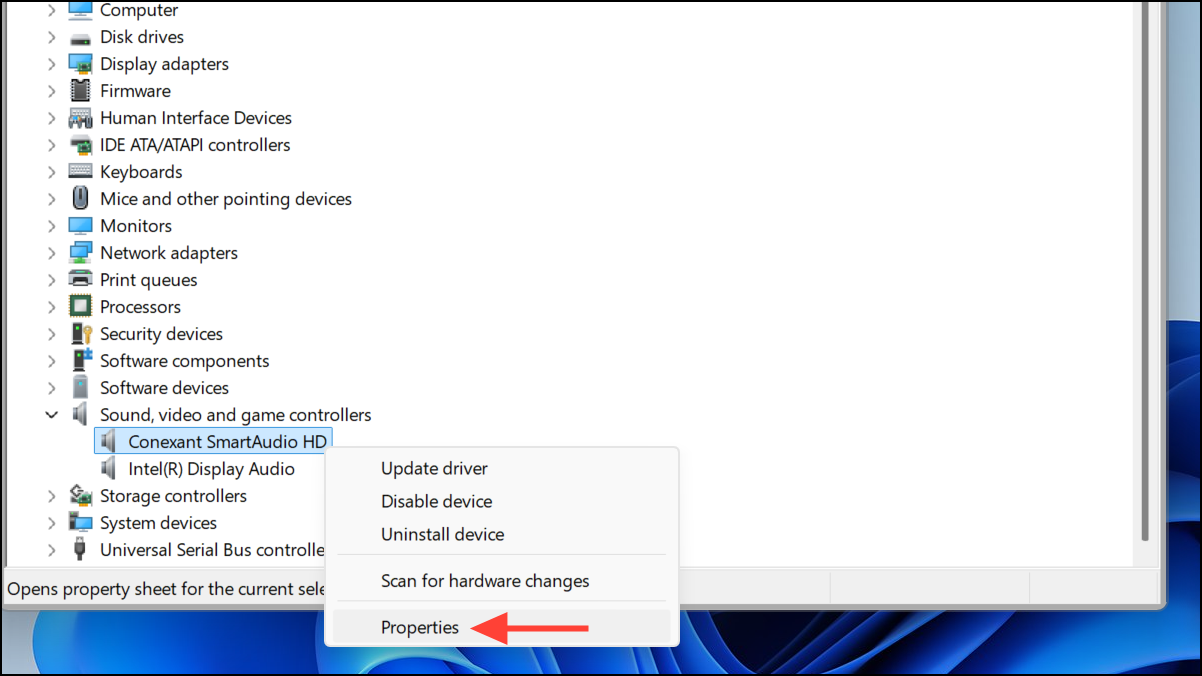
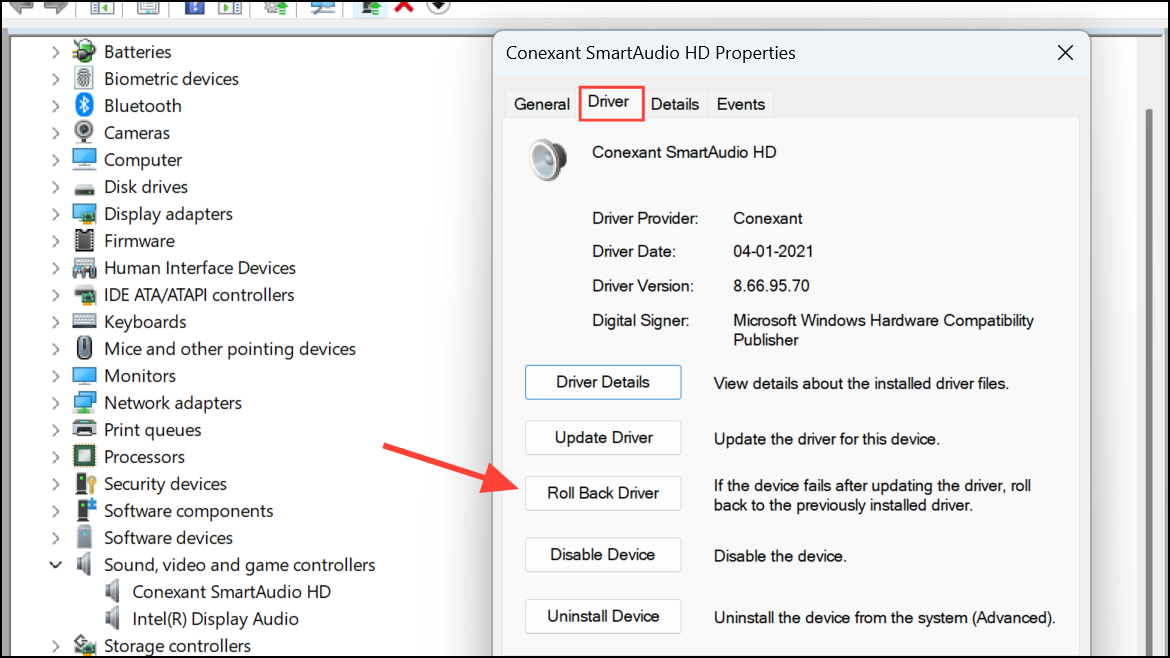
Expand the “Sound, video and game controllers” category.Right-click your audio device (such as Realtek High Definition Audio) and select “Update driver”.
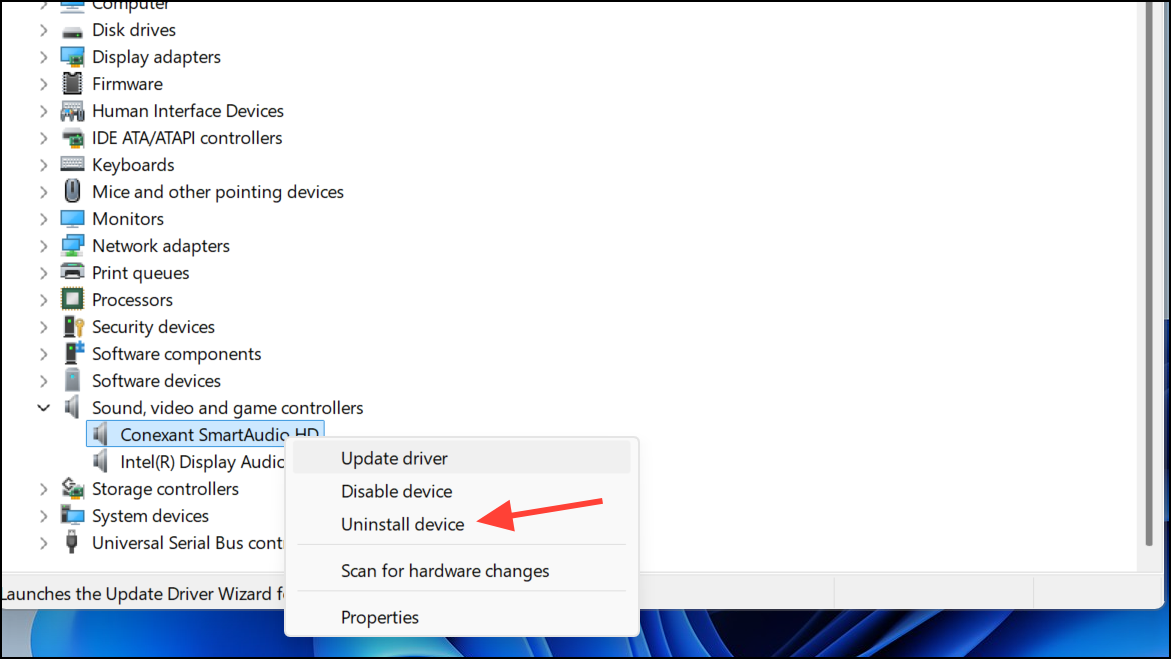
If no updates are found, right-click the audio device again and select “Uninstall device”. After uninstalling, restart your computer. Windows will automatically reinstall the default audio driver upon reboot.
For persistent issues, visit your device manufacturer’s website (Dell, Lenovo, HP, etc.) to manually download and install the latest audio drivers specifically designed for your hardware.
Right-click the speaker icon on the taskbar and select “Sounds”. Under the “Playback” tab, right-click your default audio device and choose “Properties”.
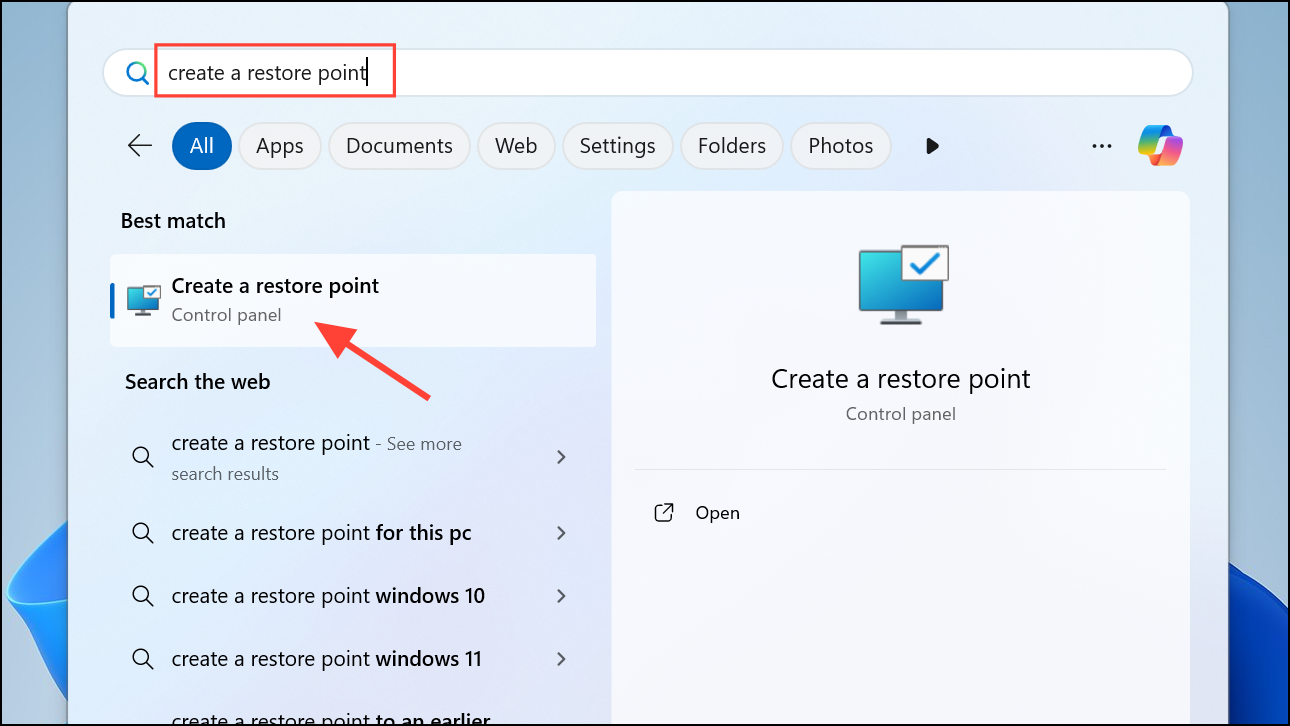
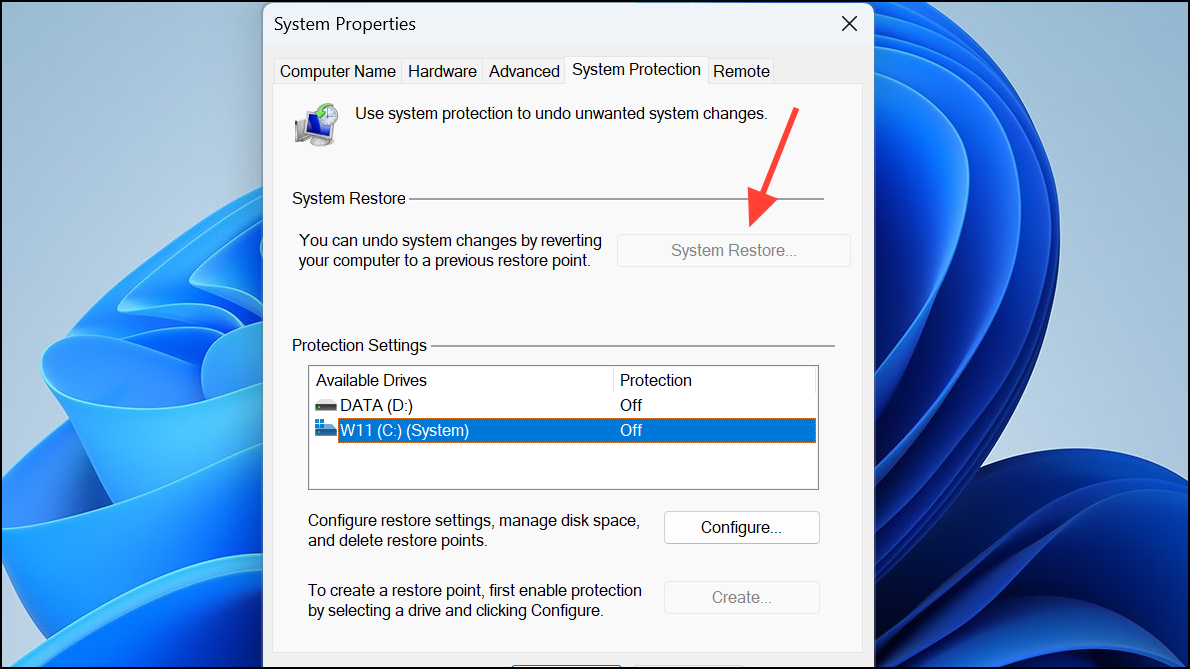
Select “System Restore” and click “Next”. Choose a restore point created before installing the 24H2 update. Follow the prompts to complete the restoration process.
System restore reverts your system to a previous stable state, undoing changes introduced by the problematic update.
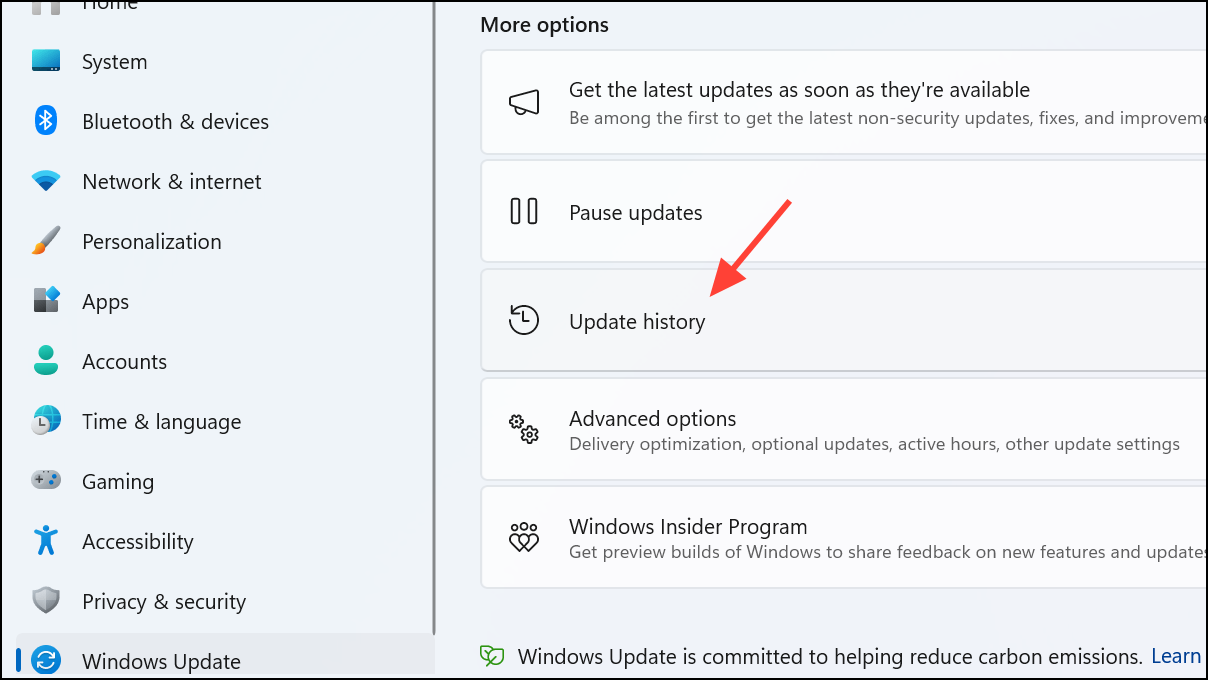
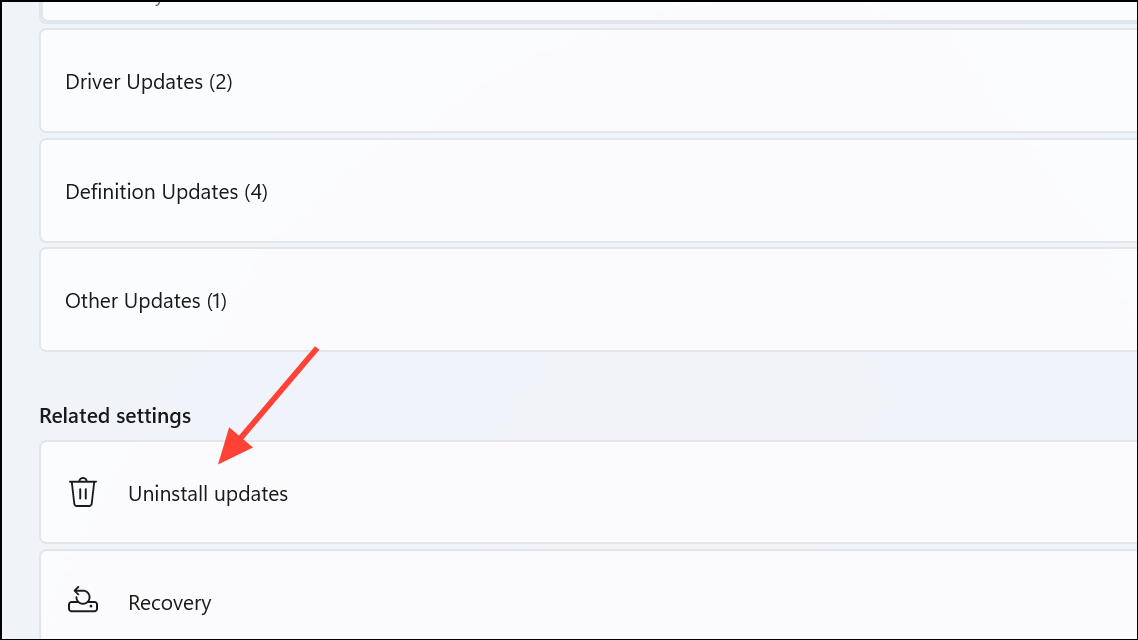
Method 8: Uninstall the Windows 11 24H2 Update (Last Resort)
Find the 24H2 update (such as KB5044284), select it, and click “Uninstall”. Restart your computer after the uninstallation completes.
Removing the update is a final measure if other methods fail, restoring your system to its previous working state.
With these practical solutions, you should successfully resolve audio device recognition issues caused by the Windows 11 24H2 update. Remember to regularly check for driver updates from your device manufacturer to prevent similar issues in future updates.